> ## Documentation Index
> Fetch the complete documentation index at: https://help.sendspark.com/llms.txt
> Use this file to discover all available pages before exploring further.
# Zoho — Send Dynamic Videos
> Learn how to send dynamic video campaigns through Zoho with step-by-step setup, contact import, and HTML integration guide.
To send a Dynamic Video campaign through Zoho, first process your videos in Sendspark and download the updated CSV. In Zoho, import that CSV into a contact list, create a regular email campaign, add an Insert HTML block, and paste the Zoho HTML code from Sendspark's Share Campaign menu. Each contact then receives their own video.
## Key takeaways
* Download **Sendspark's updated CSV**, not your original list. The updated export filters out any videos that did not process successfully.
* When importing to Zoho, only the **mandatory fields (email and first name)** need mapping. Job title and company name are optional, and you do not need to map Video Link or background URL.
* Paste Sendspark's Zoho HTML (from **Share Campaign → Zoho**) into an **Insert HTML** block inside a Zoho email campaign.
* For accurate testing, add yourself as a contact and send to a secondary email on a **different domain** — sending from the same inbox to the same inbox can be flagged as spam and placeholders may not render in test emails.
## How to Share a Dynamic Video Campaign through Zoho
## 1. Create your Dynamic Video Campaign
* Generate your Dynamic Videos and ensure all of them have been processed
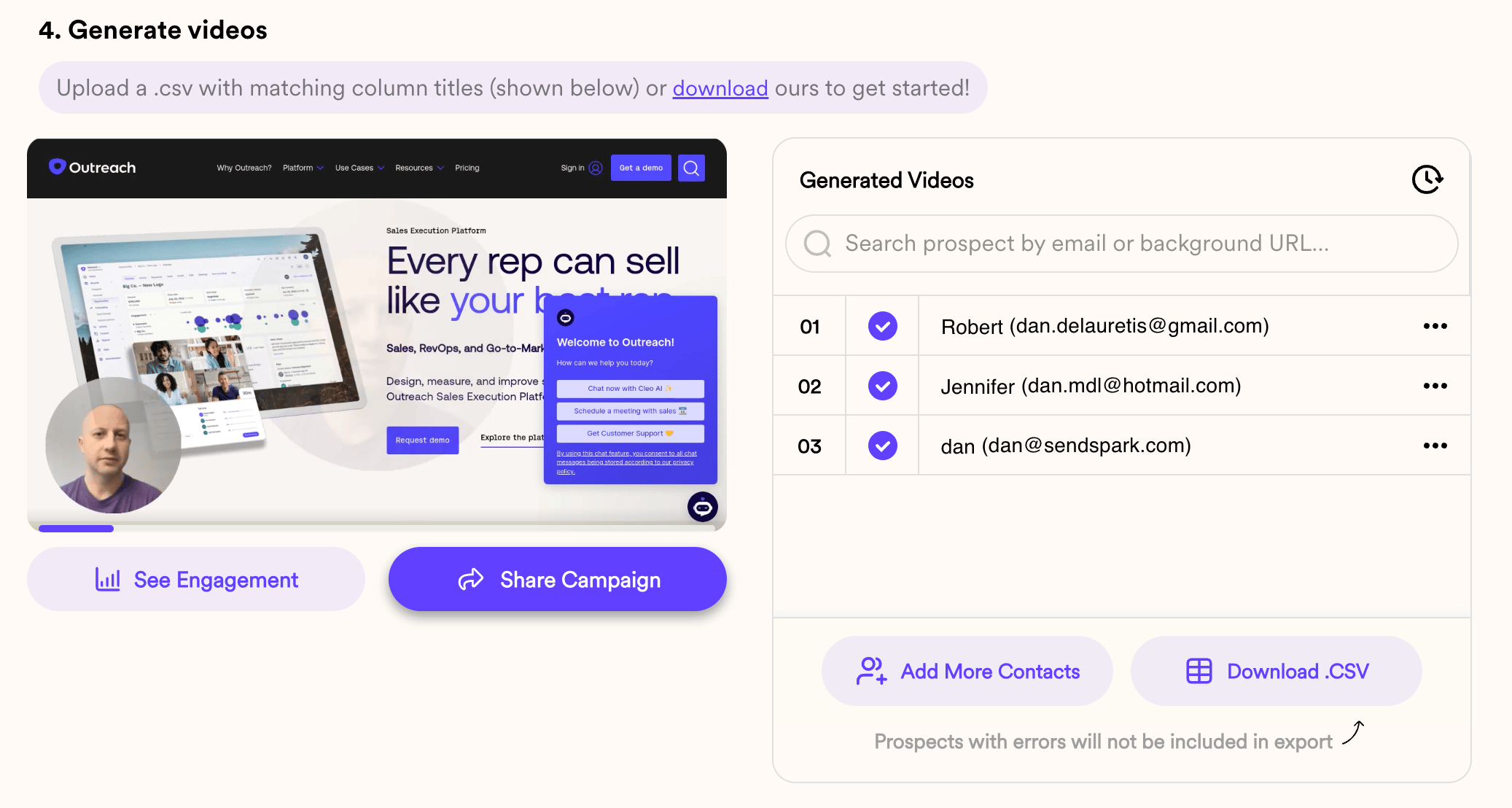
## 2. Download the updated CSV File
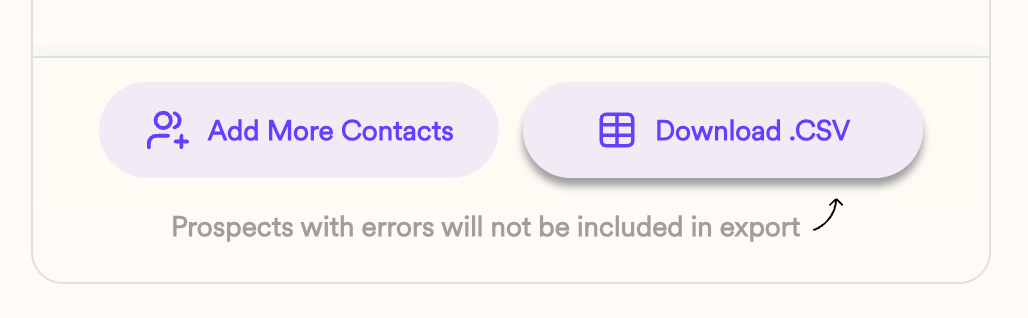
* Download the CSV file of leads to get the updated version where any unsuccessful videos are filtered out.
* Click on **Download CSV** to get the updated version.
## 3. Access Zoho Account
* Log in to your Zoho account.
* Go to **Contacts** and click on **Manage Lists**.
## 4. Create and Import Contact List
* Create a new list (e.g., "July List").
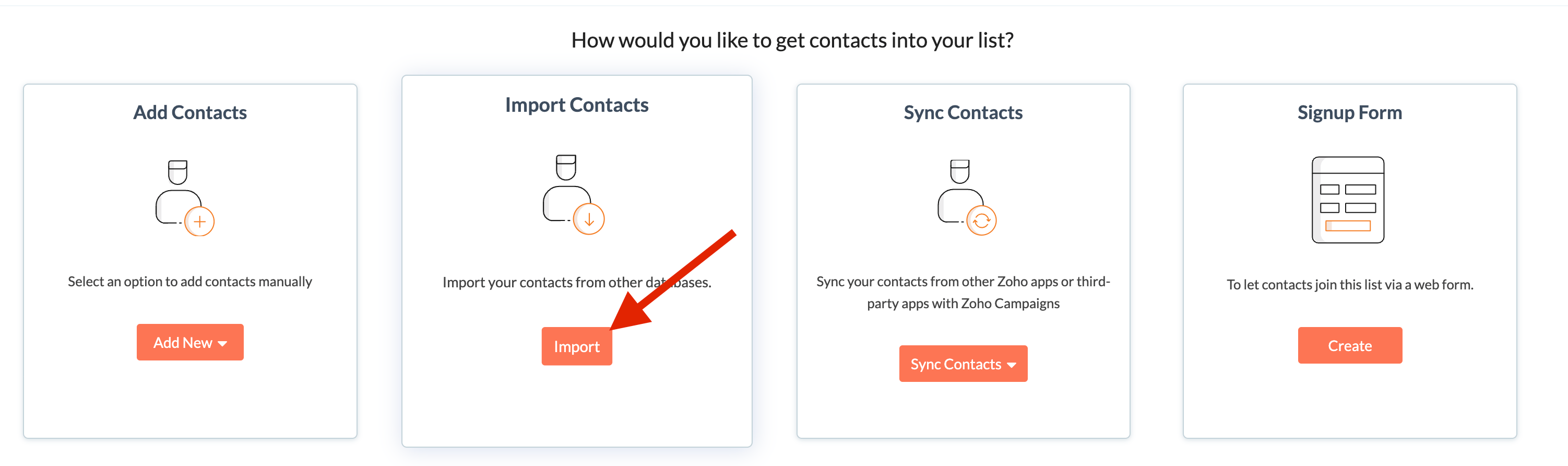
* Click on **Import Contacts**.
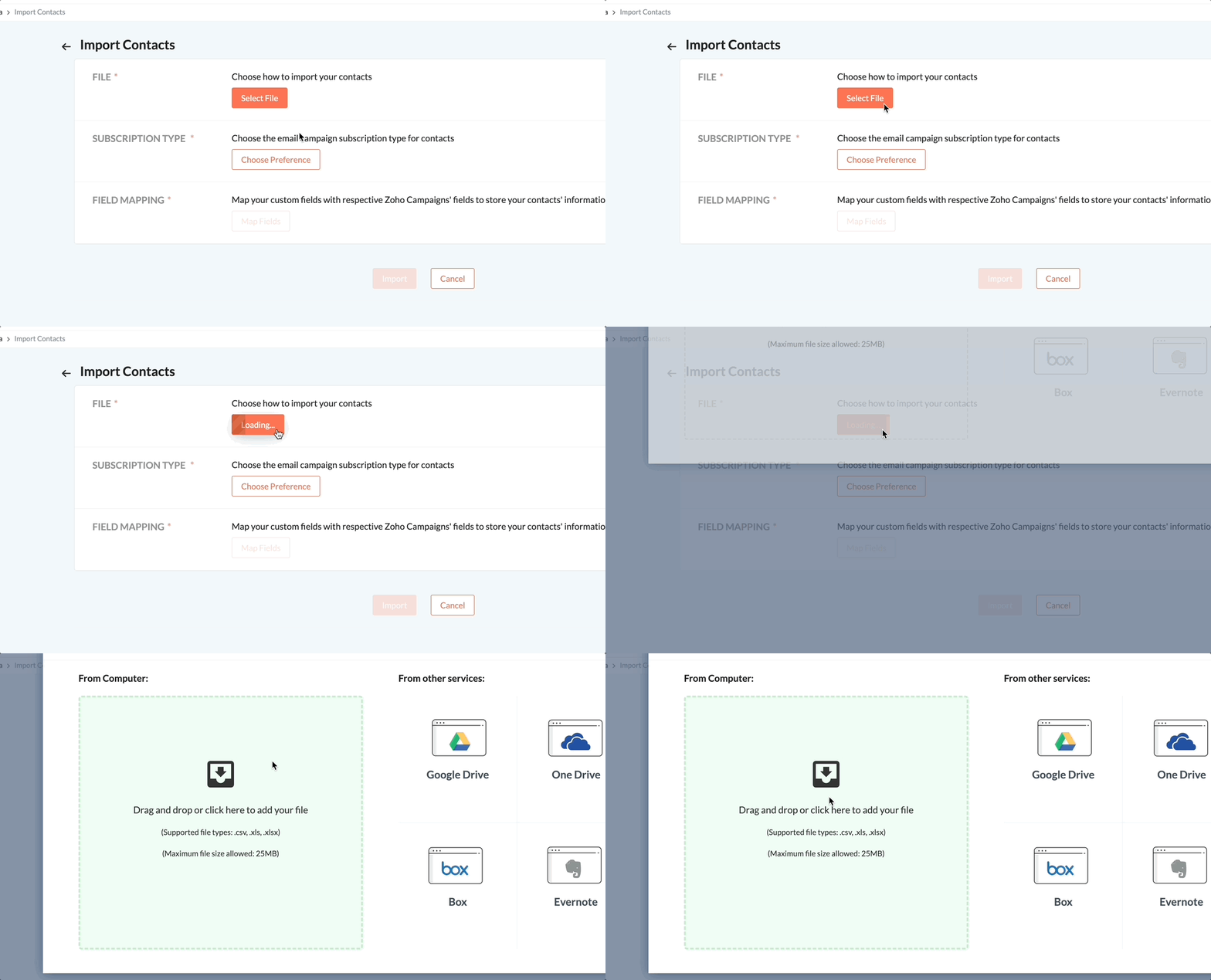
* Upload the downloaded CSV file:
* Map only the mandatory fields (email and first name: ). Optionally, map job title and company name.
* Save and import the contacts.
Note: You don't need to map Video Link or background URL.
## 5. Create an Email Campaign
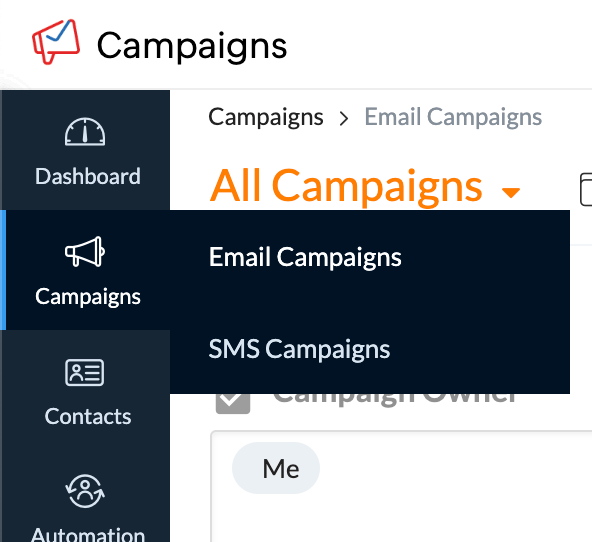
* Go to **Campaign** and select **Create Campaign** > **Email Campaign** > **Regular Email**.
* Name your campaign (e.g., "July Campaign").
* Add a subject line and sender information.
## 6. Add Recipients
* Click on **List** and select your newly imported contact list.
## 7. Create Email Content
* Choose **Pre-designed Templates**.
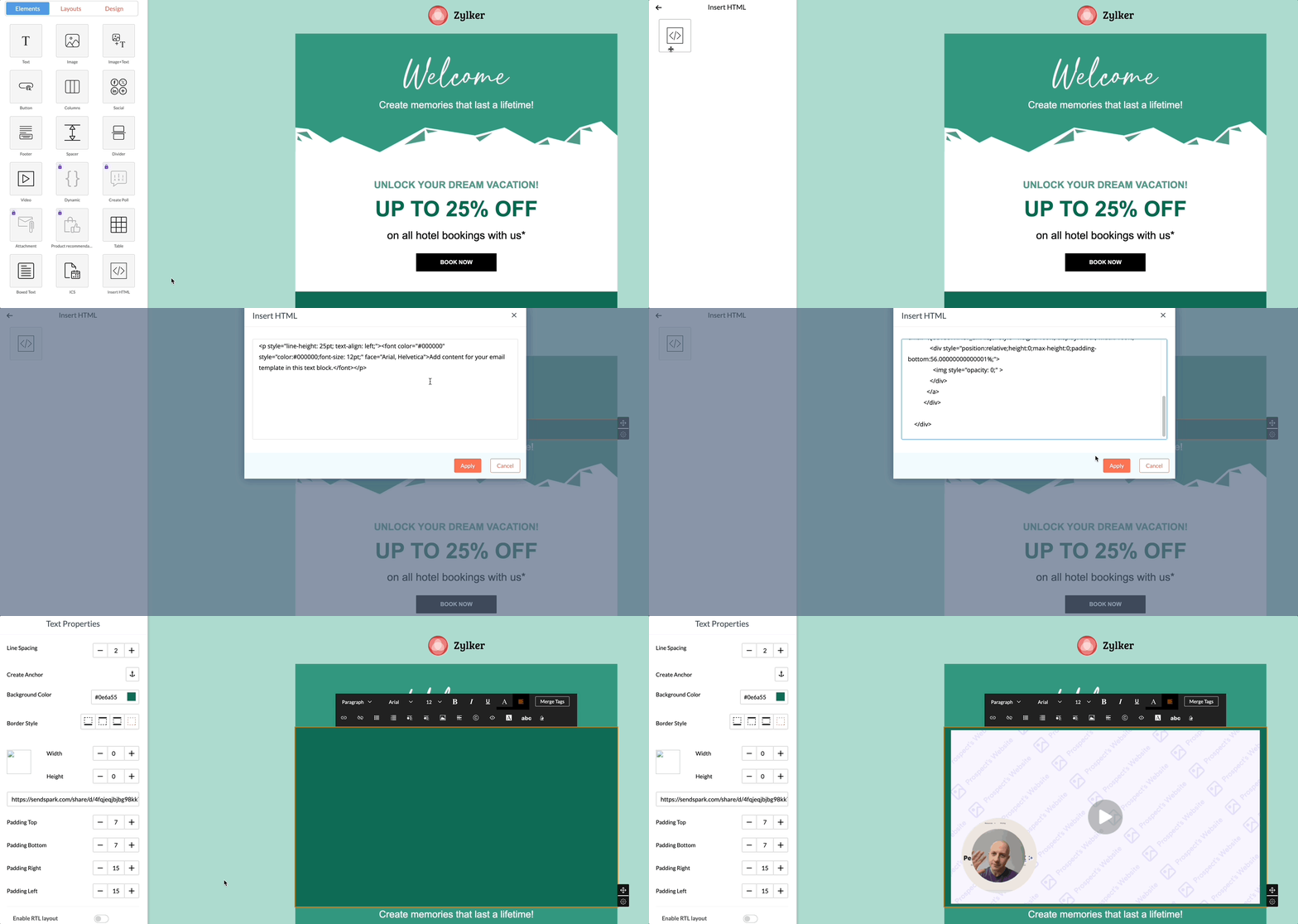
* Use the **Insert HTML** tool from the left sidebar.
* Drag and drop the HTML block into your email content.
## 8. Insert Dynamic Video Campaign
* Go back to your dynamic video campaign and select **Share Campaign** > **Zoho**.
* Copy the provided HTML code and paste it into the HTML block in Zoho.
* Apply the changes.
## Side Notes
* **Variables and Placeholders:** During test emails, placeholders might not display correctly due to variable placeholders. For accurate testing, add yourself as a contact and send the campaign to a secondary email with a different domain.
* **Spam Issues:** Sending emails from the same inbox to the same inbox may be flagged as spam. Use a different domain for test emails if needed.
***
## Frequently asked questions
Download the updated CSV from Sendspark after all your videos have processed. This version filters out any unsuccessful videos, so you only import contacts who actually have a video ready.
Only the mandatory fields — email and first name — need to be mapped. Job title and company name are optional. You do not need to map Video Link or background URL.
In your Zoho email campaign, choose a pre-designed template, drag an Insert HTML block into the content, then paste the HTML code from Sendspark's Share Campaign → Zoho menu and apply the changes.
During test emails, variable placeholders may not display correctly. For accurate testing, add yourself as a contact and send the campaign to a secondary email on a different domain, since sending from the same inbox to the same inbox can also be flagged as spam.
*Updated July 2026.*
 ## 2. Download the updated CSV File
 * Download the CSV file of leads to get the updated version where any unsuccessful videos are filtered out.
* Click on **Download CSV** to get the updated version.
## 3. Access Zoho Account
* Log in to your Zoho account.
* Go to **Contacts** and click on **Manage Lists**.
* Download the CSV file of leads to get the updated version where any unsuccessful videos are filtered out.
* Click on **Download CSV** to get the updated version.
## 3. Access Zoho Account
* Log in to your Zoho account.
* Go to **Contacts** and click on **Manage Lists**. 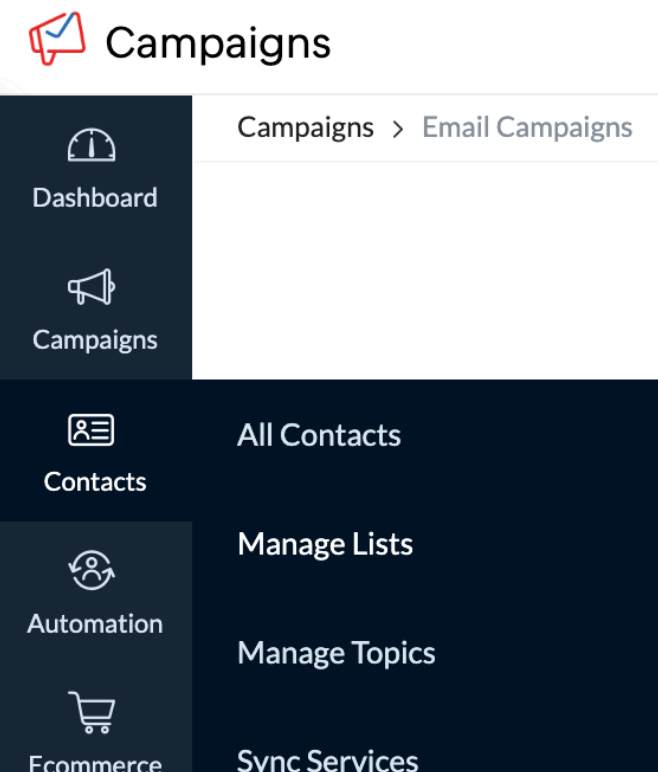 ## 4. Create and Import Contact List
* Create a new list (e.g., "July List").
## 4. Create and Import Contact List
* Create a new list (e.g., "July List"). 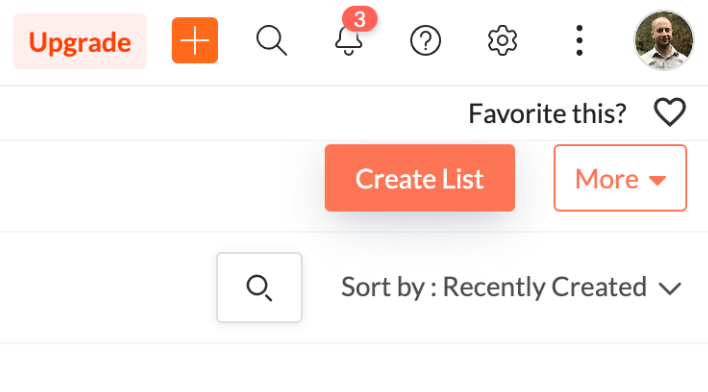 * Click on **Import Contacts**.
  * Upload the downloaded CSV file:
  * Map only the mandatory fields (email and first name: ). Optionally, map job title and company name.
* Save and import the contacts.
Note: You don't need to map Video Link or background URL.
## 5. Create an Email Campaign
* Go to **Campaign** and select **Create Campaign** > **Email Campaign** > **Regular Email**.
* Name your campaign (e.g., "July Campaign").
* Add a subject line and sender information.
* Map only the mandatory fields (email and first name: ). Optionally, map job title and company name.
* Save and import the contacts.
Note: You don't need to map Video Link or background URL.
## 5. Create an Email Campaign
* Go to **Campaign** and select **Create Campaign** > **Email Campaign** > **Regular Email**.
* Name your campaign (e.g., "July Campaign").
* Add a subject line and sender information.
 ## 6. Add Recipients
* Click on **List** and select your newly imported contact list.
## 7. Create Email Content
* Choose **Pre-designed Templates**.
* Use the **Insert HTML** tool from the left sidebar.
* Drag and drop the HTML block into your email content.
## 8. Insert Dynamic Video Campaign
* Go back to your dynamic video campaign and select **Share Campaign** > **Zoho**.
* Copy the provided HTML code and paste it into the HTML block in Zoho.
* Apply the changes.
## 6. Add Recipients
* Click on **List** and select your newly imported contact list.
## 7. Create Email Content
* Choose **Pre-designed Templates**.
* Use the **Insert HTML** tool from the left sidebar.
* Drag and drop the HTML block into your email content.
## 8. Insert Dynamic Video Campaign
* Go back to your dynamic video campaign and select **Share Campaign** > **Zoho**.
* Copy the provided HTML code and paste it into the HTML block in Zoho.
* Apply the changes.
 ## Side Notes
* **Variables and Placeholders:** During test emails, placeholders might not display correctly due to variable placeholders. For accurate testing, add yourself as a contact and send the campaign to a secondary email with a different domain.
* **Spam Issues:** Sending emails from the same inbox to the same inbox may be flagged as spam. Use a different domain for test emails if needed.
***
## Frequently asked questions
## Side Notes
* **Variables and Placeholders:** During test emails, placeholders might not display correctly due to variable placeholders. For accurate testing, add yourself as a contact and send the campaign to a secondary email with a different domain.
* **Spam Issues:** Sending emails from the same inbox to the same inbox may be flagged as spam. Use a different domain for test emails if needed.
***
## Frequently asked questions