> ## Documentation Index
> Fetch the complete documentation index at: https://help.sendspark.com/llms.txt
> Use this file to discover all available pages before exploring further.
# Zendesk — Send Personalized Videos at Scale
> Learn how to send personalized videos at scale in Zendesk using dynamic variables to add customer names and track engagement analytics.
To send personalized videos at scale in Zendesk, create your video in Sendspark using dynamic variables for first name, company name, and job title, click Share Video and choose Zendesk under Share with Personalization, then paste the copied snippet into a Zendesk macro. Apply that macro anywhere in Zendesk to send one video to many people while keeping it personalized.
## Key takeaways
* Sendspark's Zendesk integration turns one video into infinite personalized videos using dynamic variables for first name, company name, and job title.
* Send a video in four steps: create it in Sendspark, copy the Zendesk share snippet, paste it into a Zendesk macro, then apply the macro.
* If a viewer's information is unknown, Sendspark displays fallback variables so every recipient still gets a good experience.
* Video analytics show who's watching, how far into the video they've watched, and what part of the world they're located in.
## Why Send Mass Personalized Videos in Zendesk
As a Customer Success Manager or Customer Support Representative, personalized video is a powerful tool for you to **communicate valuable information, make customers feel special, and close tickets once and for all.**
Sendspark's Zendesk Integration helps you turn one video into infinite personalized videos. You can use [dynamic variables](/use-merge-tags-to-personalize-videos-at-scale) to automatically add your viewer's first name, job title, and company name when sending a video in Zendesk.
You'll also be able to check your [video analytics](/how-to-understand-sendspark-video-analytics) to see who's watching your video, how far into the video they're watched, and what part of the world they're located in.
## How to Send Personalized Videos at Scale in Zendesk
Watch the video or follow the steps below:
## 1. Create your video in Sendspark
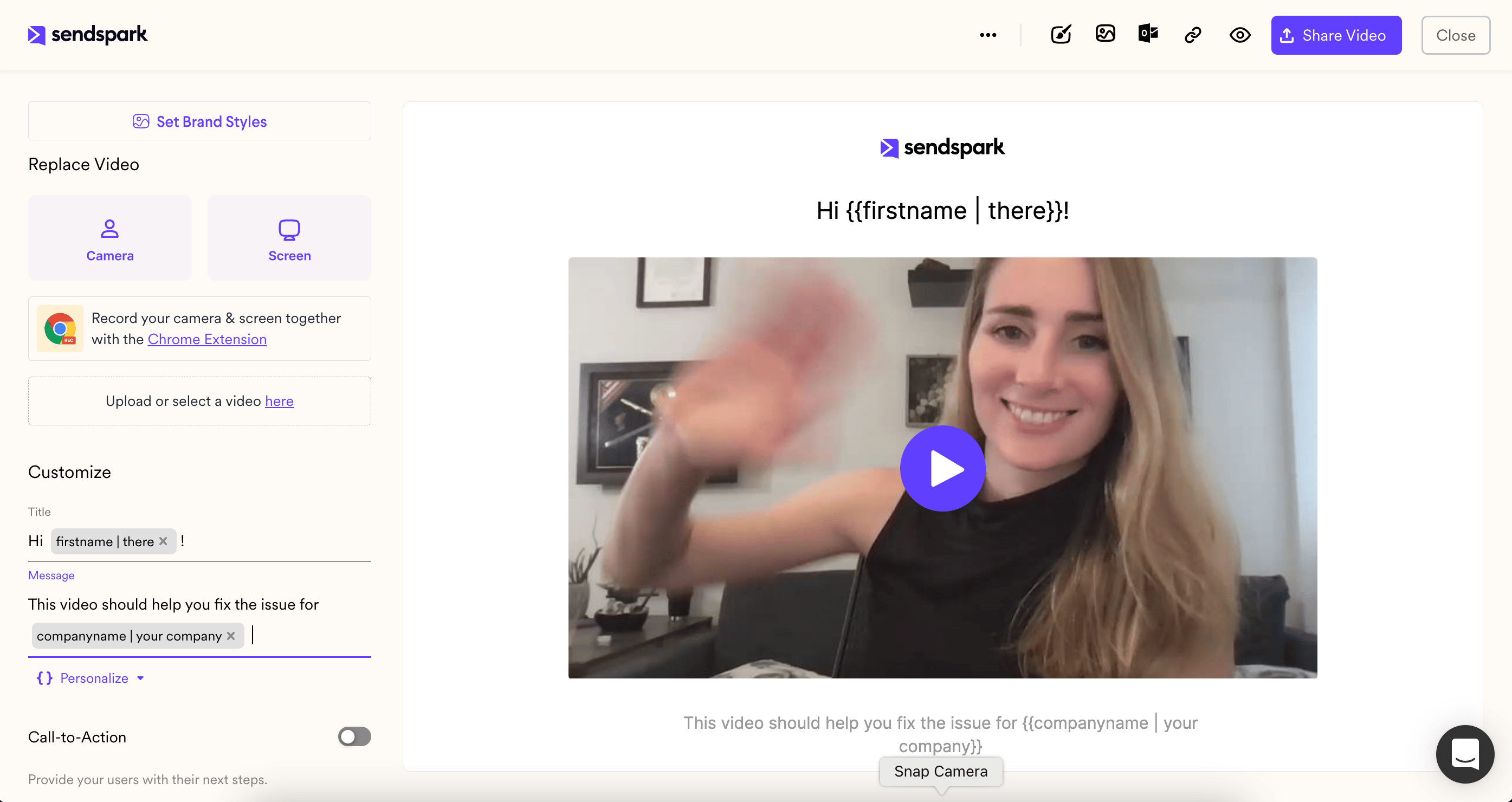
When you create your video message in Sendspark, you can use dynamic variables as placeholders for your viewer's first name, company name, and job title.
When you send your video in Zendesk, these variables will automatically populate with the correct viewer's information.
If the correct information is unknown for any viewer, Sendspark will display [fallback variables](/how-merge-tag-fallbacks-work).
## 2. Copy the Zendesk share snippet
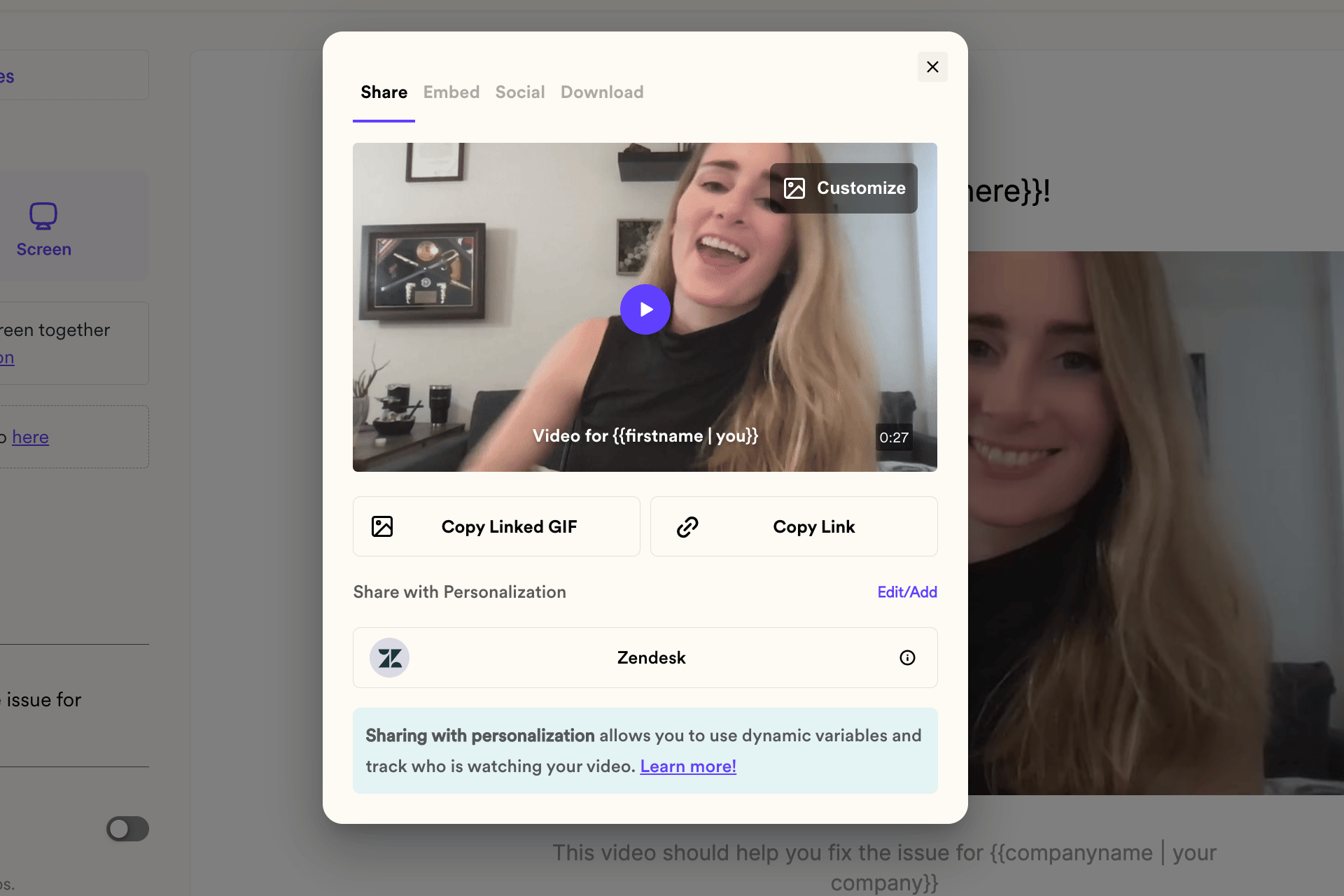
From Sendspark, click **Share Video**
Under **"Share with Personalization,"** click on **Zendesk**.
This will copy the Zendesk video snippet to your clipboard. Now, let's go paste it in Zendesk!
(Note, if you don't see Zendesk on the share modal, you can [follow these steps to modify your shortcuts](/how-to-modify-shortcuts-on-share-modal)).
## 3. Paste into an Zendesk macro
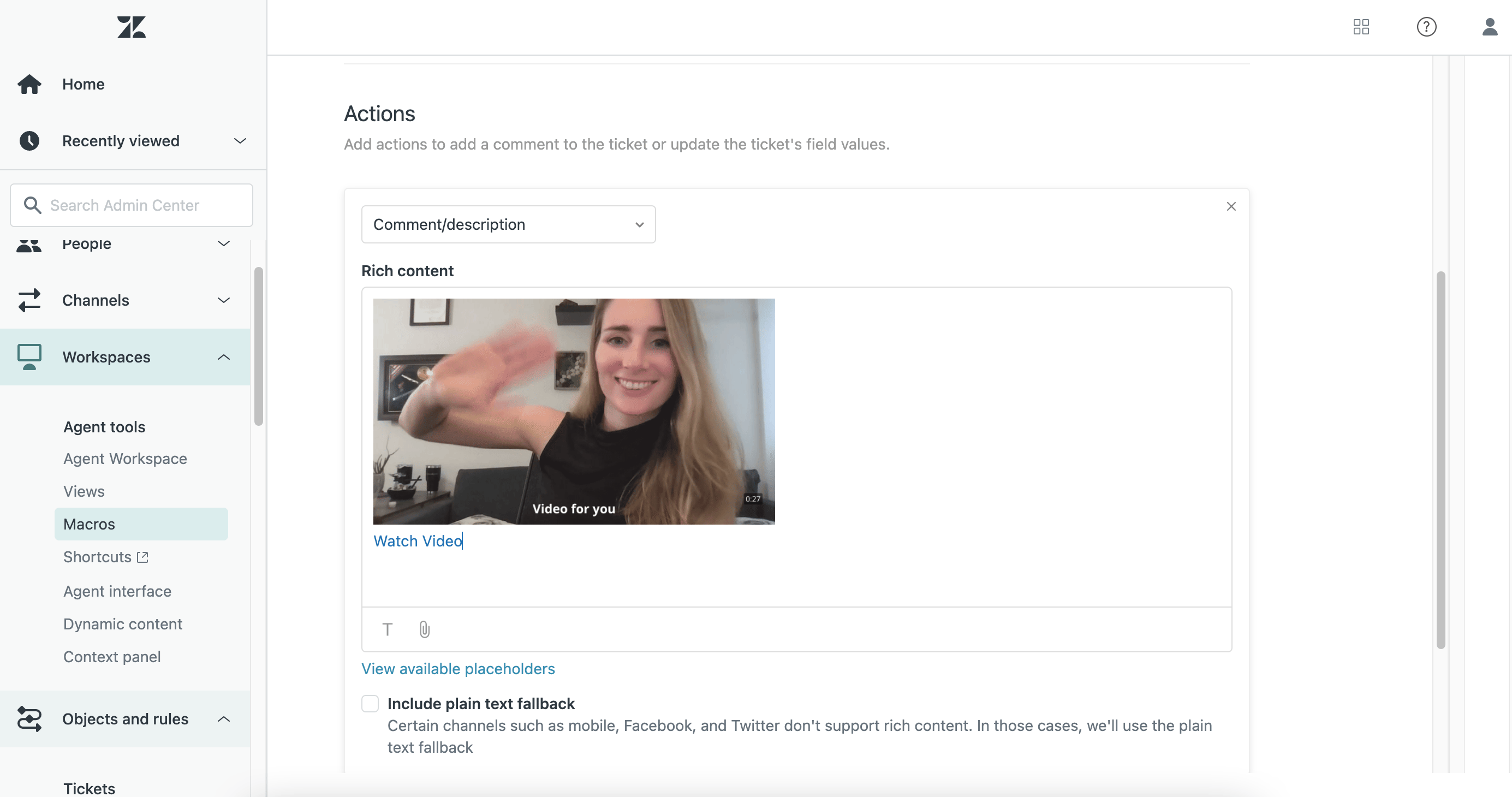
Now, you can go over to Zendesk and **create a new macro**.
* Navigate to Admin > Workspaces > Macros > Add macro
* Add your Macro name, description, and availability settings
* Under Actions, select "comment/description"
* In the rich content area, paste your Zendesk video snippet from Sendspark
* Click "Create" to save your macro
## 4. Share your video email
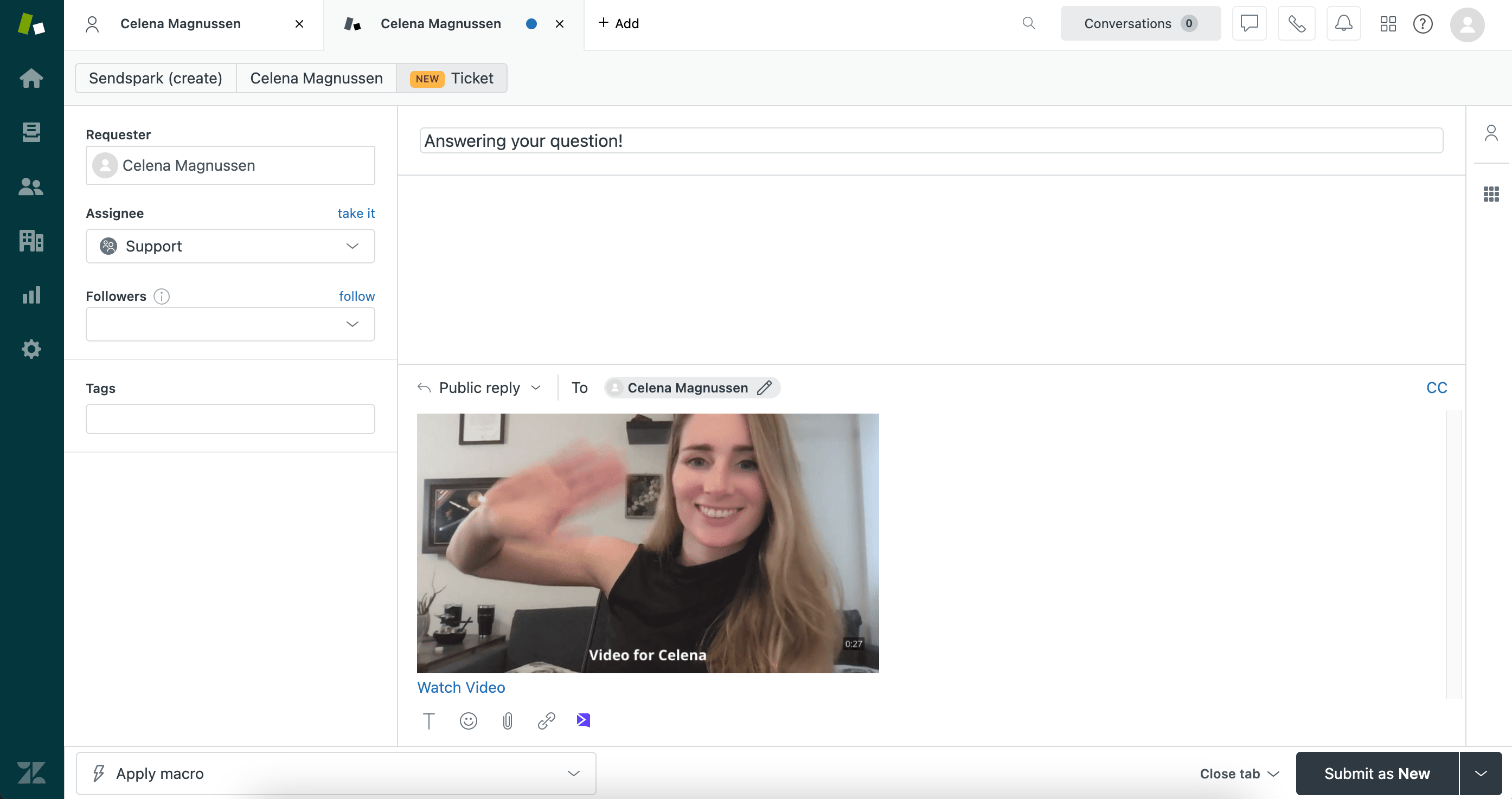
Now, you can use your personalized video template from a**nywhere in Zendesk you can apply macros.**
When you select your Sendspark video macro, the personalization tokens for your viewers will populate, so you can send one video to many people, and still deliver a personalized experience.
## Frequently asked questions
Use dynamic variables as placeholders for your viewer's first name, company name, and job title when you create the video in Sendspark. When you send it in Zendesk, these variables automatically populate with the correct viewer's information. If the information is unknown for any viewer, Sendspark displays fallback variables.
Into a Zendesk macro. In Zendesk, go to Admin > Workspaces > Macros > Add macro, add your macro name and settings, select "comment/description" under Actions, then paste your Zendesk video snippet into the rich content area and click Create.
If Zendesk doesn't appear under Share with Personalization, you can follow the steps to modify your shortcuts on the share modal to add it.
Yes. Sendspark video analytics let you see who's watching your video, how far into the video they've watched, and what part of the world they're located in.
Yes. Once your video macro is saved, you can use it anywhere in Zendesk that you can apply macros. The personalization tokens populate for each viewer, so you can send one video to many people and still deliver a personalized experience.
## Additional Resources for Integrating Sendspark and Zendesk
As a Sendspark + Zendesk user, you might want to take advantage of these additional features!
* [Record and share videos in Zendesk](/instant-integration-zendesk)
* [Personalize video thumbnails](/how-to-edit-video-thumbnails)
*Updated July 2026.*
 When you send your video in Zendesk, these variables will automatically populate with the correct viewer's information.
If the correct information is unknown for any viewer, Sendspark will display [fallback variables](/how-merge-tag-fallbacks-work).
## 2. Copy the Zendesk share snippet
From Sendspark, click **Share Video**
Under **"Share with Personalization,"** click on **Zendesk**.
This will copy the Zendesk video snippet to your clipboard. Now, let's go paste it in Zendesk!
When you send your video in Zendesk, these variables will automatically populate with the correct viewer's information.
If the correct information is unknown for any viewer, Sendspark will display [fallback variables](/how-merge-tag-fallbacks-work).
## 2. Copy the Zendesk share snippet
From Sendspark, click **Share Video**
Under **"Share with Personalization,"** click on **Zendesk**.
This will copy the Zendesk video snippet to your clipboard. Now, let's go paste it in Zendesk!
 (Note, if you don't see Zendesk on the share modal, you can [follow these steps to modify your shortcuts](/how-to-modify-shortcuts-on-share-modal)).
## 3. Paste into an Zendesk macro
Now, you can go over to Zendesk and **create a new macro**.
* Navigate to Admin > Workspaces > Macros > Add macro
* Add your Macro name, description, and availability settings
* Under Actions, select "comment/description"
* In the rich content area, paste your Zendesk video snippet from Sendspark
(Note, if you don't see Zendesk on the share modal, you can [follow these steps to modify your shortcuts](/how-to-modify-shortcuts-on-share-modal)).
## 3. Paste into an Zendesk macro
Now, you can go over to Zendesk and **create a new macro**.
* Navigate to Admin > Workspaces > Macros > Add macro
* Add your Macro name, description, and availability settings
* Under Actions, select "comment/description"
* In the rich content area, paste your Zendesk video snippet from Sendspark
 * Click "Create" to save your macro
## 4. Share your video email
Now, you can use your personalized video template from a**nywhere in Zendesk you can apply macros.**
When you select your Sendspark video macro, the personalization tokens for your viewers will populate, so you can send one video to many people, and still deliver a personalized experience.
* Click "Create" to save your macro
## 4. Share your video email
Now, you can use your personalized video template from a**nywhere in Zendesk you can apply macros.**
When you select your Sendspark video macro, the personalization tokens for your viewers will populate, so you can send one video to many people, and still deliver a personalized experience.
 ## Frequently asked questions