> ## Documentation Index
> Fetch the complete documentation index at: https://help.sendspark.com/llms.txt
> Use this file to discover all available pages before exploring further.
# Zapier — Create Dynamic Videos via Integration
> Connect Zapier with Sendspark to automatically create dynamic, AI-personalized videos at scale. Step-by-step guide to setting up your integration.
To create dynamic videos with Zapier, install the Sendspark Zapier integration, then build a Zap with a trigger (like a HubSpot form submission) and the **Create Dynamic Video** action. Authenticate with your Sendspark API key and secret, map fields such as workspace ID, campaign ID, name, and email, and each new contact generates a personalized video automatically.
## Key takeaways
* The integration can trigger video creation from nearly any event — a new CRM contact, a form submission, a signup, or a product action.
* Your Zap needs two parts: a **Trigger** (the event) and an **Action** set to Sendspark's **Create Dynamic Video**.
* You authenticate with your Sendspark **API key and secret**, both found in the [API Credentials section](https://sendspark.com/settings/api-credentials).
* Only **Email** is used as the unique identifier that links each generated video to the right contact later; company name, job title, and website URL are optional personalization fields.
The Sendspark Zapier integration lets you automatically generate videos based on nearly any trigger you can imagine.
This is incredibly powerful if you want to automatically generate videos when…
* Prospects are added to a list in Salesforce, Outreach, etc
* Leads fill out forms or take actions on your website
* New users sign up for your platform
* Customers take specific actions in your product
* And more!
In this article, we’ll walk through how to use Zapier to automatically generate dynamic videos when users fill out a HubSpot form. However, you should be able to apply these steps to other triggers.
**Related articles:**
* [How To Make a Dynamic Video Campaign](/dynamic-videos-make-videos-with-ai-introductions)
* [Use Webhooks to Automatically Send Video Emails](/webhooks-for-dynamic-video-notifications)
***
## How to Automatically Generate Sendspark Dynamic Videos with Zapier
## Install the Sendspark Zapier Integration
Before you get started, [install the Sendspark Zapier Integration](https://zapier.com/apps/sendspark/integrations)!
Get Sendspark Zapier Integration
## 1. Make Your Zap
To start, make your Zap in Zapier!
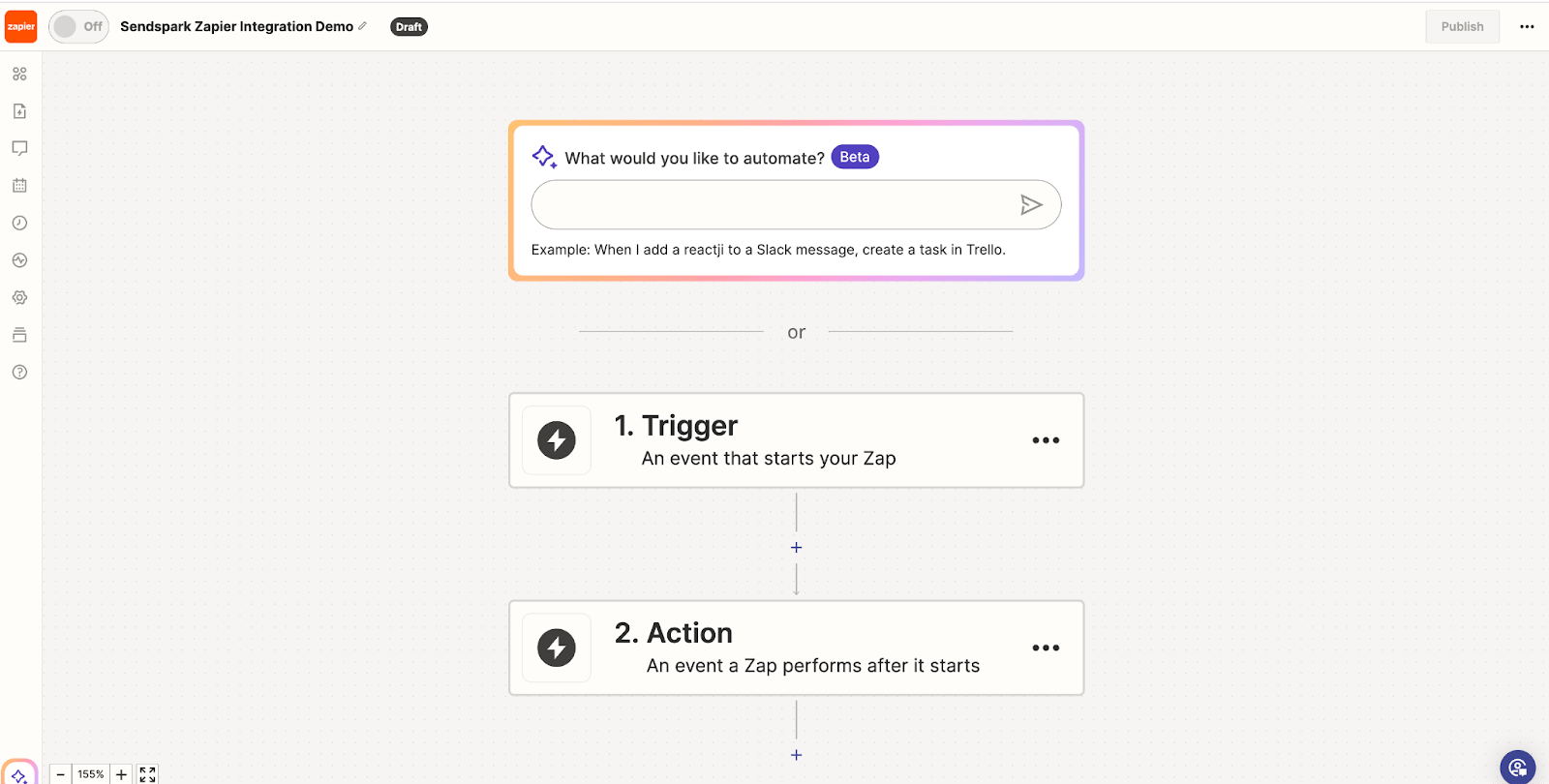
The Zap has 2 components that we’ll go through in the next steps:
1. \*\*Trigger:\*\*this is the event that should trigger this workflow to start (contact is added to CRM, schedules a meeting, fills out a form, etc)
2. \*\*Action:\*\*this is what you want to happen next — in this case, generate a dynamic video with Sendspark.
## 2. Set Your Trigger: Fills Out Form
The trigger can be ANY trigger in Zapier that indicates now is time to generate a dynamic video.
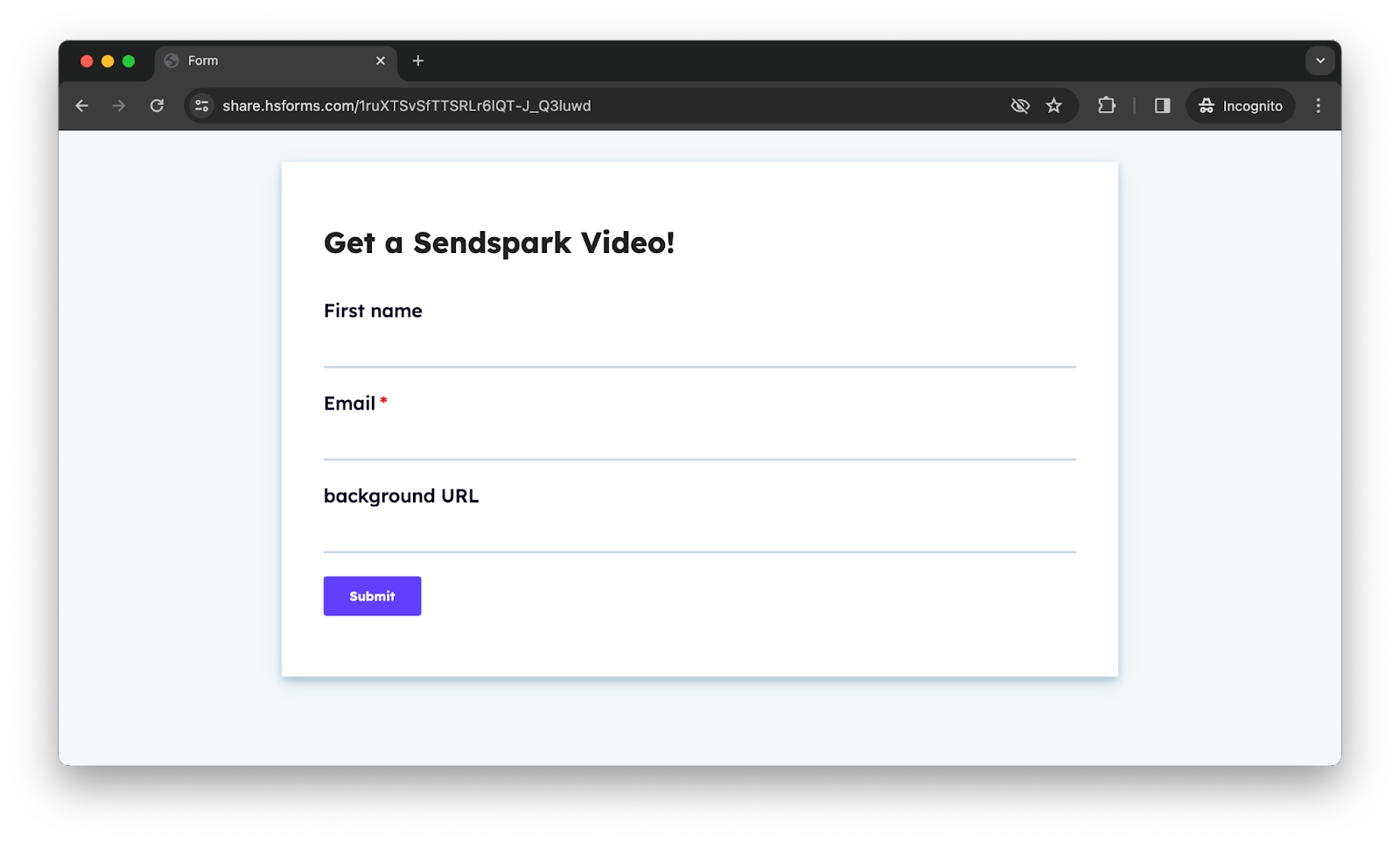
In this example, we’ll use this HubSpot form, “Get a Sendspark Video (Zapier Automation)”
This means that whenever someone fills out this form, they will be enrolled in this Zap.
To set this trigger, in Zapier, we can…
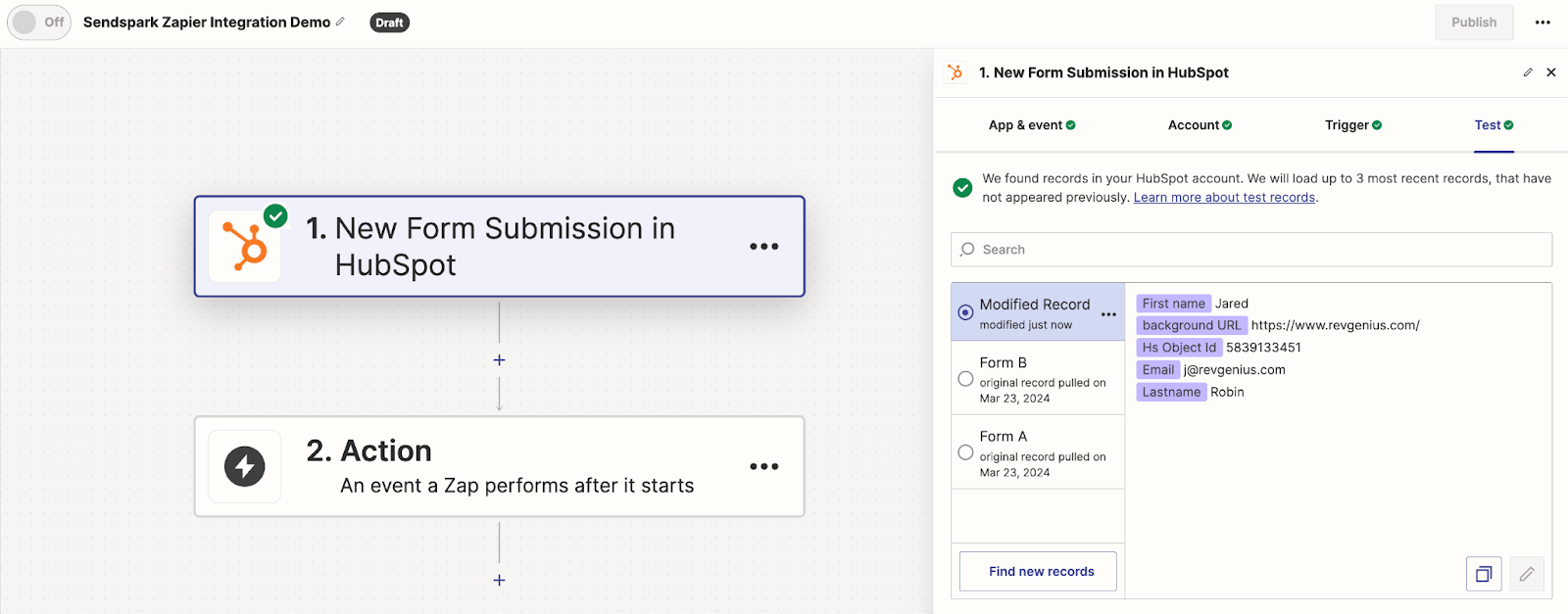
* Click into **“Trigger”**
* Select **“HubSpot”**
* As the event, select **“New Form Submission”**
* Click **“continue”**
* Follow the next few steps to connect to HubSpot, select that specific form, and test
You’ll know it’s working when you see the green checkmark on your trigger.
## 3. Set Your Action: Generate Dynamic Video
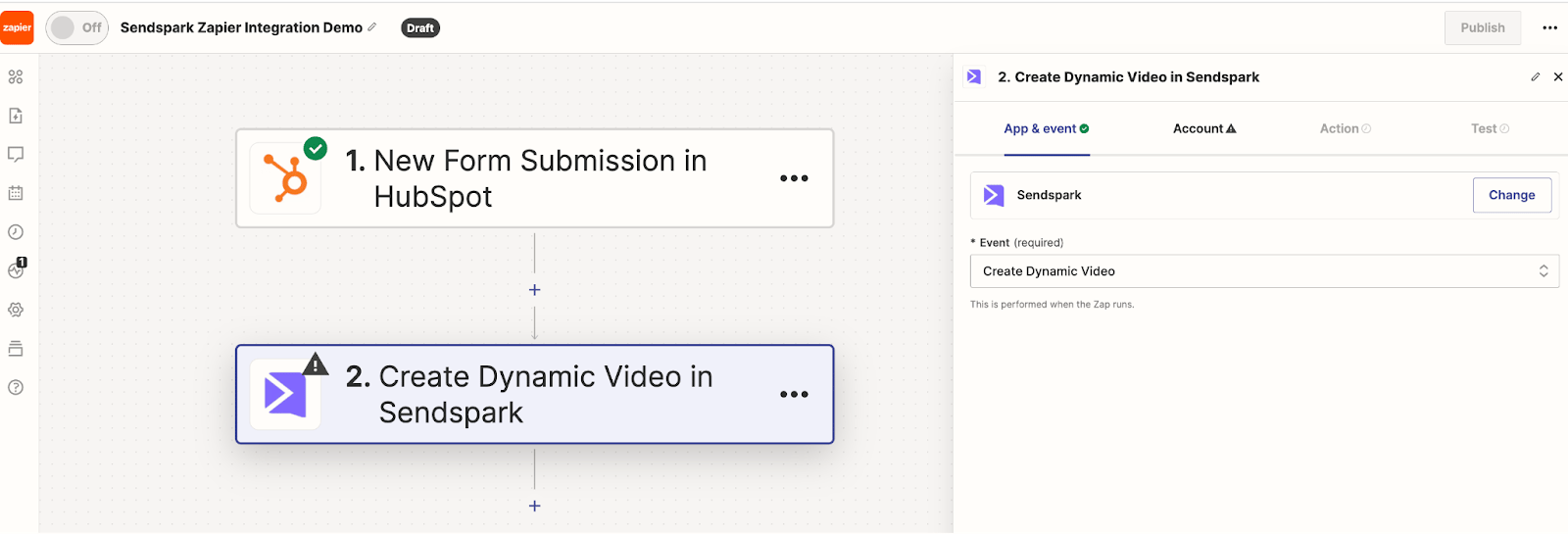
Now, you want to set your “Action” to be to generate a Sendspark Dynamic Video.
* Click into\*\*“Action”\*\*
* Search for\*\*“Sendspark”\*\*
* As the action, select **“Create Dynamic Video”**
You’ll be asked to authenticate to Sendspark with your API key & secret.
* You can find both in the [API Credentials section](https://sendspark.com/settings/api-credentials) in Sendspark.
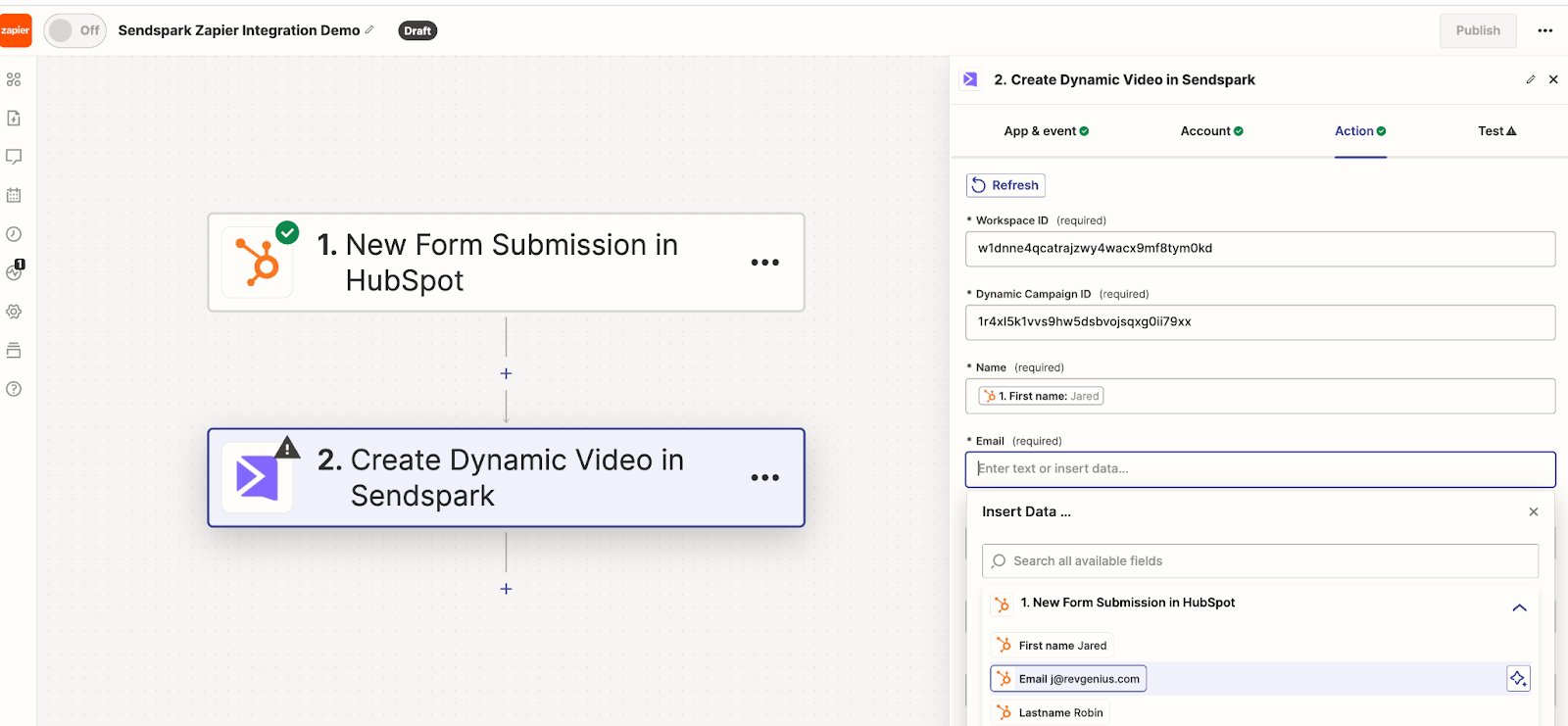
You’ll be asked to select the data you want to use in the dynamic video that will be generated.
### How to Find Data Fields:
* \*\*Workspace ID:\*\*this is the unique identifier for your workspace. You can find it in your [workspace settings](https://sendspark.com/settings/workspace).
* **Dynamic Campaign ID:** this is the unique identifier for the dynamic video campaign that we should enroll this contact in. You can find this of the URL of your dynamic video campaign, between the 2 slashes
* \*\*Name:\*\*This is the first name of the contact you are creating the video for. We will use this both in the voice cloning in the video (to replace the word “watermelon”) and on the page to replace the “first name” variable
* \*\*Email:\*\*This is the email address for the contact you are creating the video for. We will use this as the unique identifier to link this video with the contact in your email sending platform in future steps.
* \*\*Company Name (Optional):\*\*This is the name of the company for your contact. We will use this to replace the “Company name” variable in Sendspark.
* \*\*Job Title (Optional):\*\*This is the job title for your contact. We will use this to replace the “job title” variable in Sendspark.
* **Website URL:** this is any public URL that you would like to use as the “background” of your video. In the final dynamic video, it will like like your camera bubble is recording over this website.
When you are actually setting this up in Zapier, you might want to use the data from your first step in Zapier to customize the dynamic videos for each contact. Ensure that each variable used in your dynamic video is accurately named and configured to match the naming conventions described in the Sendspark platform.
You’ll see these from a dropdown when you click in to edit:
To make sure everything is working, click **“Test Step”**
If you then go back to your Dynamic Video in Sendspark, you should now see a video generating for this contact in the queue:
Give the video a few minutes to generate – and then preview it to make sure that everything looks correct before publishing your Zap to create videos at scale.
Congratulations! This is all you need to generate AI-personalized videos through automation.
## Next Steps: Automatically Send Video Email
Now that you are automatically generating videos via automation, you might want to **automatically send the videos in email.**
See this article on [how to use webhooks in Zapier](/webhooks-for-dynamic-video-notifications)to know when videos have successfully generated in order to trigger a new Zapier campaign to send the video emails.
## Frequently asked questions
Almost any Zapier trigger works. Common examples include a prospect being added to a list in Salesforce or Outreach, a lead filling out a form on your website, a new user signing up for your platform, or a customer taking a specific action in your product.
When you set the Sendspark **Create Dynamic Video** action, Zapier asks for your API key and secret. You can find both in the [API Credentials section](https://sendspark.com/settings/api-credentials) in Sendspark.
Your **Workspace ID** is in your [workspace settings](https://sendspark.com/settings/workspace). Your **Dynamic Campaign ID** is in the URL of your dynamic video campaign, between the two slashes.
Name and Email are used to personalize the video and identify the contact — Email is the unique identifier that links the video to the contact in your email platform. Company Name, Job Title, and Website URL are optional; the website URL becomes the background the camera bubble records over.
After clicking **Test Step**, return to your Dynamic Video in Sendspark and you should see a video generating for that contact in the queue. Give it a few minutes to generate, then preview it before publishing your Zap to create videos at scale.
*Updated July 2026.*
 The Zap has 2 components that we’ll go through in the next steps:
1. \*\*Trigger:\*\*this is the event that should trigger this workflow to start (contact is added to CRM, schedules a meeting, fills out a form, etc)
2. \*\*Action:\*\*this is what you want to happen next — in this case, generate a dynamic video with Sendspark.
## 2. Set Your Trigger: Fills Out Form
The trigger can be ANY trigger in Zapier that indicates now is time to generate a dynamic video.
In this example, we’ll use this HubSpot form, “Get a Sendspark Video (Zapier Automation)”
The Zap has 2 components that we’ll go through in the next steps:
1. \*\*Trigger:\*\*this is the event that should trigger this workflow to start (contact is added to CRM, schedules a meeting, fills out a form, etc)
2. \*\*Action:\*\*this is what you want to happen next — in this case, generate a dynamic video with Sendspark.
## 2. Set Your Trigger: Fills Out Form
The trigger can be ANY trigger in Zapier that indicates now is time to generate a dynamic video.
In this example, we’ll use this HubSpot form, “Get a Sendspark Video (Zapier Automation)”
 This means that whenever someone fills out this form, they will be enrolled in this Zap.
To set this trigger, in Zapier, we can…
* Click into **“Trigger”**
* Select **“HubSpot”**
* As the event, select **“New Form Submission”**
* Click **“continue”**
* Follow the next few steps to connect to HubSpot, select that specific form, and test
You’ll know it’s working when you see the green checkmark on your trigger.
This means that whenever someone fills out this form, they will be enrolled in this Zap.
To set this trigger, in Zapier, we can…
* Click into **“Trigger”**
* Select **“HubSpot”**
* As the event, select **“New Form Submission”**
* Click **“continue”**
* Follow the next few steps to connect to HubSpot, select that specific form, and test
You’ll know it’s working when you see the green checkmark on your trigger.
 ## 3. Set Your Action: Generate Dynamic Video
Now, you want to set your “Action” to be to generate a Sendspark Dynamic Video.
* Click into\*\*“Action”\*\*
* Search for\*\*“Sendspark”\*\*
* As the action, select **“Create Dynamic Video”**
## 3. Set Your Action: Generate Dynamic Video
Now, you want to set your “Action” to be to generate a Sendspark Dynamic Video.
* Click into\*\*“Action”\*\*
* Search for\*\*“Sendspark”\*\*
* As the action, select **“Create Dynamic Video”**
 You’ll be asked to authenticate to Sendspark with your API key & secret.
* You can find both in the [API Credentials section](https://sendspark.com/settings/api-credentials) in Sendspark.
You’ll be asked to select the data you want to use in the dynamic video that will be generated.
### How to Find Data Fields:
* \*\*Workspace ID:\*\*this is the unique identifier for your workspace. You can find it in your [workspace settings](https://sendspark.com/settings/workspace).
You’ll be asked to authenticate to Sendspark with your API key & secret.
* You can find both in the [API Credentials section](https://sendspark.com/settings/api-credentials) in Sendspark.
You’ll be asked to select the data you want to use in the dynamic video that will be generated.
### How to Find Data Fields:
* \*\*Workspace ID:\*\*this is the unique identifier for your workspace. You can find it in your [workspace settings](https://sendspark.com/settings/workspace). 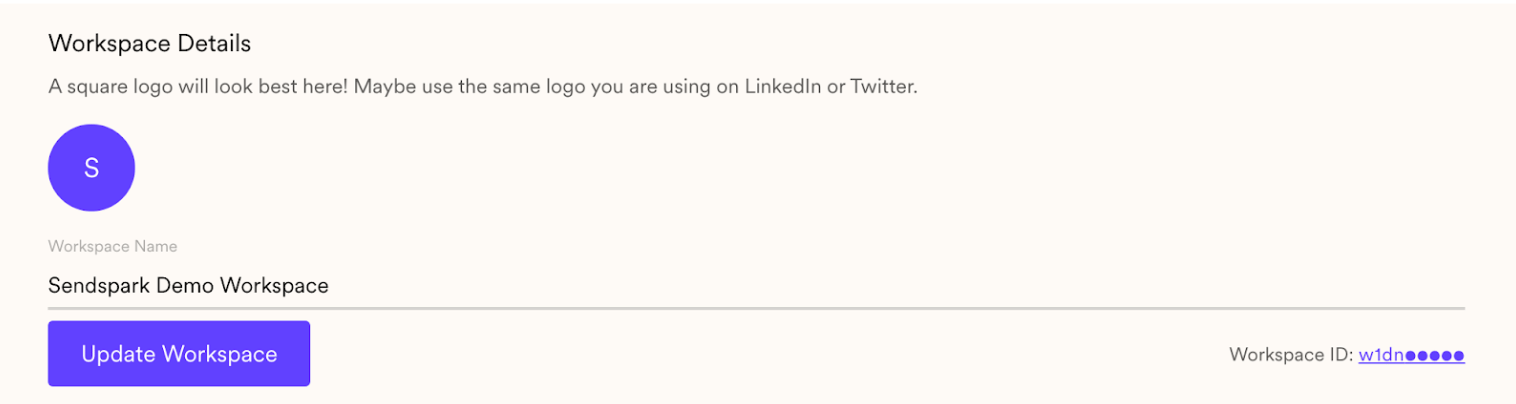 * **Dynamic Campaign ID:** this is the unique identifier for the dynamic video campaign that we should enroll this contact in. You can find this of the URL of your dynamic video campaign, between the 2 slashes
  * \*\*Name:\*\*This is the first name of the contact you are creating the video for. We will use this both in the voice cloning in the video (to replace the word “watermelon”) and on the page to replace the “first name” variable
* \*\*Email:\*\*This is the email address for the contact you are creating the video for. We will use this as the unique identifier to link this video with the contact in your email sending platform in future steps.
* \*\*Company Name (Optional):\*\*This is the name of the company for your contact. We will use this to replace the “Company name” variable in Sendspark.
* \*\*Job Title (Optional):\*\*This is the job title for your contact. We will use this to replace the “job title” variable in Sendspark.
* **Website URL:** this is any public URL that you would like to use as the “background” of your video. In the final dynamic video, it will like like your camera bubble is recording over this website.
When you are actually setting this up in Zapier, you might want to use the data from your first step in Zapier to customize the dynamic videos for each contact. Ensure that each variable used in your dynamic video is accurately named and configured to match the naming conventions described in the Sendspark platform.
You’ll see these from a dropdown when you click in to edit:
* \*\*Name:\*\*This is the first name of the contact you are creating the video for. We will use this both in the voice cloning in the video (to replace the word “watermelon”) and on the page to replace the “first name” variable
* \*\*Email:\*\*This is the email address for the contact you are creating the video for. We will use this as the unique identifier to link this video with the contact in your email sending platform in future steps.
* \*\*Company Name (Optional):\*\*This is the name of the company for your contact. We will use this to replace the “Company name” variable in Sendspark.
* \*\*Job Title (Optional):\*\*This is the job title for your contact. We will use this to replace the “job title” variable in Sendspark.
* **Website URL:** this is any public URL that you would like to use as the “background” of your video. In the final dynamic video, it will like like your camera bubble is recording over this website.
When you are actually setting this up in Zapier, you might want to use the data from your first step in Zapier to customize the dynamic videos for each contact. Ensure that each variable used in your dynamic video is accurately named and configured to match the naming conventions described in the Sendspark platform.
You’ll see these from a dropdown when you click in to edit:
 To make sure everything is working, click **“Test Step”**
If you then go back to your Dynamic Video in Sendspark, you should now see a video generating for this contact in the queue:
To make sure everything is working, click **“Test Step”**
If you then go back to your Dynamic Video in Sendspark, you should now see a video generating for this contact in the queue:
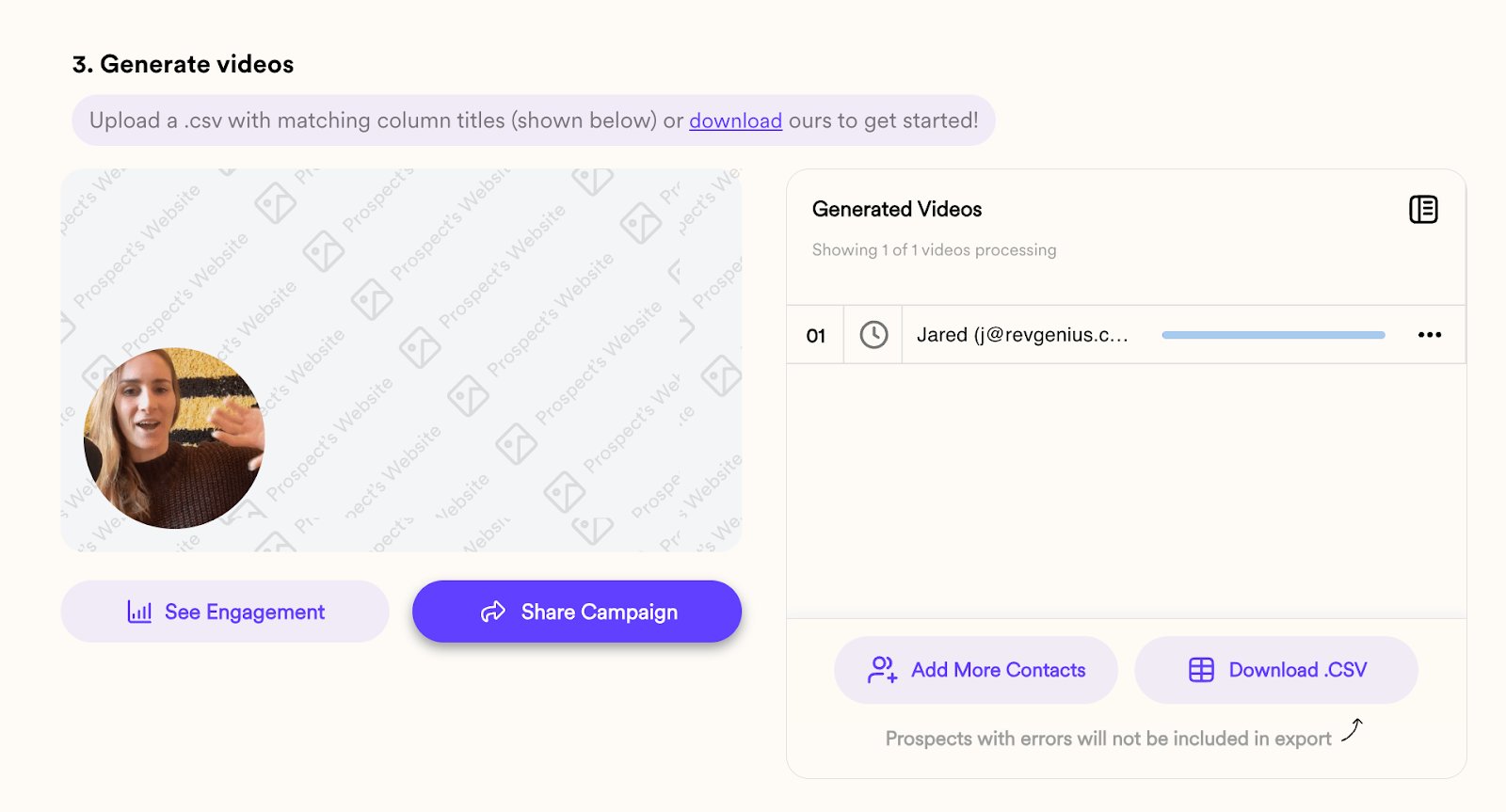 Give the video a few minutes to generate – and then preview it to make sure that everything looks correct before publishing your Zap to create videos at scale.
Congratulations! This is all you need to generate AI-personalized videos through automation.
## Next Steps: Automatically Send Video Email
Now that you are automatically generating videos via automation, you might want to **automatically send the videos in email.**
See this article on [how to use webhooks in Zapier](/webhooks-for-dynamic-video-notifications)to know when videos have successfully generated in order to trigger a new Zapier campaign to send the video emails.
## Frequently asked questions
Give the video a few minutes to generate – and then preview it to make sure that everything looks correct before publishing your Zap to create videos at scale.
Congratulations! This is all you need to generate AI-personalized videos through automation.
## Next Steps: Automatically Send Video Email
Now that you are automatically generating videos via automation, you might want to **automatically send the videos in email.**
See this article on [how to use webhooks in Zapier](/webhooks-for-dynamic-video-notifications)to know when videos have successfully generated in order to trigger a new Zapier campaign to send the video emails.
## Frequently asked questions