> ## Documentation Index
> Fetch the complete documentation index at: https://help.sendspark.com/llms.txt
> Use this file to discover all available pages before exploring further.
# Why Isn't My Camera Working?
> Fix Sendspark camera issues with browser permissions, Chrome settings, and system access troubleshooting steps for Mac and Windows.
If your camera isn't working in Sendspark, it's almost always a permissions issue. Start by using Google Chrome with the Sendspark extension, then set Camera and Microphone to **Allow** for Sendspark in Chrome's site settings, confirm Chrome has OS-level camera access (Mac or Windows), and test the camera in another app. Restarting your computer resolves many remaining cases.
## Key takeaways
* Sendspark works best on Google Chrome with the [Sendspark extension](https://chrome.google.com/webstore/detail/sendspark-video-and-scree/blimjkpadkhcpmkeboeknjcmiaogbkph); Edge and Firefox work but with fewer features.
* Set **Camera** and **Microphone** to **Allow** for Sendspark in Chrome's site settings, and grant the same to the Chrome extension if installed.
* Make sure Chrome has operating-system permission to use your camera (Mac: System Preferences → Security & Privacy → Camera; Windows: Camera Privacy Settings).
* If the camera fails in other apps too, restart your computer; if it still doesn't work, contact Sendspark support.
Before you go too far, make sure that you're using a supported browser. Right now, Sendspark works best on Google Chrome with our [Sendspark extension](https://chrome.google.com/webstore/detail/sendspark-video-and-scree/blimjkpadkhcpmkeboeknjcmiaogbkph).
Although you are also able to use our platform through Microsoft's Edge and Firefox, you won't take full advantage of everything we have to offer through Chrome's extension.
## 1. Give Sendspark Permissions on Google Chrome...
* Access your Chrome settings by copying and pasting the following link on your search bar \*\*(do not click it)\*\*to open camera/mic permissions: chrome://settings/content/siteDetails?site=https%3A%2F%2Fsendspark.com%2F\&search=Camera
* Make sure "\*\*Camera" and "Microphone" are explicitly set to "Allow."\*\*Then refresh your page and try again.
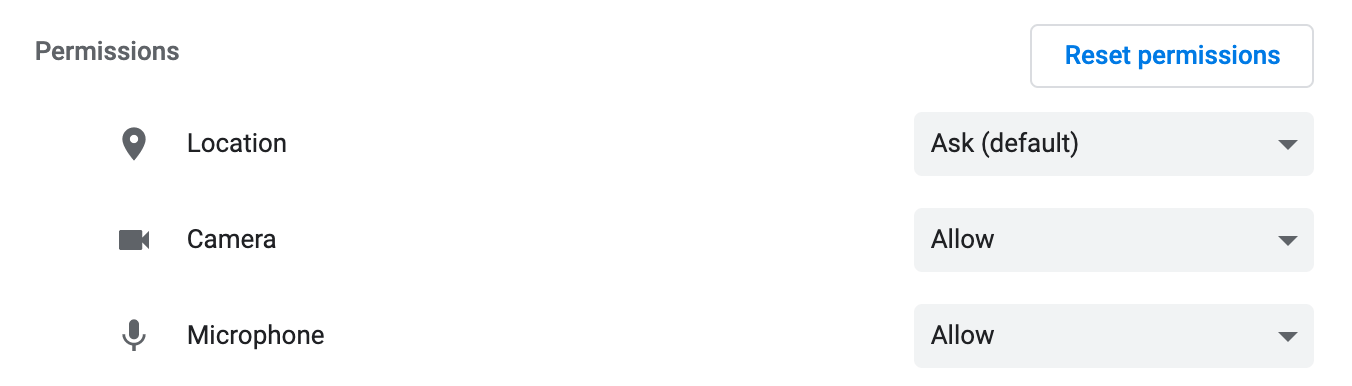 🔥 \*\*If you have the Sendspark Chrome Extension installed, make sure to grant it the necessary permissions as well.\*\*
* Access your Chrome settings by copying and pasting the following link on your search bar \*\*(do not click it)\*\*to open camera/mic permissions: chrome://settings/content/siteDetails?site=chrome-extension%3A%2F%2Fblimjkpadkhcpmkeboeknjcmiaogbkph%2F\&search=Camera
* Make sure "\*\*Camera" and "Microphone" are explicitly set to "Allow."\*\*Then refresh your page and try again.
## 2. Make sure Chrome has permission to access your camera
If using Mac:
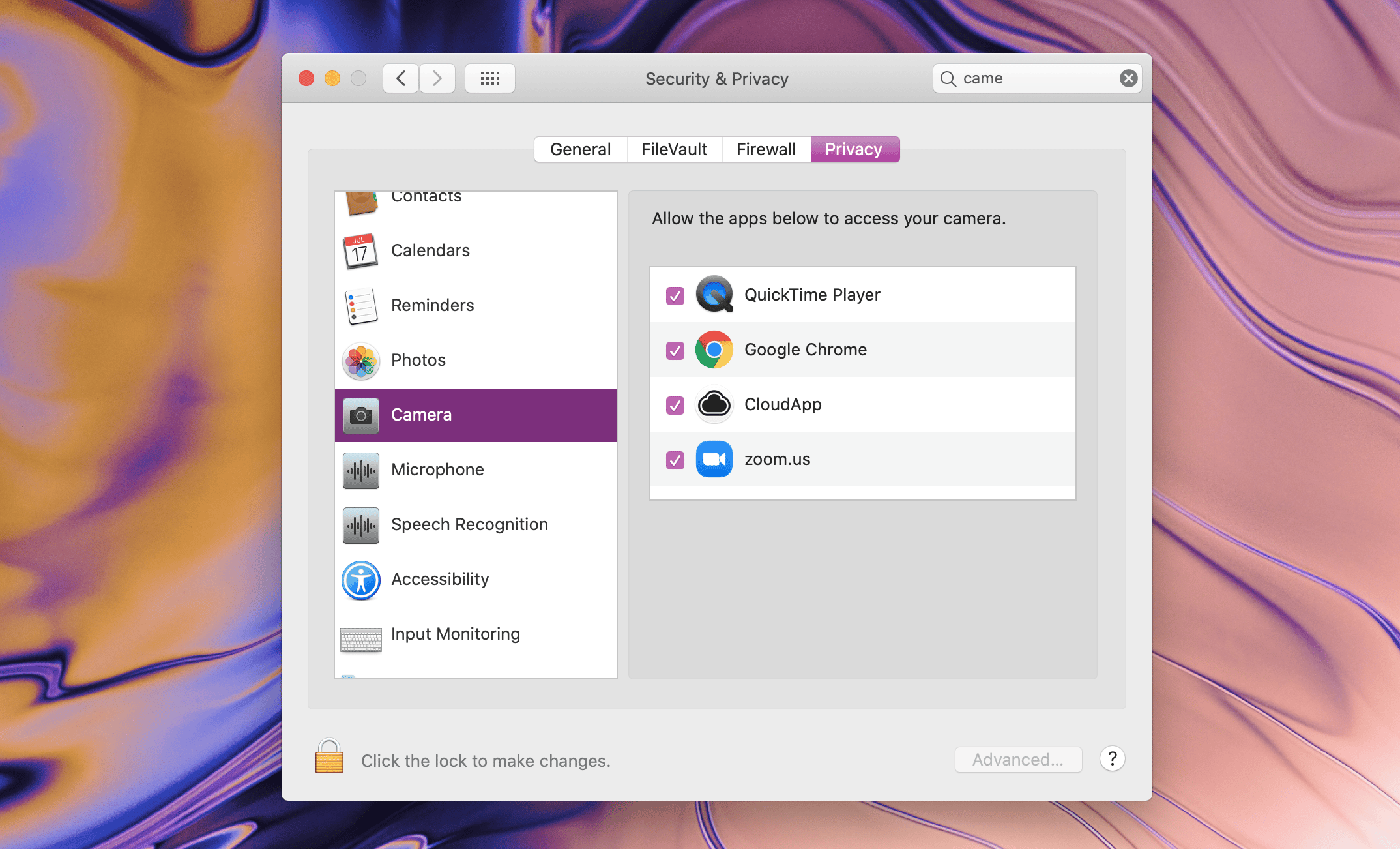
* Go to System Preferences → Security & Privacy → Camera, and make sure Google Chrome is checked
🔥 \*\*If you have the Sendspark Chrome Extension installed, make sure to grant it the necessary permissions as well.\*\*
* Access your Chrome settings by copying and pasting the following link on your search bar \*\*(do not click it)\*\*to open camera/mic permissions: chrome://settings/content/siteDetails?site=chrome-extension%3A%2F%2Fblimjkpadkhcpmkeboeknjcmiaogbkph%2F\&search=Camera
* Make sure "\*\*Camera" and "Microphone" are explicitly set to "Allow."\*\*Then refresh your page and try again.
## 2. Make sure Chrome has permission to access your camera
If using Mac:
* Go to System Preferences → Security & Privacy → Camera, and make sure Google Chrome is checked
 **If using Windows:**
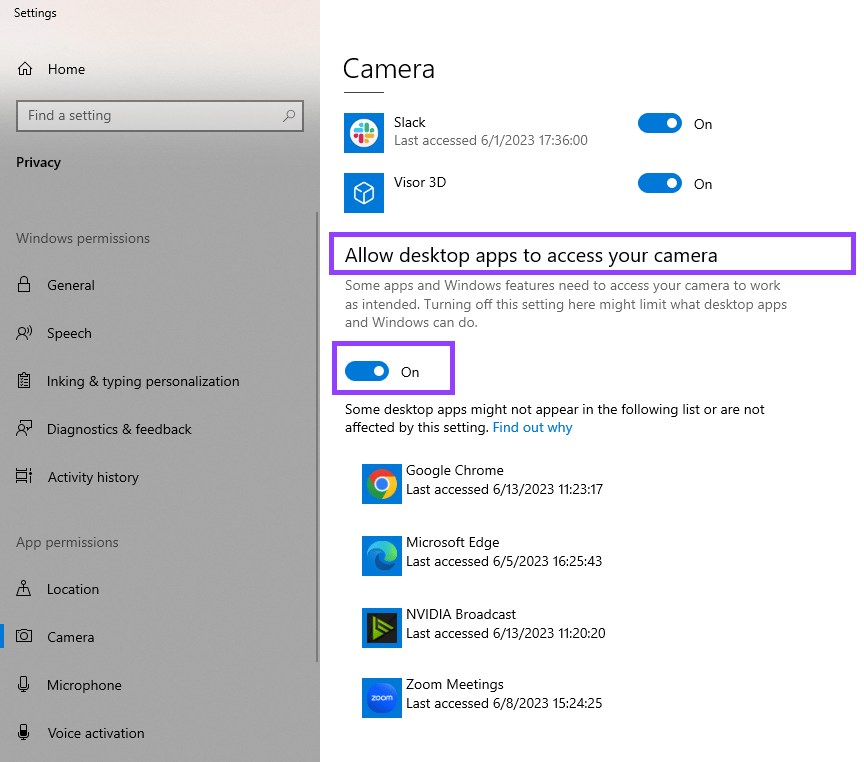
* Go to Settings → search for "Camera Privacy Settings" → and confirm that "Allow desktop apps to access your camera" is toggled ON.
**If using Windows:**
* Go to Settings → search for "Camera Privacy Settings" → and confirm that "Allow desktop apps to access your camera" is toggled ON.
 ## 3. Make sure your camera is working
* Check if the video feed is working on other apps on your computer (i.e. Zoom, Google Meet, FaceTime). If not, you may need to restart your computer.
## 4. Restart your computer
* Still now working? Shoot us a message and we will try to help!
## Frequently asked questions
Sendspark works best on Google Chrome with the Sendspark extension. You can also use Microsoft Edge and Firefox, but you won't get everything Sendspark offers through the Chrome extension.
Open Chrome's site settings for Sendspark (paste, don't click, the chrome://settings link from step 1 above) and set **Camera** and **Microphone** to **Allow**, then refresh the page. If you have the Chrome extension installed, grant the same permissions to the extension as well.
Make sure Chrome has operating-system permission to use your camera. On Mac, go to System Preferences → Security & Privacy → Camera and check Google Chrome. On Windows, open Camera Privacy Settings and turn on "Allow desktop apps to access your camera."
Check whether your camera works in other apps like Zoom, Google Meet, or FaceTime. If it doesn't work there either, restart your computer. If it still fails after a restart, reach out to Sendspark support.
## Explore related articles
* **[How to fix black recording with Sendspark](/how-to-fix-black-recording-with-sendspark)**
*Updated July 2026.*
## 3. Make sure your camera is working
* Check if the video feed is working on other apps on your computer (i.e. Zoom, Google Meet, FaceTime). If not, you may need to restart your computer.
## 4. Restart your computer
* Still now working? Shoot us a message and we will try to help!
## Frequently asked questions
Sendspark works best on Google Chrome with the Sendspark extension. You can also use Microsoft Edge and Firefox, but you won't get everything Sendspark offers through the Chrome extension.
Open Chrome's site settings for Sendspark (paste, don't click, the chrome://settings link from step 1 above) and set **Camera** and **Microphone** to **Allow**, then refresh the page. If you have the Chrome extension installed, grant the same permissions to the extension as well.
Make sure Chrome has operating-system permission to use your camera. On Mac, go to System Preferences → Security & Privacy → Camera and check Google Chrome. On Windows, open Camera Privacy Settings and turn on "Allow desktop apps to access your camera."
Check whether your camera works in other apps like Zoom, Google Meet, or FaceTime. If it doesn't work there either, restart your computer. If it still fails after a restart, reach out to Sendspark support.
## Explore related articles
* **[How to fix black recording with Sendspark](/how-to-fix-black-recording-with-sendspark)**
*Updated July 2026.*