> ## Documentation Index
> Fetch the complete documentation index at: https://help.sendspark.com/llms.txt
> Use this file to discover all available pages before exploring further.
# Website Visit - Create Video from Trigger
> Learn how to automatically create personalized videos for website visitors using RB2B, Warmly, Vector or CRM triggers with Sendspark.
This guide shows how to automatically create and send a personalized video when someone visits your website, using RB2B, Warmly, Vector, or another de-anonymization tool. Create a new automation in Sendspark, add a website-visit trigger (a webhook or a qualified-leads CRM list), add the Create Dynamic Video action, then send the video by email, LinkedIn, or text.
## Key takeaways
* Works with RB2B, Warmly, Vector, or any other website de-anonymization tool.
* The simplest trigger is a webhook from your de-anonymization tool; it fires every time a visitor is identified.
* For more control, trigger from a CRM list or property of "qualified recipients" to avoid unqualified visitors or existing customers.
* Add the Sendspark **Create Dynamic Video** action, map fields such as first name and email, then add a send action (email, LinkedIn, or text) or enroll the lead in an automated campaign.
In this guide, we'll walk through how to automatically create and send a video when someone visits your website.
Whether you use RB2B, Warmly, Vector, or another tool, this guide should work for you.
## 1. Create New Automation in Sendspark
* Go to the [automated workflow](https://sendspark.com/automated-workflows) section of Sendspark
* Create\*\*"New Automation"\*\*
## 2. Add Your Trigger: Website Visit
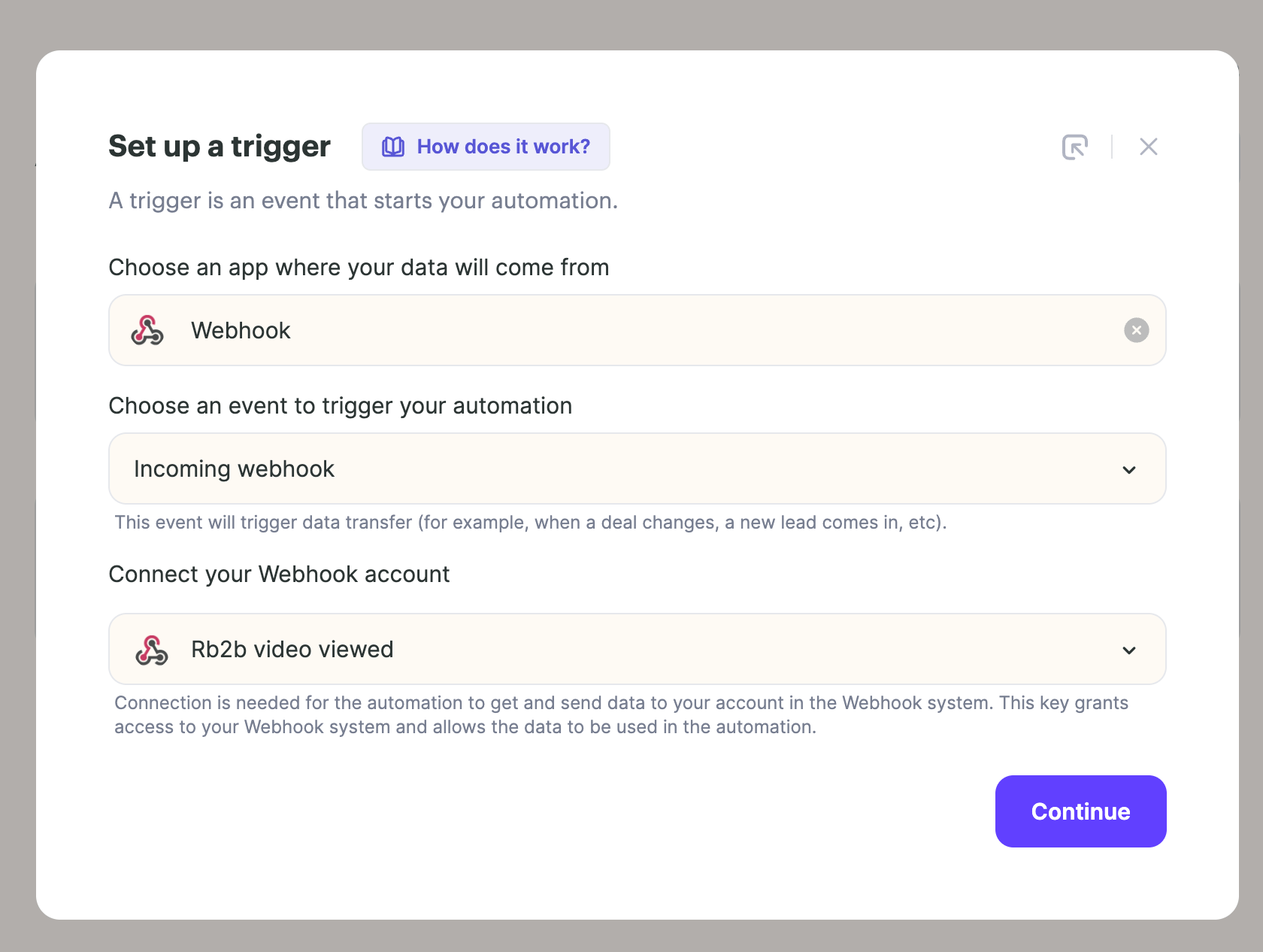
There are a few ways to do this. The simplest way is to simply add a webhook from your website de-anonymization tool to the trigger.
When you use the webhook as the trigger, it means that any time this webhook fires (as in a website visitor is identified), it will trigger this workflow.
This is great, but could also mean that you're catching website visitors who are unqualified, or who are already customers.
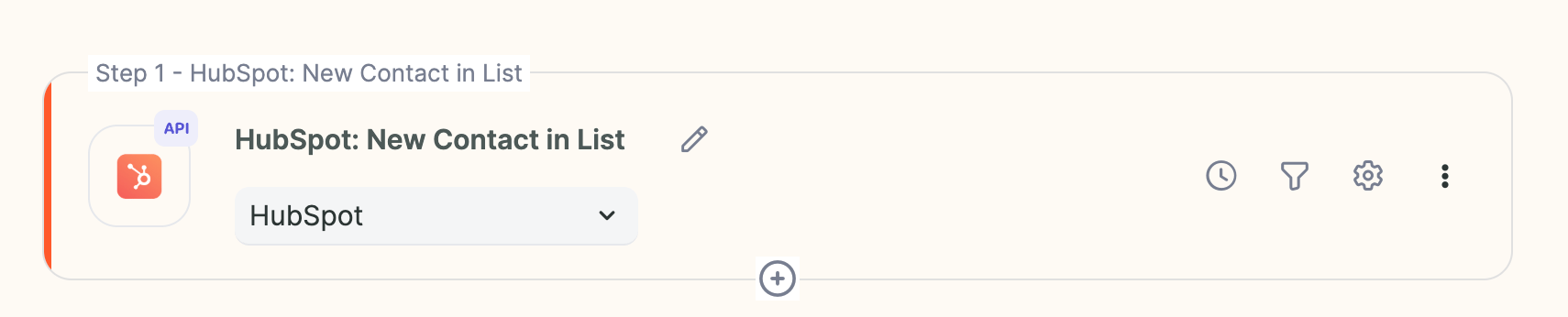
The more advanced way to set this up would be to create a list or a property in your CRM for "qualified recipients" and then use that as the trigger here.
Either way will work, just do what you're most comfortable with!
## 3. Add Action: Generate Sendspark Video
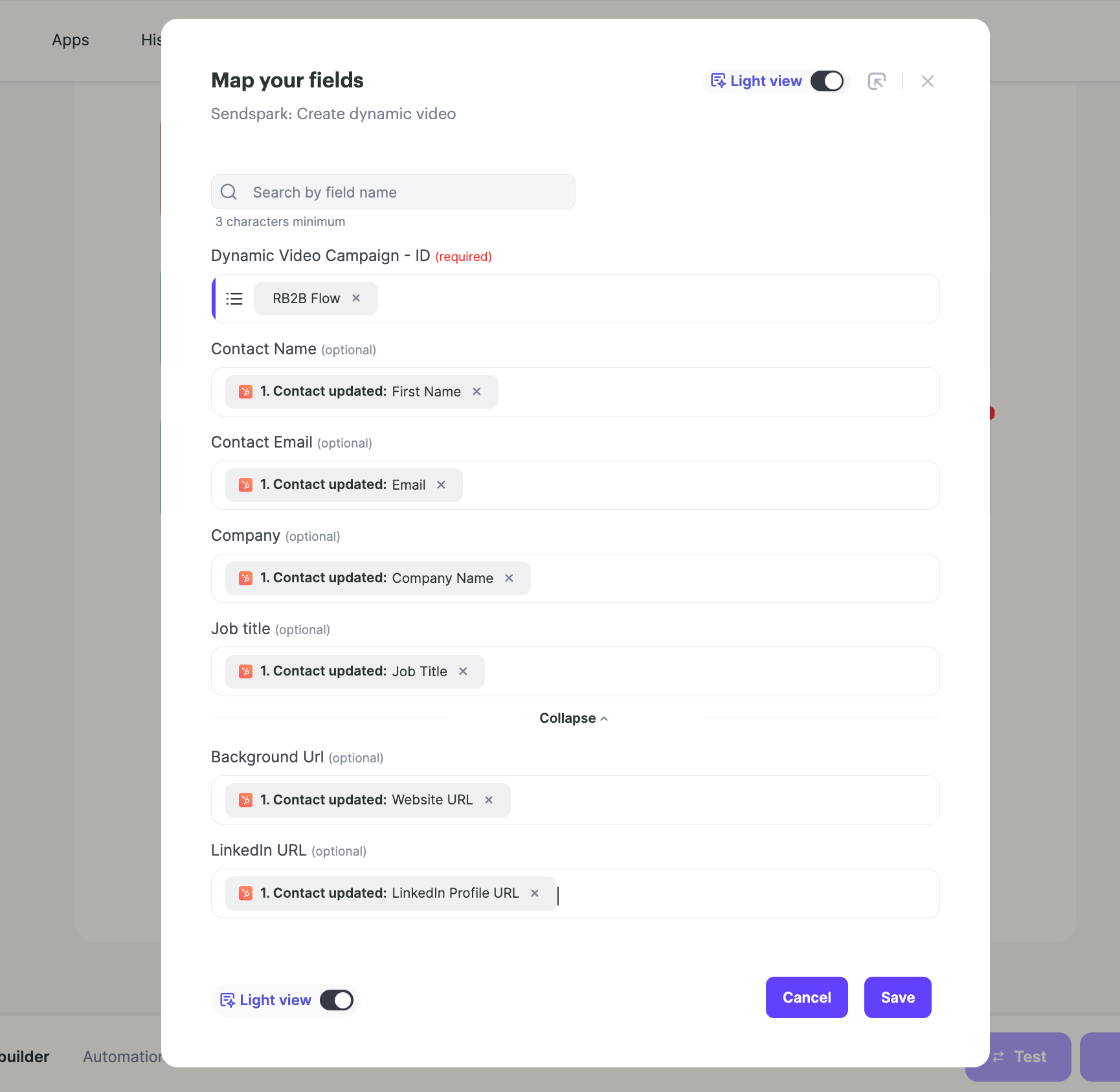
Next, add the action **Sendspark** and select **Create Dynamic Video.**
Make sure to map the fields from the previous step that you would like to use in the video (first name, email, etc).
Now, when leads meet the trigger criteria, they will have personalized videos made for them!
## 4. Send Video
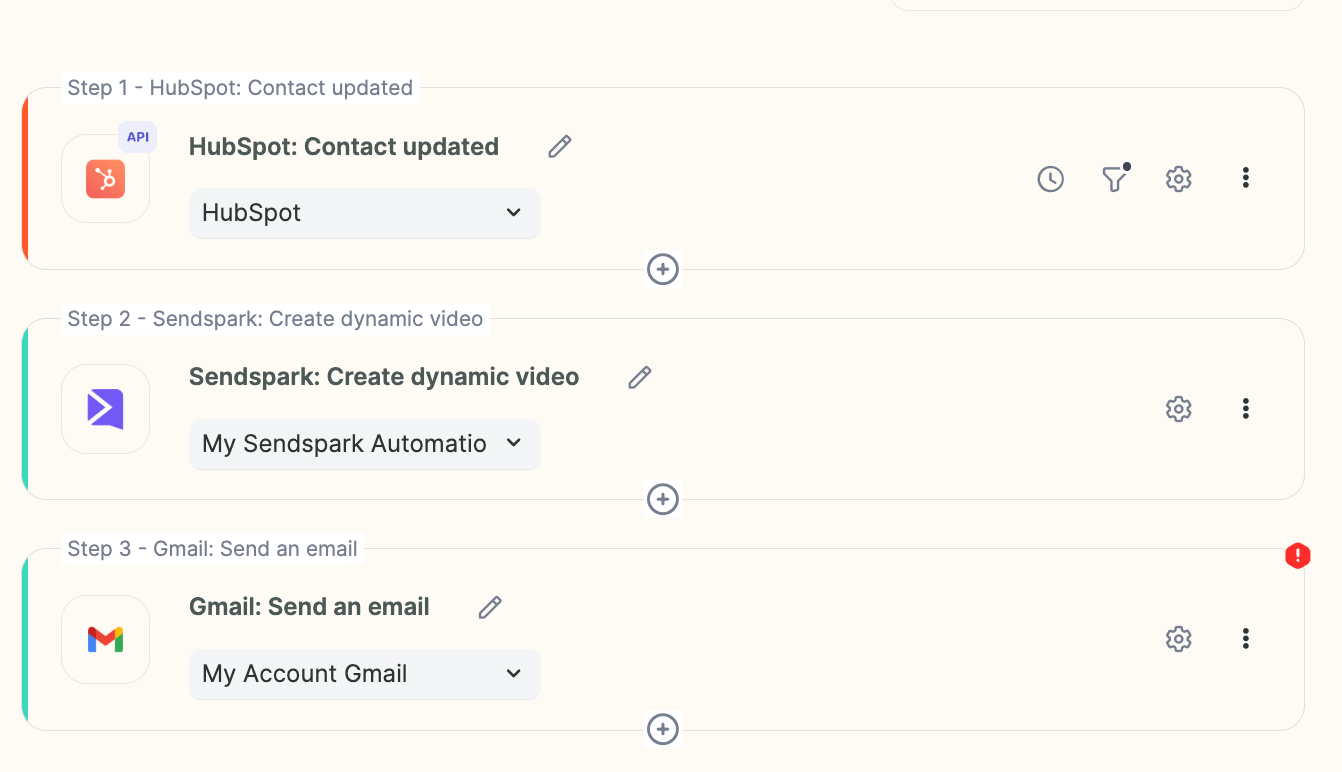
Add another action to send your video out. You can send your video directly in an email, LinkedIn message, text message, or another message.
You can also add your lead into an automated email or LinkedIn campaign
(read more guides on s[haring automated video campaign here](/auto-send-ai-personalized-videos)!).
## Frequently asked questions
This works with RB2B, Warmly, Vector, or another website de-anonymization tool of your choice.
Add a webhook from your website de-anonymization tool as the trigger. Every time that webhook fires (a visitor is identified), it triggers the workflow.
Use the more advanced approach: create a list or property in your CRM for "qualified recipients" and use that as the trigger instead of the raw webhook.
Map the fields from the previous step that you want to use in the video, such as first name and email.
Add a send action to deliver the video by email, LinkedIn message, or text message, or add the lead into an automated email or LinkedIn campaign.
*Updated July 2026.*
 ## 2. Add Your Trigger: Website Visit
There are a few ways to do this. The simplest way is to simply add a webhook from your website de-anonymization tool to the trigger.
When you use the webhook as the trigger, it means that any time this webhook fires (as in a website visitor is identified), it will trigger this workflow.
## 2. Add Your Trigger: Website Visit
There are a few ways to do this. The simplest way is to simply add a webhook from your website de-anonymization tool to the trigger.
When you use the webhook as the trigger, it means that any time this webhook fires (as in a website visitor is identified), it will trigger this workflow.
 This is great, but could also mean that you're catching website visitors who are unqualified, or who are already customers.
The more advanced way to set this up would be to create a list or a property in your CRM for "qualified recipients" and then use that as the trigger here.
This is great, but could also mean that you're catching website visitors who are unqualified, or who are already customers.
The more advanced way to set this up would be to create a list or a property in your CRM for "qualified recipients" and then use that as the trigger here.
 Either way will work, just do what you're most comfortable with!
## 3. Add Action: Generate Sendspark Video
Next, add the action **Sendspark** and select **Create Dynamic Video.**
Make sure to map the fields from the previous step that you would like to use in the video (first name, email, etc).
Either way will work, just do what you're most comfortable with!
## 3. Add Action: Generate Sendspark Video
Next, add the action **Sendspark** and select **Create Dynamic Video.**
Make sure to map the fields from the previous step that you would like to use in the video (first name, email, etc).
 Now, when leads meet the trigger criteria, they will have personalized videos made for them!
## 4. Send Video
Add another action to send your video out. You can send your video directly in an email, LinkedIn message, text message, or another message.
Now, when leads meet the trigger criteria, they will have personalized videos made for them!
## 4. Send Video
Add another action to send your video out. You can send your video directly in an email, LinkedIn message, text message, or another message.
 You can also add your lead into an automated email or LinkedIn campaign
(read more guides on s[haring automated video campaign here](/auto-send-ai-personalized-videos)!).
## Frequently asked questions
You can also add your lead into an automated email or LinkedIn campaign
(read more guides on s[haring automated video campaign here](/auto-send-ai-personalized-videos)!).
## Frequently asked questions