> ## Documentation Index
> Fetch the complete documentation index at: https://help.sendspark.com/llms.txt
> Use this file to discover all available pages before exploring further.
# Webhooks - How to Create Webhooks in Sendspark
> Learn how to create and set up webhooks in Sendspark. Trigger automated workflows whenever a prospect views or engages with your personalized video.
To create a webhook in Sendspark, open the **Webhooks** section in Settings, click **Add Webhook**, and enter a Name and Webhook URL. Then open the webhook to select which events fire it (such as Video Created, Video Played, or Video Viewed). Webhooks are available for dynamic video campaigns only.
## Key takeaways
* Webhooks are currently available for **dynamic video campaigns only**, not every video in your library.
* Create one from **Settings → Webhooks → Add Webhook** by supplying a Name and Webhook URL.
* After creating a webhook, click its name to choose events: Video Created, Video CTA Clicked, Video Liked, Video Played, Video Viewed, Video Watched %, Video Ready to Download, and Video Failed to Generate.
* By default a webhook is associated with **all** dynamic video campaigns in the workspace; use **Connect Campaign** to limit it to specific campaigns.
Webhooks in Sendspark allow you to trigger specific events from your dynamic video campaigns. By integrating webhooks, you can automate actions based on user interactions or system events within your Sendspark account.
Please note that at this time, **webhooks are only available for dynamic video campaigns**(not all videos in your Sendspark library).
## How to Use Webooks in Sendspark
Navigate to the Webhooks section within the Settings panel in your Sendspark account.
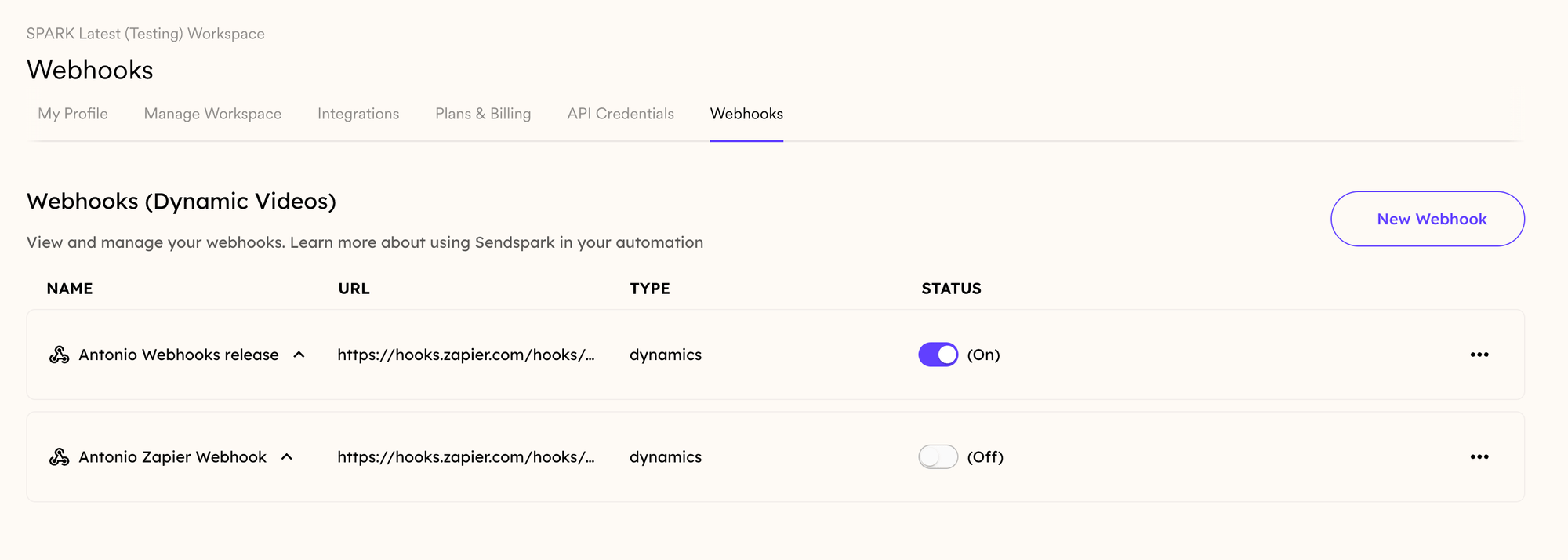 From there, you can...
## Create a New Webhook:
* Click on the\*\*“Add Webhook”\*\*button located in the top-right corner.
* Fill in all the necessary information, such as the Name and Webhook URL
From there, you can...
## Create a New Webhook:
* Click on the\*\*“Add Webhook”\*\*button located in the top-right corner.
* Fill in all the necessary information, such as the Name and Webhook URL
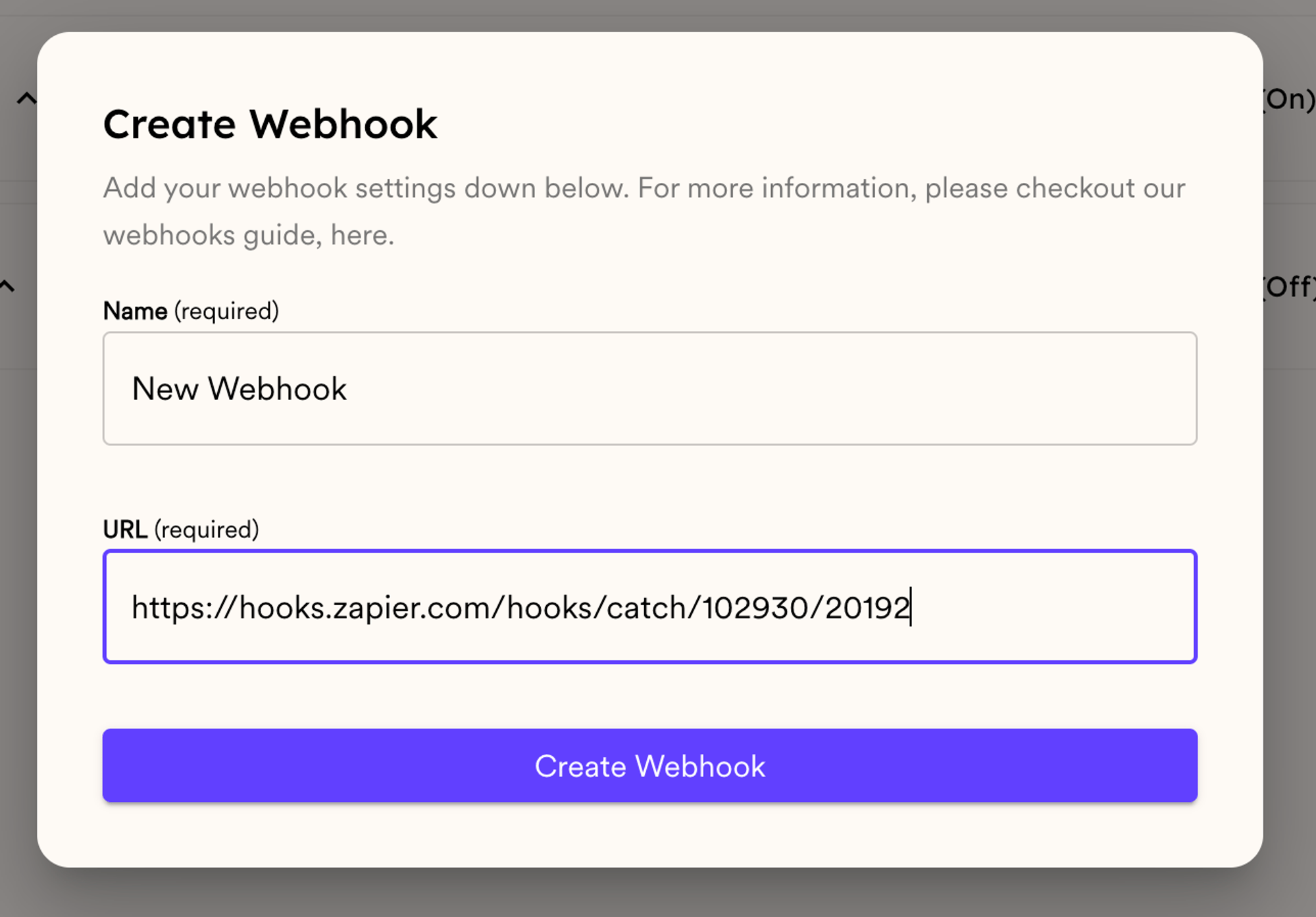 ## Configure Webhook Events:
* After creating your webhook, click on its name to access the events.
## Configure Webhook Events:
* After creating your webhook, click on its name to access the events.  * Here, you will see all of the available webhook events:
 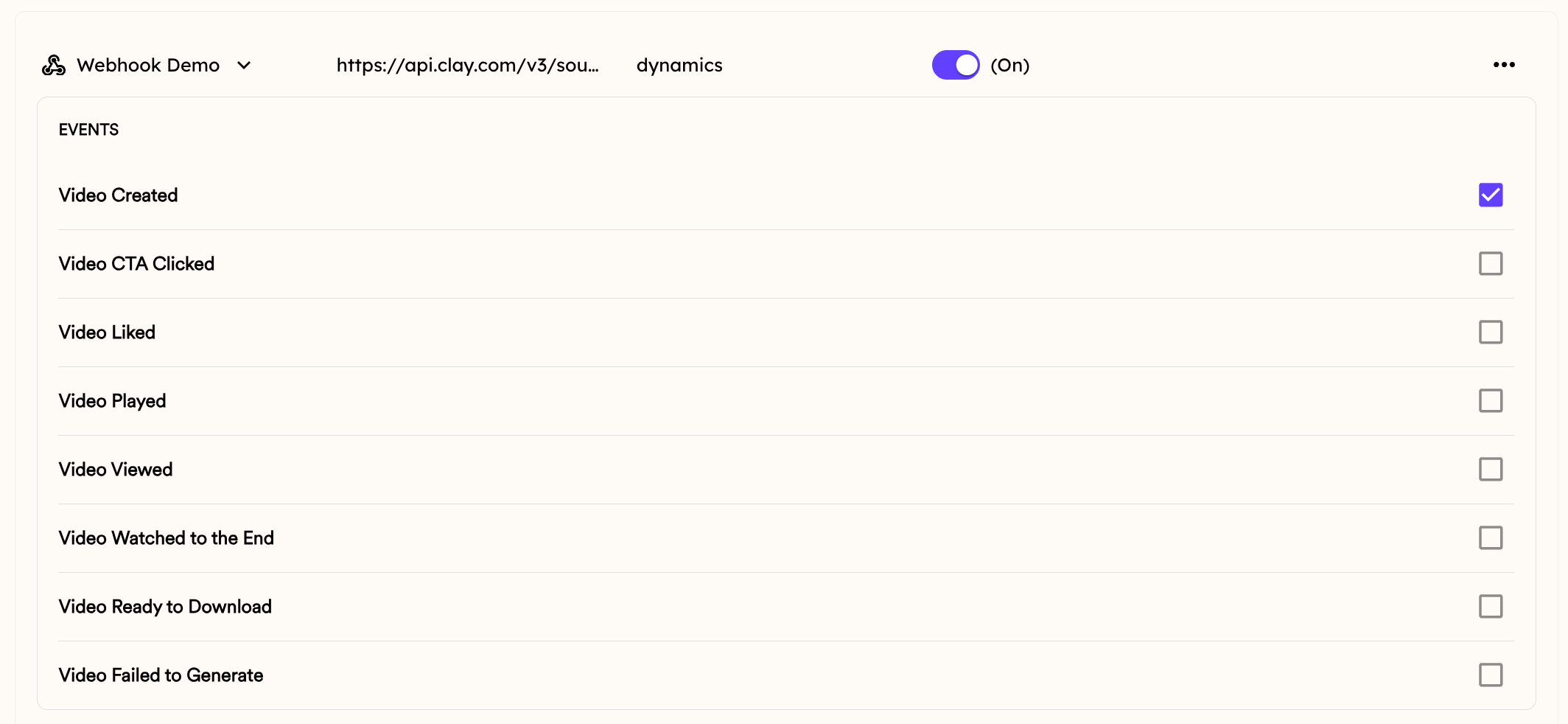 * You can select the ones that you want to use for this webhook URL. This is what each of the webhooks do:
* **Video Created**:
* This event is triggered when a new video is successfully created in the dynamic campaign that you associated in your Webhook.
* **Video CTA Clicked**:
* When a viewer interacts with a Call-to-Action (CTA) button in the share page, this event is triggered.
* **Video Liked**:
* This event occurs when a viewer indicates their positive sentiment towards a video by clicking the "Like”button associated with the video content.
* **Video Played**:
* When a viewer initiates playback of a video, either by clicking the play button or auto-play functionality, this event is triggered.
* **Video Viewed**:
* This event is triggered when a viewer opens or accesses a video, regardless of whether they interact with the playback controls or watch the video in its entirety.
* **Video Watched %**:
* This event tracks the percentage of the video that a viewer has watched before pausing or closing the playback.
* **Video Ready to Download**
* This fires when the video .mp4 is ready to download, which can take a few minutes longer than the "Video Created" event. You can use this webhook to get the .mp4 of the video to download or upload to another site.
* **Video Failed to Generate**
* This will fire when your dynamic video generates with an error. You can use this event to keep an eye on errors.
Please review this article to see all [properties that are sent with webhooks](/webhooks-properties-in-sendspark-webhooks).
## Associate Webhooks with Dynamic Video Campaigns
By default, when you create a new webhook, it will be associated with all dynamic video campaigns in your workspace.
If you'd like it to only be associated with some dynamic videos campaigns, than you can click "Connect Campaign," and associate it only with specific campaigns.
* You can select the ones that you want to use for this webhook URL. This is what each of the webhooks do:
* **Video Created**:
* This event is triggered when a new video is successfully created in the dynamic campaign that you associated in your Webhook.
* **Video CTA Clicked**:
* When a viewer interacts with a Call-to-Action (CTA) button in the share page, this event is triggered.
* **Video Liked**:
* This event occurs when a viewer indicates their positive sentiment towards a video by clicking the "Like”button associated with the video content.
* **Video Played**:
* When a viewer initiates playback of a video, either by clicking the play button or auto-play functionality, this event is triggered.
* **Video Viewed**:
* This event is triggered when a viewer opens or accesses a video, regardless of whether they interact with the playback controls or watch the video in its entirety.
* **Video Watched %**:
* This event tracks the percentage of the video that a viewer has watched before pausing or closing the playback.
* **Video Ready to Download**
* This fires when the video .mp4 is ready to download, which can take a few minutes longer than the "Video Created" event. You can use this webhook to get the .mp4 of the video to download or upload to another site.
* **Video Failed to Generate**
* This will fire when your dynamic video generates with an error. You can use this event to keep an eye on errors.
Please review this article to see all [properties that are sent with webhooks](/webhooks-properties-in-sendspark-webhooks).
## Associate Webhooks with Dynamic Video Campaigns
By default, when you create a new webhook, it will be associated with all dynamic video campaigns in your workspace.
If you'd like it to only be associated with some dynamic videos campaigns, than you can click "Connect Campaign," and associate it only with specific campaigns.
 This can help you set up more precise automation, especially when you want to automatically send out a video after it's been created.
(Learn more about [using webhooks with dynamic video campaigns here](/webhooks-for-dynamic-video-notifications))
## Sendspark Webhook FAQs
1. **What are webhooks, and how do they work in Sendspark?**
* Webhooks are automated messages sent from Sendspark to another application when a specific event occurs. In Sendspark, you can configure webhooks to trigger events based on user interactions or system actions within your dynamic video campaigns.
2. **Are webhooks available for all types of videos in Sendspark?**
* Currently, webhooks are **only available for dynamic videos in Sendspark**. Dynamic videos allow for personalized content generation based on user data, making them ideal for triggering events and automating workflows through webhooks.
3. **Where can I find more information or support for setting up and configuring webhooks in Sendspark?**
* For more detailed instructions or assistance with webhook setup and configuration, you can reach out to our support team for personalized support and guidance.
## Frequently asked questions
No. Webhooks are currently available for dynamic video campaigns only, not for every video in your Sendspark library.
Go to the Webhooks section in your Settings panel, click **Add Webhook** in the top-right corner, and fill in the Name and Webhook URL. Then click the webhook's name to select which events it should fire on.
You can select from Video Created, Video CTA Clicked, Video Liked, Video Played, Video Viewed, Video Watched %, Video Ready to Download, and Video Failed to Generate. Video Ready to Download can fire a few minutes after Video Created, once the .mp4 is ready.
By default a new webhook is associated with all dynamic video campaigns in your workspace. To limit it, click **Connect Campaign** and associate it with specific campaigns only.
See [properties that are sent with webhooks](/webhooks-properties-in-sendspark-webhooks) for the full list of fields included in each event.
*Updated July 2026.*
This can help you set up more precise automation, especially when you want to automatically send out a video after it's been created.
(Learn more about [using webhooks with dynamic video campaigns here](/webhooks-for-dynamic-video-notifications))
## Sendspark Webhook FAQs
1. **What are webhooks, and how do they work in Sendspark?**
* Webhooks are automated messages sent from Sendspark to another application when a specific event occurs. In Sendspark, you can configure webhooks to trigger events based on user interactions or system actions within your dynamic video campaigns.
2. **Are webhooks available for all types of videos in Sendspark?**
* Currently, webhooks are **only available for dynamic videos in Sendspark**. Dynamic videos allow for personalized content generation based on user data, making them ideal for triggering events and automating workflows through webhooks.
3. **Where can I find more information or support for setting up and configuring webhooks in Sendspark?**
* For more detailed instructions or assistance with webhook setup and configuration, you can reach out to our support team for personalized support and guidance.
## Frequently asked questions
No. Webhooks are currently available for dynamic video campaigns only, not for every video in your Sendspark library.
Go to the Webhooks section in your Settings panel, click **Add Webhook** in the top-right corner, and fill in the Name and Webhook URL. Then click the webhook's name to select which events it should fire on.
You can select from Video Created, Video CTA Clicked, Video Liked, Video Played, Video Viewed, Video Watched %, Video Ready to Download, and Video Failed to Generate. Video Ready to Download can fire a few minutes after Video Created, once the .mp4 is ready.
By default a new webhook is associated with all dynamic video campaigns in your workspace. To limit it, click **Connect Campaign** and associate it with specific campaigns only.
See [properties that are sent with webhooks](/webhooks-properties-in-sendspark-webhooks) for the full list of fields included in each event.
*Updated July 2026.*