> ## Documentation Index
> Fetch the complete documentation index at: https://help.sendspark.com/llms.txt
> Use this file to discover all available pages before exploring further.
# Warmly: Create Videos from Visitors
> Learn how to create personalized videos for website visitors using Warmly Orchestrator and Sendspark with automated workflows.
You can automatically send personalized videos to website visitors by connecting Warmly's Orchestrator to a Sendspark Automated Workflow. When Warmly identifies a contact who visited your site, it fires a webhook to Sendspark, which generates a dynamic video and sends it by email. No manual recording is needed for each lead.
## Key takeaways
* The setup links two tools: a **Warmly Orchestrator** built for the "Identified contact visited website" trigger, and a **Sendspark Automated Workflow** triggered by a webhook.
* Warmly's final workflow action sends a **webhook** to the URL provided by your Sendspark automation, which passes the visitor to Sendspark.
* In Sendspark, add an action to create a [dynamic video](/dynamic-videos-make-videos-with-ai-introductions) linked to the campaign you want to use, then a follow-up action to send that video by email.
* The whole flow is automated, so identified visitors receive a personalized video without you recording one per person.
You can automatically send personalized videos to anonymous website visitors using Warmly and Sendspark.
Start by watching the video below, and referencing the steps for additional context.
## How to Send AI Personalized Videos to Warmly Leads
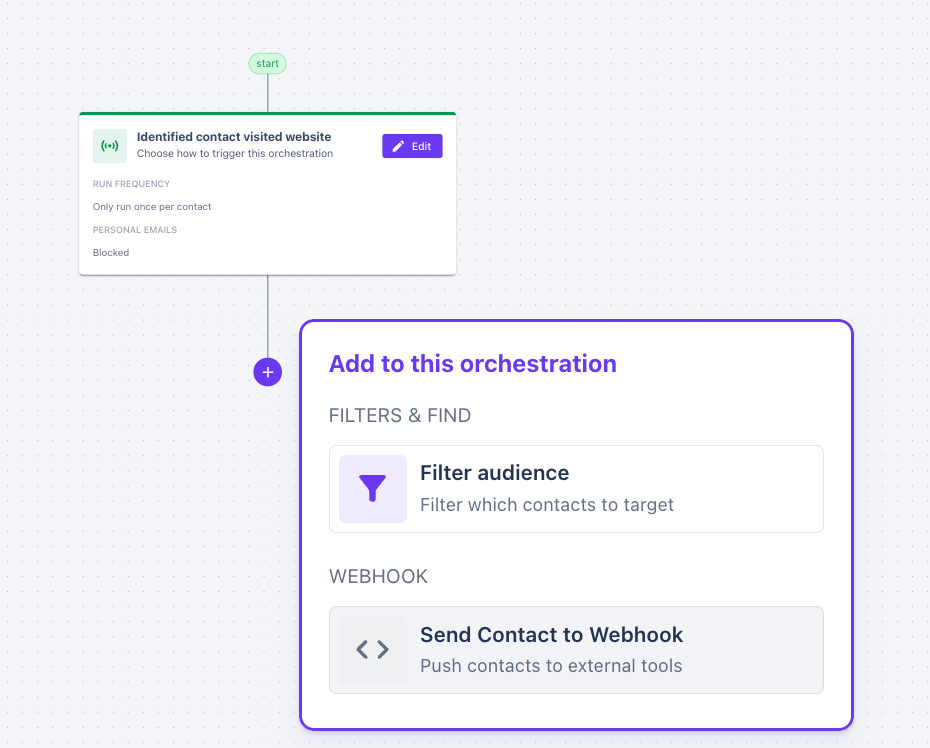
1. Start by set up your Warmly Orchestrator for "Identified contact visited website".
2. Add an action to send a webhook at the end of the workflow.
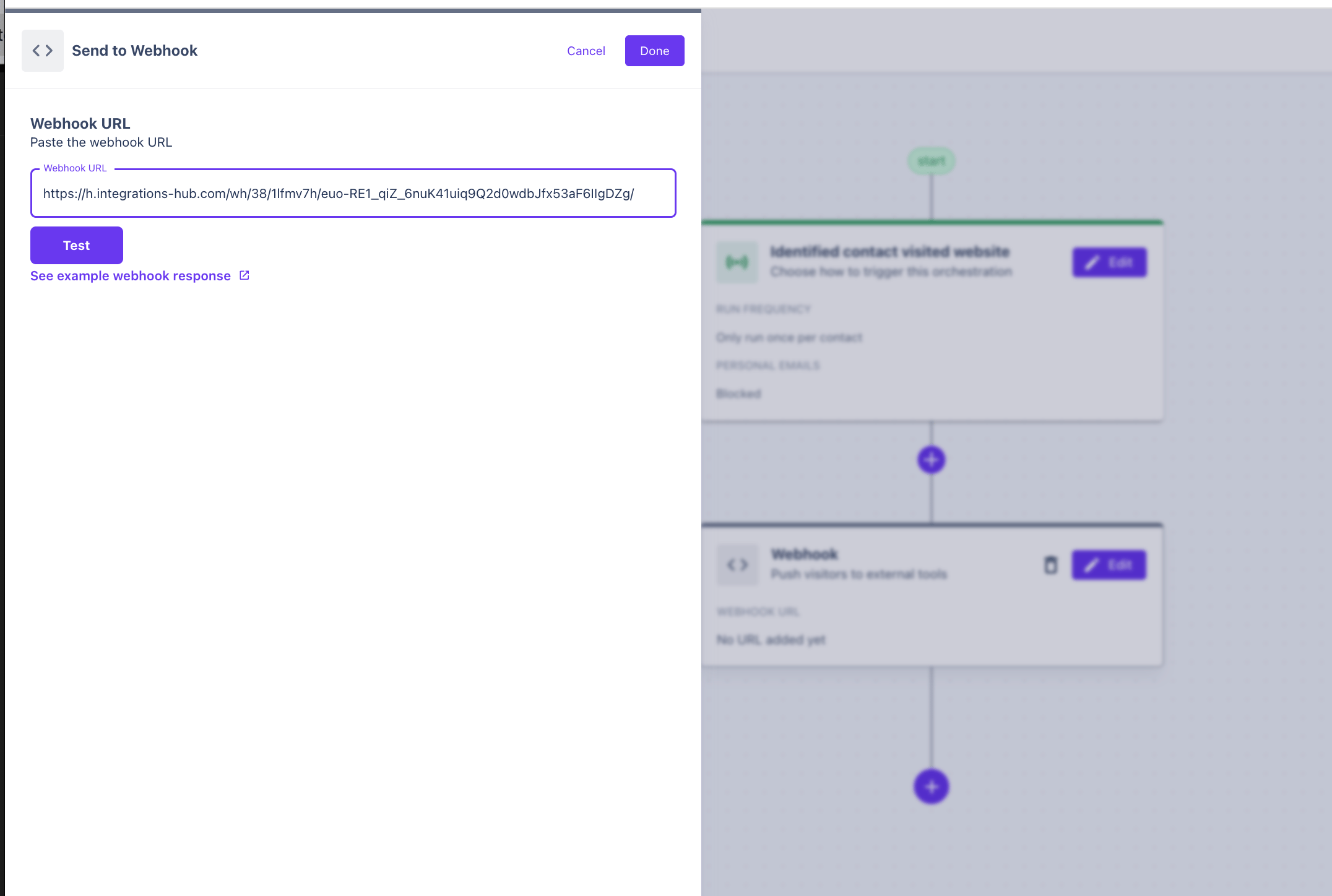
3. Create an [Automated Workflow](/sendspark-automated-workflows-beginner-s-guide)in Sendspark. Use "Webhook" as a trigger, and add this webhook URL to the Warmly Orchestrator.
4. Add an action to your Sendspark automation to create a [dynamic video](/dynamic-videos-make-videos-with-ai-introductions). Link to the Dynamic Video Campaign that you would like to use.
5. Add a follow up action to send this video out in email. Note that there are many ways you can send [videos in email](/auto-send-ai-personalized-videos) after they are generated.
Let us know if you need any help with this setup!
## Frequently asked questions
In Warmly, the Orchestrator is set up for the "Identified contact visited website" trigger. When an identified contact visits your site, the workflow runs and, at the end, sends a webhook to Sendspark to kick off the video.
Warmly connects through a webhook. You create an Automated Workflow in Sendspark that uses "Webhook" as its trigger, then add the webhook URL Sendspark provides to the action at the end of your Warmly Orchestrator.
In your Sendspark automation you add an action to create a dynamic video and link it to the Dynamic Video Campaign you want to use. Every identified visitor that comes through the webhook gets a personalized video from that campaign.
After the video is generated, you add a follow-up action to send it out by email. There are several ways to send videos in email once they are generated, so you can choose the method that fits your workflow.
*Updated July 2026.*
 2. Add an action to send a webhook at the end of the workflow.
 3. Create an [Automated Workflow](/sendspark-automated-workflows-beginner-s-guide)in Sendspark. Use "Webhook" as a trigger, and add this webhook URL to the Warmly Orchestrator.
 4. Add an action to your Sendspark automation to create a [dynamic video](/dynamic-videos-make-videos-with-ai-introductions). Link to the Dynamic Video Campaign that you would like to use.
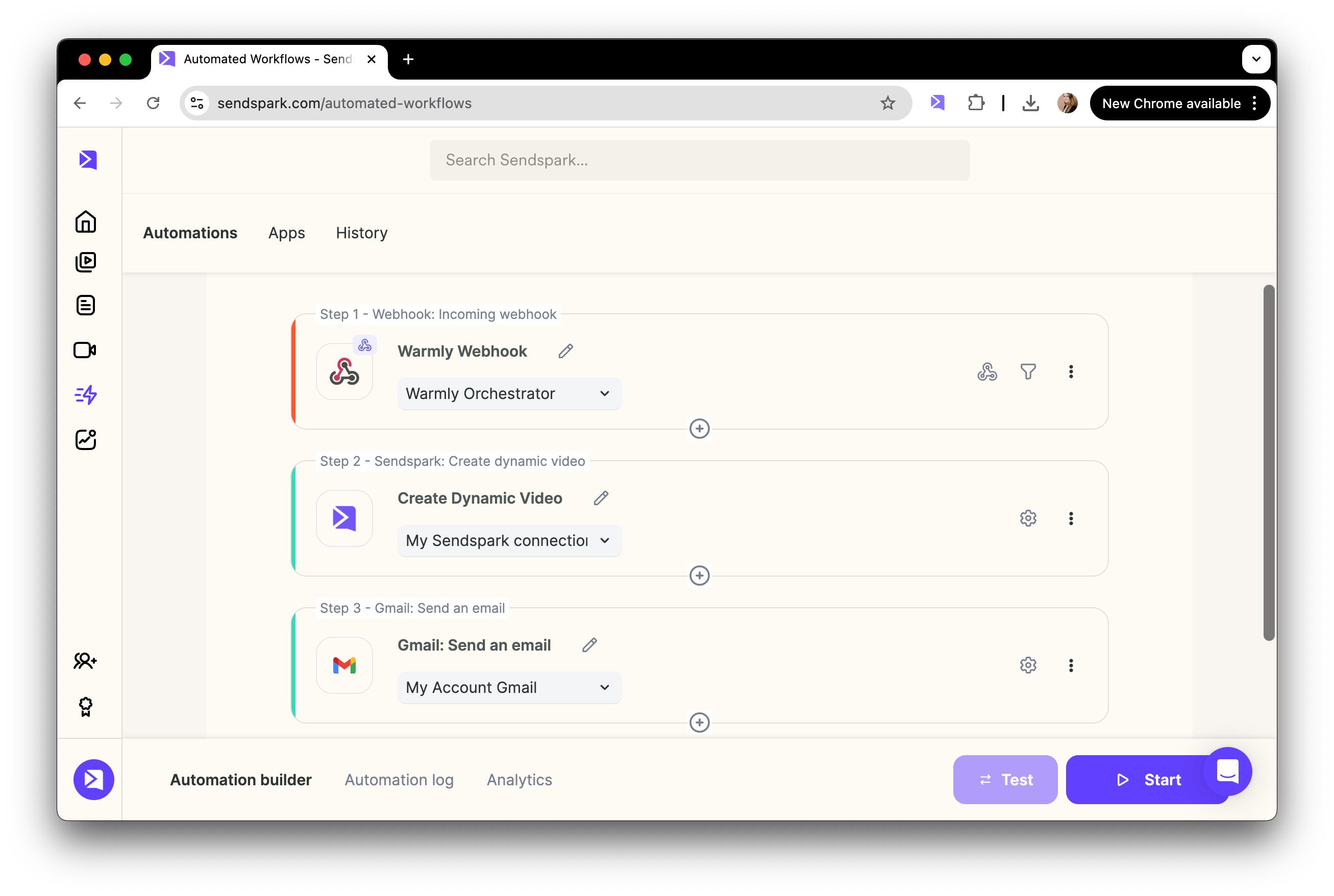 5. Add a follow up action to send this video out in email. Note that there are many ways you can send [videos in email](/auto-send-ai-personalized-videos) after they are generated.
Let us know if you need any help with this setup!
## Frequently asked questions
5. Add a follow up action to send this video out in email. Note that there are many ways you can send [videos in email](/auto-send-ai-personalized-videos) after they are generated.
Let us know if you need any help with this setup!
## Frequently asked questions