> ## Documentation Index
> Fetch the complete documentation index at: https://help.sendspark.com/llms.txt
> Use this file to discover all available pages before exploring further.
# Use Merge Tags to Personalize Videos at Scale
> Learn how to use Sendspark merge tags to automatically personalize videos at scale and boost email click-through rates up to 16x.
Sendspark merge tags let you personalize videos at scale by adding dynamic variables, such as a viewer's name or company, so the correct information auto-populates across many videos at once. Create your video, add merge tags on the edit page, share through an email-sending platform, and each known viewer sees their personalized version.
## Key takeaways
* Personalized video emails can get up to 16x the click-through rate of their plain text counterparts.
* Merge tags act as dynamic variables that automatically add viewers' names and other information to all videos at once.
* If a value isn't known, the viewer sees fallback text so they still have a good experience.
* Variables only populate on a paid Sendspark plan when you test with real customer data; previewing without real data shows only fallbacks.
## Why Use Merge Tags?
Personalized video emails can get to 16x the click-through rate as their plain text counterparts. However, if you're sending a lot of emails, or incorporating video emails in your automation, then you might not have the ability to personalize each video experience by hand.
By using Sendspark merge tags as dynamic variables, you can automatically add your viewers' names and other information to all videos at once.
## How to Use Merge Tags in Sendspark?
## 1. Create your video
[Record](/record-yourself), [request](/how-to-request-a-testimonial-with-sendspark), or [upload](/upload-a-video-to-sendspark) your video to Sendspark.
## 2. Add Merge Tags
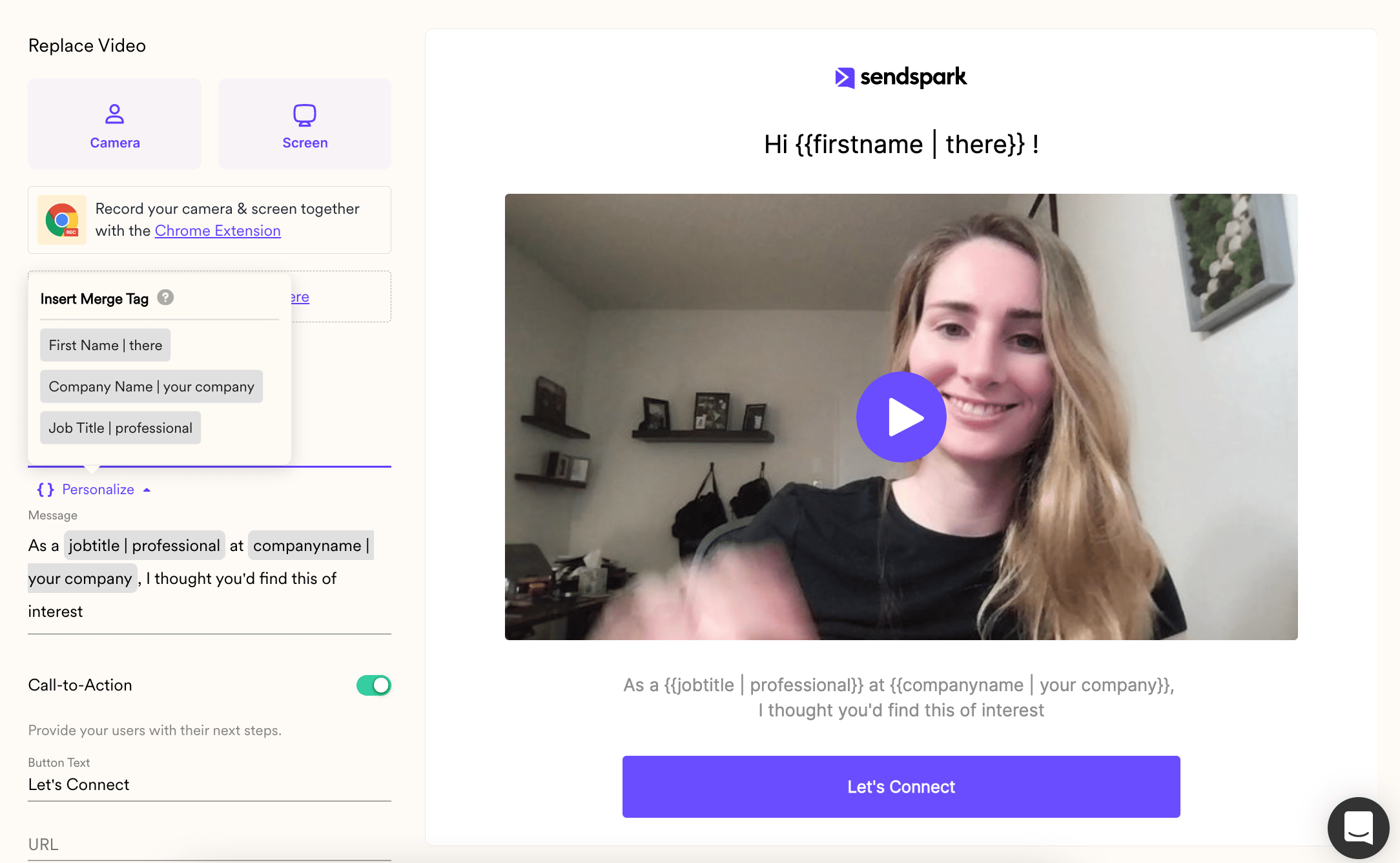
Open the edit page for your video, and add dynamic variables using the **merge tag** option on the right.
 ## 3. Share through an email sending platform
I. Click **Share Video**
## 3. Share through an email sending platform
I. Click **Share Video**
 II. Search your desired option below "Share with personalization"
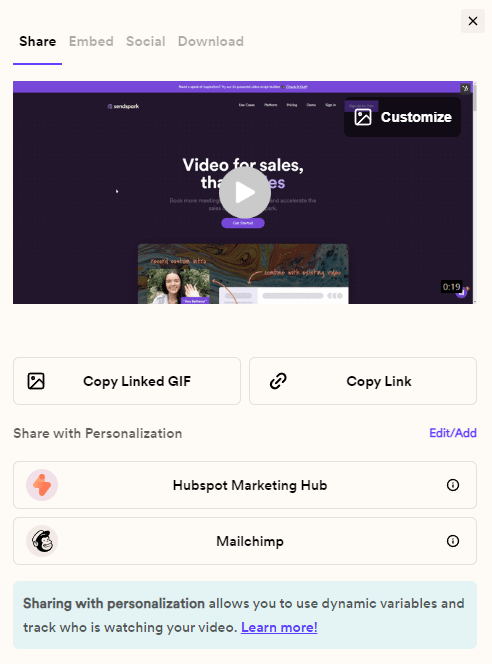 III. And click to copy the code snippet for your email-sending platform.
If you do not see a snippet for your email-sending platform, click on Edit/Add. If you still can't find it, please [request it here](https://docs.google.com/forms/d/e/1FAIpQLScTOIlu1-ocFD_l4deIYlx2U857i0b21jatngLfxAf_WvQyvA/viewform).
## 4. Variables will automatically populate
When you use a merge tag, the correct information (name, company, etc) will auto-populate if it is known.
If it will not know, your viewer will see [fallback text](/how-merge-tag-fallbacks-work), so they still have a good experience.
## 5. Track who's watching
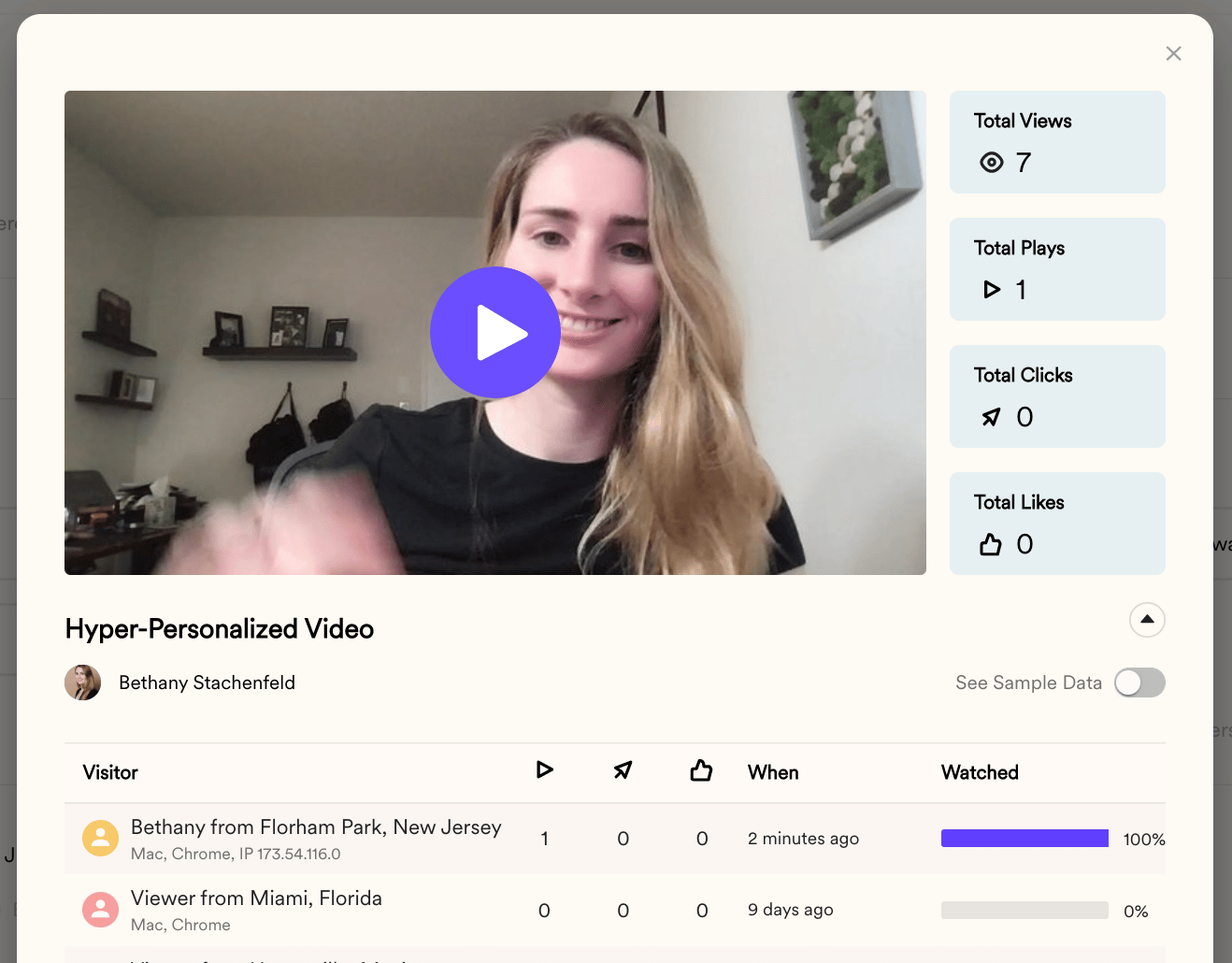
You'll be able to see who is watching your video from your analytics modal. If the viewer is known, you will see their name, otherwise, you'll see "viewer from (their location)."
III. And click to copy the code snippet for your email-sending platform.
If you do not see a snippet for your email-sending platform, click on Edit/Add. If you still can't find it, please [request it here](https://docs.google.com/forms/d/e/1FAIpQLScTOIlu1-ocFD_l4deIYlx2U857i0b21jatngLfxAf_WvQyvA/viewform).
## 4. Variables will automatically populate
When you use a merge tag, the correct information (name, company, etc) will auto-populate if it is known.
If it will not know, your viewer will see [fallback text](/how-merge-tag-fallbacks-work), so they still have a good experience.
## 5. Track who's watching
You'll be able to see who is watching your video from your analytics modal. If the viewer is known, you will see their name, otherwise, you'll see "viewer from (their location)."
 ## Merge Tag FAQ
## Q: Why don't I see the ability to add merge tags in Sendspark?
A: This feature might not be enabled for your account. Please reach out via our chatbot and we will turn it on for you.
## Q: Why are my variables not showing up? I only see the fallbacks.
A: Make sure (1) you are on a paid Sendspark plan, and (2) you are testing with real customer data. If you preview a link without using real customer data, then you will only see the fallback variables.
## Frequently asked questions
Personalized video emails can get up to 16x the click-through rate of their plain text counterparts.
The viewer sees fallback text, so they still have a good experience. When the information is known, the correct value (name, company, etc.) auto-populates.
Make sure you are on a paid Sendspark plan and that you are testing with real customer data. Previewing a link without real customer data shows only the fallback variables.
The feature might not be enabled for your account. Reach out via the chatbot and Sendspark will turn it on for you.
You can see who is watching from your analytics modal. If the viewer is known you'll see their name, otherwise you'll see "viewer from (their location)."
*Updated July 2026.*
## Merge Tag FAQ
## Q: Why don't I see the ability to add merge tags in Sendspark?
A: This feature might not be enabled for your account. Please reach out via our chatbot and we will turn it on for you.
## Q: Why are my variables not showing up? I only see the fallbacks.
A: Make sure (1) you are on a paid Sendspark plan, and (2) you are testing with real customer data. If you preview a link without using real customer data, then you will only see the fallback variables.
## Frequently asked questions
Personalized video emails can get up to 16x the click-through rate of their plain text counterparts.
The viewer sees fallback text, so they still have a good experience. When the information is known, the correct value (name, company, etc.) auto-populates.
Make sure you are on a paid Sendspark plan and that you are testing with real customer data. Previewing a link without real customer data shows only the fallback variables.
The feature might not be enabled for your account. Reach out via the chatbot and Sendspark will turn it on for you.
You can see who is watching from your analytics modal. If the viewer is known you'll see their name, otherwise you'll see "viewer from (their location)."
*Updated July 2026.*