> ## Documentation Index
> Fetch the complete documentation index at: https://help.sendspark.com/llms.txt
> Use this file to discover all available pages before exploring further.
# Use a Combined Video in a Dynamic Video Campaign
> Discover how to use a combined video in a Sendspark dynamic video campaign. Share one base video with AI-personalized intros for each prospect.
A combined video lets you stitch two videos together in Sendspark, then use the result in a dynamic video campaign. This creates longer videos with more information while conserving dynamic video minutes, because only the first video counts toward your minute allocation. You must combine the videos before you create the campaign.
## Key takeaways
* Combine two videos in the video editor using the Add Video option before you create your dynamic video campaign.
* Only the first video counts toward your dynamic video minute allocation, so you can extend length without using extra minutes.
* Your original videos stay unaltered. Combining is a temporary arrangement you can adjust or undo at any time.
* To use the combined video in a campaign, create a dynamic video campaign, click the drop-down arrow next to Record, choose Browse, and select the combined video.
**How to Combine Videos in Sendspark**
Did you know that you can combine two different videos in Sendspark? This feature allows you to integrate multiple video clips seamlessly, offering several advantages such as creating longer videos with more information while conserving your dynamic video minutes.
**Important! In order to use a combined video, you have to stich them BEFORE creating the Dynamic Video Campaign**
## Steps to follow:
1. **Accessing Your Videos:**
* Start by logging into your Sendspark account and navigate to your video library.
2. **Adding a Second Video:**
* Select a video that you want to combine with another: Click on VIDEO #1 to access the edit section.
3. **Combining Videos:**
* In the edit section, locate the "Add Video" option. Choose the second video that you wish to integrate into the first one. This second video can serve as a complement or continuation of the initial video.
4. **Review and Modify:**
* Once you've added the second video, review the combined result. Sendspark ensures that the original videos remain unaltered; combining videos is a temporary arrangement that can be adjusted or undone at any time.
5. **Using Combined Videos in DV Campaigns:**
* Create a new DV Campaign: [https://sendspark.com/dynamic-videos](https://sendspark.com/dynamic-videos)
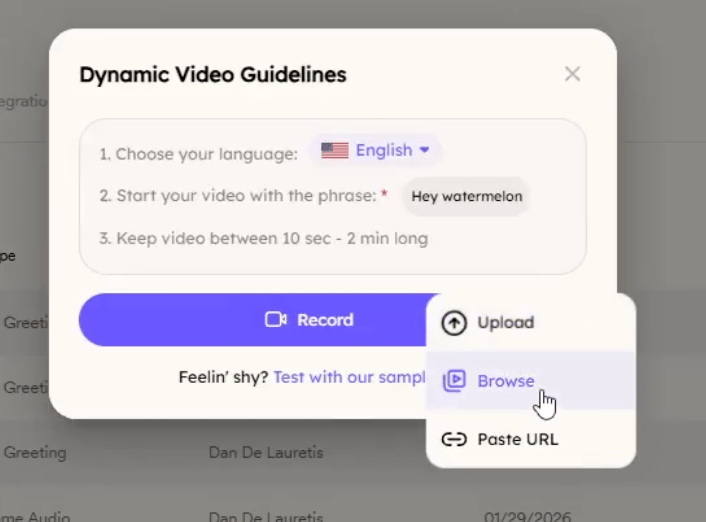
* Create a Dynamic Video campaign and then click the drop-down arrow next to RECORD and click BROWSE
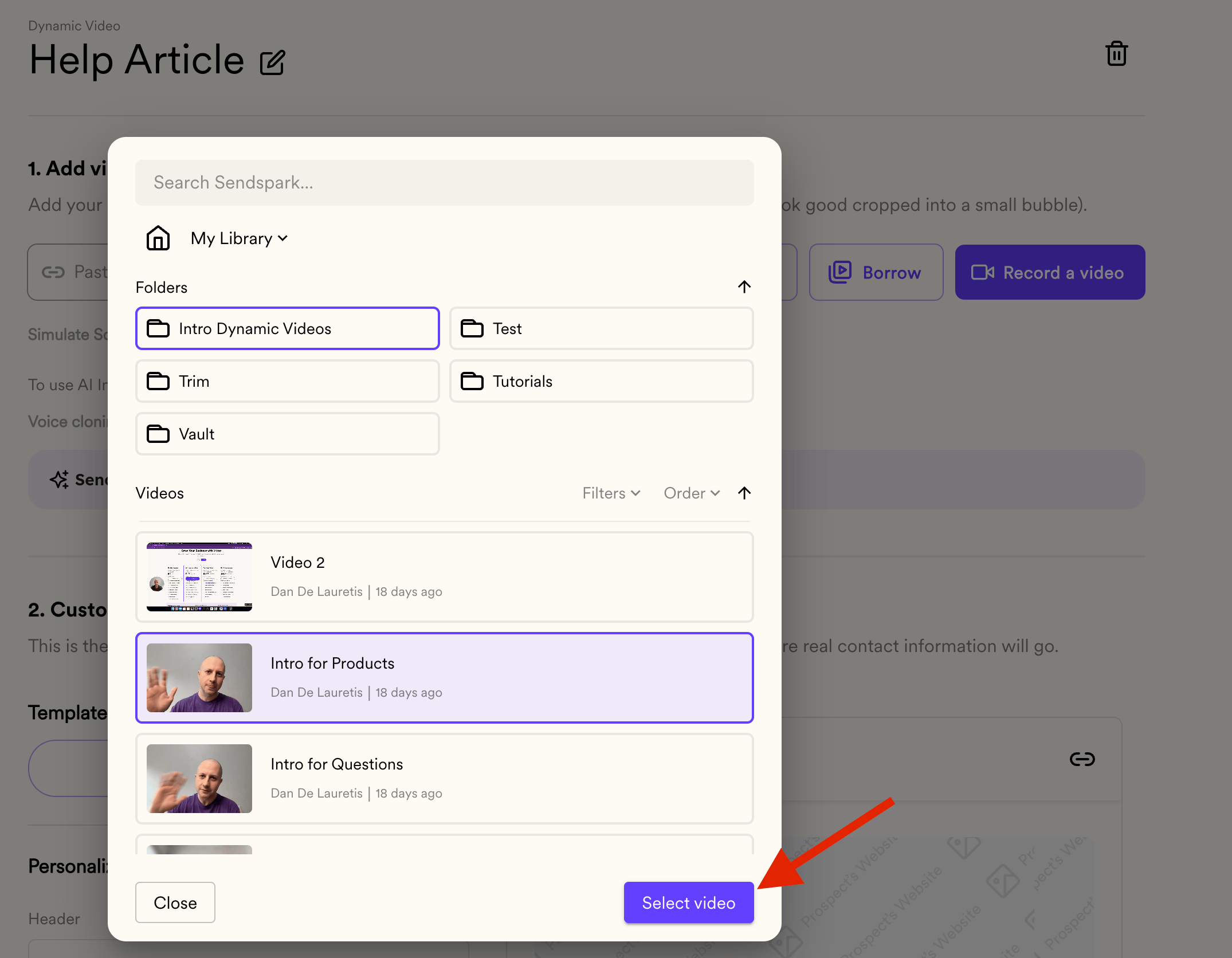
* Select the combined video and you are set!
## Benefits:
* **Extended Video Length:** Create longer videos without exceeding your dynamic video minute allocation. When you combine videos, we only consider the first video and not the full length of the video.
* **Flexibility:** Easily modify or remove combined videos as per your campaign needs.
* **Efficiency:** Streamline your video creation process by integrating related content into cohesive presentations.
Combining videos in Sendspark is a straightforward process that enhances your ability to craft engaging video content efficiently.
Whether you're showcasing products, explaining services, or delivering personalized messages, leveraging this feature empowers you to maximize the impact of your video campaigns.
For further assistance or questions, please don't hesitate to contact our support team. Have a great day!
## Frequently asked questions
Before. You have to stitch the two videos together first, then create the dynamic video campaign and browse to select the combined video.
Only the first video counts. When you combine videos, Sendspark only considers the first video's length, not the full combined length, so you can create longer videos without exceeding your minute allocation.
No. The original videos stay unaltered. Combining is a temporary arrangement that you can adjust or undo at any time.
Create a dynamic video campaign, click the drop-down arrow next to Record, click Browse, and select the combined video.
*Updated July 2026.*
 4. **Review and Modify:**
* Once you've added the second video, review the combined result. Sendspark ensures that the original videos remain unaltered; combining videos is a temporary arrangement that can be adjusted or undone at any time.
5. **Using Combined Videos in DV Campaigns:**
* Create a new DV Campaign: [https://sendspark.com/dynamic-videos](https://sendspark.com/dynamic-videos)
4. **Review and Modify:**
* Once you've added the second video, review the combined result. Sendspark ensures that the original videos remain unaltered; combining videos is a temporary arrangement that can be adjusted or undone at any time.
5. **Using Combined Videos in DV Campaigns:**
* Create a new DV Campaign: [https://sendspark.com/dynamic-videos](https://sendspark.com/dynamic-videos)  * Create a Dynamic Video campaign and then click the drop-down arrow next to RECORD and click BROWSE
  * Select the combined video and you are set!
  ## Benefits:
* **Extended Video Length:** Create longer videos without exceeding your dynamic video minute allocation. When you combine videos, we only consider the first video and not the full length of the video.
* **Flexibility:** Easily modify or remove combined videos as per your campaign needs.
* **Efficiency:** Streamline your video creation process by integrating related content into cohesive presentations.
Combining videos in Sendspark is a straightforward process that enhances your ability to craft engaging video content efficiently.
Whether you're showcasing products, explaining services, or delivering personalized messages, leveraging this feature empowers you to maximize the impact of your video campaigns.
For further assistance or questions, please don't hesitate to contact our support team. Have a great day!
## Frequently asked questions
## Benefits:
* **Extended Video Length:** Create longer videos without exceeding your dynamic video minute allocation. When you combine videos, we only consider the first video and not the full length of the video.
* **Flexibility:** Easily modify or remove combined videos as per your campaign needs.
* **Efficiency:** Streamline your video creation process by integrating related content into cohesive presentations.
Combining videos in Sendspark is a straightforward process that enhances your ability to craft engaging video content efficiently.
Whether you're showcasing products, explaining services, or delivering personalized messages, leveraging this feature empowers you to maximize the impact of your video campaigns.
For further assistance or questions, please don't hesitate to contact our support team. Have a great day!
## Frequently asked questions