> ## Documentation Index
> Fetch the complete documentation index at: https://help.sendspark.com/llms.txt
> Use this file to discover all available pages before exploring further.
# Use a Call-to-Action (Text Message)
> Add a Text Me call-to-action button to your Sendspark videos with SMS integration. Configure text message CTAs using simple URL formatting for viewers.
To add a "Text Me" button to your video, toggle on the Call-to-Action field, set the button text (such as "Text Me"), and in the URL field enter **sms:** followed by your phone number (for example, `sms:1234567890`). Viewers can then tap the button to text you directly. This requires the Starter Plan or higher.
## Key takeaways
* Video CTAs require the [Starter Plan](https://www.sendspark.com/pricing) or higher.
* Toggle on the Call-to-Action field, then set your button text (for example, "Text Me").
* In the URL field, enter **sms:** followed by your phone number, like `sms:1234567890`.
* Check the preview area on the right of the page to confirm the button looks correct before sharing.
**Note**: you must be on the [Starter Plan](https://www.sendspark.com/pricing) or a higher plan to use video CTAs (Call-To-Action)
***
Follow these steps to add a "Text Me" button to your videos:
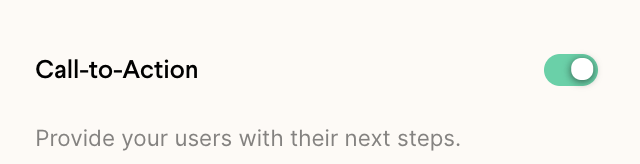
* **Toggle** on the Call-to-Action field
 * Write your desired **button text**(ex: Text Me)
* Write**sms:** and **your phone number** where it says **URL**(ex: sms:1234567890)
* Write your desired **button text**(ex: Text Me)
* Write**sms:** and **your phone number** where it says **URL**(ex: sms:1234567890)
 You'll be able to check that everything looks good in the preview area on the right of your page 👍
## How do I format the phone number for a text-message button?
Enter the number in the URL field as **sms:** immediately followed by the digits, with no spaces, like `sms:1234567890`. The `sms:` prefix is what tells the viewer's device to open a text message to you when they tap the button.
## Frequently asked questions
Video CTAs (Call-To-Action buttons) require the [Starter Plan](https://www.sendspark.com/pricing) or a higher plan.
In the URL field, type **sms:** followed by your phone number, for example `sms:1234567890`. The `sms:` prefix turns the button into a link that opens a text message on the viewer's device.
Write whatever prompts the viewer to text you, such as "Text Me." You set this in the button text field when you toggle on the Call-to-Action.
Use the preview area on the right side of the page. It shows how the CTA button will appear to viewers so you can confirm everything looks right.
Yes. Sendspark also supports CTAs that dial a [phone number](/use-a-call-to-action-phone-number) or open a [URL link](/use-a-call-to-action-url-link), so you can point viewers wherever you like.
*Updated July 2026.*
You'll be able to check that everything looks good in the preview area on the right of your page 👍
## How do I format the phone number for a text-message button?
Enter the number in the URL field as **sms:** immediately followed by the digits, with no spaces, like `sms:1234567890`. The `sms:` prefix is what tells the viewer's device to open a text message to you when they tap the button.
## Frequently asked questions
Video CTAs (Call-To-Action buttons) require the [Starter Plan](https://www.sendspark.com/pricing) or a higher plan.
In the URL field, type **sms:** followed by your phone number, for example `sms:1234567890`. The `sms:` prefix turns the button into a link that opens a text message on the viewer's device.
Write whatever prompts the viewer to text you, such as "Text Me." You set this in the button text field when you toggle on the Call-to-Action.
Use the preview area on the right side of the page. It shows how the CTA button will appear to viewers so you can confirm everything looks right.
Yes. Sendspark also supports CTAs that dial a [phone number](/use-a-call-to-action-phone-number) or open a [URL link](/use-a-call-to-action-url-link), so you can point viewers wherever you like.
*Updated July 2026.*