> ## Documentation Index
> Fetch the complete documentation index at: https://help.sendspark.com/llms.txt
> Use this file to discover all available pages before exploring further.
# Unreachable Background URLs in Dynamic Videos
> Learn how to handle unreachable background URLs in Dynamic Videos with fallback options and troubleshooting rejected leads.
When a dynamic video's background URL can't be reached, Sendspark handles it in two ways. If a lead has no website URL at all, the system uses a fallback background so the video still generates. If a URL is provided but fails to load, that video is rejected — you can fix the URL in the Contacts section of your campaign and resubmit.
## Key takeaways
* **No website URL provided:** Sendspark automatically uses a fallback background so the video still generates. Enable it by setting a Fallback URL, then at the Contacts step click the settings wheel and select **Generate Video Using Fallback Data** in the Error Handling panel.
* **Invalid or unloadable URL:** if a URL is provided but fails to load or render, the video generation is rejected. Review rejected leads in the **Contacts** section, edit the URL that failed, and resubmit.
* The Error Handling panel offers two choices: generate the video using fallback data, or do not generate it, show an error, and let you update the information.
* Videos generated from fallback content are easy to spot afterward — they show an orange status indicator and an orange play button.
## Learn how to handle background URLs the right way:
## There are a few different scenarios that can happen whenever you are rendering videos in Sendspark.
When using dynamic video campaigns, here’s how the system handles leads based on their website URL status:
* **No Website URL Provided:** If a lead does **not** include a website URL (i.e., the URL field is left completely empty), the system will automatically use a **fallback background** for the video. This ensures that the video is still generated and usable. To activate this option, simply create a new Dynamic Video Campaign and follow these steps: 1) Set up the Fallback URL you want to use when your lead has no data included: 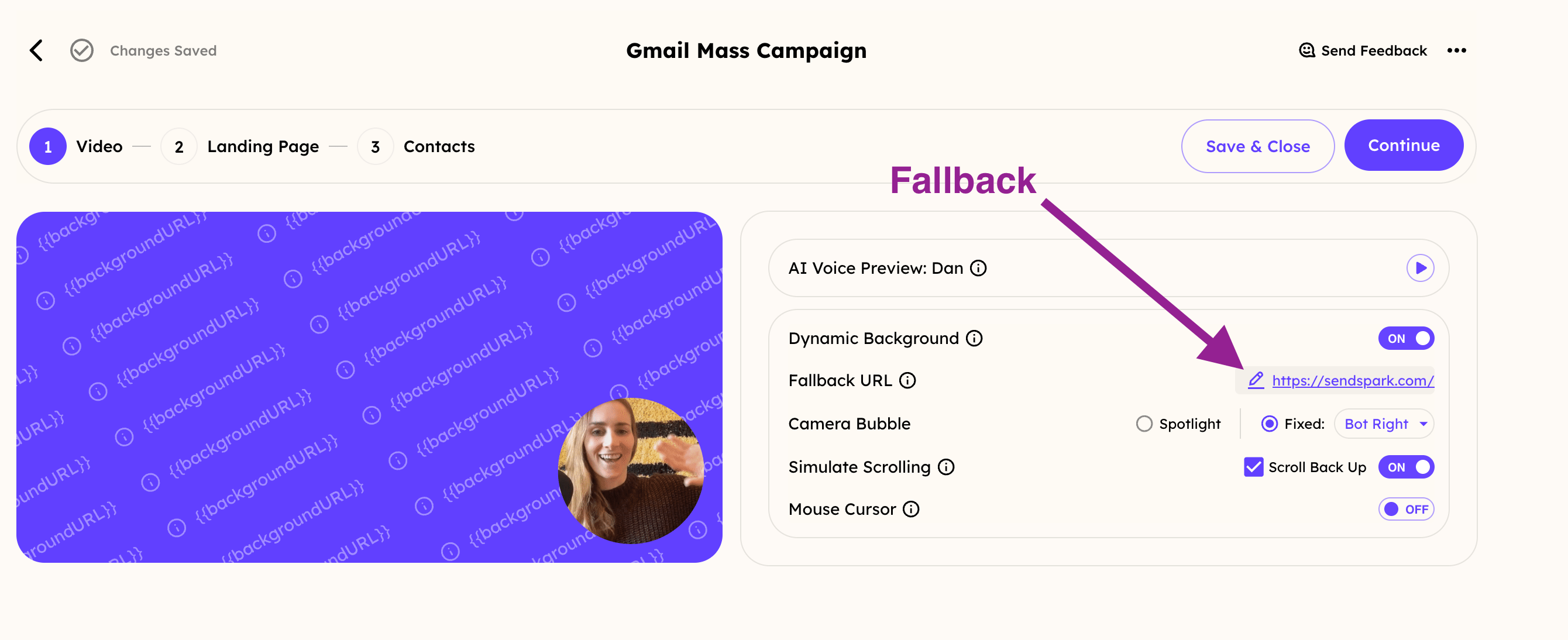 2) Once you reach the 3rd step: Contacts, you'll need to click on the Settings wheel on the right-hand side to display the ERROR HANDLING panel. From there, make sure the first option is selected: **Generate Video Using Fallback Data:**
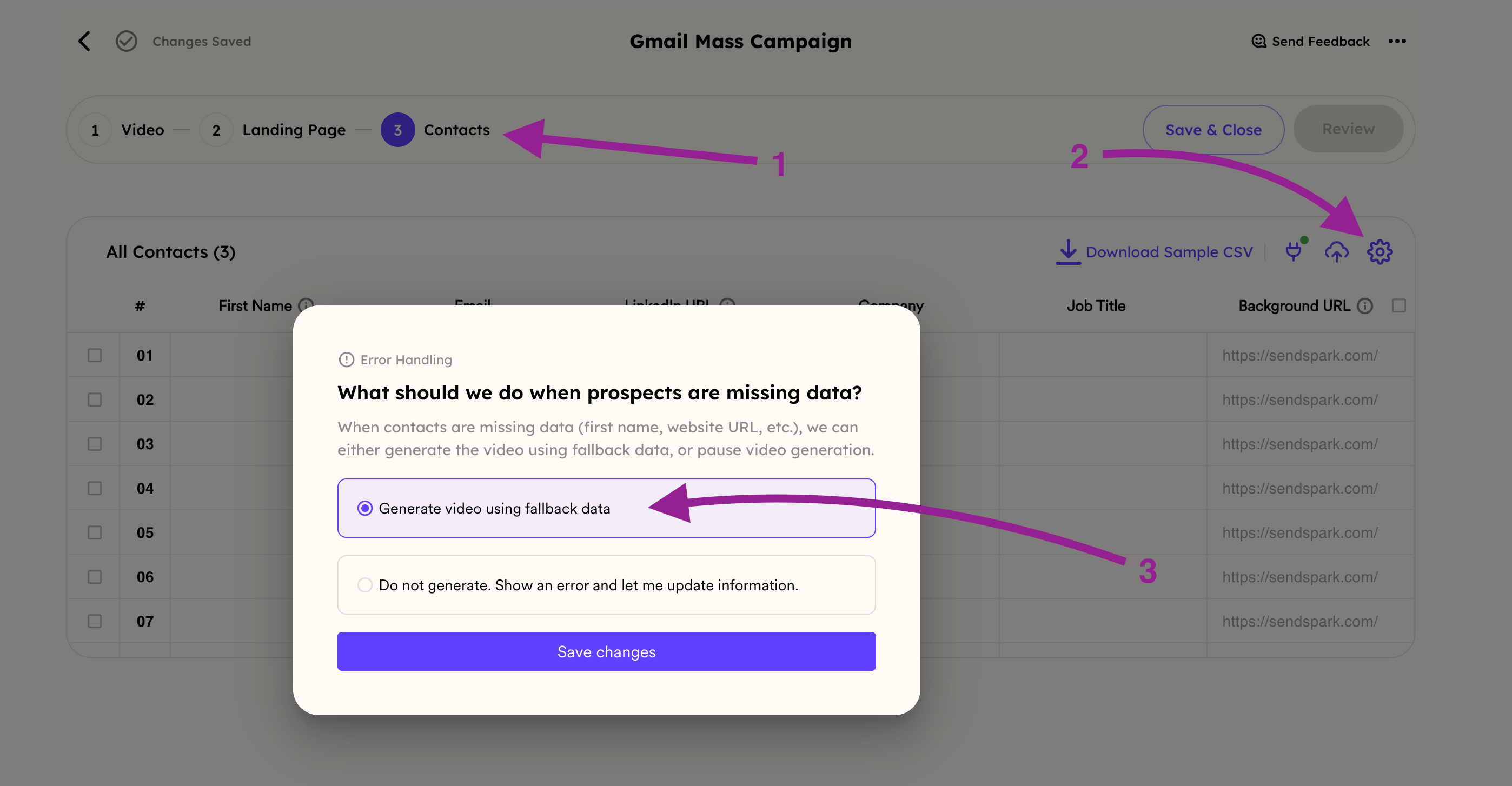 And that's it! The system will automatically complete the video rendering process using the most suitable parameters available. Additional tips and insights for managing missing fields are provided below.
* **Invalid or Unloadable Website URL:** If a website URL is provided but **fails to load or render properly**, the video generation will be **rejected**.
And that's it! The system will automatically complete the video rendering process using the most suitable parameters available. Additional tips and insights for managing missing fields are provided below.
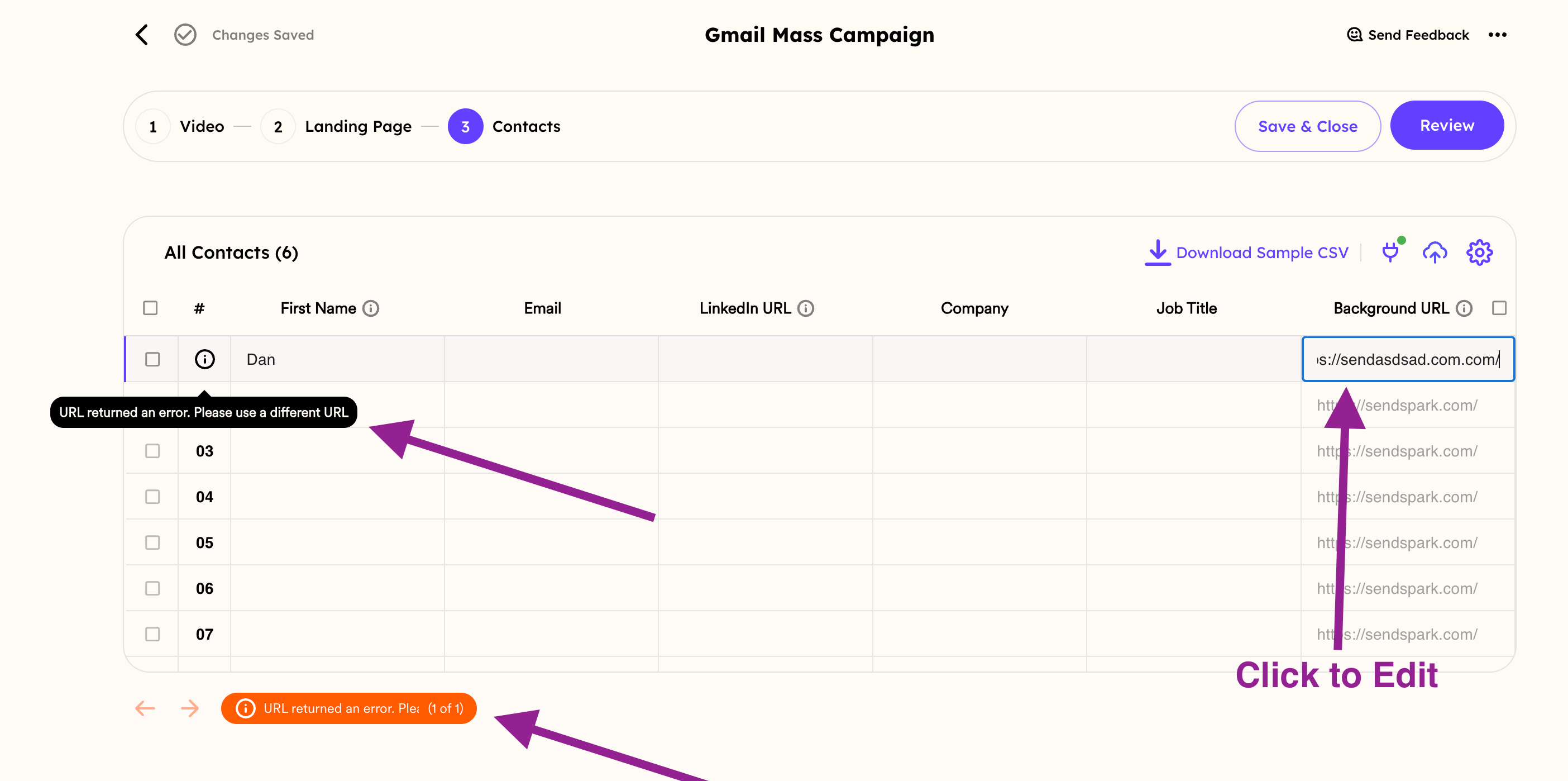
* **Invalid or Unloadable Website URL:** If a website URL is provided but **fails to load or render properly**, the video generation will be **rejected**. 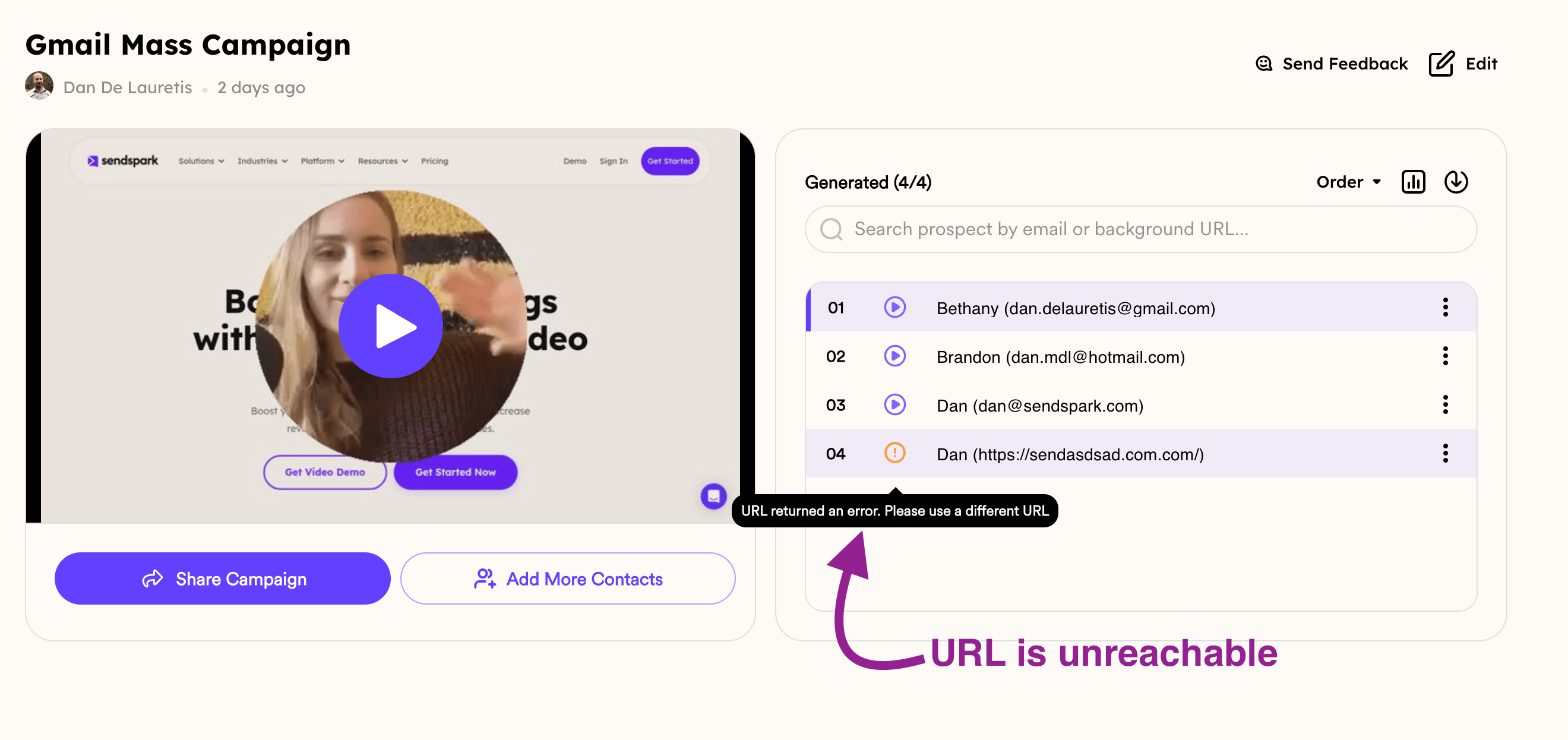 You can review these rejected leads in the **Contacts** section of your dynamic video campaign:
 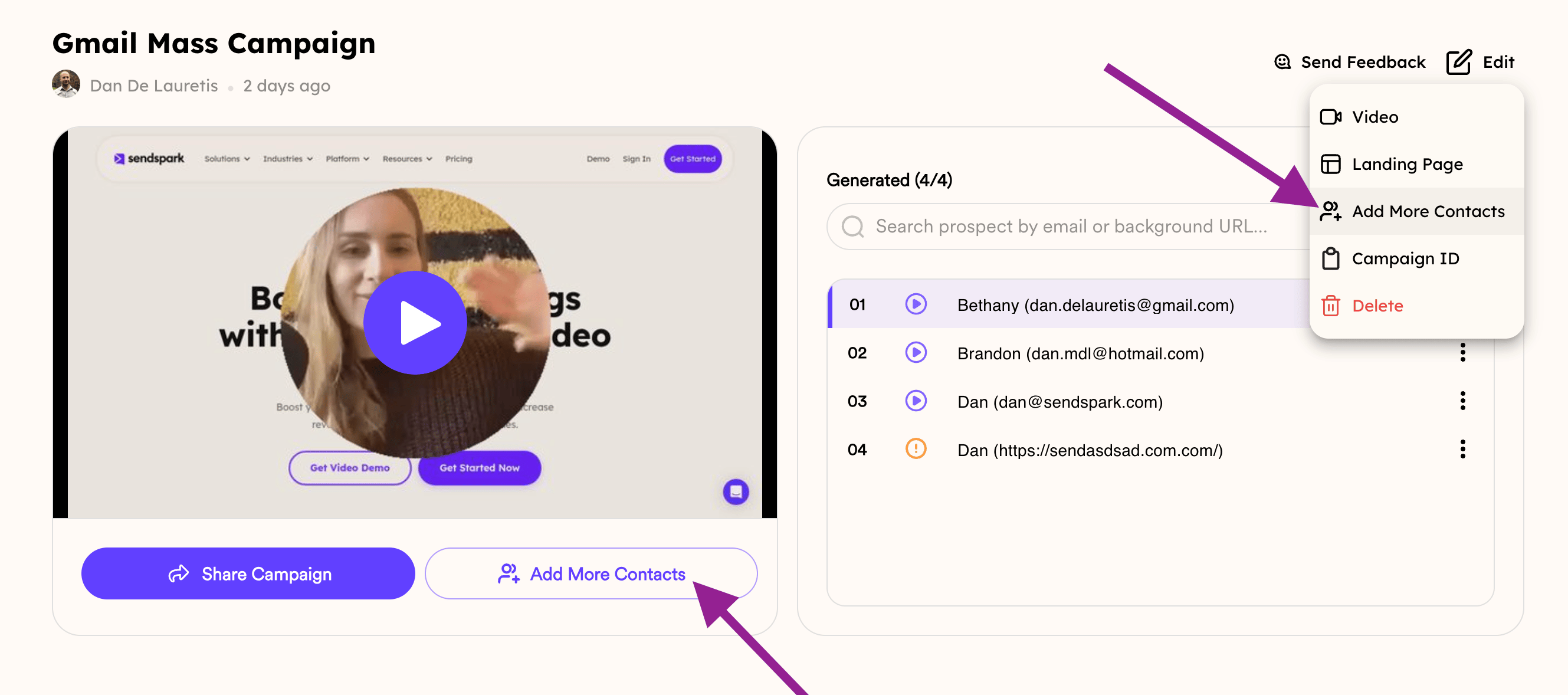 Once in **Contacts**, edit the URL that failed:
  And that's it! Let us know if you have any questions :)
## Frequently asked questions
If the URL field is left completely empty, the system automatically uses a fallback background for the video, so the video is still generated and usable.
Create a new Dynamic Video Campaign and set up the Fallback URL you want to use. Then, at the Contacts step, click the settings wheel on the right-hand side to open the Error Handling panel and select **Generate Video Using Fallback Data**.
If a URL is provided but fails to load or render properly, the video generation is rejected. You can review these rejected leads in the **Contacts** section of your dynamic video campaign, edit the URL that failed, and resubmit it.
Videos generated using fallback content are marked with an orange status indicator and an orange play button, so they're easy to identify after generation.
*Updated July 2026.*
And that's it! Let us know if you have any questions :)
## Frequently asked questions
If the URL field is left completely empty, the system automatically uses a fallback background for the video, so the video is still generated and usable.
Create a new Dynamic Video Campaign and set up the Fallback URL you want to use. Then, at the Contacts step, click the settings wheel on the right-hand side to open the Error Handling panel and select **Generate Video Using Fallback Data**.
If a URL is provided but fails to load or render properly, the video generation is rejected. You can review these rejected leads in the **Contacts** section of your dynamic video campaign, edit the URL that failed, and resubmit it.
Videos generated using fallback content are marked with an orange status indicator and an orange play button, so they're easy to identify after generation.
*Updated July 2026.*