> ## Documentation Index
> Fetch the complete documentation index at: https://help.sendspark.com/llms.txt
> Use this file to discover all available pages before exploring further.
# Troubleshooting Recording Issues (Chrome Extension)
> Fix Chrome extension recording problems and video upload failures by reloading your Sendspark extension in just a few clicks.
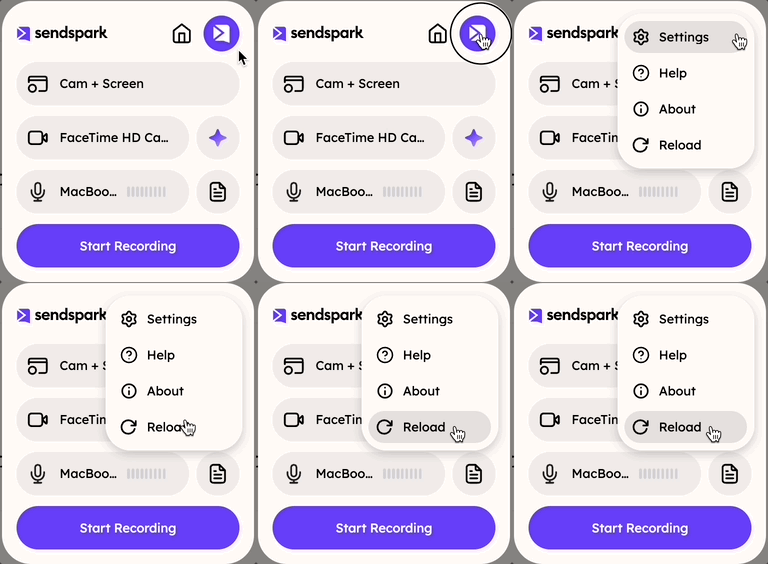
If your Sendspark recording won't upload or the extension stops responding, reload the extension: click the Extensions icon in Chrome, find the Sendspark extension, click **Reload**, and try recording again. This resets the connection and updates you to the latest version, resolving most connection-related issues. If it persists, restart Chrome and try once more.
If you’re experiencing recording problems — such as **“video upload failed”** — try **reloading your Chrome extension**. This usually resolves most connection-related issues.
**Why this works:**
* Resets the extension connection
* Fixes temporary glitches
* Ensures you’re running the **latest available version**
**Steps:**
1. Click the **Extensions** icon in Chrome.
2. Find the **Sendspark extension**.
3. Click **Reload**.
4. Try recording again.
If the issue continues, restart Chrome and try once more.
 ## Key takeaways
* Most recording and upload problems, including "video upload failed", are connection-related and clear up after reloading the extension.
* Reloading resets the extension connection, fixes temporary glitches, and ensures you're on the latest available version.
* To reload: Extensions icon → find Sendspark → **Reload** → try recording again.
* If it still doesn't work, restart Chrome and try once more.
## Frequently asked questions
Reloading resets the extension's connection, clears temporary glitches, and makes sure you're running the latest available version — which is what most connection-related recording problems come down to.
Try reloading your Chrome extension first: click the Extensions icon, find the Sendspark extension, click **Reload**, and record again. This resolves most upload failures.
If the issue continues after reloading, restart Chrome and try recording once more.
*Updated July 2026.*
## Key takeaways
* Most recording and upload problems, including "video upload failed", are connection-related and clear up after reloading the extension.
* Reloading resets the extension connection, fixes temporary glitches, and ensures you're on the latest available version.
* To reload: Extensions icon → find Sendspark → **Reload** → try recording again.
* If it still doesn't work, restart Chrome and try once more.
## Frequently asked questions
Reloading resets the extension's connection, clears temporary glitches, and makes sure you're running the latest available version — which is what most connection-related recording problems come down to.
Try reloading your Chrome extension first: click the Extensions icon, find the Sendspark extension, click **Reload**, and record again. This resolves most upload failures.
If the issue continues after reloading, restart Chrome and try recording once more.
*Updated July 2026.*