> ## Documentation Index
> Fetch the complete documentation index at: https://help.sendspark.com/llms.txt
> Use this file to discover all available pages before exploring further.
# Touch-Up Your Appearance
> Learn how to use Sendspark's Touch-Up Appearance feature to enhance your video presence with real-time effects for better recordings.
Touch-Up Appearance applies real-time touch-up effects to your video feed so you look your best on camera. To use it, start a recording from the Chrome extension, open **Effects** and turn **Camera Effects** on, then click **Appearance** and drag the slider to your preferred setting. You can turn it off anytime if it slows your computer.
## Key takeaways
* Touch-Up Appearance applies **real-time** effects to your video feed, useful for sales pitches, support videos, or team updates.
* Start a recording from the Chrome extension, open **Effects**, and make sure **Camera Effects** is on.
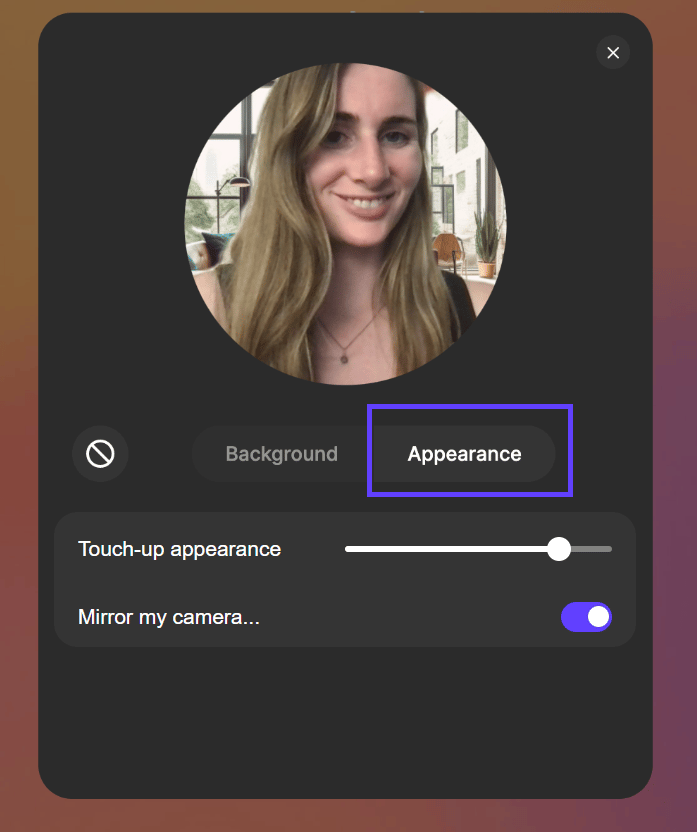
* Click **Appearance** and adjust the slider to find the setting that suits you.
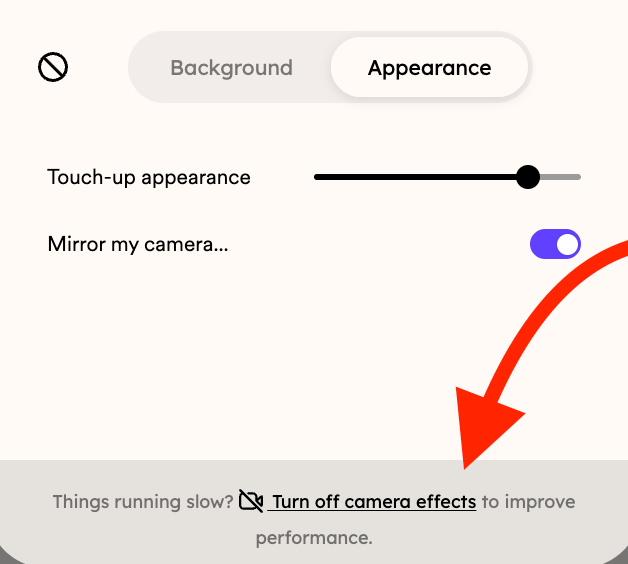
* If the feature slows down your computer, you can turn it back off at any time.
Sendspark's Touch-Up Appearance feature allows you to improve your on-screen presence by applying real-time touch-up effects to your video feed.
***
Regardless of the purpose of your video, whether it's a sales pitch, a customer support video, or a team update, Touch-Up Appearance helps you present yourself in the best light.
Let's dive into how you can use this feature to enhance your Sendspark videos:
* Simply click on the Chrome extension to start a recording and once you have your App displayed, click on **Effects** and make sure your **Camera Effects** is on.
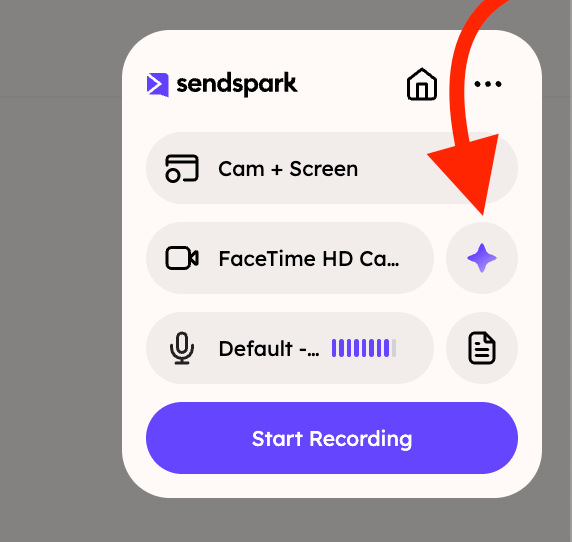
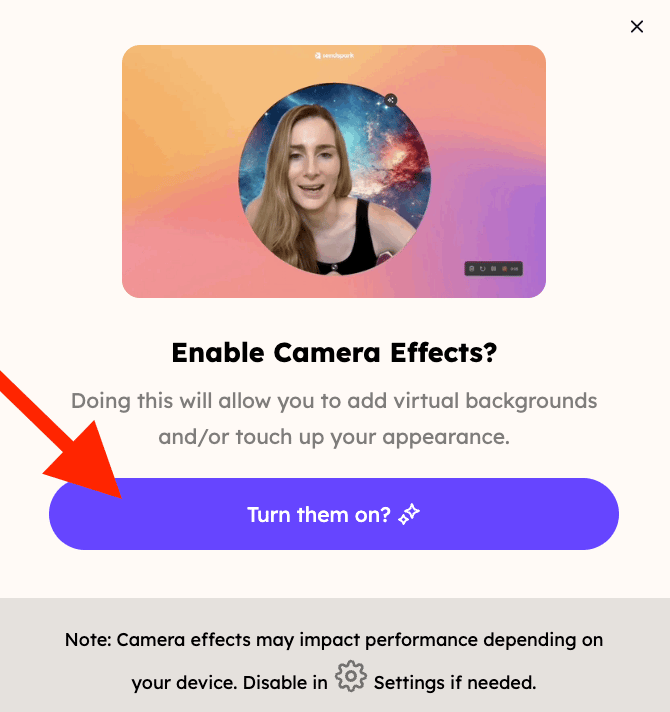 To access the **Touch-up Appearance** feature, click on "Appearance." From there, you can easily adjust the slider to find the perfect setting that suits your preferences.
 If you feel like setting this feature on slows down your computer, you can always turn it back off
 ***
## Frequently asked questions
Click the Chrome extension to start a recording, open your app, click **Effects**, make sure **Camera Effects** is on, then click **Appearance** and adjust the slider.
Yes. Under **Appearance**, drag the slider to find the setting that suits your preferences.
You can turn it back off at any time if you feel it is slowing your computer down.
Any time you want to present yourself in the best light — whether it's a sales pitch, a customer support video, or a team update.
*Updated July 2026.*
***
## Frequently asked questions
Click the Chrome extension to start a recording, open your app, click **Effects**, make sure **Camera Effects** is on, then click **Appearance** and adjust the slider.
Yes. Under **Appearance**, drag the slider to find the setting that suits your preferences.
You can turn it back off at any time if you feel it is slowing your computer down.
Any time you want to present yourself in the best light — whether it's a sales pitch, a customer support video, or a team update.
*Updated July 2026.*