> ## Documentation Index
> Fetch the complete documentation index at: https://help.sendspark.com/llms.txt
> Use this file to discover all available pages before exploring further.
# Smartlead — Send Dynamic Videos
> Learn how to send dynamic Sendspark videos through Smartlead. Integrate Sendspark with Smartlead for personalized video outreach at scale.
To send dynamic videos in Smartlead, create your campaign in Sendspark, then use its two Smartlead snippets. Paste the **Image URL** snippet into the image URL field of your Smartlead email to show the personalized thumbnail, then hyperlink that image with the **Video URL** snippet so each recipient clicks through to their own personalized video.
## Key takeaways
* Smartlead provides **two** Sendspark snippets: **Image URL** (the personalized thumbnail) and **Video URL** (the clickable link to the full video).
* Paste the **Image URL** snippet into the email's URL field, then highlight the image and hyperlink it with the **Video URL** snippet.
* Upload the **same contacts** to Smartlead that you generated videos for in Sendspark — use **Download CSV** to be certain.
* Before selecting a contact you'll see the **fallback** camera-only video; previewing a generated contact updates the thumbnail to their personalized video.
## What is a Dynamic Video?
Dynamic videos are videos that are **automatically personalized**for each of your recipients.
With 1 single recording, you can make it look like you're recording multiple videos, the feature automatically adds each of your prospects' websites to the background
This tutorial will cover **how to share dynamic videos in Smartlead.**
If you are not familiar with dynamic videos, please start with this tutorial: [How to make dynamic videos](/how-to-create-a-dynamic-video-campaign))
Come back here when you are ready to share your dynamic video in Smartlead!
## How to Share Dynamic Videos in Smartlead
1. **Create your dynamic video** in Sendspark (👉 full tutorial on [how to make dynamic videos](/how-to-create-a-dynamic-video-campaign))
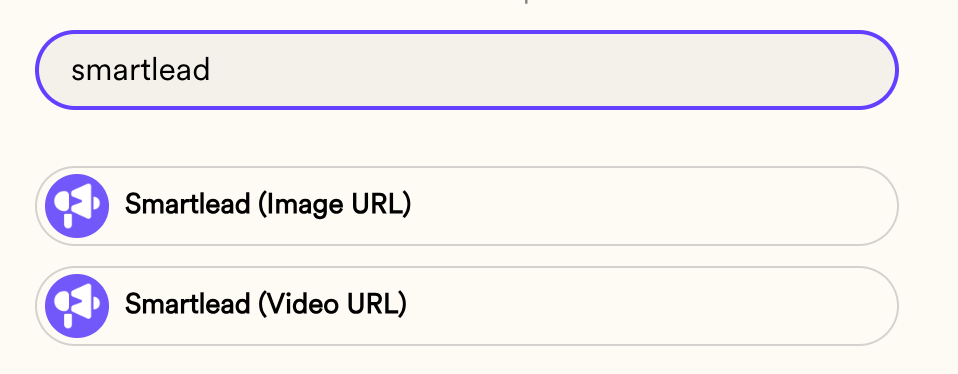
2. Click\*\*"Share Campaign"\*\* and search for "**Smartlead"** — you'll notice there are two snippets that show up here.
3. Go into Smartlead, and **create your email campaign**
4. **Upload your contacts CSV to Smartlead**. Make sure you are using the same contacts that you've added to to your Sendspark dynamic video campaign. If you'd like to be extra certain, you can click **"Download CSV"** in Sendspark to get the list of contacts you've generated videos for, and then upload this file into Smartlead.
5. In Smartlead,**create the email** that you want to send your video out in. Add any content that you would like!
6. Go back to Sendspark, and click on the first Smartlead snippet: **Smartlead: (Image URL)**
7. Go back into Smartlead, and paste the snippet you've copied from Sendspark directly into the URL field in your email. You'll now see the preview for your video! **Note: because no contact has been selected yet, you'll just see the "fallback version" of your dynamic video: the camera-only video of yourself. Once you start previewing contacts, this thumbnail will update to be the personalized video for each contact. **
8. Go back to Sendspark, and click on the other snippet: **Smartlead: (Video URL)**
9. Return to your Smartlead email, and highlight the image. Now,**add a hyperlink** to the image, and paste the video URL. **Note: You are essentially making your video thumbnail "clickable." So, when viewers get the video email, they will see an image personalized for them, and then click on a link personalized for them to watch the full personalized video in their web browser.**
10. That's all you need to do to embed a dynamic video in a Smartlead campaign. All of the viewers you enroll will see the dynamic video that you generated for them in Sendspark when you created the video. You can preview your email for different contacts to be sure :)
## Additional Resources
* [How to create a dynamic video](/how-to-create-a-dynamic-video-campaign)
* How to use combined videos with dynamic videos
* [How to add your logo & brand styles to Sendspark](/set-global-styles)
* [How to use a custom domain with Sendspark](/use-a-custom-domain-for-videos)
**Need additional help? [Book an onboarding call](https://www.sendspark.com/meetings/bethany-sendspark/onboarding-dynamic-videos) with one of our experts!**
Let us know if you have any questions!
## Frequently asked questions
Sendspark gives Smartlead two snippets. The **Image URL** snippet is the personalized video thumbnail you paste into the image URL field, and the **Video URL** snippet is the personalized link you attach to that image so recipients can click through to watch the full video.
Before a contact is selected, Smartlead shows the **fallback version** of your dynamic video — the camera-only recording of yourself. Once you start previewing specific contacts, the thumbnail updates to the personalized video generated for each of them.
Upload the same contacts to Smartlead that you added to your Sendspark dynamic video campaign. To be extra certain, click **Download CSV** in Sendspark to get the exact list of contacts you generated videos for, and upload that file to Smartlead.
Preview the email for different contacts in Smartlead. Each contact you've generated a video for should show their own personalized dynamic video in the preview.
*Updated July 2026.*
3. Go into Smartlead, and **create your email campaign**
4. **Upload your contacts CSV to Smartlead**. Make sure you are using the same contacts that you've added to to your Sendspark dynamic video campaign. If you'd like to be extra certain, you can click **"Download CSV"** in Sendspark to get the list of contacts you've generated videos for, and then upload this file into Smartlead.
3. Go into Smartlead, and **create your email campaign**
4. **Upload your contacts CSV to Smartlead**. Make sure you are using the same contacts that you've added to to your Sendspark dynamic video campaign. If you'd like to be extra certain, you can click **"Download CSV"** in Sendspark to get the list of contacts you've generated videos for, and then upload this file into Smartlead. 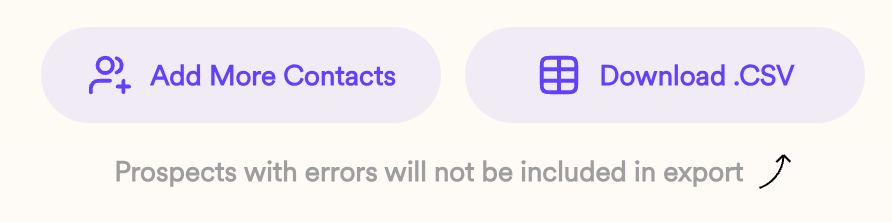
5. In Smartlead,**create the email** that you want to send your video out in. Add any content that you would like!
6. Go back to Sendspark, and click on the first Smartlead snippet: **Smartlead: (Image URL)**
5. In Smartlead,**create the email** that you want to send your video out in. Add any content that you would like!
6. Go back to Sendspark, and click on the first Smartlead snippet: **Smartlead: (Image URL)** 
7. Go back into Smartlead, and paste the snippet you've copied from Sendspark directly into the URL field in your email. You'll now see the preview for your video!
7. Go back into Smartlead, and paste the snippet you've copied from Sendspark directly into the URL field in your email. You'll now see the preview for your video! 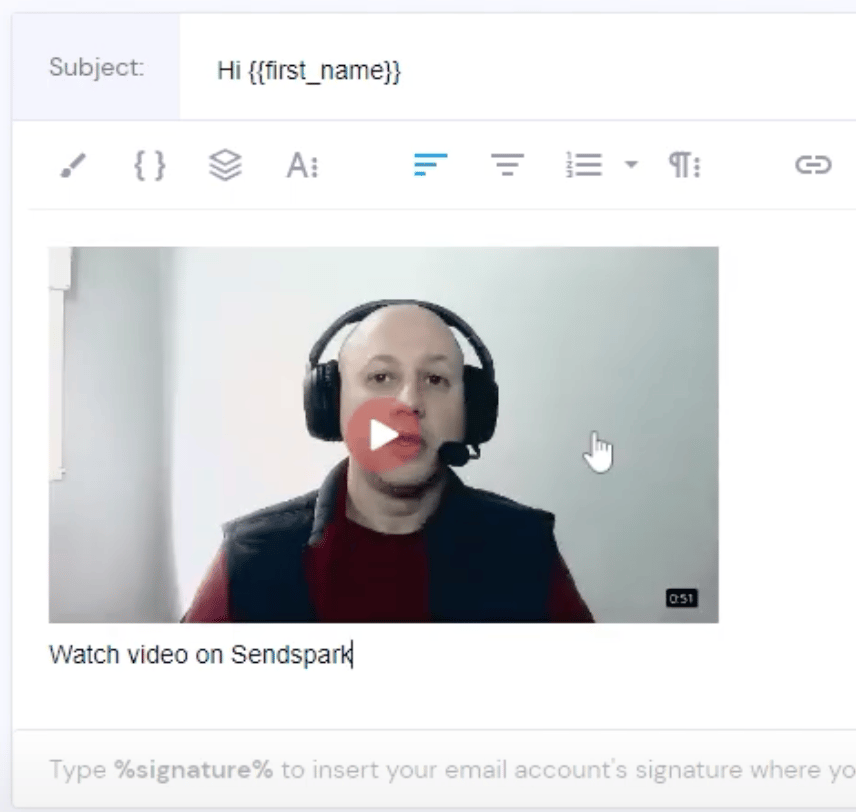 **Note: because no contact has been selected yet, you'll just see the "fallback version" of your dynamic video: the camera-only video of yourself. Once you start previewing contacts, this thumbnail will update to be the personalized video for each contact. **
8. Go back to Sendspark, and click on the other snippet: **Smartlead: (Video URL)**
**Note: because no contact has been selected yet, you'll just see the "fallback version" of your dynamic video: the camera-only video of yourself. Once you start previewing contacts, this thumbnail will update to be the personalized video for each contact. **
8. Go back to Sendspark, and click on the other snippet: **Smartlead: (Video URL)** 
9. Return to your Smartlead email, and highlight the image. Now,**add a hyperlink** to the image, and paste the video URL.
9. Return to your Smartlead email, and highlight the image. Now,**add a hyperlink** to the image, and paste the video URL. 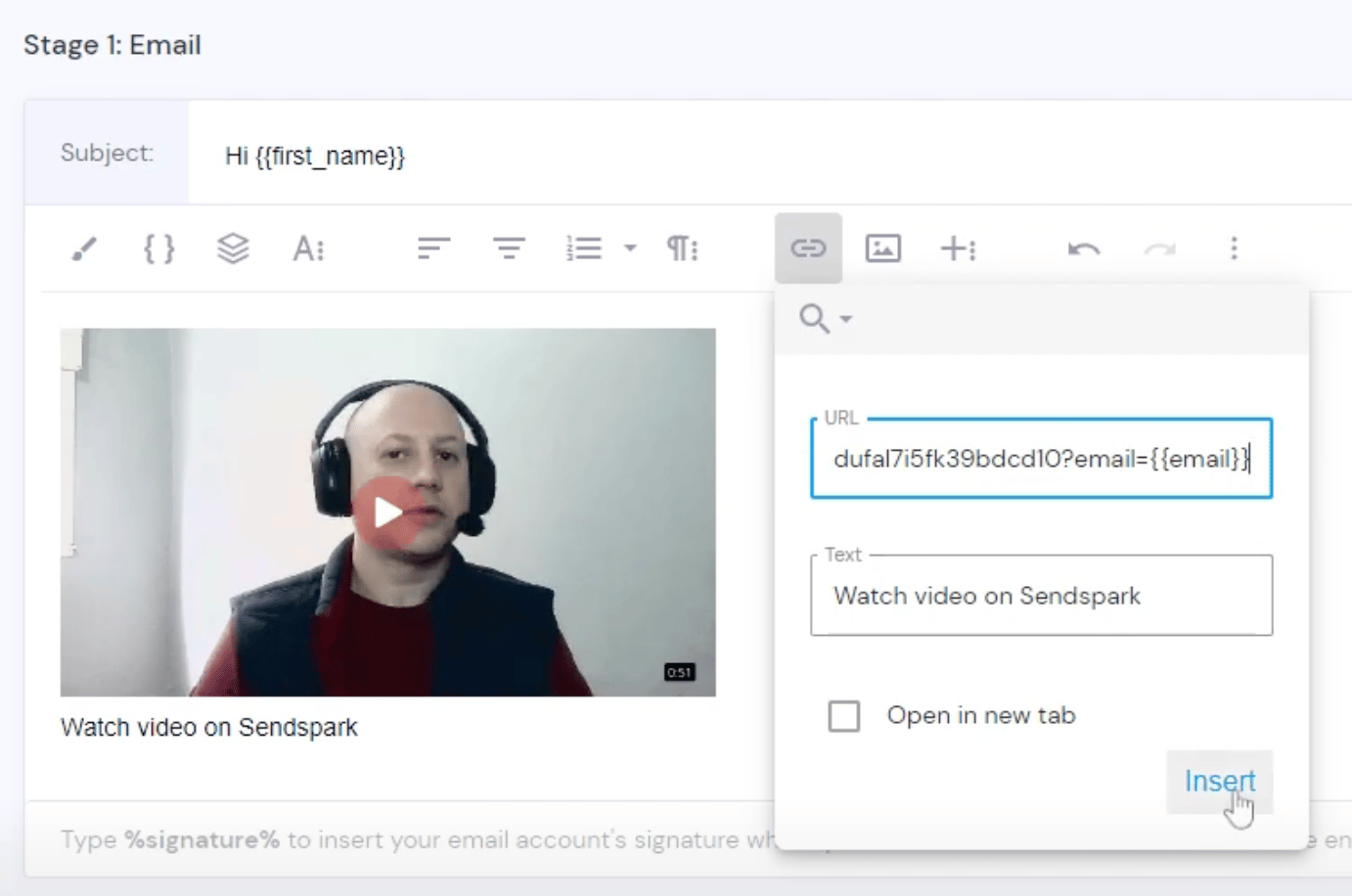 **Note: You are essentially making your video thumbnail "clickable." So, when viewers get the video email, they will see an image personalized for them, and then click on a link personalized for them to watch the full personalized video in their web browser.**
10. That's all you need to do to embed a dynamic video in a Smartlead campaign. All of the viewers you enroll will see the dynamic video that you generated for them in Sendspark when you created the video. You can preview your email for different contacts to be sure :)
**Note: You are essentially making your video thumbnail "clickable." So, when viewers get the video email, they will see an image personalized for them, and then click on a link personalized for them to watch the full personalized video in their web browser.**
10. That's all you need to do to embed a dynamic video in a Smartlead campaign. All of the viewers you enroll will see the dynamic video that you generated for them in Sendspark when you created the video. You can preview your email for different contacts to be sure :) 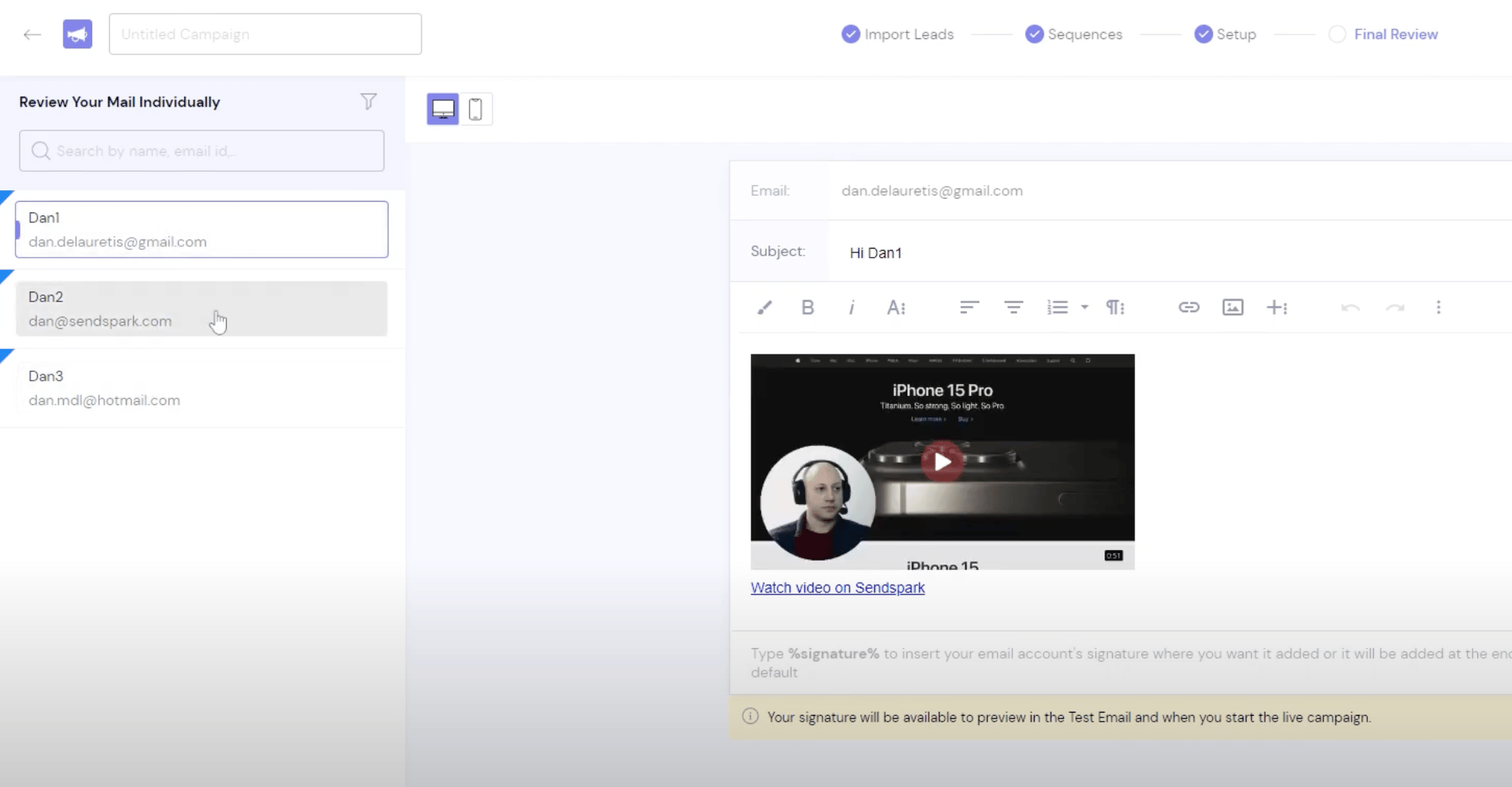 ## Additional Resources
* [How to create a dynamic video](/how-to-create-a-dynamic-video-campaign)
* How to use combined videos with dynamic videos
* [How to add your logo & brand styles to Sendspark](/set-global-styles)
* [How to use a custom domain with Sendspark](/use-a-custom-domain-for-videos)
**Need additional help? [Book an onboarding call](https://www.sendspark.com/meetings/bethany-sendspark/onboarding-dynamic-videos) with one of our experts!**
Let us know if you have any questions!
## Frequently asked questions
## Additional Resources
* [How to create a dynamic video](/how-to-create-a-dynamic-video-campaign)
* How to use combined videos with dynamic videos
* [How to add your logo & brand styles to Sendspark](/set-global-styles)
* [How to use a custom domain with Sendspark](/use-a-custom-domain-for-videos)
**Need additional help? [Book an onboarding call](https://www.sendspark.com/meetings/bethany-sendspark/onboarding-dynamic-videos) with one of our experts!**
Let us know if you have any questions!
## Frequently asked questions