> ## Documentation Index
> Fetch the complete documentation index at: https://help.sendspark.com/llms.txt
> Use this file to discover all available pages before exploring further.
# Slack Notifications for Video Views
> Set up real-time Slack notifications when viewers watch your Sendspark videos using automated workflows and trigger settings.
## How to Get Slack Notifications When Someone Watches Your Video
Get notified in real time when someone watches your video or clicks on a call to action.
Sendspark can post to Slack the moment someone watches your video or clicks a call to action. You build an Agentic Workflow using the trigger **Sendspark: New Video Watched - All Campaigns**, add a Slack action to send a message to a public channel, connect Slack, then start the automation. Your message can include any fields Sendspark returns for context.
## Key takeaways
* Slack view notifications are built with an Agentic Workflow in Sendspark, not a native setting.
* The trigger is **Sendspark: New Video Watched - All Campaigns**, which fires when any video in your workspace is watched.
* The action is **Slack → Send a message to a public channel**, where you connect Slack and choose the channel.
* You can personalize the message with the fields Sendspark returns, then click **Start** to turn the automation on.
## 1. Create Automated Workflow In Sendspark
* Go to the [Agentic Workflow](https://sendspark.com/agentic-workflows) section of Sendspark
* Click \*\*"New Automation"\*\*to create a new automated workflow 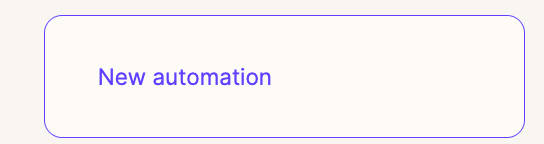 ## 2. Set Trigger: Sendspark Video Watched
* Click\*\*"Add a Trigger"\*\*
## 2. Set Trigger: Sendspark Video Watched
* Click\*\*"Add a Trigger"\*\*  * For the trigger, select **"Sendspark: New Video Watched - All Campaigns"**
* This means that when a video is watched from any Sendspark dynamic video campaigns in your workspace, this automation will start.
* For the trigger, select **"Sendspark: New Video Watched - All Campaigns"**
* This means that when a video is watched from any Sendspark dynamic video campaigns in your workspace, this automation will start. 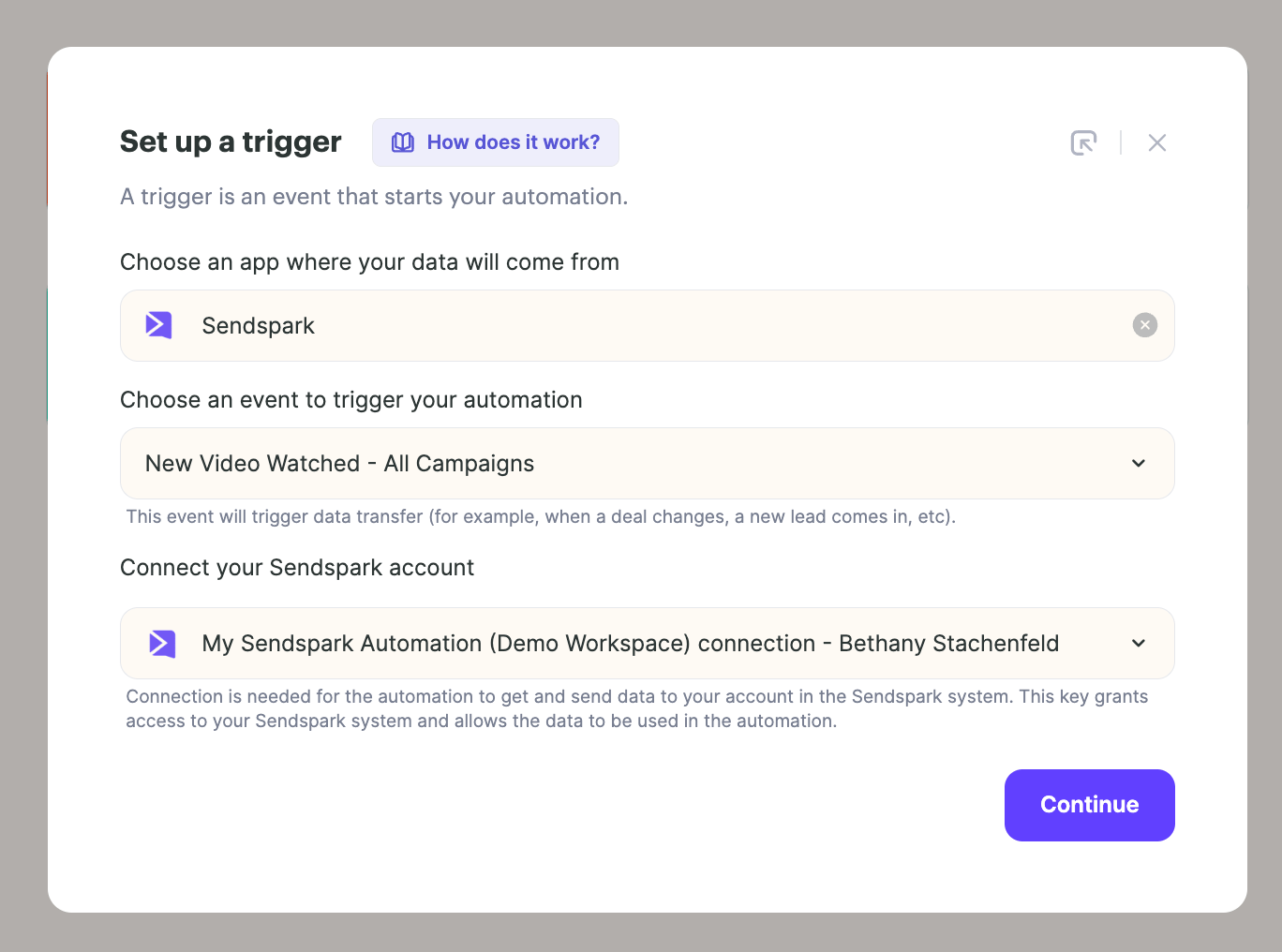
## 3. Set Action: Send Slack Notification
* Add an action to your automated workflow
## 3. Set Action: Send Slack Notification
* Add an action to your automated workflow 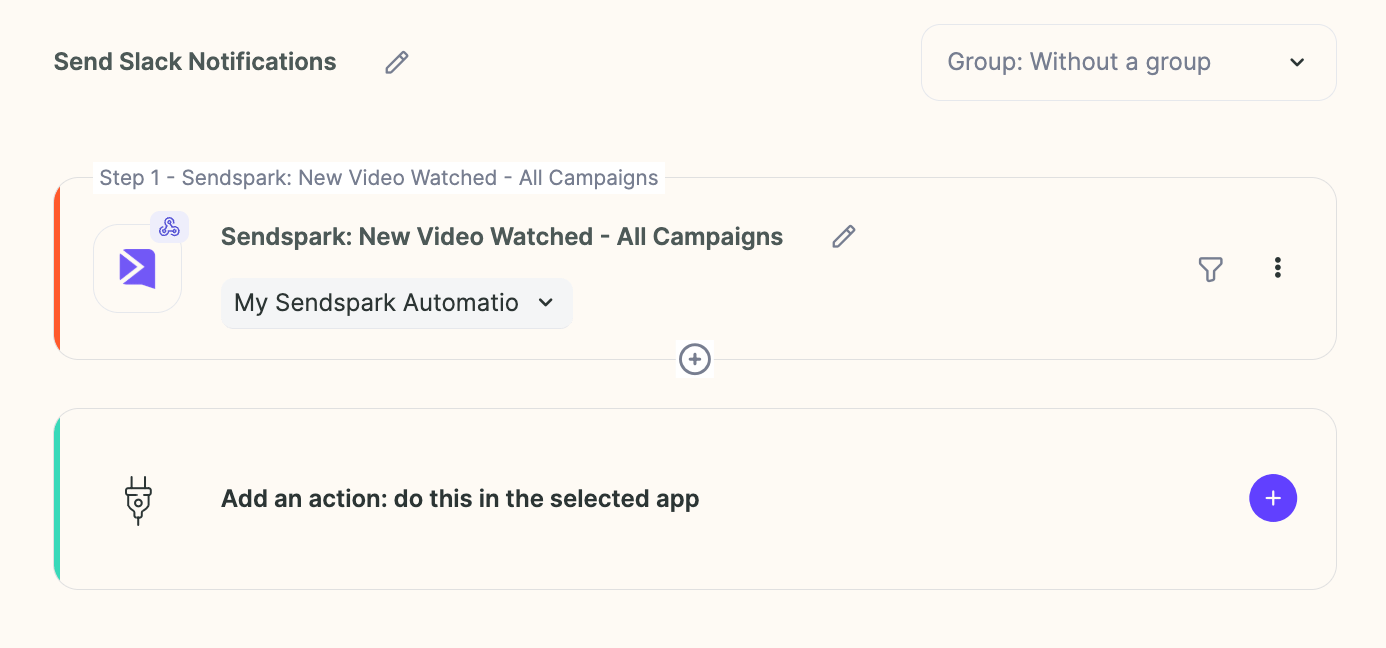 * Select **"Slack,"** **"Send a message to a public channel"** and then connect your slack
 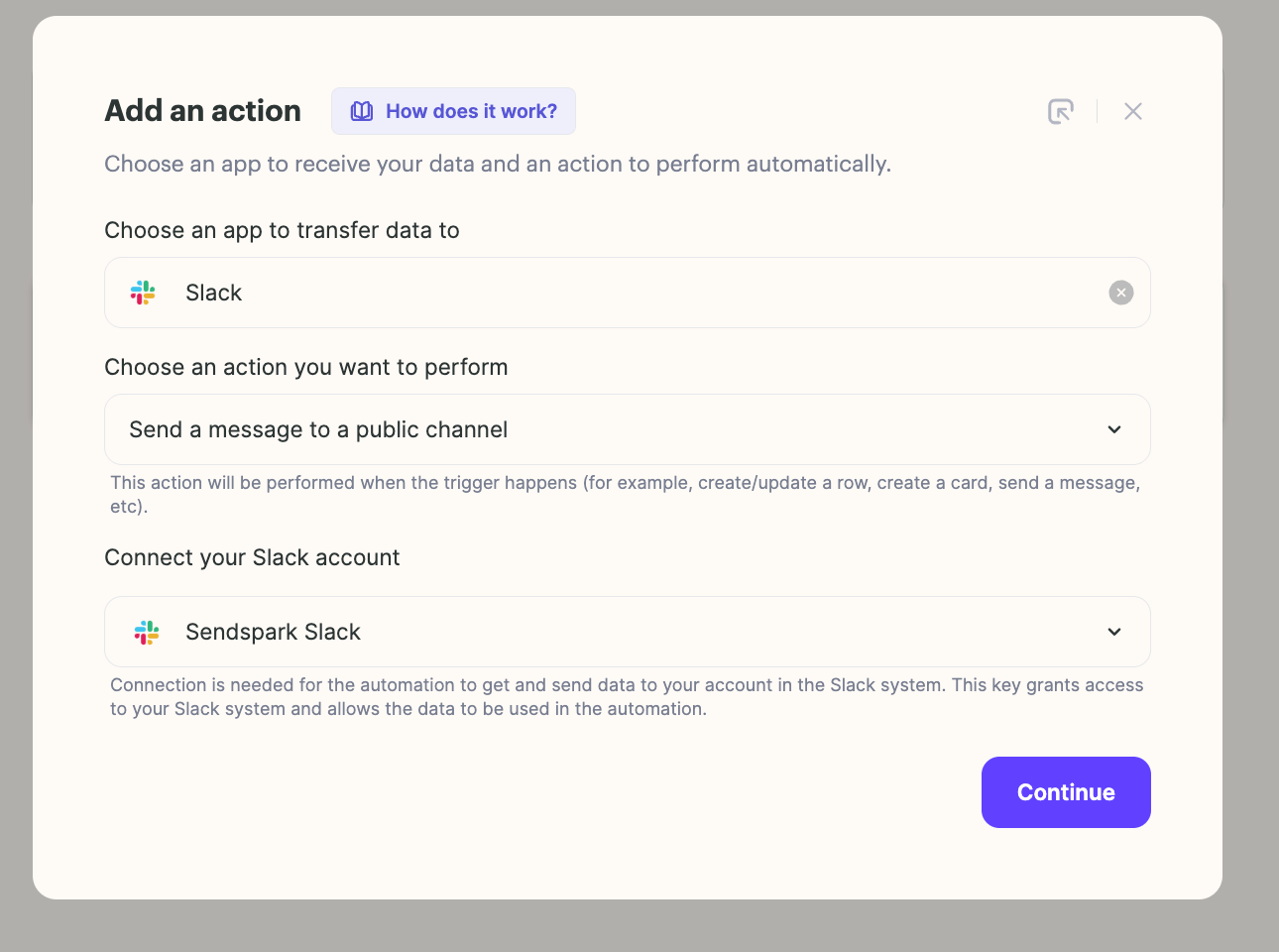 * Select the slack channel you want to send notifications to, and write your message. You can use any of the fields that Sendspark returns in your message to get more context on your video. In the end, it might look something like this:
 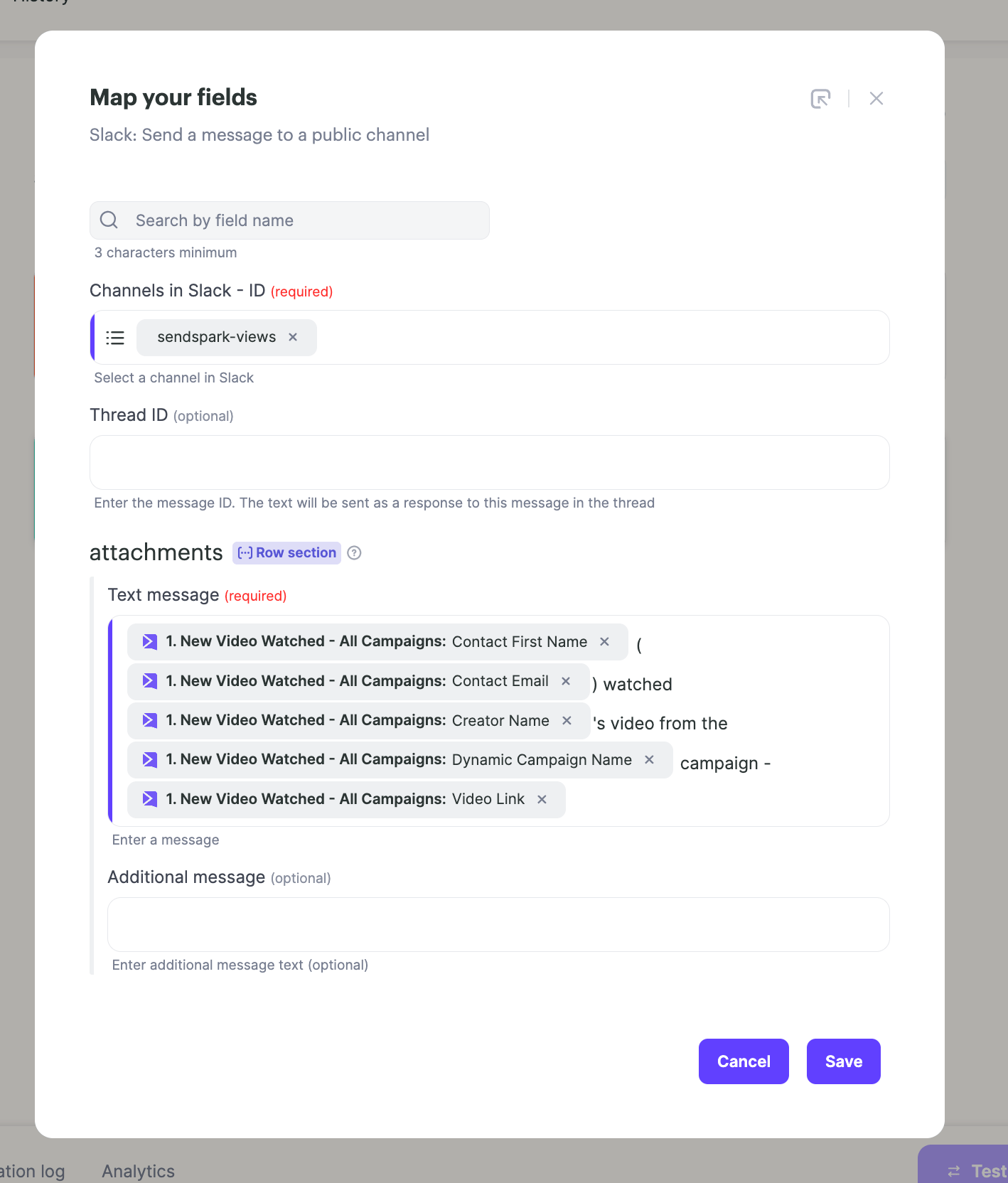 Save, and hit **"Start"** to turn on your automation!
## Frequently asked questions
In your Agentic Workflow, add a trigger and select **Sendspark: New Video Watched - All Campaigns**. This means the automation starts whenever a video is watched from any Sendspark dynamic video campaign in your workspace.
Add an action to your workflow, select **Slack**, choose **Send a message to a public channel**, and then connect your Slack account. After connecting, pick the channel you want notifications sent to.
Yes. When setting up the Slack action you write your own message, and you can include any of the fields Sendspark returns to add more context about the video that was watched.
Yes. The workflow lets you get notified in real time when someone watches your video or clicks on a call to action.
*Updated July 2026.*
Save, and hit **"Start"** to turn on your automation!
## Frequently asked questions
In your Agentic Workflow, add a trigger and select **Sendspark: New Video Watched - All Campaigns**. This means the automation starts whenever a video is watched from any Sendspark dynamic video campaign in your workspace.
Add an action to your workflow, select **Slack**, choose **Send a message to a public channel**, and then connect your Slack account. After connecting, pick the channel you want notifications sent to.
Yes. When setting up the Slack action you write your own message, and you can include any of the fields Sendspark returns to add more context about the video that was watched.
Yes. The workflow lets you get notified in real time when someone watches your video or clicks on a call to action.
*Updated July 2026.*