> ## Documentation Index
> Fetch the complete documentation index at: https://help.sendspark.com/llms.txt
> Use this file to discover all available pages before exploring further.
# Slack notification for new Dynamic Videos
> Set up automated Slack notifications for new Dynamic Video creation using SendSpark webhooks and Zapier integration step-by-step.
To get a Slack alert each time a new Dynamic Video is created, connect Sendspark to Slack through Zapier. Create a webhook in Sendspark, catch it with Zapier's Catch Hook trigger, paste the generated URL back into your Sendspark webhook, attach it to your Dynamic Video campaign, then add a Slack "Send a Message" action.
## Key takeaways
* This setup uses a Sendspark webhook paired with a Zapier Zap (Webhooks by Zapier → Slack).
* In Sendspark, create and name a new webhook under **Menu → Webhooks**.
* In Zapier, use the **Catch Hook** trigger, copy the generated URL, and paste it back into your Sendspark webhook.
* Attach the webhook to your Dynamic Video campaign, then add Slack's **Send a Message** action and choose your channel.
Is the video too long? [Here's the quick version](https://www.linkedin.com/posts/danieldelauretis_makingthingseasier-activity-7208485504743321600-PdhZ?utm_source=share\&utm_medium=member_desktop)
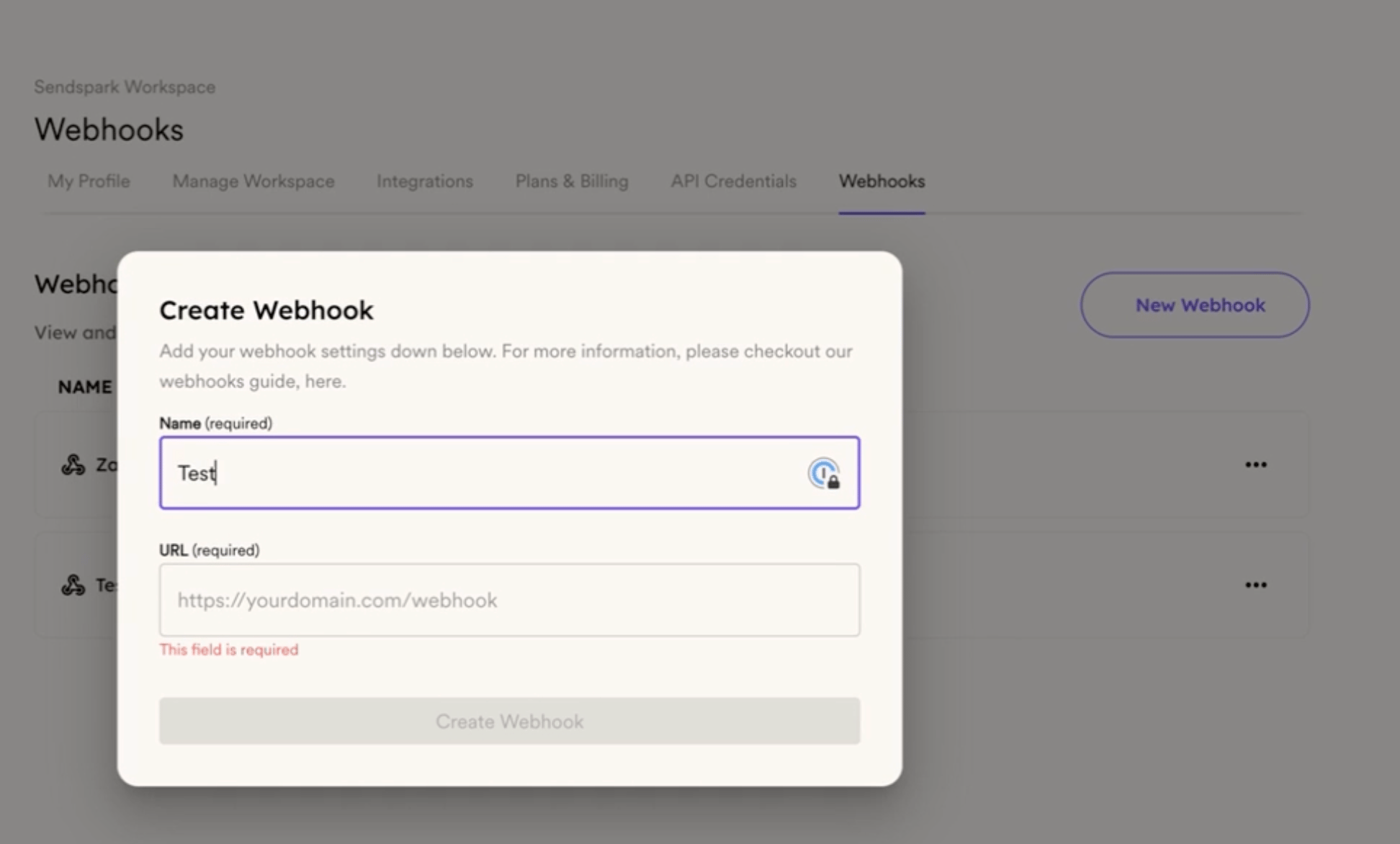
**In SendSpark:**
* Go to **Menu**.
* Select **Webhooks**.
* Create a new webhook.
* Name your webhook.
**In Zapier:**
* Create a new Zap.
* Click on **Trigger**.
* Search for **Webhooks by Zapier**.
* Select **Catch Hook**.
* Continue and copy the generated URL
**Back in SendSpark:**
* Paste the URL in the webhook you created.
* Create the webhook
**Create a Dynamic Video campaign:**
* Create a new Dynamic Video Campaign
* Go to the **Webhooks** section.
* Select the campaign you just created.
Related topics:
-How to create a Dynamic Campaign for the first time: [create a dynamic video campaign](/how-to-create-a-dynamic-video-campaign)
-How to automatically create videos by form submission: [HubSpot workflow integration](/hubspot-workflows-sendspark-marketing-email)
**In Zapier:**
* Click on **Test Trigger**.
* Search for **Slack**.
* Select **Send a Message**.
* Continue and choose your Slack channel.
* Customize the message.
* Click on **Continue** and confirm the notification in Slack.
* **DONE!!**
## Frequently asked questions
Go to **Menu**, select **Webhooks**, create a new webhook, and give it a name. You'll paste the Zapier URL into this webhook in a later step.
In Zapier, create a new Zap, click **Trigger**, search for **Webhooks by Zapier**, and select **Catch Hook**. Continue, then copy the generated URL and paste it into the webhook you created in Sendspark.
After creating a Dynamic Video campaign, go to the **Webhooks** section and select that campaign. This attaches your webhook so it fires for new videos in that campaign.
In Zapier, click **Test Trigger**, then search for **Slack** and select **Send a Message**. Continue, choose your Slack channel, customize the message, and confirm the notification in Slack.
*Updated July 2026.*
 **In Zapier:**
* Create a new Zap.
* Click on **Trigger**.
* Search for **Webhooks by Zapier**.
* Select **Catch Hook**.
* Continue and copy the generated URL
**In Zapier:**
* Create a new Zap.
* Click on **Trigger**.
* Search for **Webhooks by Zapier**.
* Select **Catch Hook**.
* Continue and copy the generated URL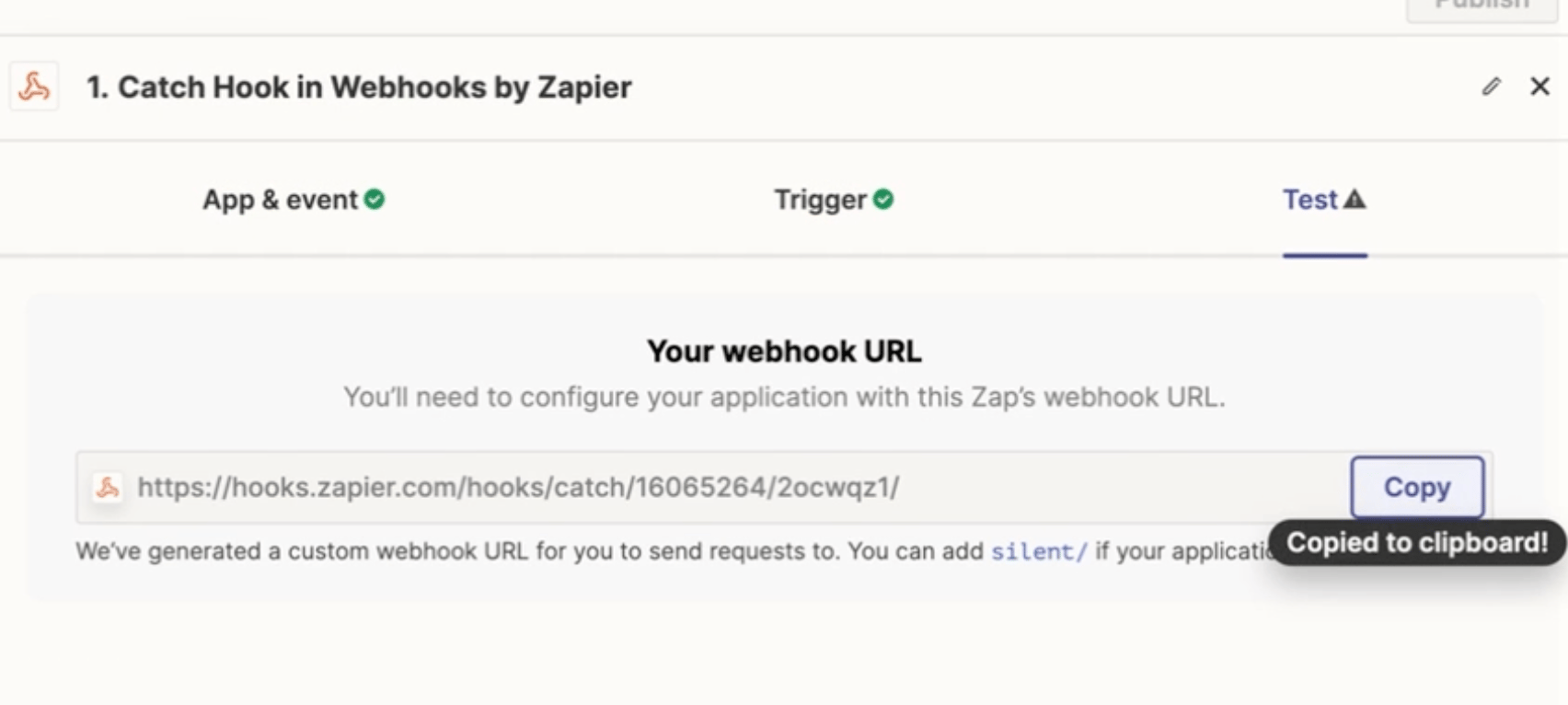 **Back in SendSpark:**
* Paste the URL in the webhook you created.
* Create the webhook
**Back in SendSpark:**
* Paste the URL in the webhook you created.
* Create the webhook 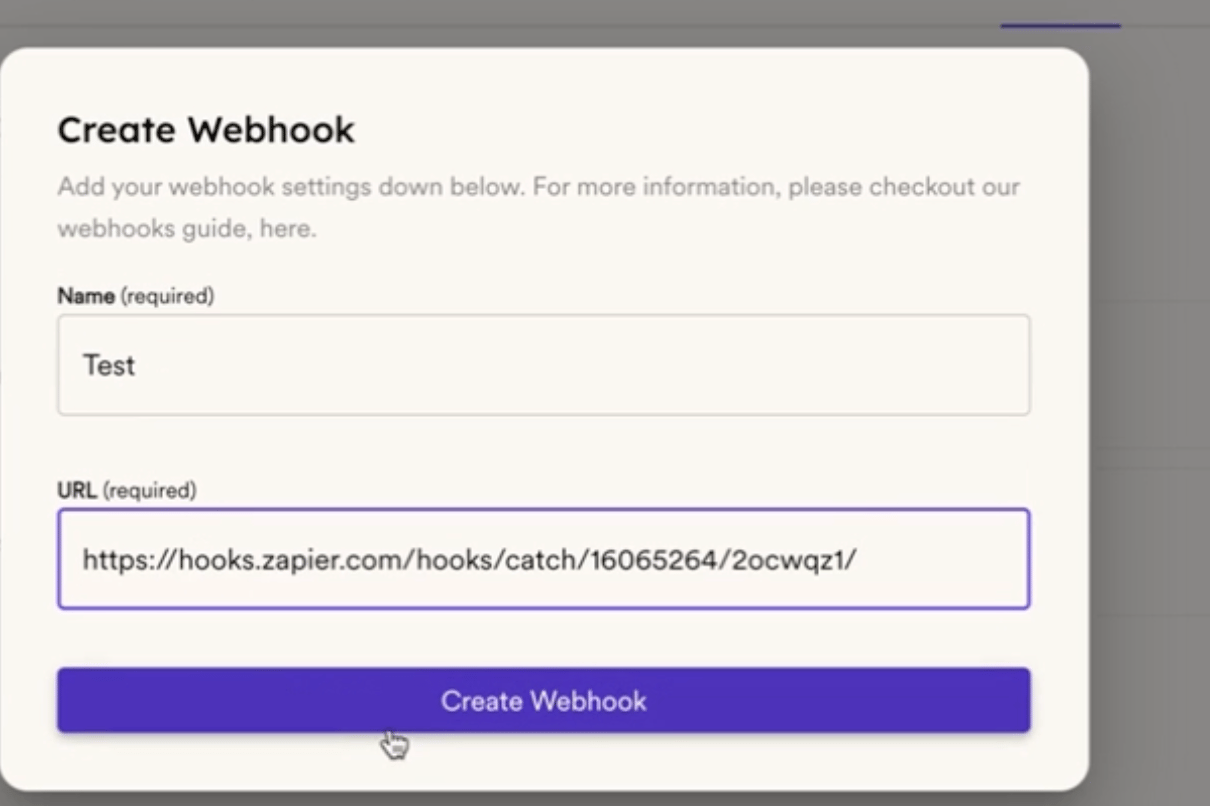 **Create a Dynamic Video campaign:**
* Create a new Dynamic Video Campaign
* Go to the **Webhooks** section.
* Select the campaign you just created.
**Create a Dynamic Video campaign:**
* Create a new Dynamic Video Campaign
* Go to the **Webhooks** section.
* Select the campaign you just created. 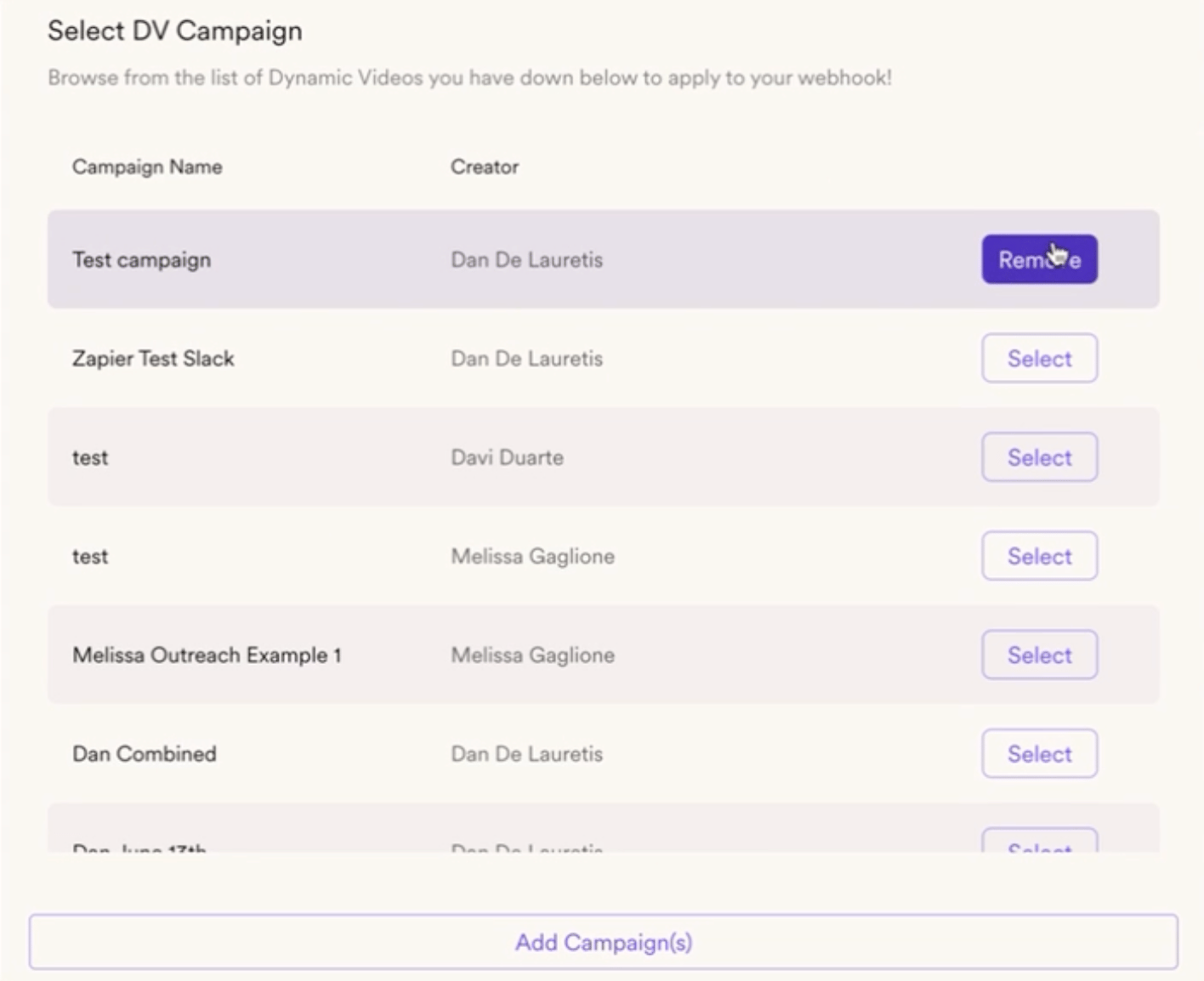 Related topics:
-How to create a Dynamic Campaign for the first time: [create a dynamic video campaign](/how-to-create-a-dynamic-video-campaign)
-How to automatically create videos by form submission: [HubSpot workflow integration](/hubspot-workflows-sendspark-marketing-email)
**In Zapier:**
* Click on **Test Trigger**.
Related topics:
-How to create a Dynamic Campaign for the first time: [create a dynamic video campaign](/how-to-create-a-dynamic-video-campaign)
-How to automatically create videos by form submission: [HubSpot workflow integration](/hubspot-workflows-sendspark-marketing-email)
**In Zapier:**
* Click on **Test Trigger**. 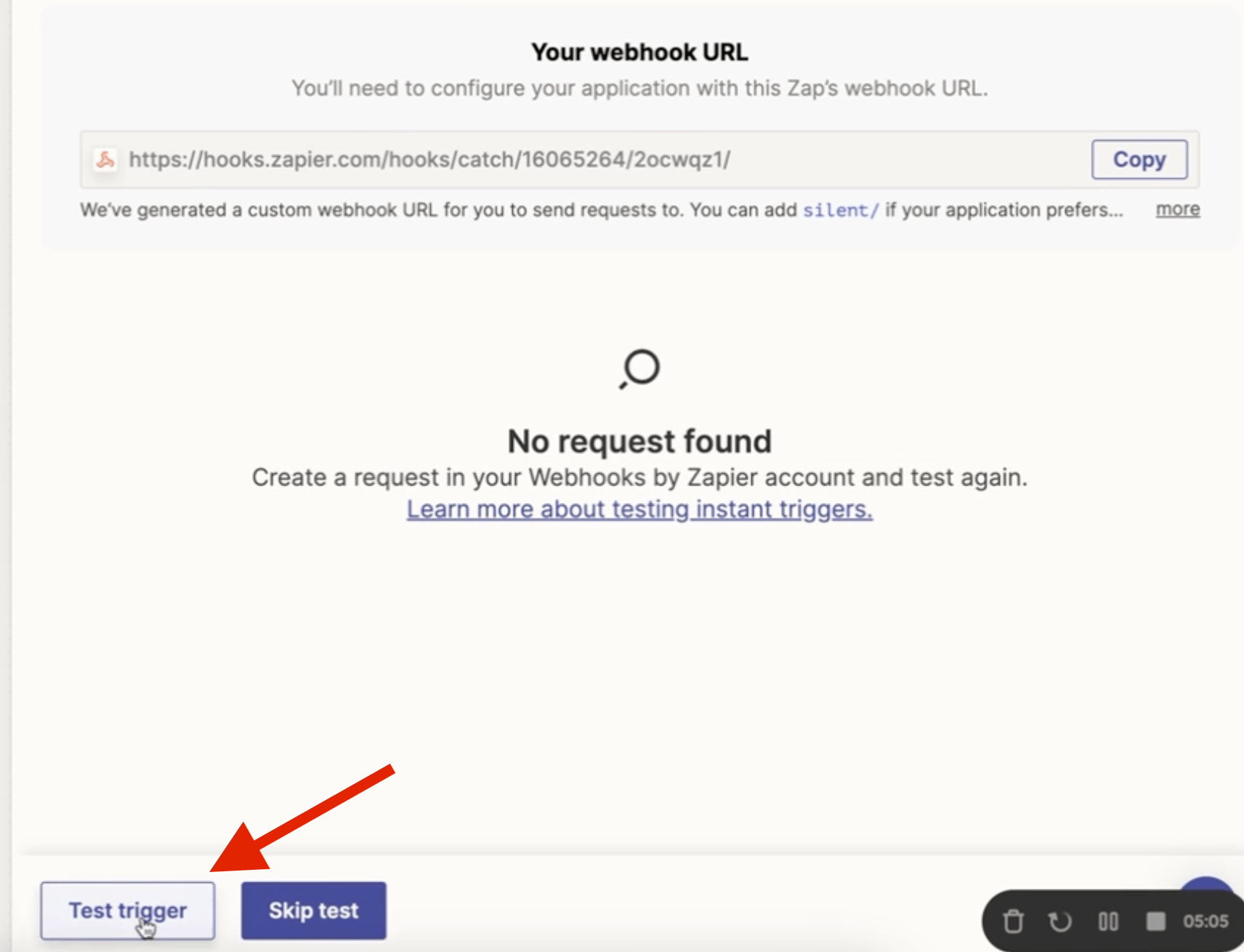 * Search for **Slack**.
* Select **Send a Message**.
* Search for **Slack**.
* Select **Send a Message**. 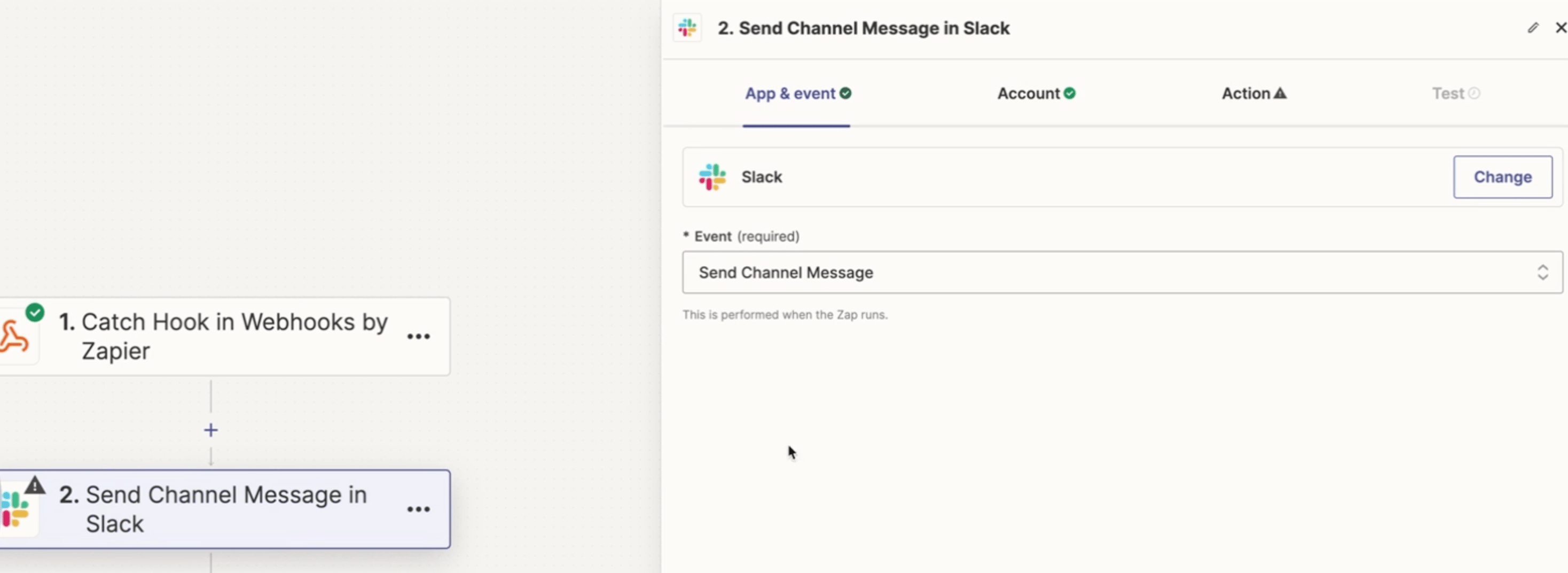 * Continue and choose your Slack channel.
 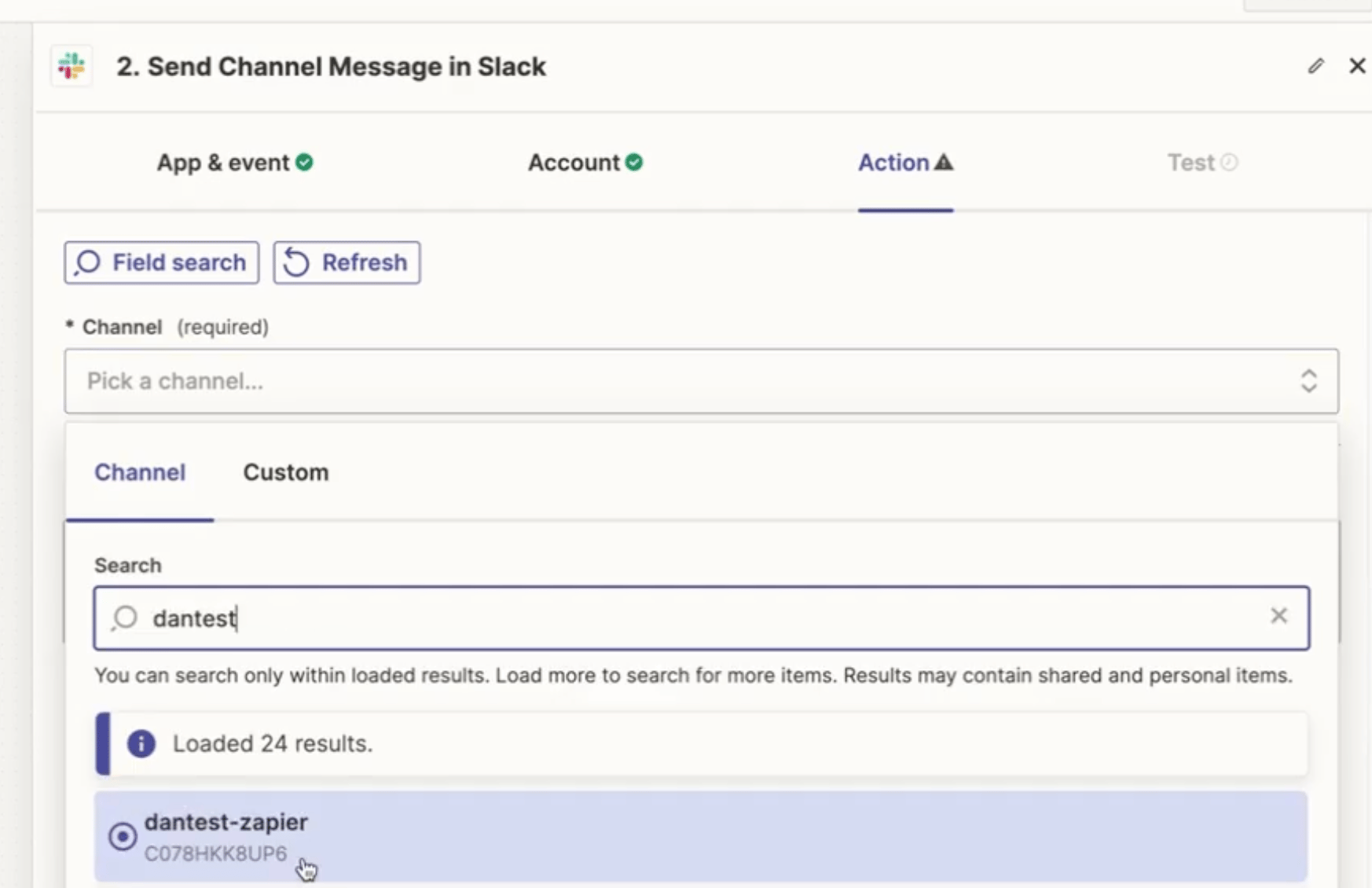 * Customize the message.
* Click on **Continue** and confirm the notification in Slack.
* Customize the message.
* Click on **Continue** and confirm the notification in Slack. 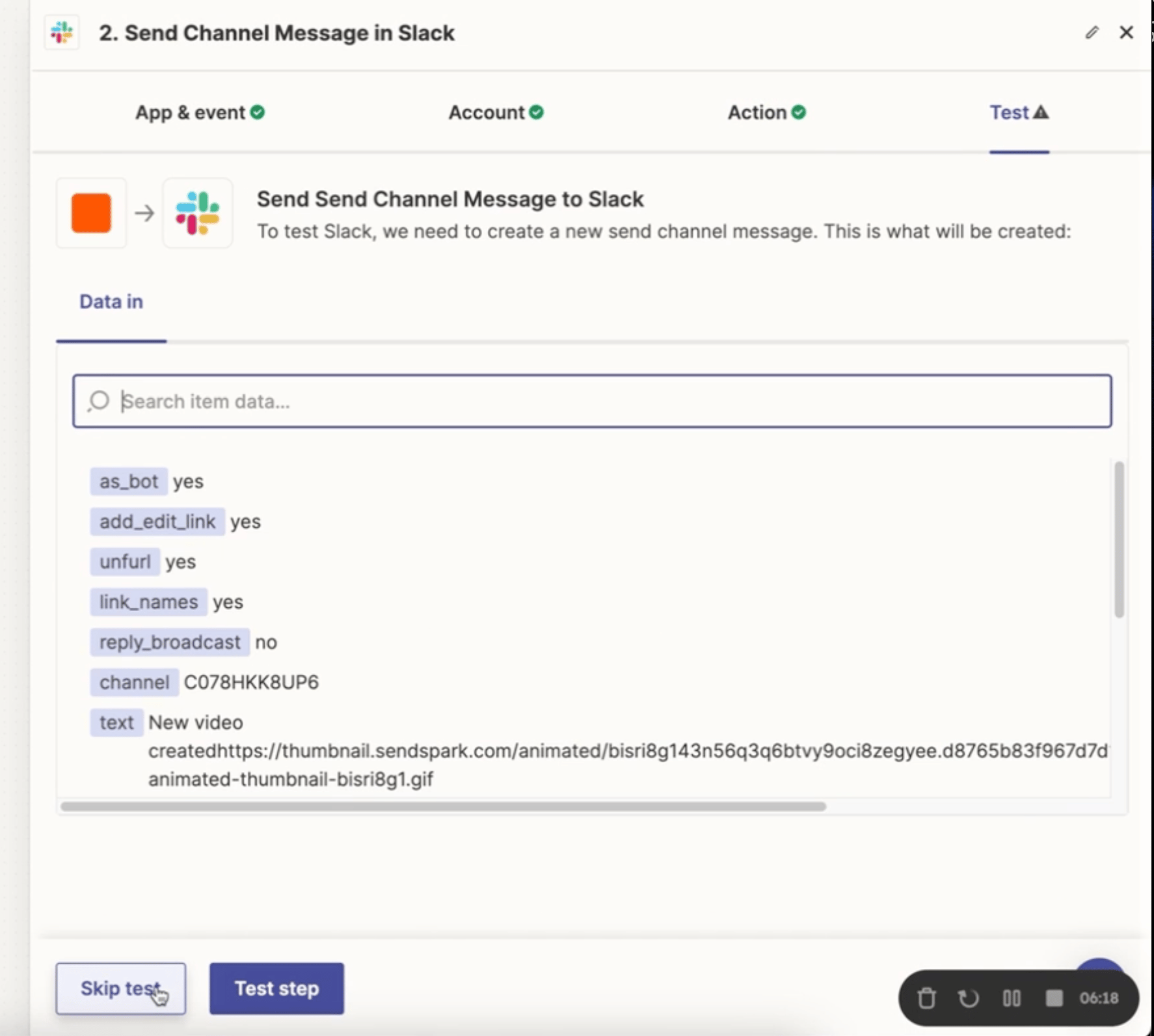 * **DONE!!**
## Frequently asked questions
* **DONE!!**
## Frequently asked questions