> ## Documentation Index
> Fetch the complete documentation index at: https://help.sendspark.com/llms.txt
> Use this file to discover all available pages before exploring further.
# Skylead - Send Dynamic Videos
> Learn how to integrate Sendspark with Skylead to send AI-personalized dynamic videos in LinkedIn automation campaigns step-by-step.
To send dynamic videos with Skylead, create a Dynamic Video Campaign in Sendspark, import your contacts, and generate the AI-personalized videos. Then download Sendspark's CSV, rename the columns to match Skylead's fields, import it into Skylead, and drop the #\{\{videoLink}} field into your LinkedIn connection request or message.
## Key takeaways
* Build a [Dynamic Video Campaign](/dynamic-videos-make-videos-with-ai-introductions) in Sendspark, then import contacts by typing them in, uploading a CSV, or using Zapier/API.
* Download Sendspark's CSV after generating videos — it adds the **Video Link** column, which is what you send in LinkedIn.
* **Rename the CSV columns** to Skylead's field names before importing (for example, Video Link → **videoLink**).
* In your Skylead sequence, use the **#\{\{videoLink}}** dynamic field where you want the video; it unfurls into an animated preview in LinkedIn messages.
Use Sendspark and Skylead together to send AI-personalized videos in LinkedIn automation.
## How to Send AI-Personalized Videos in Skylead
### 1. Create Dynamic Video Campaign
First, you want to create a [Dynamic Video Campaign](/dynamic-videos-make-videos-with-ai-introductions) in Sendspark.
In your dynamic video campaign, you will be able to select one video, and use AI to automatically personalize each video for each viewer.
### 2. Import Contacts into Sendspark
You can import contacts to dynamic video campaigns by typing their information out manually, importing a CSV, or setting up a Zapier or API integration.
One tip: it will be easier to share videos in Skylead if you import the "profileUrl" field into Sendspark. We don't have a specific field for "profileUrl," but you can import it into a field that you are not using (like "Job Title") so it's easy to find when you export your CSV.
### 3. Generate Dynamic Videos
Just click the "Generate Videos" button to generate AI-personalized videos for your contact list.
### 4. Download CSV
Now, you want to download the CSV of your contacts from Sendspark to import into Skylead. This will be similar to the original CSV you imported, with one big addition: "Video Link"
Video link is the link to the dynamic video generated for each of your viewers. This is what you want to send out in your LinkedIn Connect Requests and Messages!
### 5. Import CSV into Skylead
You'll need to rename the columns of your CSV to match the Skylead fields in order to import your CSV into Skylead.
These are the column names in Sendspark, and how they should be written to import into Skylead:
* First Name - **firstName**
* Email - **email**
* Company Name - **currentCompany**
* Job Title - **profileLink**
* Background Url - **website**
* Video Link - **videoLink \<-- this is the dynamic video we made in Sendspark!**
## 6. Create Sequence in Skylead
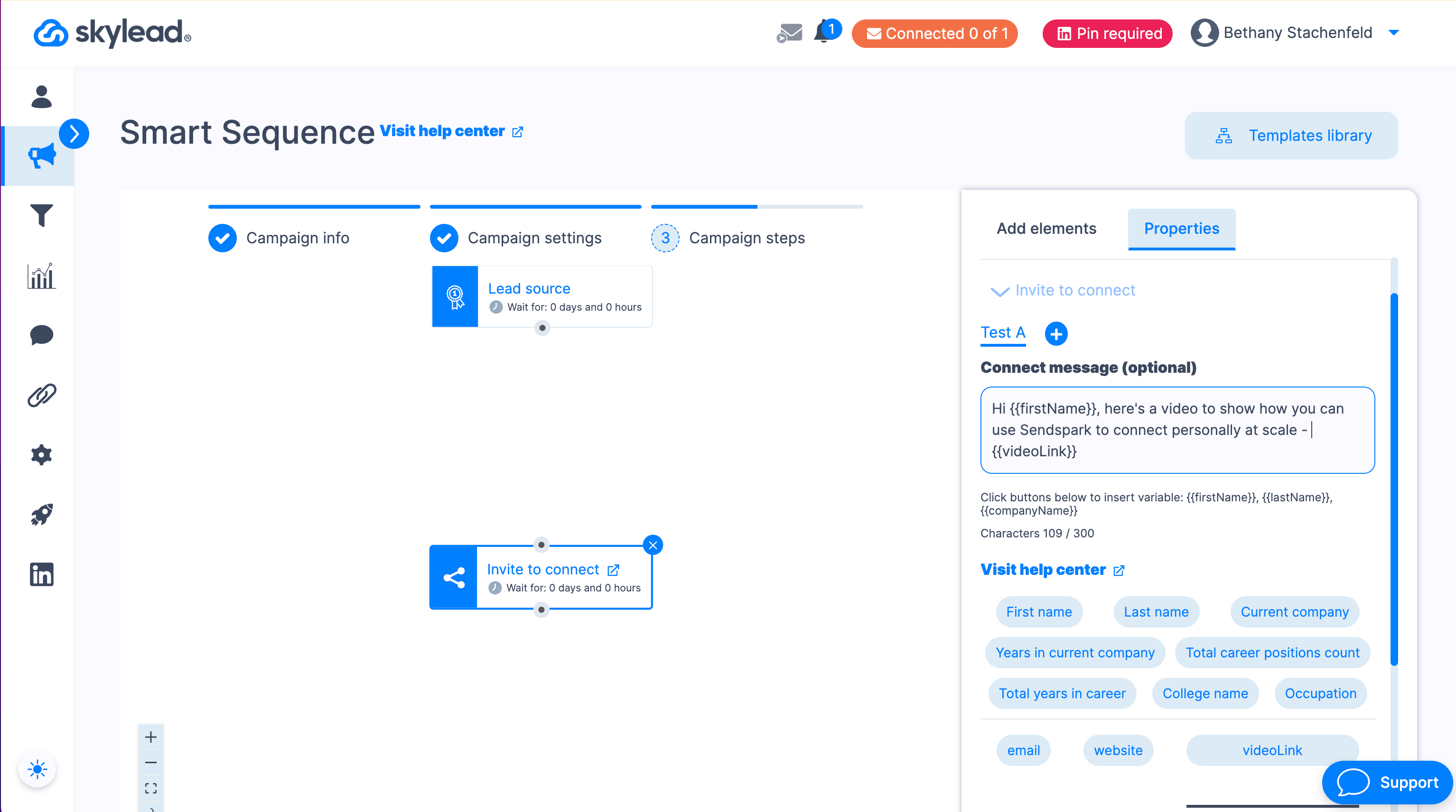
Now, you can create your LinkedIn automation campaign in Skylead, and just use the #\{\{videoLink}} dynamic field where you want your video to go in your connection request or message.
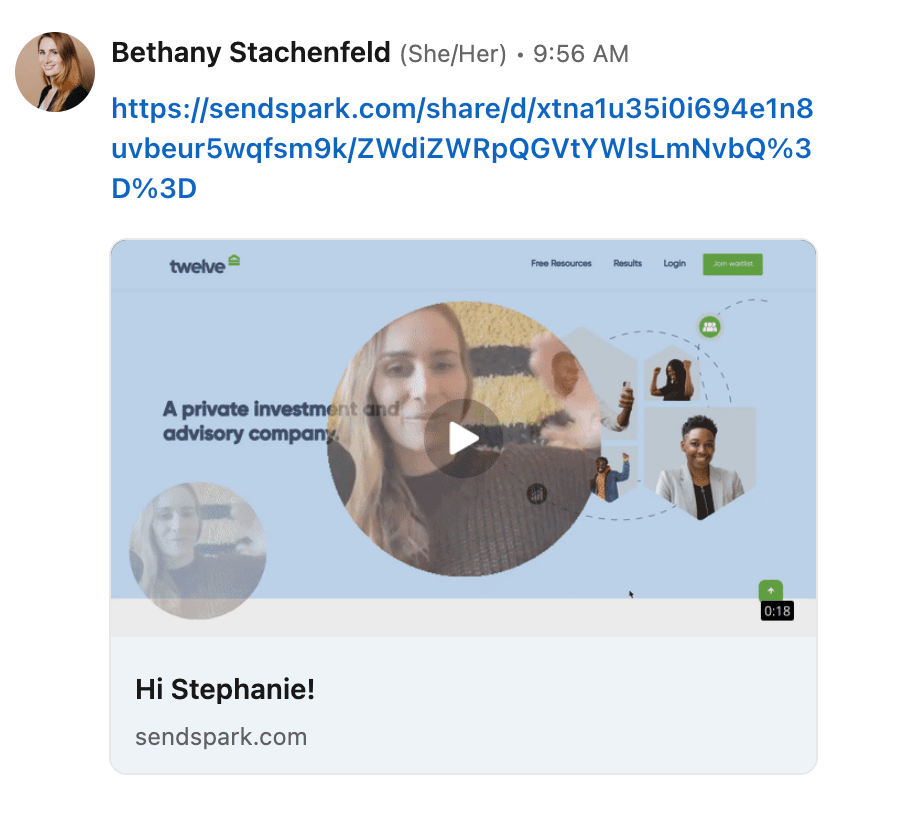
When you send the video link in your LinkedIn messages, it will unfurl into an animated preview, and look something like this:
That's it! Happy connecting!
## Frequently asked questions
You can type contact information manually, import a CSV, or set up a Zapier or API integration into your dynamic video campaign.
Sendspark doesn't have a dedicated "profileUrl" field, so import it into a field you aren't using (like "Job Title"). It'll be easy to find and map when you export your CSV for Skylead.
The **Video Link** column, added when you download the CSV after generating videos. It's the personalized dynamic video link for each viewer, and it's what you send in your LinkedIn connection requests and messages.
Map them like this: First Name → firstName, Email → email, Company Name → currentCompany, Job Title → profileLink, Background Url → website, and Video Link → videoLink.
When you send the video link via the #\{\{videoLink}} field, it unfurls into an animated preview in the LinkedIn message.
*Updated July 2026.*
 ## 6. Create Sequence in Skylead
Now, you can create your LinkedIn automation campaign in Skylead, and just use the #\{\{videoLink}} dynamic field where you want your video to go in your connection request or message.
## 6. Create Sequence in Skylead
Now, you can create your LinkedIn automation campaign in Skylead, and just use the #\{\{videoLink}} dynamic field where you want your video to go in your connection request or message.
 When you send the video link in your LinkedIn messages, it will unfurl into an animated preview, and look something like this:
 That's it! Happy connecting!
## Frequently asked questions
That's it! Happy connecting!
## Frequently asked questions