> ## Documentation Index
> Fetch the complete documentation index at: https://help.sendspark.com/llms.txt
> Use this file to discover all available pages before exploring further.
# Set HubSpot Admin Permissions for Workflows
> Learn how to set HubSpot admin permissions for automated workflows. Configure CRM objects and automation settings in just a few steps.
To create automated workflows in HubSpot, a user needs the CRM Objects and Automation permissions turned on. Go to Settings → Users & Teams (under Account Management), select the user, click Edit Permissions, then find CRM Objects and Automation in the left-hand menu and switch both ON.
## Key takeaways
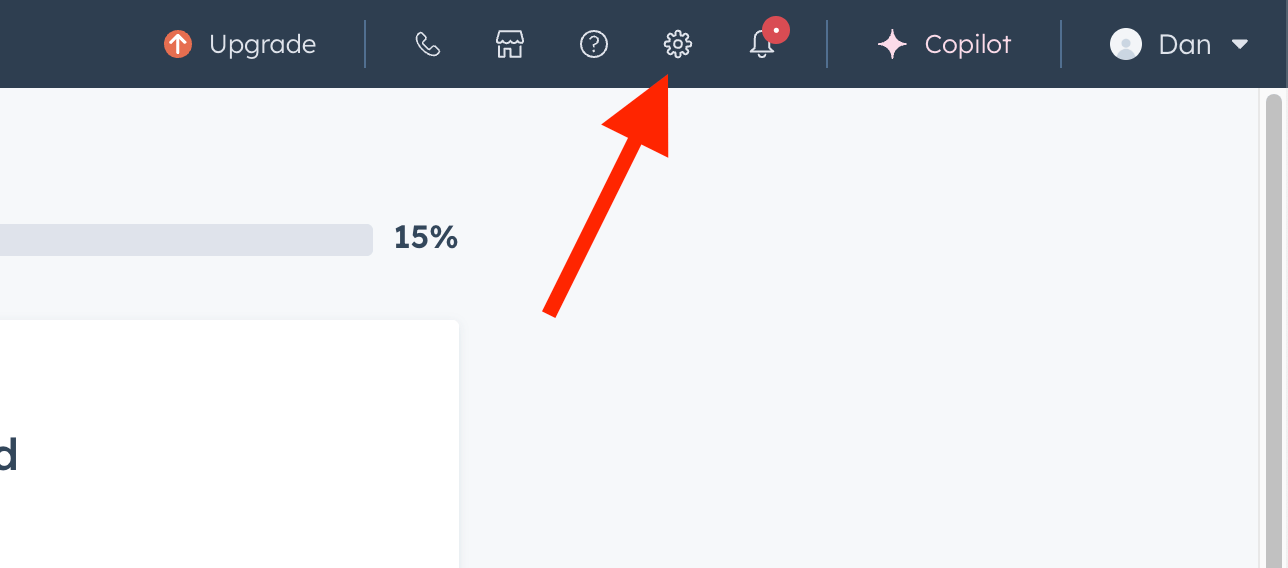
* Open **Settings** from the top right-hand corner of your HubSpot Home Page.
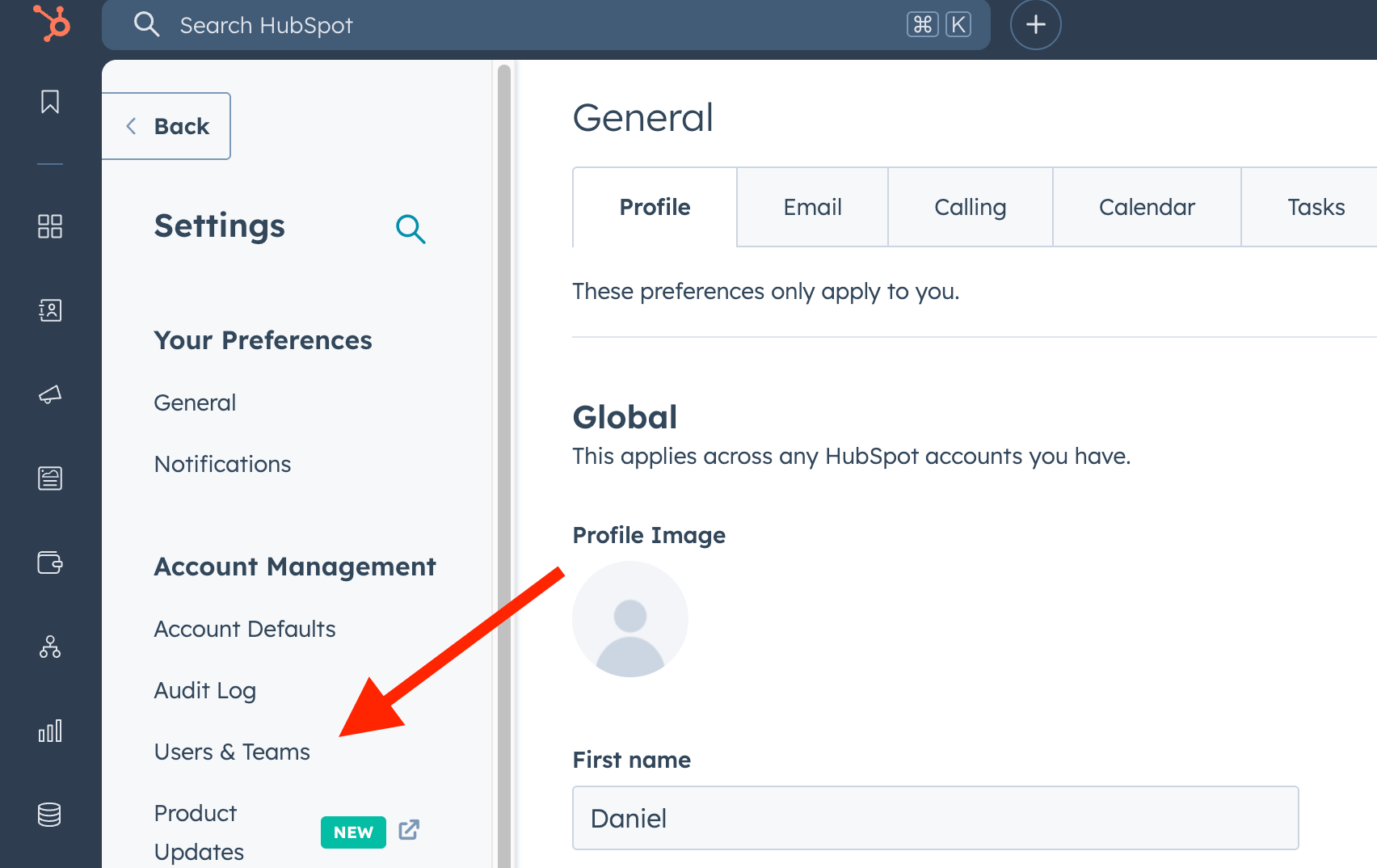
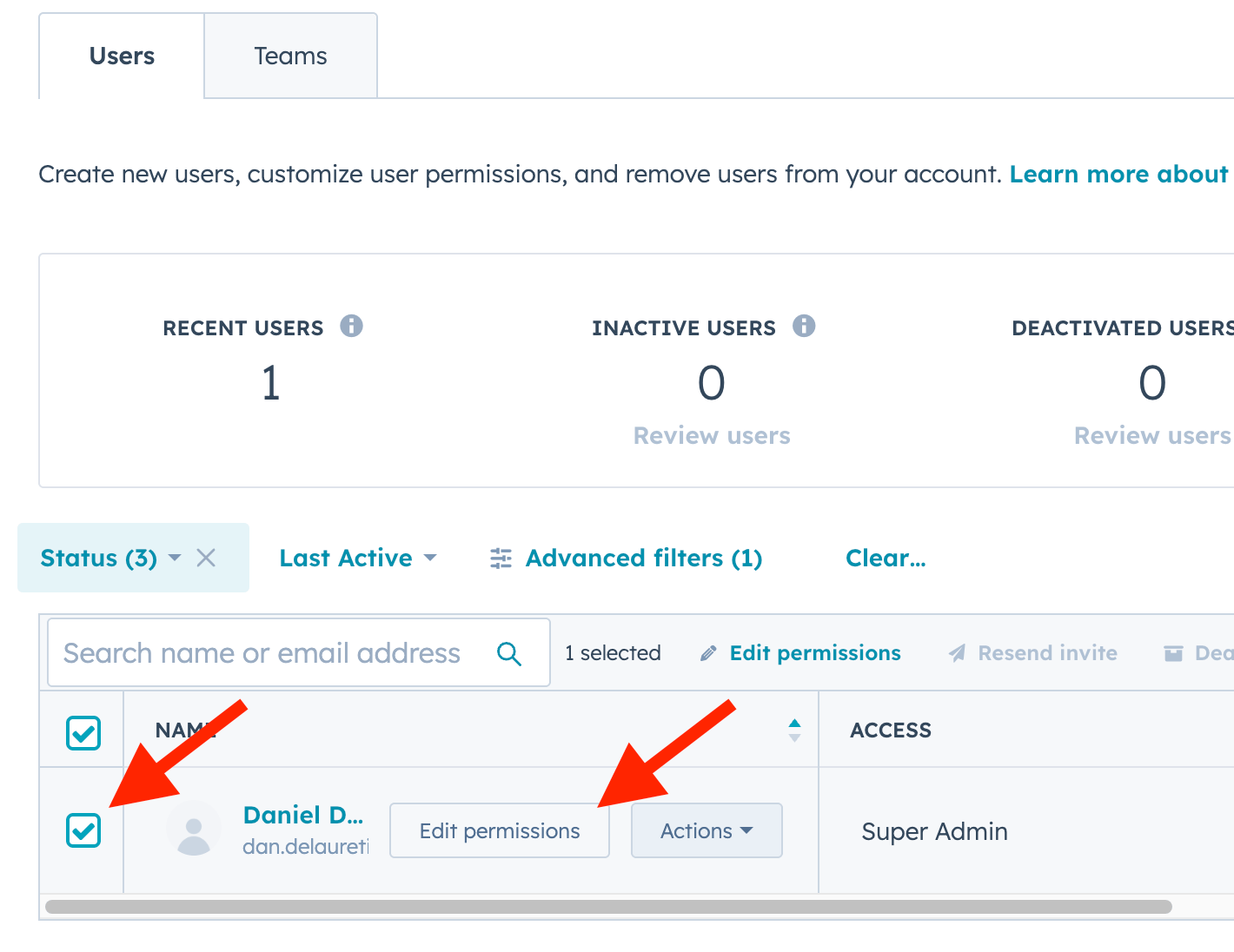
* Under **Account Management**, go to **Users & Teams** and select the right user to enable the **Edit Permissions** button.
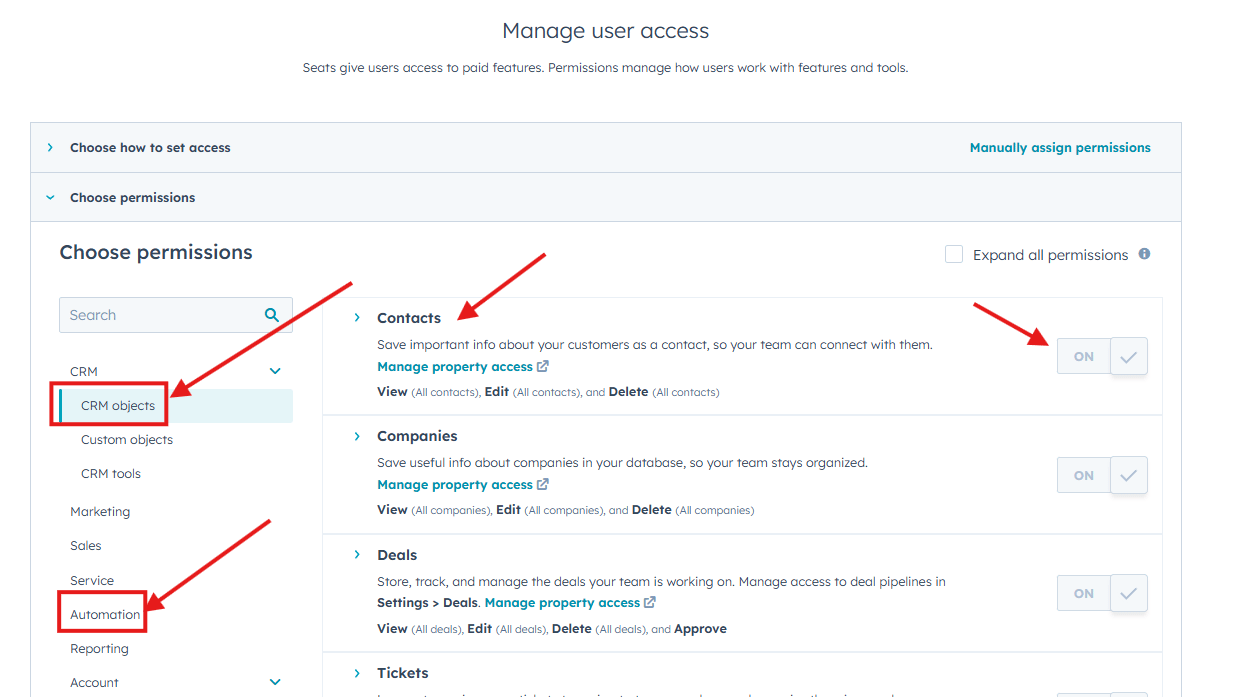
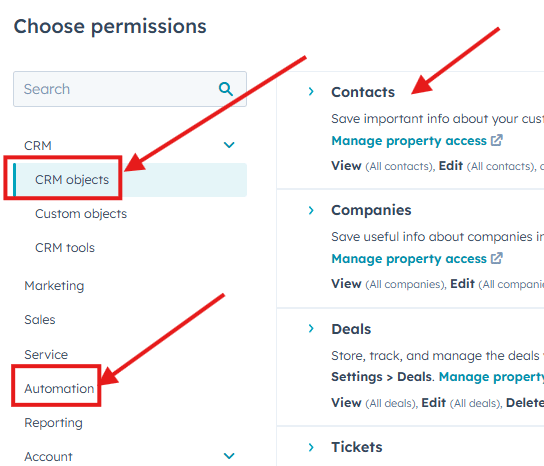
* In the left-hand permissions menu, turn **CRM Objects** and **Automation** ON.
* Both permissions are required to successfully create automated workflows.
This article will show you where to find your Hubpost permissions level needed to successfully create workflows
While standing on your Home Page, click on the Settings button located in the top right-hand side corner:
 Now, on the left-hand side panel and under Account Management, you will find the option USERS & TEAMS
 Select the right user will enable the EDIT PERMISSIONS button:
 Find the CRM OBJECTS and AUTOMATION options in the left-hand side menu and be sure to turn them ON. Both will be important when creating Automated Workflows
 That\`s all!
## Which permissions are needed to create workflows?
You need both the **CRM Objects** and **Automation** permissions turned on for the user. Both are found in the left-hand menu after clicking Edit Permissions, and both are important when creating automated workflows.
## Frequently asked questions
From your Home Page, click the **Settings** button in the top right-hand corner. Then, in the left-hand panel under **Account Management**, choose **Users & Teams**.
In **Users & Teams**, select the right user. Selecting the user enables the **Edit Permissions** button, which opens that user's permission settings.
Find the **CRM Objects** and **Automation** options in the left-hand permissions menu and be sure to turn them both ON. Both are needed to successfully create automated workflows.
A common cause is missing permissions. Confirm the user has both **CRM Objects** and **Automation** switched on under Edit Permissions, since both are required for creating automated workflows.
*Updated July 2026.*
That\`s all!
## Which permissions are needed to create workflows?
You need both the **CRM Objects** and **Automation** permissions turned on for the user. Both are found in the left-hand menu after clicking Edit Permissions, and both are important when creating automated workflows.
## Frequently asked questions
From your Home Page, click the **Settings** button in the top right-hand corner. Then, in the left-hand panel under **Account Management**, choose **Users & Teams**.
In **Users & Teams**, select the right user. Selecting the user enables the **Edit Permissions** button, which opens that user's permission settings.
Find the **CRM Objects** and **Automation** options in the left-hand permissions menu and be sure to turn them both ON. Both are needed to successfully create automated workflows.
A common cause is missing permissions. Confirm the user has both **CRM Objects** and **Automation** switched on under Edit Permissions, since both are required for creating automated workflows.
*Updated July 2026.*