> ## Documentation Index
> Fetch the complete documentation index at: https://help.sendspark.com/llms.txt
> Use this file to discover all available pages before exploring further.
# Set Global Styles
> Configure custom brand styles and logos for your Sendspark video messages to create a polished, professional experience for viewers.
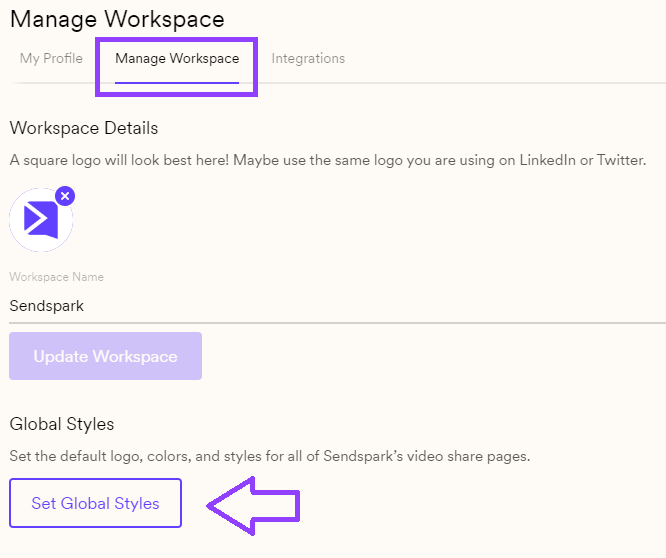
Set Global Styles lets you apply your own logo and brand styles across your Sendspark video messages and requests. Open your workspace settings (or go to My Account from the dashboard), click Manage Workspace, then Set Global Styles. Use the left sidebar to add your logo and styles, preview on the right, and save.
## Key takeaways
* Global Styles apply your logo and brand styles to Sendspark video messages and requests for a polished, professional look.
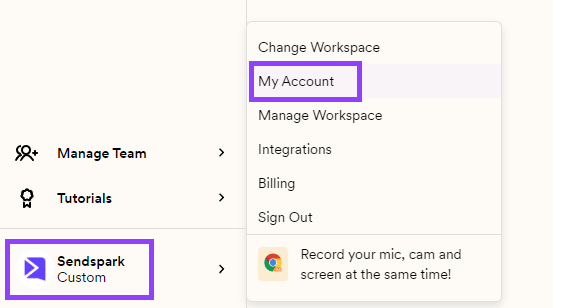
* Access them from your workspace settings, or via the dashboard by clicking the bottom-left logo, then My Account.
* Click **Manage Workspace**, then **Set Global Styles** to open the editor.
* Edit fields in the left sidebar and preview changes on the right; clicking a field highlights the element you're editing. Save to apply.
Sendspark lets you add your own brand styles on video messages and requests to deliver a beautiful, polished experience.
***
1. Click here to access your: **[workspace settings](https://sendspark.com/settings/workspace)**. Or navigate through your dashboard by clicking on the bottom left-hand side logo, then click **My Account**:
2. Click **Manage Workspace** and then on **Set Global Styles**
3. Use the side bar on the left to add your own logo and brand styles. You can preview how your video pages will look on the right.
When you click a field on the left, you'll see the element you're editing highlighted on the right.
4. Save changes, and you're all set!
## Frequently asked questions
Open your workspace settings directly, or from the dashboard click the logo in the bottom left, choose My Account, click Manage Workspace, and then Set Global Styles.
You can add your own logo and brand styles to your video pages. These apply across your Sendspark video messages and requests.
Yes. Use the sidebar on the left to make changes and preview how your video pages will look on the right. When you click a field on the left, the element you're editing is highlighted on the right.
They apply to your video messages and requests, giving viewers a consistent, branded experience.
*Updated July 2026.*
 2. Click **Manage Workspace** and then on **Set Global Styles**
 3. Use the side bar on the left to add your own logo and brand styles. You can preview how your video pages will look on the right.
When you click a field on the left, you'll see the element you're editing highlighted on the right.
4. Save changes, and you're all set!
3. Use the side bar on the left to add your own logo and brand styles. You can preview how your video pages will look on the right.
When you click a field on the left, you'll see the element you're editing highlighted on the right.
4. Save changes, and you're all set!
 ## Frequently asked questions