> ## Documentation Index
> Fetch the complete documentation index at: https://help.sendspark.com/llms.txt
> Use this file to discover all available pages before exploring further.
# Sendspark Floating Menu
> Learn how to use Sendspark's floating menu widget for quick screen and camera recording access from anywhere on the web.
The Sendspark Floating Menu (or Widget) is a Chrome extension overlay that lets you start recording from anywhere on the web without opening the full dashboard. It offers camera-only, screen-only, and full-screen (camera + screen) recording, plus quick access to settings and a Start Recording button. You can toggle it on or off from the extension's Settings.
## Key takeaways
* The Floating Menu gives **quick recording access from anywhere on the web**, without opening the dashboard.
* Recording modes: **Camera Only**, **Screen Only**, and **Full Screen (Camera + Screen)**.
* It also includes **Settings** and a **"Start Recording!"** button.
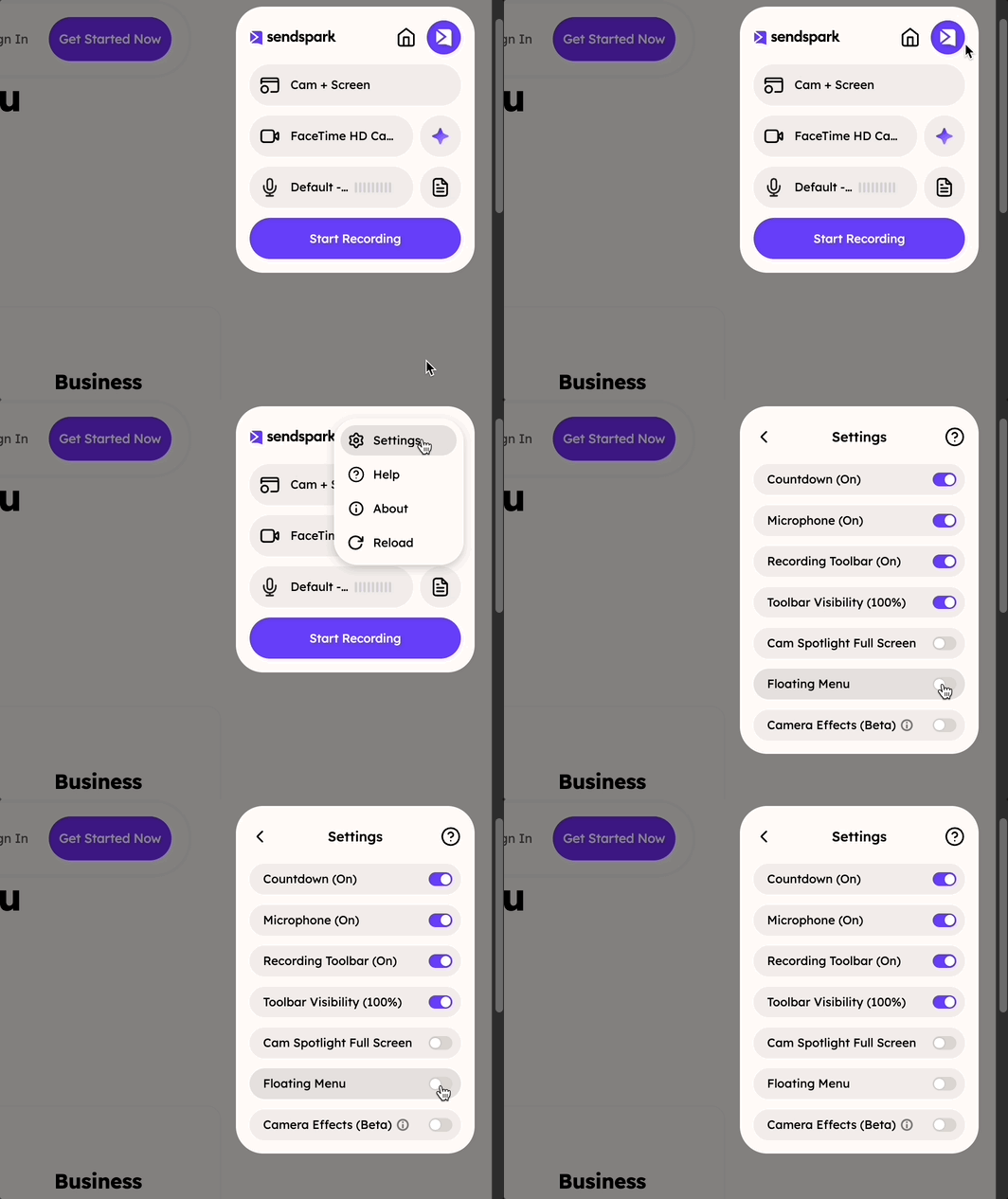
* Enable or disable it from the Chrome extension's Sendspark icon → **Settings** → **Floating Menu** toggle.
The **Floating Menu** or Widget gives you **quick access to start recording from anywhere** on the web — without opening the full Sendspark dashboard.
## Menu Options
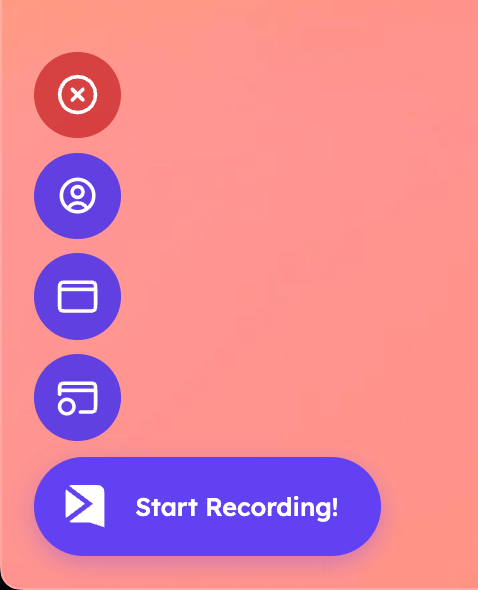
From top to bottom:
1. **❌ Close Button** – Hides the floating menu.
2. **🎥 Camera Only** – Record using your webcam only.
3. **🖥️ Screen Only** – Record your screen only (no camera feed).
4. **📸 Full Screen (Camera + Screen)** – Record both your screen and camera at the same time.
5. **⚙️ Settings** – Adjust recording or display options.
6. **▶️ “Start Recording!” Button** – Begins the recording with your selected mode.
## How to Enable/Disable
Click on the Chrome Extension's Sendspark Icon, head to Settings, and toggle the **Floating Menu ON/OFF**
 When you click the Sendspark icon, the Floating Menu appears like this:
 ## Frequently asked questions
Click the Chrome extension's Sendspark icon, head to Settings, and toggle the Floating Menu ON or OFF.
Three: Camera Only (webcam only), Screen Only (no camera feed), and Full Screen, which records your screen and camera at the same time.
No. The Floating Menu gives you quick access to start recording from anywhere on the web without opening the full Sendspark dashboard.
*Updated July 2026.*
## Frequently asked questions
Click the Chrome extension's Sendspark icon, head to Settings, and toggle the Floating Menu ON or OFF.
Three: Camera Only (webcam only), Screen Only (no camera feed), and Full Screen, which records your screen and camera at the same time.
No. The Floating Menu gives you quick access to start recording from anywhere on the web without opening the full Sendspark dashboard.
*Updated July 2026.*