> ## Documentation Index
> Fetch the complete documentation index at: https://help.sendspark.com/llms.txt
> Use this file to discover all available pages before exploring further.
# SendGrid — Send Dynamic Videos
> Learn how to send AI-personalized videos in SendGrid with Sendspark. Create dynamic videos that automatically include recipient names.
Sendspark lets you send AI-personalized videos in SendGrid from a single placeholder video. Create a dynamic video campaign in Sendspark, import your contacts, then click Share Campaign and select SendGrid to get a code snippet. In SendGrid's Design Editor, drop in a CODE module, paste the snippet, and each recipient gets their own personalized video.
## Key takeaways
* One placeholder video in Sendspark becomes a personalized video for every recipient, each with their own name and website.
* Create the dynamic video campaign in Sendspark, then import contacts by manual entry, CSV upload, or automation (Zapier, API, etc).
* Get the SendGrid snippet from **Share Campaign → SendGrid**.
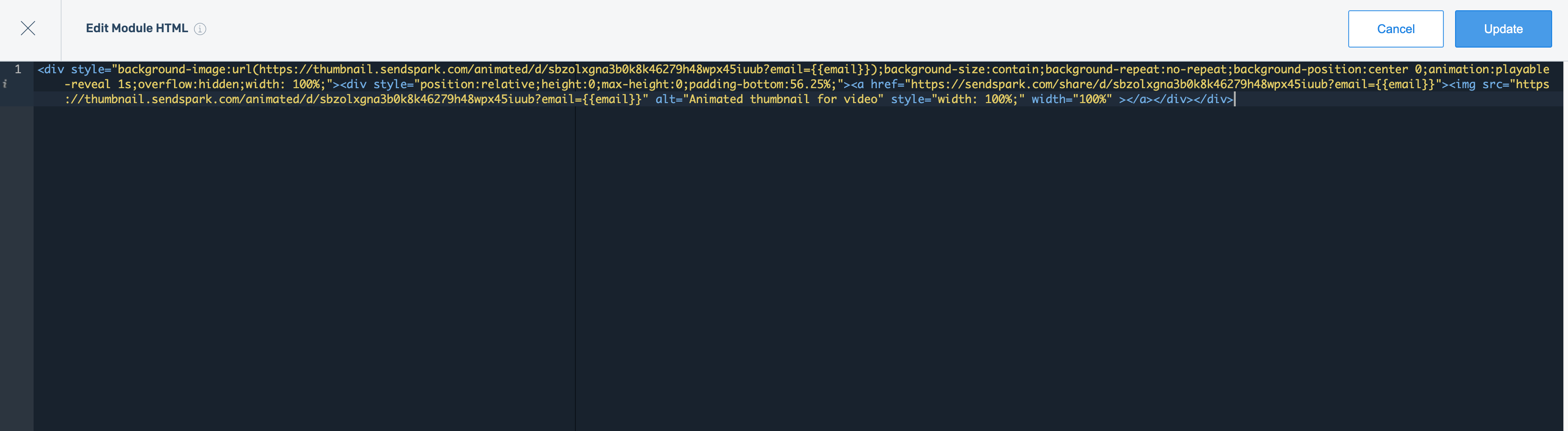
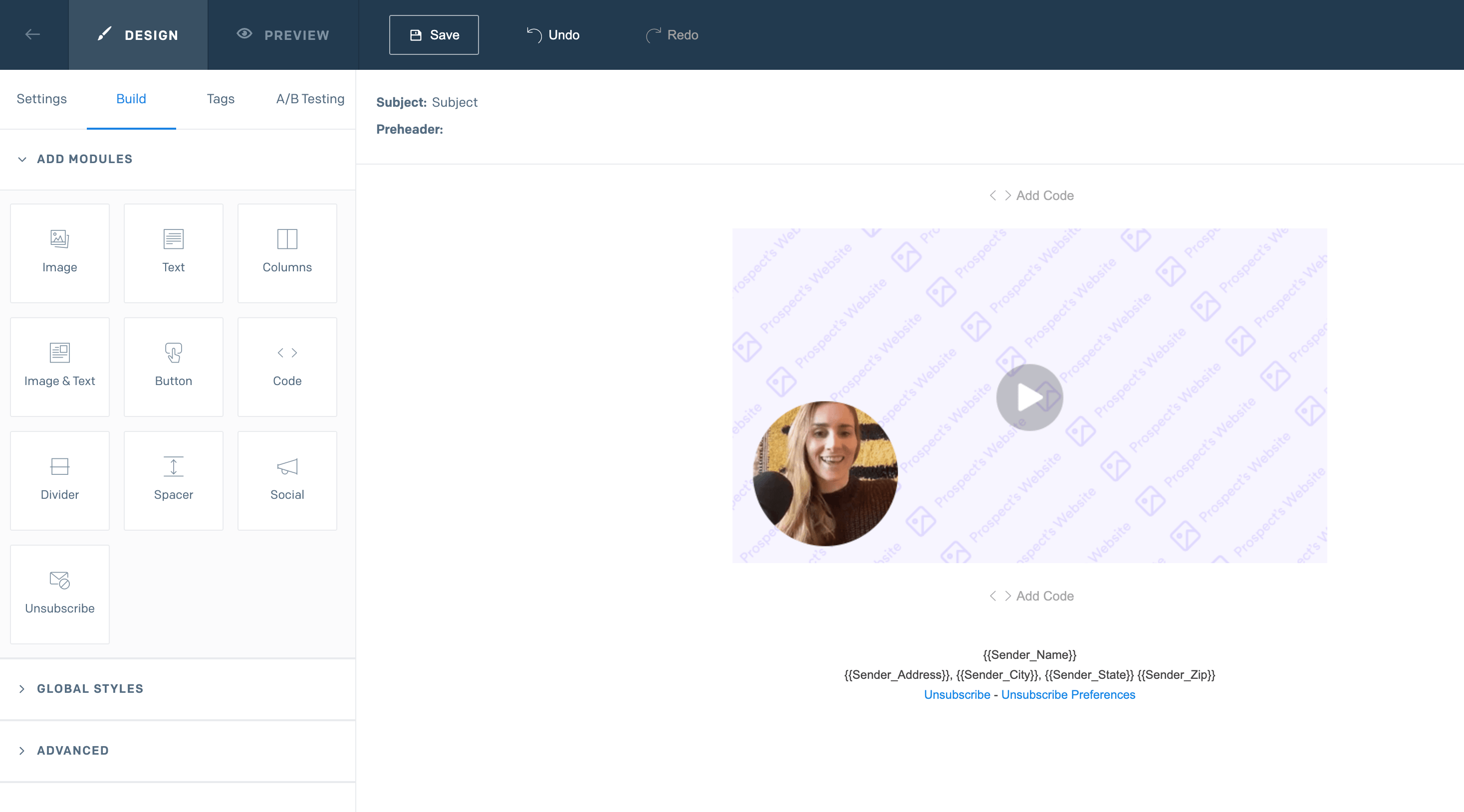
* In SendGrid, use the **Design Editor**, add a **CODE** module under BUILD, paste the snippet, and click Update — the placeholder automatically turns into the right video.
Sendspark makes it easy to send AI-personalized videos in SendGrid.
So you can create just one placeholder video in Sendspark, and when you send it in SendGrid, every recipient will receive a video with their own name and website in it.
## How to Send AI-Personalized Videos in SendGrid
## 1. Create a Dynamic Video Campaign in Sendspark
Go to the [dynamic video section](https://sendspark.com/dynamic-videos) of Sendspark.
Click **"Create Dynamic Video"** to create a new campaign: **[https://sendspark.com/dynamic-videos](https://sendspark.com/dynamic-videos)**
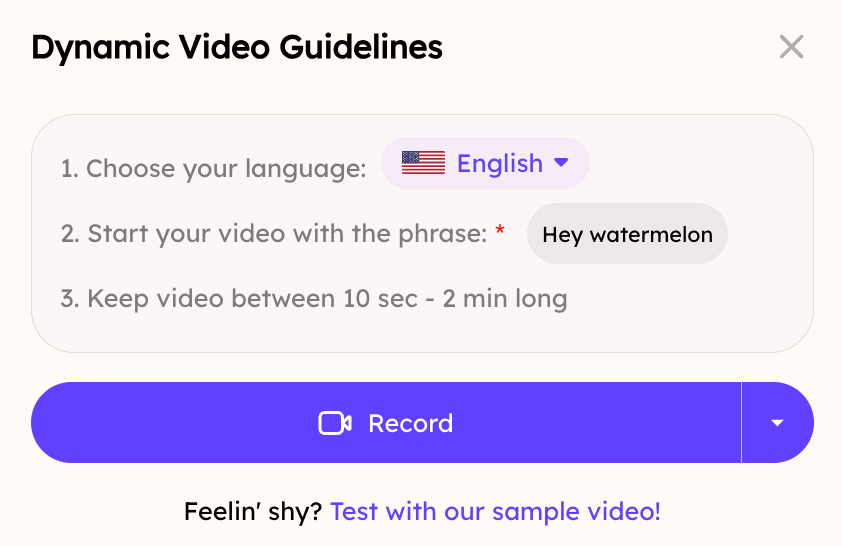 From here, you can add a video and select options to...
* Use AI to clone your voice, so you can automatically greet each viewer by name
* Simulate scrolling through different website pages
* and more!
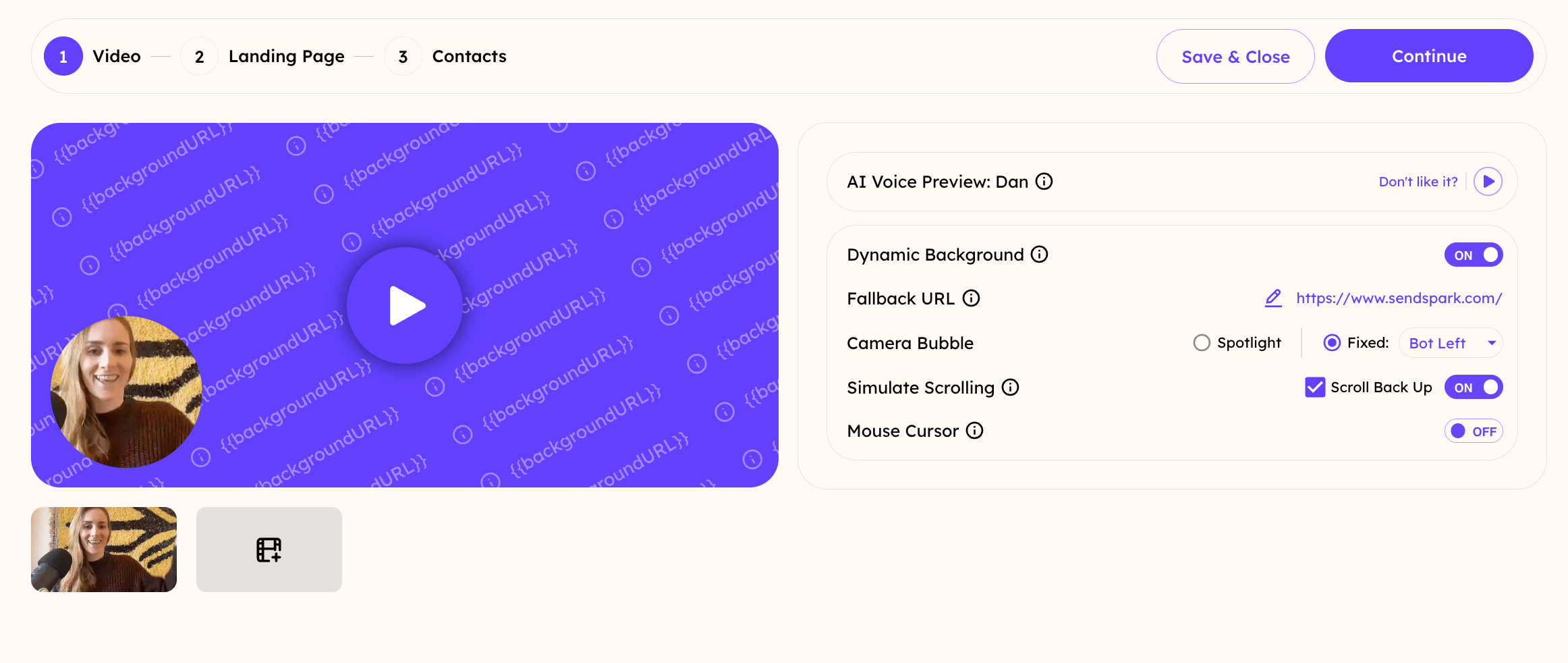
From here, you can add a video and select options to...
* Use AI to clone your voice, so you can automatically greet each viewer by name
* Simulate scrolling through different website pages
* and more!
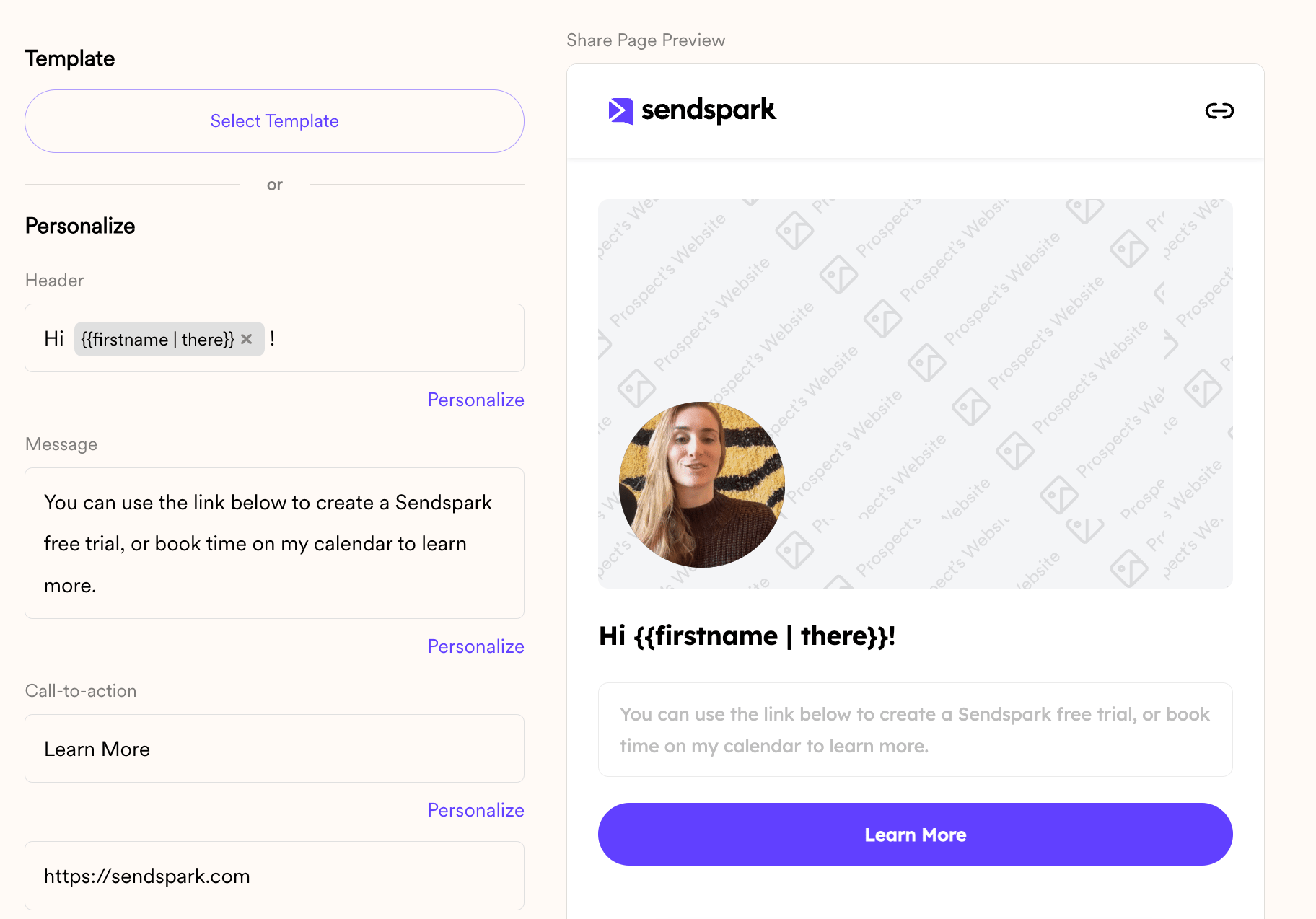
 You can also customize video landing pages, so prospects will see more than just the video, and be able to book meetings or take actions immediately after watching.
 Learn more about [creating dynamic videos here](/dynamic-videos-make-videos-with-ai-introductions).
## 2. Import Contacts
You can create dynamic videos for contacts in a few ways:
1. Manually type contact data
2. Import a CSV
3. Generate videos via automation (Zapier, API, etc)
Learn more about [creating dynamic videos here](/dynamic-videos-make-videos-with-ai-introductions).
## 2. Import Contacts
You can create dynamic videos for contacts in a few ways:
1. Manually type contact data
2. Import a CSV
3. Generate videos via automation (Zapier, API, etc)
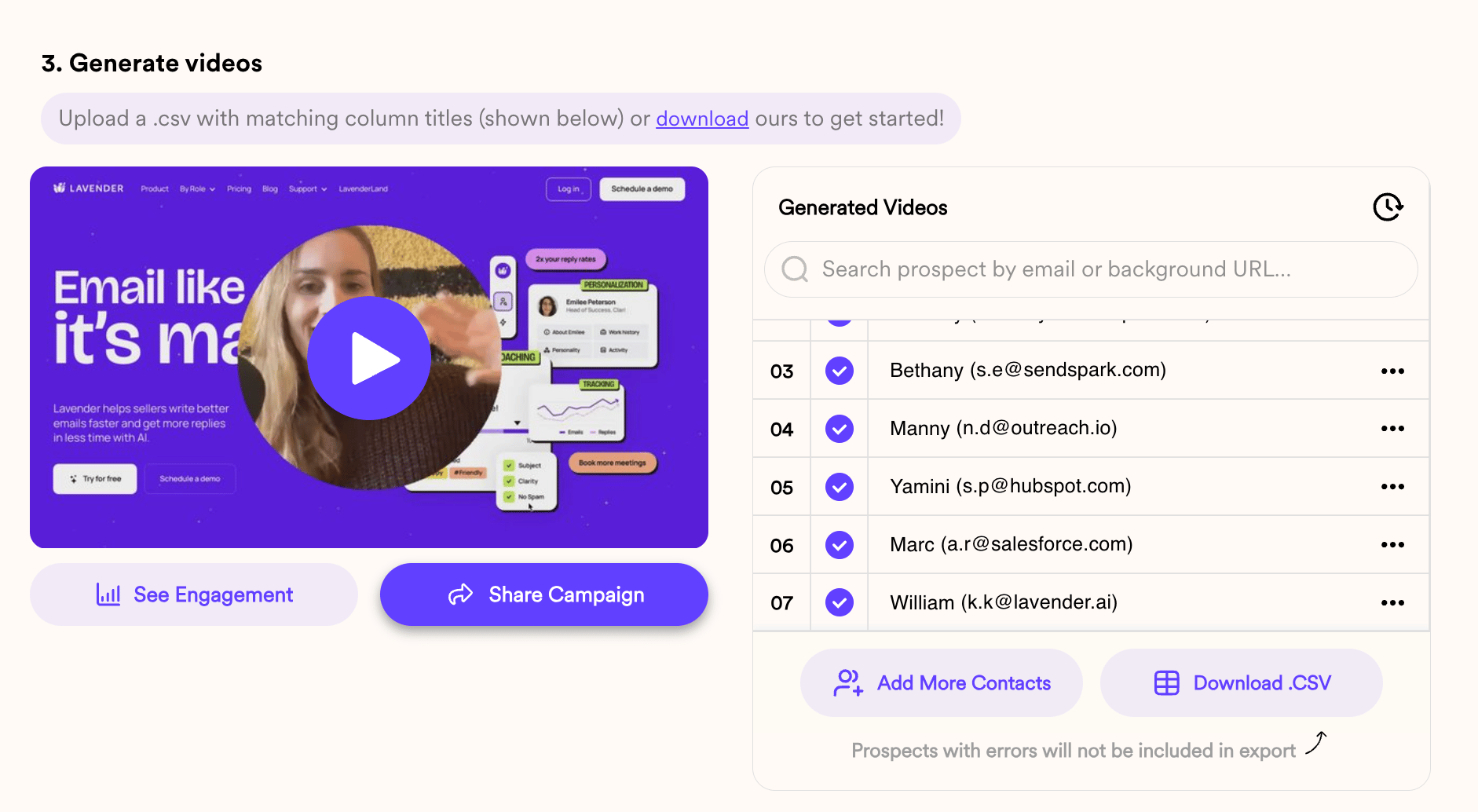
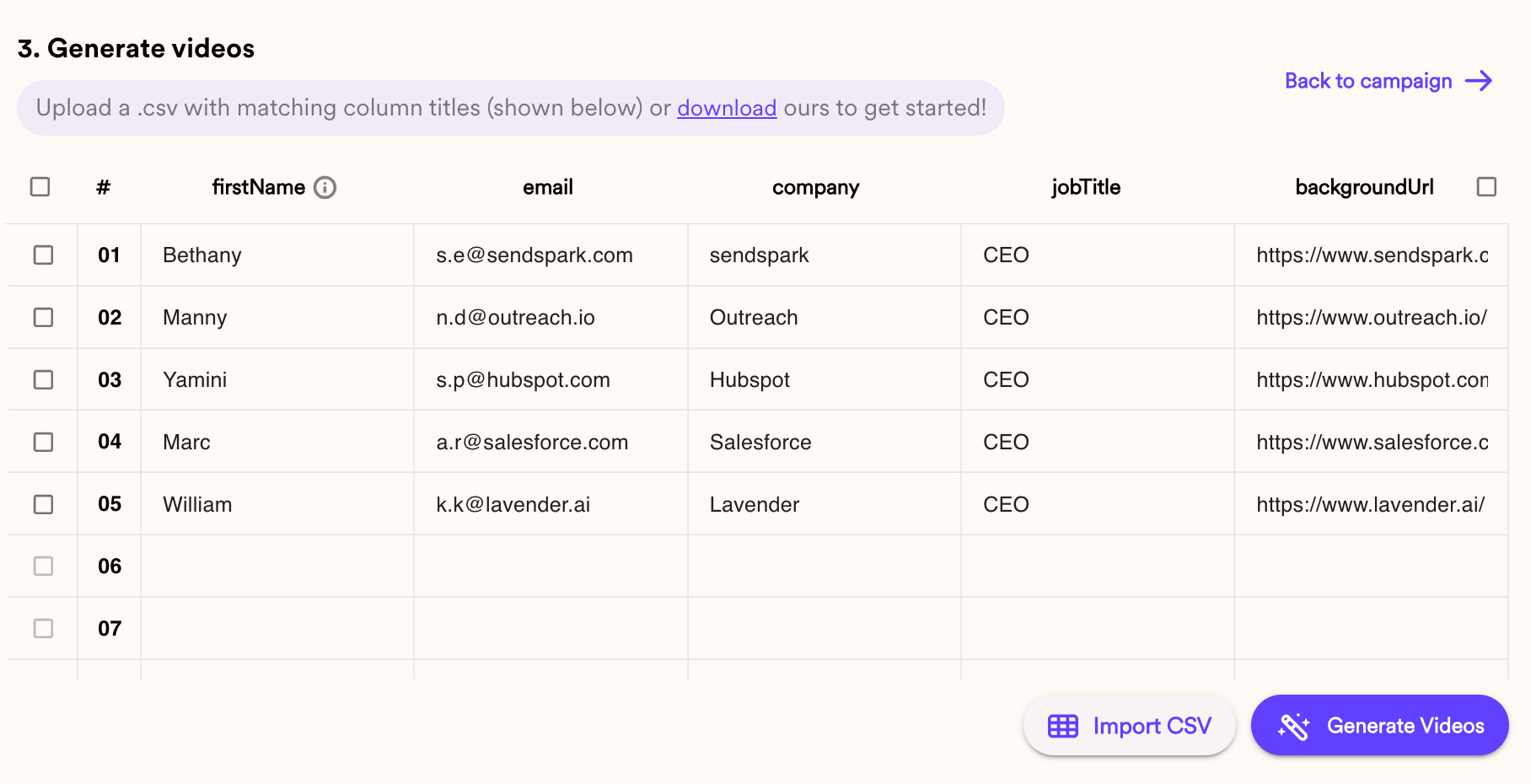 Once dynamic videos have been created, you'll see them populate, and you can play them to test out the AI and make sure everything looks great.
 ## 3. Share in Sendgrid
To share videos in SendGrid, simply click **"Share Campaign"**
Then, select **"**Sendgrid**"**
## 3. Share in Sendgrid
To share videos in SendGrid, simply click **"Share Campaign"**
Then, select **"**Sendgrid**"**
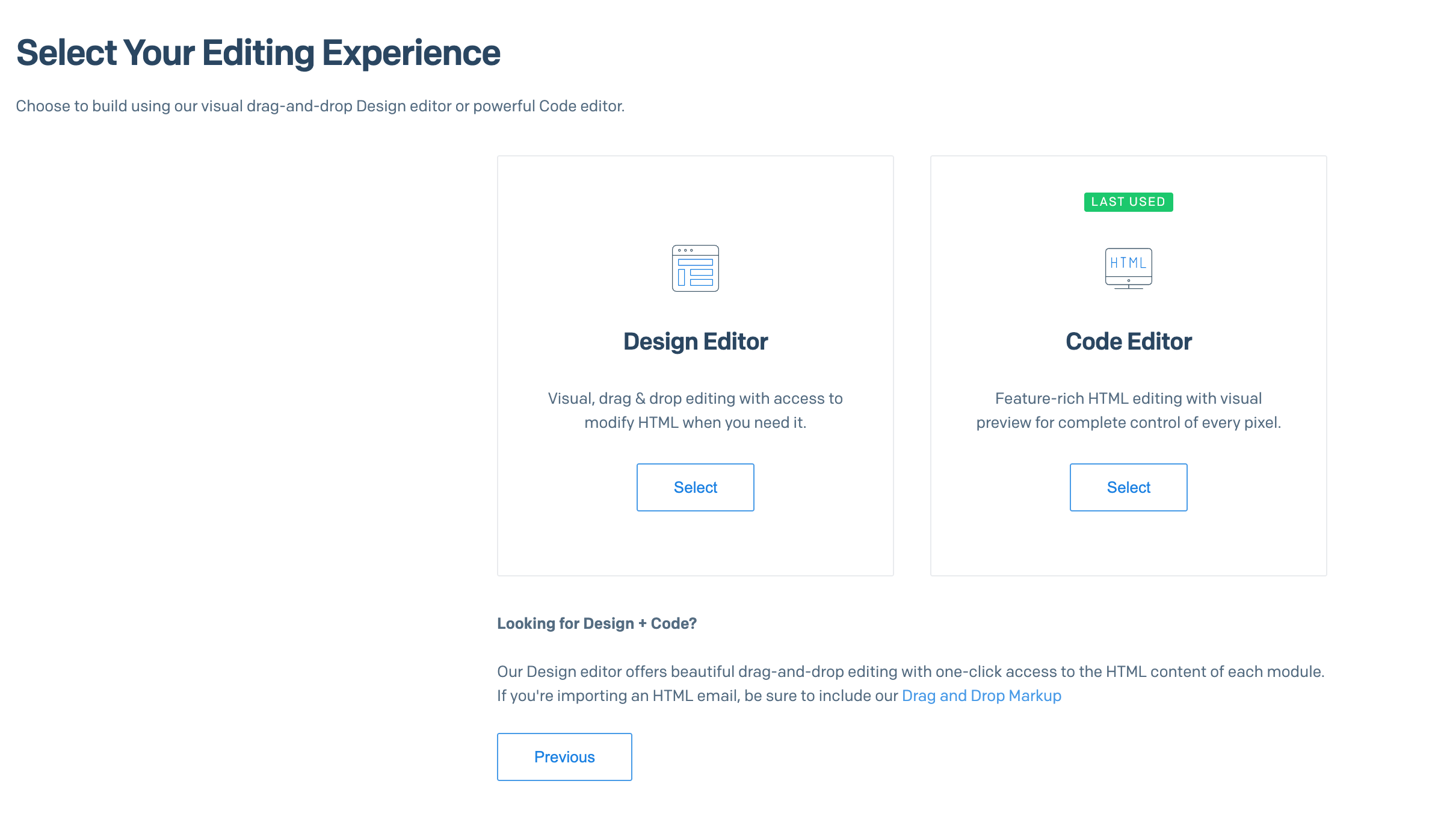
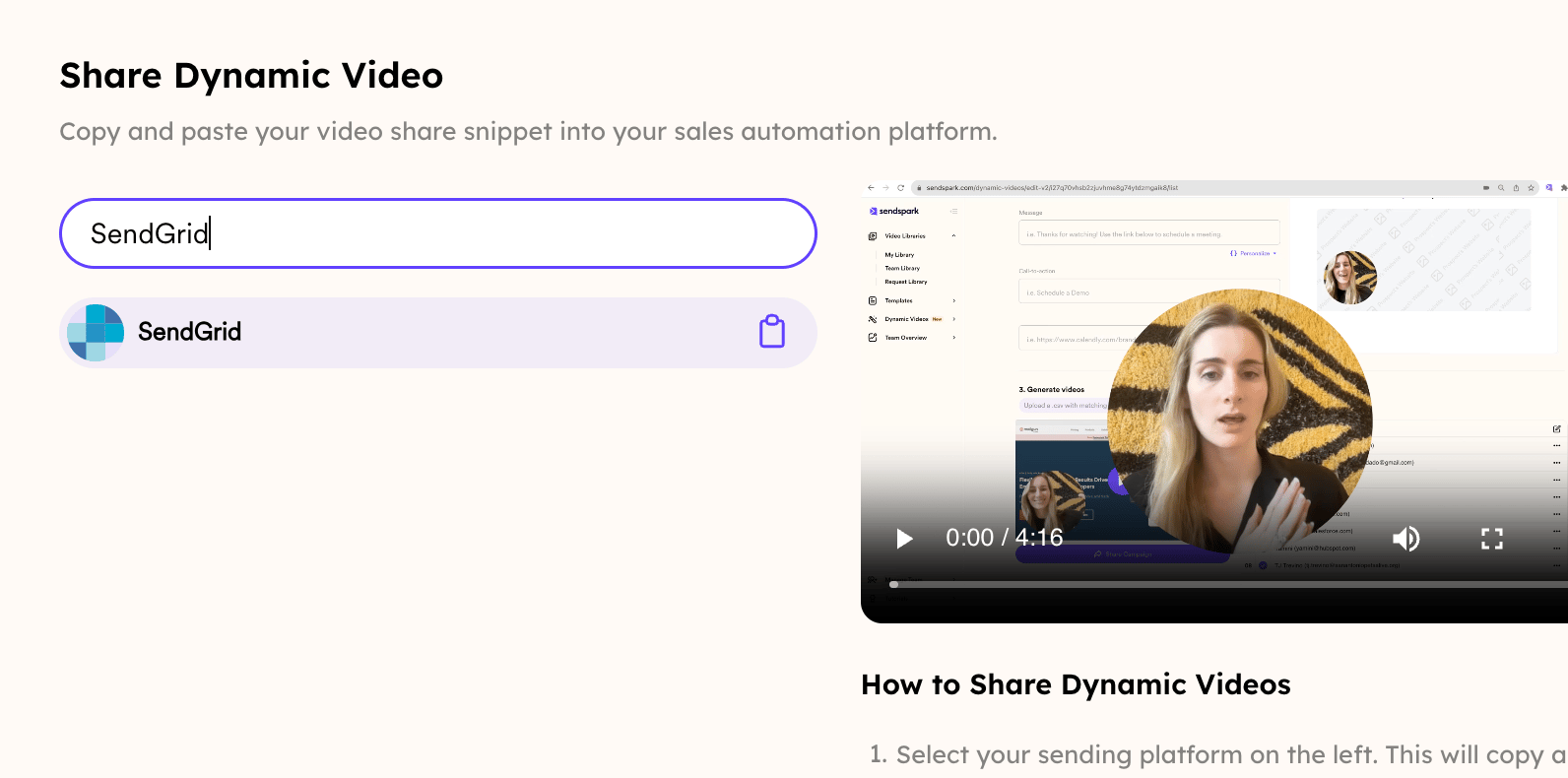 Now, you can take that snippet and paste it into an email in SendGrid. Select the DESIGN EDITOR for a better experience:
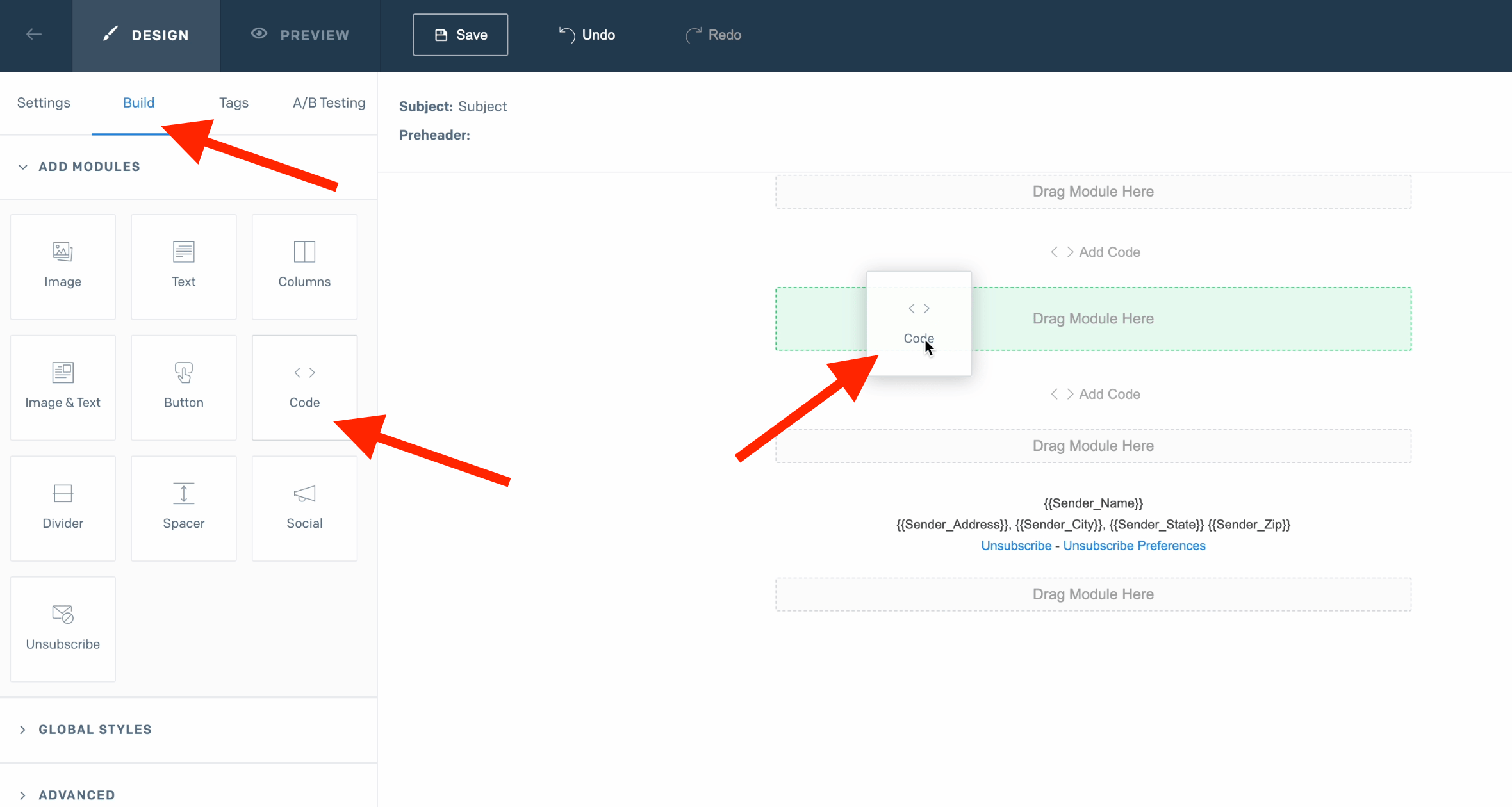
 Once in the email builder section, click on BUILD and grab the CODE module and drop it in the email
 Now simply paste the code you copied from the share dynamic video campaign button and click on UPDATE
 Now click back on design. And you'll get something like this, a placeholder that will automatically turn into the right video.
 And that's all you need! You can now launch your campaign
## Frequently asked questions
No. You create just one placeholder video in Sendspark. When you send it in SendGrid, every recipient receives a video with their own name and website in it.
You can add contacts in a few ways: manually type contact data, import a CSV, or generate videos via automation (Zapier, API, etc). Once created, the videos populate so you can play them to test the personalization.
In Sendspark, click **Share Campaign**, then select **SendGrid**. That gives you the snippet to paste into your SendGrid email.
Use the **Design Editor** for a better experience. In the email builder, click **BUILD**, grab the **CODE** module and drop it into the email, paste the Sendspark snippet, and click Update. Switch back to design and you'll see a placeholder that automatically turns into the right video.
Each recipient's video can include their own name and website. You can also use AI to clone your voice to greet each viewer by name, simulate scrolling through different website pages, and customize the video landing page so prospects can book meetings or take action right after watching.
*Updated July 2026.*
And that's all you need! You can now launch your campaign
## Frequently asked questions
No. You create just one placeholder video in Sendspark. When you send it in SendGrid, every recipient receives a video with their own name and website in it.
You can add contacts in a few ways: manually type contact data, import a CSV, or generate videos via automation (Zapier, API, etc). Once created, the videos populate so you can play them to test the personalization.
In Sendspark, click **Share Campaign**, then select **SendGrid**. That gives you the snippet to paste into your SendGrid email.
Use the **Design Editor** for a better experience. In the email builder, click **BUILD**, grab the **CODE** module and drop it into the email, paste the Sendspark snippet, and click Update. Switch back to design and you'll see a placeholder that automatically turns into the right video.
Each recipient's video can include their own name and website. You can also use AI to clone your voice to greet each viewer by name, simulate scrolling through different website pages, and customize the video landing page so prospects can book meetings or take action right after watching.
*Updated July 2026.*