> ## Documentation Index
> Fetch the complete documentation index at: https://help.sendspark.com/llms.txt
> Use this file to discover all available pages before exploring further.
# Sendfox — Send Personalized Videos at Scale
> Learn how to send personalized videos at scale using Sendfox and Sendspark integration for effective video email campaigns.
To send personalized videos at scale in Sendfox, create your video in Sendspark, personalize it with a title, message, call-to-action, or merge tags, then click Share Video and select Sendfox to copy the video share snippet. Paste that snippet into any Sendfox email and you're ready to send.
## Key takeaways
* The Sendspark + Sendfox integration lets you send video emails to your Sendfox audience.
* You can personalize videos with a title, message, call-to-action, a custom thumbnail, or merge tags that update automatically for each recipient (with a fallback shown when a recipient's information is unknown).
* Sharing takes two clicks: click Share Video, then Sendfox to copy the snippet, and paste it into your Sendfox email.
* If you don't see Sendfox in the share modal, you can modify your shortcuts to add it.
## Why Send Videos in Sendfox?
With the Sendspark + Sendfox integration, you can easily send video emails to your audience.
## How to Send Personalized Videos at Scale in Sendfox
Watch the video or follow the steps below:
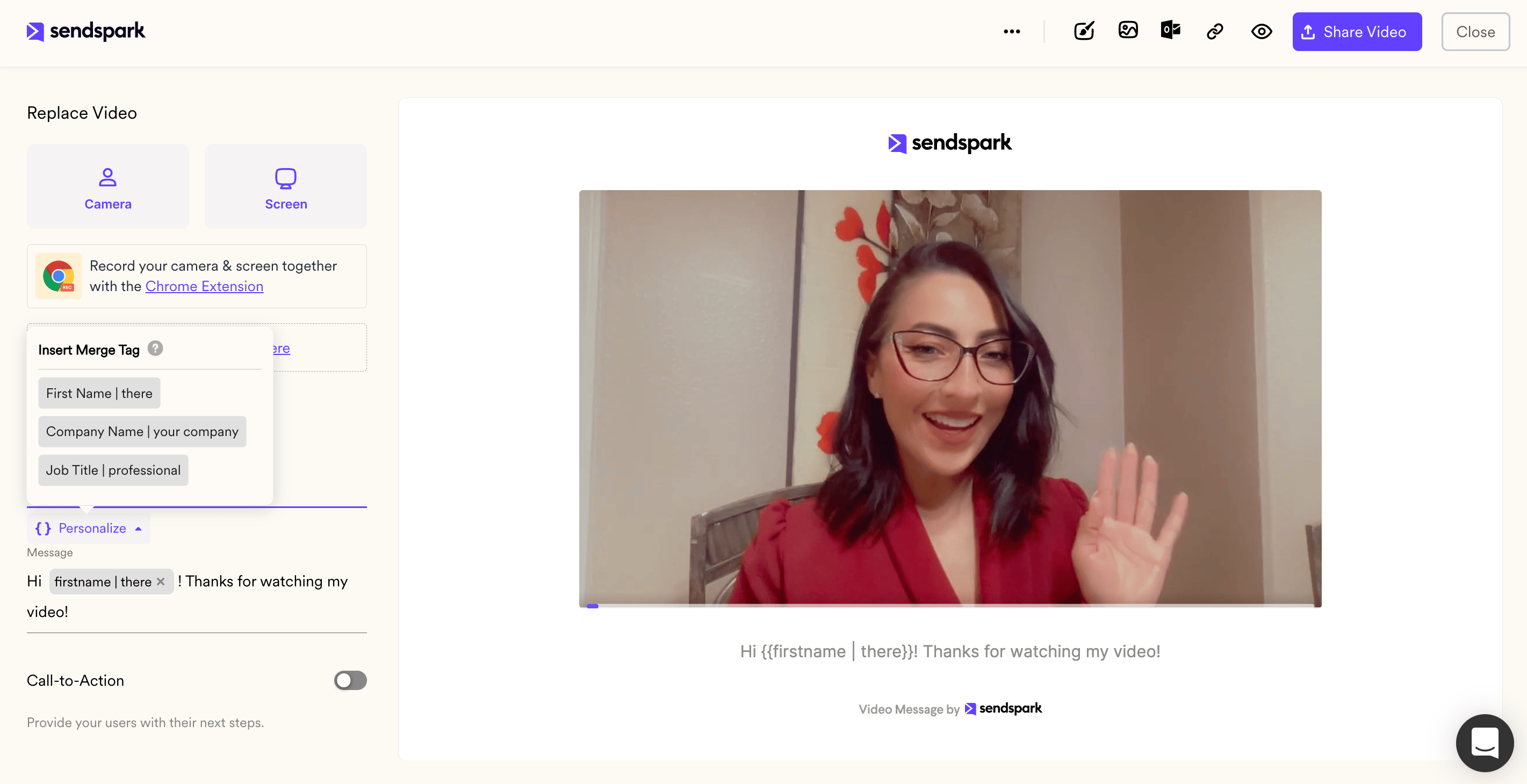
## 1. Create your video in Sendspark
You can record, upload, or request a video.
## 2. Personalize your video
Feel free to add a title, message, or call-to-action on your video page or to [edit the video thumbnail](/how-to-edit-video-thumbnails).
You can also use merge tags to automatically personalize videos for viewers. These merge tags will automatically update for each recipient. If the recipient's information is unknown, they will see a [fallback](/how-merge-tag-fallbacks-work).
## 3. Click "Share Video"
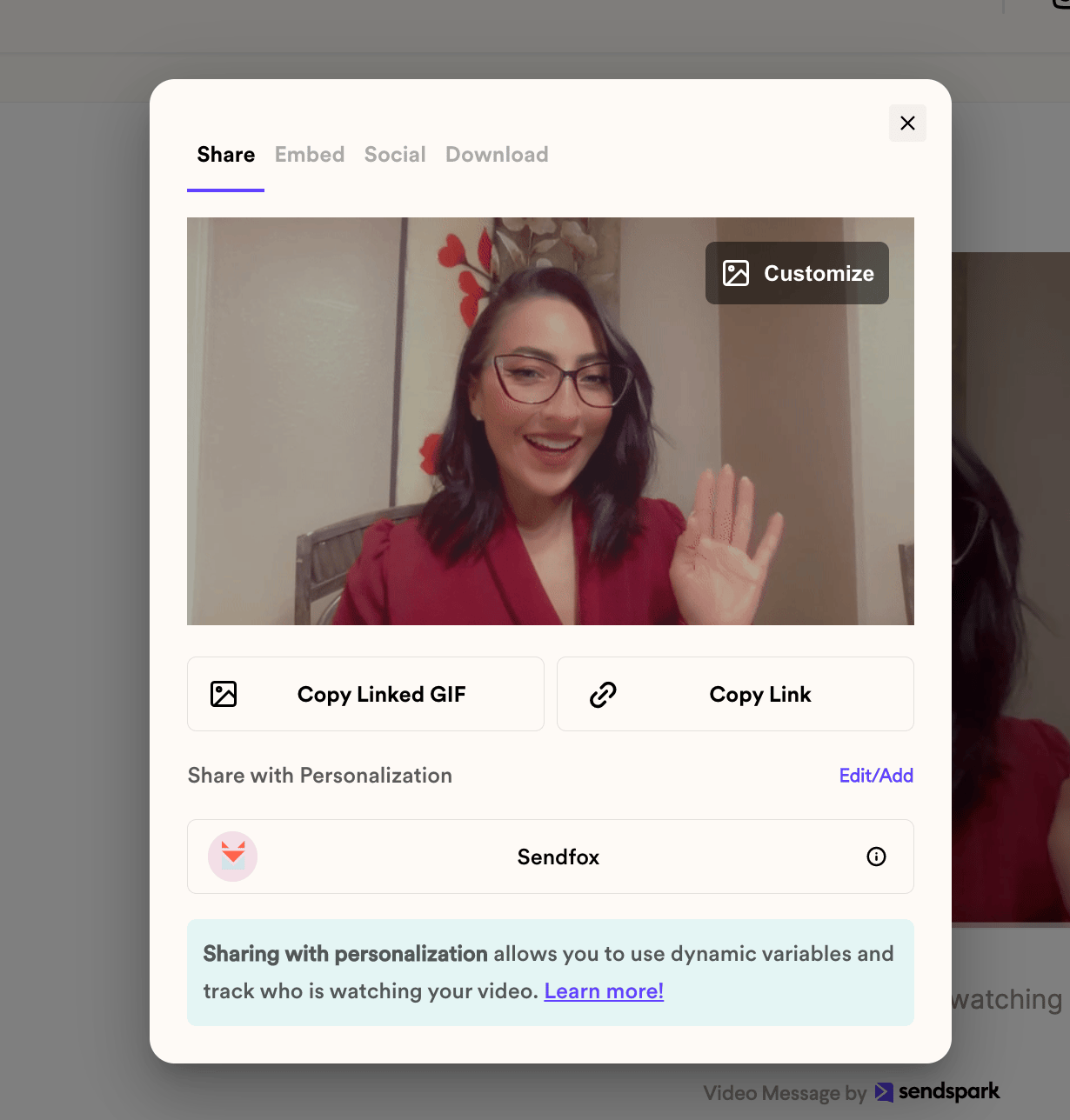
## 4. From the Sendspark share modal, click "Sendfox"
By clicking "Sendfox," you will copy your video share snippet to your clipboard.
Note, if you don't see Sendfox on the share modal, you can [modify your shortcuts](/how-to-modify-shortcuts-on-share-modal).
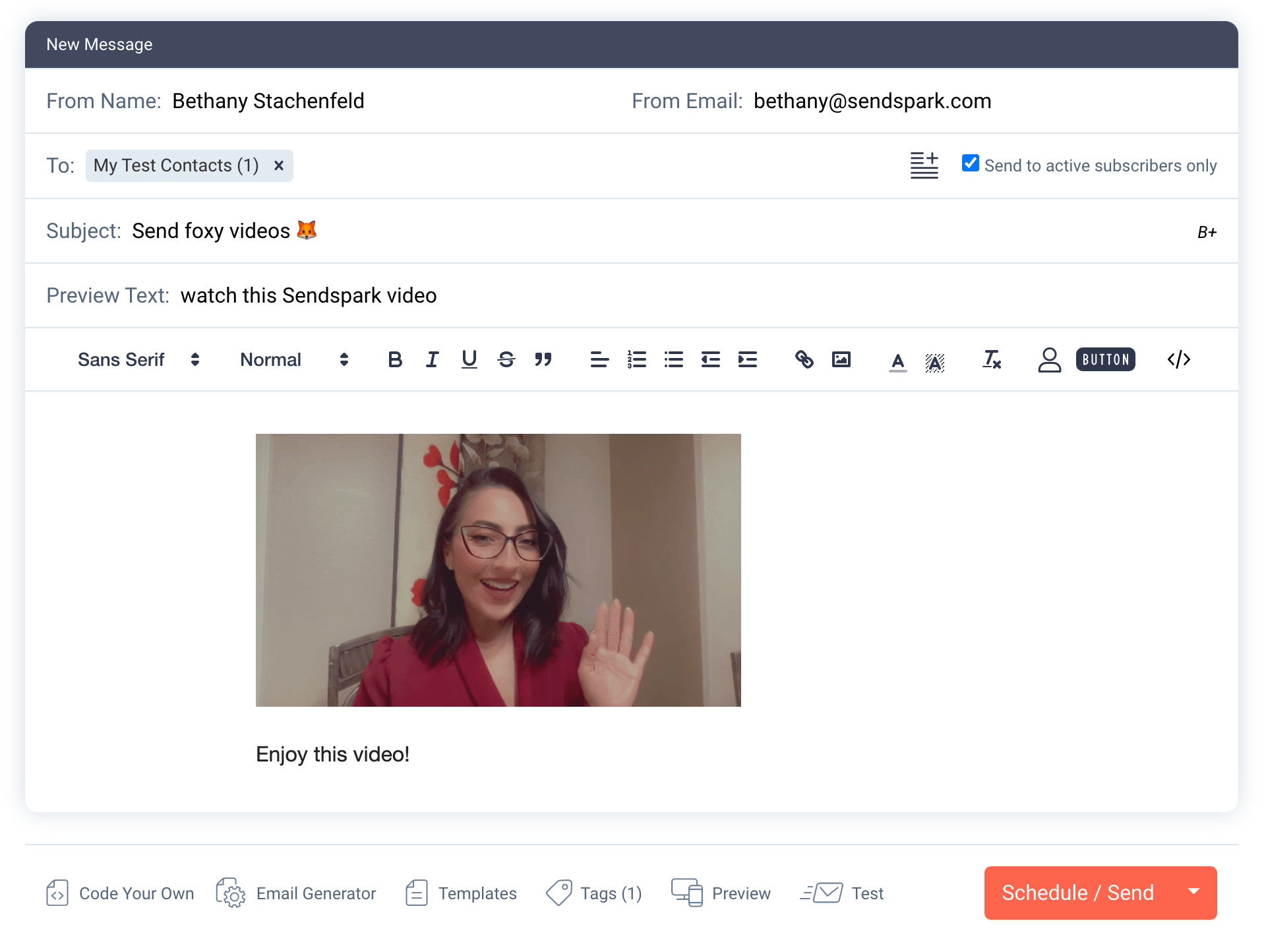
## 5. Paste into your Sendfox email
From any email in Sendfox, just paste in your Sendspark video!
That's it, you're ready to send your video!
## Frequently asked questions
Create your video in Sendspark, click Share Video, then click Sendfox to copy your video share snippet to your clipboard, and paste it into any email in Sendfox.
Yes. You can add a title, message, or call-to-action, and use merge tags that automatically update for each recipient. If a recipient's information is unknown, they'll see a fallback.
You can modify your shortcuts on the share modal to add Sendfox as an option.
Merge tags fall back automatically, so a recipient with missing information still sees a fallback value rather than a blank.
*Updated July 2026.*
 ## 3. Click "Share Video"
 ## 4. From the Sendspark share modal, click "Sendfox"
By clicking "Sendfox," you will copy your video share snippet to your clipboard.
Note, if you don't see Sendfox on the share modal, you can [modify your shortcuts](/how-to-modify-shortcuts-on-share-modal).
## 4. From the Sendspark share modal, click "Sendfox"
By clicking "Sendfox," you will copy your video share snippet to your clipboard.
Note, if you don't see Sendfox on the share modal, you can [modify your shortcuts](/how-to-modify-shortcuts-on-share-modal).
 ## 5. Paste into your Sendfox email
From any email in Sendfox, just paste in your Sendspark video!
## 5. Paste into your Sendfox email
From any email in Sendfox, just paste in your Sendspark video!
 That's it, you're ready to send your video!
## Frequently asked questions
That's it, you're ready to send your video!
## Frequently asked questions