> ## Documentation Index
> Fetch the complete documentation index at: https://help.sendspark.com/llms.txt
> Use this file to discover all available pages before exploring further.
# SalesLoft — Send Personalized Videos at Scale
> Learn how to send personalized videos at scale in SalesLoft using Sendspark with dynamic variables and automated contact updates.
To send personalized videos at scale in SalesLoft, record or upload a video in Sendspark, add dynamic variables to the video landing page and thumbnail, click Share Video, select the SalesLoft option, and paste the snippet into a SalesLoft email template. Each contact's video then updates automatically with their own details whenever the email sends in a sequence or a direct email.
## Key takeaways
* Personalization lives in two places: the **video landing page** (where viewers watch) and the **video thumbnail** (shown in the email to capture attention).
* **Dynamic variables** are placeholders that Sendspark swaps for each contact's real properties when the email sends in SalesLoft.
* Add **fallback properties** to every variable so contacts still get a clean video when Sendspark can't retrieve their information.
* Paste the snippet into a SalesLoft **email template** once, and the video auto-updates per contact across sequences and direct emails, no manual editing required.
Sendspark makes it easy to send personalized videos at scale in SalesLoft.
## How to Send Personalized Videos at Scale in SalesLoft
Watch the video or follow the steps below!
1. [Record](/record-yourself) or [upload](/upload-a-video-to-sendspark) your video in Sendspark
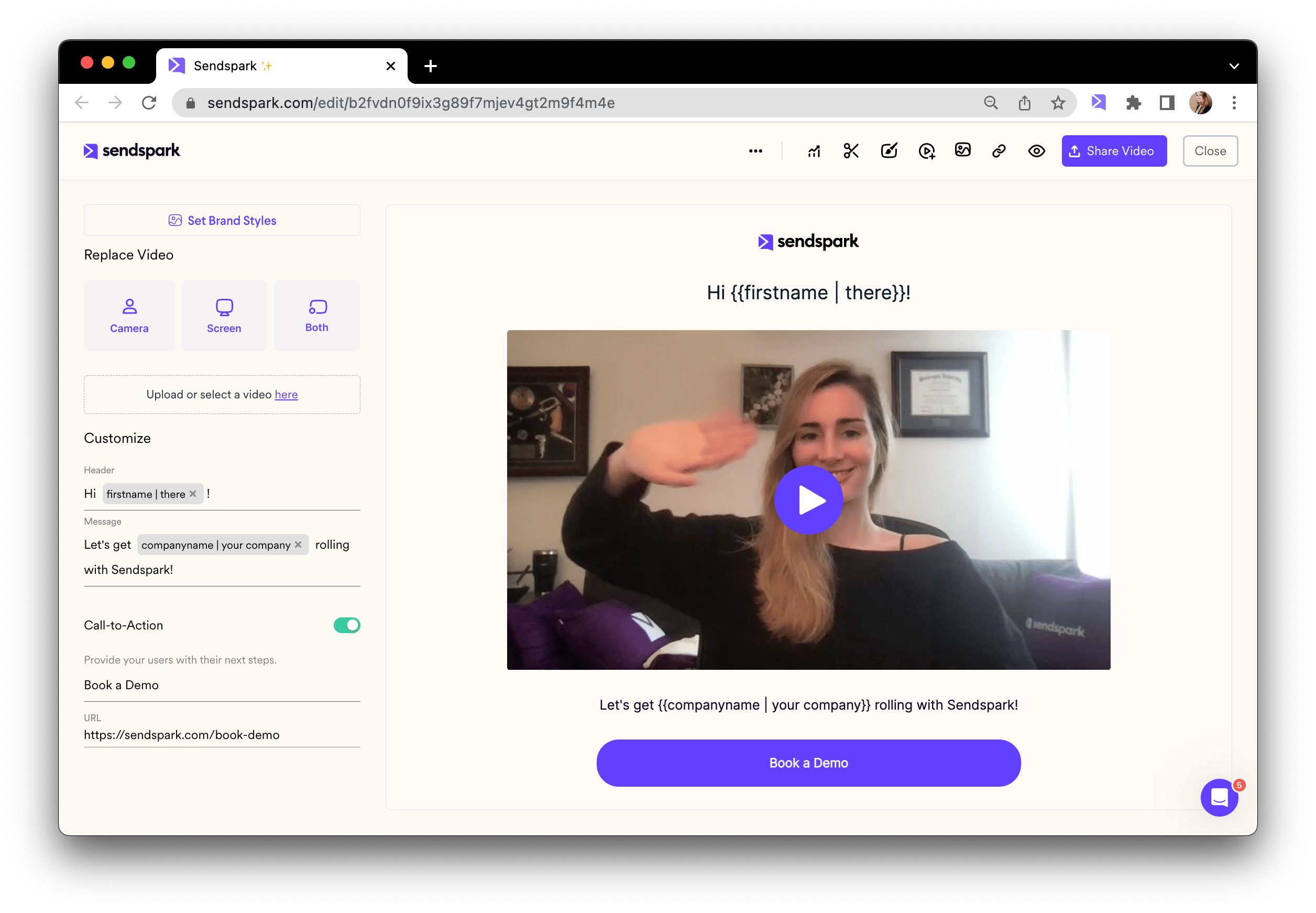
2. Add [dynamic variables](/use-merge-tags-to-personalize-videos-at-scale) on the video edit page or video thumbnail. When you send the video in SalesLoft, these variables will be replaced with contact properties.
3. You can add dynamic variables to the [video landing page](/customize-your-video-landing-page) (where viewers watch the video)
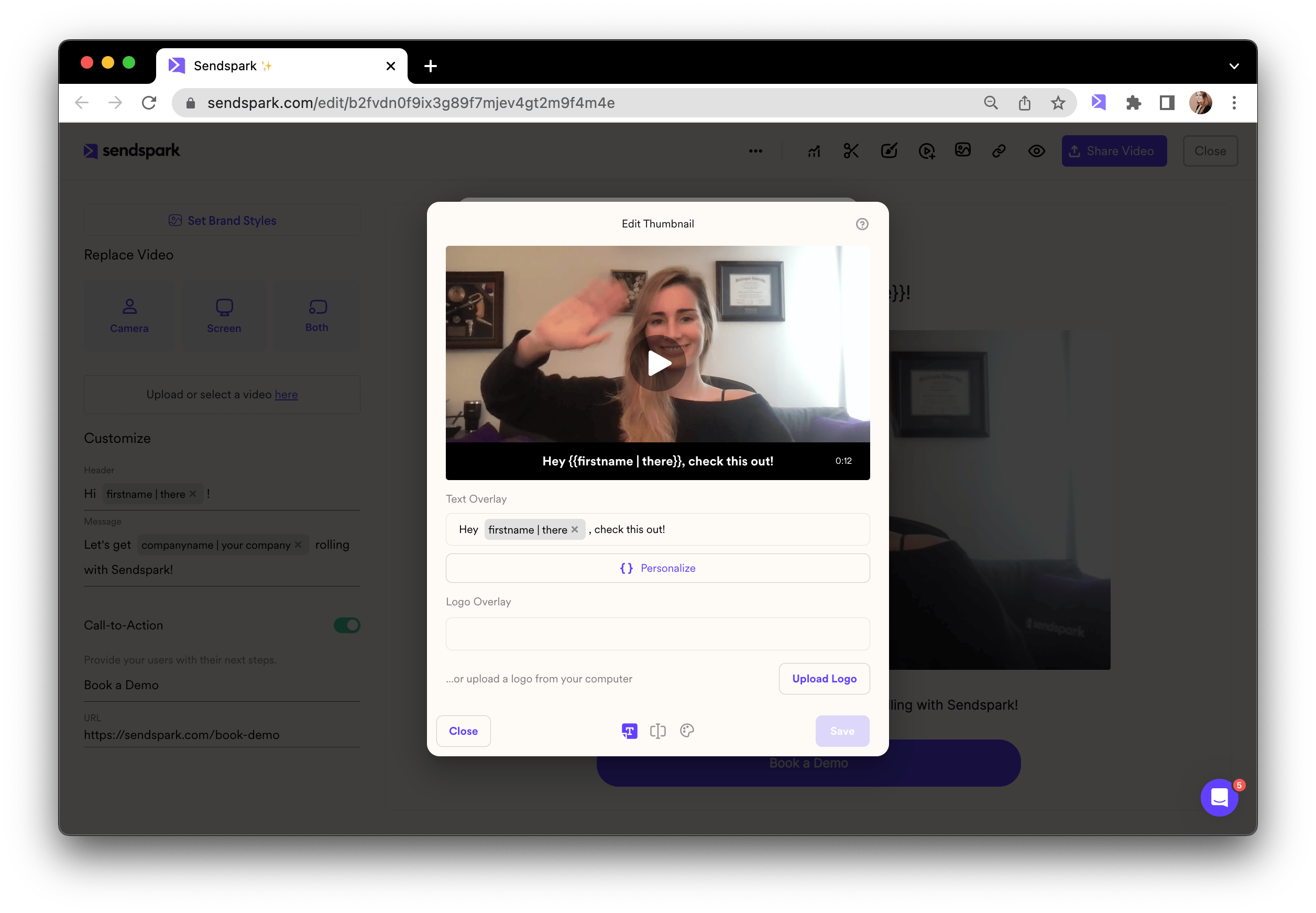
4. And to the [video thumbnail](/how-to-edit-video-thumbnails) (which shows up in email, and is important for capturing attention)
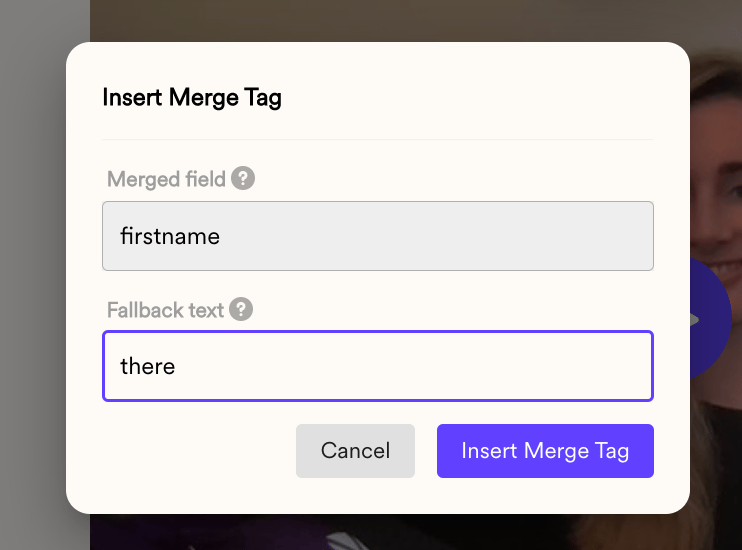
5. For any of the variables, you can add "fallback properties." These will show up in the case that we're not able to get the contact information. You can edit this by clicking on any of your variables and changing the fallback.
6. Click "Share Video"
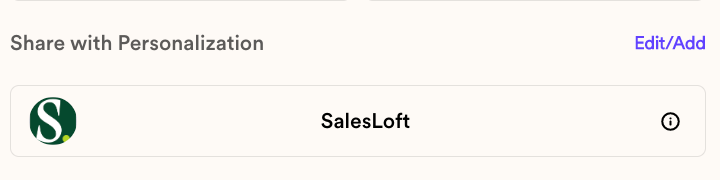
7. Select the "SalesLoft" share option. (If you don't see it, click "[edit/add](/how-to-modify-shortcuts-on-share-modal)" and make sure "SalesLoft" is selected"
8. Paste directly into an email template in SalesLoft
9. That's it! Now when you use this email in a sequence or direct email, the video will automatically update for each contact.
## Where personalization appears
| Element | Where it shows | Why it matters |
| ------------------ | -------------------------------------- | -------------------------------------------------------- |
| Video landing page | The page where viewers watch the video | Personalizes the viewing experience with contact details |
| Video thumbnail | Inside the email itself | Captures attention and drives the click to watch |
| Fallback property | Anywhere a variable is used | Displays when Sendspark can't retrieve a contact's info |
## Frequently asked questions
Record or upload your video in Sendspark, add dynamic variables to the video landing page and thumbnail, click Share Video, select the SalesLoft option, and paste the snippet into a SalesLoft email template. When you use that email in a sequence or a direct send, the video updates automatically for each contact.
Paste it directly into an email template in SalesLoft. Once it's in the template, the video automatically updates for each contact whenever that email is used in a sequence or a direct email.
Fallback properties are the values that display when Sendspark can't retrieve a contact's information. You set them by clicking any variable and changing its fallback, so the video still looks complete even when a contact's data is missing.
Yes. You can add dynamic variables to the video landing page, where viewers watch the video, and to the video thumbnail, which appears in the email and is important for capturing attention.
No. After you paste the snippet into a SalesLoft email template, the video automatically updates for each contact using their properties, so a single template serves every recipient.
*Updated July 2026.*
 4. And to the [video thumbnail](/how-to-edit-video-thumbnails) (which shows up in email, and is important for capturing attention)
  5. For any of the variables, you can add "fallback properties." These will show up in the case that we're not able to get the contact information. You can edit this by clicking on any of your variables and changing the fallback.
  6. Click "Share Video"
  7. Select the "SalesLoft" share option. (If you don't see it, click "[edit/add](/how-to-modify-shortcuts-on-share-modal)" and make sure "SalesLoft" is selected"
  8. Paste directly into an email template in SalesLoft
 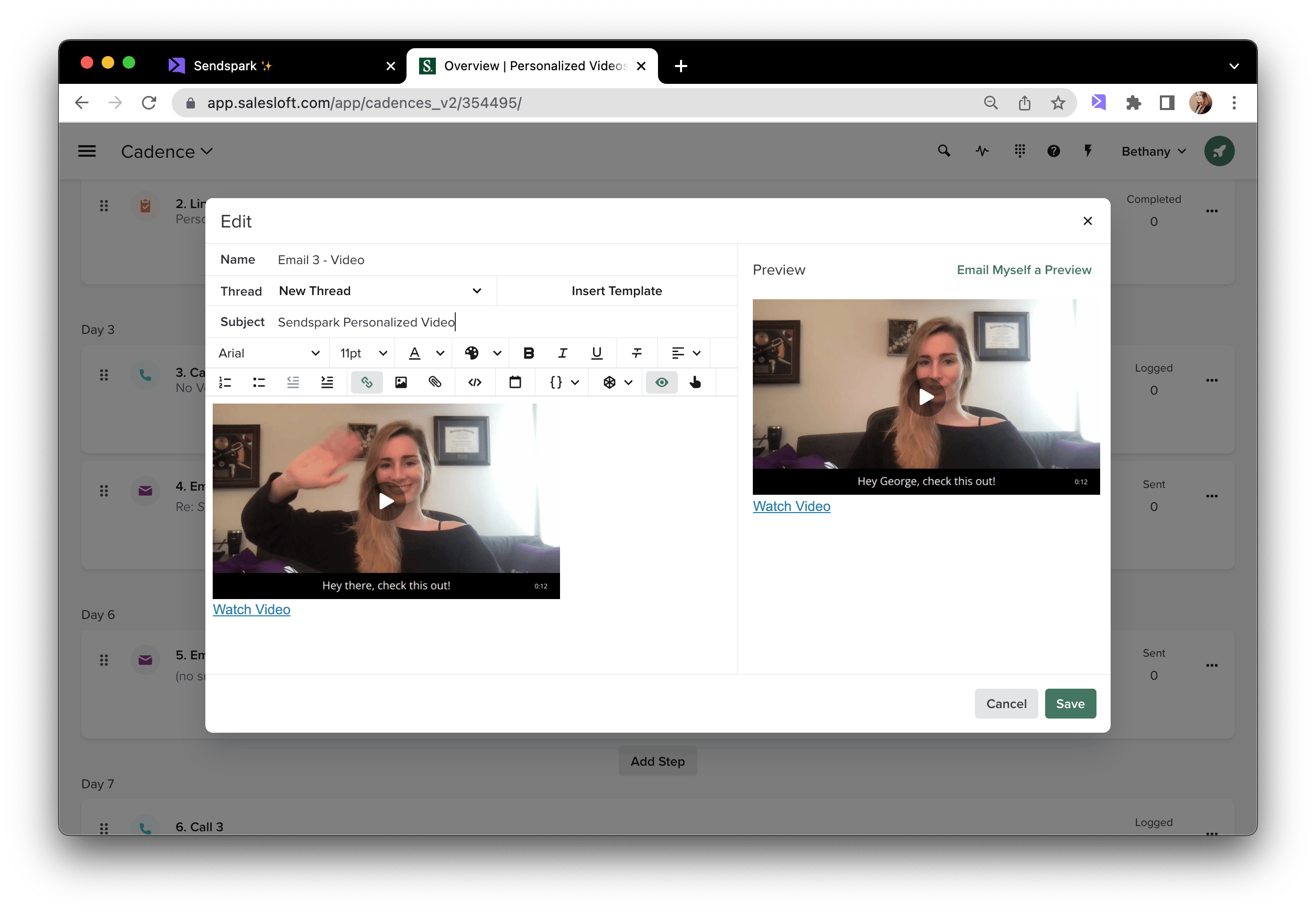 9. That's it! Now when you use this email in a sequence or direct email, the video will automatically update for each contact.
## Where personalization appears
| Element | Where it shows | Why it matters |
| ------------------ | -------------------------------------- | -------------------------------------------------------- |
| Video landing page | The page where viewers watch the video | Personalizes the viewing experience with contact details |
| Video thumbnail | Inside the email itself | Captures attention and drives the click to watch |
| Fallback property | Anywhere a variable is used | Displays when Sendspark can't retrieve a contact's info |
## Frequently asked questions
9. That's it! Now when you use this email in a sequence or direct email, the video will automatically update for each contact.
## Where personalization appears
| Element | Where it shows | Why it matters |
| ------------------ | -------------------------------------- | -------------------------------------------------------- |
| Video landing page | The page where viewers watch the video | Personalizes the viewing experience with contact details |
| Video thumbnail | Inside the email itself | Captures attention and drives the click to watch |
| Fallback property | Anywhere a variable is used | Displays when Sendspark can't retrieve a contact's info |
## Frequently asked questions