> ## Documentation Index
> Fetch the complete documentation index at: https://help.sendspark.com/llms.txt
> Use this file to discover all available pages before exploring further.
# Salesloft - Auto AI Videos for Cadence
> Learn how to create AI-personalized videos in Salesloft cadences with Sendspark to boost email replies 2-3x without manual recording.
Adding Sendspark AI-personalized videos to Salesloft cadences helps you get more replies without recording anything manually. Create one Dynamic Video campaign as your template, paste the Salesloft snippet into your cadence email where the video should appear, then build a Sendspark automated workflow so each prospect's video is generated automatically when they're enrolled.
## Key takeaways
* Create one Dynamic Video campaign in Sendspark to act as the template for every AI-personalized video.
* Copy the Salesloft snippet from Share Campaign and paste it directly into your Salesloft cadence email where you want the video to appear.
* Add the video on Day 2 or later of the cadence so each video has time to generate before the email sends, which also helps deliverability.
* Build a Sendspark automated workflow (trigger: Salesloft "Person Updated," filtered to your cadence; action: Sendspark "Create Dynamic Video") so videos generate automatically on enrollment.
Adding Sendspark AI-personalized videos to Salesloft cadences helps you get more replies without recording anything manually. Each prospect gets a message tailored to them, increasing engagement and making your emails stand out. It’s fast, scalable, and proven to drive 2–3x more replies.
## How to Create Personalized Videos For Salesloft Cadences with AI
## 1. Create Dynamic Video Campaign in Sendspark
This will act as the template for all AI-personalized videos created. Learn more about creating [dynamic videos](/dynamic-videos-make-videos-with-ai-introductions) here.
## 2. Add Video Placeholder to Salesloft Email Template
You can add this placeholder snippet to your snippet to your Salesloft email cadence to mark where the video should go.
Go to your Dynamic Video Campaign and click **"Share Campaign"**
Search for **"Salesloft"**
Click to copy the snippet, and paste directly in your SalesLoft email, where you want your video to appear in email.
We recommend adding the video to **Day 2 of the email cadenc**e, so you can ensure the video has time to generate before the email is sent out. This can help with deliverability too!
***
\*\*Pro tip:\*\*if you want to preview how this will look for real contacts in Salesloft, make a Sendspark video for **George ([g.p.burdell@example.net](mailto:g.p.burdell@example.net))**. This is the default contact that Salesloft uses, so you can use it for testing.
## 3. Create Automated Workflow to Create Dynamic Video When Someone Gets Added to Salesloft
Now, we want to make sure that whenever someone gets enrolled in this email sequence, their video automatically gets generated for them.
Create a new [automated workflow](/sendspark-automated-workflows-beginner-s-guide) in Sendspark.
For the trigger, select\*\*"Salesloft"\*\* and connect your Salesloft account. Use the option **"Person Updated"**
Then, click the **funnel** to get to advanced options.
Refine this to say **"Most Recent Cadence" i**s the cadence you'd like to use to trigger this automation (where you added the video placeholder).
Add either the cadence title or ID, depending on what you selected above. I would recommend using the ID when possible to be precise.
For the action, select **"Sendspark"** and **"Create Dynamic Video"**
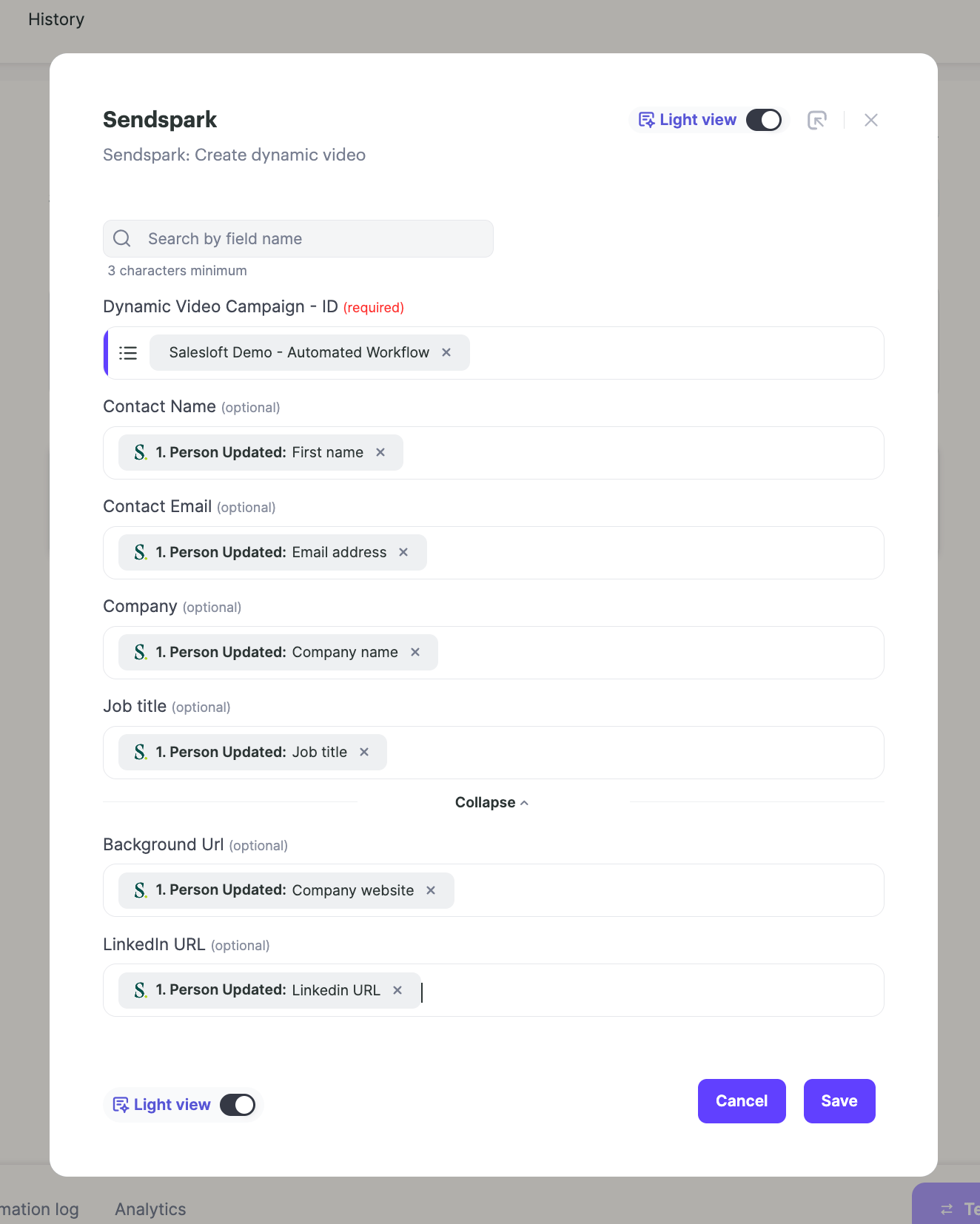
Map the fields from Salesloft to Sendspark, so you can use the correct first name, company name, etc. in video.
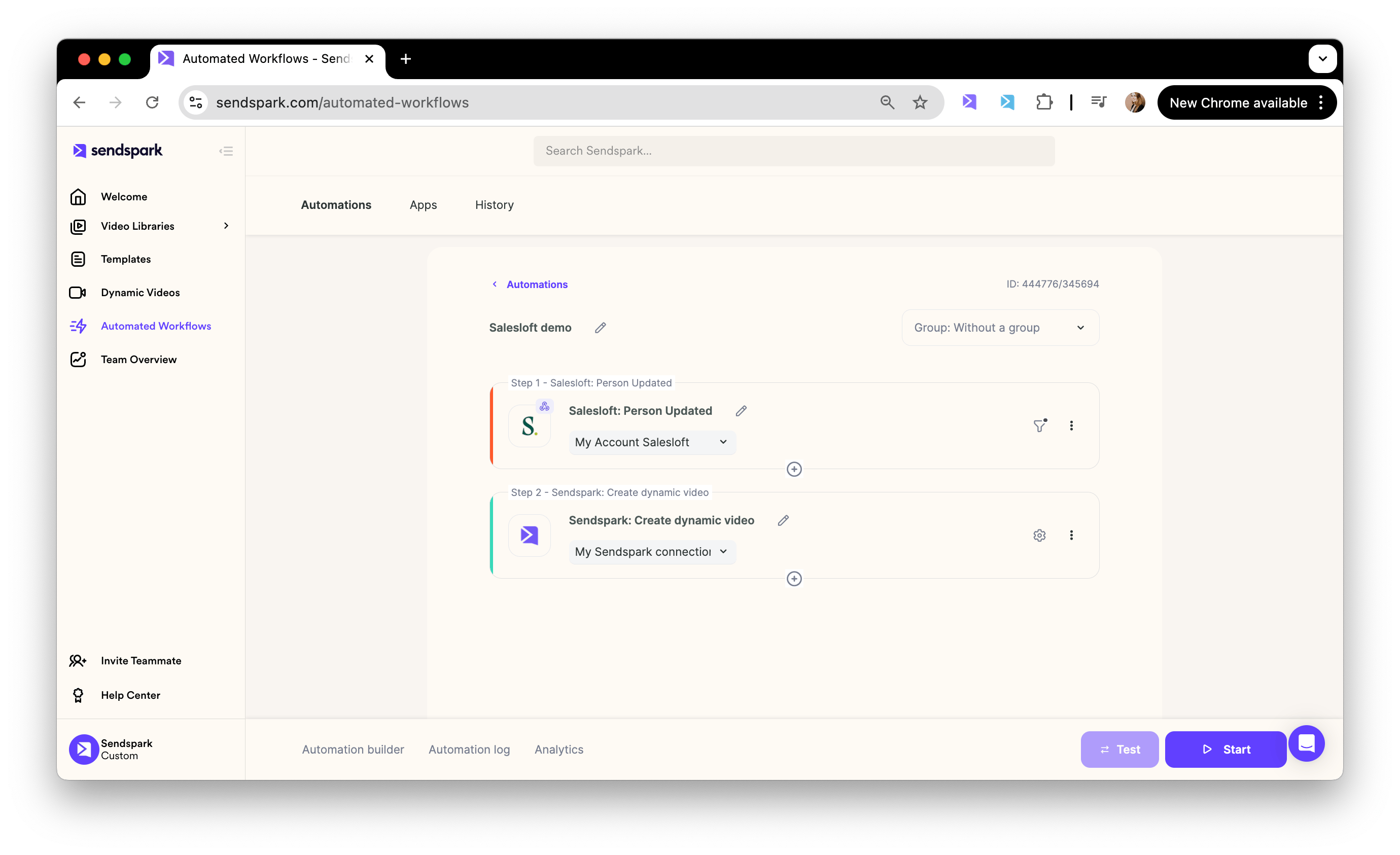
Click **"Start"** to turn on your workflow.
Test this by enrolling contacts in the Salesloft cadence. When you do that, you should see the video start generating in Sendspark, and the email send with the correct video link.
(Just make sure to give a minute or 2 for the video to generate... and remember to send the video on Day 2 or later to give time for the videos to generate in your real compaigns).
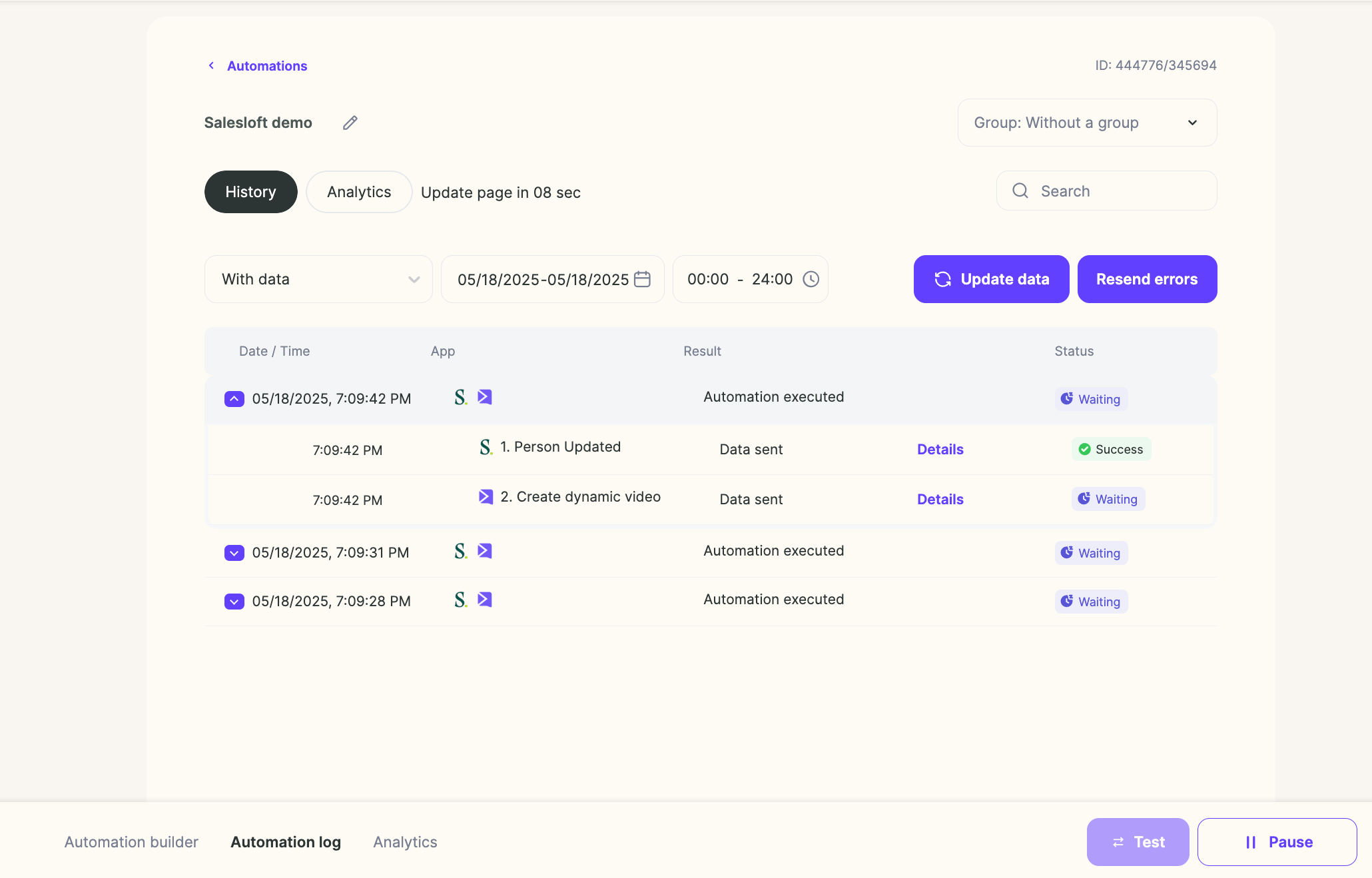
Click into the **"Automated Log"** to get more insight into your automation:
***
## Frequently asked questions
Go to your Dynamic Video campaign, click Share Campaign, search for Salesloft, and copy the snippet. Paste it directly into your Salesloft cadence email where you want the video to appear.
Add the video on Day 2 of the email cadence or later. This gives each video time to generate before the email is sent, and it can help with deliverability too.
Create a Sendspark automated workflow. For the trigger, select Salesloft, connect your account, and use "Person Updated," then refine it so "Most Recent Cadence" is the cadence where you added the video placeholder (using the cadence ID is most precise). For the action, select Sendspark and "Create Dynamic Video," then map the Salesloft fields to Sendspark and click Start.
Preview by making a Sendspark video for George ([g.p.burdell@example.net](mailto:g.p.burdell@example.net)), Salesloft's default test contact. You can also enroll a real contact in the cadence and watch the video begin generating in Sendspark, then check the Automated Log for details. Allow a minute or two for the video to generate.
*Updated July 2026.*
 Search for **"Salesloft"**
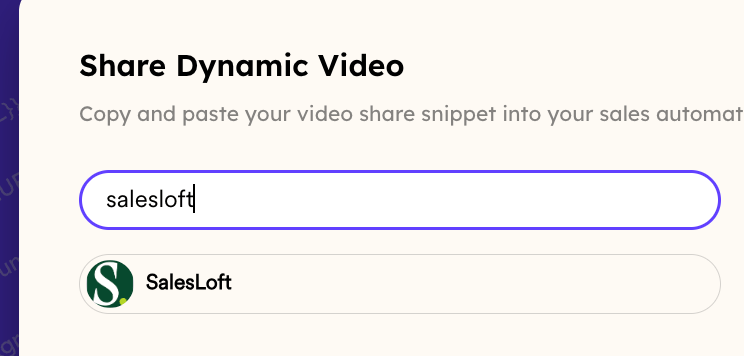 Click to copy the snippet, and paste directly in your SalesLoft email, where you want your video to appear in email.
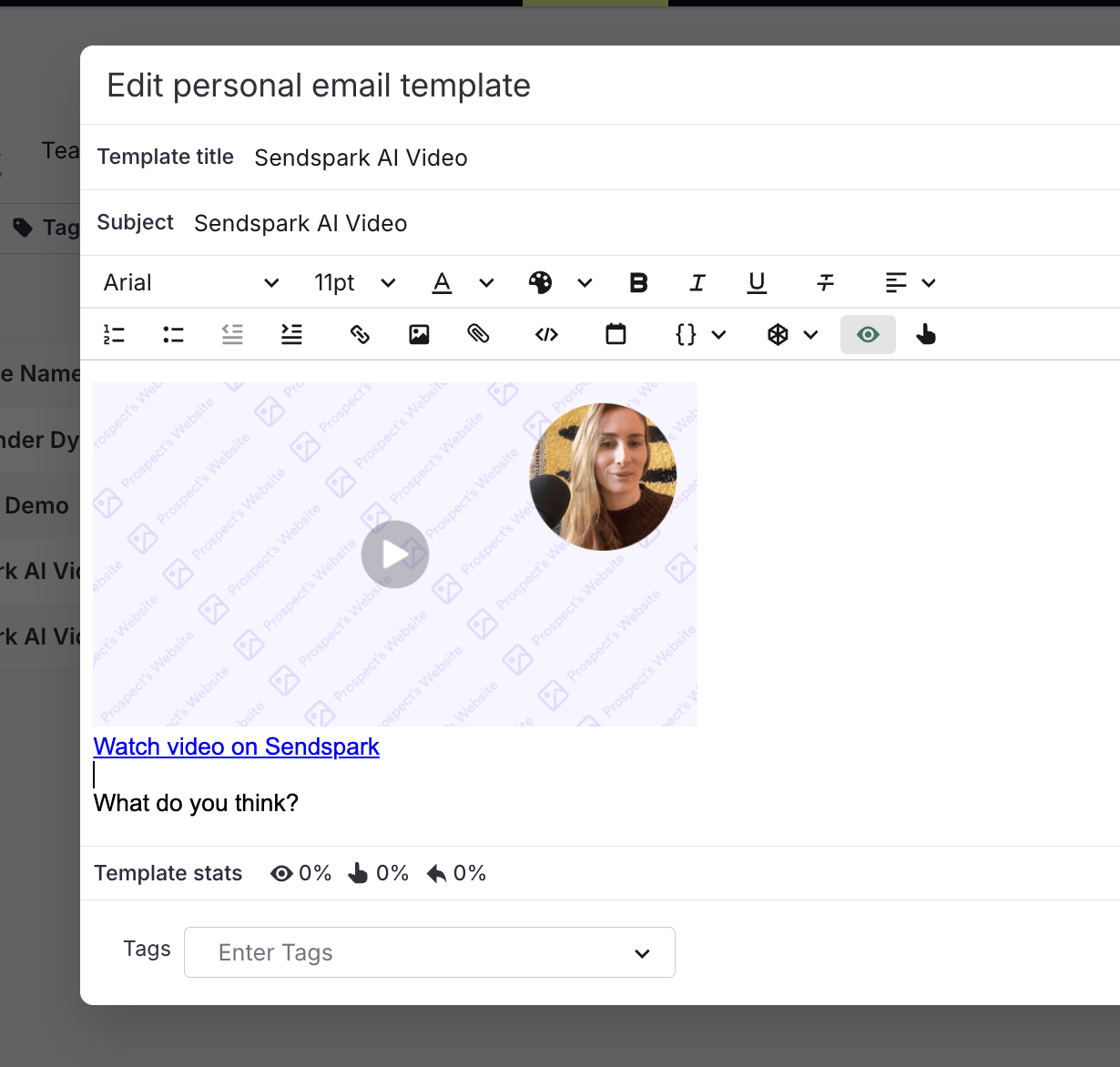 We recommend adding the video to **Day 2 of the email cadenc**e, so you can ensure the video has time to generate before the email is sent out. This can help with deliverability too!
***
\*\*Pro tip:\*\*if you want to preview how this will look for real contacts in Salesloft, make a Sendspark video for **George ([g.p.burdell@example.net](mailto:g.p.burdell@example.net))**. This is the default contact that Salesloft uses, so you can use it for testing.
We recommend adding the video to **Day 2 of the email cadenc**e, so you can ensure the video has time to generate before the email is sent out. This can help with deliverability too!
***
\*\*Pro tip:\*\*if you want to preview how this will look for real contacts in Salesloft, make a Sendspark video for **George ([g.p.burdell@example.net](mailto:g.p.burdell@example.net))**. This is the default contact that Salesloft uses, so you can use it for testing.
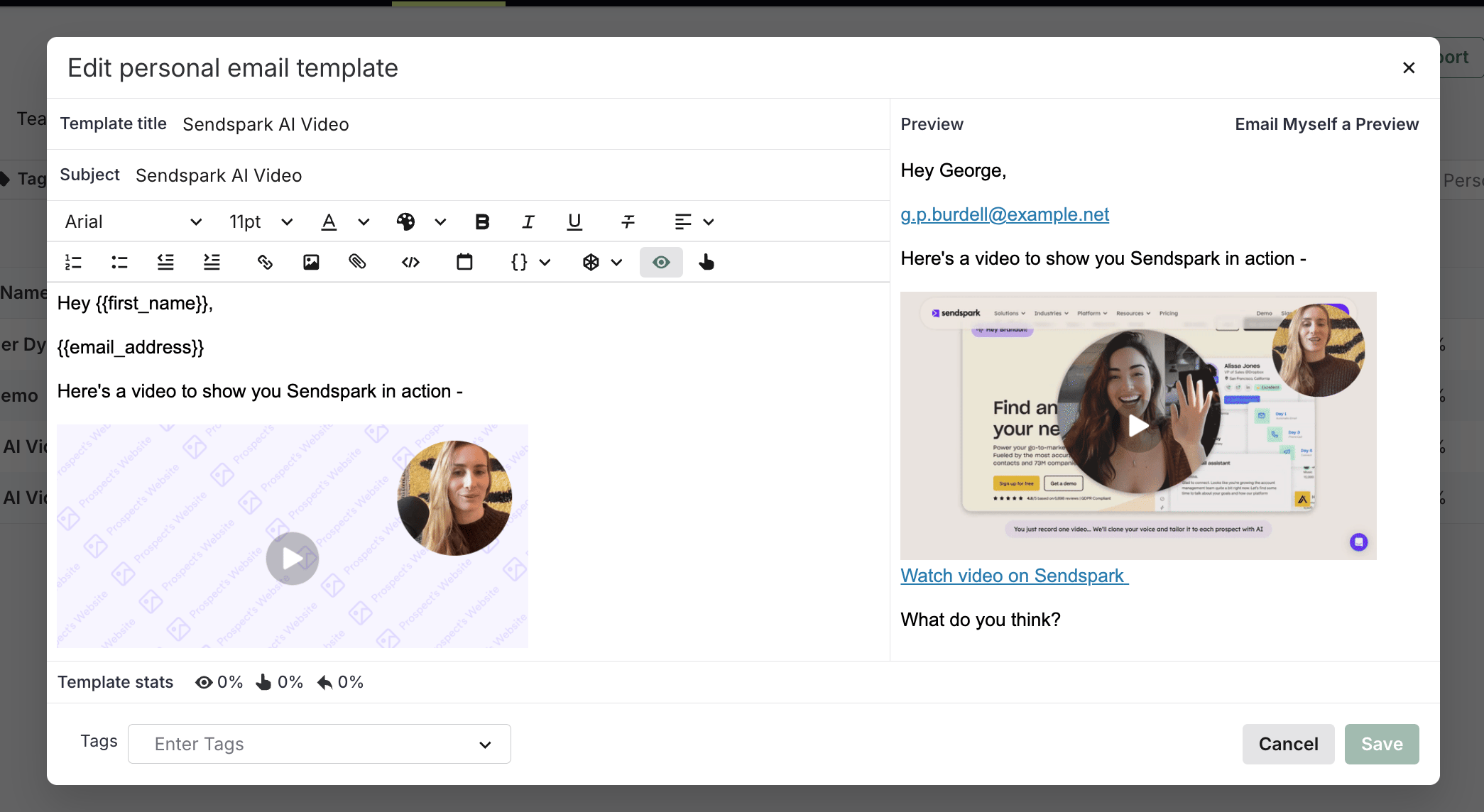 ## 3. Create Automated Workflow to Create Dynamic Video When Someone Gets Added to Salesloft
Now, we want to make sure that whenever someone gets enrolled in this email sequence, their video automatically gets generated for them.
Create a new [automated workflow](/sendspark-automated-workflows-beginner-s-guide) in Sendspark.
## 3. Create Automated Workflow to Create Dynamic Video When Someone Gets Added to Salesloft
Now, we want to make sure that whenever someone gets enrolled in this email sequence, their video automatically gets generated for them.
Create a new [automated workflow](/sendspark-automated-workflows-beginner-s-guide) in Sendspark.
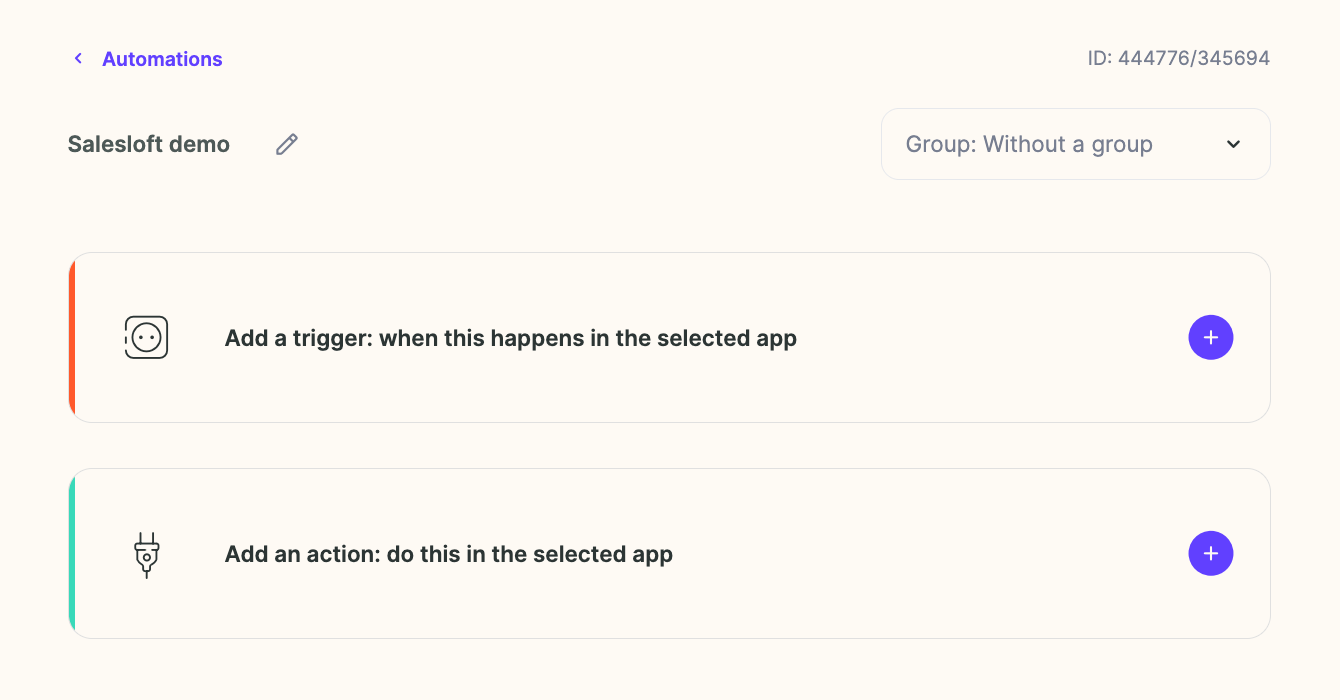 For the trigger, select\*\*"Salesloft"\*\* and connect your Salesloft account. Use the option **"Person Updated"**
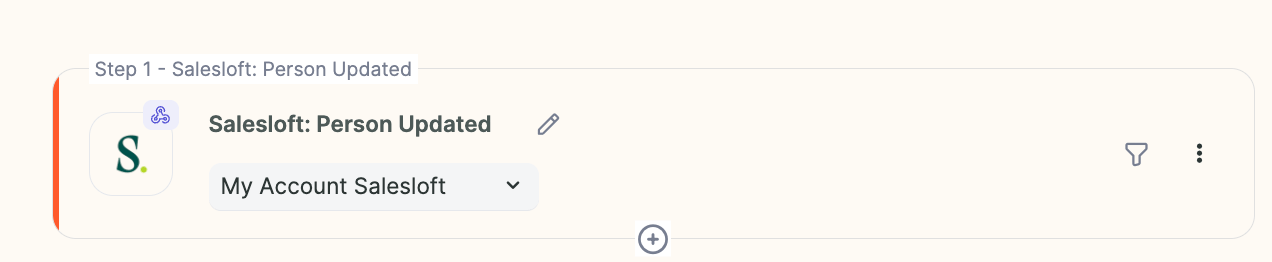 Then, click the **funnel** to get to advanced options.
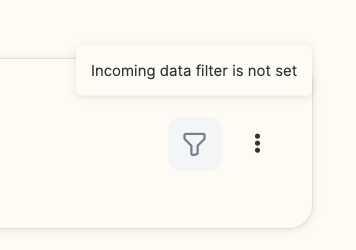 Refine this to say **"Most Recent Cadence" i**s the cadence you'd like to use to trigger this automation (where you added the video placeholder).
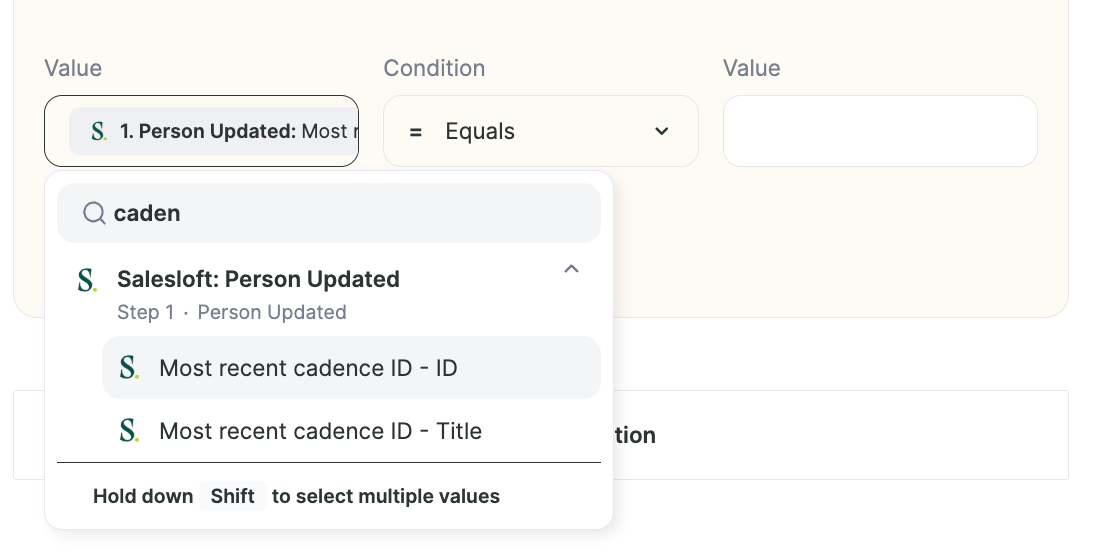 Add either the cadence title or ID, depending on what you selected above. I would recommend using the ID when possible to be precise.
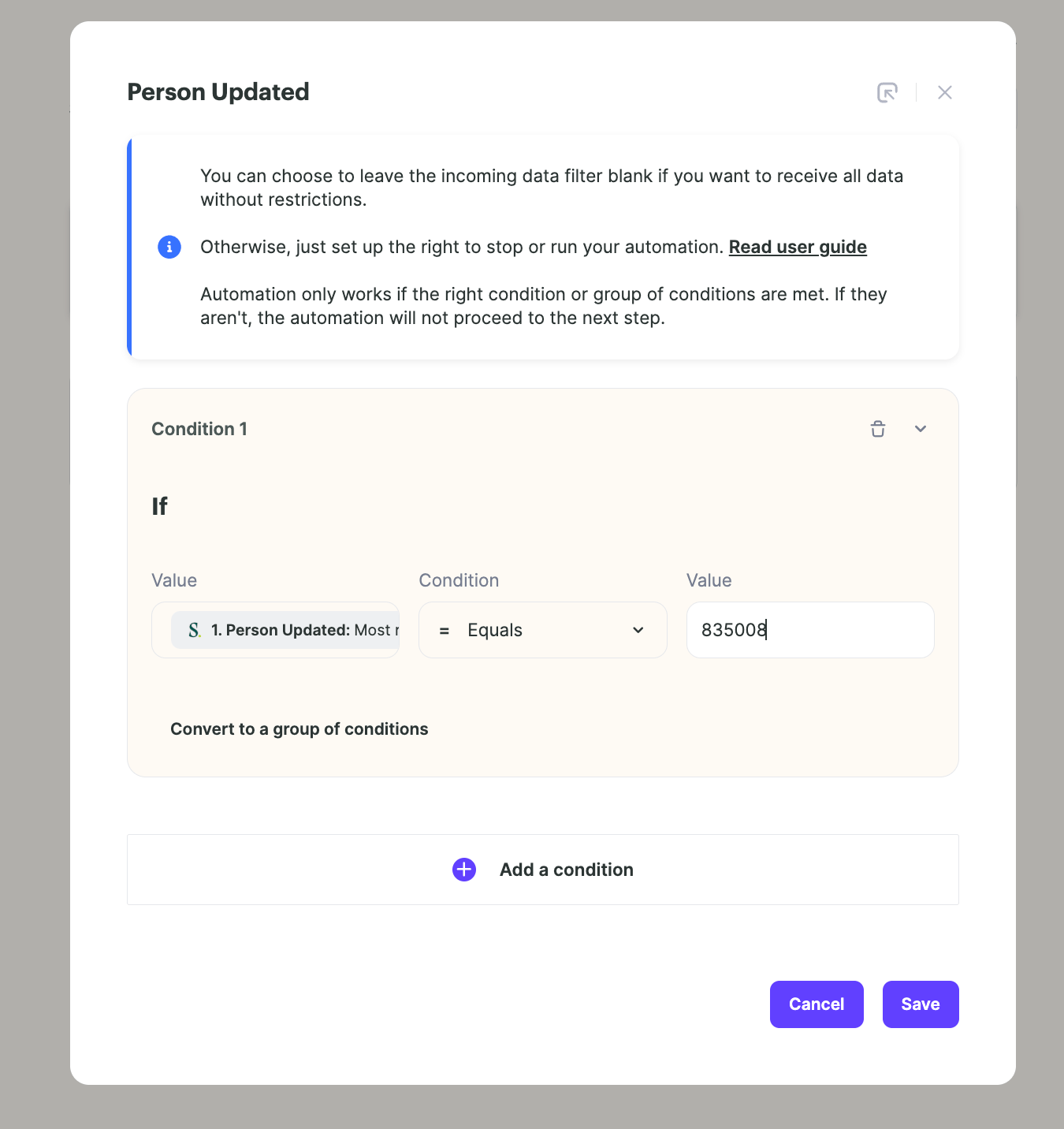 For the action, select **"Sendspark"** and **"Create Dynamic Video"**
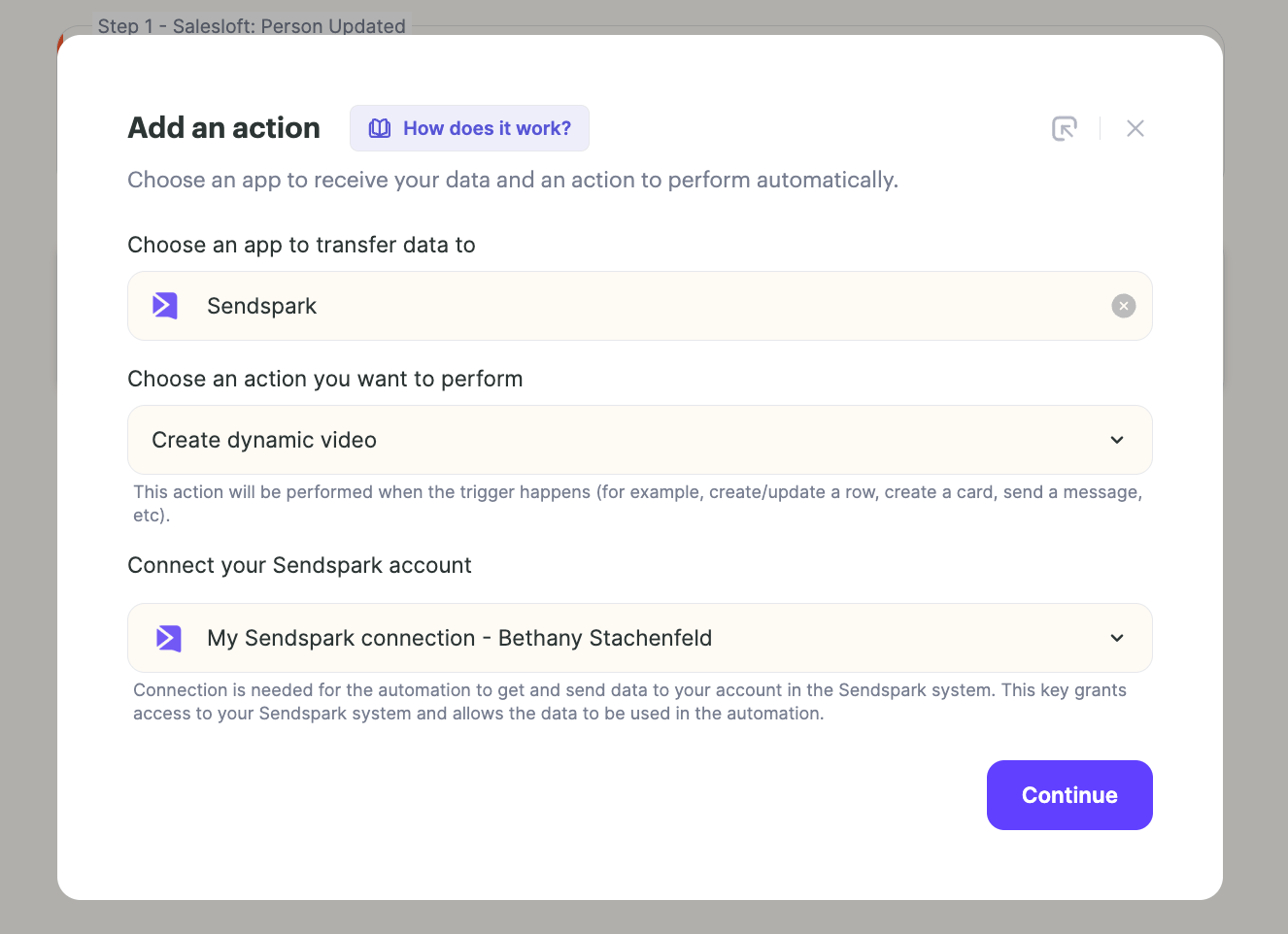 Map the fields from Salesloft to Sendspark, so you can use the correct first name, company name, etc. in video.
 Click **"Start"** to turn on your workflow.
 Test this by enrolling contacts in the Salesloft cadence. When you do that, you should see the video start generating in Sendspark, and the email send with the correct video link.
(Just make sure to give a minute or 2 for the video to generate... and remember to send the video on Day 2 or later to give time for the videos to generate in your real compaigns).
Click into the **"Automated Log"** to get more insight into your automation:
Test this by enrolling contacts in the Salesloft cadence. When you do that, you should see the video start generating in Sendspark, and the email send with the correct video link.
(Just make sure to give a minute or 2 for the video to generate... and remember to send the video on Day 2 or later to give time for the videos to generate in your real compaigns).
Click into the **"Automated Log"** to get more insight into your automation:
 ***
## Frequently asked questions
***
## Frequently asked questions