> ## Documentation Index
> Fetch the complete documentation index at: https://help.sendspark.com/llms.txt
> Use this file to discover all available pages before exploring further.
# Salesloft - AI Personalized Videos in Cadences
> Learn how to automatically send AI personalized videos in Salesloft cadences using Sendspark automation for better engagement.
Sendspark can automatically send AI-personalized videos into Salesloft cadences. Create a Dynamic Video Campaign as your template, copy the Salesloft snippet from Share Campaign into your cadence email, then add "find person" and "update person" Salesloft actions to your Sendspark automation so each generated video is pushed to the right lead.
## Key takeaways
* The Dynamic Video Campaign acts as the template for every AI-personalized video created.
* Copy the Salesloft snippet from Share Campaign and paste it into your Salesloft email where you want the video to appear.
* Add two Salesloft actions to your Sendspark automation: "find person" (map the contact email) and "update person" (map the fields).
* The lead must already exist in Salesloft; if it doesn't, create the lead first.
* Add a test contact and track results in the automation's History section.
Follow these steps to automatically send videos in Saleslost after they've been created from any Sendspark automation.
## 1. Create Dynamic Video Campaign in Sendspark
This will act as the template for all AI-personalized videos created. Learn more about creating [dynamic videos](/dynamic-videos-make-videos-with-ai-introductions) here.
## 2. Add Video Placeholder to Salesloft Email Template
You can add this placeholder snippet to your snippet to your Salesloft email cadence to mark where the video should go.
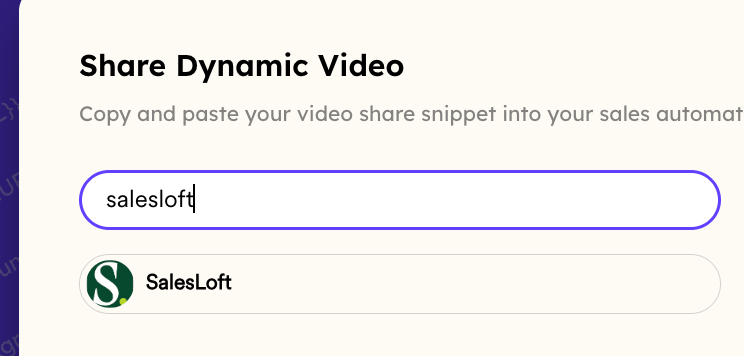
Go to your Dynamic Video Campaign and click **"Share Campaign"**
Search for **"Salesloft"**
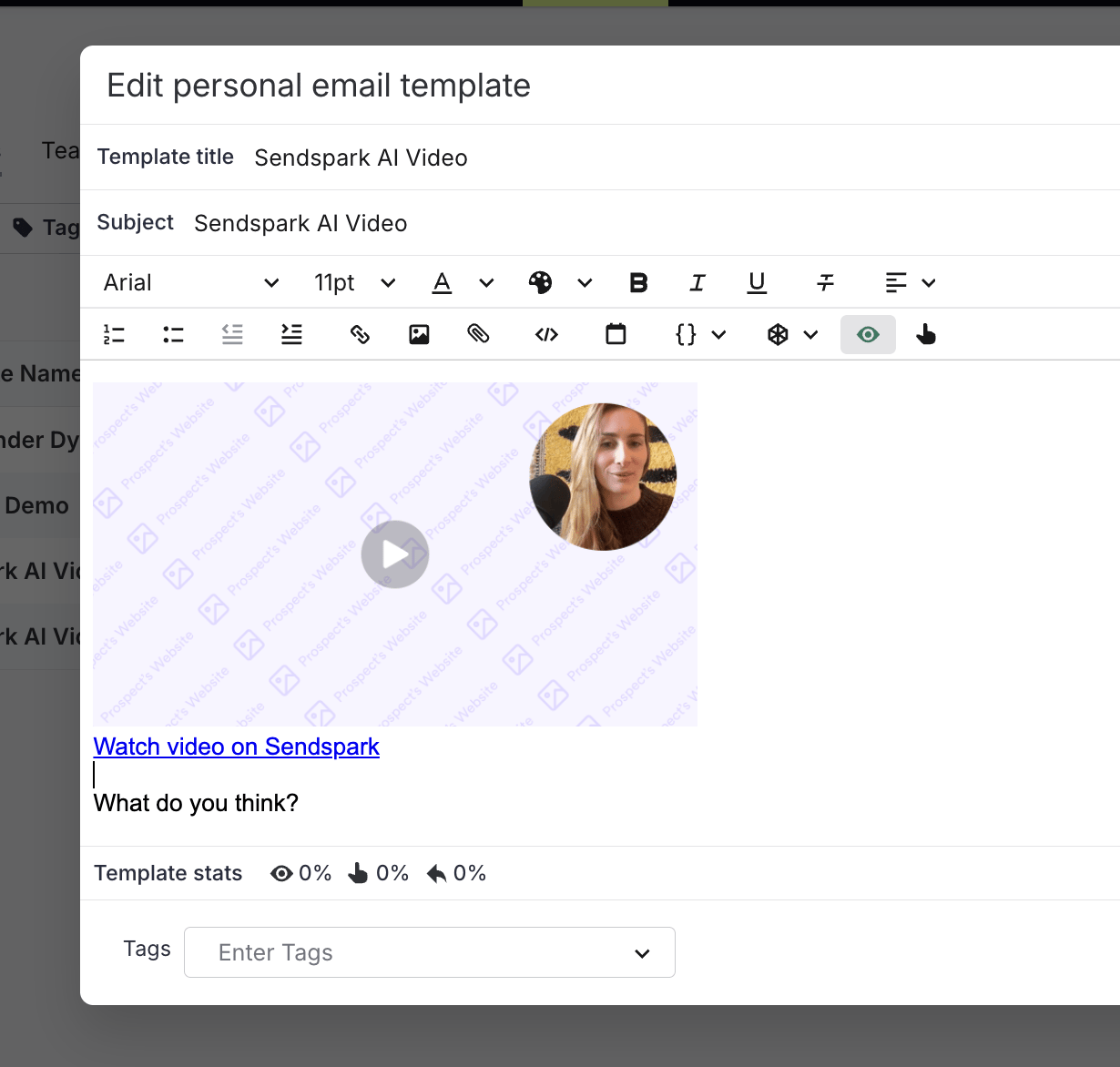
Click to copy the snippet, and paste directly in your SalesLoft email, where you want your video to appear in email.
## 3. Find The Person On Salesloft
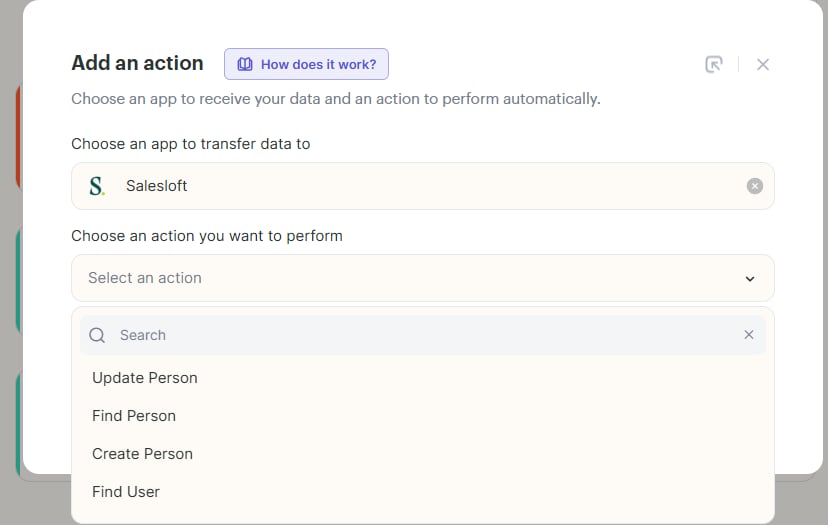
Go back to your automation and click on the " + " icon and choose "action". Search for Salesloft and click on "find person" and connect your Salesloft account.
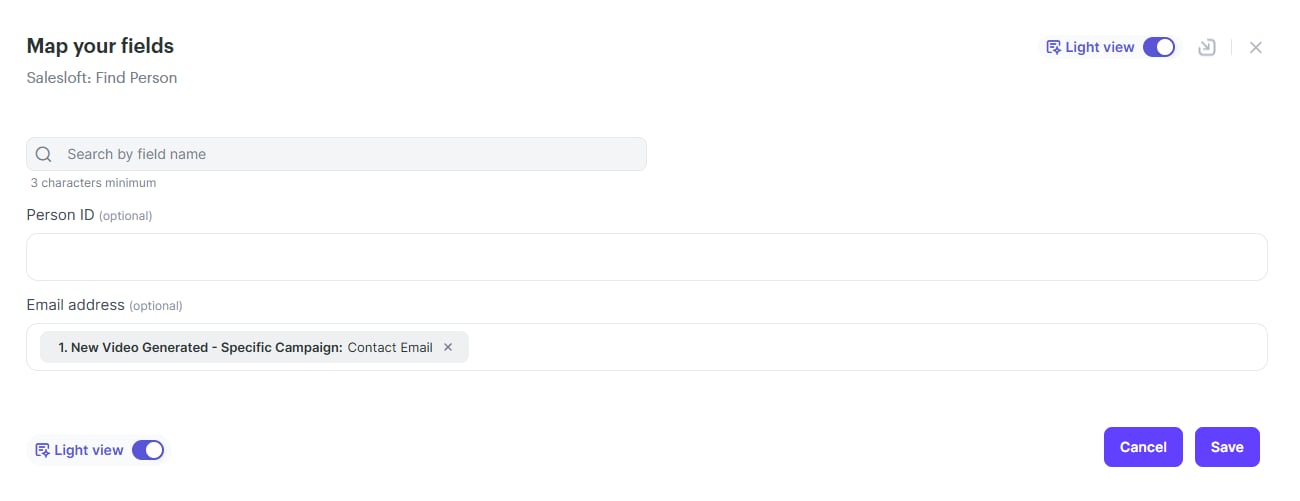
Map contact e-mail into the Email address field and click on save button.
## 4. Update The Person On Salesloft
Click on the "+" icon again and hit "action", search for Salesloft and choose "update person" and also connect your Salesloft account again.\
Once you hit the "continue" button, map the fields as shown below.\
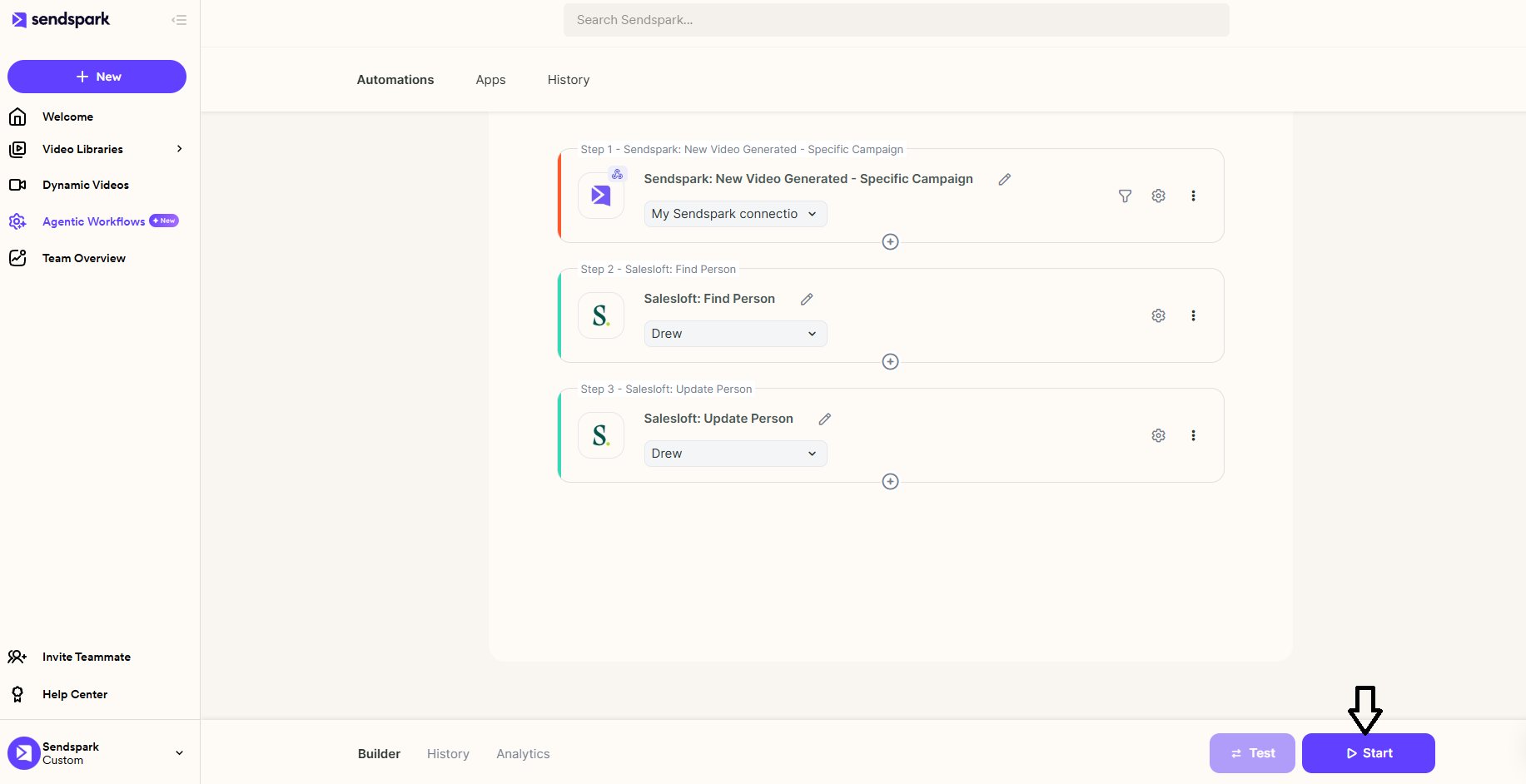
It should look like this in the end and you can click on the save button at the bottom right corner and hit "start" button at the bottom right again to start your workflow.\
## 5. Add Contacts To Your Campaign
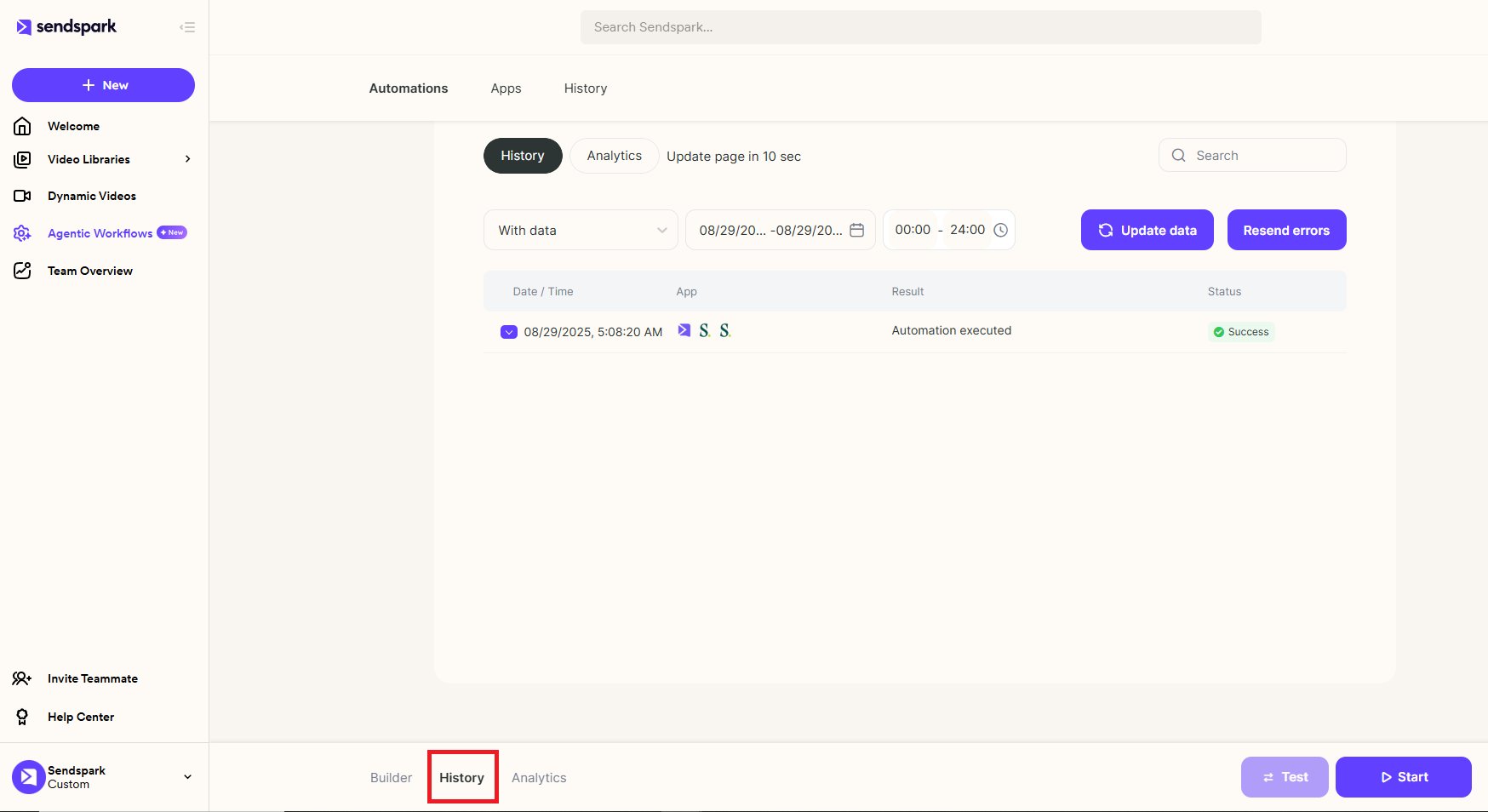
Once you start the campaign, you can go back to your dynamic video campaign and add a test contact and track the result from the "history" section of your workflow.\
\
**Important Note: This article assumes that your lead already exists in the Salesloft. If your lead doesn't exists, you should create the lead first.**
## Frequently asked questions
Go to your Dynamic Video Campaign, click Share Campaign, search for Salesloft, copy the snippet, and paste it directly into your Salesloft email where you want the video to appear.
This flow assumes the lead already exists in Salesloft. If the lead isn't there, create the lead in Salesloft first, then run the automation.
Add two Salesloft actions in your Sendspark automation: "find person" (mapping the contact email to the Email address field) and "update person" (mapping the remaining fields). Connect your Salesloft account for each.
After starting the campaign, add a test contact to your Dynamic Video Campaign and track the result in the History section of your workflow.
*Updated July 2026.*
 Search for **"Salesloft"**
 Click to copy the snippet, and paste directly in your SalesLoft email, where you want your video to appear in email.
 ## 3. Find The Person On Salesloft
Go back to your automation and click on the " + " icon and choose "action". Search for Salesloft and click on "find person" and connect your Salesloft account.
## 3. Find The Person On Salesloft
Go back to your automation and click on the " + " icon and choose "action". Search for Salesloft and click on "find person" and connect your Salesloft account.
 Map contact e-mail into the Email address field and click on save button.
 ## 4. Update The Person On Salesloft
Click on the "+" icon again and hit "action", search for Salesloft and choose "update person" and also connect your Salesloft account again.\
## 4. Update The Person On Salesloft
Click on the "+" icon again and hit "action", search for Salesloft and choose "update person" and also connect your Salesloft account again.\
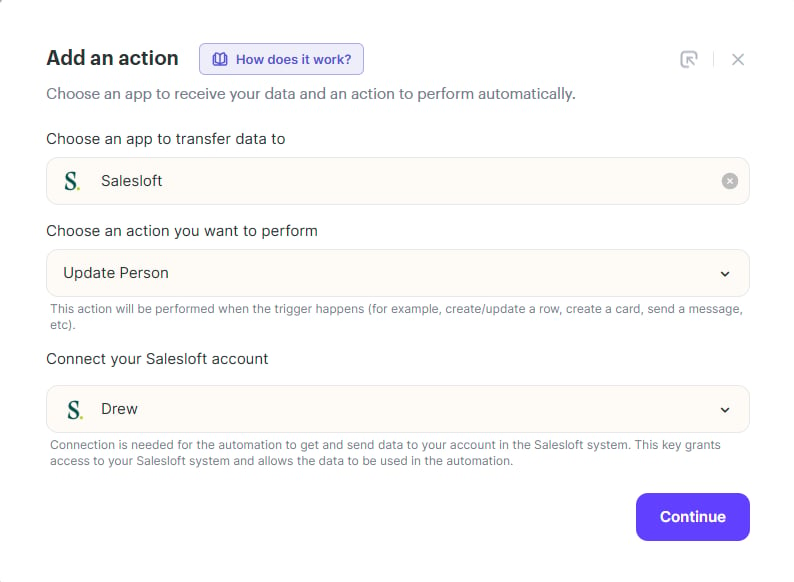 Once you hit the "continue" button, map the fields as shown below.\
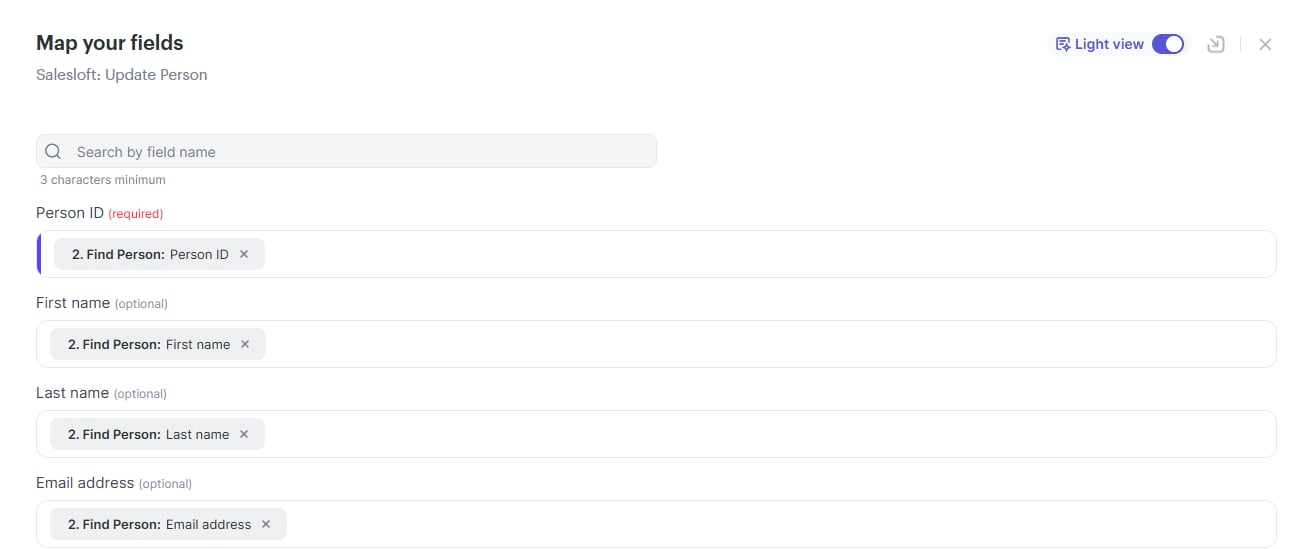 It should look like this in the end and you can click on the save button at the bottom right corner and hit "start" button at the bottom right again to start your workflow.\
 ## 5. Add Contacts To Your Campaign
Once you start the campaign, you can go back to your dynamic video campaign and add a test contact and track the result from the "history" section of your workflow.\
\
## 5. Add Contacts To Your Campaign
Once you start the campaign, you can go back to your dynamic video campaign and add a test contact and track the result from the "history" section of your workflow.\
\
 **Important Note: This article assumes that your lead already exists in the Salesloft. If your lead doesn't exists, you should create the lead first.**
## Frequently asked questions
**Important Note: This article assumes that your lead already exists in the Salesloft. If your lead doesn't exists, you should create the lead first.**
## Frequently asked questions