> ## Documentation Index
> Fetch the complete documentation index at: https://help.sendspark.com/llms.txt
> Use this file to discover all available pages before exploring further.
# Reply — Send Personalized Videos at Scale
> Learn how to send personalized videos at scale using Reply integration with dynamic variables for names and company details.
To send personalized videos at scale in Reply, create your video in Sendspark with dynamic variables for name, company, and job title, then copy the two Reply share snippets: paste the Reply Image GIF into an image spot in your Reply template and hyperlink it with the Reply Video URL. Each recipient gets an automatically personalized video.
## Key takeaways
* Use **dynamic variables** in Sendspark (first name, company name, job title) so each recipient's video personalizes automatically; unknown values show [fallback variables](/how-merge-tag-fallbacks-work).
* You need **both** Reply snippets from **Share Video → Share with Personalization**: the **Reply Image GIF** and the **Reply Video URL**.
* Paste the **Reply Image GIF** into an image URL spot in your Reply email template, then hyperlink that image with the **Reply Video URL**.
* Preview the template in Reply's **Templates** section to see how the video changes per recipient before sending.
* You can track [video analytics](/how-to-understand-sendspark-video-analytics), including who watched, how far they watched, and their location.
## Why Send Mass Personalized Videos in Reply
When it comes to sales prospecting, personalized video is a powerful tool for you to **stand out in email and make a personal connection.**
Sendspark's Reply Integration helps you turn one video into **infinite personalized videos**. You can use [dynamic variables](/use-merge-tags-to-personalize-videos-at-scale) to automatically add your viewer's first name, job title, and company name when sending a video in Reply.
You'll also be able to check your [video analytics](/how-to-understand-sendspark-video-analytics) to see who's watching your video, how far into the video they're watched, and what part of the world they're located in.
## How to Send Personalized Videos at Scale in Reply
Follow the steps below, or watch the video!
## 1. Create your dynamic video in Sendspark
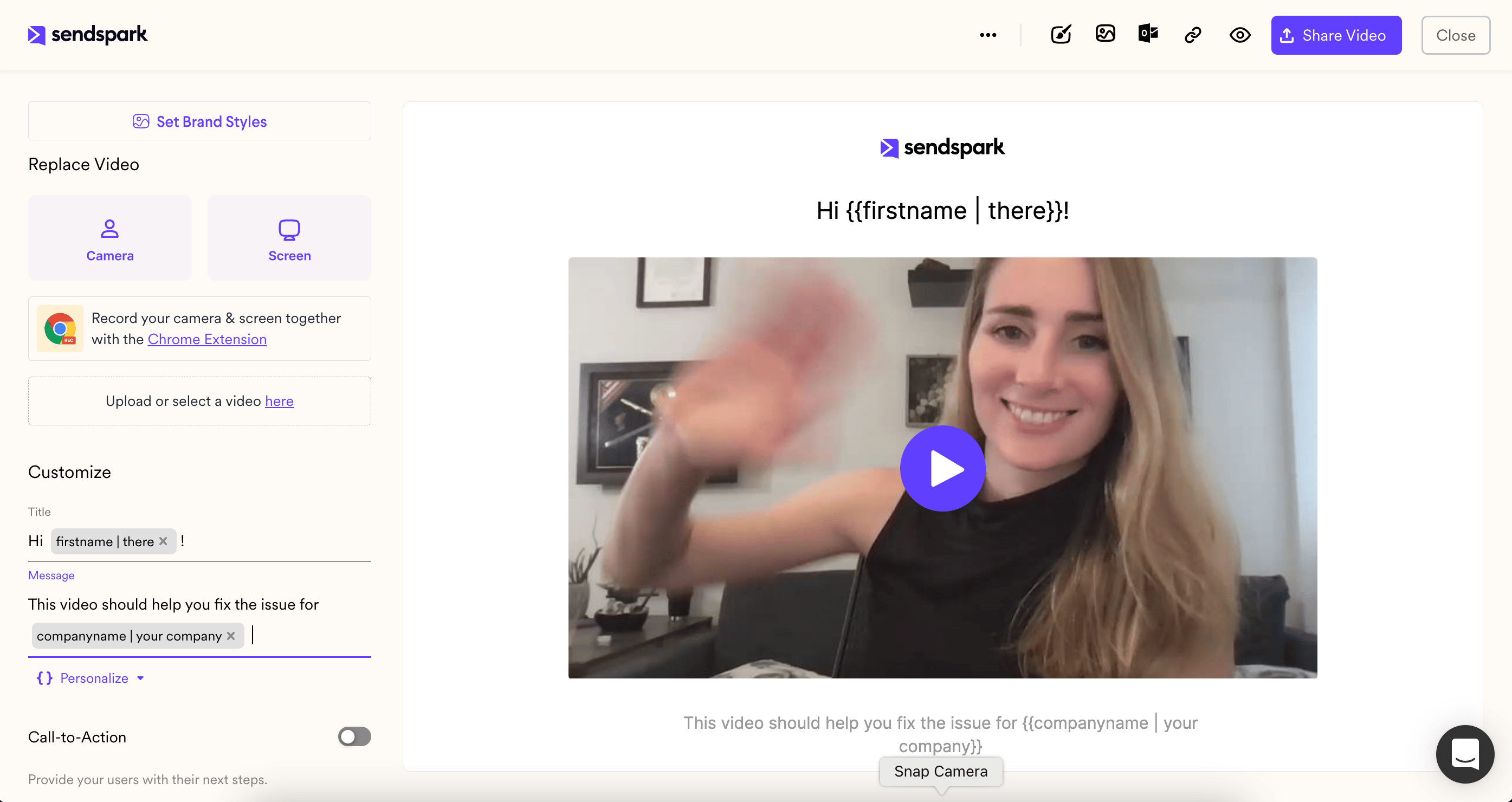
When you create your video message in Sendspark, you can use dynamic variables as placeholders for your viewer's first name, company name, and job title.
When you send your video in Reply, these variables will automatically populate with your prospect's information.
If the correct information is unknown for any viewer, Sendspark will display [fallback variables](/how-merge-tag-fallbacks-work).
## 2. Copy video share snippets in Sendspark
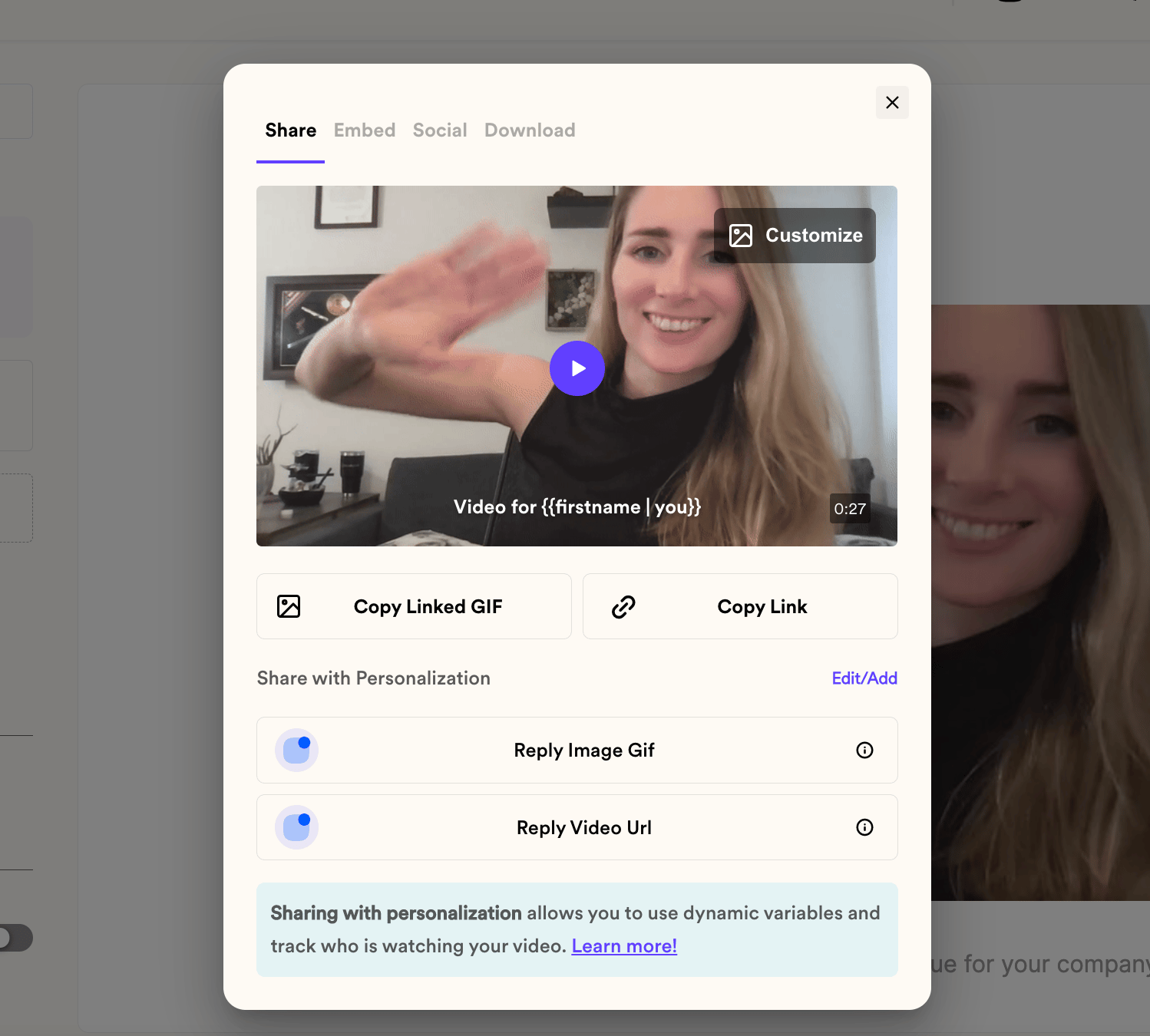
From Sendspark, click **Share Video**
Under **Share with Personalization,** you'll see 2 items for Reply. You'll need both of them.
(If you do not see these, please [click "edit/add"](/how-to-modify-shortcuts-on-share-modal) to add the Reply shortcuts to your share modal).
## 3. Paste in Reply
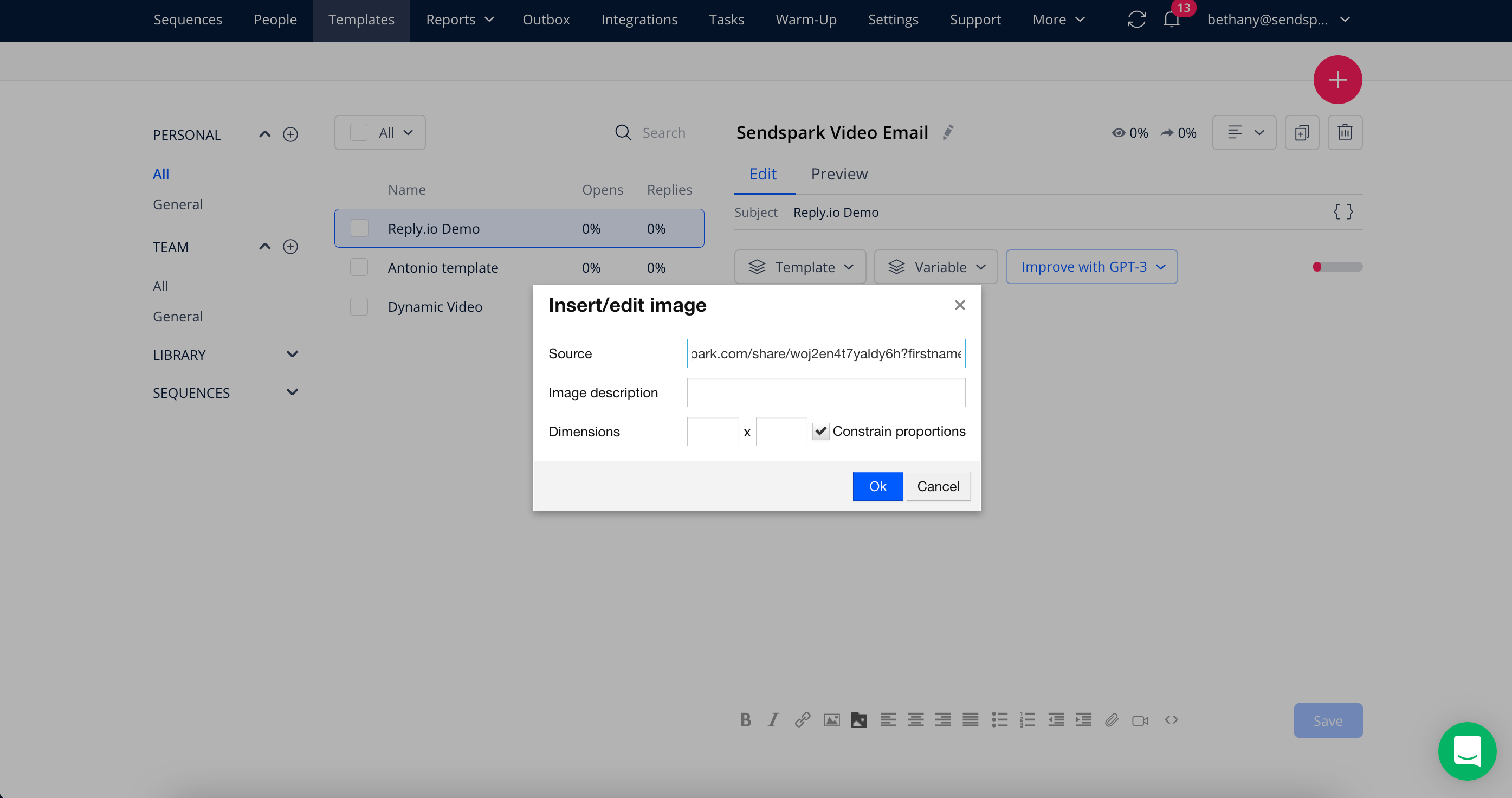
**i. Reply Image GIF** will copy the image URL for your video thumbnail to your clipboard. Click on this, and then paste this in an image URL spot in a Reply email template.
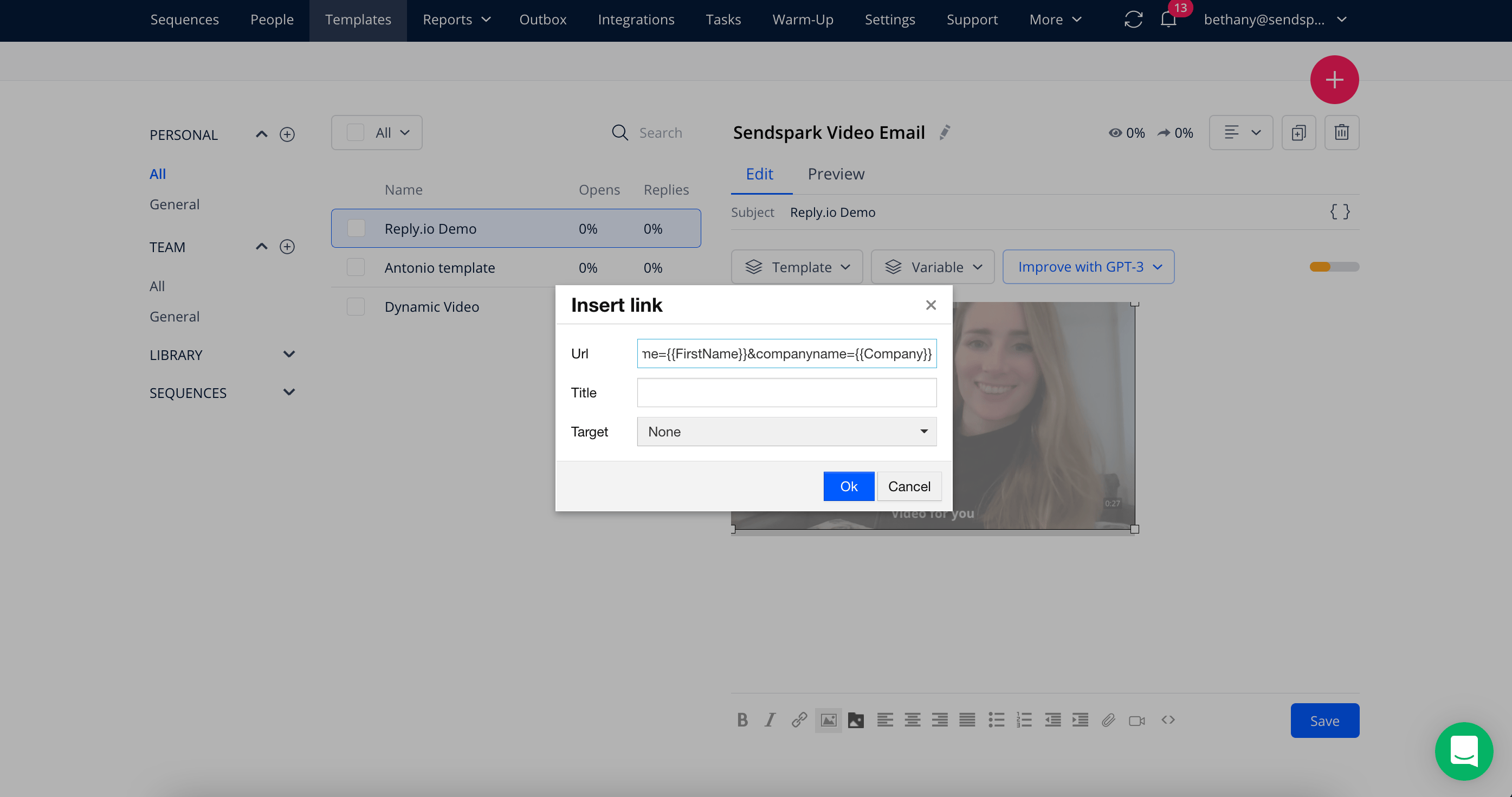
**ii. Reply Video URL**will copy the URL to your clipboard. Click this, and then hyperlink the image you just added to Reply to your video hosted on the web.
Now, when recipients click the video preview, they will be able to watch the full video on the web.
## 4. Preview your video email
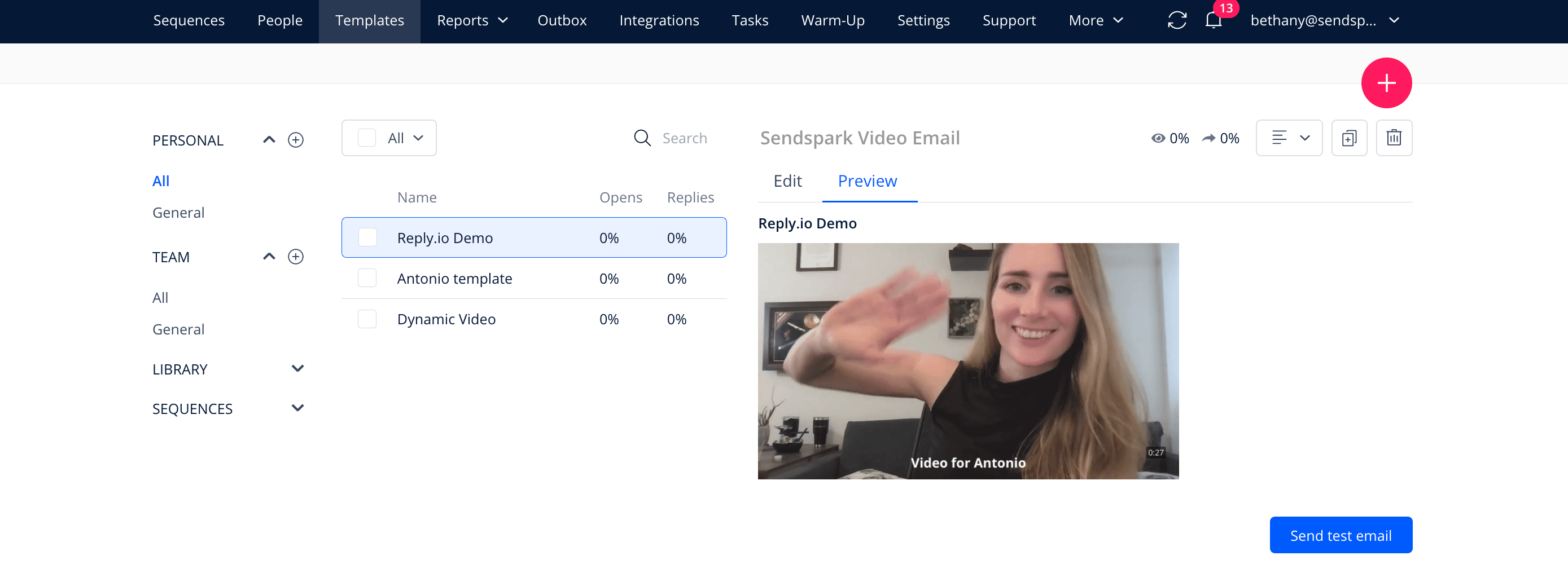
From the Templates section of Reply, you should be able to preview your video email template to see how the video will dynamically change for different recipients.
That's it! If all looks good, start sending your video in Reply emails and sequences!
## Additional Resources for Integrating Sendspark and Reply
As a Sendspark + Reply user, you might want to take advantage of these additional features!
* [Install Sendspark Chrome Extension](/install-sendspark-recorder)
* [Set global styles](/set-global-styles)
* How to combine videos
* [Personalize video thumbnails](/how-to-edit-video-thumbnails)
* [How to use video template](/how-to-use-templates)
## Frequently asked questions
You need both. Under Share Video → Share with Personalization you'll see two items for Reply: the Reply Image GIF (the video thumbnail image URL) and the Reply Video URL (the link to the hosted video). Use both.
Paste the Reply Image GIF into an image URL spot in your Reply email template, then select that image and hyperlink it to the Reply Video URL. When recipients click the preview, they watch the full video on the web.
When you build the video in Sendspark you use dynamic variables as placeholders for first name, company name, and job title. When you send in Reply, those variables automatically populate with each prospect's information.
If the correct information is unknown for a viewer, Sendspark displays [fallback variables](/how-merge-tag-fallbacks-work) so the video still looks complete.
Click "edit/add" to [add the Reply shortcuts](/how-to-modify-shortcuts-on-share-modal) to your share modal so the Reply Image GIF and Reply Video URL options appear.
*Updated July 2026.*
 When you send your video in Reply, these variables will automatically populate with your prospect's information.
If the correct information is unknown for any viewer, Sendspark will display [fallback variables](/how-merge-tag-fallbacks-work).
## 2. Copy video share snippets in Sendspark
From Sendspark, click **Share Video**
Under **Share with Personalization,** you'll see 2 items for Reply. You'll need both of them.
(If you do not see these, please [click "edit/add"](/how-to-modify-shortcuts-on-share-modal) to add the Reply shortcuts to your share modal).
When you send your video in Reply, these variables will automatically populate with your prospect's information.
If the correct information is unknown for any viewer, Sendspark will display [fallback variables](/how-merge-tag-fallbacks-work).
## 2. Copy video share snippets in Sendspark
From Sendspark, click **Share Video**
Under **Share with Personalization,** you'll see 2 items for Reply. You'll need both of them.
(If you do not see these, please [click "edit/add"](/how-to-modify-shortcuts-on-share-modal) to add the Reply shortcuts to your share modal).
 ## 3. Paste in Reply
**i. Reply Image GIF** will copy the image URL for your video thumbnail to your clipboard. Click on this, and then paste this in an image URL spot in a Reply email template.
## 3. Paste in Reply
**i. Reply Image GIF** will copy the image URL for your video thumbnail to your clipboard. Click on this, and then paste this in an image URL spot in a Reply email template.
 **ii. Reply Video URL**will copy the URL to your clipboard. Click this, and then hyperlink the image you just added to Reply to your video hosted on the web.
 Now, when recipients click the video preview, they will be able to watch the full video on the web.
## 4. Preview your video email
From the Templates section of Reply, you should be able to preview your video email template to see how the video will dynamically change for different recipients.
Now, when recipients click the video preview, they will be able to watch the full video on the web.
## 4. Preview your video email
From the Templates section of Reply, you should be able to preview your video email template to see how the video will dynamically change for different recipients.
 That's it! If all looks good, start sending your video in Reply emails and sequences!
## Additional Resources for Integrating Sendspark and Reply
As a Sendspark + Reply user, you might want to take advantage of these additional features!
* [Install Sendspark Chrome Extension](/install-sendspark-recorder)
* [Set global styles](/set-global-styles)
* How to combine videos
* [Personalize video thumbnails](/how-to-edit-video-thumbnails)
* [How to use video template](/how-to-use-templates)
## Frequently asked questions
That's it! If all looks good, start sending your video in Reply emails and sequences!
## Additional Resources for Integrating Sendspark and Reply
As a Sendspark + Reply user, you might want to take advantage of these additional features!
* [Install Sendspark Chrome Extension](/install-sendspark-recorder)
* [Set global styles](/set-global-styles)
* How to combine videos
* [Personalize video thumbnails](/how-to-edit-video-thumbnails)
* [How to use video template](/how-to-use-templates)
## Frequently asked questions