> ## Documentation Index
> Fetch the complete documentation index at: https://help.sendspark.com/llms.txt
> Use this file to discover all available pages before exploring further.
# Record Your Screen
> Learn how to record your screen with Sendspark using the Chrome Extension or Web App for fast, professional video creation.
You can record your screen with Sendspark using either the Web App or the Chrome Extension, though the Chrome Extension is recommended for maximum speed. Install and launch the extension, choose to record your Face, Screen, or Both, select what to share (Entire Screen, Window, or Chrome Tab), then click share to begin.
## Key takeaways
* You can record your screen with either the Sendspark Web Application or the Chrome Extension; the Chrome Extension is recommended for maximum speed.
* From the Chrome Extension you can record your Face, Screen, or Both at the same time.
* When sharing, you can choose Entire Screen, a specific Window, or a Chrome Tab (Chrome Tab is typically recommended for a more polished recording).
* Click the Chrome Extension icon again to finish recording, and your video opens in a preview for you to review and share.
You may use either the Sendspark Web Application on the Sendspark Chrome Extension to record your screen with Sendspark.
Both ways work great, but we recommend using the Chrome Extension for maximum speed.
This article will walk you through both options to record your screen with Sendspark.
***
## Record your Screen with the Sendspark Chrome Extension:
## 1. Install the Chrome Extension
First, install the [Sendspark Chrome Extension](https://chrome.google.com/webstore/detail/sendspark-video-and-scree/blimjkpadkhcpmkeboeknjcmiaogbkph?hl=en).
## 2. Launch the Chrome Extension
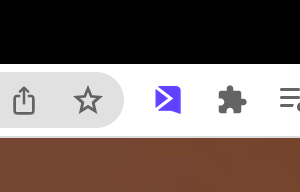
You can launch the Chrome Extension by clicking on the Sendspark icon in your Chrome browser at any time. ([Make sure you have Sendspark pinned](/how-to-pin-a-chrome-extension)).
## 3. Select Screen
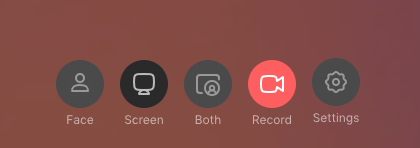
From the Chrome Extension, you can choose between recording your Face, Screen, or Both at the same time.
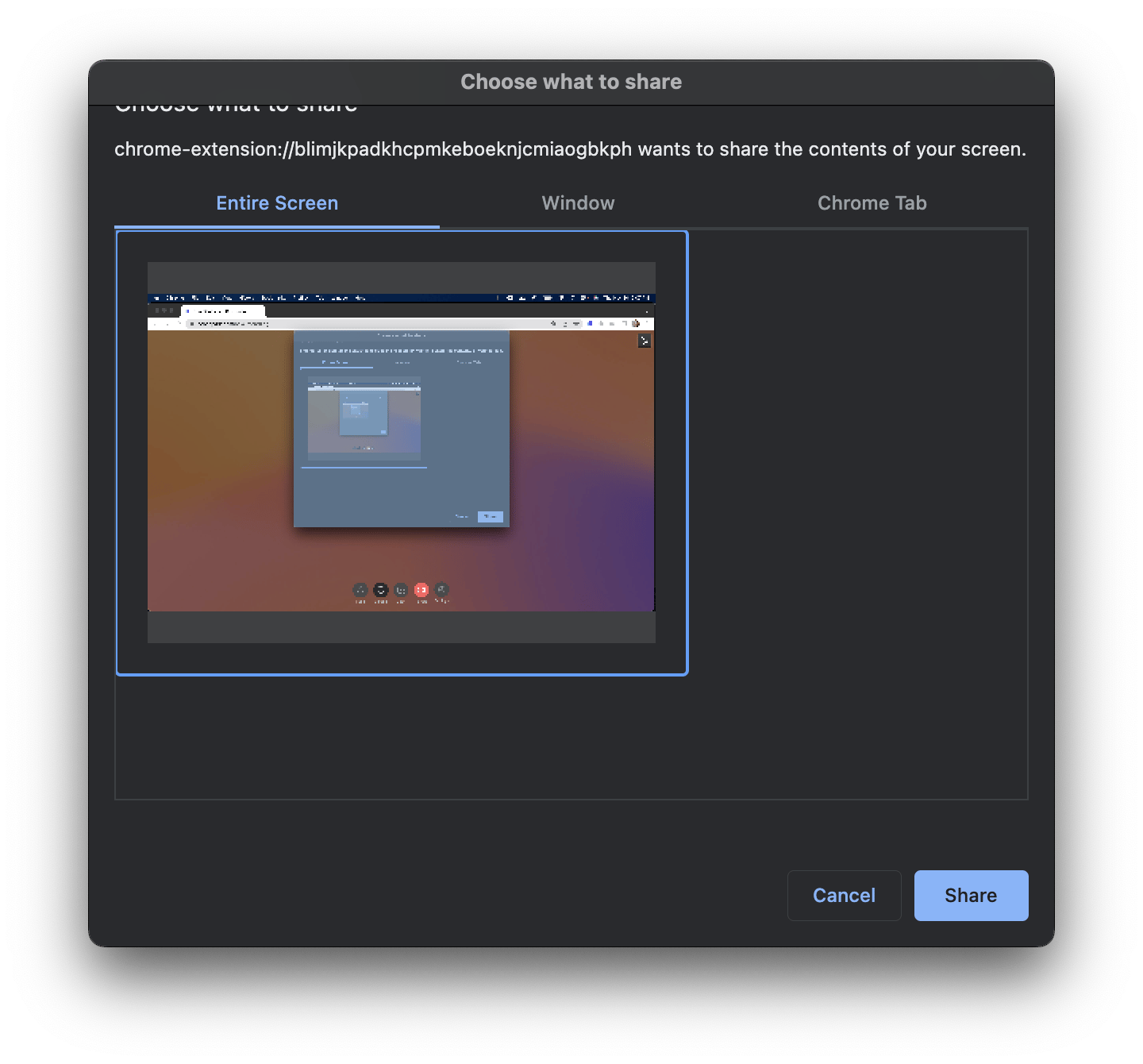
## 4. Select what you would like to share
You can choose between:
* **Entire Screen** - will record everything on your desktop.
* **Window** - will record only a specific application such as Chrome, Slack, etc.
* **Chrome Tab**- will only record what is on the specific Chrome tab. We typically recommend this option because you get a more "polished" recording. You're not sharing any bookmarks on Chrome or folders on your desktop.
After you've selected what you would like to share, click the blue\*\*"share"\*\*button to start recording.
## 6. Stop Recording
Click back on the Chrome Extension icon to finish recording. Your video will now open in a new preview over your screen for you to review and share. 🎉
***
## Frequently asked questions
Both ways work great, but we recommend using the Chrome Extension for maximum speed.
You can choose **Entire Screen** (everything on your desktop), a **Window** (only a specific application such as Chrome or Slack), or a **Chrome Tab** (only what is on that specific Chrome tab).
We typically recommend the Chrome Tab option because you get a more "polished" recording. You're not sharing any bookmarks on Chrome or folders on your desktop.
Click back on the Chrome Extension icon to finish recording. Your video will then open in a new preview over your screen for you to review and share.
*Updated July 2026.*
 ## 3. Select Screen
From the Chrome Extension, you can choose between recording your Face, Screen, or Both at the same time.
## 3. Select Screen
From the Chrome Extension, you can choose between recording your Face, Screen, or Both at the same time.
 ## 4. Select what you would like to share
You can choose between:
* **Entire Screen** - will record everything on your desktop.
* **Window** - will record only a specific application such as Chrome, Slack, etc.
* **Chrome Tab**- will only record what is on the specific Chrome tab. We typically recommend this option because you get a more "polished" recording. You're not sharing any bookmarks on Chrome or folders on your desktop.
## 4. Select what you would like to share
You can choose between:
* **Entire Screen** - will record everything on your desktop.
* **Window** - will record only a specific application such as Chrome, Slack, etc.
* **Chrome Tab**- will only record what is on the specific Chrome tab. We typically recommend this option because you get a more "polished" recording. You're not sharing any bookmarks on Chrome or folders on your desktop.
 After you've selected what you would like to share, click the blue\*\*"share"\*\*button to start recording.
## 6. Stop Recording
Click back on the Chrome Extension icon to finish recording. Your video will now open in a new preview over your screen for you to review and share. 🎉
After you've selected what you would like to share, click the blue\*\*"share"\*\*button to start recording.
## 6. Stop Recording
Click back on the Chrome Extension icon to finish recording. Your video will now open in a new preview over your screen for you to review and share. 🎉
 ***
## Frequently asked questions
***
## Frequently asked questions