> ## Documentation Index
> Fetch the complete documentation index at: https://help.sendspark.com/llms.txt
> Use this file to discover all available pages before exploring further.
# Record Screen and Computer Audio
> Learn how to record your screen with computer audio using Sendspark's Chrome extension, web app, or desktop application on Mac and
To record your screen with computer (system) audio in Sendspark's Chrome Extension or web app, start the app, select Screen or Both, and toggle the tab or system audio switch on. On Mac you record via a Chrome Tab; on Windows you can use Chrome Tab or Entire Screen. The Desktop App captures everything automatically.
## Key takeaways
* On Mac OS there's only one way to record system audio: record a Chrome Tab and toggle "Also Share Tab Audio" on.
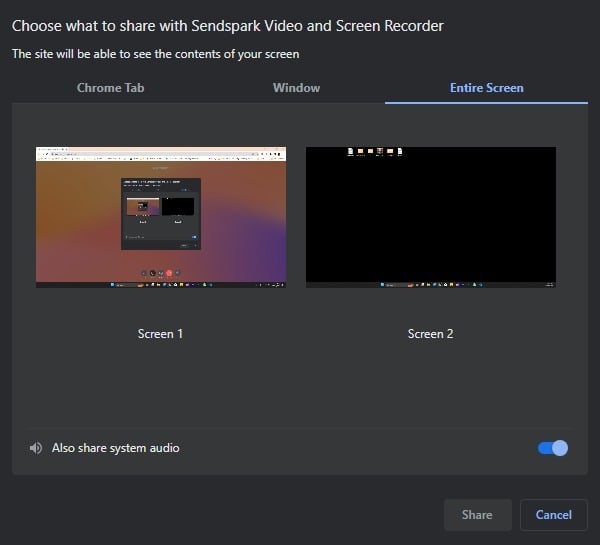
* On Windows you have two options, since both the Chrome Tab and Entire Screen tabs have the "Also share system audio" switch.
* When recording a Chrome Tab, the recording won't follow you if you switch tabs, and the Entire Screen option can't record system audio.
* The Desktop App automatically records everything, so you don't have to toggle audio on every time.
Recording your screen along with the audio of your system can sometimes be crucial when sharing certain content.
Whether you are talking over a video, playing an audio file, or interacting with a website you can definitely record all of it by toggling a simple switch on.
There are different ways to achieve that and your OS matters. Unless you have our Desktop app, which you can download by [clicking here](https://www.sendspark.com/download-desktop-application).
If you have any questions about it, please refer to [this article](/how-to-use-the-sendspark-desktop-application).
## Chrome Extension & WebApp
If you don't have the extension yet: [Install the Chrome Extention here](/install-sendspark-recorder)
When using Mac OS, there's only one way to record your system's audio.
1. Click on the Sendspark Icon to start the app
2. Select "Screen" or "Both" and hit RECORD.
3. Click on the CHROME TAB option and toggle the "Also Share Tab Audio" ON\
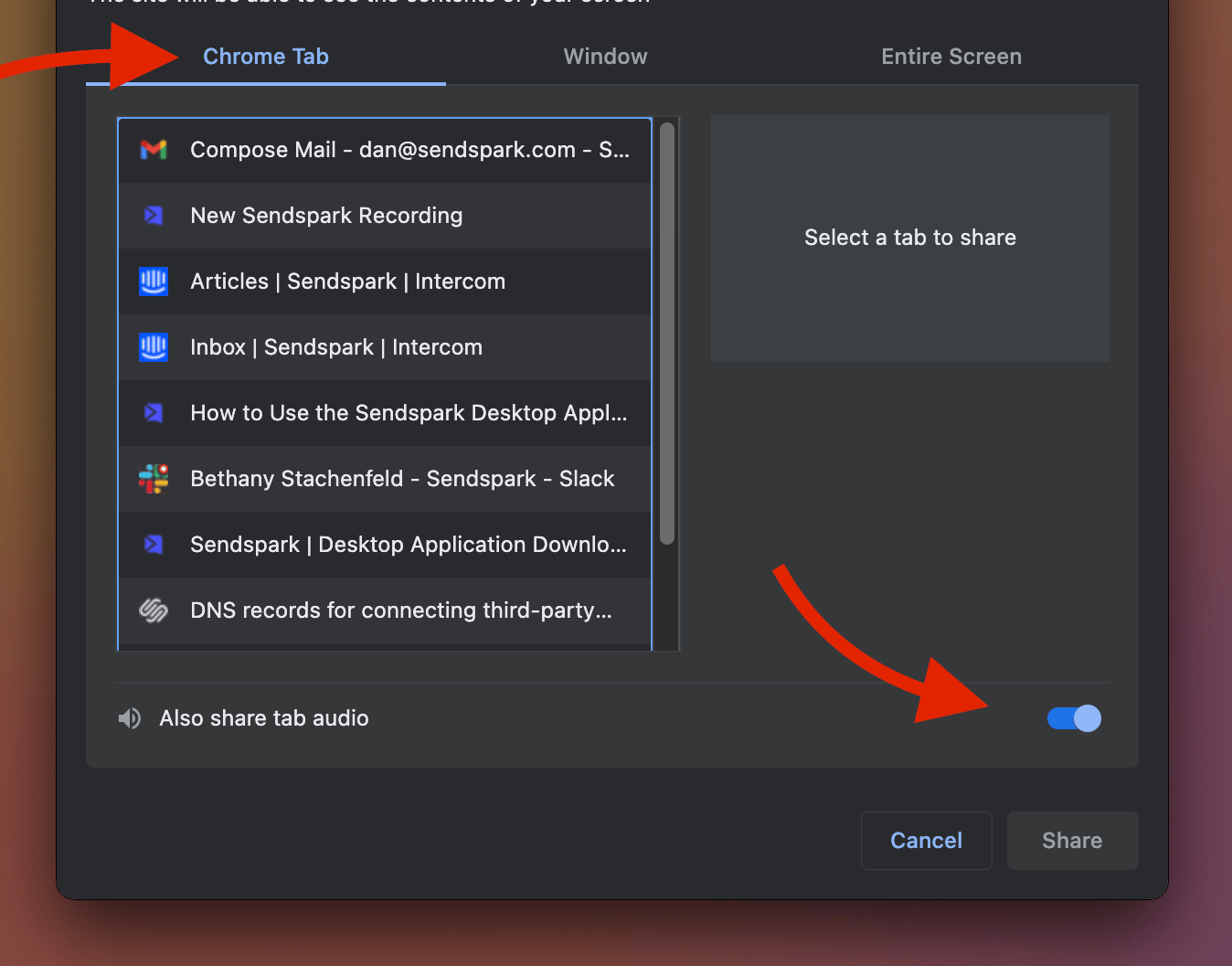 Note that when recording on Chrome Tab, the screen recording won't follow you if you switch tabs. While you can use the Entire Screen record option to switch tabs, you won't be able to record the system's audio with it.
***
When using Windows, you have two ways to record your system's audio.
In this case, you can use both, the Chrome tab and the Entire Screen tab, as both have the "Also share system audio" switch:
Note that when recording on Chrome Tab, the screen recording won't follow you if you switch tabs. While you can use the Entire Screen record option to switch tabs, you won't be able to record the system's audio with it.
***
When using Windows, you have two ways to record your system's audio.
In this case, you can use both, the Chrome tab and the Entire Screen tab, as both have the "Also share system audio" switch:
 ***
## Desktop App
If this is too much trouble, simply download our Desktop App and you won't have to remember to switch it on every time as the Desktop App will automatically record everything!
Get the Desktop App on this link:
[https://www.sendspark.com/download-desktop-application](https://www.sendspark.com/download-desktop-application)
Let us know if you have any questions!
## Frequently asked questions
On Mac OS there's only one way: start the app, select "Screen" or "Both" and hit RECORD, then click the CHROME TAB option and toggle "Also Share Tab Audio" ON.
On Windows you have two ways. You can use both the Chrome tab and the Entire Screen tab, as both have the "Also share system audio" switch.
On Mac, no. You can use Entire Screen to switch tabs, but you won't be able to record the system's audio with it. On Windows, the Entire Screen tab does have the "Also share system audio" switch.
Yes. Download the Desktop App and you won't have to remember to switch it on every time, as the Desktop App will automatically record everything.
*Updated July 2026.*
***
## Desktop App
If this is too much trouble, simply download our Desktop App and you won't have to remember to switch it on every time as the Desktop App will automatically record everything!
Get the Desktop App on this link:
[https://www.sendspark.com/download-desktop-application](https://www.sendspark.com/download-desktop-application)
Let us know if you have any questions!
## Frequently asked questions
On Mac OS there's only one way: start the app, select "Screen" or "Both" and hit RECORD, then click the CHROME TAB option and toggle "Also Share Tab Audio" ON.
On Windows you have two ways. You can use both the Chrome tab and the Entire Screen tab, as both have the "Also share system audio" switch.
On Mac, no. You can use Entire Screen to switch tabs, but you won't be able to record the system's audio with it. On Windows, the Entire Screen tab does have the "Also share system audio" switch.
Yes. Download the Desktop App and you won't have to remember to switch it on every time, as the Desktop App will automatically record everything.
*Updated July 2026.*