> ## Documentation Index
> Fetch the complete documentation index at: https://help.sendspark.com/llms.txt
> Use this file to discover all available pages before exploring further.
# Record Over PowerPoint, PDFs & Applications
> Learn how to record yourself over PowerPoint, PDFs, and other applications using Sendspark Desktop Recorder with step-by-step setup.
To record yourself over PowerPoint, PDFs, or other applications, use the Sendspark Desktop Recorder rather than the Chrome Extension, whose camera bubble is limited to the Chrome browser. Install the desktop app, choose **Camera + Screen**, open your presentation, and click **Start Recording**. The desktop recorder also supports fullscreen slides and back-to-back recordings.
## Key takeaways
* The Chrome Extension can't record over PowerPoint, PDFs, or other apps because its camera bubble is restricted to the Chrome browser.
* To record over any application on your computer, use the [Sendspark Desktop Recorder](https://www.sendspark.com/download-desktop-application) instead.
* The desktop recorder also lets you record slides in fullscreen mode and record multiple videos back-to-back without waiting for the first to upload.
* Recording is four steps: install the desktop app, select **Camera + Screen**, open your presentation, and click **Start Recording**.
We typically recommend using the [Sendspark Chrome Extension](https://chrome.google.com/webstore/detail/sendspark-video-and-scree/blimjkpadkhcpmkeboeknjcmiaogbkph) to record videos, because it's super fast to use from Chrome, and you get access to our[instant integrations](/sendspark-instant-integrations-how-they-work) with Gmail, LinkedIn, and other messaging platforms.
However, the Chrome Extension does *not* let you record yourself over PowerPoint, PDFs, or other applications. With the Chrome Extension, your camera bubble is restricted your Chrome browser.
**To record yourself on applications outside of Chrome, you need to use the Sendspark desktop recorder.**
The Sendspark Desktop Recorder lets you...
* Record over PowerPoint, PDF, and other applications on your computer
* Record over Slides in "fullscreen" mode
* Record multiple videos back-to-back, without waiting for the first video to upload
(If you do not have the Sendspark Desktop Recorder already,**[install it here](https://www.sendspark.com/download-desktop-application))**.
## How to Record Yourself Over PowerPoint
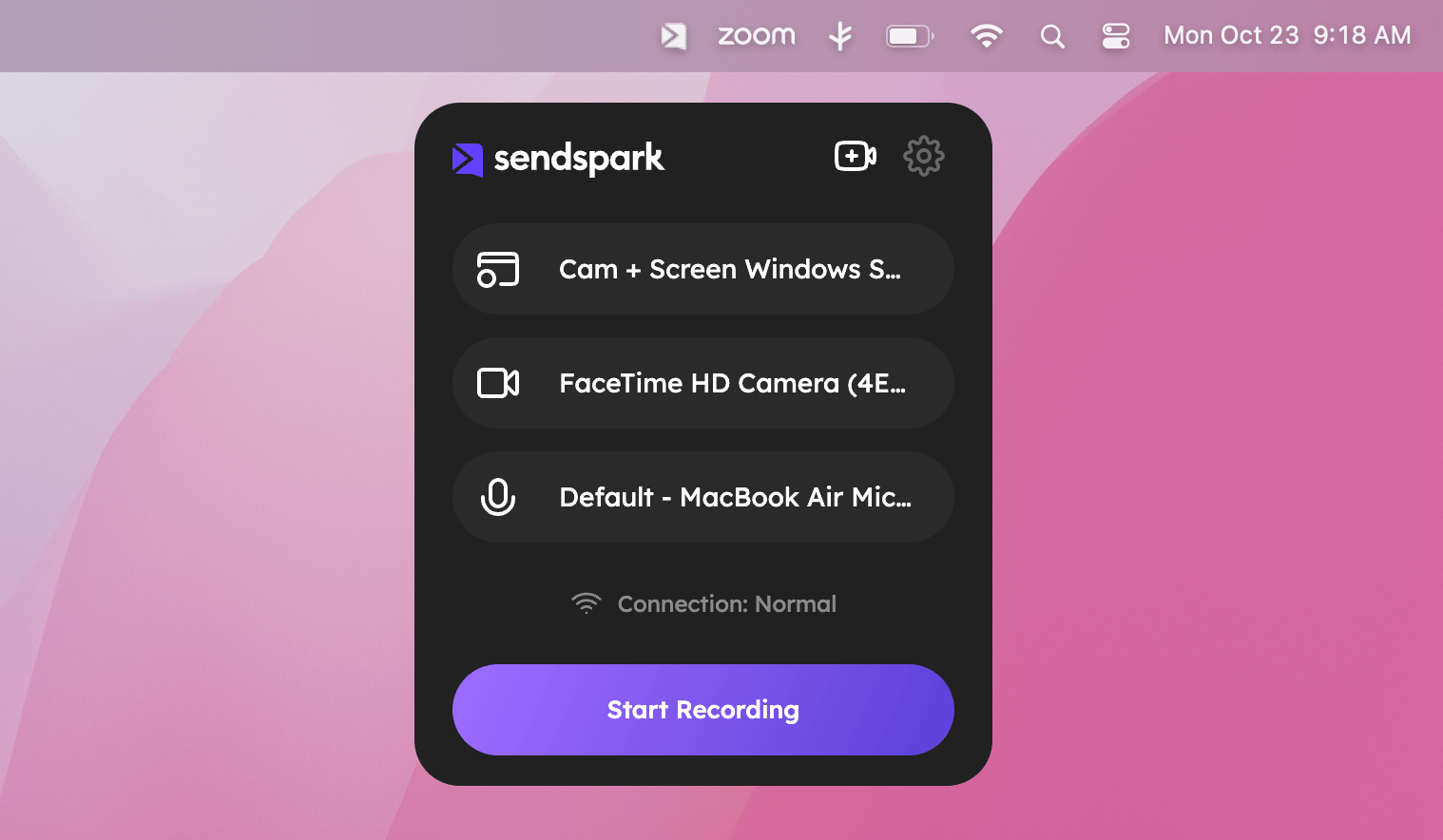 1. Install the [Sendspark Desktop App](https://www.sendspark.com/download-desktop-application)
2. Select **"Camera + Screen"** as the recording option
3. Open your PowerPoint presentation
4. Click **"Start Recording"**
## Frequently asked questions
With the Chrome Extension, your camera bubble is restricted to the Chrome browser, so it can't record over PowerPoint, PDFs, or other applications outside of Chrome. Use the Sendspark Desktop Recorder for that.
The desktop recorder lets you record over PowerPoint, PDFs, and other applications on your computer, record over slides in fullscreen mode, and record multiple videos back-to-back without waiting for the first video to upload.
If you don't already have it, [install it here](https://www.sendspark.com/download-desktop-application).
Select **Camera + Screen** as the recording option, then open your presentation and click **Start Recording**.
*Updated July 2026.*
1. Install the [Sendspark Desktop App](https://www.sendspark.com/download-desktop-application)
2. Select **"Camera + Screen"** as the recording option
3. Open your PowerPoint presentation
4. Click **"Start Recording"**
## Frequently asked questions
With the Chrome Extension, your camera bubble is restricted to the Chrome browser, so it can't record over PowerPoint, PDFs, or other applications outside of Chrome. Use the Sendspark Desktop Recorder for that.
The desktop recorder lets you record over PowerPoint, PDFs, and other applications on your computer, record over slides in fullscreen mode, and record multiple videos back-to-back without waiting for the first video to upload.
If you don't already have it, [install it here](https://www.sendspark.com/download-desktop-application).
Select **Camera + Screen** as the recording option, then open your presentation and click **Start Recording**.
*Updated July 2026.*