> ## Documentation Index
> Fetch the complete documentation index at: https://help.sendspark.com/llms.txt
> Use this file to discover all available pages before exploring further.
# Pitch Deck Videos with Google Slides
> Use Google Slides as a dynamic background in Sendspark to create personalized pitch deck videos. Walk prospects through your slide deck with an AI intro.
You can use a Google Slides presentation as a dynamic background in Sendspark to create personalized pitch deck videos. Copy your presentation's full URL, make the slides publicly viewable, then create a Sendspark Dynamic Video with the dynamic background toggled on and paste the URL into the Background URL field so Sendspark personalizes the message for each recipient.
## Key takeaways
* Use Google Slides as a dynamic background to walk prospects through a personalized pitch deck.
* Copy the full presentation URL from your browser's address bar.
* Make the slides publicly viewable while the Dynamic Video campaign is active.
* Toggle the dynamic background on, set it to scroll down (not back up), and paste the URL into the Background URL field.
## Using Google Slides as a Background in Sendspark Dynamic Videos
While Sendspark is built for video content, you can leverage its dynamic features to create personalized videos with Google Slides presentations as backgrounds.
## Here's how to achieve this:
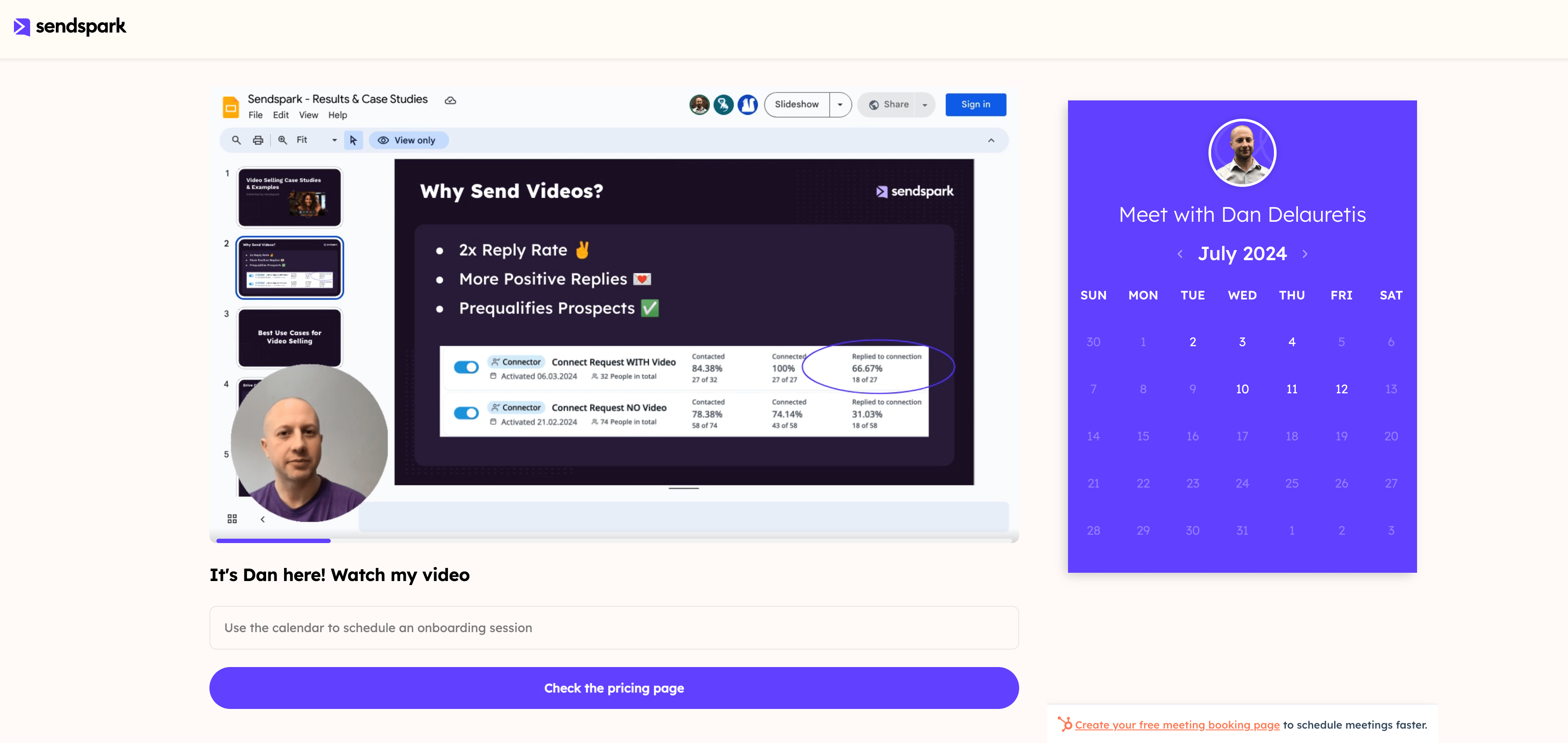
## 1. Grab the Unique Slide URL:
* Open your Google Slides presentation
* Look at the address bar at the top of your browser window and copy the entire URL
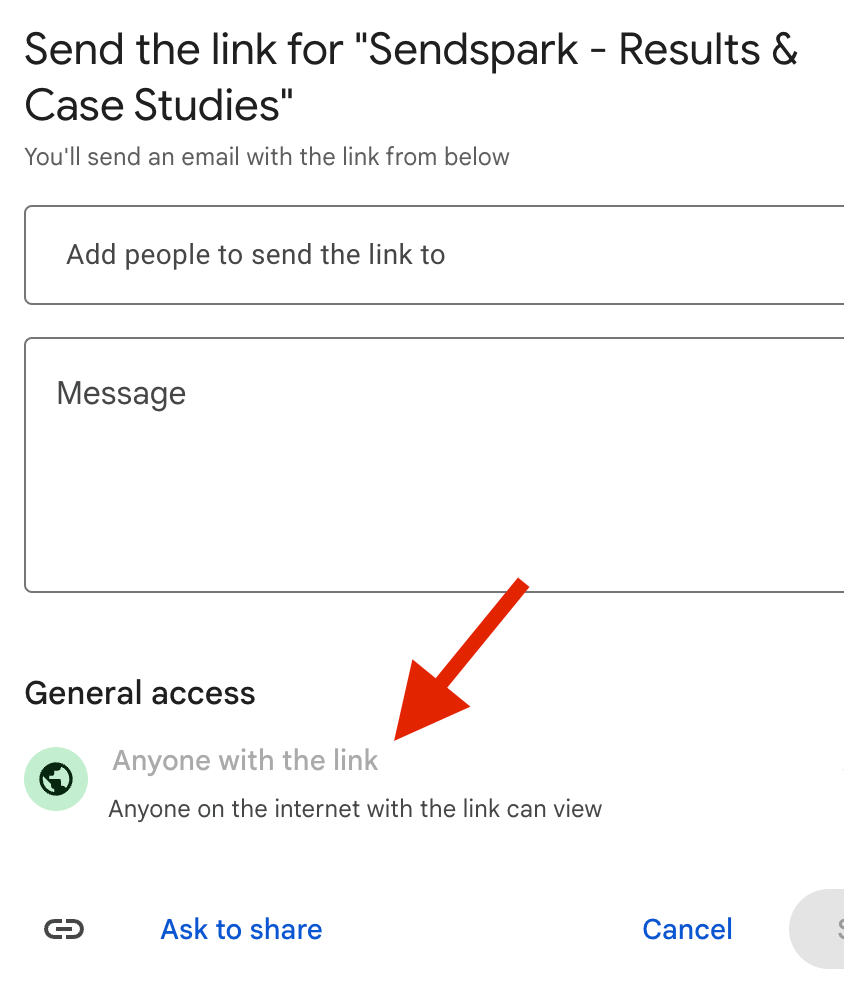
## 2. Make the Slide Public:
* Make sure the slide is publicly viewable in Google Slides while the Dynamic Video Campaign is active.
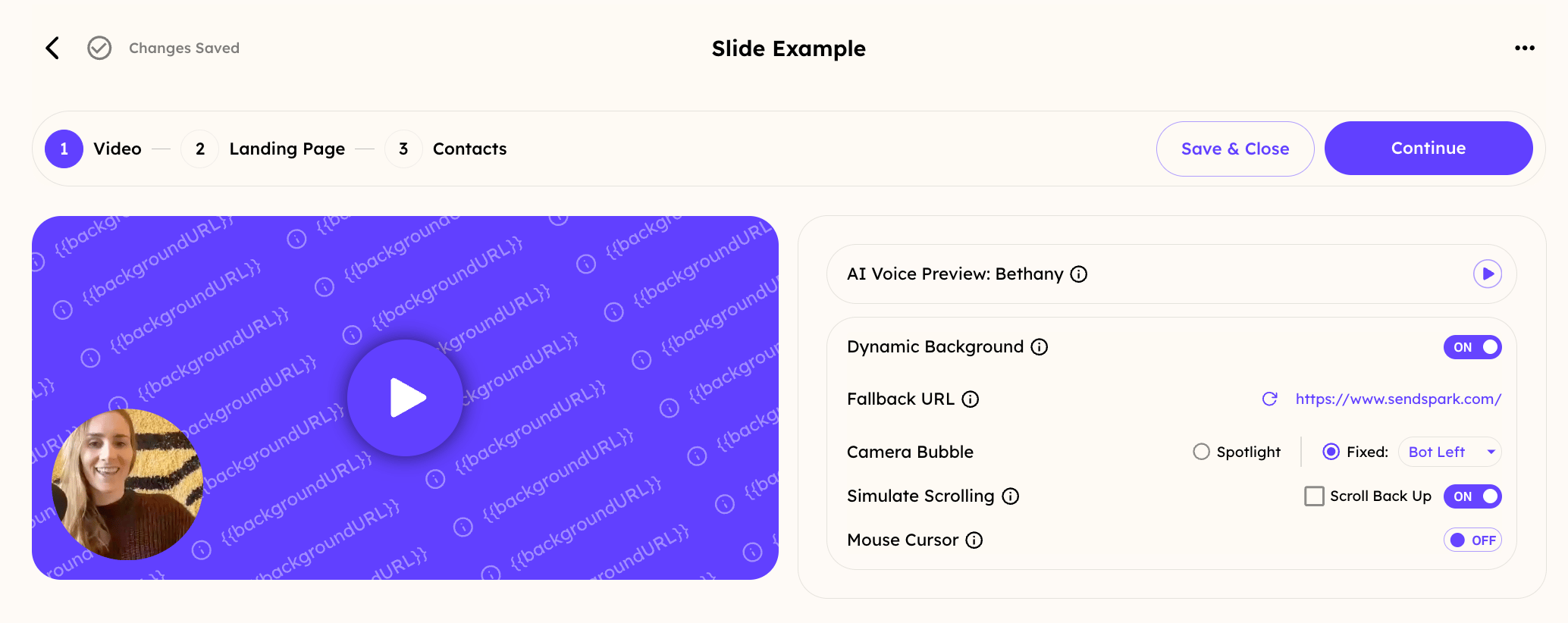
## 3. Create your Sendspark Dynamic Video:
* Follow the usual process for [creating a dynamic video in Sendspark](/dynamic-videos-make-videos-with-ai-introductions).
* Make sure you have the dynamic background toggled **"On"**
* For Slides, you likely want to have the setting to ***scroll*** ***down***, but ***not back up***
*
## 4. Set the Google Slide as Background:
* When editing the Background URL field, paste the complete URL grabbed from the Shareable Option:
## 5. Generate & Send your Personalized Video Message:
* With the Google Slide set as the background, Sendspark will personalize the message with your recipient data.
***
## Frequently asked questions
Yes. Make sure the slides are publicly viewable in Google Slides while the Dynamic Video campaign is active, so Sendspark can render them as the background.
Open your Google Slides presentation and copy the entire URL from your browser's address bar, then paste that complete URL into the Background URL field.
For slides, you likely want the background set to scroll down, but not back up.
Yes. With the Google Slide set as the background, Sendspark personalizes the message using your recipient data, just like any other dynamic video.
*Updated July 2026.*
 ## 1. Grab the Unique Slide URL:
* Open your Google Slides presentation
* Look at the address bar at the top of your browser window and copy the entire URL
## 1. Grab the Unique Slide URL:
* Open your Google Slides presentation
* Look at the address bar at the top of your browser window and copy the entire URL 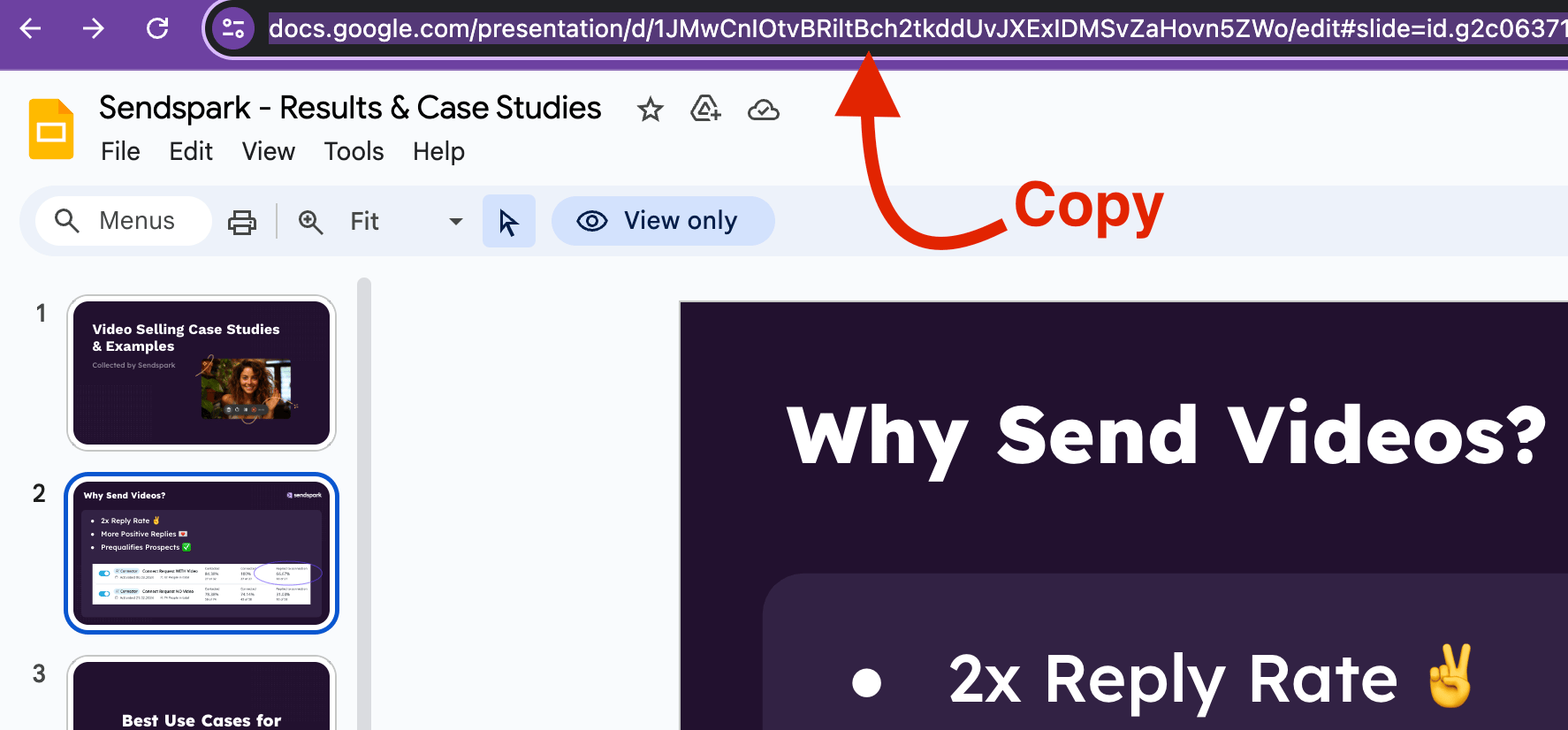 ## 2. Make the Slide Public:
* Make sure the slide is publicly viewable in Google Slides while the Dynamic Video Campaign is active.
## 2. Make the Slide Public:
* Make sure the slide is publicly viewable in Google Slides while the Dynamic Video Campaign is active.
 ## 3. Create your Sendspark Dynamic Video:
* Follow the usual process for [creating a dynamic video in Sendspark](/dynamic-videos-make-videos-with-ai-introductions).
* Make sure you have the dynamic background toggled **"On"**
* For Slides, you likely want to have the setting to ***scroll*** ***down***, but ***not back up***
*
## 3. Create your Sendspark Dynamic Video:
* Follow the usual process for [creating a dynamic video in Sendspark](/dynamic-videos-make-videos-with-ai-introductions).
* Make sure you have the dynamic background toggled **"On"**
* For Slides, you likely want to have the setting to ***scroll*** ***down***, but ***not back up***
*  ## 4. Set the Google Slide as Background:
* When editing the Background URL field, paste the complete URL grabbed from the Shareable Option:
## 4. Set the Google Slide as Background:
* When editing the Background URL field, paste the complete URL grabbed from the Shareable Option: 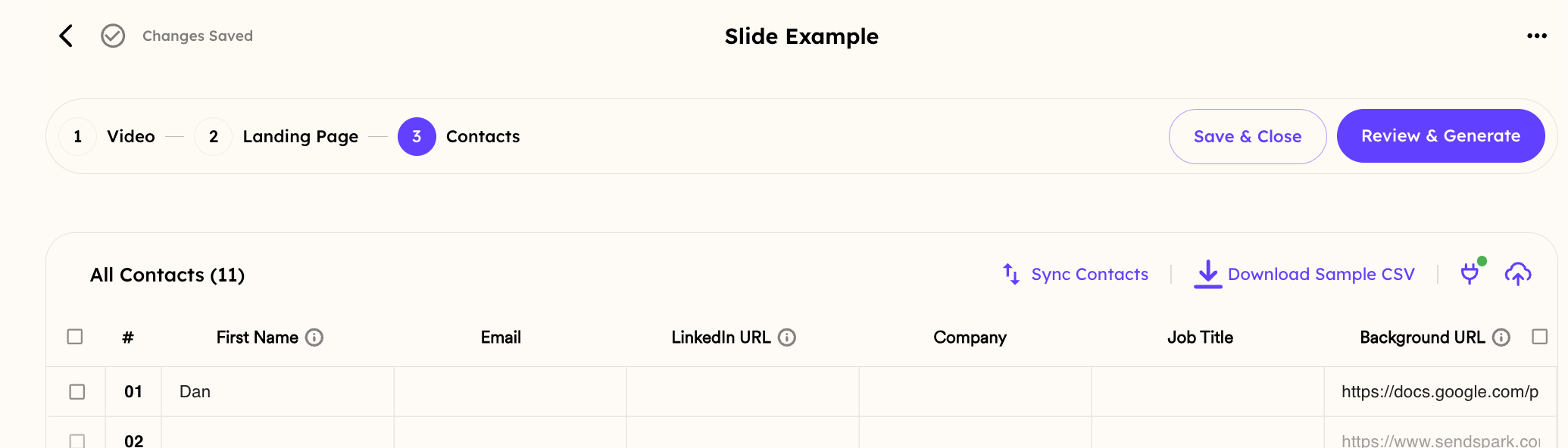 ## 5. Generate & Send your Personalized Video Message:
* With the Google Slide set as the background, Sendspark will personalize the message with your recipient data.
***
## Frequently asked questions
## 5. Generate & Send your Personalized Video Message:
* With the Google Slide set as the background, Sendspark will personalize the message with your recipient data.
***
## Frequently asked questions