> ## Documentation Index
> Fetch the complete documentation index at: https://help.sendspark.com/llms.txt
> Use this file to discover all available pages before exploring further.
# Pipedrive - Send Dynamic Videos
> Learn how to send Sendspark dynamic AI-personalized videos through Pipedrive. Connect your CRM to automate video outreach for every deal in your pipeline.
To send dynamic videos in Pipedrive, export the CSV from your Sendspark Dynamic Video campaign and import it into Pipedrive contacts, map the fields, then copy the Pipedrive snippet from **Share Campaign** and paste it into an HTML block in your Pipedrive email. Each recipient gets their own personalized video.
## Key takeaways
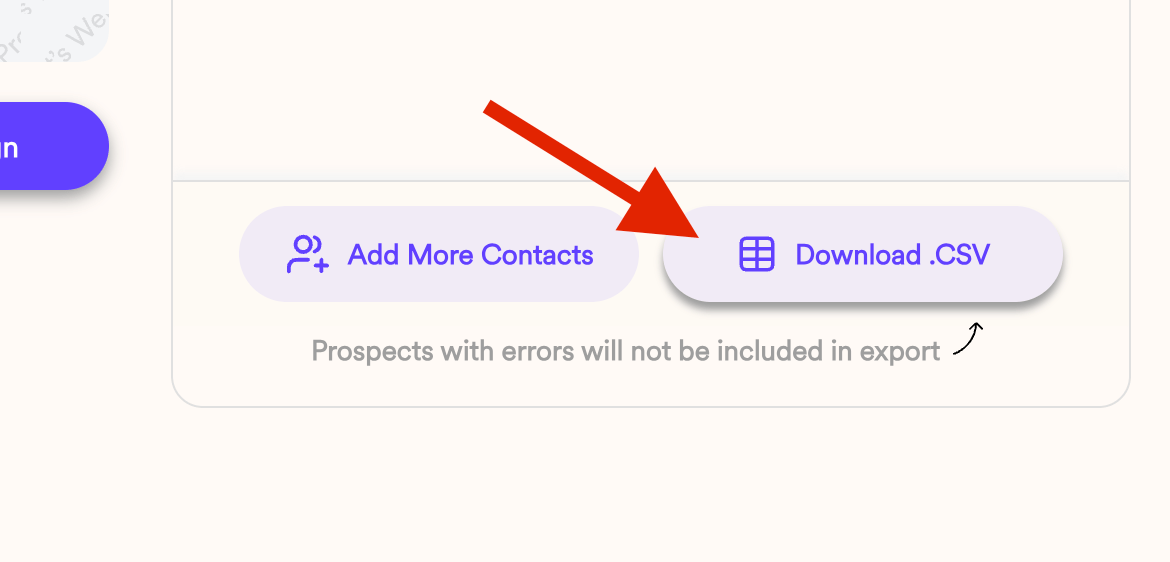
* Always import **Sendspark's exported CSV**, not the original file you used to build the campaign. The export filters out contacts whose video hit a processing error.
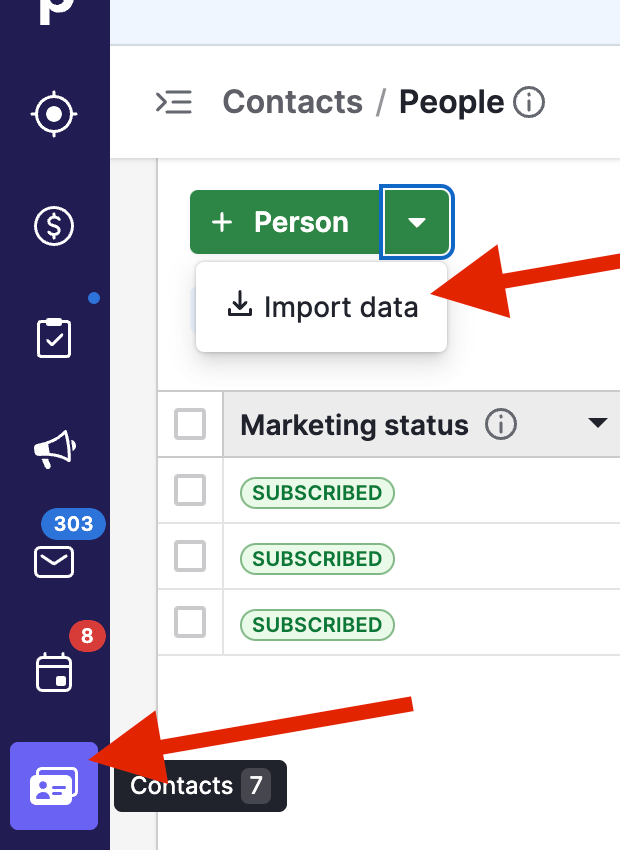
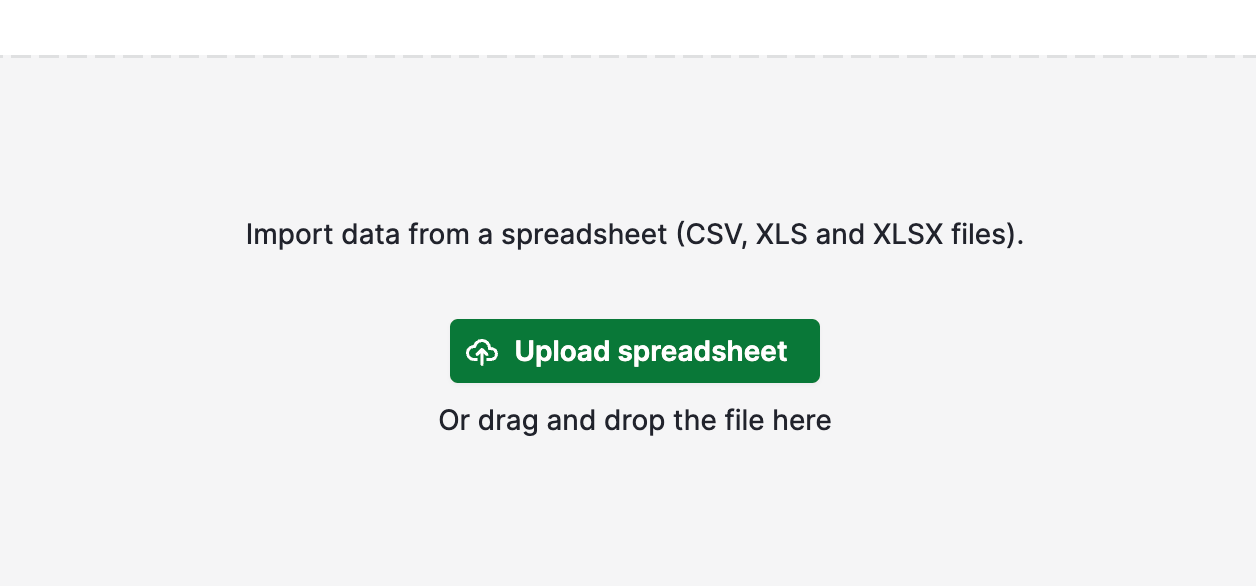
* In Pipedrive, use **Import Data → Upload Spreadsheet** to add the contacts, then map the fields. Background URL doesn't need a tag, Job Title has no matching Pipedrive merge tag, and Company maps to the **NAME** tag from the **Organization** column.
* Get the snippet from Sendspark's **Share Campaign** → **Pipedrive**, which copies the code to your clipboard automatically.
* In the Pipedrive Email Editor, drop an **HTML block**, clear the text under Content Properties, then paste the snippet so the thumbnail appears.
In this tutorial, we'll show you how to send dynamic videos in Pipedrive using the Sendspark + Pipedrive integration.
Sendspark's Dynamic Video feature lets you take one video of yourself, and instantly put that video over any background, so it looks like you're recording over any website or URL.
## How to Share Dynamic Videos in Pipedrive:
**1. To ensure the filtering of any processing errors, export the CSV file from your Dynamic Video Campaign:**
**2. On Pipedrive, click on IMPORT DATA to start uploading it to your contacts section:**
**3. Select the UPLOAD SPREADSHEET option, and upload the recent exported file form Sendspark. DO NOT IMPORT THE ORIGINAL FILE used to create the Dynamic Video.**
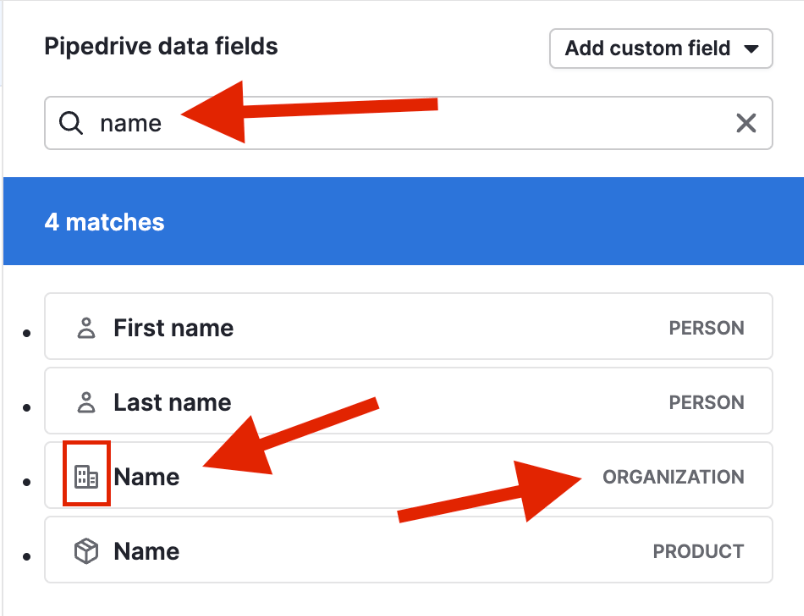
**4. This is how your mapping should look like:**\
Note that Background URL doesn't require a tag. Job Title does not have a merging tag to connect to in PipeDrive, and Company can be connected with the NAME tag (be sure to select the NAME tag from the ORGANIZATION COLUMN)
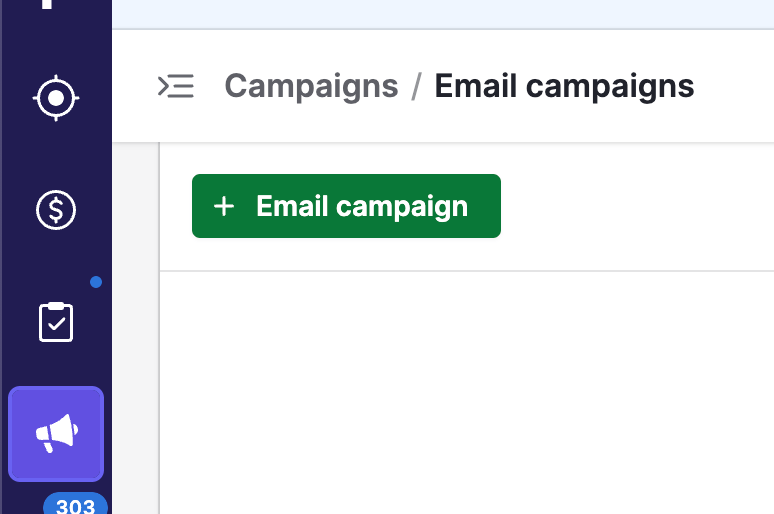
**5. Create an email campaign:**
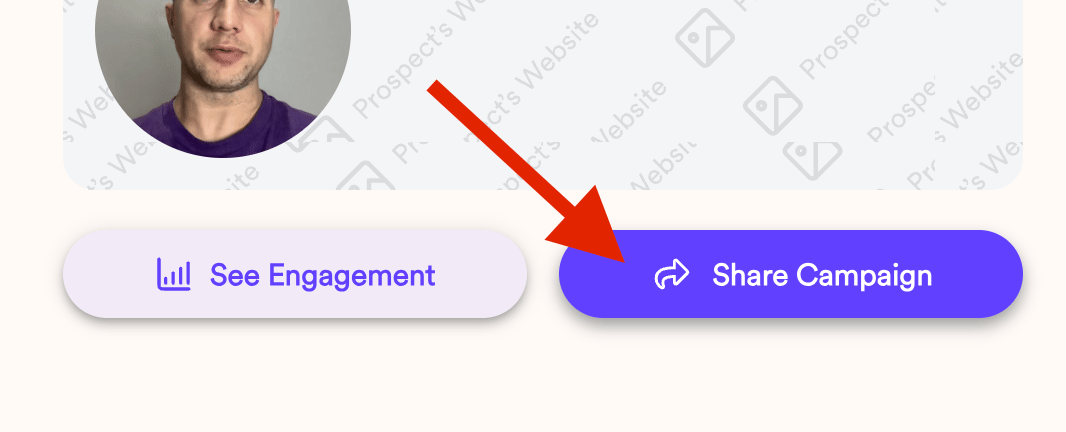
**6. Go back to your Dynamic Video Campaign and click on SHARE CAMPAIGN to open the Integration Options:**
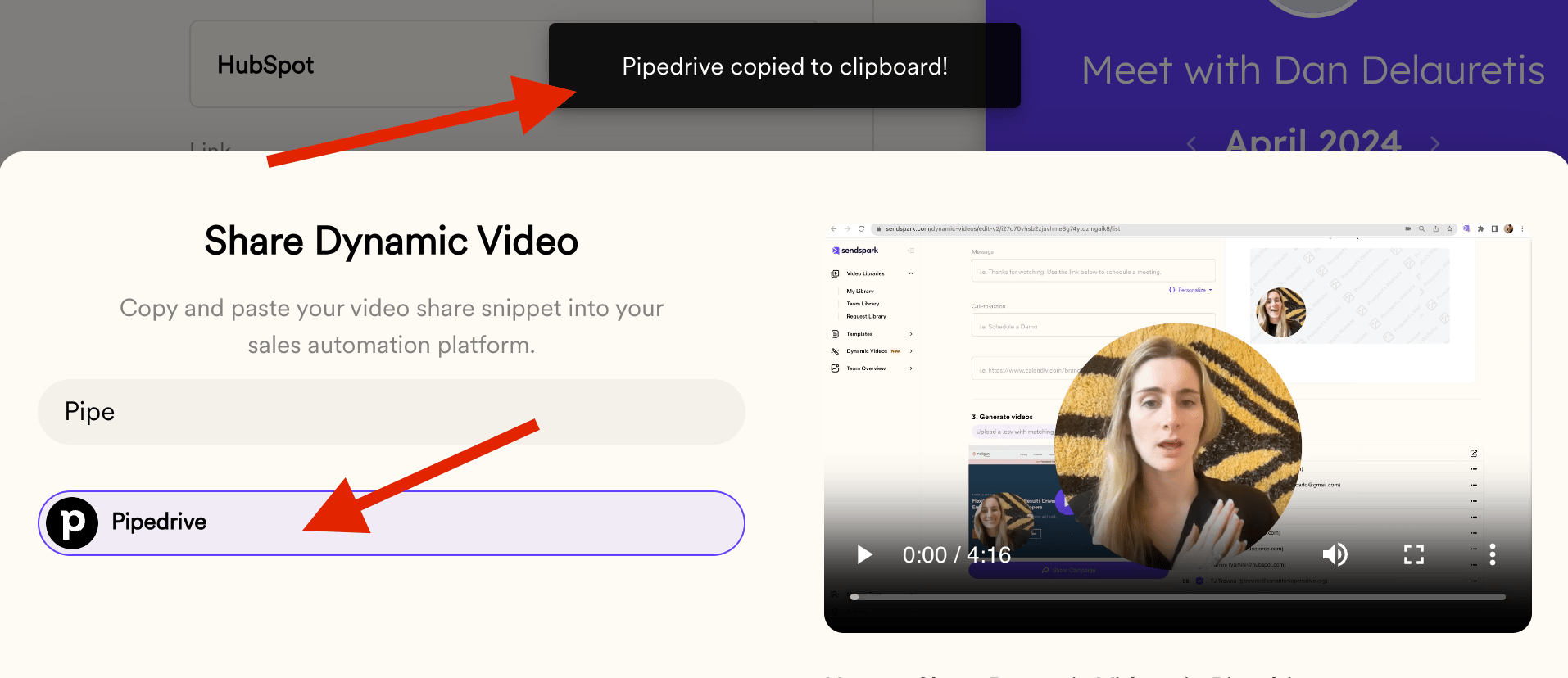
**7. Find Pipedrive and click on its button to automatically copy the snippet code to your clipboard:**
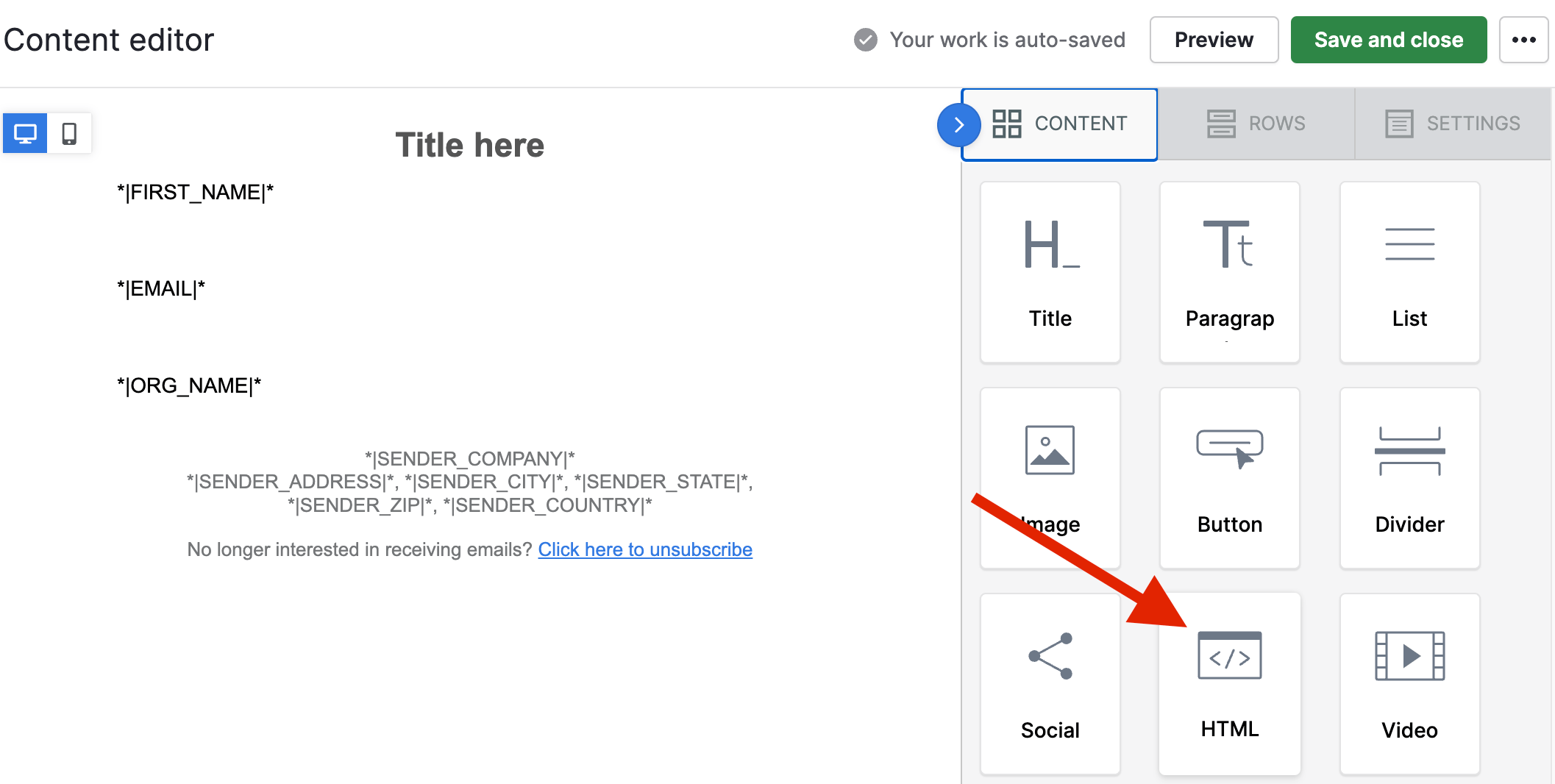
**8. Head to Pipedrive and access the Email Editor. Once there, grab the HTML block and drop it in the email body:**
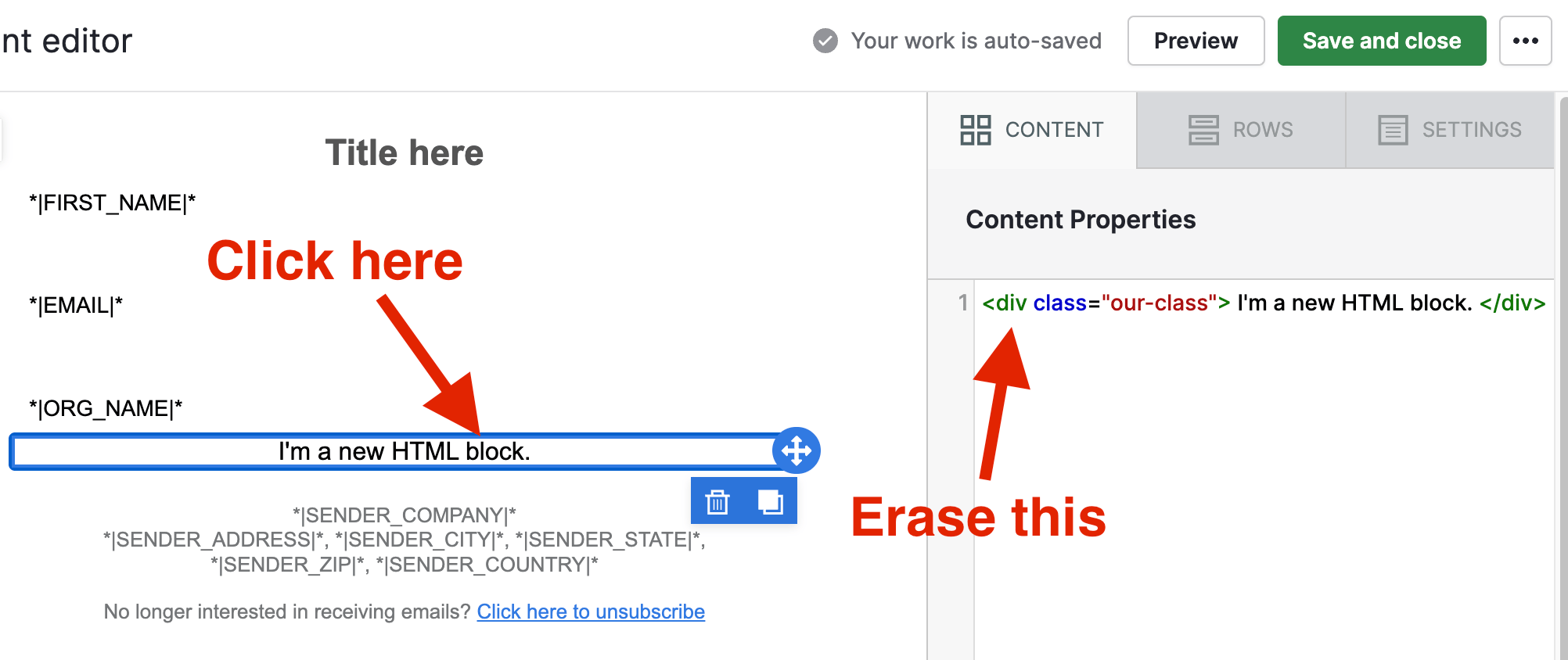
**9. Click on the text of the block dropped and erase the text under CONTENT PROPERTIES on the right-hand side:**
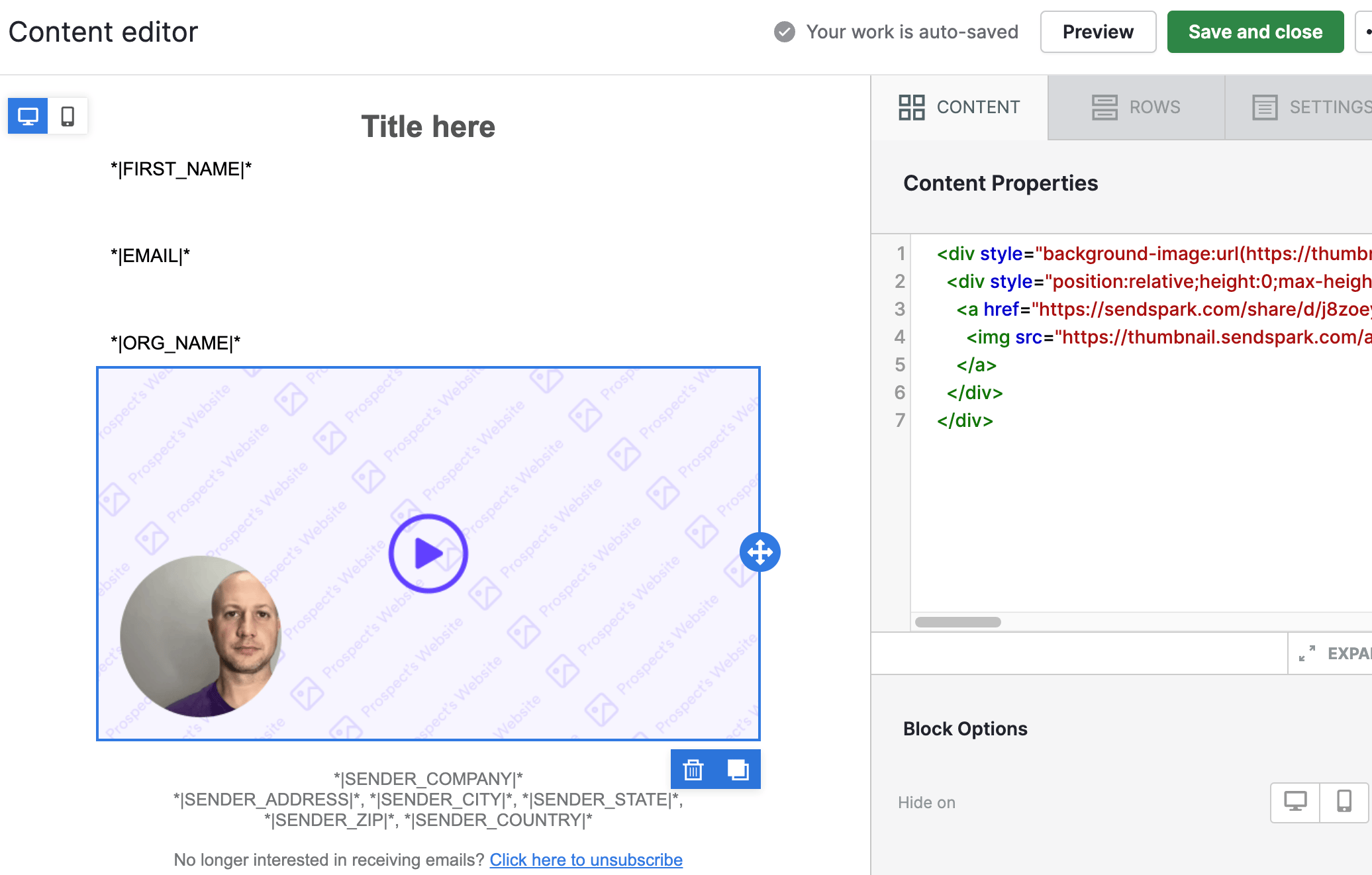
**10. Paste the code he recently copied in that section and the thumbnail will show up:**
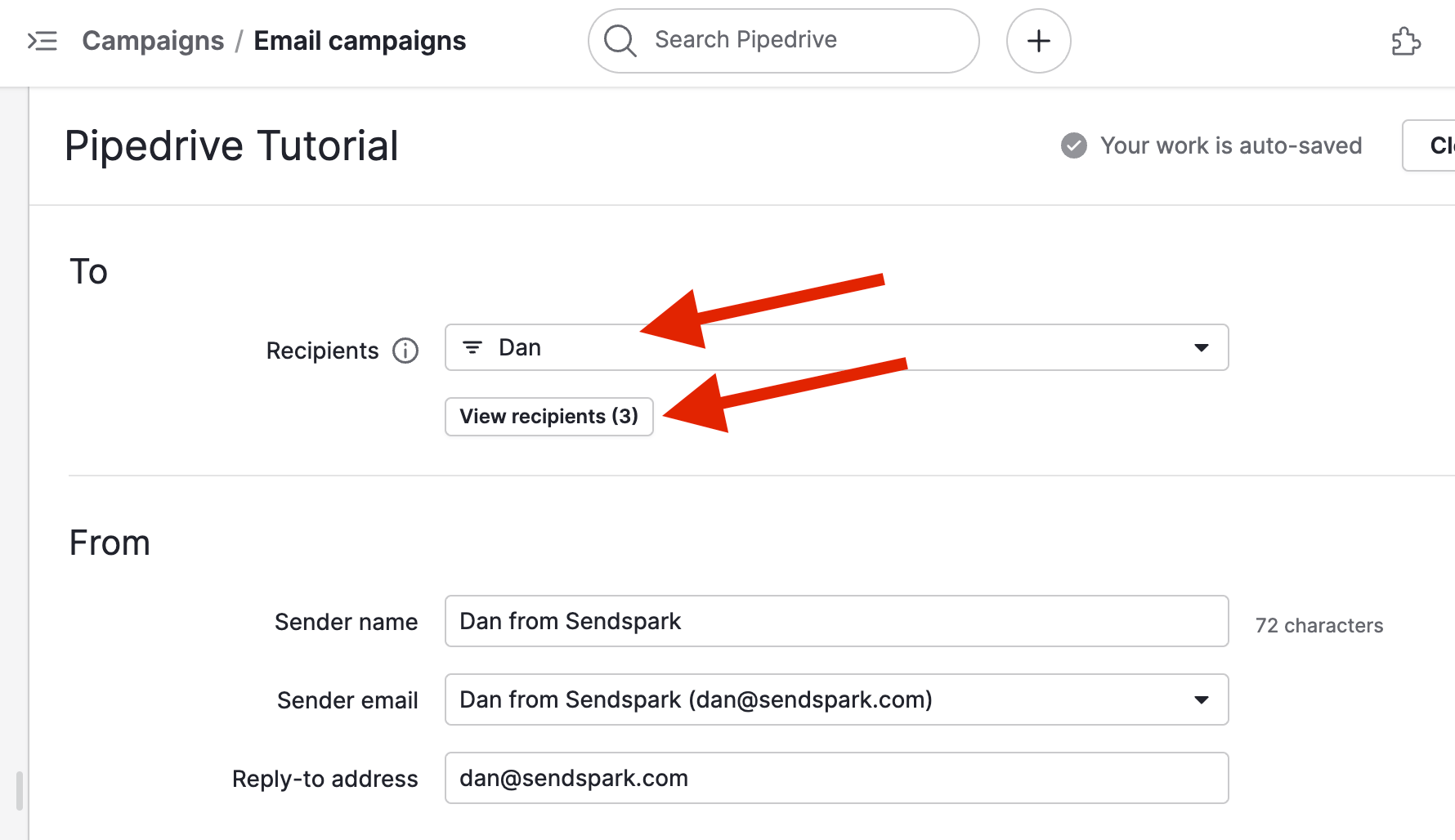
**11. Click on "Save and close" and now make sure you selected the correct Conta**ct List:
**12. And that's all! You are now ready to start your campaign**
## Happy recordings!
## Frequently asked questions
The CSV you export from your Dynamic Video campaign filters out any processing errors, so it only contains contacts whose video generated successfully. Importing the original file you used to create the campaign can include contacts that don't have a finished video.
Background URL doesn't require a tag. Job Title has no merge tag to connect to in Pipedrive, so it's left unmapped. Company connects with the NAME tag — be sure to select the NAME tag from the Organization column.
In Sendspark, open your Dynamic Video campaign, click **Share Campaign** to open the Integration Options, find Pipedrive, and click its button. That automatically copies the snippet code to your clipboard.
In the Pipedrive Email Editor, grab the HTML block and drop it into the email body. Click the block's text, erase the text under Content Properties on the right, then paste the copied snippet. The video thumbnail will show up.
*Updated July 2026.*
 **2. On Pipedrive, click on IMPORT DATA to start uploading it to your contacts section:**
 **3. Select the UPLOAD SPREADSHEET option, and upload the recent exported file form Sendspark. DO NOT IMPORT THE ORIGINAL FILE used to create the Dynamic Video.**
 **4. This is how your mapping should look like:**\
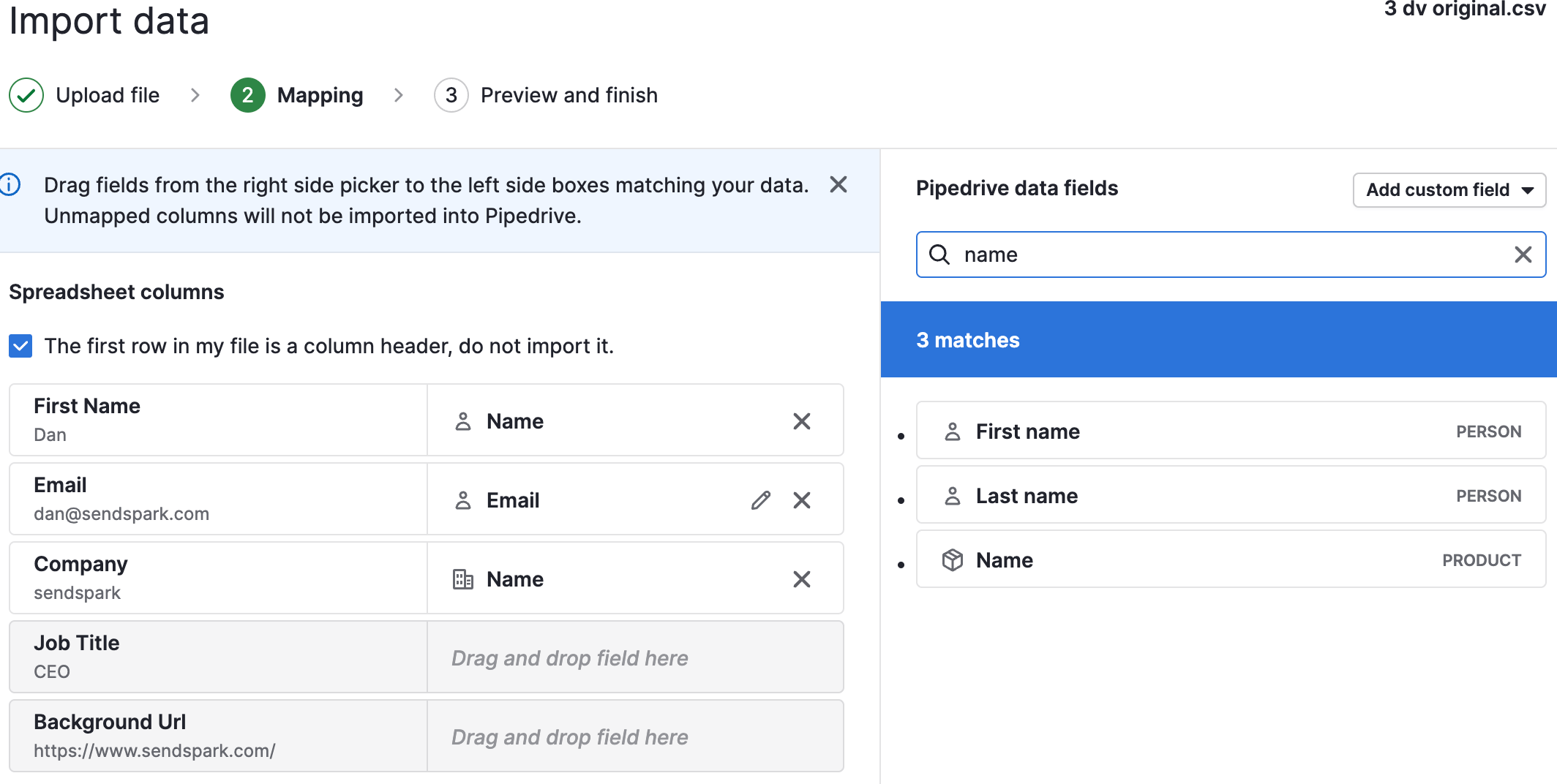 Note that Background URL doesn't require a tag. Job Title does not have a merging tag to connect to in PipeDrive, and Company can be connected with the NAME tag (be sure to select the NAME tag from the ORGANIZATION COLUMN)
 **5. Create an email campaign:**
 **6. Go back to your Dynamic Video Campaign and click on SHARE CAMPAIGN to open the Integration Options:**
 **7. Find Pipedrive and click on its button to automatically copy the snippet code to your clipboard:**
 **8. Head to Pipedrive and access the Email Editor. Once there, grab the HTML block and drop it in the email body:**
 **9. Click on the text of the block dropped and erase the text under CONTENT PROPERTIES on the right-hand side:**
 **10. Paste the code he recently copied in that section and the thumbnail will show up:**
 **11. Click on "Save and close" and now make sure you selected the correct Conta**ct List:
 **12. And that's all! You are now ready to start your campaign**
 ## Happy recordings!
## Frequently asked questions
## Happy recordings!
## Frequently asked questions