> ## Documentation Index
> Fetch the complete documentation index at: https://help.sendspark.com/llms.txt
> Use this file to discover all available pages before exploring further.
# Outreach - Auto-Send AI Personalized Videos
> Learn how to automatically send AI personalized videos in Outreach using Sendspark automation with video placeholders and workflows.
To auto-send AI personalized videos in Outreach, first paste your Sendspark video placeholder into an Outreach email template, then build a Sendspark Agentic Workflow that triggers on a chosen event, finds the prospect in Outreach by email, and adds them to your sequence. Each prospect then receives an email with the personalized video made for them.
## Key takeaways
* Setup has two parts: add the Sendspark video placeholder to an Outreach email template, then build an Agentic Workflow that enrolls prospects into the sequence.
* The placeholder shows the right video per person automatically, as long as a video exists in Sendspark for that contact's email address.
* The workflow needs an **Outreach - Find Prospect By Email Address** action before **Outreach - Add Prospect to Sequence**, because the sequence step requires the Prospect ID, not the email.
* This method works when every person receives a video from the **same** Dynamic Video campaign; if the prospect doesn't yet exist in Outreach, add an **Outreach - Create Prospect** step (or a router) first.
Follow these steps or watch the video below to automatically send videos in Outreach after they've been created from any Sendspark automation.
## Part I. Add Sendspark Video Placeholder in Outreach Email Template
Before you set up the automation, you'll want to add your Sendspark video placeholder in your Outreach email template.
You'll put this where the video should go in the email, and then you'll set up the following automation to ensure that once the videos are created, contacts are automatically sent personalized video emails.
## 1. Go To Your Sendspark Dynamic Video Campaign
* Navigate to the [Sendspark Dynamic Video campaign](https://sendspark.com/dynamic-videos) that you wish to use in this automation
* **Create at least one video** from this campaign to ensure that everything looks good
* Click \*\*"Share Campaign"\*\*to see all of your share options
## 2. Copy the Snippet for Outreach
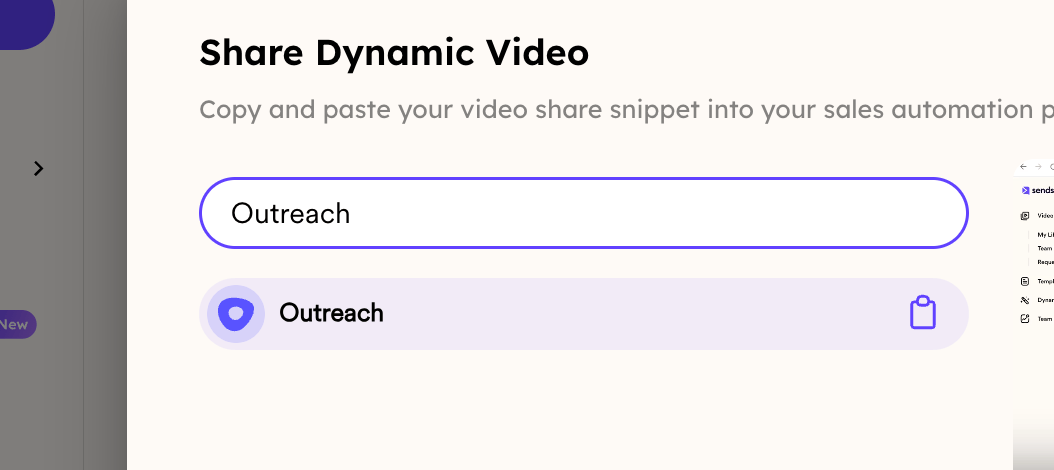
* Search for **Outreach**
* **Click on the Outreach logo** to copy the Sendspark video placeholder to your clipboard
## 3. Paste this directly in your Outreach Email Template
* Go to your Outreach sequence
* **Paste this**directly in your email template
Just like the other contact variables you might be using in your email (#########\{\{first\_name}}, #########\{\{company}}, etc.) this placeholder snippet will show the right video for every person, assuming that the video exists in Sendspark.
**Note:** This method will only work when you want every person in your sequence to receive a video from the **same Sendspark Dynamic Video campaign**. If you're using multiple senders for your Outreach email sequence, you will want to use a different approach.
Once you have the placeholder in your email, move on to the next section to automatically add your prospect into this campaign to send the personalized video emails.
## Part II. Automatically Add Prospects To Your Outreach Sequence
## 1. Create an Agentic Workflow Automation
* Go to [Sendspark Agentic Workflows](https://sendspark.com/agentic-workflows)
* Either **select an existing automation** or **create a new automation**
* **Add a Trigger** for the action that should trigger this workflow.
* This could be a trigger for any action that should create a video & add a prospect to a sequence (lead fills out a form, becomes qualified in CRM, is identified on your website, etc)
* Or, it could simply be that a Sendspark video was generated, if you want to to ensure that when you upload a list of contacts to Sendspark, after the video is generated, the prospect gets automatically added to an Outreach sequence to send the video email.
## 2. Add Action: Outreach - Find Prospect By Email Address
This step helps you find your prospect in Outreach by their email address. This is necessary to find their Outreach ID, which you will need in the next step.
In the **Email Address** field, select the **Contact Email**field from your Sendspark step.
This lets you look up the contact from Sendspark in Outreach.
**Note**: this is assuming that this contact already exists in Outreach. If the contact does not exist in Outreach, then you would want to use the **Outreach - Create Prospect** action instead.
## 3. Add Action: Outreach - Add Prospect to Sequence
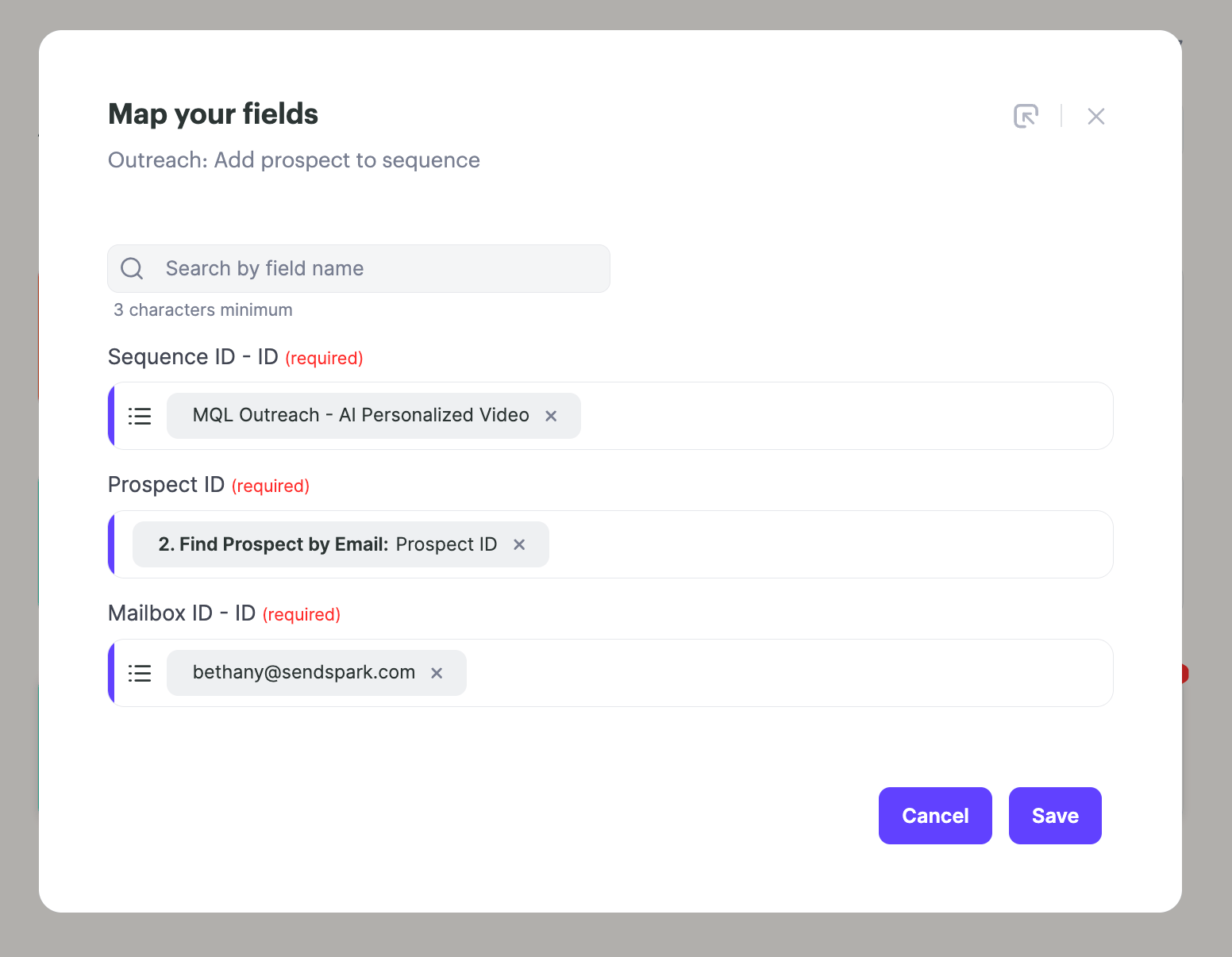
Now, you can add the next action for **Outreach - Add Prospect to Sequence**. Select the following options:
* \*\*Sequence ID:\*\*This the Outreach sequence that you are adding the contact to in Outreach. You will see all of your Outreach sequences here, and can select from the dropdown. If you don't see what you're looking for, hit \*\*"Update List"\*\*to refresh options.
* \*\*Prospect ID:\*\*This is the Outreach prospect ID. Select this from the previous "Find Prospect By Email" step
* **Mailbox ID:** This is the sender email address you'd like to use from Outreach
Altogether, the fields should look something like this:
| Field | What it is | Where it comes from |
| --------------- | -------------------------------------------------- | ------------------------------------------------------------------ |
| **Sequence ID** | The Outreach sequence you're adding the contact to | Select from the dropdown; click **Update List** to refresh options |
| **Prospect ID** | The Outreach prospect ID | Select from the previous **Find Prospect By Email** step |
| **Mailbox ID** | The sender email address to send from | Choose the Outreach mailbox you want to use |
## Part III. Start the Automation
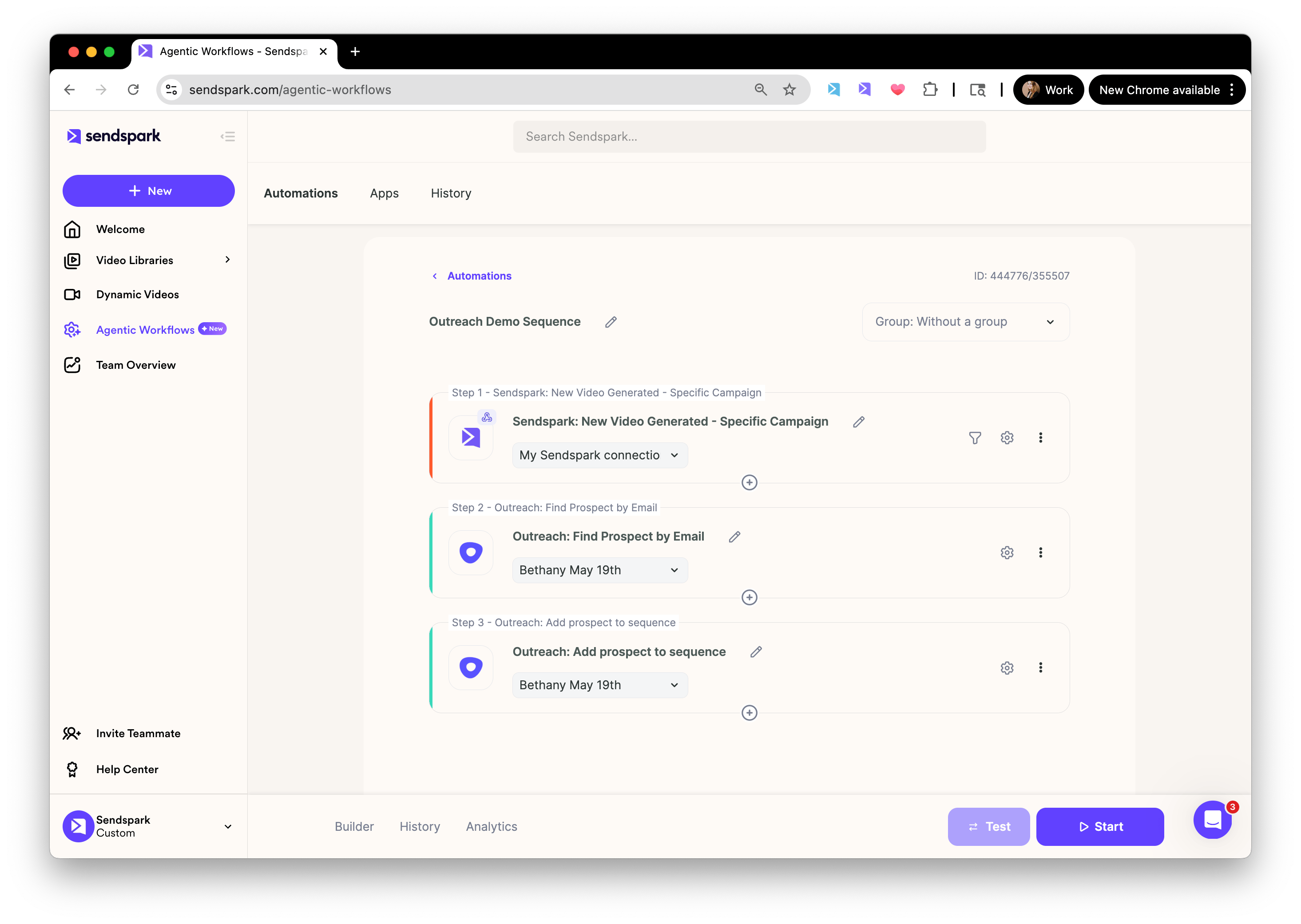
Once everything is set up, hit the Start button on the bottom right.
This will ensure that...
1. When the trigger is met...
2. You find the Prospect in Outreach
3. And then add the prospect to your Outreach Sequence
When your Sendspark video placeholder is already set up, to ensure that every prospect receives a personalized video for them 🚀
## Sending Videos in Outreach FAQ
## Q: How do I automatically create Sendspark videos when prospects get added into sequences?
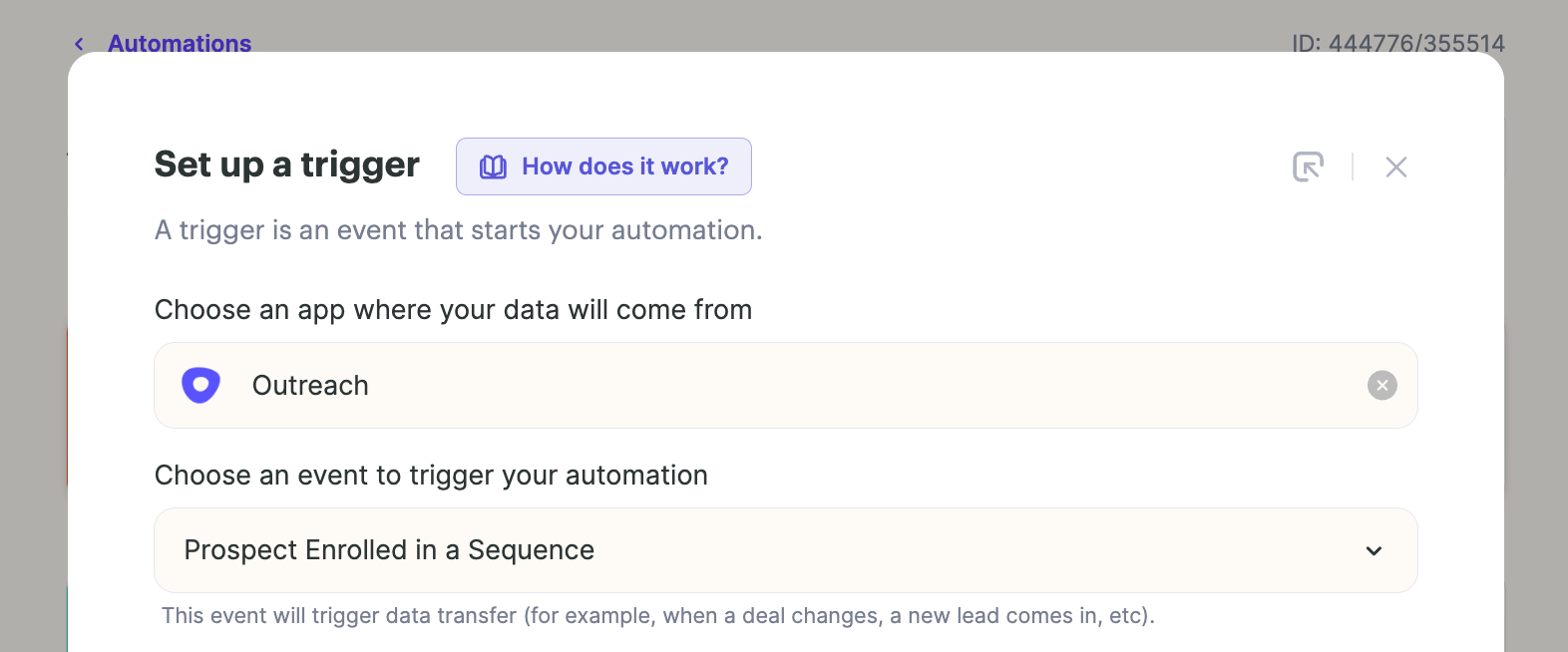
A: You can do this, but this is a different workflow! For this, you'll use the **trigger: Outreach - Prospect Enrolled in Sequence** and select the Outreach sequence you're targeting.
Then, add an action to automatically create a Sendspark video.
And, as long as you already have the Sendspark placeholder in your Outreach sequence and you leave an appropriate time delay for the video to be created (15 min or so), everything should work perfectly!
## Q: Why is my video not showing up in Outreach when I test?
A: The most common reason that folks do not see their Sendspark video in Outreach when testing is that they are previewing a contact for whom they have not actually created a Sendspark video for.
Please check that **both**:
1. You've created a video in Sendspark for the prospect you're testing in Outreach
2. The prospect has the same email address in both Outreach and Sendspark
## Q: Why is my prospect not being added to Outreach?
A: Double check that in your "Add Prospect to Sequence" step you're using the **Prospect ID** and NOT the Prospect email.
Remember that you can add a "Find Prospect By Email Address" step to find the email if needed!
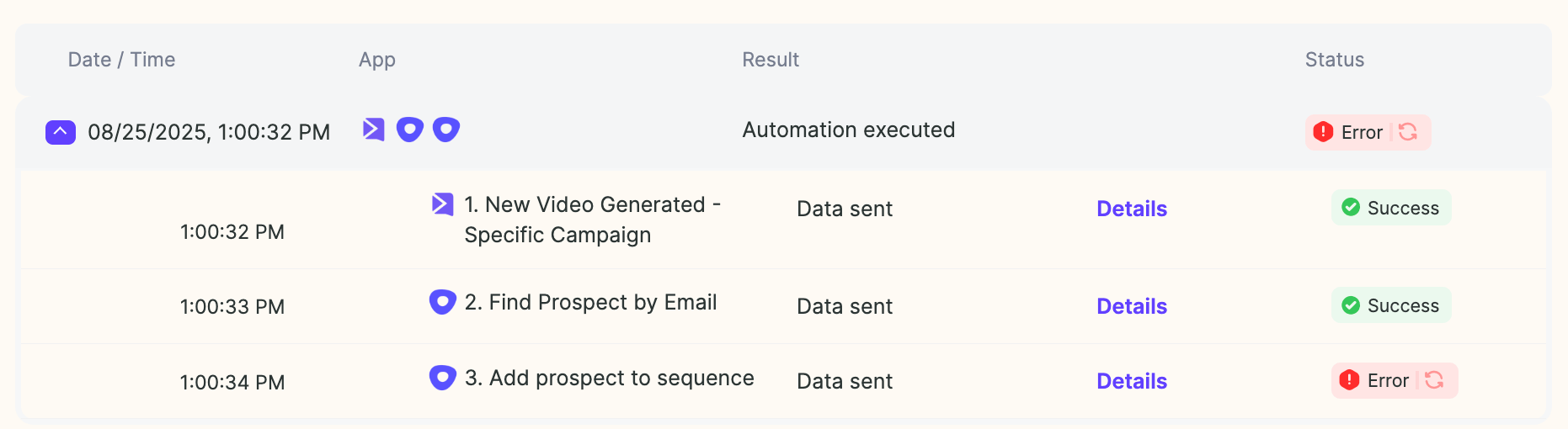
If you did this, but you're seeing an error like this:
The issue might be that that the**prospect does not exist in Outreach**. So even though you're looking up the prospect correctly, there is no prospect ID to be found!
In this case, you would need to use the **Outreach - Create Prospect** step before adding them to the campaign.
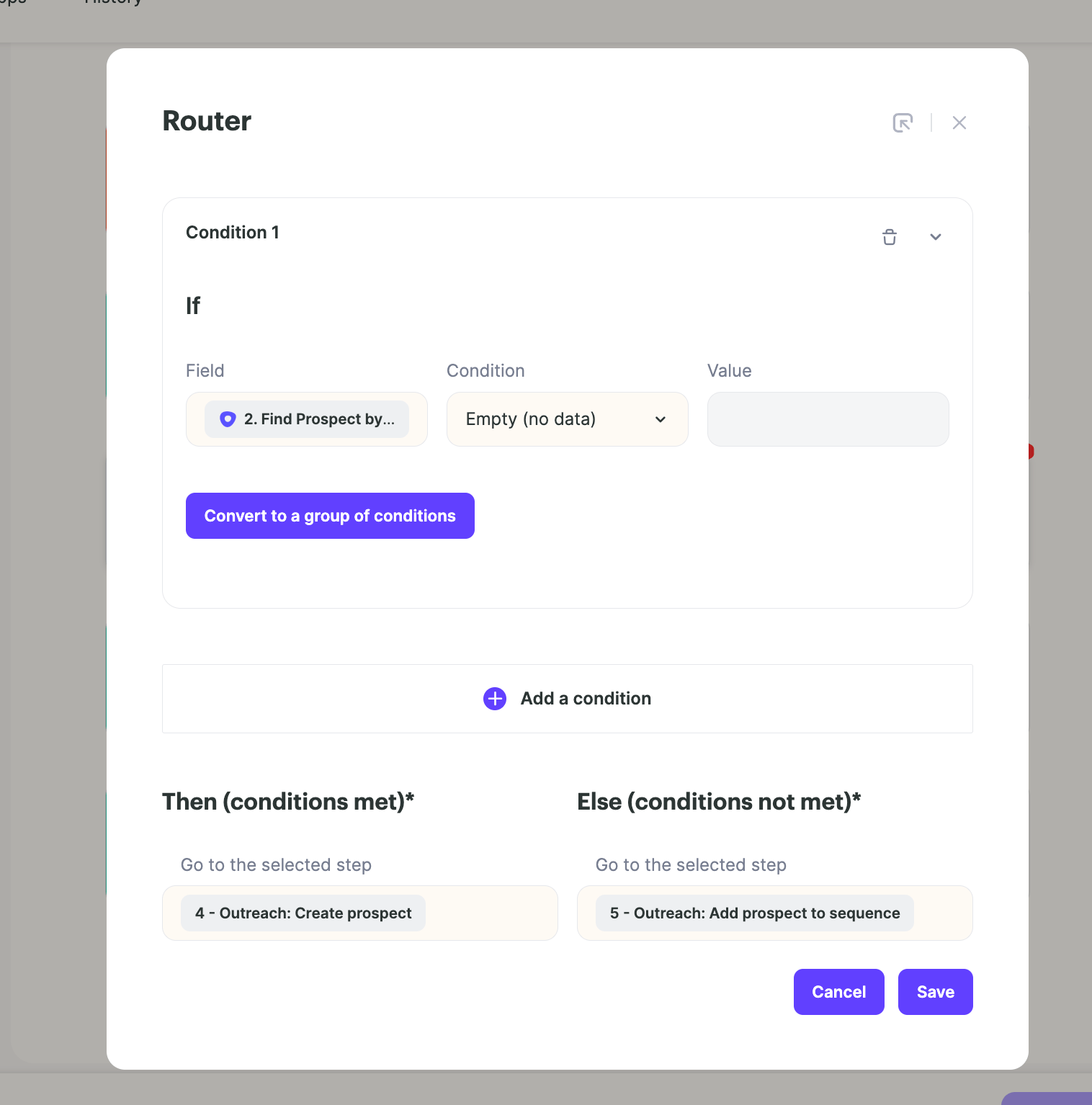
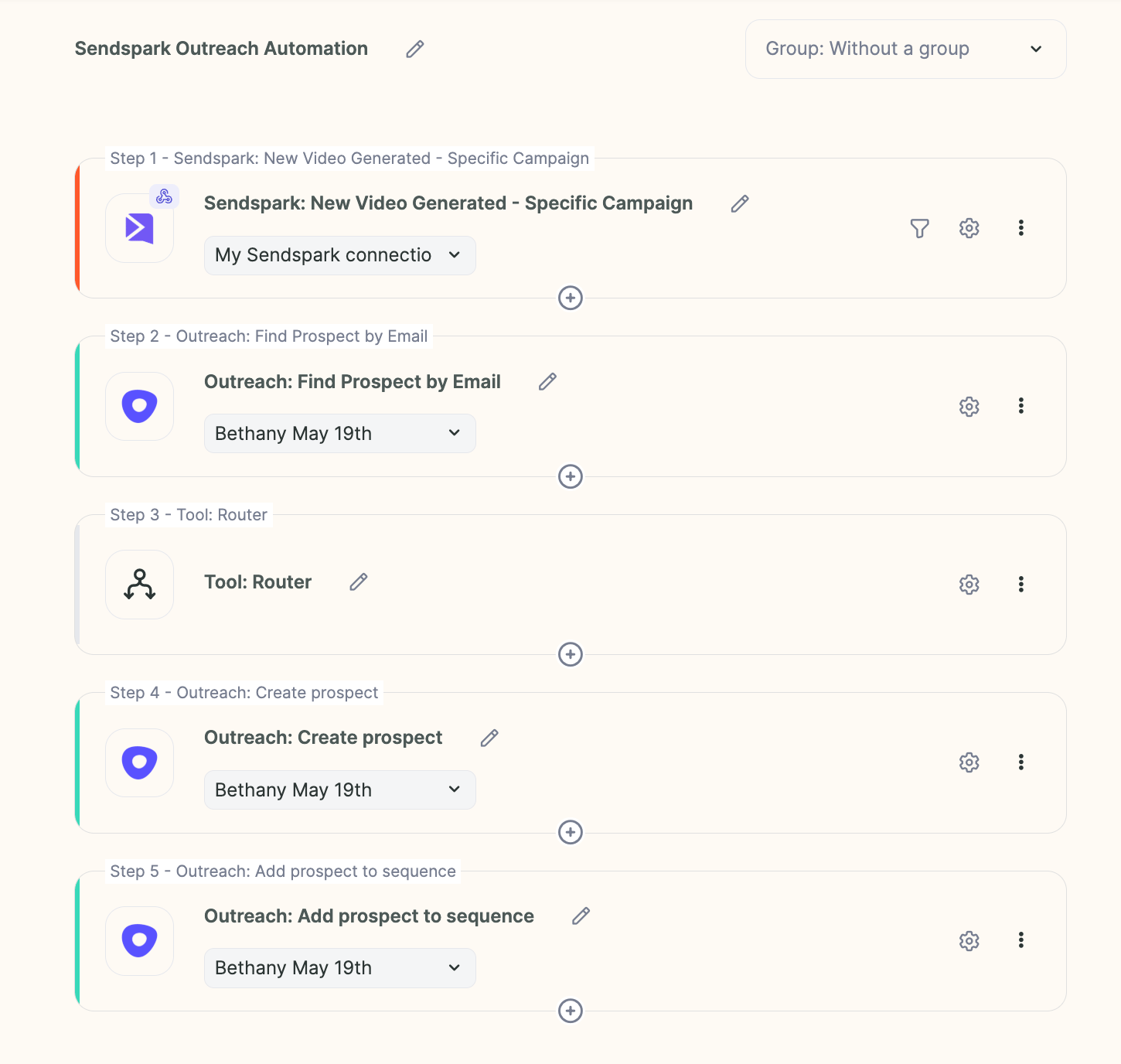
If your sequence could include a mix of new & existing prospects, you could add a router step to check if the prospect ID exists, and then create the prospect only if the prospect does not exist. It would look something like this:
**Router step:**
**Entire Automation:**
## Frequently asked questions
Paste your Sendspark video placeholder into an Outreach email template, then build a Sendspark Agentic Workflow that triggers on your chosen event, finds the prospect in Outreach by email address, and adds them to your sequence. Each prospect then receives the personalized video created for them.
The most common cause is previewing a contact you haven't actually created a Sendspark video for. Check that (1) you've created a video in Sendspark for the prospect you're testing, and (2) the prospect has the same email address in both Outreach and Sendspark.
Confirm your "Add Prospect to Sequence" step uses the **Prospect ID**, not the prospect email — add a "Find Prospect By Email Address" step to look it up. If you're still getting a "prospect not found" error, the prospect likely doesn't exist in Outreach yet, so add an **Outreach - Create Prospect** step first.
Yes, but it's a different workflow. Use the **trigger: Outreach - Prospect Enrolled in Sequence**, select your target sequence, then add an action to create a Sendspark video. Keep the Sendspark placeholder in your sequence and leave a time delay (around 15 minutes) for the video to generate.
No. This placeholder method works when every person in the sequence receives a video from the same Sendspark Dynamic Video campaign. If you're using multiple senders, you'll need a different approach.
*Updated July 2026.*
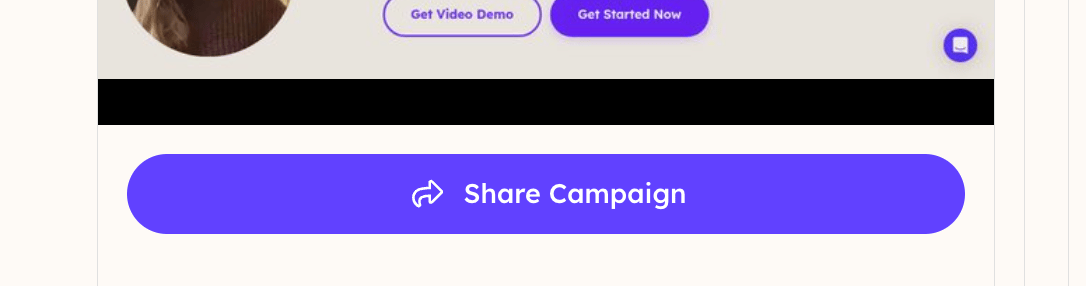 ## 2. Copy the Snippet for Outreach
* Search for **Outreach**
* **Click on the Outreach logo** to copy the Sendspark video placeholder to your clipboard
## 2. Copy the Snippet for Outreach
* Search for **Outreach**
* **Click on the Outreach logo** to copy the Sendspark video placeholder to your clipboard
 ## 3. Paste this directly in your Outreach Email Template
* Go to your Outreach sequence
* **Paste this**directly in your email template
## 3. Paste this directly in your Outreach Email Template
* Go to your Outreach sequence
* **Paste this**directly in your email template
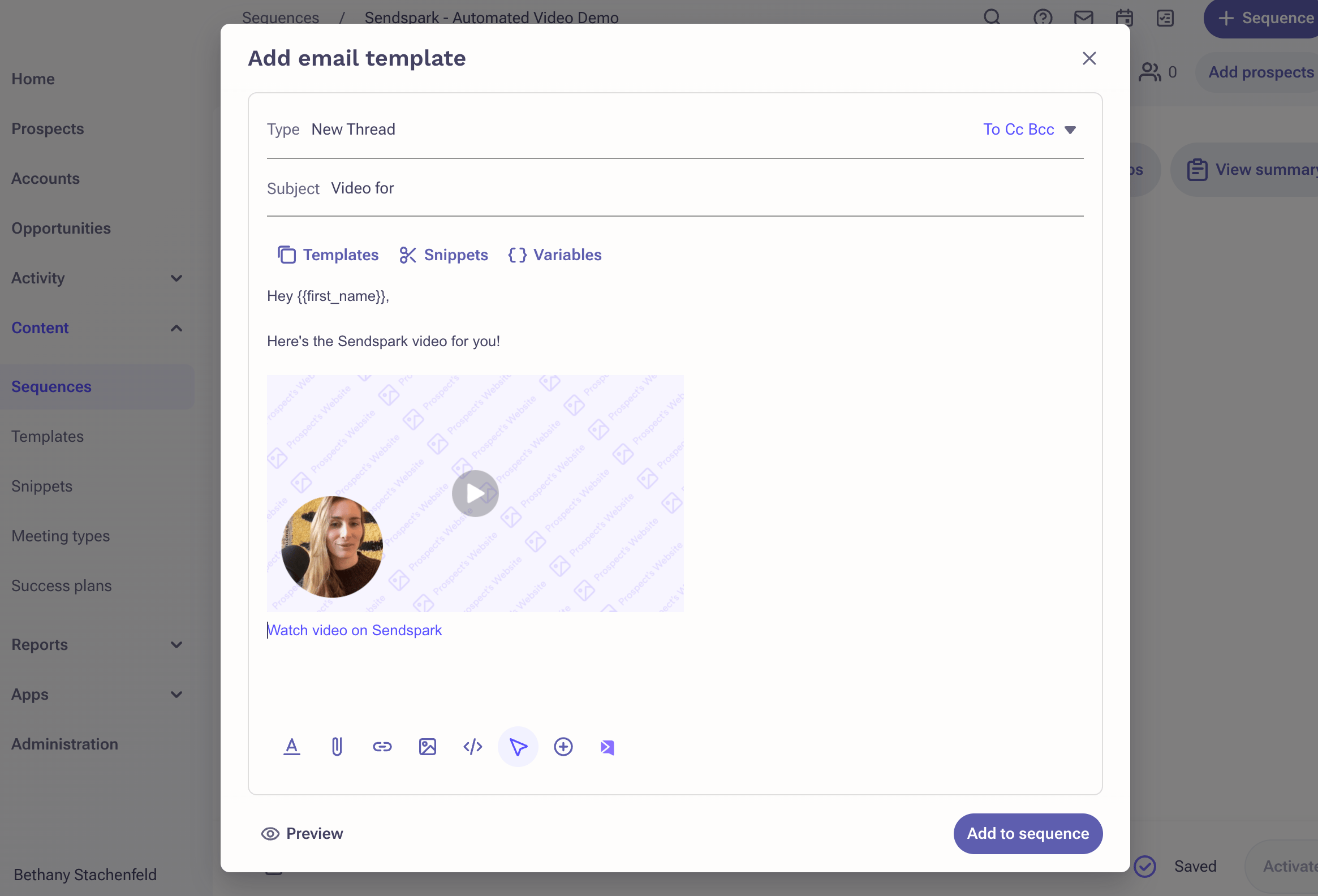 Just like the other contact variables you might be using in your email (#########\{\{first\_name}}, #########\{\{company}}, etc.) this placeholder snippet will show the right video for every person, assuming that the video exists in Sendspark.
**Note:** This method will only work when you want every person in your sequence to receive a video from the **same Sendspark Dynamic Video campaign**. If you're using multiple senders for your Outreach email sequence, you will want to use a different approach.
Once you have the placeholder in your email, move on to the next section to automatically add your prospect into this campaign to send the personalized video emails.
## Part II. Automatically Add Prospects To Your Outreach Sequence
## 1. Create an Agentic Workflow Automation
* Go to [Sendspark Agentic Workflows](https://sendspark.com/agentic-workflows)
* Either **select an existing automation** or **create a new automation**
* **Add a Trigger** for the action that should trigger this workflow.
* This could be a trigger for any action that should create a video & add a prospect to a sequence (lead fills out a form, becomes qualified in CRM, is identified on your website, etc)
* Or, it could simply be that a Sendspark video was generated, if you want to to ensure that when you upload a list of contacts to Sendspark, after the video is generated, the prospect gets automatically added to an Outreach sequence to send the video email.
## 2. Add Action: Outreach - Find Prospect By Email Address
This step helps you find your prospect in Outreach by their email address. This is necessary to find their Outreach ID, which you will need in the next step.
In the **Email Address** field, select the **Contact Email**field from your Sendspark step.
Just like the other contact variables you might be using in your email (#########\{\{first\_name}}, #########\{\{company}}, etc.) this placeholder snippet will show the right video for every person, assuming that the video exists in Sendspark.
**Note:** This method will only work when you want every person in your sequence to receive a video from the **same Sendspark Dynamic Video campaign**. If you're using multiple senders for your Outreach email sequence, you will want to use a different approach.
Once you have the placeholder in your email, move on to the next section to automatically add your prospect into this campaign to send the personalized video emails.
## Part II. Automatically Add Prospects To Your Outreach Sequence
## 1. Create an Agentic Workflow Automation
* Go to [Sendspark Agentic Workflows](https://sendspark.com/agentic-workflows)
* Either **select an existing automation** or **create a new automation**
* **Add a Trigger** for the action that should trigger this workflow.
* This could be a trigger for any action that should create a video & add a prospect to a sequence (lead fills out a form, becomes qualified in CRM, is identified on your website, etc)
* Or, it could simply be that a Sendspark video was generated, if you want to to ensure that when you upload a list of contacts to Sendspark, after the video is generated, the prospect gets automatically added to an Outreach sequence to send the video email.
## 2. Add Action: Outreach - Find Prospect By Email Address
This step helps you find your prospect in Outreach by their email address. This is necessary to find their Outreach ID, which you will need in the next step.
In the **Email Address** field, select the **Contact Email**field from your Sendspark step.
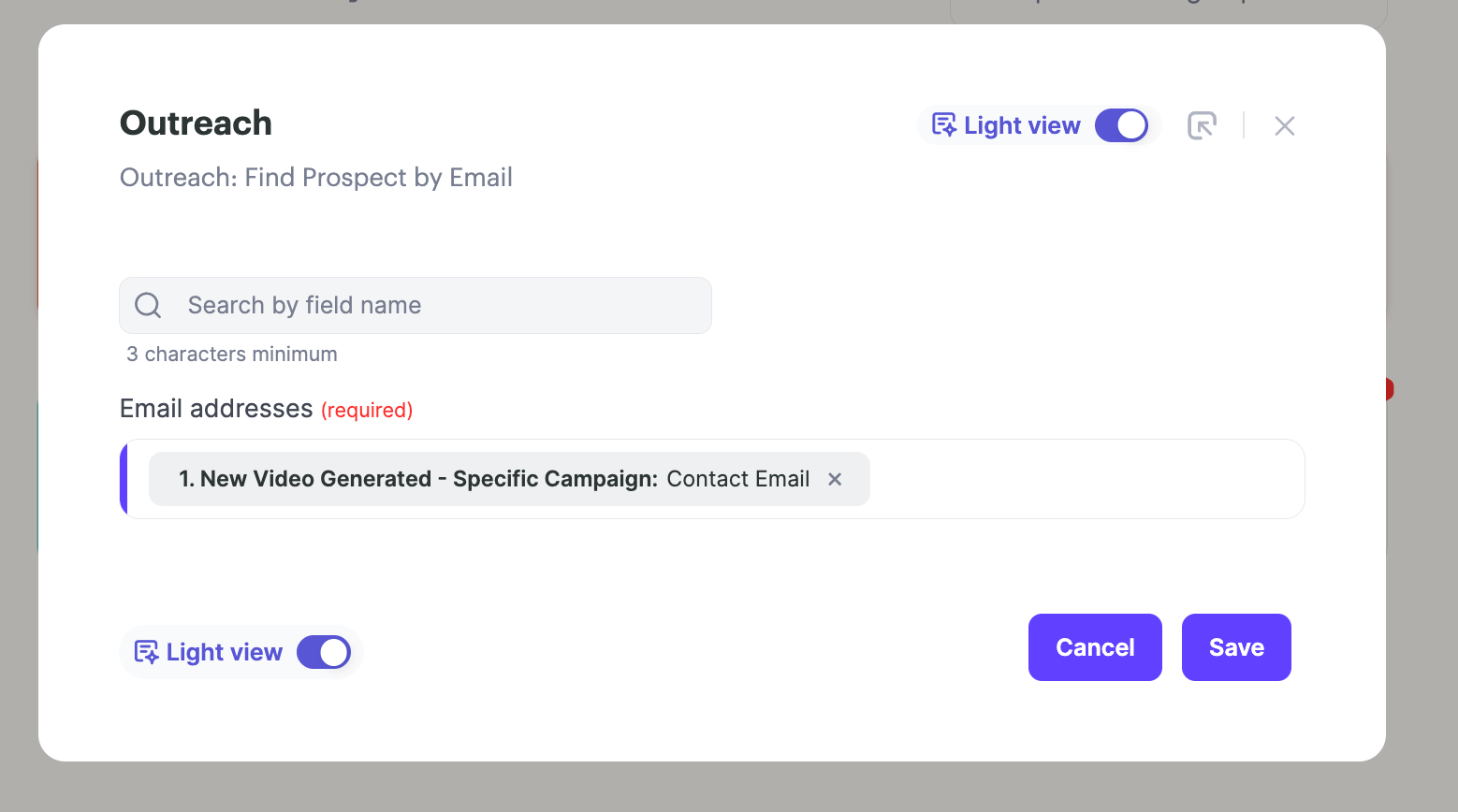 This lets you look up the contact from Sendspark in Outreach.
**Note**: this is assuming that this contact already exists in Outreach. If the contact does not exist in Outreach, then you would want to use the **Outreach - Create Prospect** action instead.
## 3. Add Action: Outreach - Add Prospect to Sequence
Now, you can add the next action for **Outreach - Add Prospect to Sequence**. Select the following options:
* \*\*Sequence ID:\*\*This the Outreach sequence that you are adding the contact to in Outreach. You will see all of your Outreach sequences here, and can select from the dropdown. If you don't see what you're looking for, hit \*\*"Update List"\*\*to refresh options.
* \*\*Prospect ID:\*\*This is the Outreach prospect ID. Select this from the previous "Find Prospect By Email" step
* **Mailbox ID:** This is the sender email address you'd like to use from Outreach
Altogether, the fields should look something like this:
| Field | What it is | Where it comes from |
| --------------- | -------------------------------------------------- | ------------------------------------------------------------------ |
| **Sequence ID** | The Outreach sequence you're adding the contact to | Select from the dropdown; click **Update List** to refresh options |
| **Prospect ID** | The Outreach prospect ID | Select from the previous **Find Prospect By Email** step |
| **Mailbox ID** | The sender email address to send from | Choose the Outreach mailbox you want to use |
This lets you look up the contact from Sendspark in Outreach.
**Note**: this is assuming that this contact already exists in Outreach. If the contact does not exist in Outreach, then you would want to use the **Outreach - Create Prospect** action instead.
## 3. Add Action: Outreach - Add Prospect to Sequence
Now, you can add the next action for **Outreach - Add Prospect to Sequence**. Select the following options:
* \*\*Sequence ID:\*\*This the Outreach sequence that you are adding the contact to in Outreach. You will see all of your Outreach sequences here, and can select from the dropdown. If you don't see what you're looking for, hit \*\*"Update List"\*\*to refresh options.
* \*\*Prospect ID:\*\*This is the Outreach prospect ID. Select this from the previous "Find Prospect By Email" step
* **Mailbox ID:** This is the sender email address you'd like to use from Outreach
Altogether, the fields should look something like this:
| Field | What it is | Where it comes from |
| --------------- | -------------------------------------------------- | ------------------------------------------------------------------ |
| **Sequence ID** | The Outreach sequence you're adding the contact to | Select from the dropdown; click **Update List** to refresh options |
| **Prospect ID** | The Outreach prospect ID | Select from the previous **Find Prospect By Email** step |
| **Mailbox ID** | The sender email address to send from | Choose the Outreach mailbox you want to use |
 ## Part III. Start the Automation
Once everything is set up, hit the Start button on the bottom right.
## Part III. Start the Automation
Once everything is set up, hit the Start button on the bottom right.
 This will ensure that...
1. When the trigger is met...
2. You find the Prospect in Outreach
3. And then add the prospect to your Outreach Sequence
When your Sendspark video placeholder is already set up, to ensure that every prospect receives a personalized video for them 🚀
## Sending Videos in Outreach FAQ
## Q: How do I automatically create Sendspark videos when prospects get added into sequences?
A: You can do this, but this is a different workflow! For this, you'll use the **trigger: Outreach - Prospect Enrolled in Sequence** and select the Outreach sequence you're targeting.
This will ensure that...
1. When the trigger is met...
2. You find the Prospect in Outreach
3. And then add the prospect to your Outreach Sequence
When your Sendspark video placeholder is already set up, to ensure that every prospect receives a personalized video for them 🚀
## Sending Videos in Outreach FAQ
## Q: How do I automatically create Sendspark videos when prospects get added into sequences?
A: You can do this, but this is a different workflow! For this, you'll use the **trigger: Outreach - Prospect Enrolled in Sequence** and select the Outreach sequence you're targeting.
 Then, add an action to automatically create a Sendspark video.
And, as long as you already have the Sendspark placeholder in your Outreach sequence and you leave an appropriate time delay for the video to be created (15 min or so), everything should work perfectly!
## Q: Why is my video not showing up in Outreach when I test?
A: The most common reason that folks do not see their Sendspark video in Outreach when testing is that they are previewing a contact for whom they have not actually created a Sendspark video for.
Please check that **both**:
1. You've created a video in Sendspark for the prospect you're testing in Outreach
2. The prospect has the same email address in both Outreach and Sendspark
## Q: Why is my prospect not being added to Outreach?
A: Double check that in your "Add Prospect to Sequence" step you're using the **Prospect ID** and NOT the Prospect email.
Remember that you can add a "Find Prospect By Email Address" step to find the email if needed!
If you did this, but you're seeing an error like this:
Then, add an action to automatically create a Sendspark video.
And, as long as you already have the Sendspark placeholder in your Outreach sequence and you leave an appropriate time delay for the video to be created (15 min or so), everything should work perfectly!
## Q: Why is my video not showing up in Outreach when I test?
A: The most common reason that folks do not see their Sendspark video in Outreach when testing is that they are previewing a contact for whom they have not actually created a Sendspark video for.
Please check that **both**:
1. You've created a video in Sendspark for the prospect you're testing in Outreach
2. The prospect has the same email address in both Outreach and Sendspark
## Q: Why is my prospect not being added to Outreach?
A: Double check that in your "Add Prospect to Sequence" step you're using the **Prospect ID** and NOT the Prospect email.
Remember that you can add a "Find Prospect By Email Address" step to find the email if needed!
If you did this, but you're seeing an error like this:
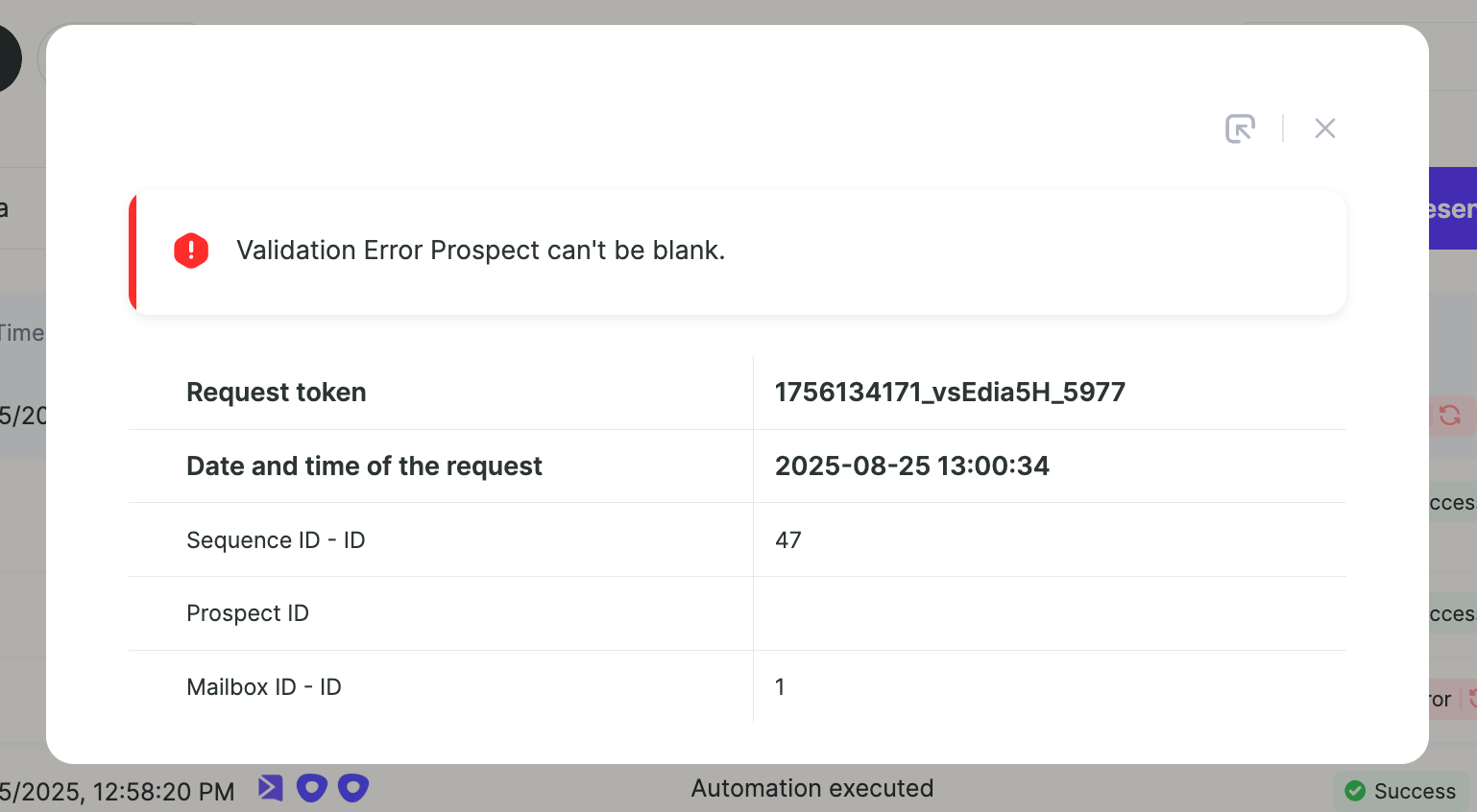 The issue might be that that the**prospect does not exist in Outreach**. So even though you're looking up the prospect correctly, there is no prospect ID to be found!
In this case, you would need to use the **Outreach - Create Prospect** step before adding them to the campaign.
If your sequence could include a mix of new & existing prospects, you could add a router step to check if the prospect ID exists, and then create the prospect only if the prospect does not exist. It would look something like this:
**Router step:**
The issue might be that that the**prospect does not exist in Outreach**. So even though you're looking up the prospect correctly, there is no prospect ID to be found!
In this case, you would need to use the **Outreach - Create Prospect** step before adding them to the campaign.
If your sequence could include a mix of new & existing prospects, you could add a router step to check if the prospect ID exists, and then create the prospect only if the prospect does not exist. It would look something like this:
**Router step:**
 **Entire Automation:**
 ## Frequently asked questions