> ## Documentation Index
> Fetch the complete documentation index at: https://help.sendspark.com/llms.txt
> Use this file to discover all available pages before exploring further.
# Outlook — Send Video Emails
> Learn how to send video emails in Outlook using static thumbnails to avoid compatibility issues with embedded videos and GIFs.
To send a video email in Outlook, record or upload your video, click Share and then Customize, open Edit Preview, and select the **Static** thumbnail option (not Animated). Then paste it into your email draft. Outlook is finicky about images and video, so always use Static and never embed a video or use a GIF.
## Key takeaways
* Outlook is extra finicky about supporting images and videos, so always use the **Static** thumbnail option.
* Do NOT try to embed a video or use a GIF in Outlook.
* Send a video in five steps: record or upload your video, click Share then Customize, click Edit Preview, choose Static, then paste into your email draft.
Outlook is extra finicky about supporting images and videos, soplease use the**Static**thumbnail option. (Do NOT try to embed a video or use a GIF).
***
To share a video in Outlook:
1. Record or upload your video.
2. Click **Share**and then click on**Customize**
 3. At the bottom, click on the middle option **Edit Preview**
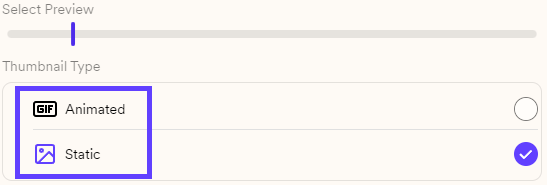
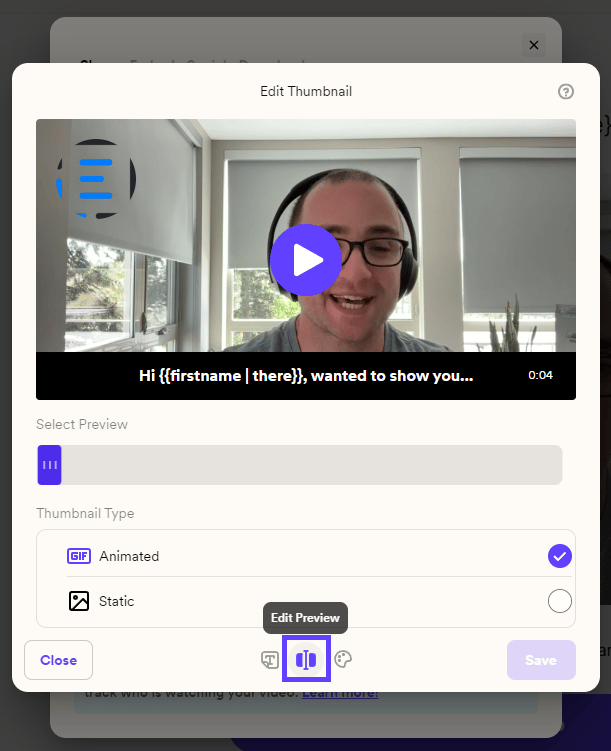 4. And finally, You will see **Animated**& **Static.**For this particular case, only use**Static**
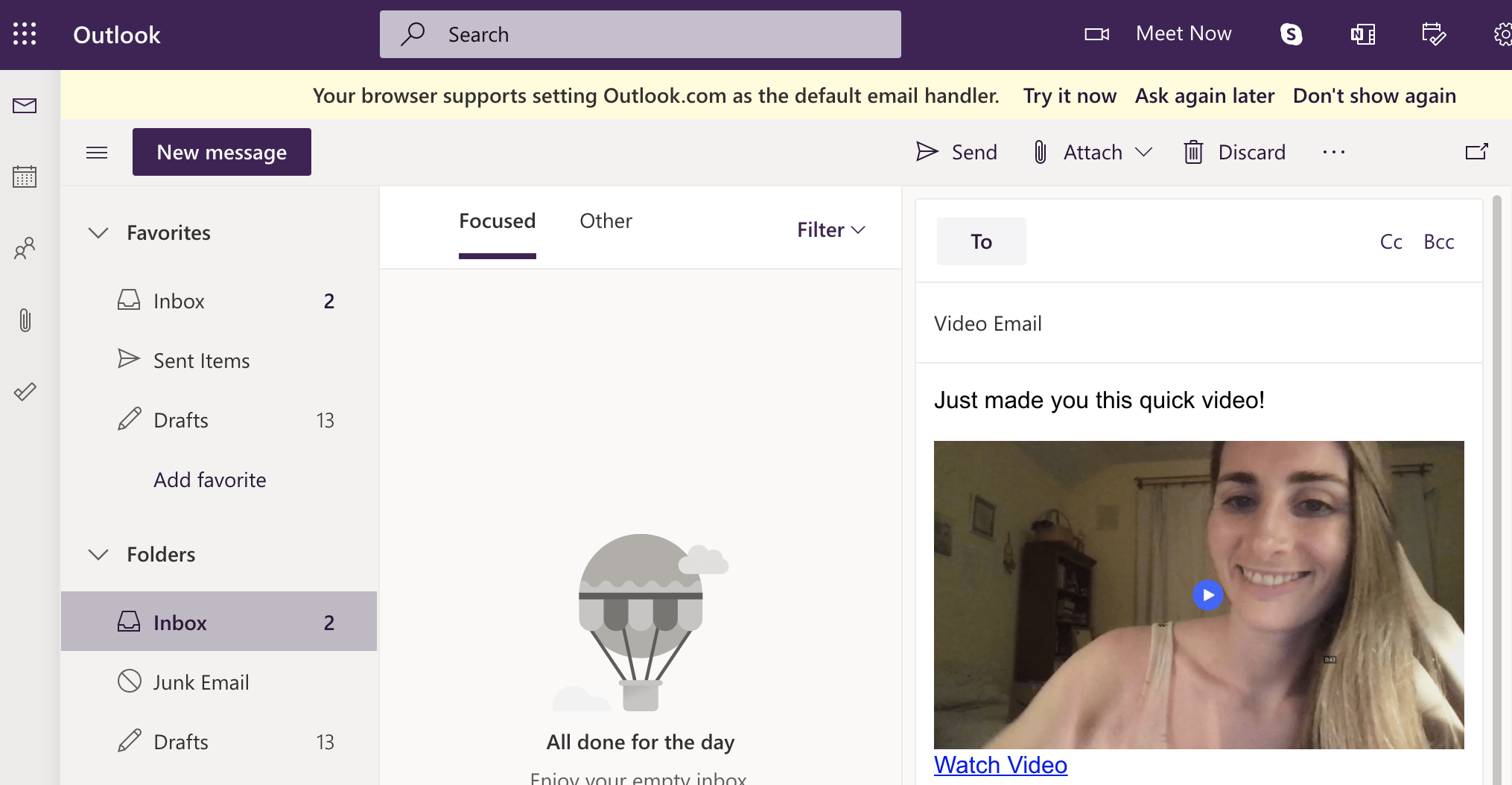
 \*\*5)\*\*Paste into your email draft
 ## Frequently asked questions
No. Outlook is extra finicky about supporting images and videos, so you should not try to embed a video or use a GIF. Use the Static thumbnail option instead.
Use Static. When you open Edit Preview you'll see Animated and Static options, and for Outlook you should only use Static.
Click Share and then Customize, then click the Edit Preview option at the bottom. From there you can choose between the Animated and Static thumbnail types.
*Updated July 2026.*
## Frequently asked questions
No. Outlook is extra finicky about supporting images and videos, so you should not try to embed a video or use a GIF. Use the Static thumbnail option instead.
Use Static. When you open Edit Preview you'll see Animated and Static options, and for Outlook you should only use Static.
Click Share and then Customize, then click the Edit Preview option at the bottom. From there you can choose between the Animated and Static thumbnail types.
*Updated July 2026.*