> ## Documentation Index
> Fetch the complete documentation index at: https://help.sendspark.com/llms.txt
> Use this file to discover all available pages before exploring further.
# Multiple Variables in Dynamic Videos
> Learn how to create dynamic videos with multiple variables in Sendspark. Personalize with first name, company, and job title easily.
Dynamic Videos in Sendspark support up to three variables per video: First Name, Company Name, and Job Title. Record once using real names or placeholder words, mark those words as variables in the editor, and AI voice cloning swaps in each recipient's details when the video renders. This feature is currently in private beta.
## Key takeaways
* Each Multiple Variable video can personalize up to three fields: First Name, Company Name, and Job Title.
* The feature is in private beta on the Growth plan and above (not Solo); request access in-app, and approval typically takes up to 48 business hours.
* Record as if speaking to one person, using either real names or fallback words, then mark those words as variables in the editor.
* While in beta, campaigns are capped at 250 videos and rendering can take from 15 minutes up to 2 or 3 days depending on demand.
This feature is currently in **private beta**! Please write in via our chatbot to have it enabled for your account :) (Not available in the Solo plan, Only Growth plan and above)
Activation typically takes up to 48 business hours after submitting your request.
## What Are Multiple Variable Videos?
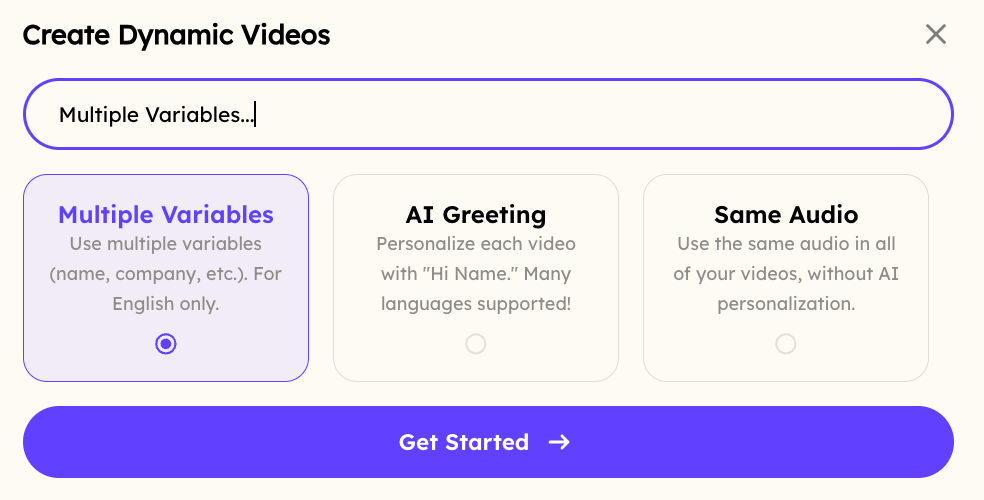
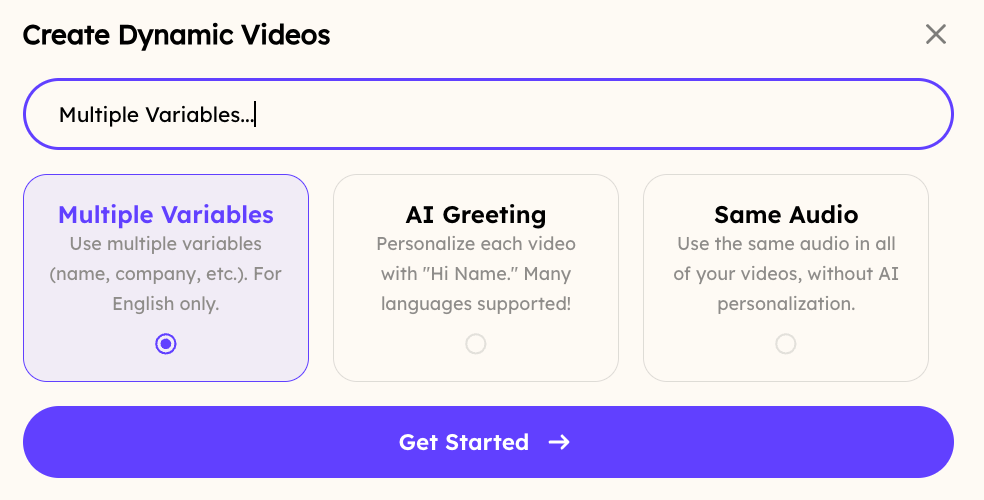
Dynamic Videos now support **up to three different variables** per video. Once Multiple Variables are enabled in your account, you'll have to select the option upon clicking on Create Dynamic Video:
You will then be able to select any word in your video to replace with one of these variables:
* First Name
* Company Name
* Job Title
## How to Create Videos with Multiple Variable in Sendspark
## 1. Create a Dynamic Video Campaign
Go to the [dynamic video campaign section](https://sendspark.com/dynamic-videos) in Sendspark, and click **"Create Dynamic Video"**
If you do not see the option, you may need to request access to the Multiple Variables beta feature.
## 2. Select the "Multiple Variable" Option
## Requesting Access to the Multiple Variables Feature
To enable the Multiple Variables feature, navigate to the Dynamic Videos section in Sendspark and locate the option to request access. Submit your request and wait for approval, which typically takes up to 48 business hours.
Name your campaign, and select "Multiple Variable" as the video type:
 ## 3. Record your video
Record your video as if you're speaking to one person.
You can either use their name "Hi **Dan**, I was looking at **Sendspark**..." or use fallback words, like "Hi **there**, I was looking at **your company**..."
## 4. Select Your Variables
In the editor, select the words you spoke (e.g., “First Name”, “Company”, “Job Title”) and mark them as variables.
## 3. Record your video
Record your video as if you're speaking to one person.
You can either use their name "Hi **Dan**, I was looking at **Sendspark**..." or use fallback words, like "Hi **there**, I was looking at **your company**..."
## 4. Select Your Variables
In the editor, select the words you spoke (e.g., “First Name”, “Company”, “Job Title”) and mark them as variables.
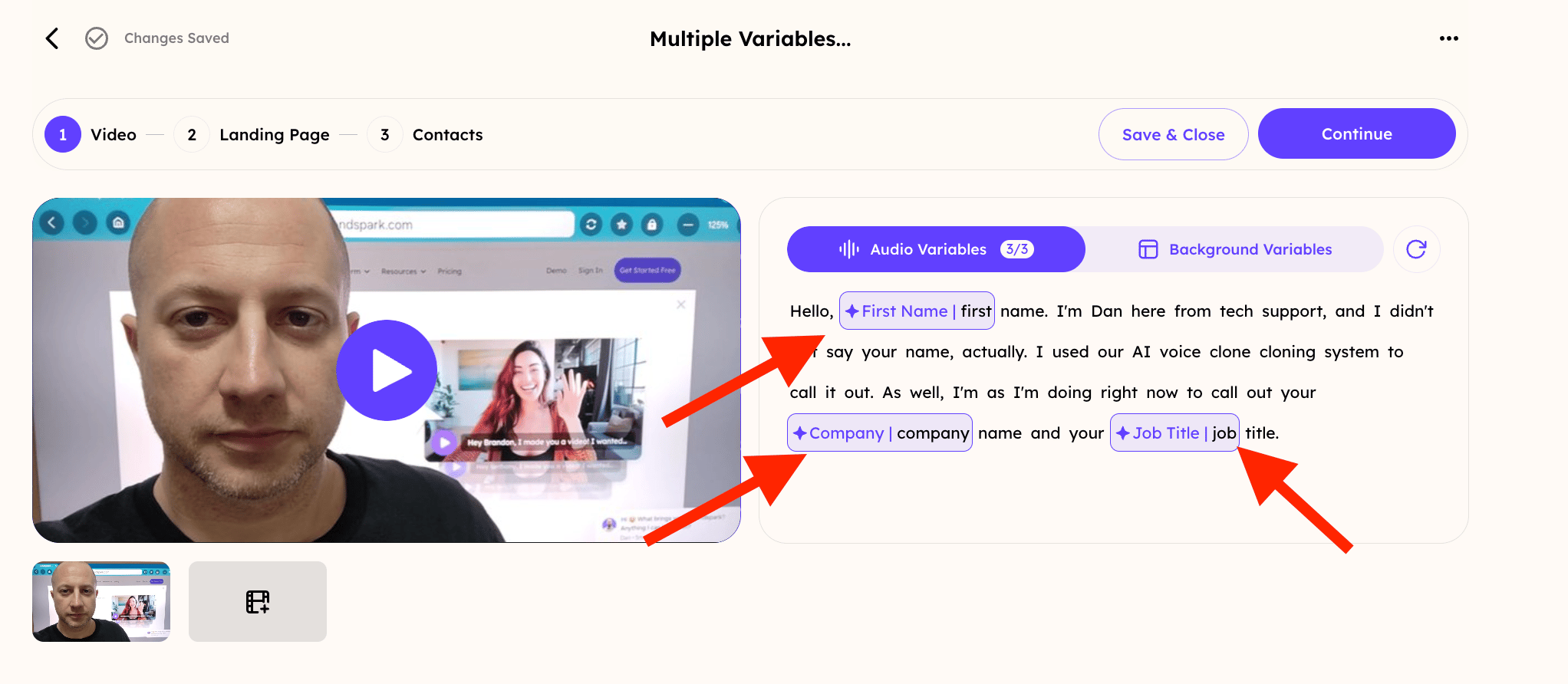 This allows the **AI voice cloning** system to replace those specific words with the personalized values when the video is rendered.
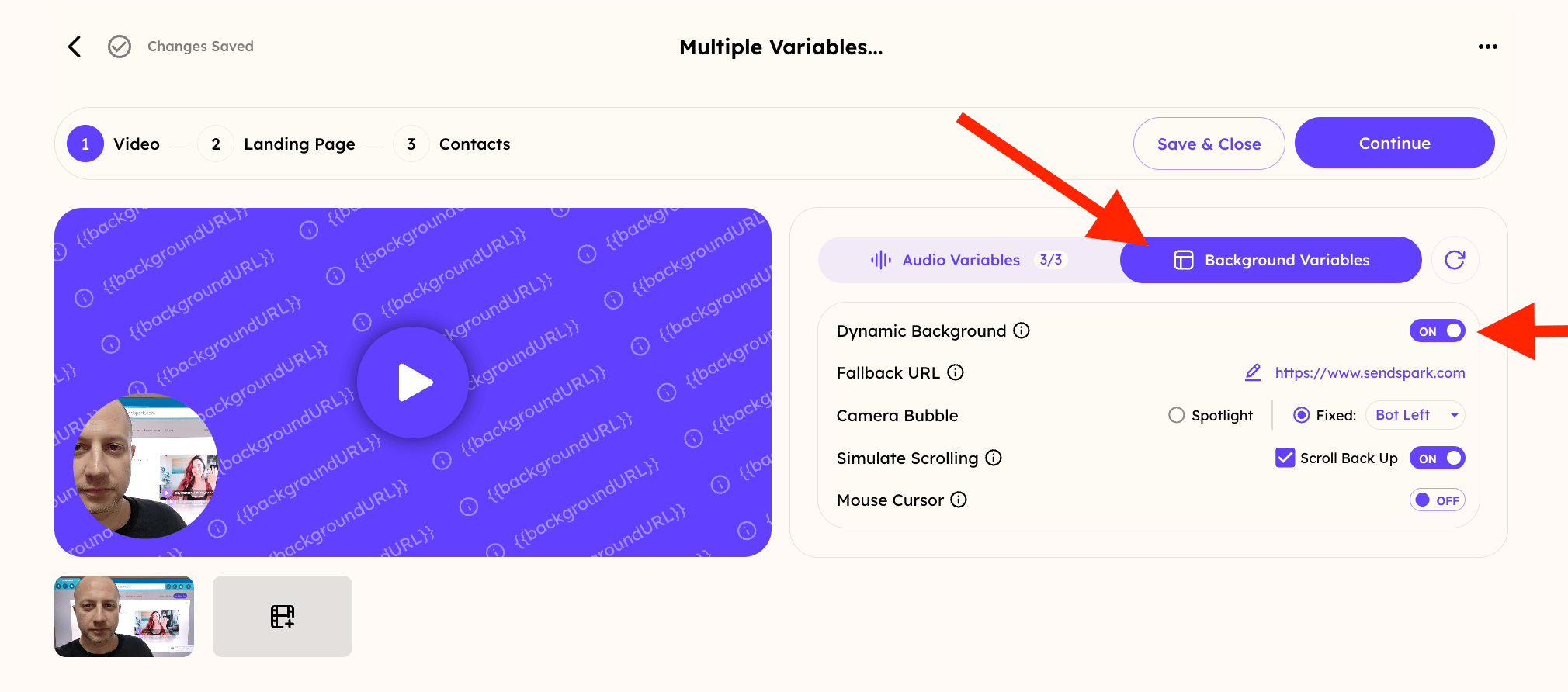
Once you select each word that you want to activate as a variable, be sure to confirm the Background options:
This allows the **AI voice cloning** system to replace those specific words with the personalized values when the video is rendered.
Once you select each word that you want to activate as a variable, be sure to confirm the Background options:
 ## 5. Save and use the video in your campaign.
When the video is delivered, the AI will dynamically insert the correct values for each variable.
## Multiple Variable FAQ
## How many videos can I generate at one time?
While this feature is in beta stage, multiple variable campaigns are limited to 250 videos.
## Do I need to start my video with "Hey Watermelon?"
Not anymore! You can record your video using any placeholder word when using Sendspark's multiple variable feature.
The "Watermelon" placeholder is only required when creating an "AI Greeting" type dynamic video.
## 5. Save and use the video in your campaign.
When the video is delivered, the AI will dynamically insert the correct values for each variable.
## Multiple Variable FAQ
## How many videos can I generate at one time?
While this feature is in beta stage, multiple variable campaigns are limited to 250 videos.
## Do I need to start my video with "Hey Watermelon?"
Not anymore! You can record your video using any placeholder word when using Sendspark's multiple variable feature.
The "Watermelon" placeholder is only required when creating an "AI Greeting" type dynamic video.
 ## How long does it take to generate a "Multiple Variable" video?
While the feature is in beta, the rendering time can be affected by high demand, as the feature is limited to avoid instability. During low demand, it can take up to 15 minutes. But during high demand, it could take up to 2 or 3 days, depending on the circumstances.
## When would I still create an "AI Greeting" video over a "Multiple Variable" type dynamic video?
If you are creating a video with multiple variables, then of course you want to select the "Multiple Variable" option.
However, if you are only planning to change the greeting "Hi Name", then you might want to use the AI Greeting type because...
* AI Greeting videos generate faster
* You can import a higher volume of videos at one time with AI Greeting videos
* More languages are supported with AI Greeting videos
## Frequently asked questions
While the feature is in beta, Multiple Variable campaigns are limited to 250 videos.
No. You can record your video using any placeholder word with the Multiple Variable feature. The "Watermelon" placeholder is only required when creating an AI Greeting type dynamic video.
During low demand it can take up to 15 minutes. During high demand it could take up to 2 or 3 days, since the feature is limited while in beta to avoid instability.
Use AI Greeting when you only need to change the greeting ("Hi Name"). AI Greeting videos generate faster, let you import a higher volume at once, and support more languages. Choose Multiple Variable when you need to personalize several words in the video.
*Updated July 2026.*
## How long does it take to generate a "Multiple Variable" video?
While the feature is in beta, the rendering time can be affected by high demand, as the feature is limited to avoid instability. During low demand, it can take up to 15 minutes. But during high demand, it could take up to 2 or 3 days, depending on the circumstances.
## When would I still create an "AI Greeting" video over a "Multiple Variable" type dynamic video?
If you are creating a video with multiple variables, then of course you want to select the "Multiple Variable" option.
However, if you are only planning to change the greeting "Hi Name", then you might want to use the AI Greeting type because...
* AI Greeting videos generate faster
* You can import a higher volume of videos at one time with AI Greeting videos
* More languages are supported with AI Greeting videos
## Frequently asked questions
While the feature is in beta, Multiple Variable campaigns are limited to 250 videos.
No. You can record your video using any placeholder word with the Multiple Variable feature. The "Watermelon" placeholder is only required when creating an AI Greeting type dynamic video.
During low demand it can take up to 15 minutes. During high demand it could take up to 2 or 3 days, since the feature is limited while in beta to avoid instability.
Use AI Greeting when you only need to change the greeting ("Hi Name"). AI Greeting videos generate faster, let you import a higher volume at once, and support more languages. Choose Multiple Variable when you need to personalize several words in the video.
*Updated July 2026.*