> ## Documentation Index
> Fetch the complete documentation index at: https://help.sendspark.com/llms.txt
> Use this file to discover all available pages before exploring further.
# Move Videos Between Personal and Team Libraries
> Learn how to move videos between personal and team libraries in Sendspark to share access and organize your video content effectively.
Sendspark has three libraries: My Library, Team Library, and Request Videos. Only you can access My Library, while everyone on your account can access Team Library and Request Videos. To share a video with teammates, click the Move icon next to it, pick the destination library and folder, then click Move.
## Key takeaways
* You have three libraries: **My Library** (only you), **Team Library**, and **Request Videos**. Every team member on your account can access and manage videos in Team Library and Request Videos.
* By default, all videos recorded from the Chrome Extension appear in **My Library**.
* To let teammates view or edit a video you created, move it into the Team Library.
* Move a video by clicking the **Move** icon next to it, selecting the destination library and folder, and clicking **Move**; a toast confirms it moved successfully.
## **Why Move Videos Between Folders**
In Sendspark, you have 3 libraries: **(1) My Library**, **(2) Team Library**, and **(3) Request Videos**.
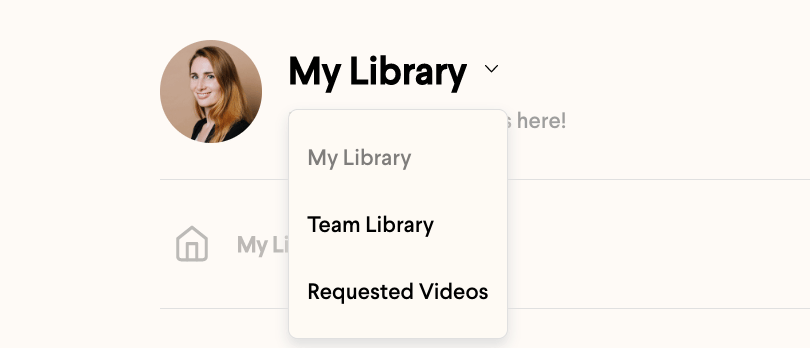 Only you can access videos in "**My Library"**.
However, every team member on your Sendspark account can access and manage videos in "**Team Library"**and**"Request Videos"**.
***
By default, all videos recorded from the Chrome Extension will appear in "**My Library".**
If you want other people on your team to be able to view or edit a video you've created, you can move it to the Team Library.
***
## How to Move Videos Between Folders
1. To move a video into another library click on the **Move** icon next to the video.
Only you can access videos in "**My Library"**.
However, every team member on your Sendspark account can access and manage videos in "**Team Library"**and**"Request Videos"**.
***
By default, all videos recorded from the Chrome Extension will appear in "**My Library".**
If you want other people on your team to be able to view or edit a video you've created, you can move it to the Team Library.
***
## How to Move Videos Between Folders
1. To move a video into another library click on the **Move** icon next to the video.
 2. You'll see a modal pop up where you can select the library and folder where you want to organize your video.
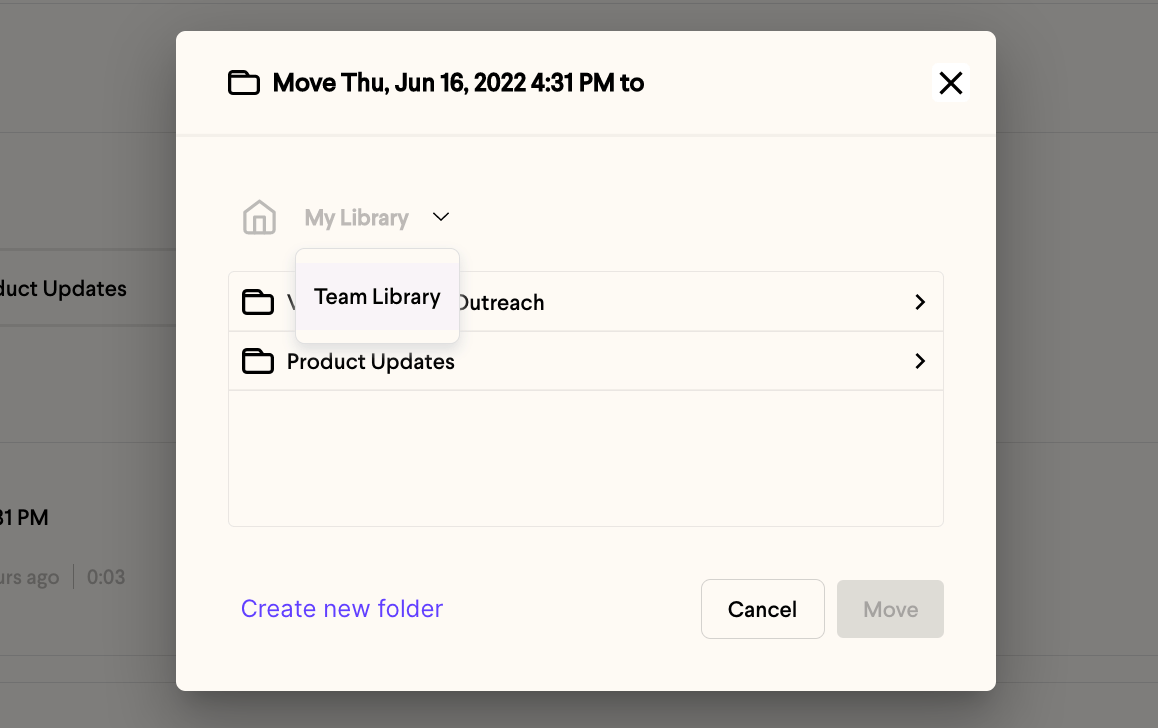 3. When you have selected the new destination, click **Move**.
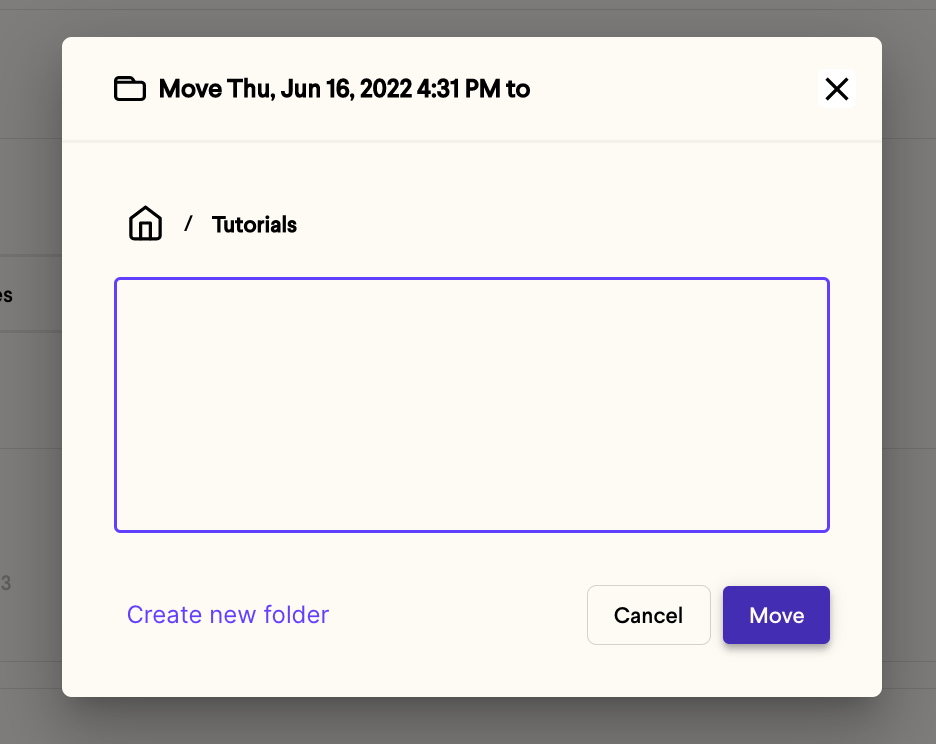 4. You'll see a toast confirming that your video was moved successfully.
 That's it! Happy organizing!
## Frequently asked questions
Sendspark has My Library, Team Library, and Request Videos. My Library is private to you, while Team Library and Request Videos can be accessed and managed by every team member on your Sendspark account.
By default, all videos recorded from the Chrome Extension appear in My Library. If you want teammates to view or edit one, move it to the Team Library.
Click the Move icon next to the video, choose the destination library and folder in the modal that pops up, then click Move. You'll see a toast confirming the video was moved successfully.
No. Only you can access videos in My Library. To let other people on your team view or edit a video, move it into the Team Library.
*Updated July 2026.*
That's it! Happy organizing!
## Frequently asked questions
Sendspark has My Library, Team Library, and Request Videos. My Library is private to you, while Team Library and Request Videos can be accessed and managed by every team member on your Sendspark account.
By default, all videos recorded from the Chrome Extension appear in My Library. If you want teammates to view or edit one, move it to the Team Library.
Click the Move icon next to the video, choose the destination library and folder in the modal that pops up, then click Move. You'll see a toast confirming the video was moved successfully.
No. Only you can access videos in My Library. To let other people on your team view or edit a video, move it into the Team Library.
*Updated July 2026.*