> ## Documentation Index
> Fetch the complete documentation index at: https://help.sendspark.com/llms.txt
> Use this file to discover all available pages before exploring further.
# Mixmax — Send Personalized Videos at Scale
> Learn how to send personalized Sendspark videos through Mixmax. Step-by-step guide to integrating Sendspark with Mixmax for video outreach at scale.
To send personalized videos in Mixmax, record or upload your video in Sendspark, customize the header, message, and thumbnail with placeholders, then click **Share Video** and select **Mixmax**. Paste the snippet into a Mixmax template and use it in your emails. Each recipient's video personalizes automatically with their first name, company name, and job title.
## Key takeaways
* Personalize the **video header**, **message**, and **thumbnail** with placeholders that pull each contact's info from Mixmax.
* Share via **Share Video → Mixmax**; if Mixmax isn't listed, [modify your share modal](/how-to-modify-shortcuts-on-share-modal).
* Paste the snippet into a **Mixmax template**, then use that template when sending in Mixmax or Gmail via the Mixmax extension.
* The snippet pastes large — resize it by dragging the bottom-right corner of the thumbnail inward.
Send personalized videos in Mixmax emails to cut through the noise and connect at scale.
Sendspark makes it easy to automatically pull in your viewer's first name, company name, and job title, just follow the steps below!
## How to Send Bulk Personalized Videos in Mixmax Emails
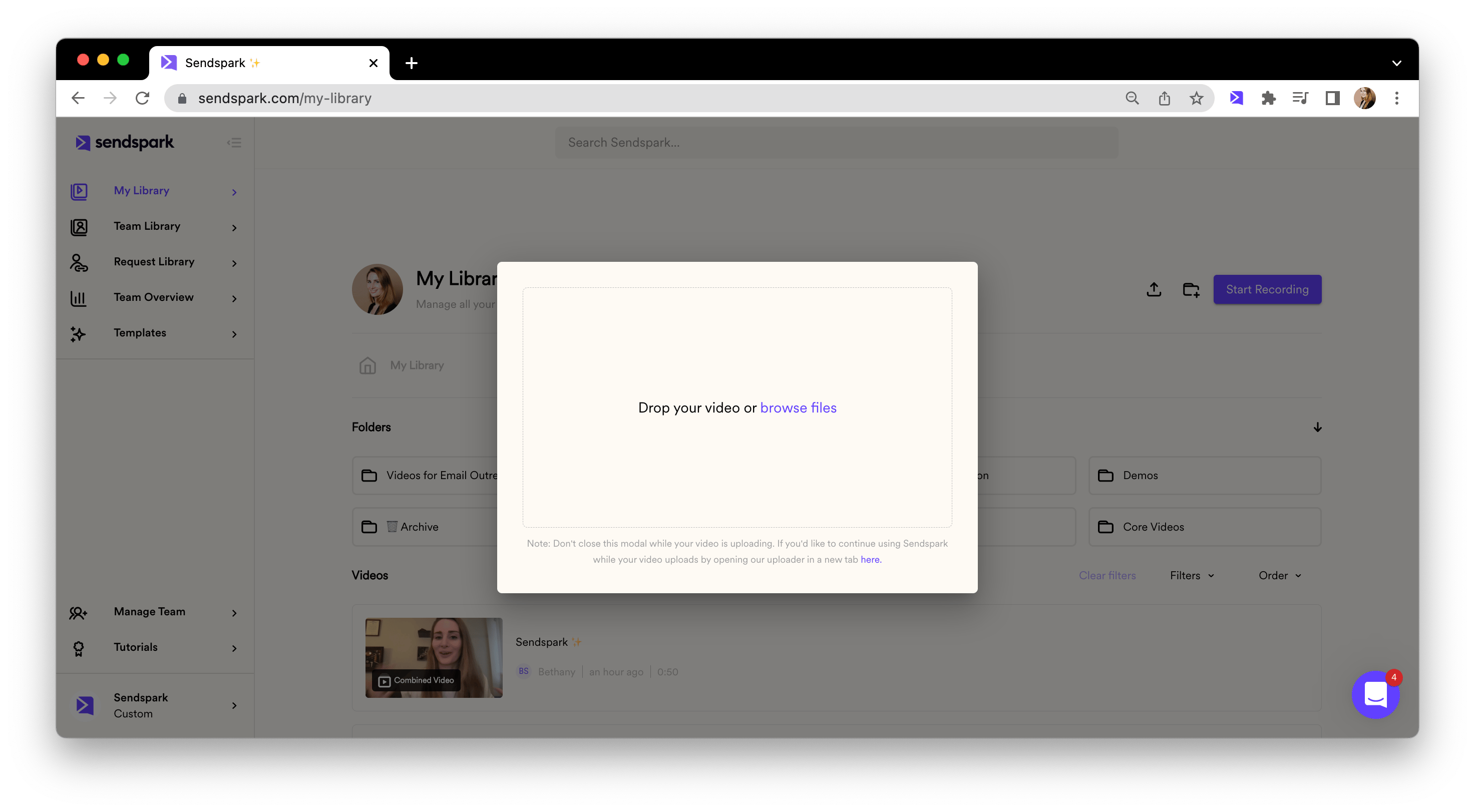
## 1. Record or upload your video
Record or upload your video in Sendspark [your Sendspark video library](https://sendspark.com/my-videos)
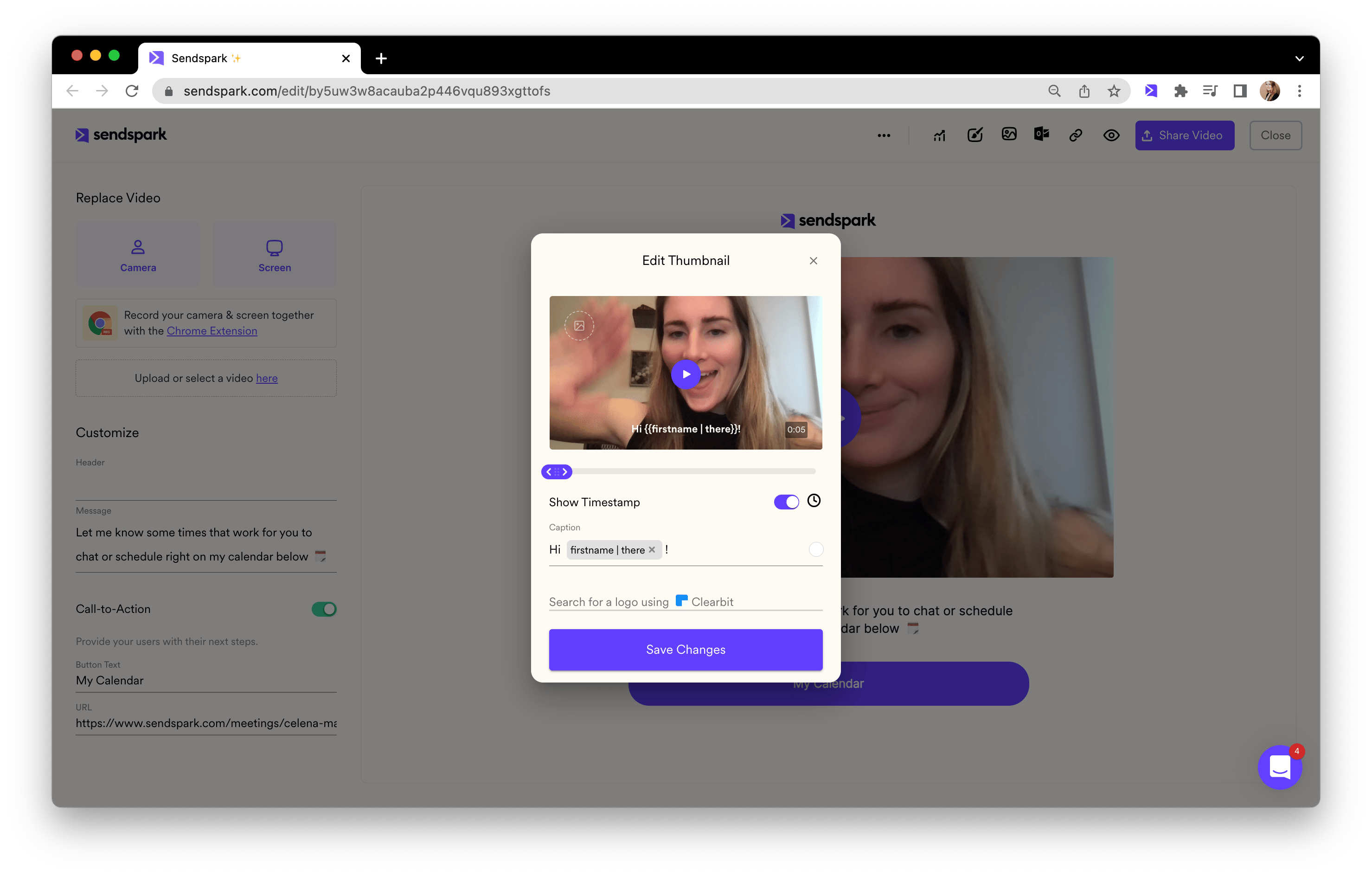
## 2. Personalize content around video
Customize the **video header**, **message**, and **thumbnail**. Feel free to use placeholders to automatically pull in contact information from Mixmax when you send your video!
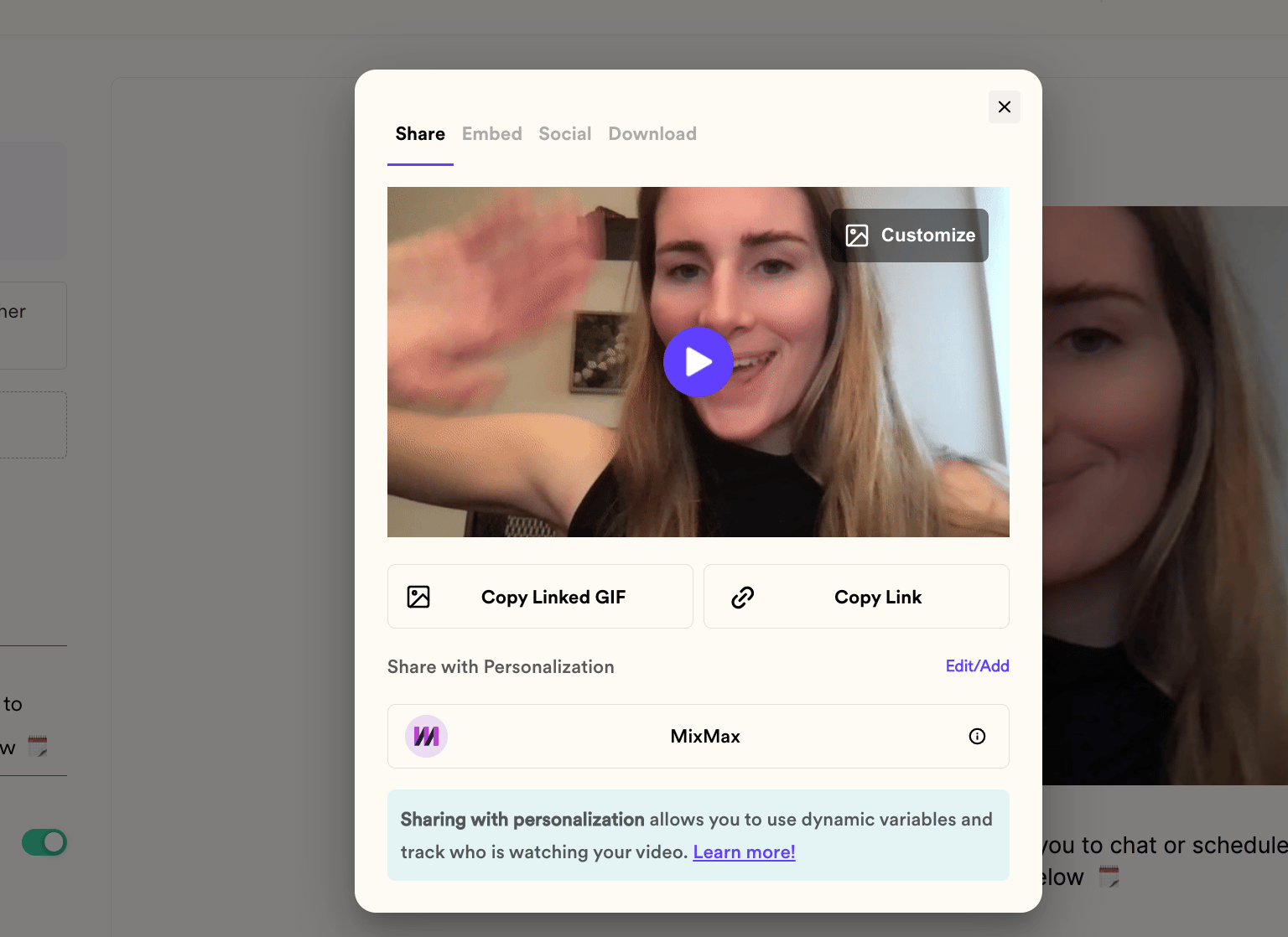
## 3. Copy share snippet for Mixmax
Click **"Share Video,"** and then select Mixmax (if you don't see Mixmax, follow these steps to [modify your share modal](/how-to-modify-shortcuts-on-share-modal)).
## 4. Paste in a Mixmax template
Create a new template in Mixmax, and then paste your video share snippet directly in the template.
Note: the video pastes pretty large. Feel free to resize it by dragging the bottom right corner of the video thumbnail inwards.
## 5. Send your video email!
Use your video email template when sending emails in Mixmax or Gmail using the Mixmax extension. Your video will automatically personalize for each recipient!
## Frequently asked questions
Sendspark can automatically pull in your viewer's first name, company name, and job title using placeholders you add to the video header, message, and thumbnail.
Follow the steps to [modify your share modal](/how-to-modify-shortcuts-on-share-modal) to add Mixmax as a share shortcut.
Yes. The video pastes fairly large by default. Resize it by dragging the bottom-right corner of the video thumbnail inward.
Yes. Once you've saved your video email template, you can use it when sending emails in Mixmax or in Gmail using the Mixmax extension. The video personalizes for each recipient automatically.
*Updated July 2026.*
 ## 2. Personalize content around video
Customize the **video header**, **message**, and **thumbnail**. Feel free to use placeholders to automatically pull in contact information from Mixmax when you send your video!
## 2. Personalize content around video
Customize the **video header**, **message**, and **thumbnail**. Feel free to use placeholders to automatically pull in contact information from Mixmax when you send your video!
 ## 3. Copy share snippet for Mixmax
Click **"Share Video,"** and then select Mixmax (if you don't see Mixmax, follow these steps to [modify your share modal](/how-to-modify-shortcuts-on-share-modal)).
## 3. Copy share snippet for Mixmax
Click **"Share Video,"** and then select Mixmax (if you don't see Mixmax, follow these steps to [modify your share modal](/how-to-modify-shortcuts-on-share-modal)).
 ## 4. Paste in a Mixmax template
Create a new template in Mixmax, and then paste your video share snippet directly in the template.
## 4. Paste in a Mixmax template
Create a new template in Mixmax, and then paste your video share snippet directly in the template.
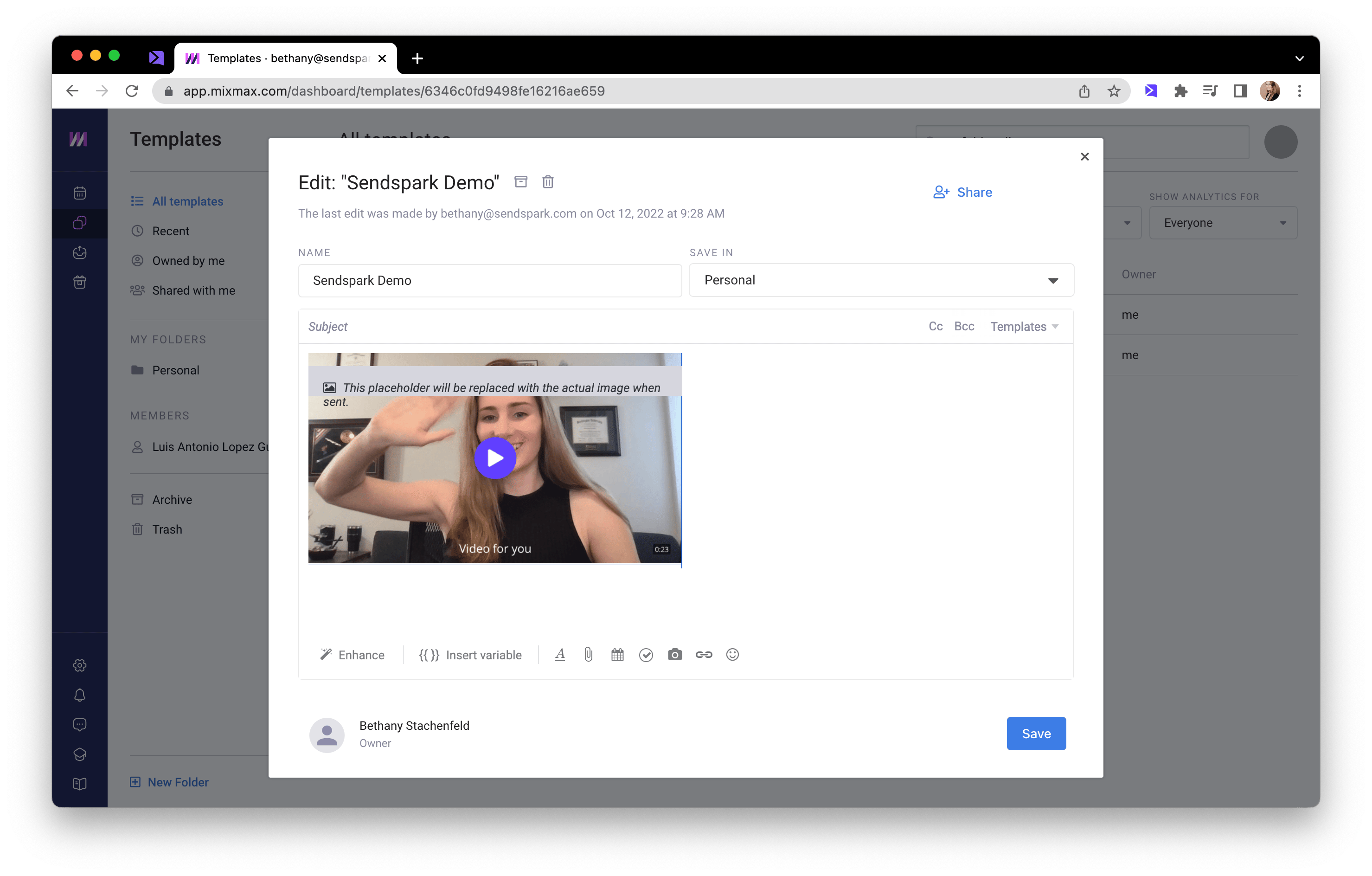 Note: the video pastes pretty large. Feel free to resize it by dragging the bottom right corner of the video thumbnail inwards.
## 5. Send your video email!
Use your video email template when sending emails in Mixmax or Gmail using the Mixmax extension. Your video will automatically personalize for each recipient!
## Frequently asked questions
Note: the video pastes pretty large. Feel free to resize it by dragging the bottom right corner of the video thumbnail inwards.
## 5. Send your video email!
Use your video email template when sending emails in Mixmax or Gmail using the Mixmax extension. Your video will automatically personalize for each recipient!
## Frequently asked questions