> ## Documentation Index
> Fetch the complete documentation index at: https://help.sendspark.com/llms.txt
> Use this file to discover all available pages before exploring further.
# Make.com - Auto Create AI Personalized Videos
> Automate AI-personalized video creation using Make.com and Sendspark. Build workflows that generate unique video intros for each prospect automatically.
To auto-create AI-personalized videos with Make.com, set up a Dynamic Video Campaign in Sendspark, then use a Make **HTTP Request** module to POST each prospect to the Sendspark API so a video generates. Add a **Custom Webhook** that fires when each video is ready, and connect an email step to send the finished video to the right contact automatically.
## Key takeaways
* The workflow has three parts: **create** a Dynamic Video Campaign, **generate** videos via a Make HTTP Request to the Sendspark API, and **send** them when a webhook confirms each video is ready.
* Videos are generated by POSTing prospect data to `https://api-gw.sendspark.com/v1/workspaces/{workspaceId}/dynamics/{dynamicId}/prospect` with your API Key and Secret Key as headers.
* A Sendspark webhook linked to the campaign fires each time a video is created, enrolling that contact in your Make scenario so you only send after the video is ready.
* Send by link using the `videoLink` variable, or embed an animated thumbnail using both `videoLink` and `thumbnailUrl` in an HTML snippet.
In this tutorial, we’ll walk through how to generate and send AI-personalized videos in Make automations.
This guide will be broken down into 3 steps:
1. Create dynamic video campaign
2. Automatically Generate Videos in Make
3. Automatically send videos
Read the guide, or watch the video below.
## How to Create AI-Personalized Videos in Make
## 1. Create Dynamic Video Campaign
Before you get started, you will want to have your Dynamic Video Campaign set up in Sendspark.
To create a dynamic video campaign….
1. Go to the [Dynamic Video Section](https://sendspark.com/dynamic-videos) of Sendspark
2. Record, upload, or select a video. Remember to use the placeholder word “Watermelon” for where you want your viewer’s first name to go
3. Customize the “scroll” effect as you’d like.
4. Toggle on “Voice Cloning” if you want to use a custom intro, (ex: “Hi First Name”) for each of your viewers
5. Customize a page template for what you want to appear on your video page alongside the video.
Before you set up the automation in the next few steps, I would recommend adding a few test contacts and previewing videos. Make sure that you’re happy with the AI voice cloning and all of the settings.
If things don’t look good, check out these tips to [improve AI voice cloning quality](/ai-voice-cloning-how-to-get-the-best-results).
## Benefits of AI-Personalized Videos
* **Improved Engagement**: Tailored content helps capture and retain the viewer's attention.
* **Ease of Implementation**: With proper setup, personalization can be applied to numerous videos efficiently.
* **Scalability**: The automation process allows you to personalize videos for hundreds or thousands of recipients with minimal manual effort.
## 2. Automatically Generate Videos in Make
In this step, we are going to show how you can automatically generate videos in Make.
1. In Make, click “Create New Scenario”
1. You can set any trigger to start your automation.
2. To automatically create Sendspark videos, make an **HTTP Request**
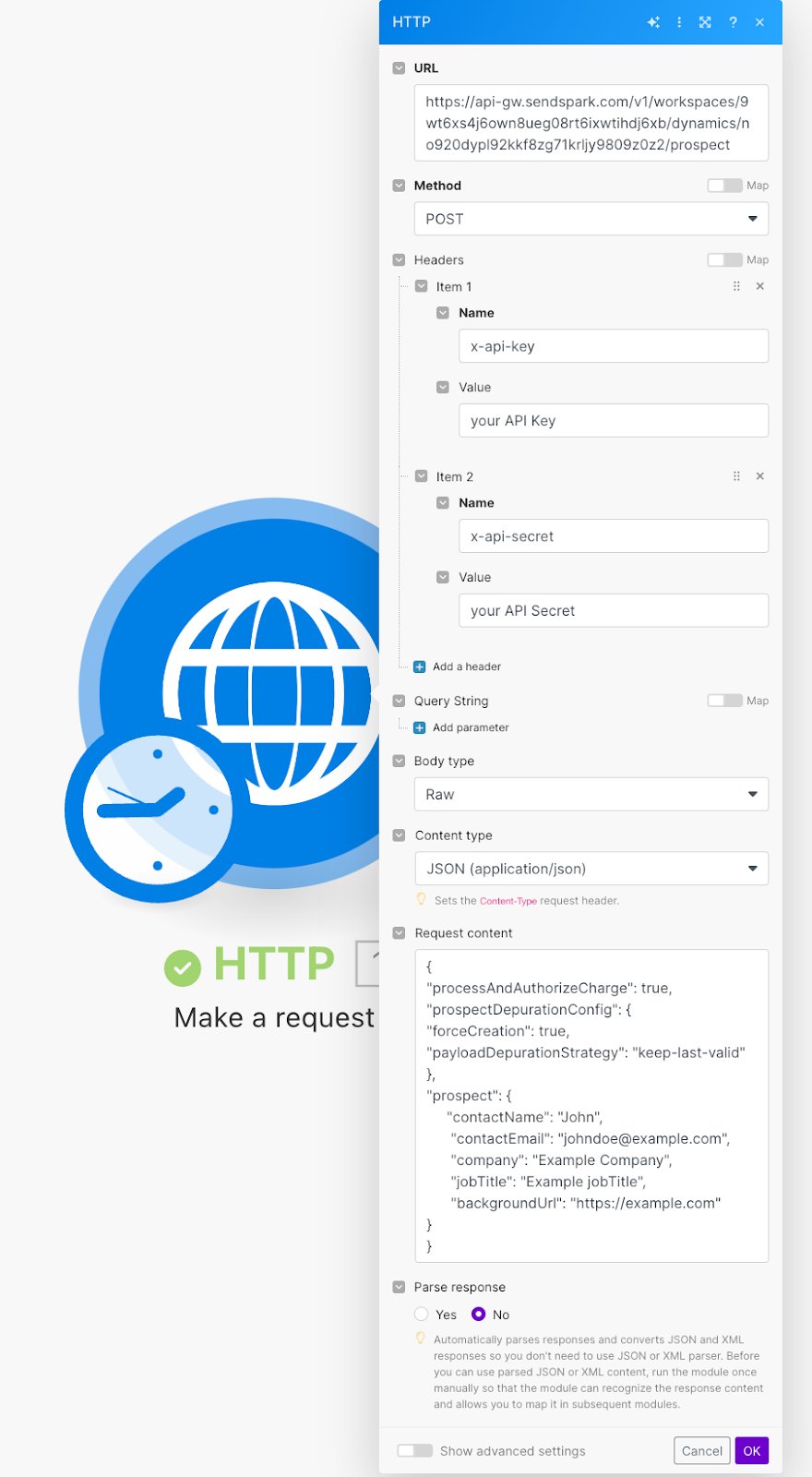
3. Fill out the HTTP request with this information:
4. URL: **[https://api-gw.sendspark.com/v1/workspaces/\{workspaceId}/dynamics/\{dynamicId}/prospect](https://api-gw.sendspark.com/v1/workspaces/%7BworkspaceId%7D/dynamics/%7BdynamicId%7D/prospect)**
5. You can find the workspaceId from your [API Credentials tab](https://sendspark.com/settings/api-credentials)
6. You can find your dynamicId from the URL of your dynamic video campaign Method: **POST**
7. Headers: You’ll need two (for your **API Key and Secret Key**)
8. You can find these both from your [API credentials tab](https://sendspark.com/settings/api-credentials)
9. Body: Use this data into the **body**. You can make the “prospect” fields dynamic by using data from your Make automation. `{ "processAndAuthorizeCharge": true, "prospectDepurationConfig": { "forceCreation": false,"payloadDepurationStrategy": "keep-last-valid" }, "prospect": { "contactName": "John", "contactEmail": "john@sendspark.com", "company": "Sendspark", "customfield": "", "backgroundUrl": "https://sendspark.com"}}`
⚠️ **Note: it will NOT work to copy and paste the data above into Make**. To copy and paste, use a JSON validator, like [jsonlint.com](http://jsonlint.com/), to clear the formatting.
In the end, your API key should look like this (but using your real API Key & API Secret)
To test this, click **“Run once”** and make sure that you see your sample contact in your Sendspark dynamic video campaign:
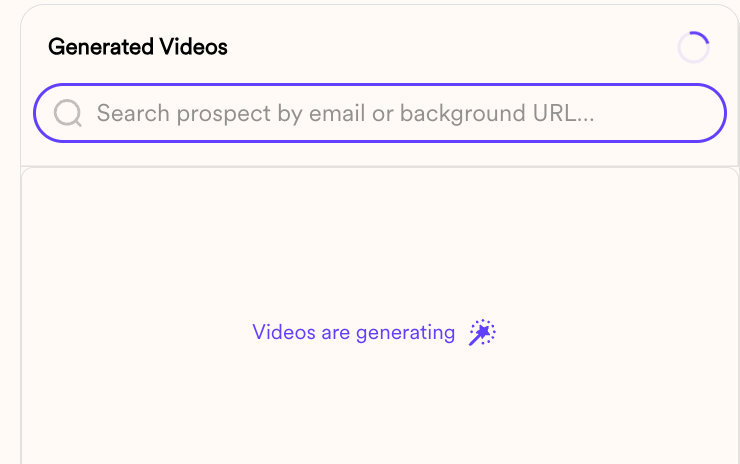
You’ll see a spinner and the message **“Videos are Generating”**
Boom! Now you are automatically creating AI videos. In the next step, we’ll cover how to automatically send the AI videos in email once they generate.
### HTTP Request settings at a glance
| Field | Value |
| ----------- | ---------------------------------------------------------------------------------------- |
| URL | `https://api-gw.sendspark.com/v1/workspaces/{workspaceId}/dynamics/{dynamicId}/prospect` |
| Method | `POST` |
| Headers | Your **API Key** and **Secret Key** (both from the API Credentials tab) |
| Body | JSON with a `prospect` object (`contactName`, `contactEmail`, `company`, etc.) |
| workspaceId | From your [API Credentials tab](https://sendspark.com/settings/api-credentials) |
| dynamicId | From the URL of your dynamic video campaign |
## 3. Automatically Send Videos
For the last step of this automation, we’ll create a webhook to know when AI videos have successfully generated, and are ready to send to contacts.
1. In Make, create a new Scenario, using a “Custom Webhook”
2. Copy the URL Make provides to your clipboard
3. In Sendspark, go to the [Webhooks Section](https://sendspark.com/settings/webhooks)
4. Create a webhook (using the URL Make provided)
5. Link it to your dynamic video campaign. This will make it so every time a video is “created” from this dynamic video campaign, a webhook sends into Make.
Great job! Now every time a Sendspark Dynamic Video generates for a person, that person will be enrolled in your Make scenario.
Now, let’s set up a step to **automatically send the video via email.**
## Send a Direct Email
This is how you can send your AI-personalized video to your recipient in a direct email (Gmail, Outlook, etc):
1. Add an “Email” as a second step to your Make Scenario
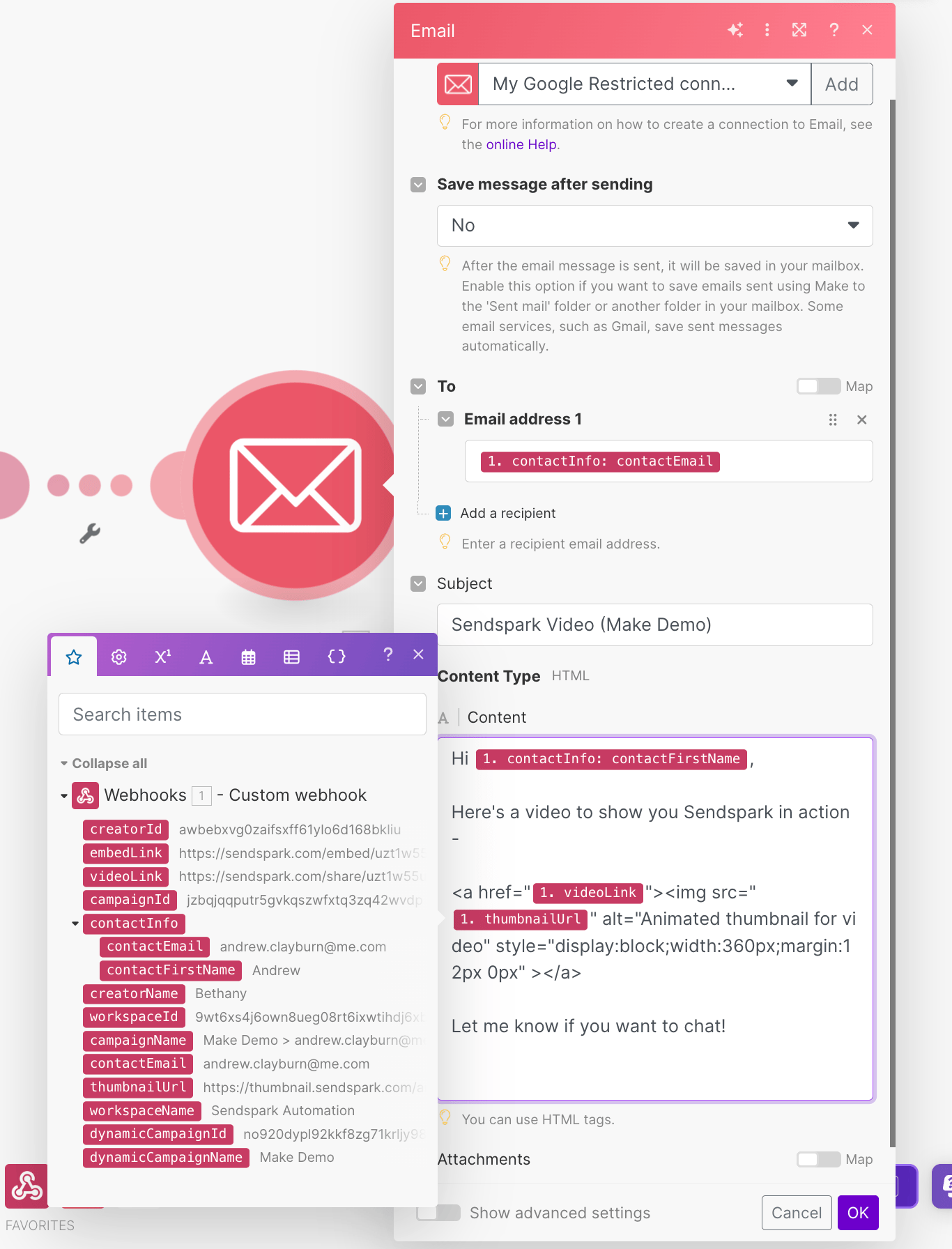
2. Use the information returned to you in the Sendspark webhook in your email like so:
**Notes:**
* Make sure you are using the variable for **contactEmail** in the “to” field to send the video to the correct recipient.
* In your email, you can use the variable **videoLink** to send the right video to the right person. If you do this, you will be emailing the video as a link
* The advanced way to send the video is to embed it as an HTML snippet using both the **videoLink** AND the **thumbnailUrl**. This way, instead of appearing as just a link, your viewers will see an animated thumbnail of the video.
If you want to do this, you can copy the HTML snippet here, just make sure to update the **videoLink** and **thumbnailUrl** variables so it looks like the screenshot above.
```html theme={null}
```
## Using an Email Automation Platform
If you’d like to use an email automation platform (Outreach, Smartlead, Instantly, etc.) you can do that too.
Before you can set up the automation, you want to make sure that the Sendspark dynamic video placeholder is in the sequence you want to send. In this example, we’ll use Instantly as an email sending platform.
This method will work similarly with most email sending platforms – you can find the[specific guide here](/supported-email-automation-platforms).
**How to add Sendspark video placeholder to your email Sequence:**
1. In your dynamic video campaign in Sendspark, click “Share Campaign”
2. Select your email sending platform. This will copy a dynamic snippet to your clipboard.
3. Follow the instructions in the Sendspark share modal to insert this into your email template where you want the video to go.
4. When you do this, it will look like a placeholder snippet. However, when you enroll real contacts for whom you’ve generated Sendspark videos for, they will see the personalized videos made for them. You just want to make sure their email address in your email platform matches their email address in Sendspark.
**Then, you can go back to Make to finalize your automation so….**
1. when the webhook is received
2. The contact is automatically enrolled in that email sequence.
In this case, you do \*\*not have to use any information from the webhook in the body of your email.\*\*You just have to know that the webhook was received, which tells you that the video was generated and is safe to send, and then you can trust the video snippet you’ve placed in the body of your email will automatically update for each recipient.
That’s it! Make sure to test your workflow before turning it on for everyone. And of course, let us know if you have any questions!
## Frequently asked questions
Build a Make scenario with an HTTP Request module that POSTs each prospect to the Sendspark API endpoint `https://api-gw.sendspark.com/v1/workspaces/{workspaceId}/dynamics/{dynamicId}/prospect`, using your API Key and Secret Key as headers. When the scenario runs, Sendspark generates a personalized video for each contact you send.
Your workspaceId is in the [API Credentials tab](https://sendspark.com/settings/api-credentials), alongside your API Key and Secret Key. Your dynamicId comes from the URL of your dynamic video campaign in Sendspark.
Create a Custom Webhook in Make, then add that URL as a webhook in Sendspark and link it to your dynamic video campaign. Every time a video generates for a person, Sendspark fires the webhook and enrolls that contact in your Make scenario, so you only send once the video is ready.
Both work. Using the `videoLink` variable alone sends the video as a link. The more engaging way is to embed an animated thumbnail using both `videoLink` and `thumbnailUrl` in an HTML snippet, so viewers see a moving preview instead of a plain link.
Copying the sample JSON directly into Make will not work because of hidden formatting. Run it through a JSON validator such as jsonlint.com first to clear the formatting, then paste the cleaned JSON into the request body.
*Updated July 2026.*
 1. You can set any trigger to start your automation.
2. To automatically create Sendspark videos, make an **HTTP Request**
1. You can set any trigger to start your automation.
2. To automatically create Sendspark videos, make an **HTTP Request** 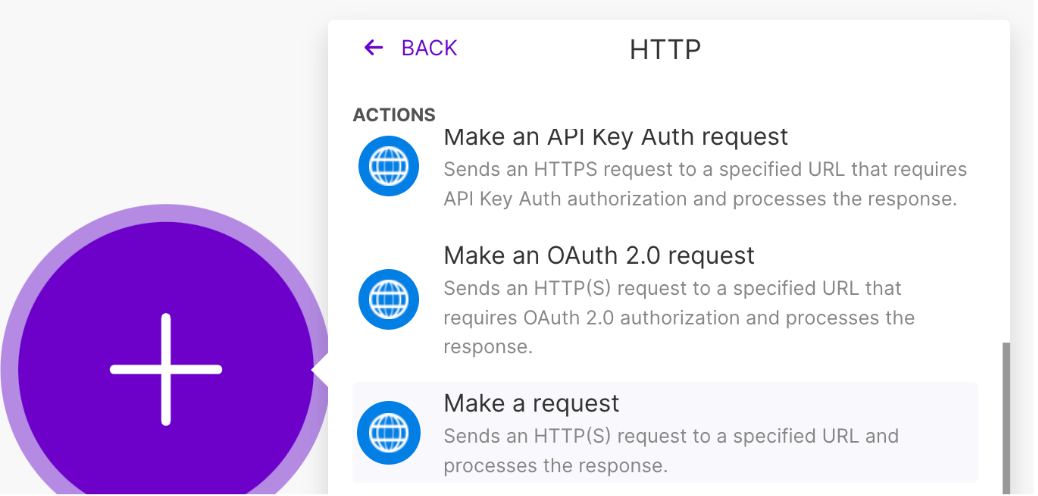 3. Fill out the HTTP request with this information:
4. URL: **[https://api-gw.sendspark.com/v1/workspaces/\{workspaceId}/dynamics/\{dynamicId}/prospect](https://api-gw.sendspark.com/v1/workspaces/%7BworkspaceId%7D/dynamics/%7BdynamicId%7D/prospect)**
5. You can find the workspaceId from your [API Credentials tab](https://sendspark.com/settings/api-credentials)
6. You can find your dynamicId from the URL of your dynamic video campaign
3. Fill out the HTTP request with this information:
4. URL: **[https://api-gw.sendspark.com/v1/workspaces/\{workspaceId}/dynamics/\{dynamicId}/prospect](https://api-gw.sendspark.com/v1/workspaces/%7BworkspaceId%7D/dynamics/%7BdynamicId%7D/prospect)**
5. You can find the workspaceId from your [API Credentials tab](https://sendspark.com/settings/api-credentials)
6. You can find your dynamicId from the URL of your dynamic video campaign  Method: **POST**
7. Headers: You’ll need two (for your **API Key and Secret Key**)
8. You can find these both from your [API credentials tab](https://sendspark.com/settings/api-credentials)
9. Body: Use this data into the **body**. You can make the “prospect” fields dynamic by using data from your Make automation. `{ "processAndAuthorizeCharge": true, "prospectDepurationConfig": { "forceCreation": false,"payloadDepurationStrategy": "keep-last-valid" }, "prospect": { "contactName": "John", "contactEmail": "john@sendspark.com", "company": "Sendspark", "customfield": "", "backgroundUrl": "https://sendspark.com"}}`
⚠️ **Note: it will NOT work to copy and paste the data above into Make**. To copy and paste, use a JSON validator, like [jsonlint.com](http://jsonlint.com/), to clear the formatting.
In the end, your API key should look like this (but using your real API Key & API Secret)
Method: **POST**
7. Headers: You’ll need two (for your **API Key and Secret Key**)
8. You can find these both from your [API credentials tab](https://sendspark.com/settings/api-credentials)
9. Body: Use this data into the **body**. You can make the “prospect” fields dynamic by using data from your Make automation. `{ "processAndAuthorizeCharge": true, "prospectDepurationConfig": { "forceCreation": false,"payloadDepurationStrategy": "keep-last-valid" }, "prospect": { "contactName": "John", "contactEmail": "john@sendspark.com", "company": "Sendspark", "customfield": "", "backgroundUrl": "https://sendspark.com"}}`
⚠️ **Note: it will NOT work to copy and paste the data above into Make**. To copy and paste, use a JSON validator, like [jsonlint.com](http://jsonlint.com/), to clear the formatting.
In the end, your API key should look like this (but using your real API Key & API Secret)
 To test this, click **“Run once”** and make sure that you see your sample contact in your Sendspark dynamic video campaign:
You’ll see a spinner and the message **“Videos are Generating”**
To test this, click **“Run once”** and make sure that you see your sample contact in your Sendspark dynamic video campaign:
You’ll see a spinner and the message **“Videos are Generating”**
 Boom! Now you are automatically creating AI videos. In the next step, we’ll cover how to automatically send the AI videos in email once they generate.
### HTTP Request settings at a glance
| Field | Value |
| ----------- | ---------------------------------------------------------------------------------------- |
| URL | `https://api-gw.sendspark.com/v1/workspaces/{workspaceId}/dynamics/{dynamicId}/prospect` |
| Method | `POST` |
| Headers | Your **API Key** and **Secret Key** (both from the API Credentials tab) |
| Body | JSON with a `prospect` object (`contactName`, `contactEmail`, `company`, etc.) |
| workspaceId | From your [API Credentials tab](https://sendspark.com/settings/api-credentials) |
| dynamicId | From the URL of your dynamic video campaign |
## 3. Automatically Send Videos
For the last step of this automation, we’ll create a webhook to know when AI videos have successfully generated, and are ready to send to contacts.
1. In Make, create a new Scenario, using a “Custom Webhook”
2. Copy the URL Make provides to your clipboard
Boom! Now you are automatically creating AI videos. In the next step, we’ll cover how to automatically send the AI videos in email once they generate.
### HTTP Request settings at a glance
| Field | Value |
| ----------- | ---------------------------------------------------------------------------------------- |
| URL | `https://api-gw.sendspark.com/v1/workspaces/{workspaceId}/dynamics/{dynamicId}/prospect` |
| Method | `POST` |
| Headers | Your **API Key** and **Secret Key** (both from the API Credentials tab) |
| Body | JSON with a `prospect` object (`contactName`, `contactEmail`, `company`, etc.) |
| workspaceId | From your [API Credentials tab](https://sendspark.com/settings/api-credentials) |
| dynamicId | From the URL of your dynamic video campaign |
## 3. Automatically Send Videos
For the last step of this automation, we’ll create a webhook to know when AI videos have successfully generated, and are ready to send to contacts.
1. In Make, create a new Scenario, using a “Custom Webhook”
2. Copy the URL Make provides to your clipboard 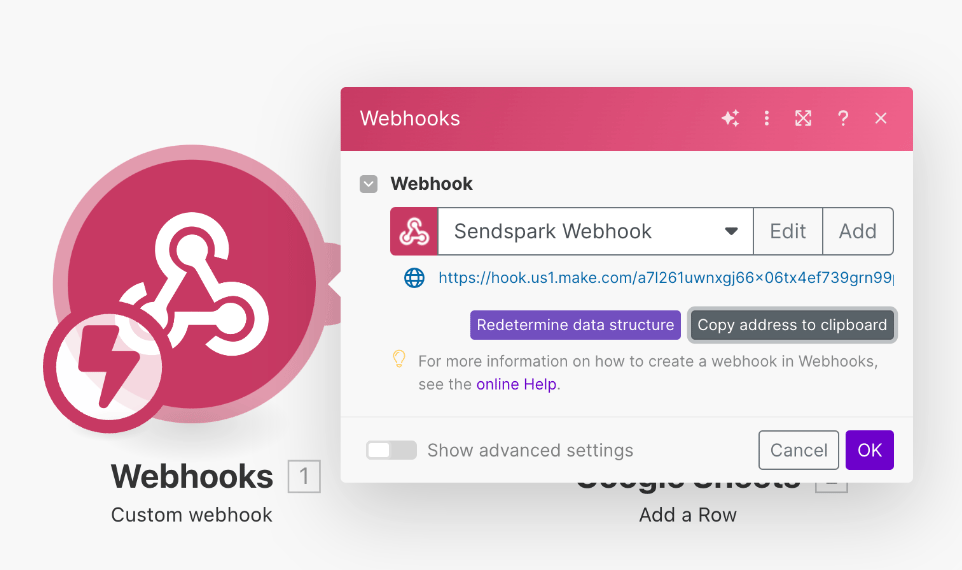 3. In Sendspark, go to the [Webhooks Section](https://sendspark.com/settings/webhooks)
4. Create a webhook (using the URL Make provided)
3. In Sendspark, go to the [Webhooks Section](https://sendspark.com/settings/webhooks)
4. Create a webhook (using the URL Make provided) 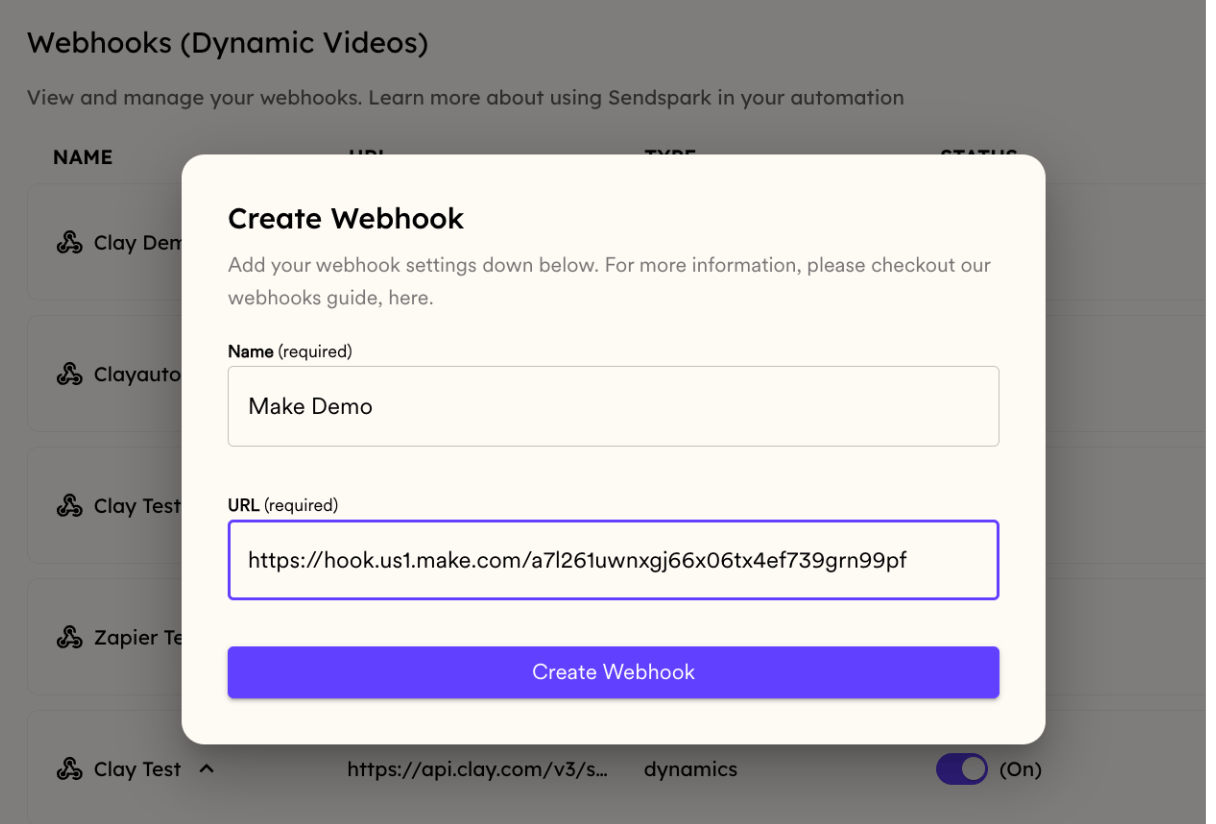 5. Link it to your dynamic video campaign. This will make it so every time a video is “created” from this dynamic video campaign, a webhook sends into Make.
 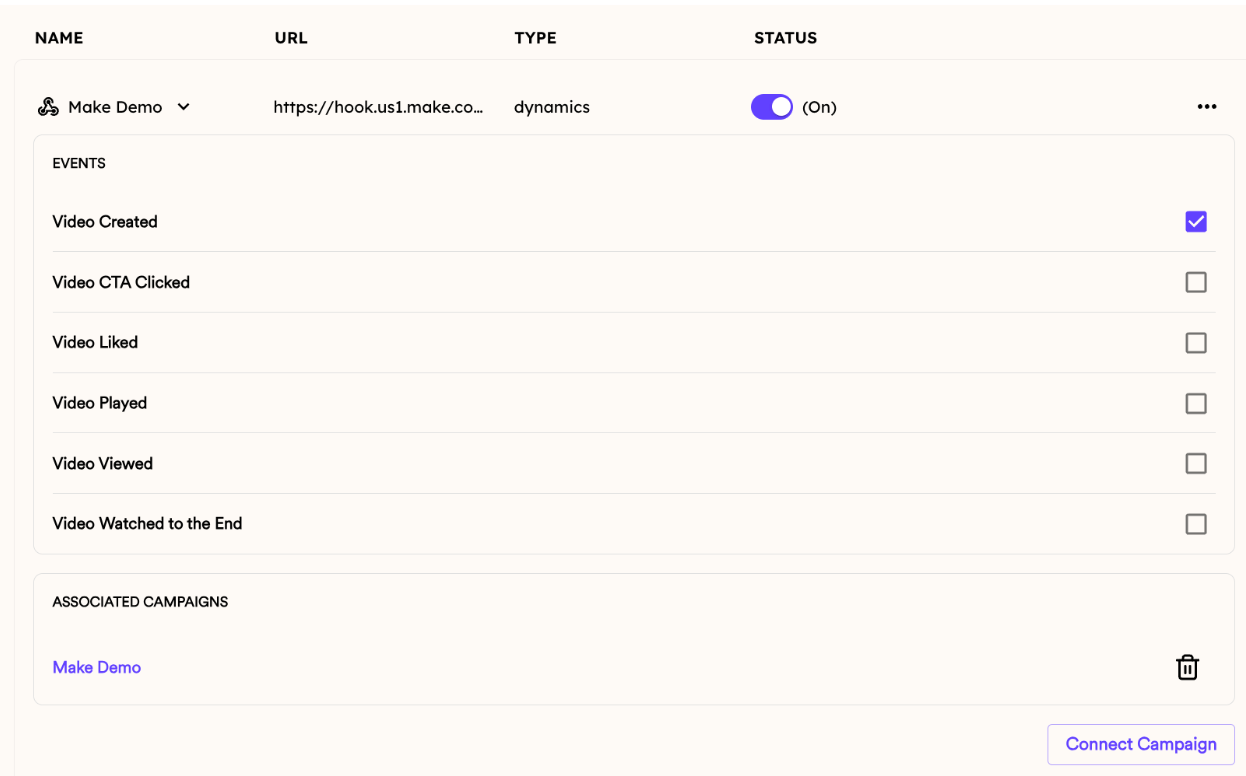 Great job! Now every time a Sendspark Dynamic Video generates for a person, that person will be enrolled in your Make scenario.
Now, let’s set up a step to **automatically send the video via email.**
## Send a Direct Email
This is how you can send your AI-personalized video to your recipient in a direct email (Gmail, Outlook, etc):
1. Add an “Email” as a second step to your Make Scenario
2. Use the information returned to you in the Sendspark webhook in your email like so:
Great job! Now every time a Sendspark Dynamic Video generates for a person, that person will be enrolled in your Make scenario.
Now, let’s set up a step to **automatically send the video via email.**
## Send a Direct Email
This is how you can send your AI-personalized video to your recipient in a direct email (Gmail, Outlook, etc):
1. Add an “Email” as a second step to your Make Scenario
2. Use the information returned to you in the Sendspark webhook in your email like so:
 **Notes:**
* Make sure you are using the variable for **contactEmail** in the “to” field to send the video to the correct recipient.
* In your email, you can use the variable **videoLink** to send the right video to the right person. If you do this, you will be emailing the video as a link
* The advanced way to send the video is to embed it as an HTML snippet using both the **videoLink** AND the **thumbnailUrl**. This way, instead of appearing as just a link, your viewers will see an animated thumbnail of the video.
If you want to do this, you can copy the HTML snippet here, just make sure to update the **videoLink** and **thumbnailUrl** variables so it looks like the screenshot above.
```html theme={null}
**Notes:**
* Make sure you are using the variable for **contactEmail** in the “to” field to send the video to the correct recipient.
* In your email, you can use the variable **videoLink** to send the right video to the right person. If you do this, you will be emailing the video as a link
* The advanced way to send the video is to embed it as an HTML snippet using both the **videoLink** AND the **thumbnailUrl**. This way, instead of appearing as just a link, your viewers will see an animated thumbnail of the video.
If you want to do this, you can copy the HTML snippet here, just make sure to update the **videoLink** and **thumbnailUrl** variables so it looks like the screenshot above.
```html theme={null}