> ## Documentation Index
> Fetch the complete documentation index at: https://help.sendspark.com/llms.txt
> Use this file to discover all available pages before exploring further.
# Mailchimp — Send Personalized Videos at Scale
> Learn how to send personalized videos at scale in Mailchimp using Sendspark to boost engagement with automated merge tags.
To send personalized videos at scale in Mailchimp, create your video in Sendspark, add merge tags on the video page so it auto-personalizes for each viewer, click Share Video, select Mailchimp from the share modal to copy the share snippet, then drag an HTML block into your Mailchimp email and paste the snippet in. The merge tags update automatically for every recipient.
## Key takeaways
* Record, upload, or request a video in Sendspark, then add a title, message, or call-to-action and use merge tags to automatically personalize it for each viewer.
* Merge tags update automatically per recipient; if a recipient's information is unknown, they see a fallback.
* Click Share Video, choose Mailchimp from the share modal to copy the snippet (modify your shortcuts if Mailchimp isn't shown), then paste it into an HTML block in your Mailchimp email and click Save & Close.
## Why Send Hyper-Personalized Videos in Mailchimp?
Sendspark makes it easy to record and [embed videos in Mailchimp](/mailchimp-send-video-emails). WIth our hyper-personalization feature, you can automatically personalize viewers for each viewer to add a special touch and increase engagement.
## How to Send Personalized Videos at Scale in Mailchimp
Watch the video or follow the steps below:
## 1. Create your video in Sendspark
You can record, upload, or request a video.
## 2. Personalize your video
Feel free to add a title, message, or call-to-action on your video page or to [edit the video thumbnail](/how-to-edit-video-thumbnails).
You can also use merge tags to automatically personalize videos for viewers. These merge tags will automatically update for each recipient. If the recipient's information is unknown, they will see a [fallback](/how-merge-tag-fallbacks-work).
## 3. Click "Share Video"
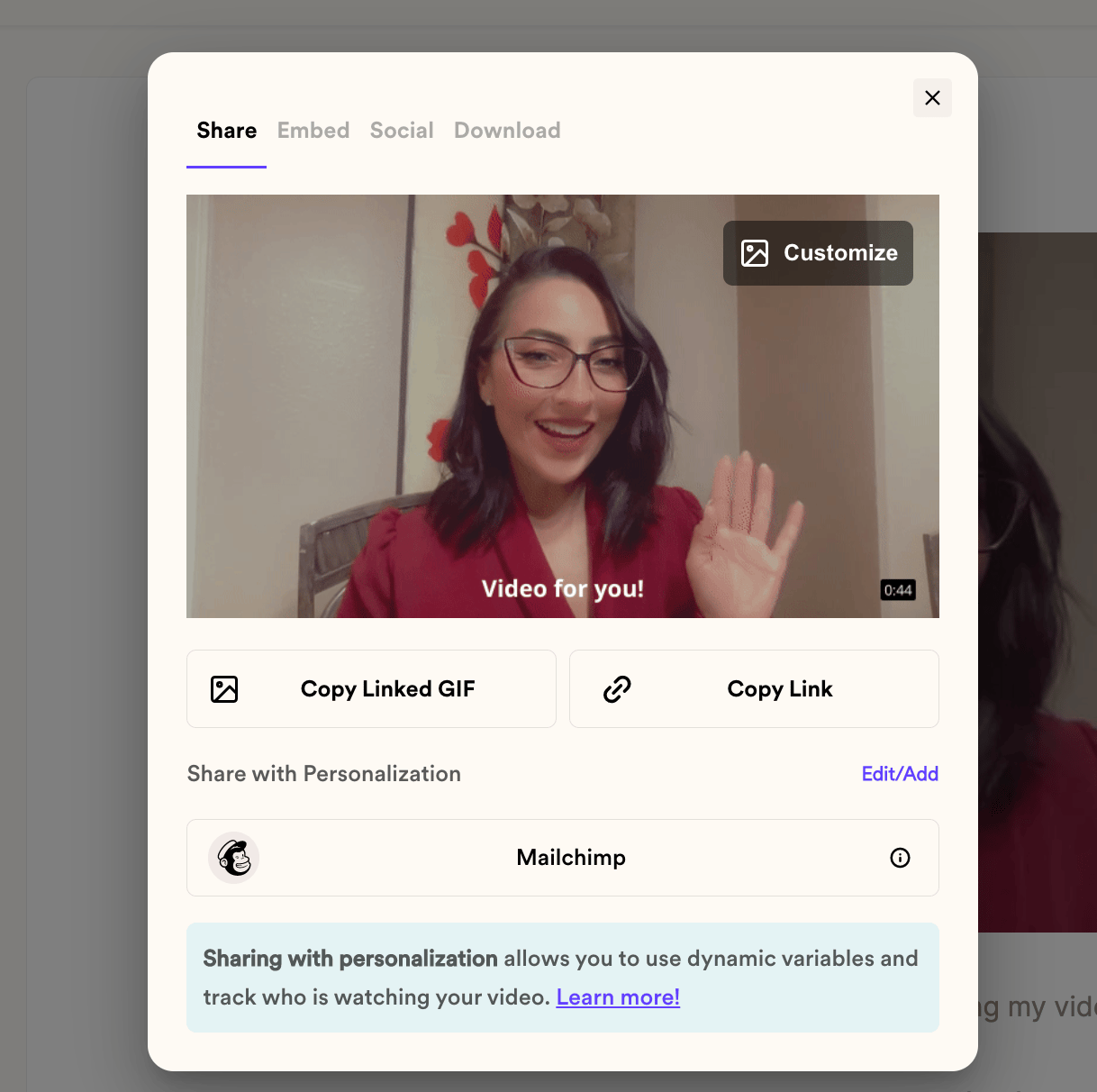
## 4. From the Sendspark share modal, click "Mailchimp"
By clicking "Mailchimp," you will copy your video share snippet to your clipboard.
Note, if you don't see Mailchimp on the share modal, you can [modify your shortcuts](/how-to-modify-shortcuts-on-share-modal)
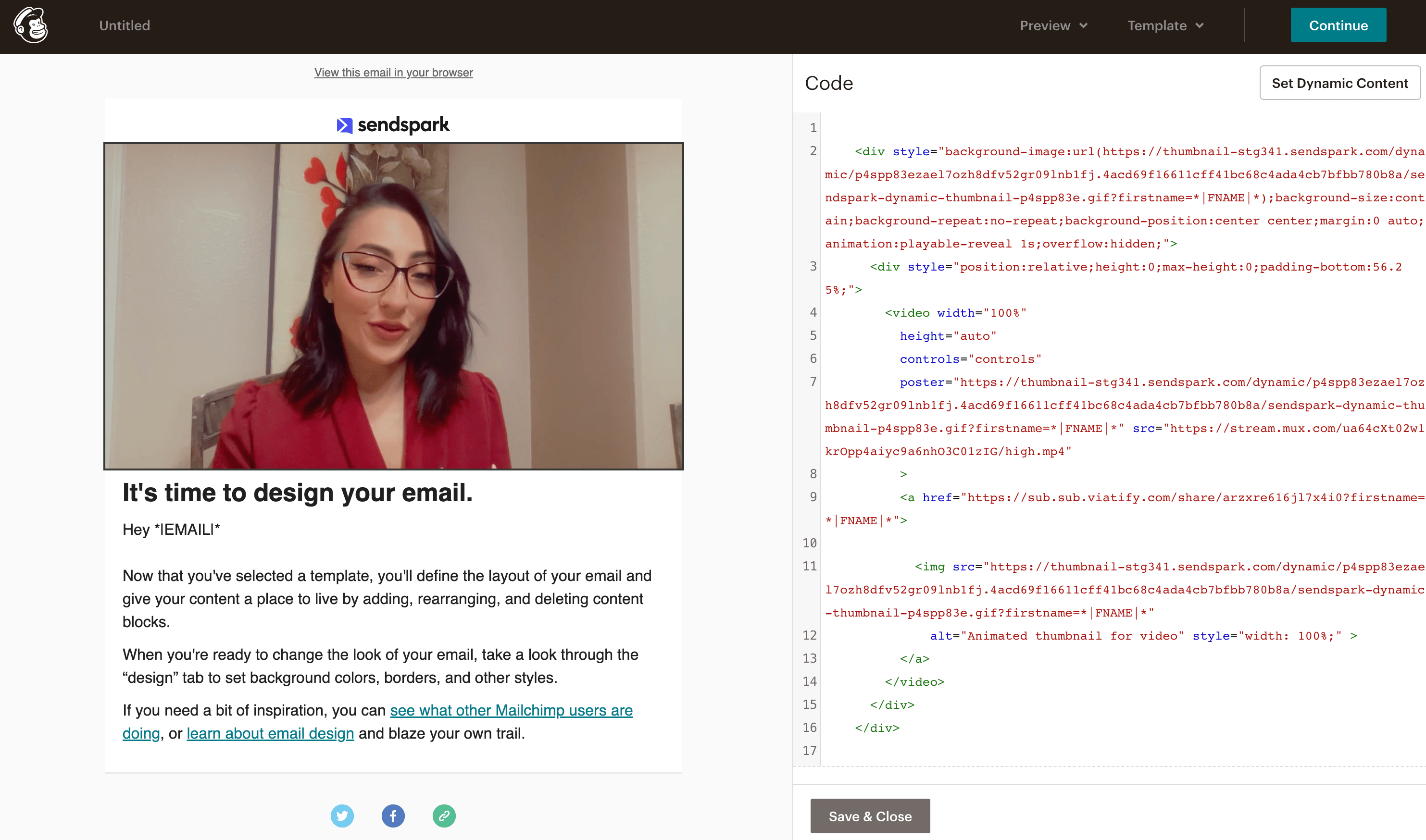
## 5. Paste into your Mailchimp email
From any email in Mailchimp, drag an HTML block. You can paste right into the HTML block, then click "Save & Close."
That's it, you're ready to send your video!
## Frequently asked questions
Use merge tags on your Sendspark video page. These merge tags automatically update for each recipient, so every viewer sees a personalized video.
If the recipient's information is unknown, they will see a fallback in place of the merge tag, so they still get a good viewing experience.
If you don't see Mailchimp on the share modal, you can modify your shortcuts to add it.
From any email in Mailchimp, drag an HTML block into your email, paste the video share snippet you copied from Sendspark, then click Save & Close.
*Updated July 2026.*
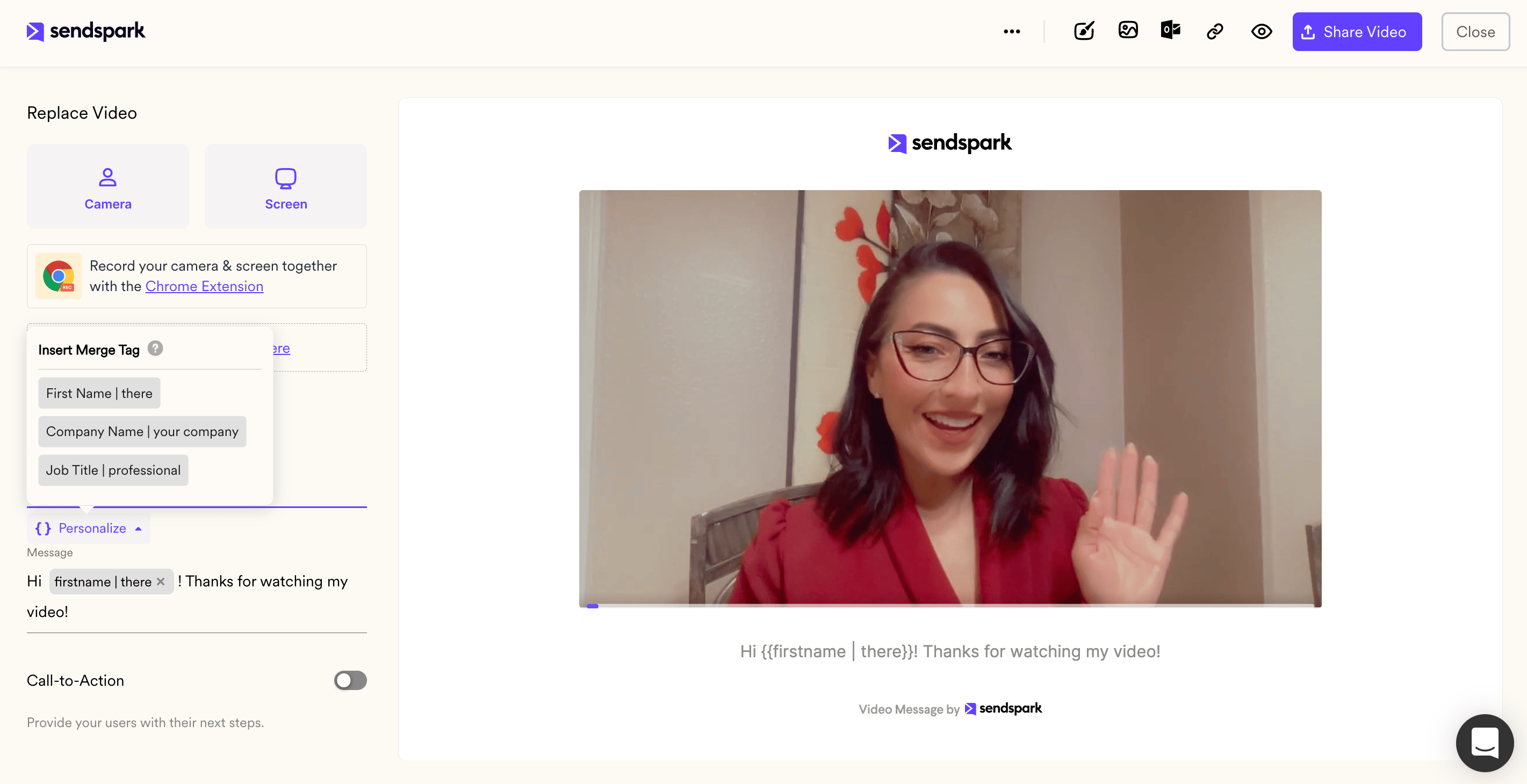 ## 3. Click "Share Video"
 ## 4. From the Sendspark share modal, click "Mailchimp"
By clicking "Mailchimp," you will copy your video share snippet to your clipboard.
Note, if you don't see Mailchimp on the share modal, you can [modify your shortcuts](/how-to-modify-shortcuts-on-share-modal)
## 4. From the Sendspark share modal, click "Mailchimp"
By clicking "Mailchimp," you will copy your video share snippet to your clipboard.
Note, if you don't see Mailchimp on the share modal, you can [modify your shortcuts](/how-to-modify-shortcuts-on-share-modal)
 ## 5. Paste into your Mailchimp email
From any email in Mailchimp, drag an HTML block. You can paste right into the HTML block, then click "Save & Close."
## 5. Paste into your Mailchimp email
From any email in Mailchimp, drag an HTML block. You can paste right into the HTML block, then click "Save & Close."
 That's it, you're ready to send your video!
## Frequently asked questions
That's it, you're ready to send your video!
## Frequently asked questions