> ## Documentation Index
> Fetch the complete documentation index at: https://help.sendspark.com/llms.txt
> Use this file to discover all available pages before exploring further.
# LinkedIn Video Comments — Show GIF Thumbnails
> Learn how to post videos in LinkedIn comments with GIF thumbnails using Sendspark's mobile workaround for better engagement.
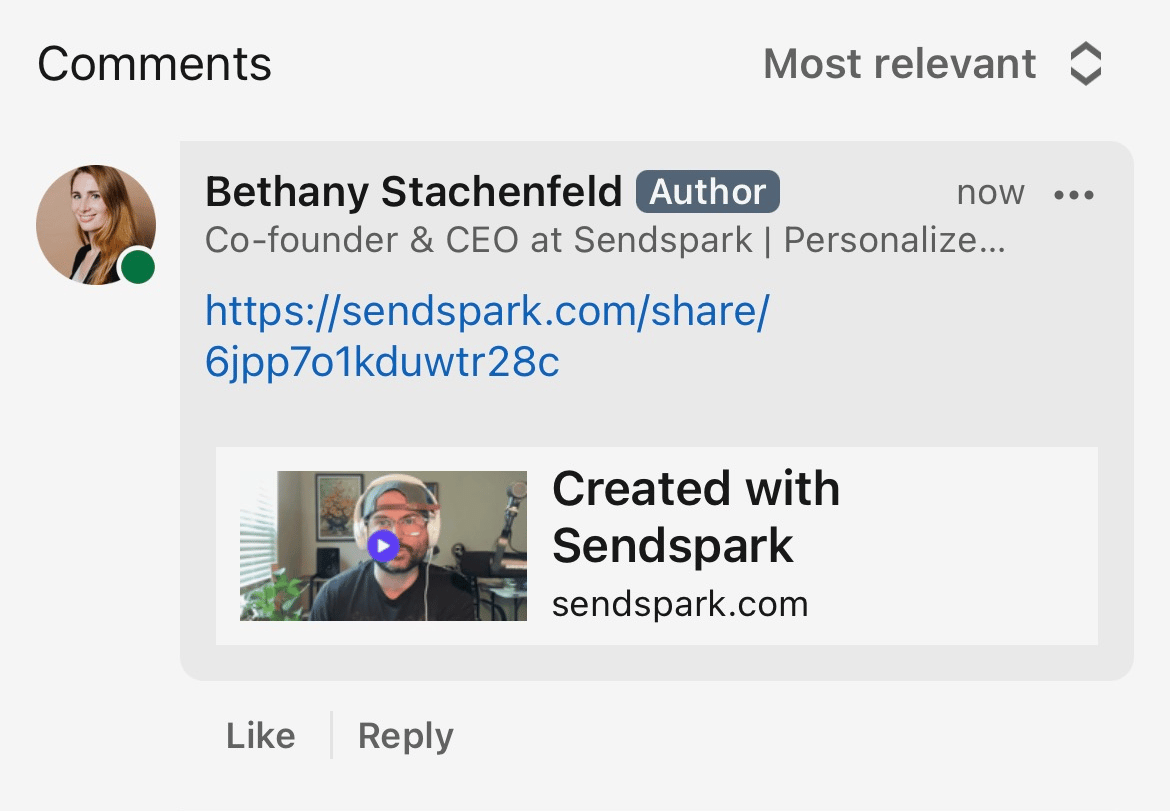
LinkedIn doesn't support videos in comments, so use this Sendspark workaround: open the Share modal, click Copy Link, and paste the link into your LinkedIn comment from a mobile device. The link unfurls into a GIF thumbnail preview. GIF previews only appear when the URL is posted from mobile.
## Key takeaways
* LinkedIn does not support videos in comments, so Sendspark shares the video as a link with a GIF thumbnail instead.
* GIF previews **only show when you post the URL from a mobile device** (LinkedIn mobile app, mobile Chrome, mobile Safari, etc.).
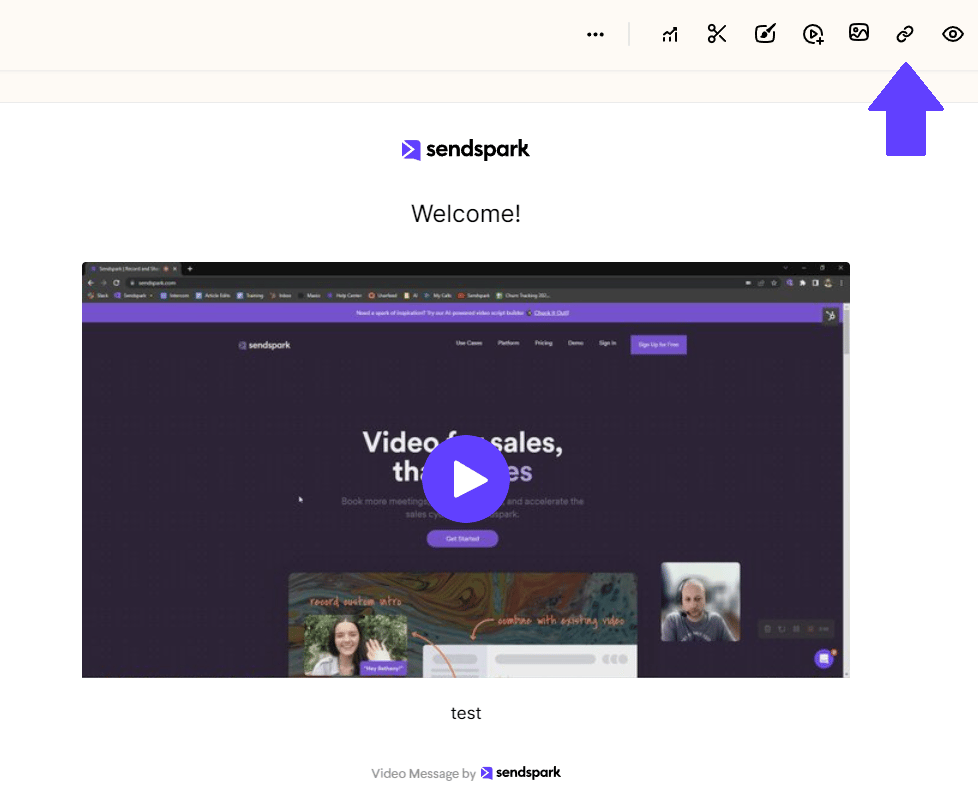
* Launch the **Share modal** from your [dashboard](https://app.sendspark.com/) or video edit page and click **Copy Link**.
* Paste the link into the LinkedIn comment and it automatically unfurls into a video preview.
LinkedIn does not support videos in comments. Use this workaround with Sendspark to share videos as links with GIF thumbnails.
 ***
Please **note**that GIF previews only show when you post the URL from a mobile device (the LinkedIn mobile app, mobile Chrome, mobile Safari, etc).
## How to Post a Video in a LinkedIn Comment with a Thumbnail
To post your video in a LinkedIn comment, launch the **Share moda**l through your [dashboard](https://app.sendspark.com/) or video edit page.
* Click on **Copy Link** to copy the share URL to your clipboard
***
Please **note**that GIF previews only show when you post the URL from a mobile device (the LinkedIn mobile app, mobile Chrome, mobile Safari, etc).
## How to Post a Video in a LinkedIn Comment with a Thumbnail
To post your video in a LinkedIn comment, launch the **Share moda**l through your [dashboard](https://app.sendspark.com/) or video edit page.
* Click on **Copy Link** to copy the share URL to your clipboard
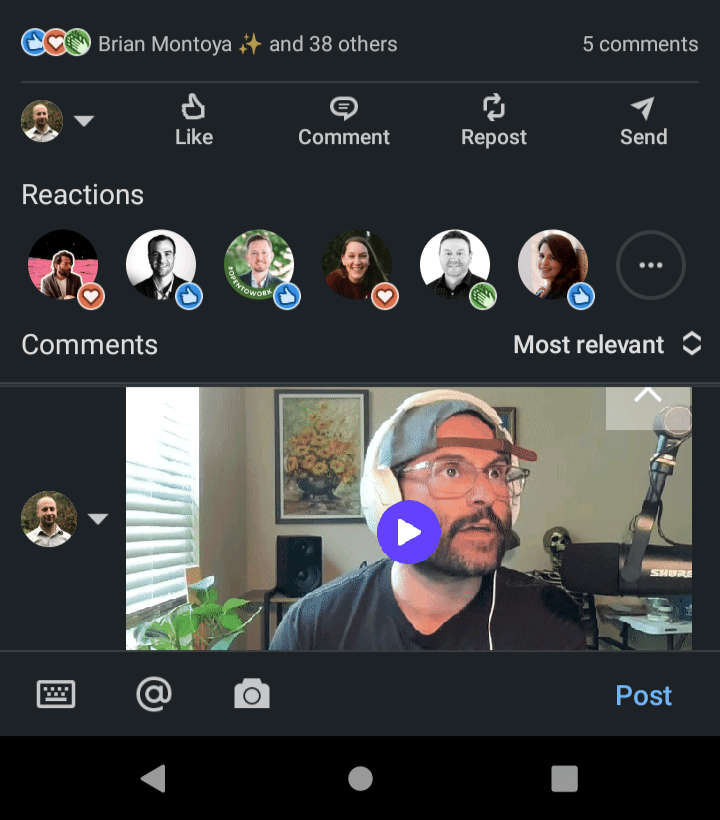
 * **Paste** the link in the LinkedIn post**from a mobile device** (LinkedIn mobile app, mobile Chrome,, mobile Safari, etc). The link will automatically unfurl to provide a preview of your video.
  ## Frequently asked questions
No. LinkedIn does not support videos in comments. The workaround is to share your Sendspark video as a link, which unfurls into a GIF thumbnail preview that recipients can click to watch.
GIF previews only show when you post the URL from a mobile device, such as the LinkedIn mobile app, mobile Chrome, or mobile Safari. If you paste from desktop, the preview won't unfurl the same way.
Launch the Share modal from your [dashboard](https://app.sendspark.com/) or your video edit page, then click Copy Link to copy the share URL to your clipboard.
Once you paste the link into your LinkedIn comment from a mobile device, it automatically unfurls to provide a preview of your video, so viewers can click through to watch.
*Updated July 2026.*
## Frequently asked questions
No. LinkedIn does not support videos in comments. The workaround is to share your Sendspark video as a link, which unfurls into a GIF thumbnail preview that recipients can click to watch.
GIF previews only show when you post the URL from a mobile device, such as the LinkedIn mobile app, mobile Chrome, or mobile Safari. If you paste from desktop, the preview won't unfurl the same way.
Launch the Share modal from your [dashboard](https://app.sendspark.com/) or your video edit page, then click Copy Link to copy the share URL to your clipboard.
Once you paste the link into your LinkedIn comment from a mobile device, it automatically unfurls to provide a preview of your video, so viewers can click through to watch.
*Updated July 2026.*