> ## Documentation Index
> Fetch the complete documentation index at: https://help.sendspark.com/llms.txt
> Use this file to discover all available pages before exploring further.
# LinkedIn Sales Navigator - Scale Videos
> Learn how to send personalized videos at scale in LinkedIn Sales Navigator with Sendspark to boost engagement and build trust.
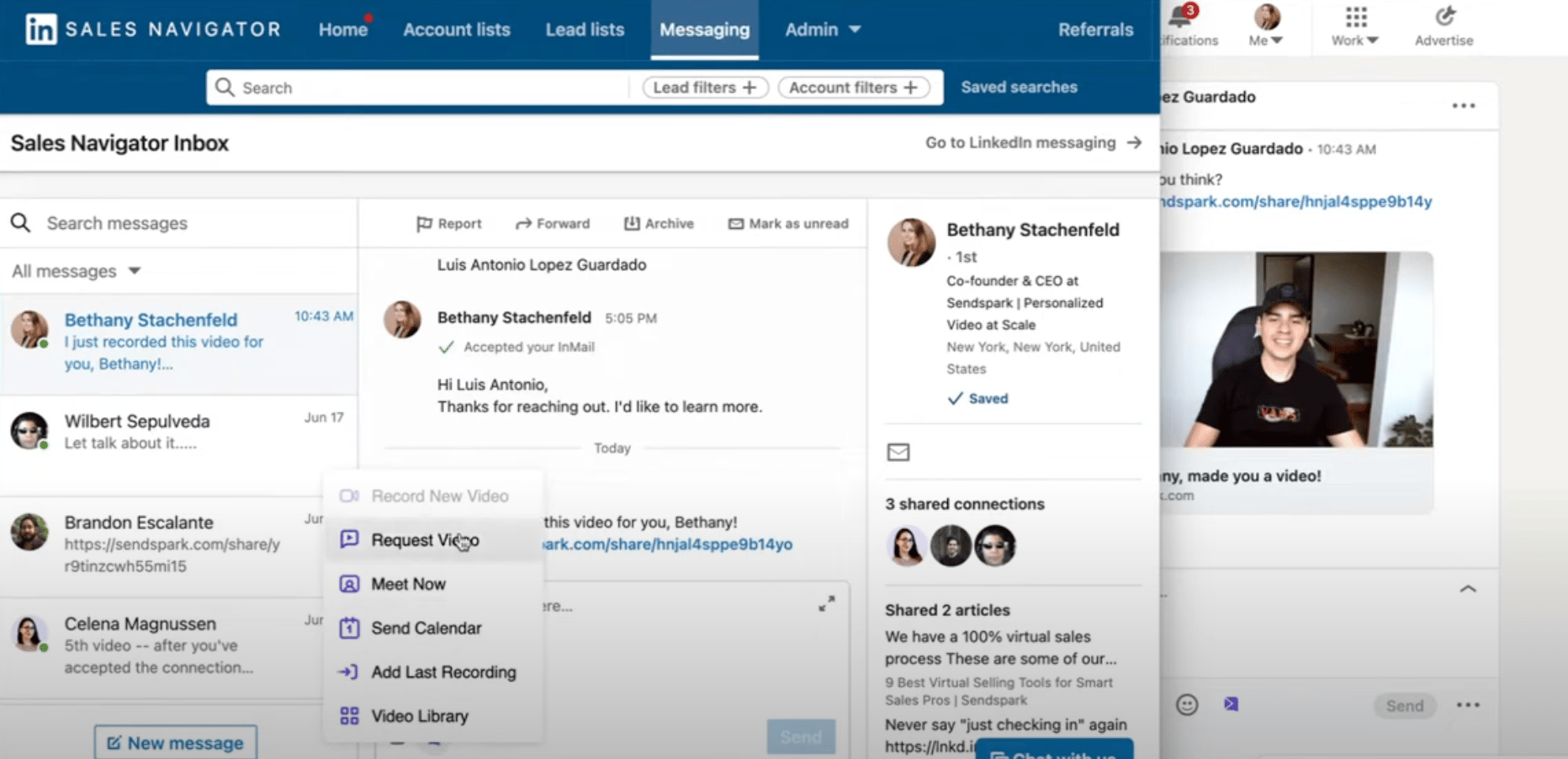
To send a video in LinkedIn Sales Navigator, create your video in Sendspark, click the LinkedIn icon next to it to copy the LinkedIn-optimized link, then paste that link into a Sales Navigator message. Once your prospect accepts your message or connection request, they see a clickable video preview with a moving thumbnail.
## Key takeaways
* Use the LinkedIn icon next to each video in Sendspark to copy a link built for LinkedIn messages: short, trackable, and fast to load.
* On your end the link looks plain, but accepted recipients see a clickable preview with a moving thumbnail.
* Previews only appear once your message or connection request is accepted.
* Sendspark emails you when someone watches, and the dashboard shows who watched, how long, and whether they clicked your CTA.
* For hands-off sending, the [Expandi integration](/expandi-integration-ai-personalized-videos) automates personalized videos at scale.
## Why Use Videos in LinkedIn Sales Navigator?
Sending a video in LinkedIn Sales Navigator helps you stand out and add a face to the name. Whether you're doing sales outreach or following up with a connection, a short video builds trust faster than text alone.
***
## How to Share Sendspark Videos in LinkedIn Sales Navigator
## 1. Create a Video in Sendspark
Start in Sendspark. You can:
* [Record yourself on camera](/record-yourself)
* [Record your screen](/record-your-screen)
* [Record both camera & screen together](/record-both-your-face-and-screen-together)
* [Create a Dynamic Video Campaign](/dynamic-videos-make-videos-with-ai-introductions) to create personalized videos in bulk with AI.
Once you've created videos, you'll be able to share videos easily in LinkedIn Sales Nav.
***
**Bonus:** if you have the [Sendspark Chrome Extension](/instant-integration-linkedin)installed, you'll see a Sendspark icon in LinkedIn that makes it easy to create and send videos from right LinkedIn!
***
## 2. Copy the LinkedIn Video Link
Next to each video, you’ll see a LinkedIn icon. Click it to copy the link.
This version of the link is designed to work well inside LinkedIn messages. It’s short, trackable, and fast to load.
***
## 3. Paste the Link into LinkedIn Sales Navigator
Open a conversation in LinkedIn Sales Navigator and paste the link directly into the message field.
On your end, it’ll just look like a plain link:
This is because Sales Navigator keeps a simple UI for you.
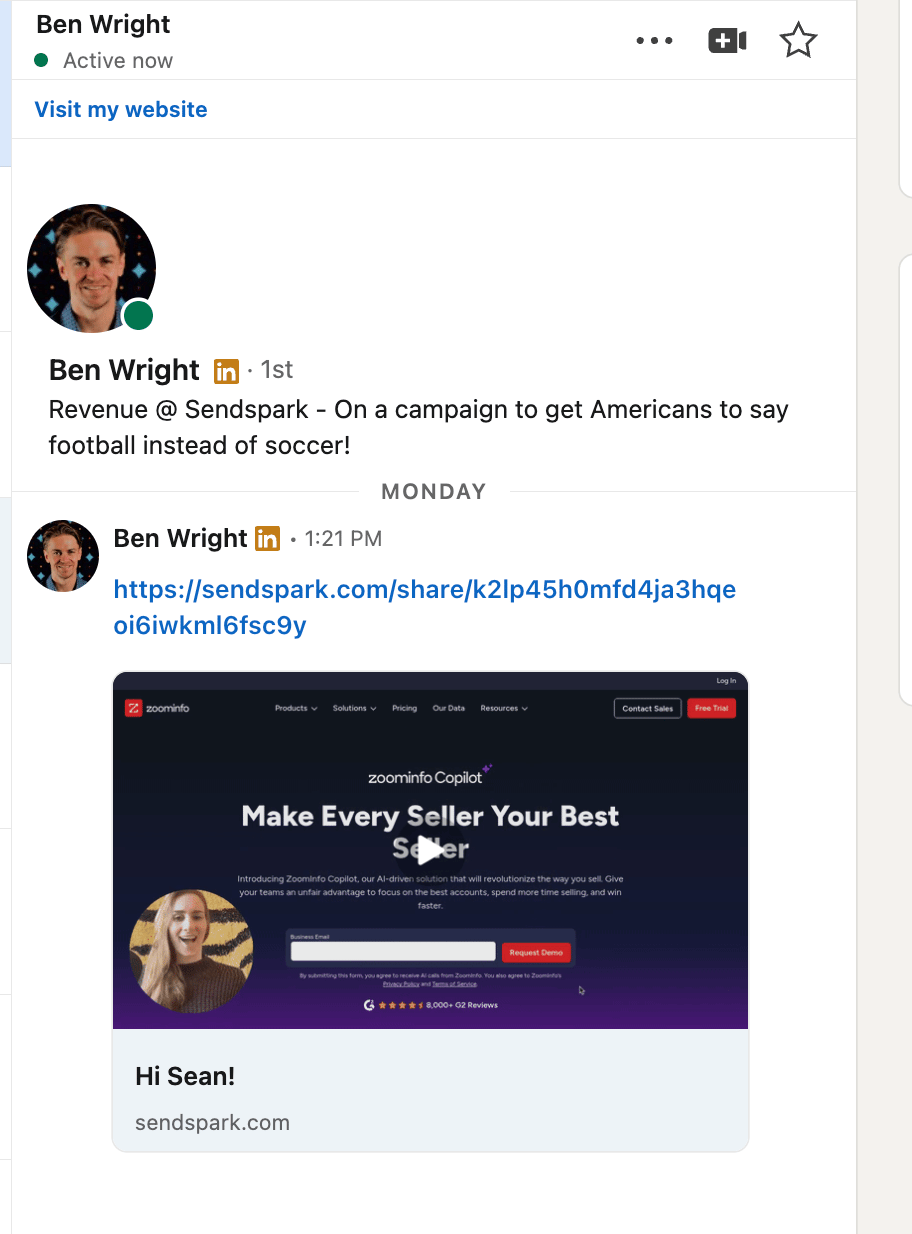
But if your prospect accepts your message or accepts your connection request, **they’ll see a clickable preview of the video with a moving thumbnail**.
***
## 4. Track Who’s Watching
When someone opens and watches your video, Sendspark sends you a quick email. You’ll also see more details in your dashboard, like:
* Who watched it
* How long they watched
* Whether they clicked your call to action
This makes follow-ups easier. You know who’s interested and when to respond.
***
## 5. Bonus: Advanced LinkedIn Automation
Want to level up your outreach with automation? Try the [Sendspark Expandi Integration](/expandi-integration-ai-personalized-videos) to AUTOMATICALLY send personalized videos at scale in LinkedIn Sales Nav.
This gives you the same great engagement, but without needing to copy & paste each video link individually!
***
## Pros and Cons of Sending Video in LinkedIn Sales Navigator
### Pros
* Gets more attention than plain text
* Adds a personal touch
* Preview shows in inbox once your message is accepted
* You can track views in real time
### Cons
* Thumbnails only show for accepted messages or connections
***
## When to Use Video in LinkedIn Sales Navigator
* **Outbound sales**: Send quick custom intros to leads
* **Partnerships**: Start conversations with something more personal than text
* **Customer follow-ups**: Use video if email replies are slowing down
***
## Tips to Get More Views
* Mention the person’s name early in the video
* Keep it short—under 60 seconds works best
* Add a quick sentence above the video link, like:“Made this for you—wanted to walk through a quick idea”
* Check Sendspark for view alerts and follow up while the lead is warm
And check out these tips from Dan (Sendspark Tech Support)
***
## Final Thoughts
LinkedIn Sales Navigator helps you find the right people. Sendspark helps you get a reply. Adding a video to your LinkedIn message takes less than a minute, but can make a big difference in getting noticed.
If you're already using Sales Navigator to send messages, this is one of the easiest ways to improve your results without adding extra steps or tools.
***
## Frequently asked questions
In your Sendspark dashboard, look for the LinkedIn icon next to each video and click it to copy the link. This version is designed to work well inside LinkedIn messages: it's short, trackable, and fast to load.
Sales Navigator keeps a simple UI on your end, so the pasted link shows as plain text. Once your prospect accepts your message or connection request, they'll see a clickable preview of the video with a moving thumbnail.
When someone opens and watches your video, Sendspark sends you a quick email. Your dashboard shows more detail too: who watched it, how long they watched, and whether they clicked your call to action.
Keep it short. Under 60 seconds works best, and mentioning the person's name early in the video helps hold attention.
Yes. The [Sendspark Expandi integration](/expandi-integration-ai-personalized-videos) automatically sends personalized videos at scale in LinkedIn Sales Navigator, so you don't have to copy and paste each link individually.
*Updated July 2026.*
 ***
## 2. Copy the LinkedIn Video Link
Next to each video, you’ll see a LinkedIn icon. Click it to copy the link.
***
## 2. Copy the LinkedIn Video Link
Next to each video, you’ll see a LinkedIn icon. Click it to copy the link.
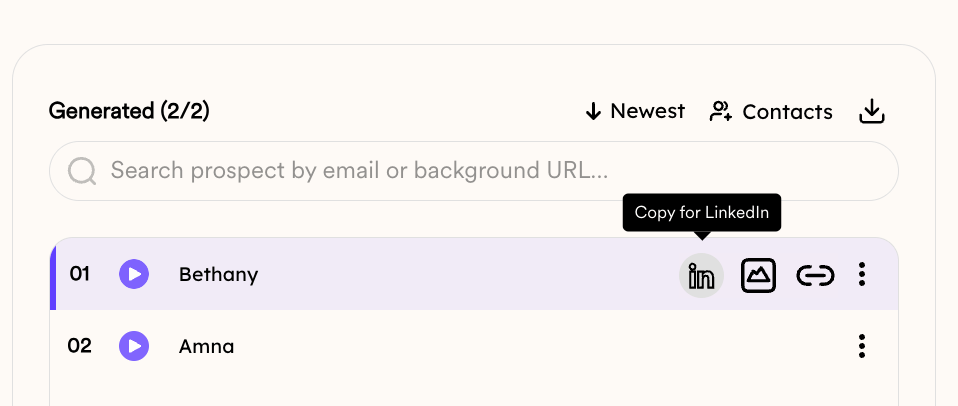 This version of the link is designed to work well inside LinkedIn messages. It’s short, trackable, and fast to load.
***
## 3. Paste the Link into LinkedIn Sales Navigator
Open a conversation in LinkedIn Sales Navigator and paste the link directly into the message field.
On your end, it’ll just look like a plain link:
This version of the link is designed to work well inside LinkedIn messages. It’s short, trackable, and fast to load.
***
## 3. Paste the Link into LinkedIn Sales Navigator
Open a conversation in LinkedIn Sales Navigator and paste the link directly into the message field.
On your end, it’ll just look like a plain link:
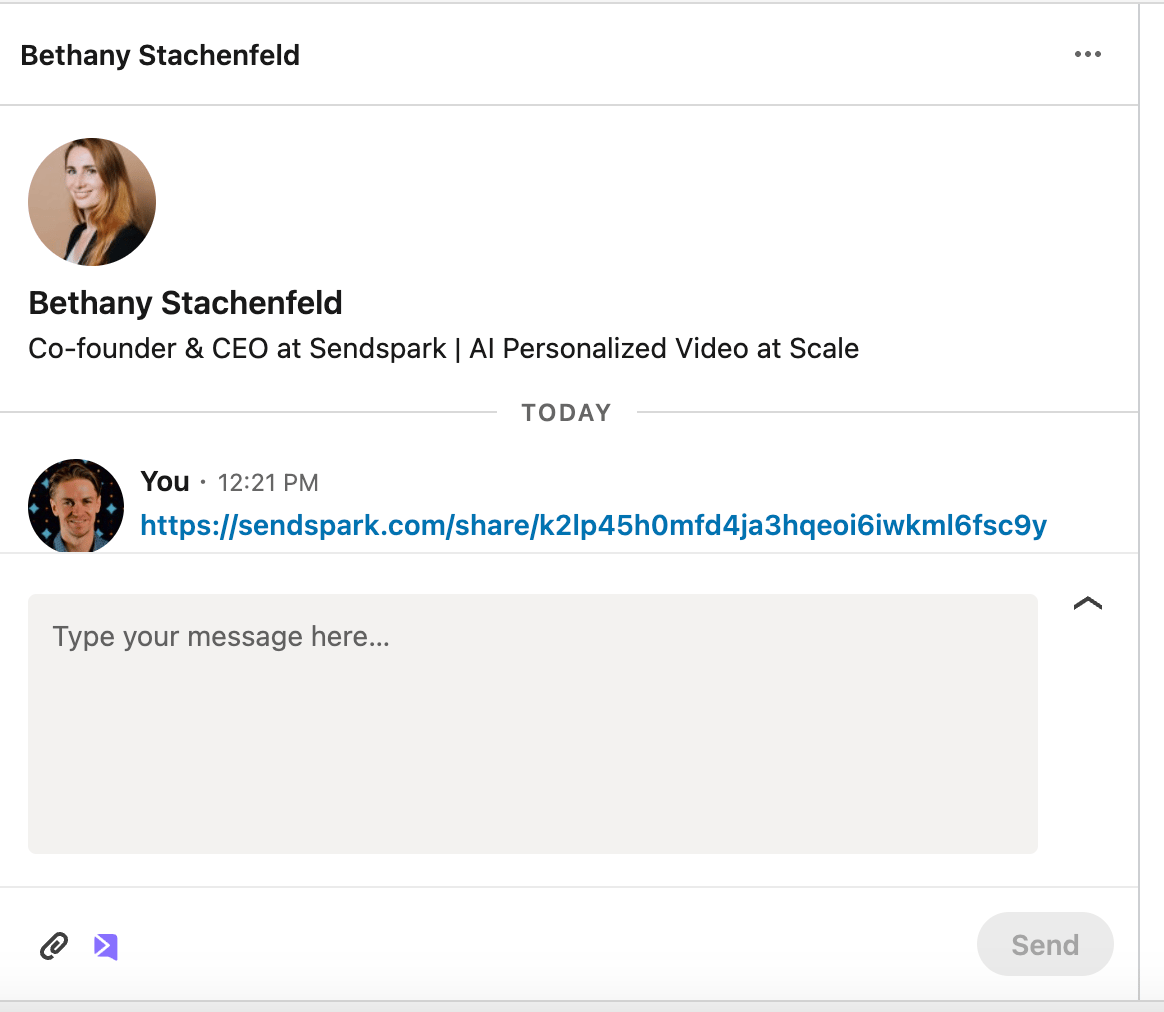 This is because Sales Navigator keeps a simple UI for you.
But if your prospect accepts your message or accepts your connection request, **they’ll see a clickable preview of the video with a moving thumbnail**.
This is because Sales Navigator keeps a simple UI for you.
But if your prospect accepts your message or accepts your connection request, **they’ll see a clickable preview of the video with a moving thumbnail**.
 ***
## 4. Track Who’s Watching
When someone opens and watches your video, Sendspark sends you a quick email. You’ll also see more details in your dashboard, like:
* Who watched it
* How long they watched
* Whether they clicked your call to action
***
## 4. Track Who’s Watching
When someone opens and watches your video, Sendspark sends you a quick email. You’ll also see more details in your dashboard, like:
* Who watched it
* How long they watched
* Whether they clicked your call to action
 This makes follow-ups easier. You know who’s interested and when to respond.
***
## 5. Bonus: Advanced LinkedIn Automation
Want to level up your outreach with automation? Try the [Sendspark Expandi Integration](/expandi-integration-ai-personalized-videos) to AUTOMATICALLY send personalized videos at scale in LinkedIn Sales Nav.
This gives you the same great engagement, but without needing to copy & paste each video link individually!
***
## Pros and Cons of Sending Video in LinkedIn Sales Navigator
### Pros
* Gets more attention than plain text
* Adds a personal touch
* Preview shows in inbox once your message is accepted
* You can track views in real time
### Cons
* Thumbnails only show for accepted messages or connections
***
## When to Use Video in LinkedIn Sales Navigator
* **Outbound sales**: Send quick custom intros to leads
* **Partnerships**: Start conversations with something more personal than text
* **Customer follow-ups**: Use video if email replies are slowing down
***
## Tips to Get More Views
* Mention the person’s name early in the video
* Keep it short—under 60 seconds works best
* Add a quick sentence above the video link, like:“Made this for you—wanted to walk through a quick idea”
* Check Sendspark for view alerts and follow up while the lead is warm
And check out these tips from Dan (Sendspark Tech Support)
***
## Final Thoughts
LinkedIn Sales Navigator helps you find the right people. Sendspark helps you get a reply. Adding a video to your LinkedIn message takes less than a minute, but can make a big difference in getting noticed.
If you're already using Sales Navigator to send messages, this is one of the easiest ways to improve your results without adding extra steps or tools.
***
## Frequently asked questions
This makes follow-ups easier. You know who’s interested and when to respond.
***
## 5. Bonus: Advanced LinkedIn Automation
Want to level up your outreach with automation? Try the [Sendspark Expandi Integration](/expandi-integration-ai-personalized-videos) to AUTOMATICALLY send personalized videos at scale in LinkedIn Sales Nav.
This gives you the same great engagement, but without needing to copy & paste each video link individually!
***
## Pros and Cons of Sending Video in LinkedIn Sales Navigator
### Pros
* Gets more attention than plain text
* Adds a personal touch
* Preview shows in inbox once your message is accepted
* You can track views in real time
### Cons
* Thumbnails only show for accepted messages or connections
***
## When to Use Video in LinkedIn Sales Navigator
* **Outbound sales**: Send quick custom intros to leads
* **Partnerships**: Start conversations with something more personal than text
* **Customer follow-ups**: Use video if email replies are slowing down
***
## Tips to Get More Views
* Mention the person’s name early in the video
* Keep it short—under 60 seconds works best
* Add a quick sentence above the video link, like:“Made this for you—wanted to walk through a quick idea”
* Check Sendspark for view alerts and follow up while the lead is warm
And check out these tips from Dan (Sendspark Tech Support)
***
## Final Thoughts
LinkedIn Sales Navigator helps you find the right people. Sendspark helps you get a reply. Adding a video to your LinkedIn message takes less than a minute, but can make a big difference in getting noticed.
If you're already using Sales Navigator to send messages, this is one of the easiest ways to improve your results without adding extra steps or tools.
***
## Frequently asked questions