> ## Documentation Index
> Fetch the complete documentation index at: https://help.sendspark.com/llms.txt
> Use this file to discover all available pages before exploring further.
# Lemlist — Send Dynamic Videos
> Learn how to integrate Sendspark dynamic videos into your Lemlist email campaigns with step-by-step setup and troubleshooting tips.
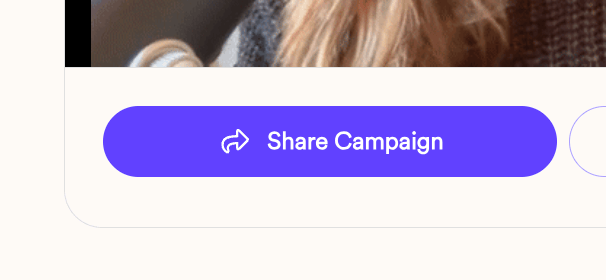
To send dynamic videos in Lemlist, create your campaign in Sendspark, click Share Campaign, and select Lemlist to copy the snippet. In your Lemlist email, open the "..." More Rich options, switch to Code View, paste the snippet, then switch back. Your personalized video preview appears in the email.
## Key takeaways
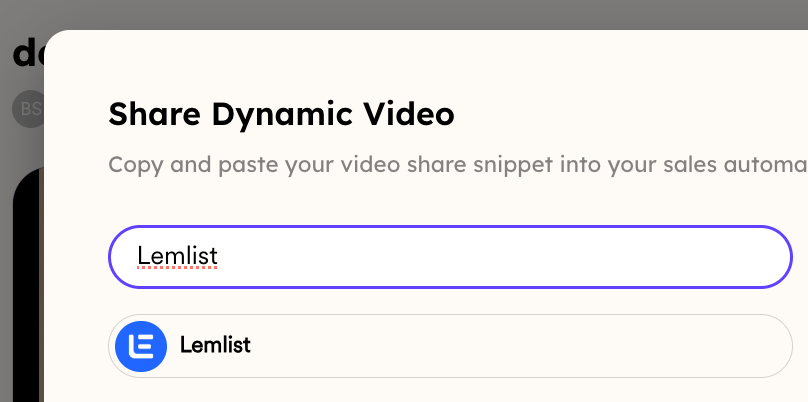
* Copy the video snippet from Sendspark via **Share Campaign → Lemlist**.
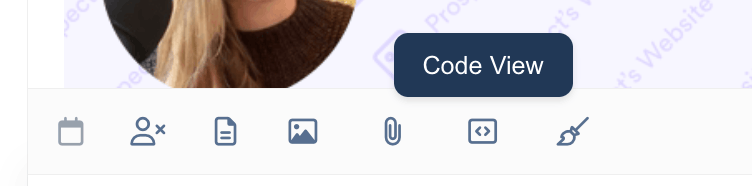
* In Lemlist, paste the snippet inside **Code View** (found under the "..." More Rich options), then switch back to the visual editor.
* Use **Preview** in the bottom right to confirm the personalized video loads for a given contact before sending.
* Videos are matched by **email address**, so each contact must have the same email in both Sendspark and Lemlist — otherwise they see the fallback video.
## 1. Create your dynamic video campaign in Sendspark
If you have not done that yet, please start with [this article](/dynamic-videos-make-videos-with-ai-introductions)!
## 2. Select "Share Campaign"
## 3. Select "Lemlist"
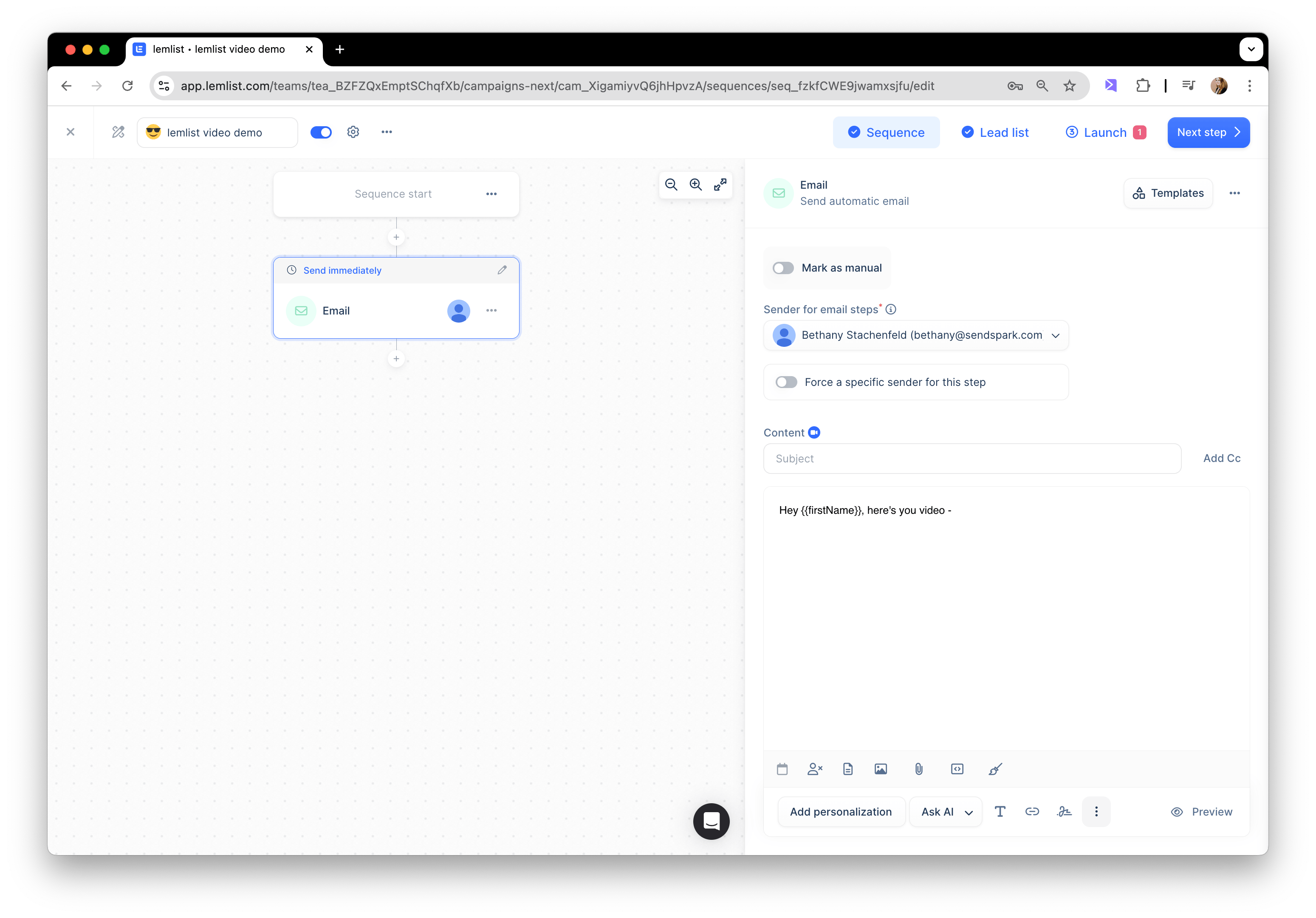
## 4. Go to your email campaign in Lemlist
## 5. Select the "..." on the bottom of your editor to get "More Rich" options
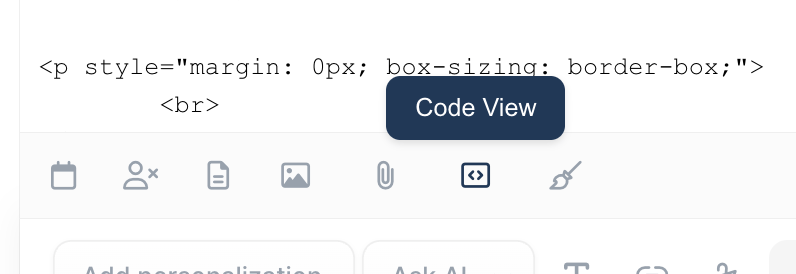
## 6. Select "Code View"
## 7. Paste the snippet from Sendspark
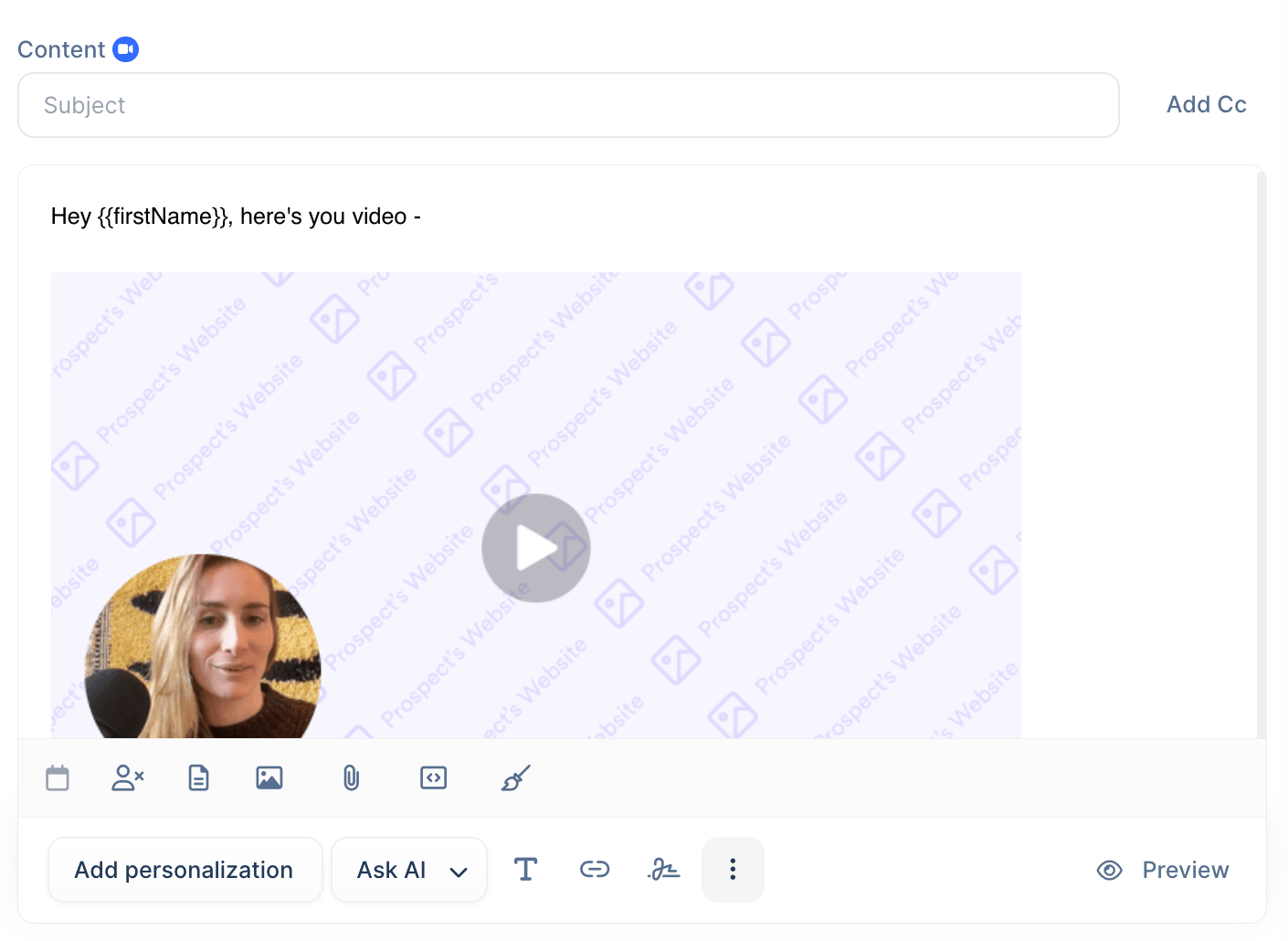
## 8. Switch back out of Code View
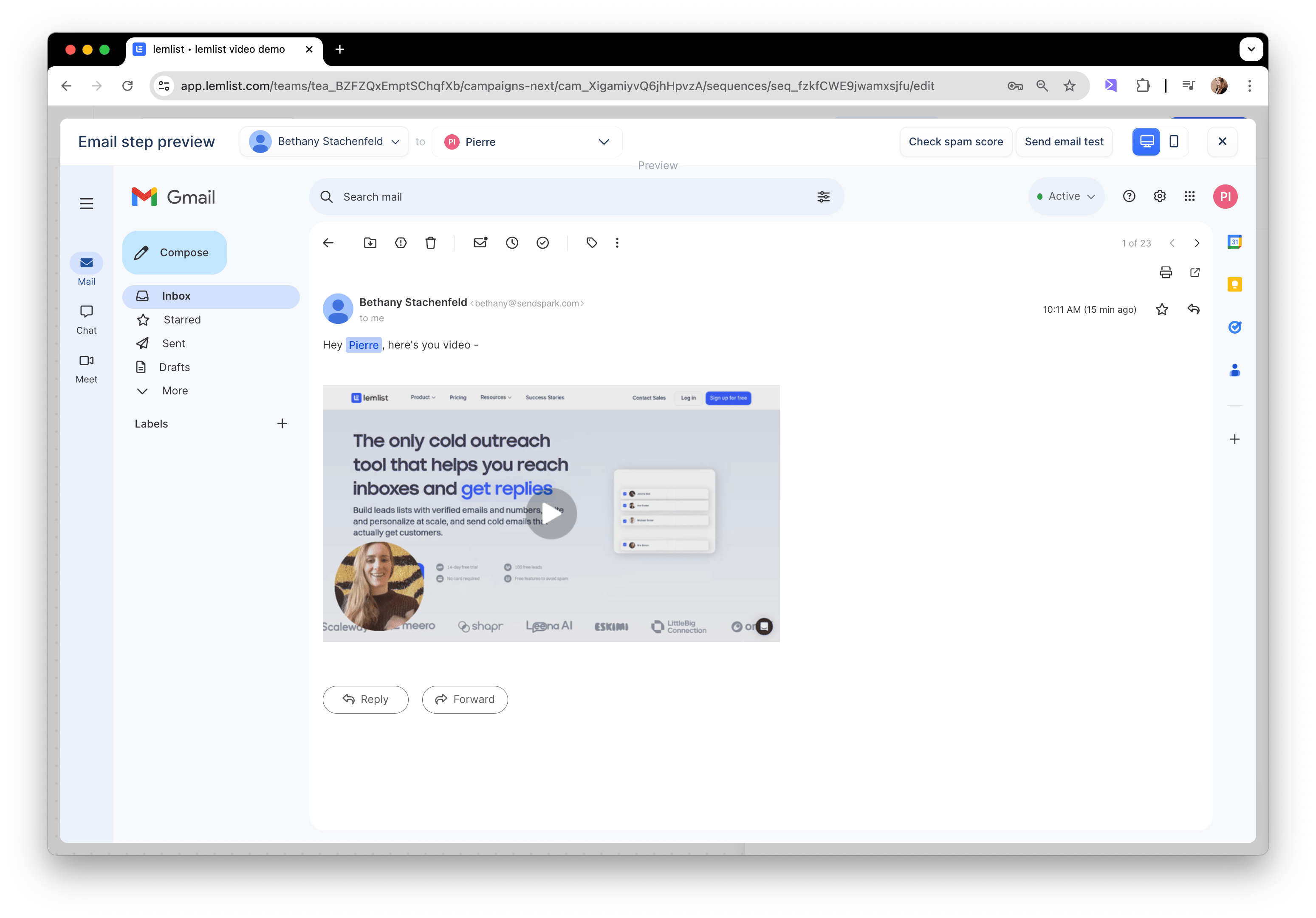
## 9. You should see your dynamic video preview in email
That's it! If you want to double check that you set things up correctly before sending the email, click "preview" in bottom right.
When you preview this email for contacts for whom you have generated videos for, you should see their AI video fill in the preview area.
If you do NOT see their video, double check that you have the **same email address for the contact in both Sendspark and Lemlist.**
We use the email address to match the right video to the right person, so if you are missing their email address in Sendspark, you would just see the fallback video in Lemlist.
## Frequently asked questions
The Sendspark snippet is HTML, so it needs to go into Lemlist's **Code View** (opened from the "..." More Rich options at the bottom of the editor). Once pasted, switch back to the visual editor and the dynamic video preview appears in the email.
Videos are matched by email address. If a contact's email in Lemlist doesn't match the email you generated a video for in Sendspark — or the contact has no email in Sendspark — Lemlist shows the fallback video instead of the personalized one.
Click **Preview** in the bottom right of the Lemlist editor. When you preview for a contact you've generated a video for, their AI video fills the preview area, confirming everything is wired up correctly.
Yes. Build your dynamic video campaign in Sendspark first — see [how to make dynamic videos](/dynamic-videos-make-videos-with-ai-introductions) — then come back to copy the Lemlist snippet.
*Updated July 2026.*
 ## 3. Select "Lemlist"
 ## 4. Go to your email campaign in Lemlist
 ## 5. Select the "..." on the bottom of your editor to get "More Rich" options
 ## 6. Select "Code View"
 ## 7. Paste the snippet from Sendspark
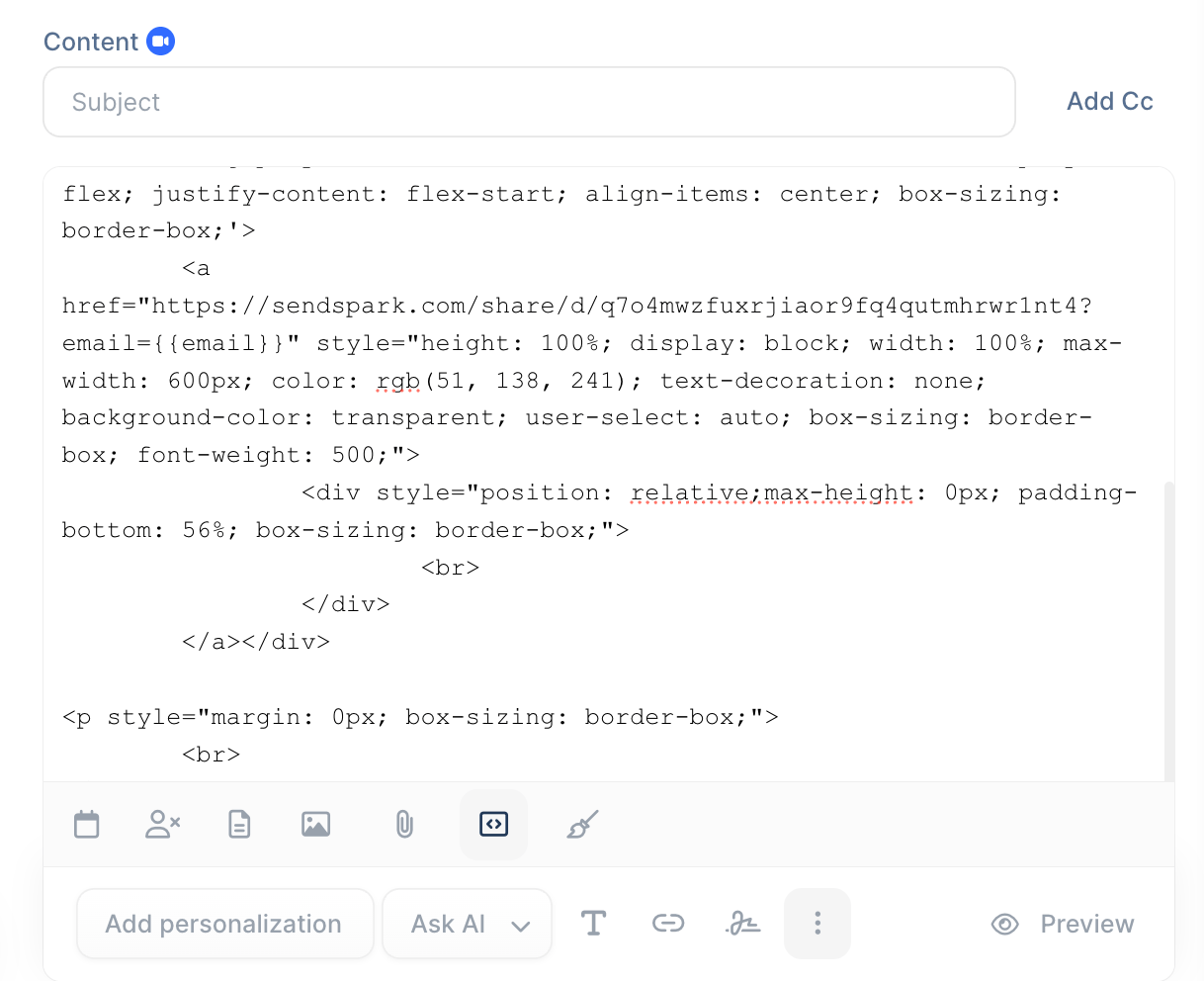 ## 8. Switch back out of Code View
 ## 9. You should see your dynamic video preview in email
 That's it! If you want to double check that you set things up correctly before sending the email, click "preview" in bottom right.
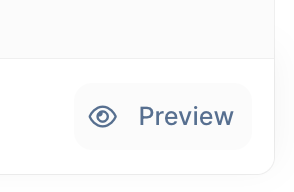 When you preview this email for contacts for whom you have generated videos for, you should see their AI video fill in the preview area.
 If you do NOT see their video, double check that you have the **same email address for the contact in both Sendspark and Lemlist.**
We use the email address to match the right video to the right person, so if you are missing their email address in Sendspark, you would just see the fallback video in Lemlist.
## Frequently asked questions
If you do NOT see their video, double check that you have the **same email address for the contact in both Sendspark and Lemlist.**
We use the email address to match the right video to the right person, so if you are missing their email address in Sendspark, you would just see the fallback video in Lemlist.
## Frequently asked questions