> ## Documentation Index
> Fetch the complete documentation index at: https://help.sendspark.com/llms.txt
> Use this file to discover all available pages before exploring further.
# Lemlist - Create AI Video on Email Reply
> Learn how to create AI video automation in Lemlist that generates personalized videos when recipients reply to your email campaigns.
You can automatically generate and send a personalized video when someone replies "yes" to a Lemlist email. Set up a Sendspark automated workflow that triggers on Lemlist's "Emails Replied" event, generates a dynamic video for the lead, then adds them to a second Lemlist follow-up campaign that already contains your Sendspark video snippet.
## Key takeaways
* The setup uses three pieces: an outbound Lemlist campaign, a follow-up Lemlist campaign with a Sendspark video placeholder, and a Sendspark automated workflow that ties them together.
* The Sendspark workflow trigger is **Lemlist → Emails Replied**, connected with a Lemlist API key pasted as the access token; filter by **Campaign Name contains** so only replies to the right campaign enter the automation.
* The workflow then runs **Sendspark → Create dynamic video** (the email field is essential to match the right video to the right person) followed by **Lemlist → Add Lead to Campaign**.
* Paste the Sendspark video snippet into the follow-up campaign via Lemlist's **code view** so each replying prospect receives the video made for them.
Do you want to send out email campaign asking someone if they would like to see a video on how you can help them, and then automatically generate & send that video after they reply **"yes?"**
This guide will walk you through how to set that up using Sendspark and Lemlist.
## How This Works at High Level
There are a few ways you can set this up - so feel free to go wild with your own automation once you understand the concepts.
The automation that we we'll walk through here looks like this:
1. You have an **outbound campaign** in Lemlist that you are sending out to people asking if they want to receive a video
2. You have a **follow up campaign** in Lemlist on standby, with a video placeholder, that you will add contacts to if they reply to the first campaign
3. You have an **automated workflow in Sendspark** that is waiting for leads to reply to the first campaign. If they do reply, this automation will generate their personalized video, and add them to the 2nd campaign.
Alright, that is how it works at a high level. Now, let's set it up!
## Generate Videos Automatically When Someone Replies to Lemlist Email
## 0. Prep Work
Before setting up the automation, you should do the prep work:
1. Create your outbound email campaign in Lemlist
2. Create your [dynamic video campaign in Sendspark](/dynamic-videos-make-videos-with-ai-introductions)
3. Create your follow up email campaign in Lemlist
4. Add your Sendspark Dynamic Video Snippet to your follow up campaign in Lemlist
5. In Lemlist, you'll want to make sure that you have the Sendspark video placeholder in your email campaign where you want the video to appear in email. You can find the Sendspark video placeholder by following these steps:
6. Go to your **Sendspark dynamic video**
7. Click **"Share Campaign"**  8. Search for "**Lemlist"**
 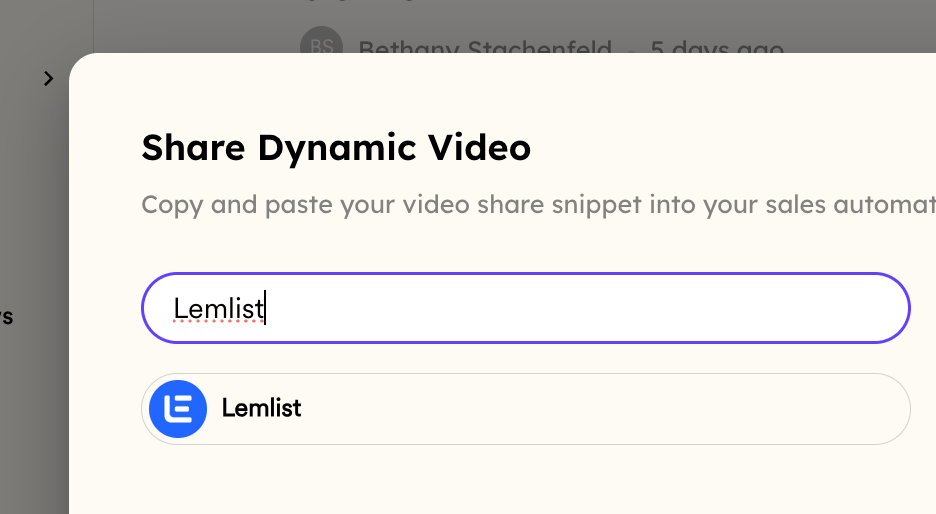 9. **Click on Lemlist** to copy the Sendspark video placeholder to your clipboard
10. \*\*Open your Lemlist email.\*\*At the bottom of the email editor, you'll see 3 dots. Click on this, and then click on \*\*"code view"\*\*to get into the code editor
9. **Click on Lemlist** to copy the Sendspark video placeholder to your clipboard
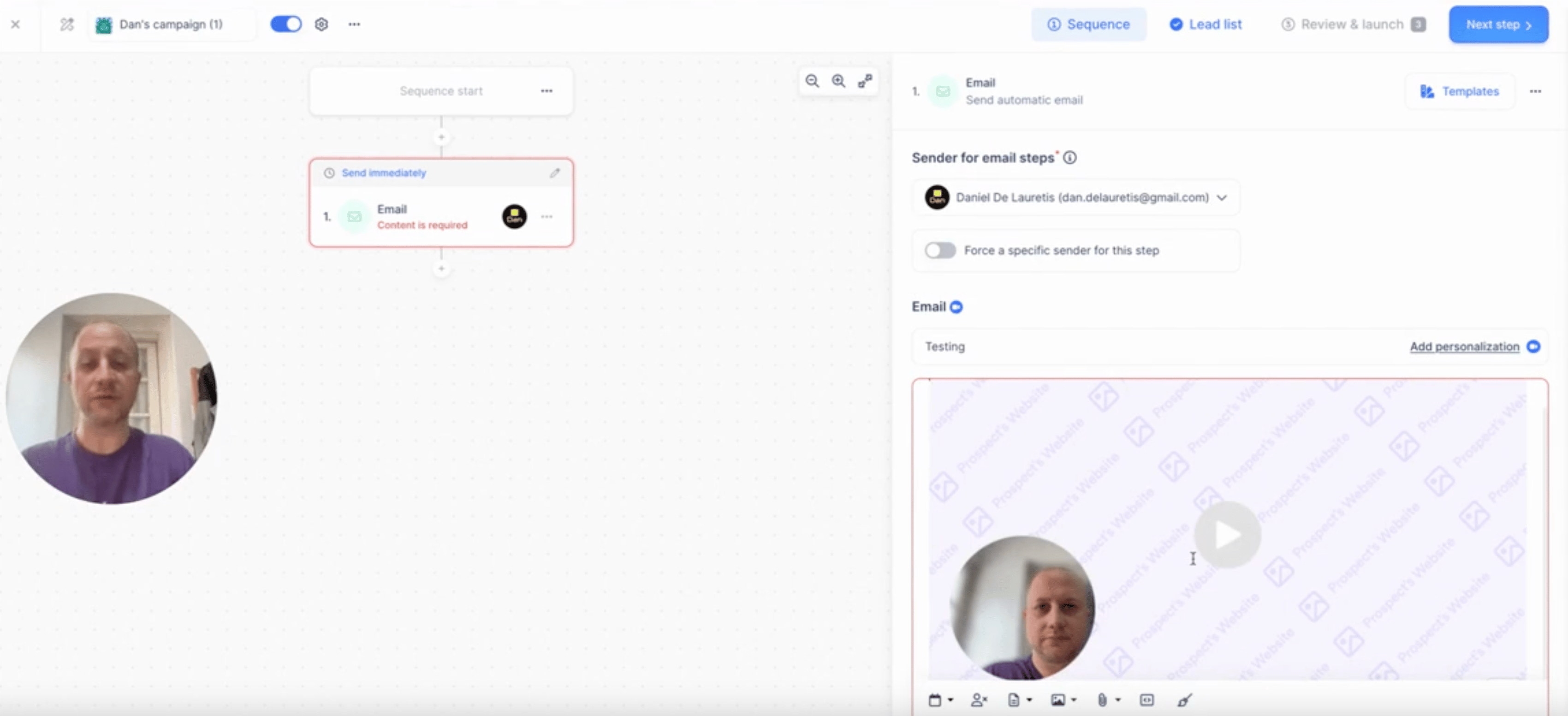
10. \*\*Open your Lemlist email.\*\*At the bottom of the email editor, you'll see 3 dots. Click on this, and then click on \*\*"code view"\*\*to get into the code editor 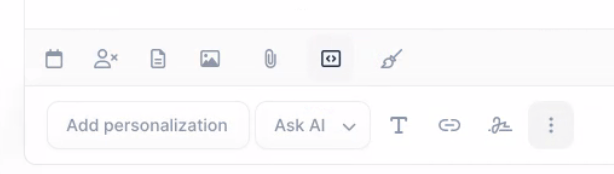 11. **Paste directly into your Lemlist email**where you want the video to appear
  Alright, now that everything is prepped, let's create the automation!
## 1. Create Automated Workflow for When Leads Reply to Lemlist Email Campaign
Go to the [automated workflow section](https://sendspark.com/automated-workflows) of Sendspark, and create a **new automation**.
Alright, now that everything is prepped, let's create the automation!
## 1. Create Automated Workflow for When Leads Reply to Lemlist Email Campaign
Go to the [automated workflow section](https://sendspark.com/automated-workflows) of Sendspark, and create a **new automation**.
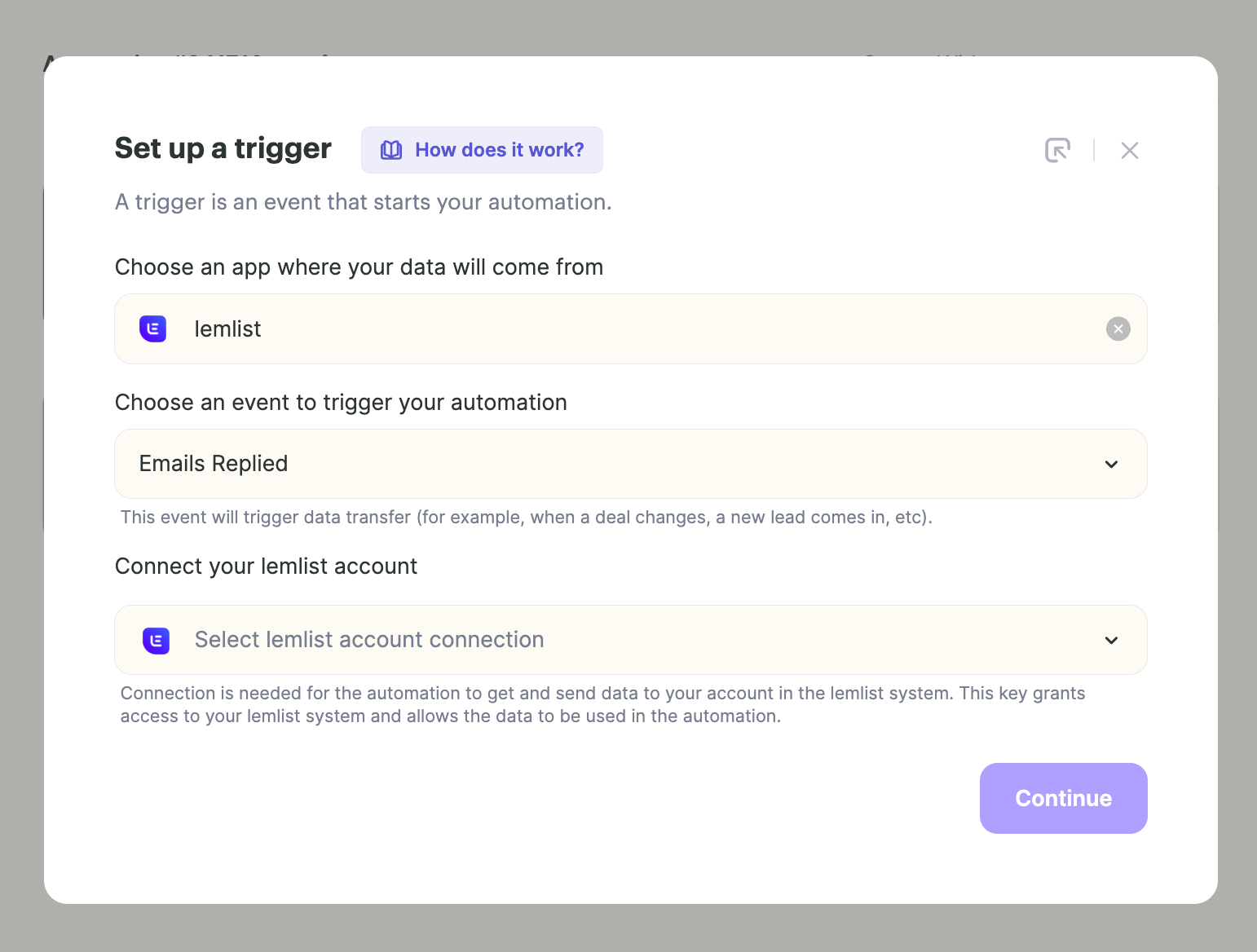
 For the trigger, select **"Lemlist"** and then **"Emails Replied"**
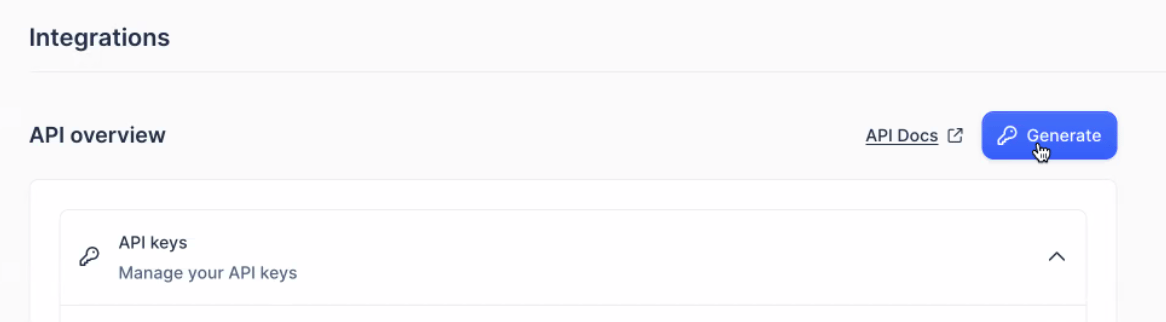
 To connect your Lemlist account, go into your Lemlist integration settings, and **generate an API key**
 Paste this in your access token back in Sendspark to connect Lemlist with Sendspark.
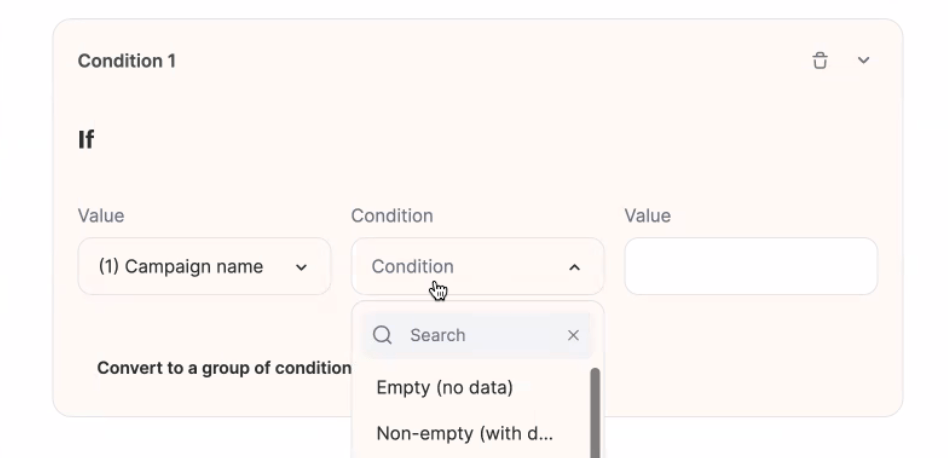
Now, we want to make sure that users only enter the automation when prospects reply to your specific campaign.
So click on on the **"filter"** icon in Sendspark
Paste this in your access token back in Sendspark to connect Lemlist with Sendspark.
Now, we want to make sure that users only enter the automation when prospects reply to your specific campaign.
So click on on the **"filter"** icon in Sendspark
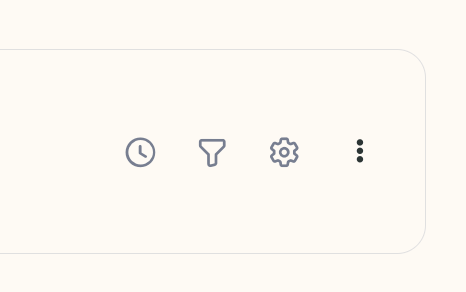 And then filter by condition\*\*"Campaign Name"\*\* contains (whatever it should contain to indicate that it is a campaign you want to generate a video for).
 ## 2. Add Action: Generate Sendspark Video
Right underneath the trigger you just added, click to **add an action:**
## 2. Add Action: Generate Sendspark Video
Right underneath the trigger you just added, click to **add an action:**
 Select **"Sendspark"** and then **"Create dynamic video"**
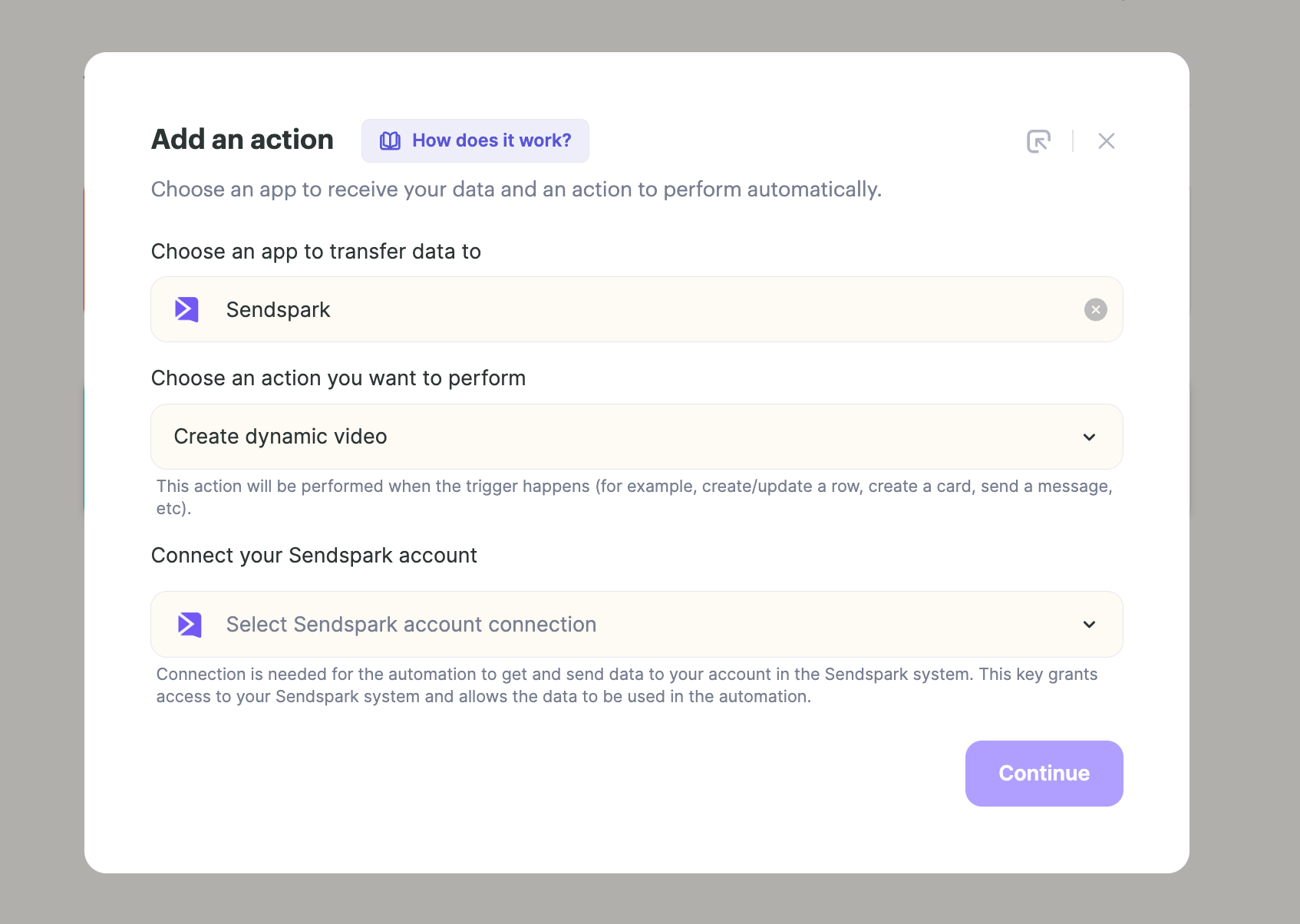 Map in all of the fields from Lemlist. This is the information you'll be using in your Sendspark video ("first name," etc.)
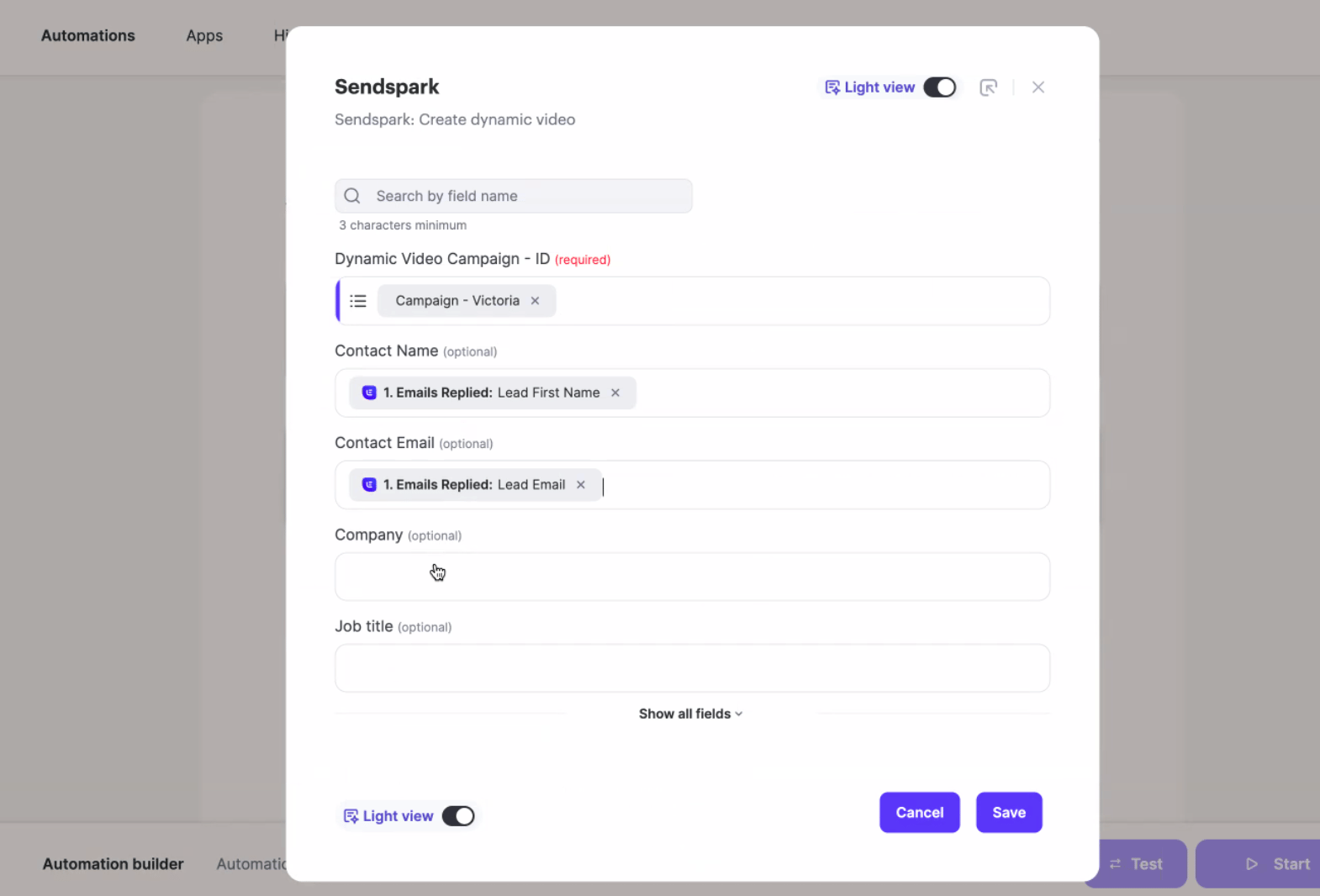 Note that the **email field is essential**in order to make sure that the right person in your follow up Lemlist campaign will see the right video made for them.
Also note that if you want to use a dynamic background, you need to click\*\*"show all fields"\*\* to see the Sendspark background URL field.
Note that the **email field is essential**in order to make sure that the right person in your follow up Lemlist campaign will see the right video made for them.
Also note that if you want to use a dynamic background, you need to click\*\*"show all fields"\*\* to see the Sendspark background URL field.
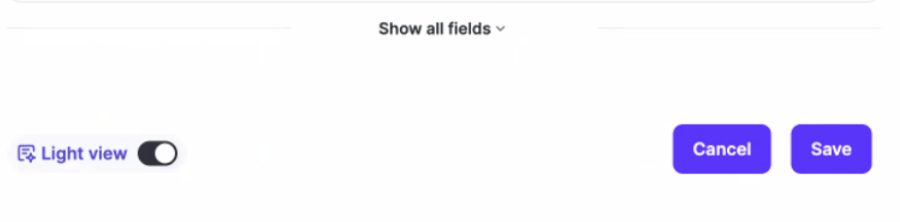 Awesome, once you save this step, you'll be automatically generating personalized videos for people who reply to Lemlist emails!
Now, we just need the final step to automatically send this video in an email.
## 3. Create Action: Send Video Email
You have a couple options for how you send the video email after it's been created. Note that one simple way is to just send a video email through Gmail or send the video through Outlook.
For this tutorial, we're sticking with Lemlist. We're going to add the lead to the follow up campaign you created in the prep step.
As long as you correctly added your Sendspark dynamic video snippet to this campaign, and correctly set up the trigger & action above, this is all you need to do!
The video should be generated, and the placeholder should be in your email, so all you have to do is add the lead to the campaign, and every person should get the video made for them.
**Add a new action in the Sendspark Automated Workflow**
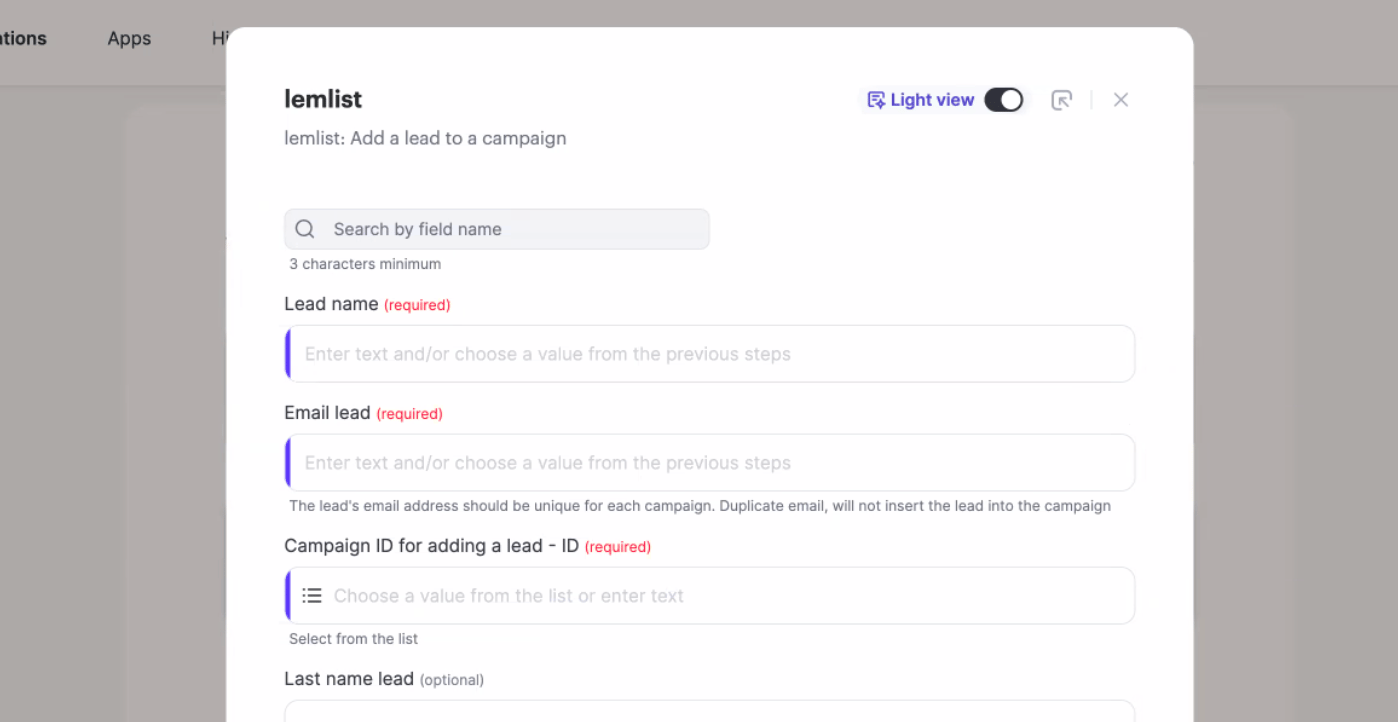
Select **Lemlist**, and then \*\*"Add Lead to Campaign,"\*\*and then **map in the fields**from the previous steps into Lemlist.
Awesome, once you save this step, you'll be automatically generating personalized videos for people who reply to Lemlist emails!
Now, we just need the final step to automatically send this video in an email.
## 3. Create Action: Send Video Email
You have a couple options for how you send the video email after it's been created. Note that one simple way is to just send a video email through Gmail or send the video through Outlook.
For this tutorial, we're sticking with Lemlist. We're going to add the lead to the follow up campaign you created in the prep step.
As long as you correctly added your Sendspark dynamic video snippet to this campaign, and correctly set up the trigger & action above, this is all you need to do!
The video should be generated, and the placeholder should be in your email, so all you have to do is add the lead to the campaign, and every person should get the video made for them.
**Add a new action in the Sendspark Automated Workflow**
Select **Lemlist**, and then \*\*"Add Lead to Campaign,"\*\*and then **map in the fields**from the previous steps into Lemlist.
 Save this step, and turn on the Sendspark automation, that is it!
**So to walk through what you've set up....**
1. When a prospect replies to one Lemlist email sequence it, will trigger an automation in Sendspark
2. In the automation in Sendspark, you'll generate a dynamic video, and then add the lead to a SECOND campaign in Lemlist
3. In the second campaign, you have a Sendspark dynamic video snippet where you want the video to go, so when the prospect receives the email, they'll get a personalized video made for them!
## Frequently asked questions
Do the prep work first: create your outbound Lemlist campaign, create your [dynamic video campaign in Sendspark](/dynamic-videos-make-videos-with-ai-introductions), create your follow-up Lemlist campaign, and add your Sendspark dynamic video snippet to that follow-up campaign.
In Sendspark, click **Share Campaign**, search for **Lemlist**, and click it to copy the video placeholder. In your Lemlist email editor, click the 3 dots at the bottom, choose **code view**, and paste the snippet where you want the video to appear.
In the Sendspark [automated workflow section](https://sendspark.com/automated-workflows), create a new automation and select the **Lemlist → Emails Replied** trigger. Connect it with a Lemlist API key (generated in your Lemlist integration settings) pasted as the access token.
Add a filter on the trigger by condition **Campaign Name contains**, set to whatever indicates the specific campaign you want to generate videos for. This keeps prospects from other campaigns out of the automation.
The email field is essential because it matches the right video to the right person in your follow-up Lemlist campaign. If you want a dynamic background, click **show all fields** to reveal the Sendspark background URL field.
*Updated July 2026.*
Save this step, and turn on the Sendspark automation, that is it!
**So to walk through what you've set up....**
1. When a prospect replies to one Lemlist email sequence it, will trigger an automation in Sendspark
2. In the automation in Sendspark, you'll generate a dynamic video, and then add the lead to a SECOND campaign in Lemlist
3. In the second campaign, you have a Sendspark dynamic video snippet where you want the video to go, so when the prospect receives the email, they'll get a personalized video made for them!
## Frequently asked questions
Do the prep work first: create your outbound Lemlist campaign, create your [dynamic video campaign in Sendspark](/dynamic-videos-make-videos-with-ai-introductions), create your follow-up Lemlist campaign, and add your Sendspark dynamic video snippet to that follow-up campaign.
In Sendspark, click **Share Campaign**, search for **Lemlist**, and click it to copy the video placeholder. In your Lemlist email editor, click the 3 dots at the bottom, choose **code view**, and paste the snippet where you want the video to appear.
In the Sendspark [automated workflow section](https://sendspark.com/automated-workflows), create a new automation and select the **Lemlist → Emails Replied** trigger. Connect it with a Lemlist API key (generated in your Lemlist integration settings) pasted as the access token.
Add a filter on the trigger by condition **Campaign Name contains**, set to whatever indicates the specific campaign you want to generate videos for. This keeps prospects from other campaigns out of the automation.
The email field is essential because it matches the right video to the right person in your follow-up Lemlist campaign. If you want a dynamic background, click **show all fields** to reveal the Sendspark background URL field.
*Updated July 2026.*