> ## Documentation Index
> Fetch the complete documentation index at: https://help.sendspark.com/llms.txt
> Use this file to discover all available pages before exploring further.
# LeadConnector (GHL) Agentic Workflow Automation
> Connect Sendspark with LeadConnector (GHL) to automate dynamic video sending in agentic workflows for scalable personalized outreach.
With Sendspark Agentic Workflows, you can trigger a video from GoHighLevel (LeadConnector) without handling webhooks. Create a new automation, choose the LeadConnector "Contact Tag Update" trigger, add a filter where the tag equals the tag you use in GHL, and every contact given that tag automatically starts an action in Sendspark, such as generating a video.
## Key takeaways
* The Agentic Workflow lets you create a video from GoHighLevel easily, without having to set up webhooks.
* Use the LeadConnector **Contact Tag Update** trigger to start any Sendspark action.
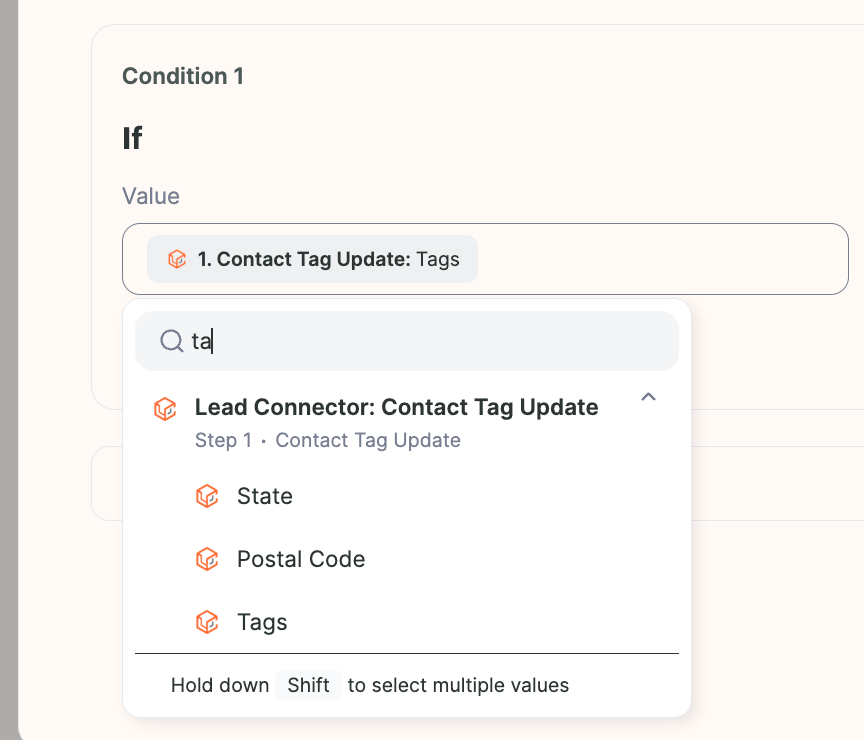
* Configure the filter by clicking the first field, typing "tag" and selecting **TAGS**, setting the condition type to **equals**, and entering the exact tag you'll use in GHL.
* Once set up, applying that tag to a contact automatically runs the following steps, such as generating a video in Sendspark.
Now with the Agentic Workflow, you're able to create a video easily without having to handle webhooks.
By using the Trigger : "Tag Update" on a contact, you're able to start any action in Sendspark:
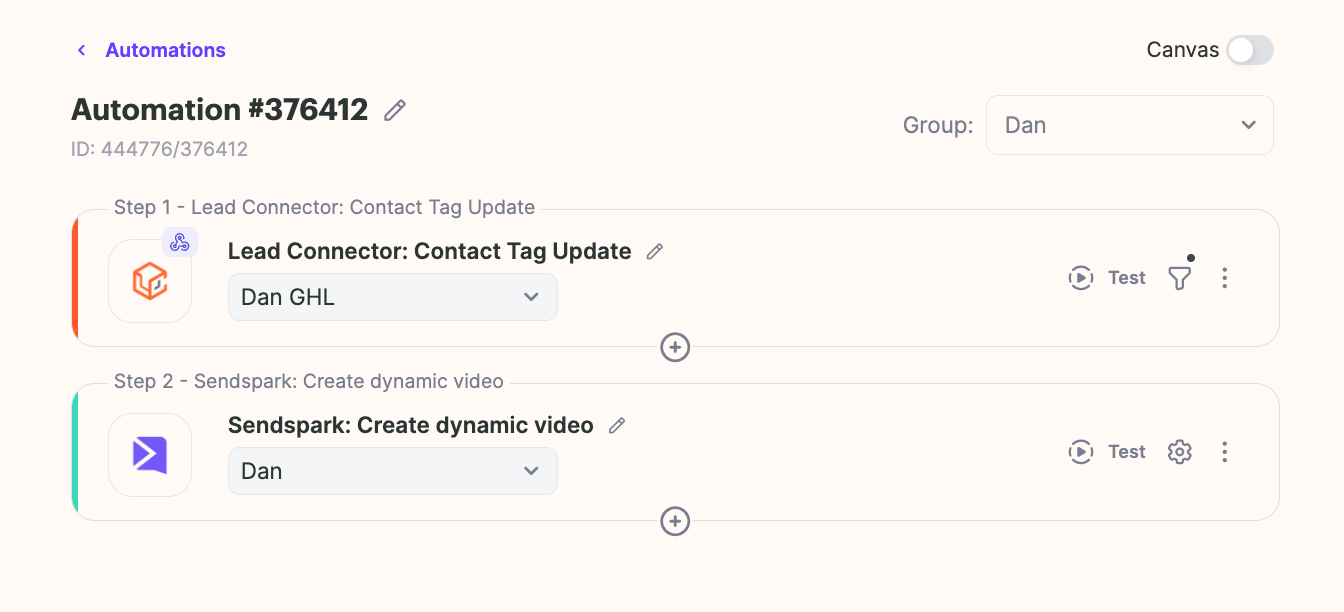 Simply create a new automation, look for lead connector, contact tag update
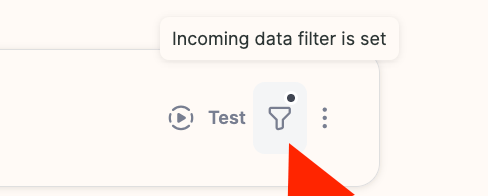
Click on the filtering option:
Simply create a new automation, look for lead connector, contact tag update
Click on the filtering option:
 Click on the first field and type "tag" and click on TAGS to add the initial statement of the condition.
 Condition type can be "equals":
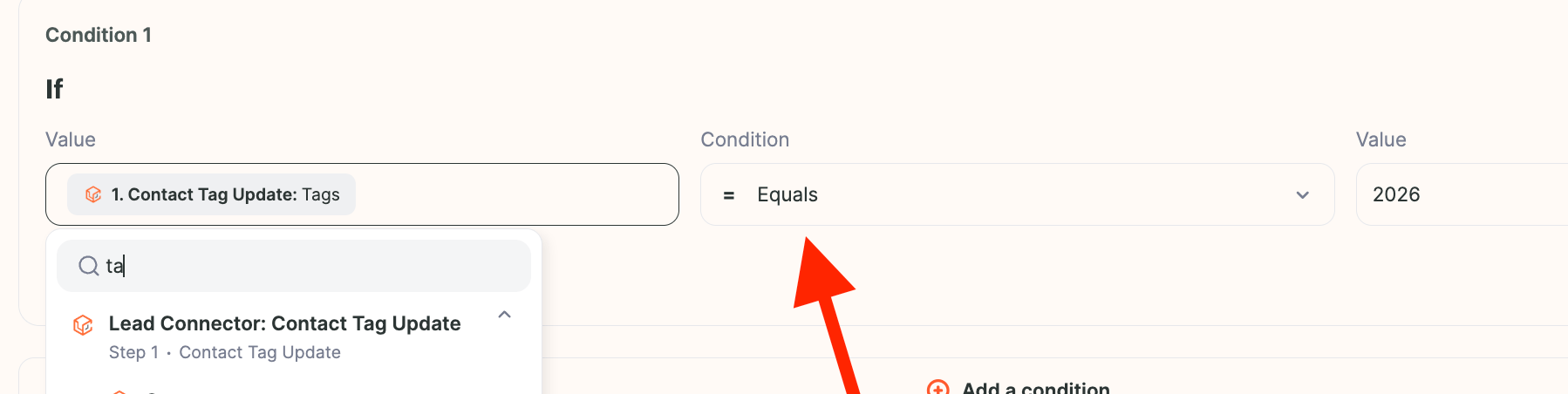 And simply type the tag you'll use in GHL:
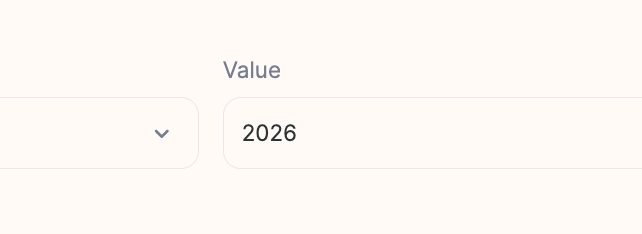 Now every time you add this tag into a contact,Then anything else will happen afterward, such as generating a video in Sendspark.
## Frequently asked questions
No. With the Agentic Workflow you can create a video from GoHighLevel without handling webhooks — you build the automation directly in Sendspark using the LeadConnector trigger.
Use the LeadConnector **Contact Tag Update** trigger. When a tag is updated on a contact, it can start any action in Sendspark, such as generating a video.
Click the filtering option, click the first field and type "tag", then click **TAGS** to add the first part of the condition. Set the condition type to **equals** and type the tag you use in GHL.
*Updated July 2026.*
Now every time you add this tag into a contact,Then anything else will happen afterward, such as generating a video in Sendspark.
## Frequently asked questions
No. With the Agentic Workflow you can create a video from GoHighLevel without handling webhooks — you build the automation directly in Sendspark using the LeadConnector trigger.
Use the LeadConnector **Contact Tag Update** trigger. When a tag is updated on a contact, it can start any action in Sendspark, such as generating a video.
Click the filtering option, click the first field and type "tag", then click **TAGS** to add the first part of the condition. Set the condition type to **equals** and type the tag you use in GHL.
*Updated July 2026.*