> ## Documentation Index
> Fetch the complete documentation index at: https://help.sendspark.com/llms.txt
> Use this file to discover all available pages before exploring further.
# La Growth Machine — Send Dynamic Videos
> Send Sendspark dynamic AI-personalized videos through La Growth Machine sequences. Create one video and personalize it for every prospect in your LGM campaign.
Sendspark makes it easy to send personalized videos at scale in La Growth Machine. Record one Dynamic Video, download Sendspark's CSV and import it as an LGM audience, then copy the LGM snippet from Share Campaign and paste it straight into your email step's body. Each contact receives their own AI-personalized video.
## Key takeaways
* You create one Dynamic Video that acts as the template, saying "watermelon" where each viewer's first name should go.
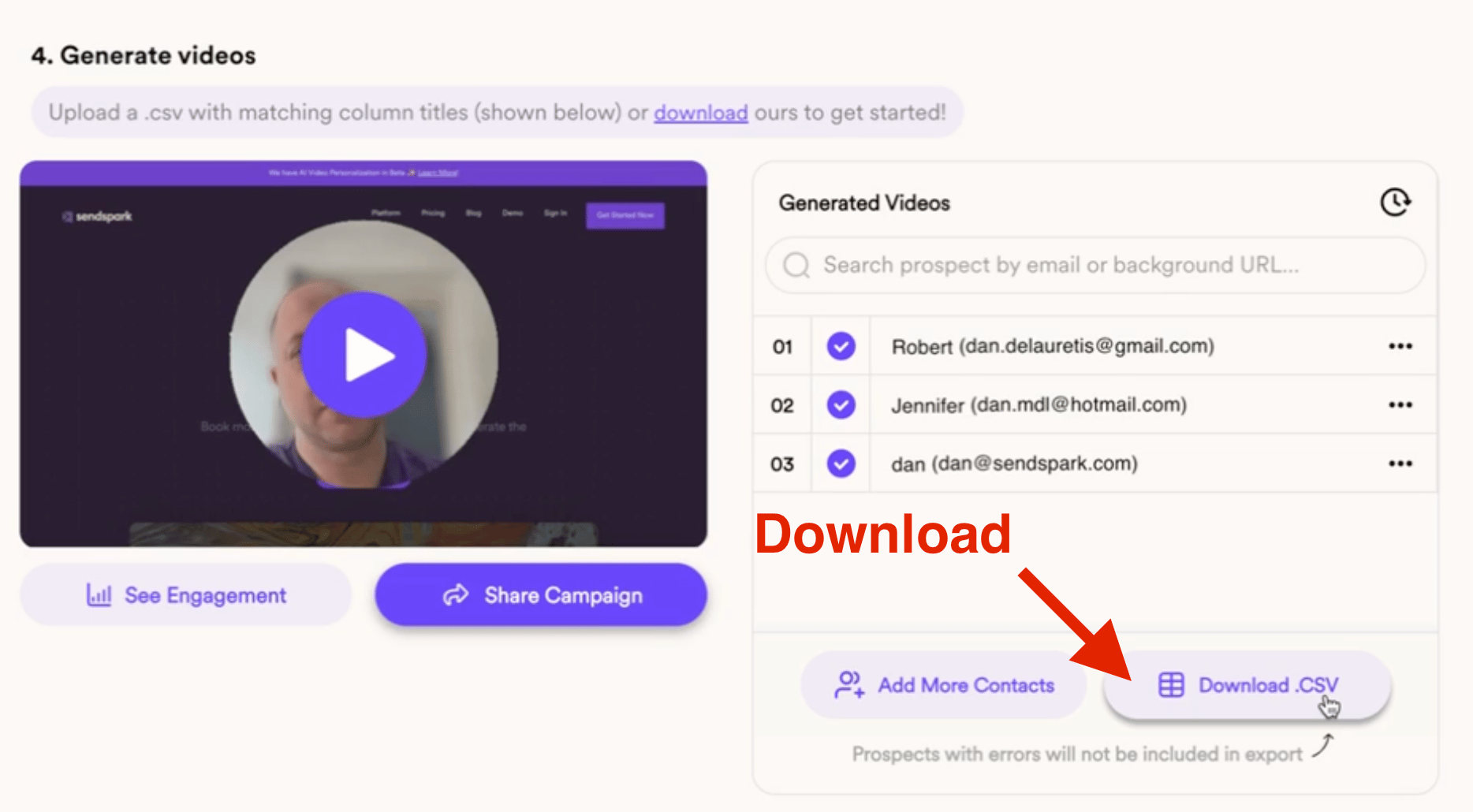
* Download the CSV from your Sendspark campaign and import it into LGM to create an audience.
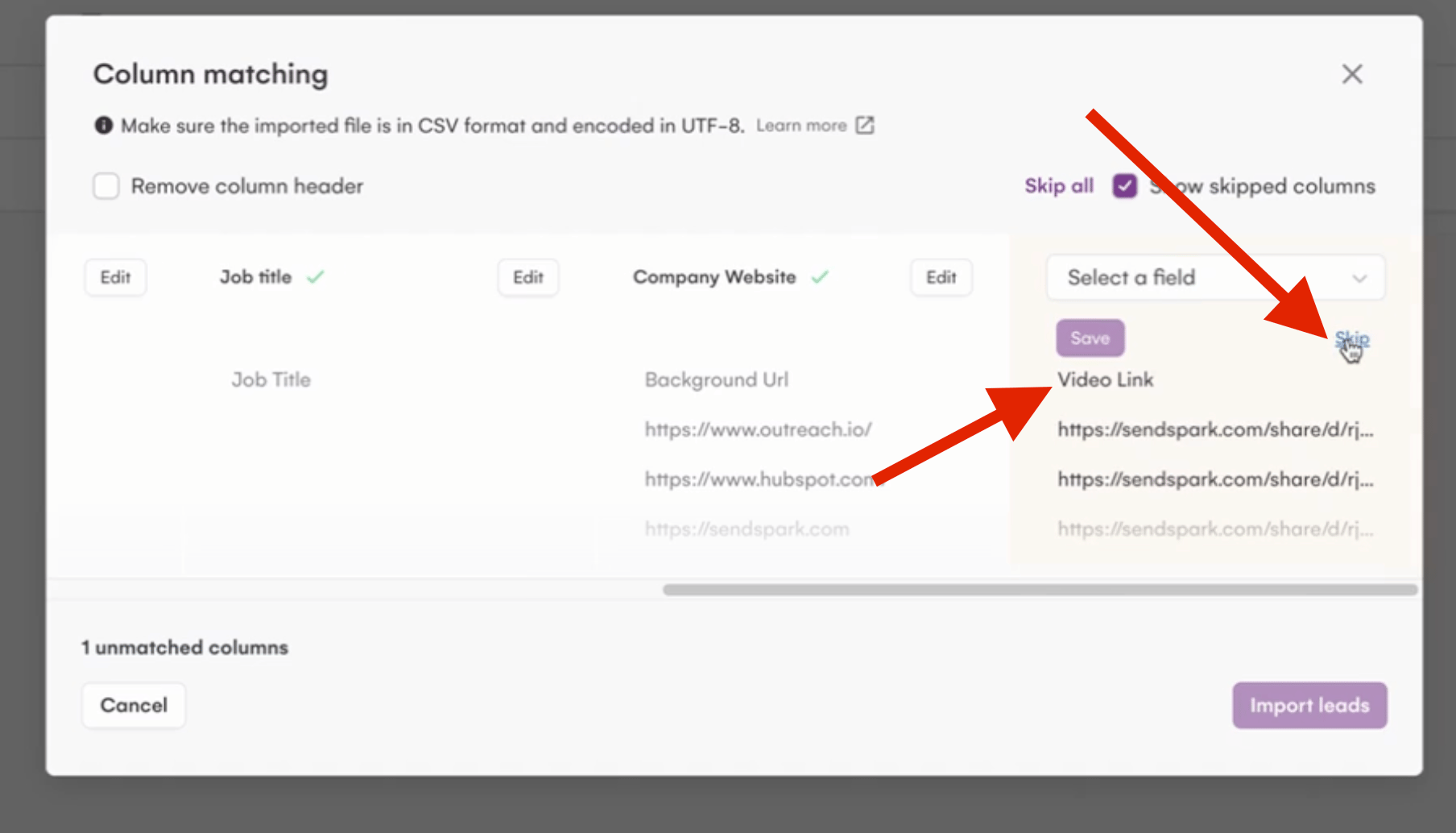
* When mapping columns on import, either skip the VIDEO LINK column or assign it to a field, then import the leads.
* Get the LGM snippet from Share Campaign in Sendspark and paste it directly into the email step body, add a subject, and attach the audience you created.
Sendspark makes it easy to send personalized videos at scale in LGM
In this tutorial, we'll walk through how you can create one video, and personalize it with every contacts' name and website with AI.
How to Send AI-Personalized Videos in LGM
Record one video in Sendspark. Make sure to say "watermelon" where you want your viewer's first name to go, like this:
If you are creating a Dynamic Video campaign for the first time be sure to check this article for more in-depth information:
## Let's break down the steps to share your video
1. Download the CSV file by clicking on the given button:
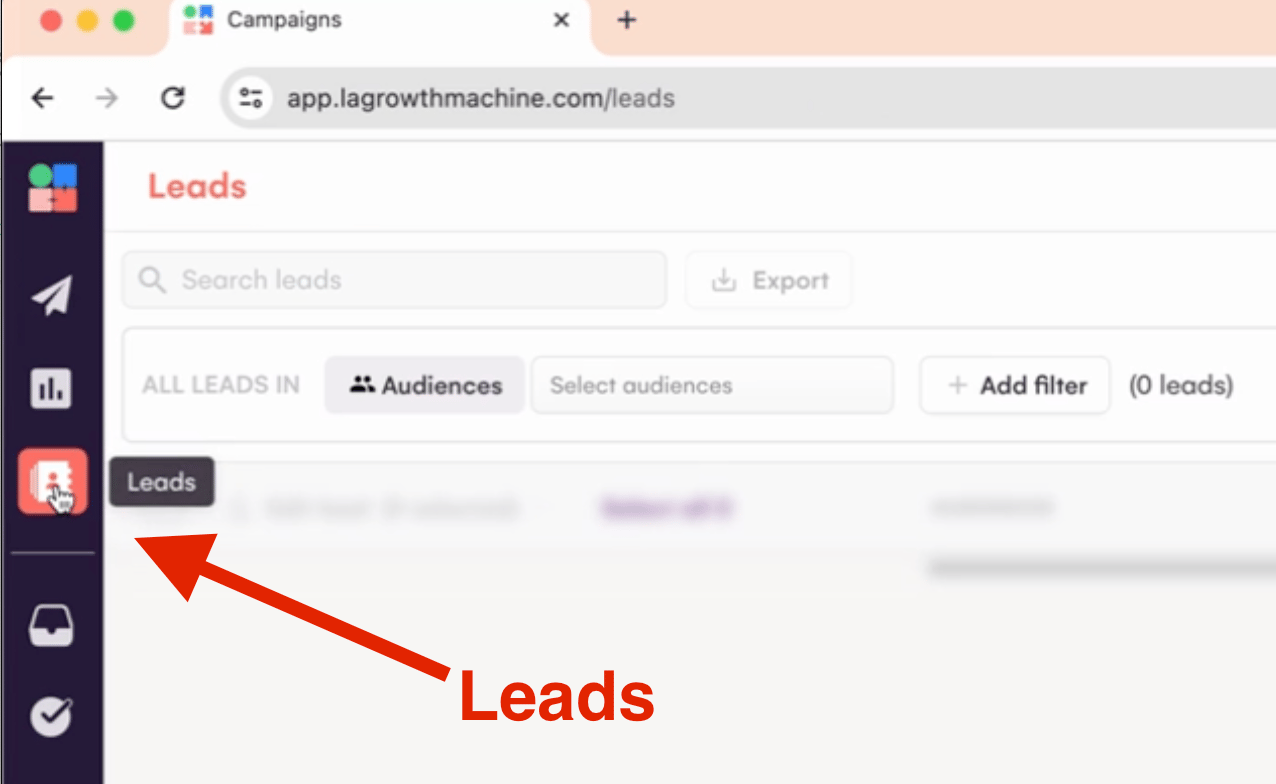
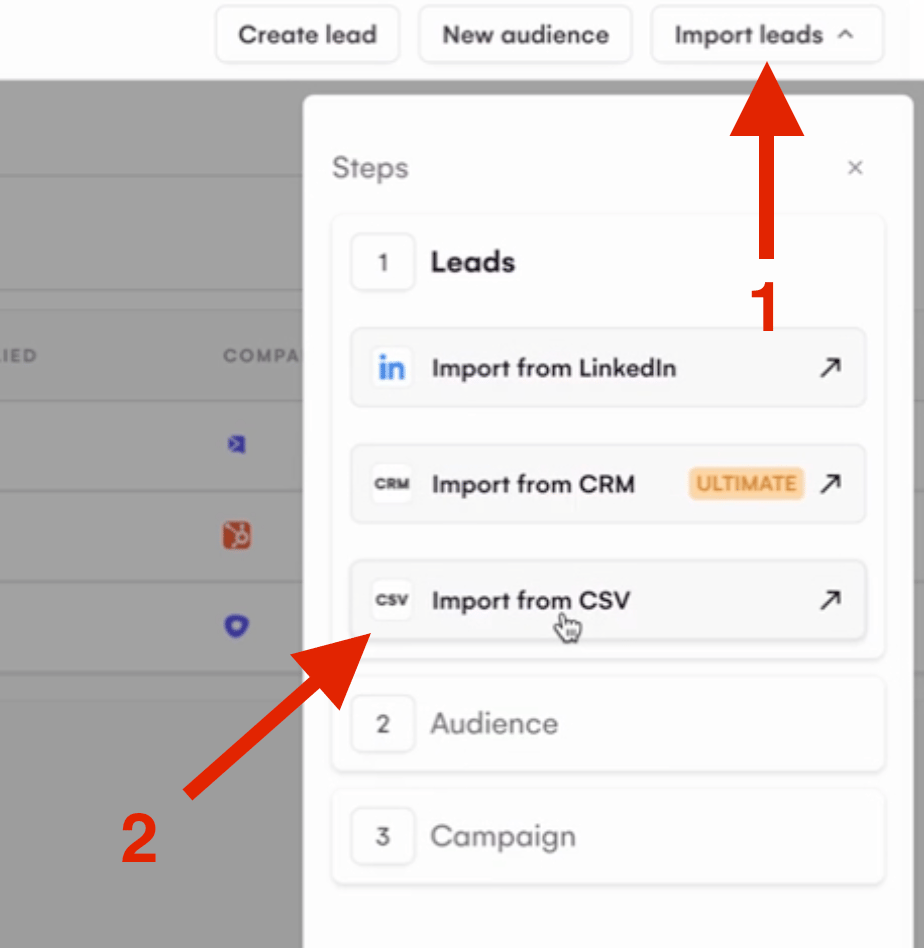
2. Head to LGM platform and create an audience by importing that CSV file
3. When asked to map the elements be sure to either skip the VIDEO LINK column or assign it to a field and then hit on IMPORT LEADS
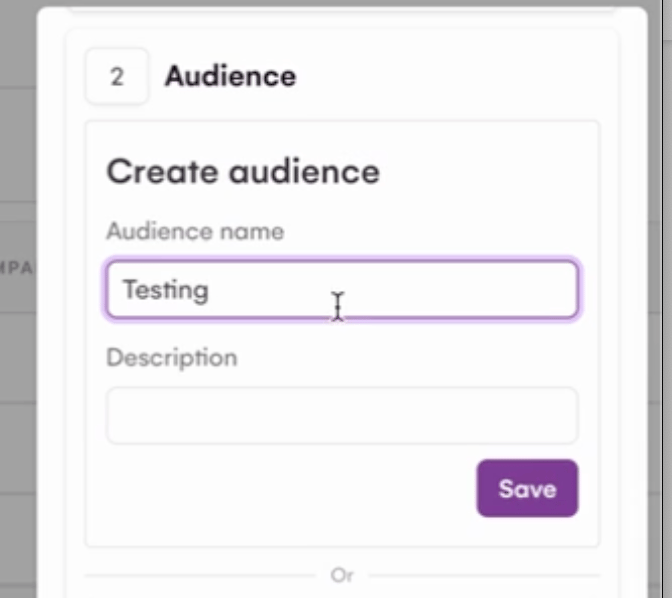
4. Name the Audience and save it:
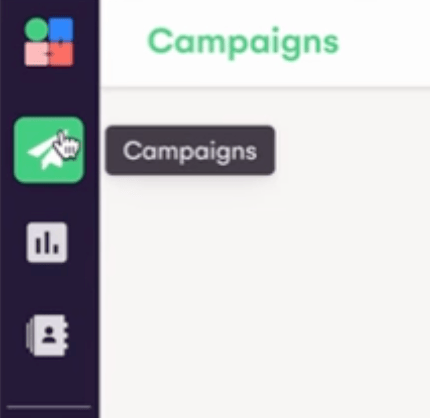
5. Head back to Campaigns:
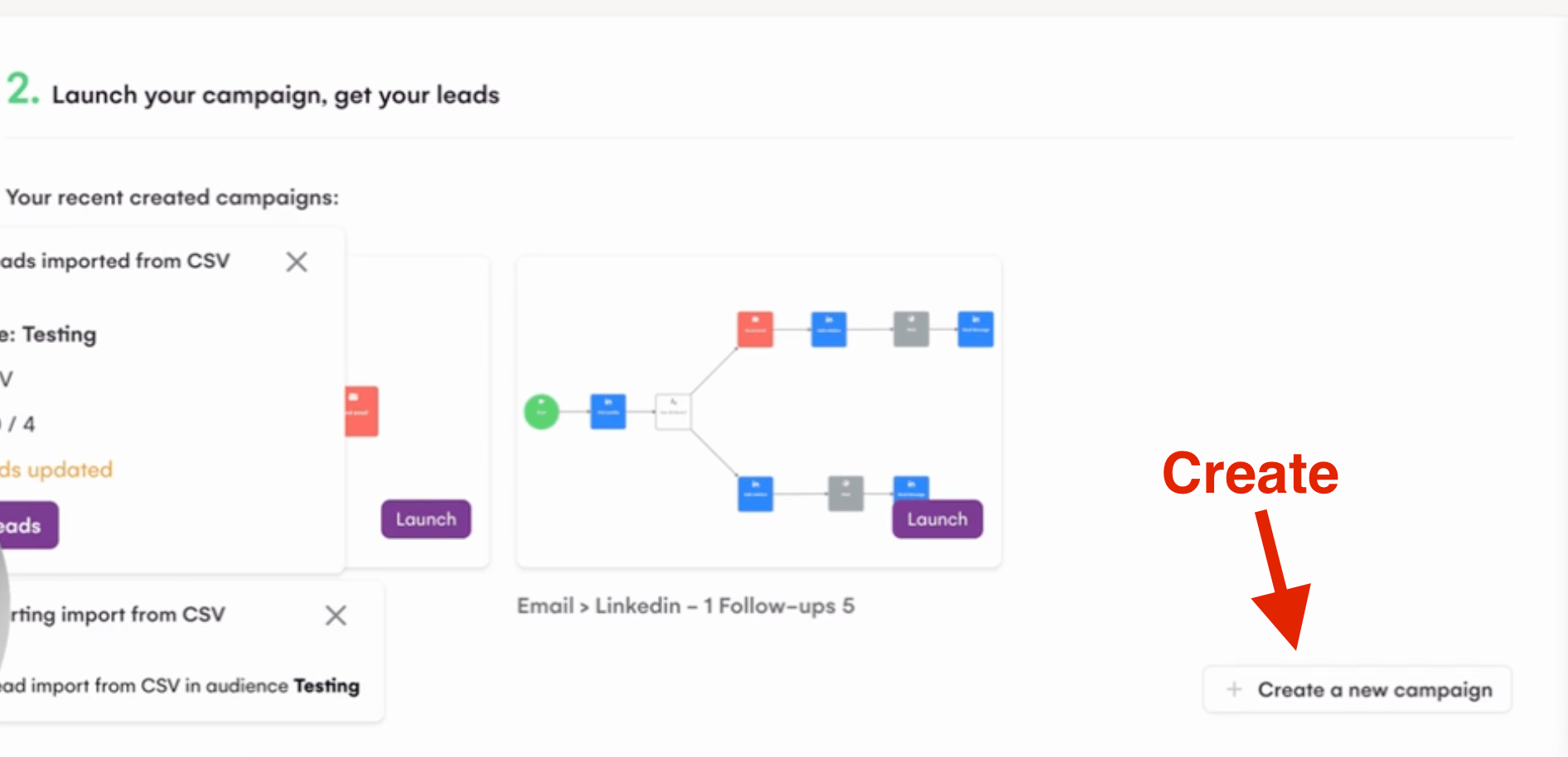
6. Create a new campaign:
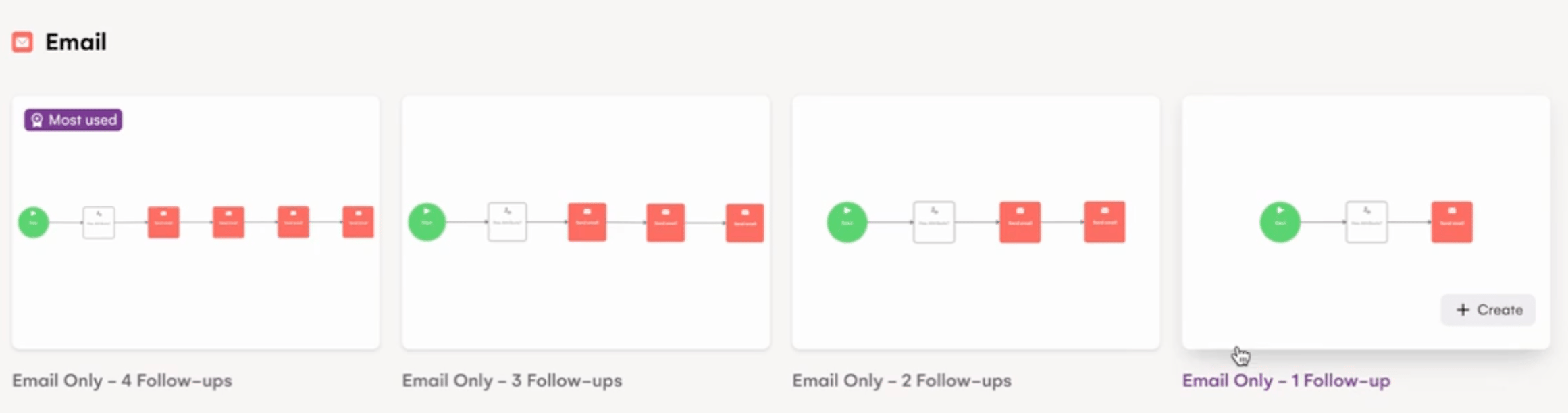
7. Select the sequence option that better fits your needs:
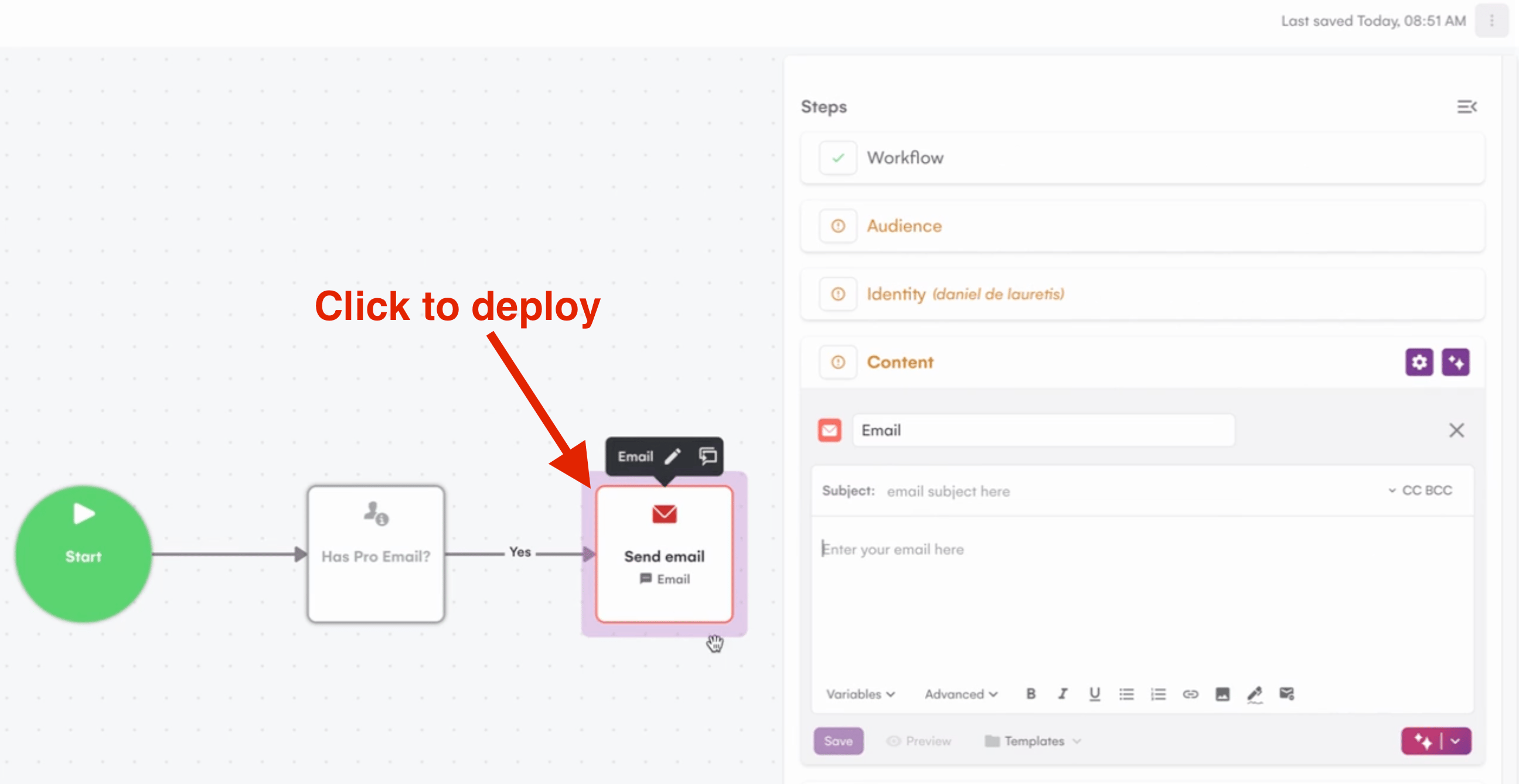
8. Once in the steps page, click on the email option to deploy the side panel:
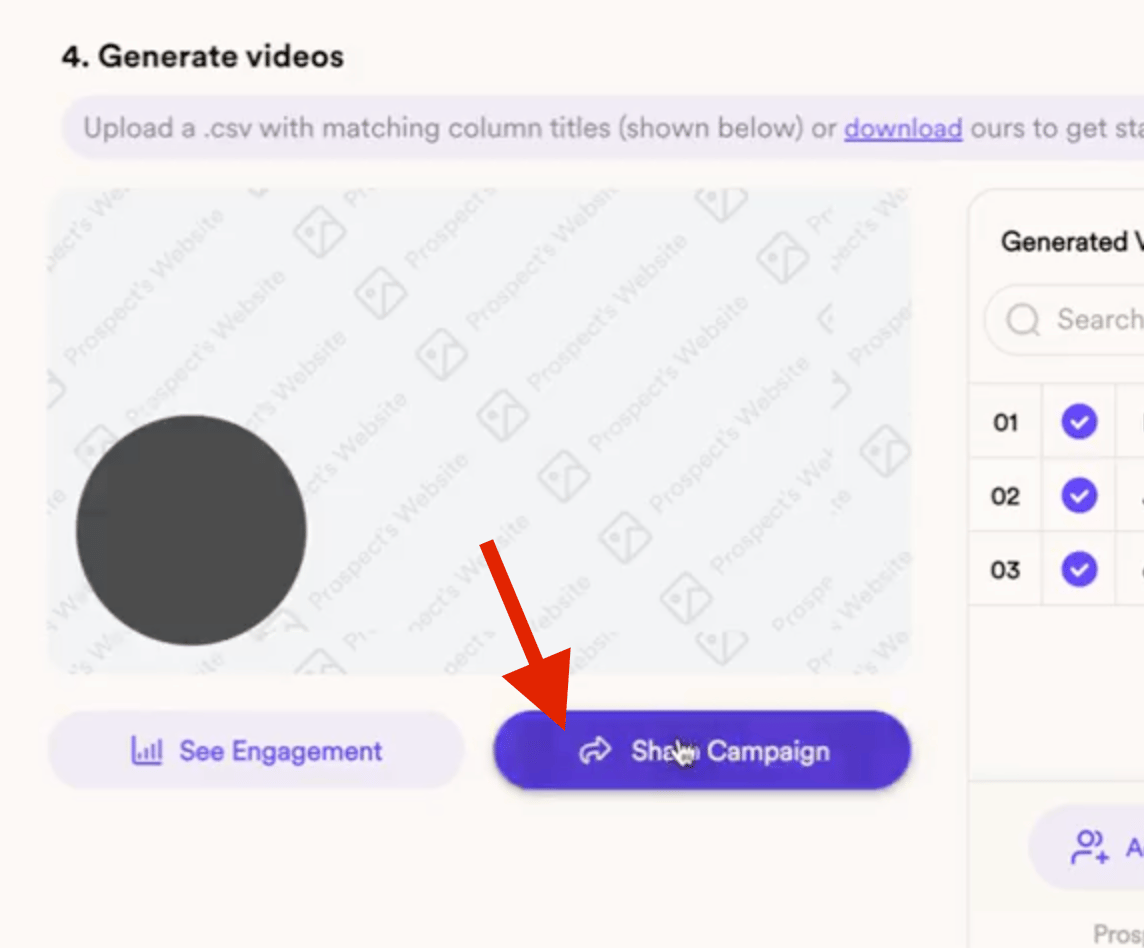
9. Head back to your Dynamic Video campaign and click on Share Campaign to find the snippet code for LGM:
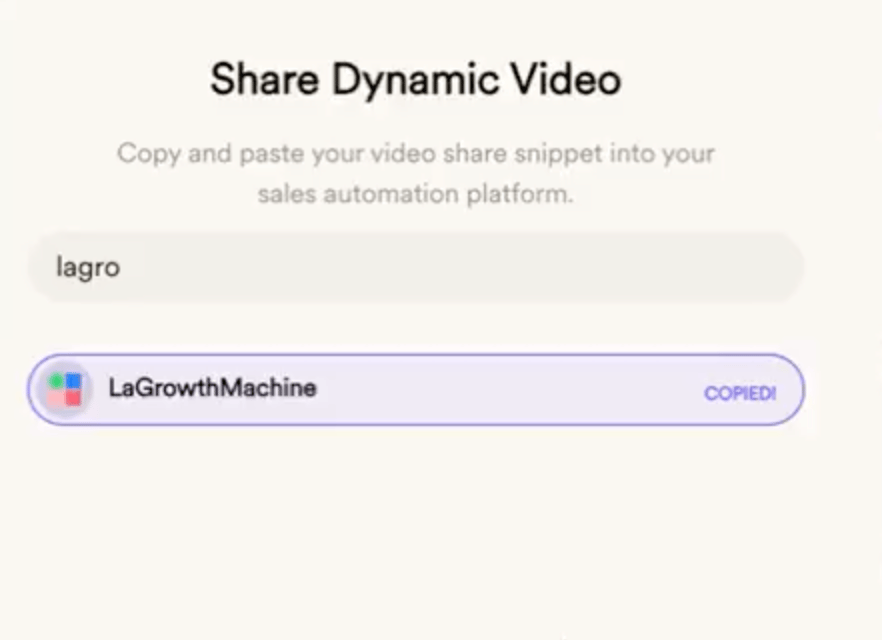
10. Copy the snippet code:
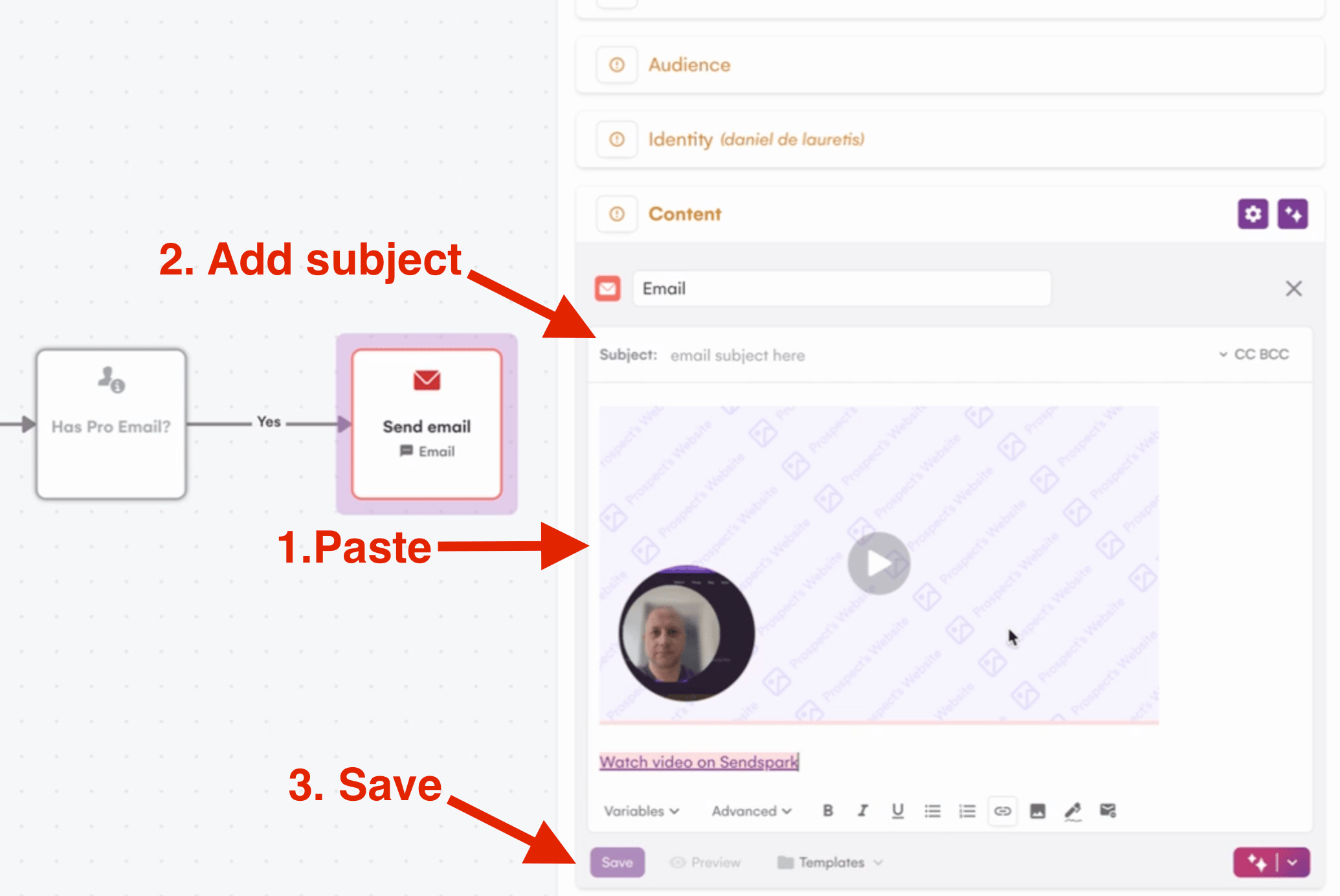
11. Add a Subject, Paste the snippet code straight into the body and save it:
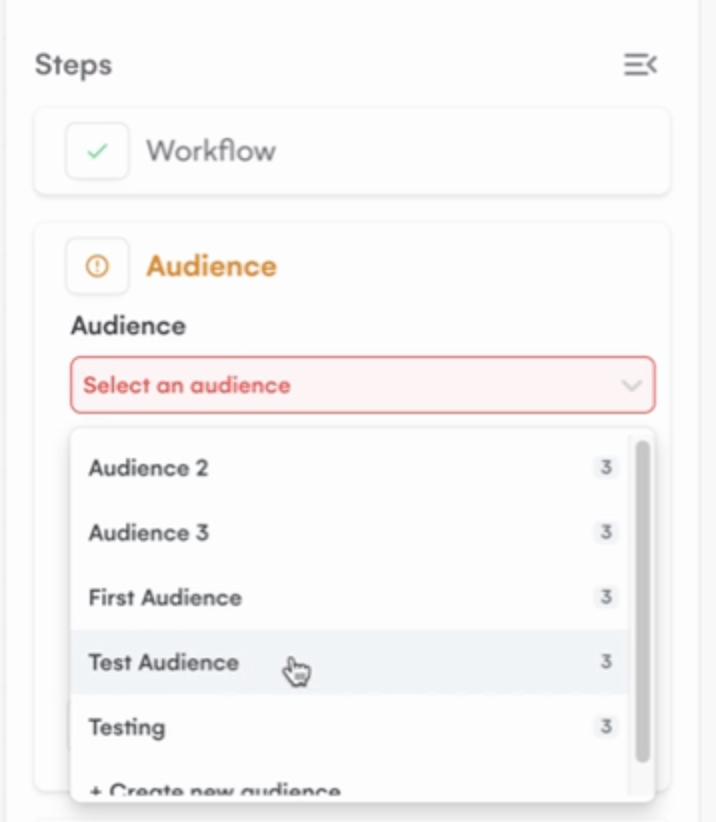
12. Finally, add the audience you created:
13. You are good to go!
***
## Frequently asked questions
Record one video in Sendspark and say "watermelon" where you want each viewer's first name to go. Sendspark uses AI to personalize the video with each contact's name and website.
In La Growth Machine you paste the snippet straight into the email body. In your campaign steps, click the email option to open the side panel, add a subject, and paste the LGM snippet code (copied from Share Campaign in Sendspark) directly into the body, then save.
Import the CSV you download from your Sendspark Dynamic Video campaign. Use it to create your LGM audience.
When LGM asks you to map the imported columns, either skip the VIDEO LINK column or assign it to a field, then click Import Leads.
*Updated July 2026.*
 2. Head to LGM platform and create an audience by importing that CSV file
 3. When asked to map the elements be sure to either skip the VIDEO LINK column or assign it to a field and then hit on IMPORT LEADS
 4. Name the Audience and save it:
 5. Head back to Campaigns:
 6. Create a new campaign:
 7. Select the sequence option that better fits your needs:
 8. Once in the steps page, click on the email option to deploy the side panel:
 9. Head back to your Dynamic Video campaign and click on Share Campaign to find the snippet code for LGM:
 10. Copy the snippet code:
 11. Add a Subject, Paste the snippet code straight into the body and save it:
 12. Finally, add the audience you created:
 13. You are good to go!
***
## Frequently asked questions
13. You are good to go!
***
## Frequently asked questions