> ## Documentation Index
> Fetch the complete documentation index at: https://help.sendspark.com/llms.txt
> Use this file to discover all available pages before exploring further.
# La Growth Machine - LinkedIn Automation
> Send Sendspark AI-personalized videos through LaGrowthMachine LinkedIn automation. Combine video personalization with LGM sequences for higher reply rates.
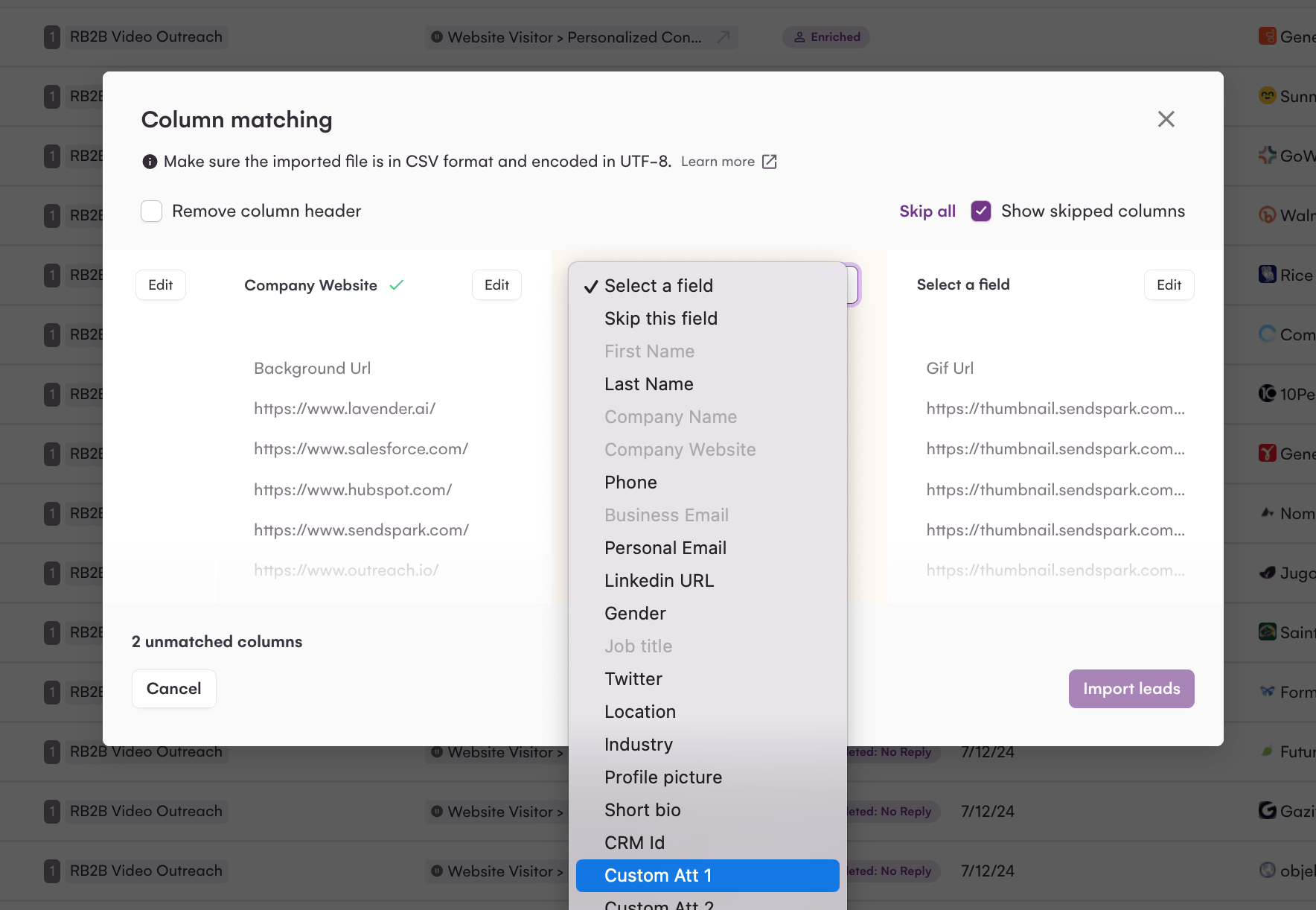
To send Sendspark dynamic videos through LaGrowthMachine, create your videos in Sendspark, click Download CSV, and upload that file to LaGrowthMachine. Map the "Video Link" column to "Custom Att 1," then drop Custom Att 1 into your LinkedIn workflow message wherever you want each contact's personalized video to appear.
## Key takeaways
* You need Sendspark's generated CSV — click **Download CSV** to export only the contacts a video was successfully created for.
* On upload, map the **Video Link** field to LaGrowthMachine's **Custom Att 1**.
* Insert **Custom Att 1** into your LGM workflow message where you want the video link to appear.
* Videos are matched to contacts through the CSV, so use the same list in both tools.
This guide will walk through how you can send your Sendspark AI-personalized videos in LaGrowthMachine LinkedIn automation.
## How to Send Dynamic Videos in LaGrowthMachine LinkedIn Automation
1. First, **create your dynamic videos** in Sendspark. If you don't know how to make AI-personalized videos in Sendspark, start with this guide on [how to make dynamic videos](/dynamic-videos-make-videos-with-ai-introductions).
2. Then, click **"Download CSV"** to download the list of successfully generated videos for each contact.
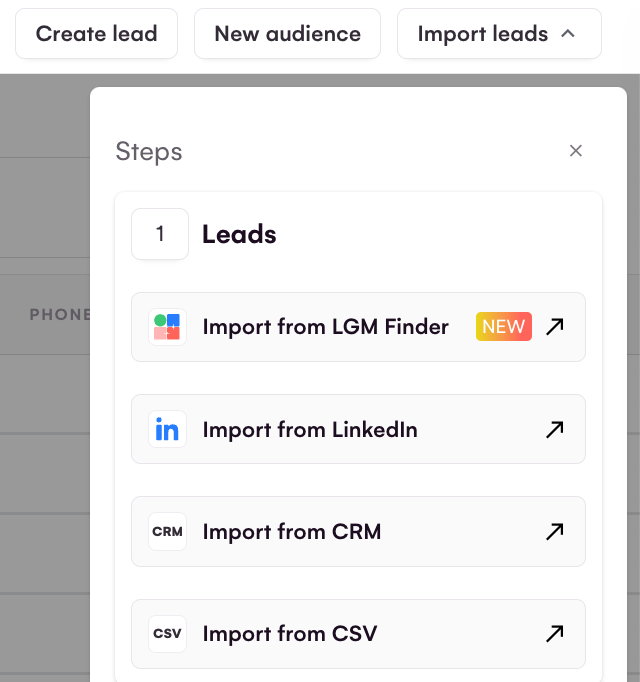
3. Next, **upload this CSV to LaGrowthMachine**.
4.  When you upload this CSV, make sure to map in the field **"Video Link" to the LaGrowthMachine "Custom Att 1"**
  5. Now, in your LaGrowthMachine workflow, you can \*\*use "Custom Att 1"\*\*where you want to send your Sendspark video to appear!
  That's it! Let us know if you have questions!
## Frequently asked questions
When you upload Sendspark's CSV, map the **Video Link** column to LaGrowthMachine's **Custom Att 1**. You then reference **Custom Att 1** in your workflow message wherever you want the personalized video to appear.
Clicking **Download CSV** in Sendspark gives you the list of contacts a video was successfully generated for. Using that file keeps your LaGrowthMachine list aligned with the videos that actually exist, so contacts receive their own personalized video.
Yes. Create your dynamic videos in Sendspark first — see [how to make dynamic videos](/dynamic-videos-make-videos-with-ai-introductions) — then export the CSV and upload it to LaGrowthMachine.
*Updated July 2026.*
That's it! Let us know if you have questions!
## Frequently asked questions
When you upload Sendspark's CSV, map the **Video Link** column to LaGrowthMachine's **Custom Att 1**. You then reference **Custom Att 1** in your workflow message wherever you want the personalized video to appear.
Clicking **Download CSV** in Sendspark gives you the list of contacts a video was successfully generated for. Using that file keeps your LaGrowthMachine list aligned with the videos that actually exist, so contacts receive their own personalized video.
Yes. Create your dynamic videos in Sendspark first — see [how to make dynamic videos](/dynamic-videos-make-videos-with-ai-introductions) — then export the CSV and upload it to LaGrowthMachine.
*Updated July 2026.*