> ## Documentation Index
> Fetch the complete documentation index at: https://help.sendspark.com/llms.txt
> Use this file to discover all available pages before exploring further.
# Klaviyo — Send Video Emails
> Learn how to embed videos in Klaviyo emails with Sendspark for better engagement and seamless playback across all email clients.
With Sendspark, you can embed a video in a Klaviyo email so it plays right in the recipient's inbox (where their email client supports video). In Klaviyo, create an email template, add a text block, and edit its **Source**. Then in Sendspark click **Share Video → Embed Video → Copy Code**, paste the code into the Klaviyo source, and save.
## Key takeaways
* Sendspark lets you embed videos in Klaviyo so they play in-email, as long as the recipient's [email client supports video](https://blog.sendspark.com/which-email-clients-support-embedded-videos).
* Where video isn't supported (like Gmail and Outlook), viewers see a preview image and can click to watch in their browser, so the experience stays intact across clients.
* The workflow: create a Klaviyo email template, add a text block, edit its **Source**, then paste Sendspark's embed code and save.
* You get the embed code in Sendspark via **Share Video → Embed Video → Copy Code**.
With Sendspark, you can easily embed videos in Klaviyo so they play for viewers right in their email, as long as their [email client supports videos.](https://blog.sendspark.com/which-email-clients-support-embedded-videos)
## What happens if video is not supported in an email client?
Sendspark provides a great fallback option for when the video is not able to play in email. In email clients such as Gmail and Outlook, where video tags are not supported, your viewers will see a preview image of the video, and be able to click to watch it in their browser.
By following the steps below, you can easily embed videos in Klaviyo emails, and feel comfortable that your recipients will have great viewing experiences across all email clients and devices.
## How to embed videos in Klaviyo with Sendspark:
1. Make a **new email template** in Klaviyo
 2. Add a**text block** to your email
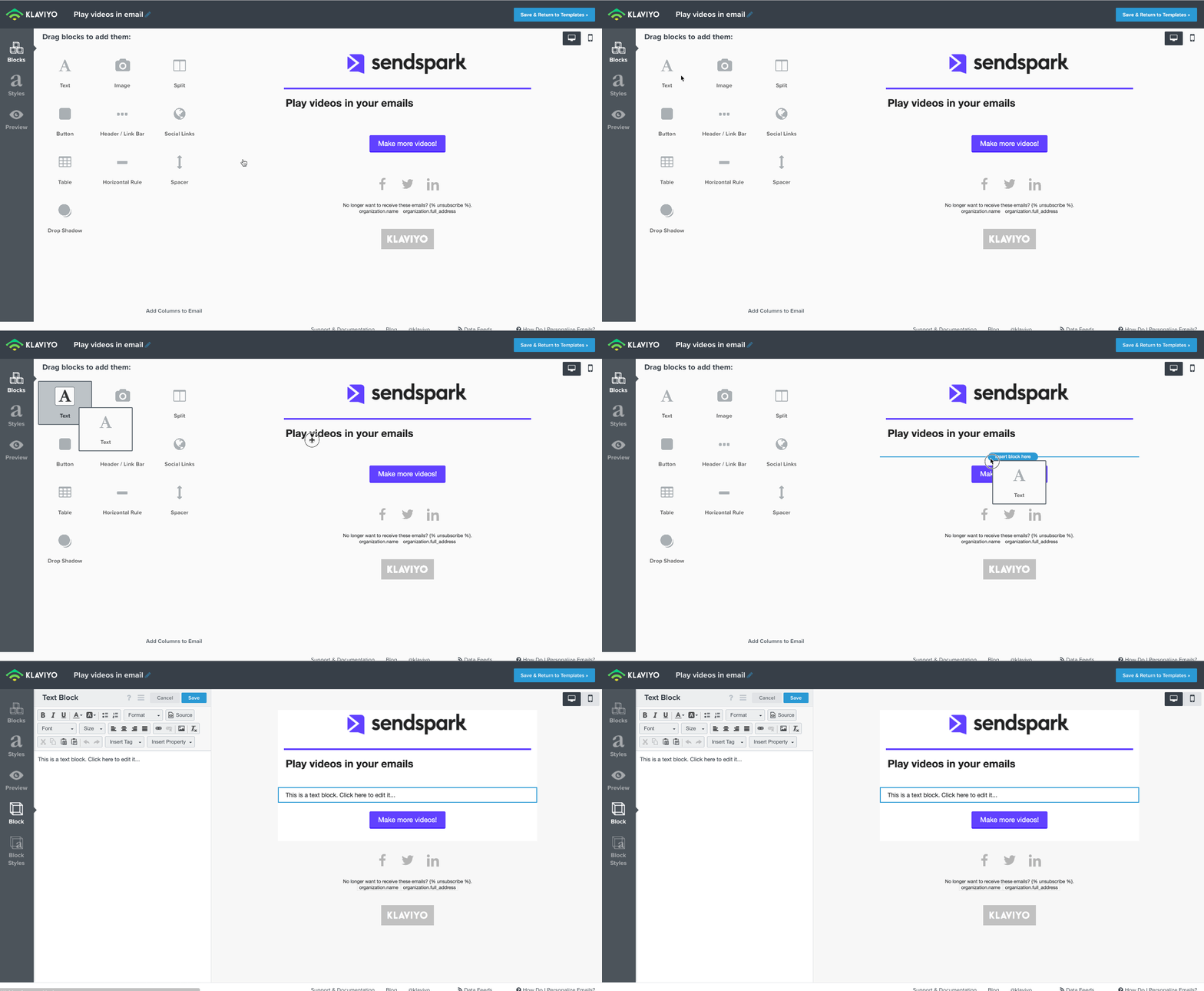 3. Click to edit the **Source**
 4. **Make your video** in Sendspark. Either record, upload, or request a video in the platform to send out.
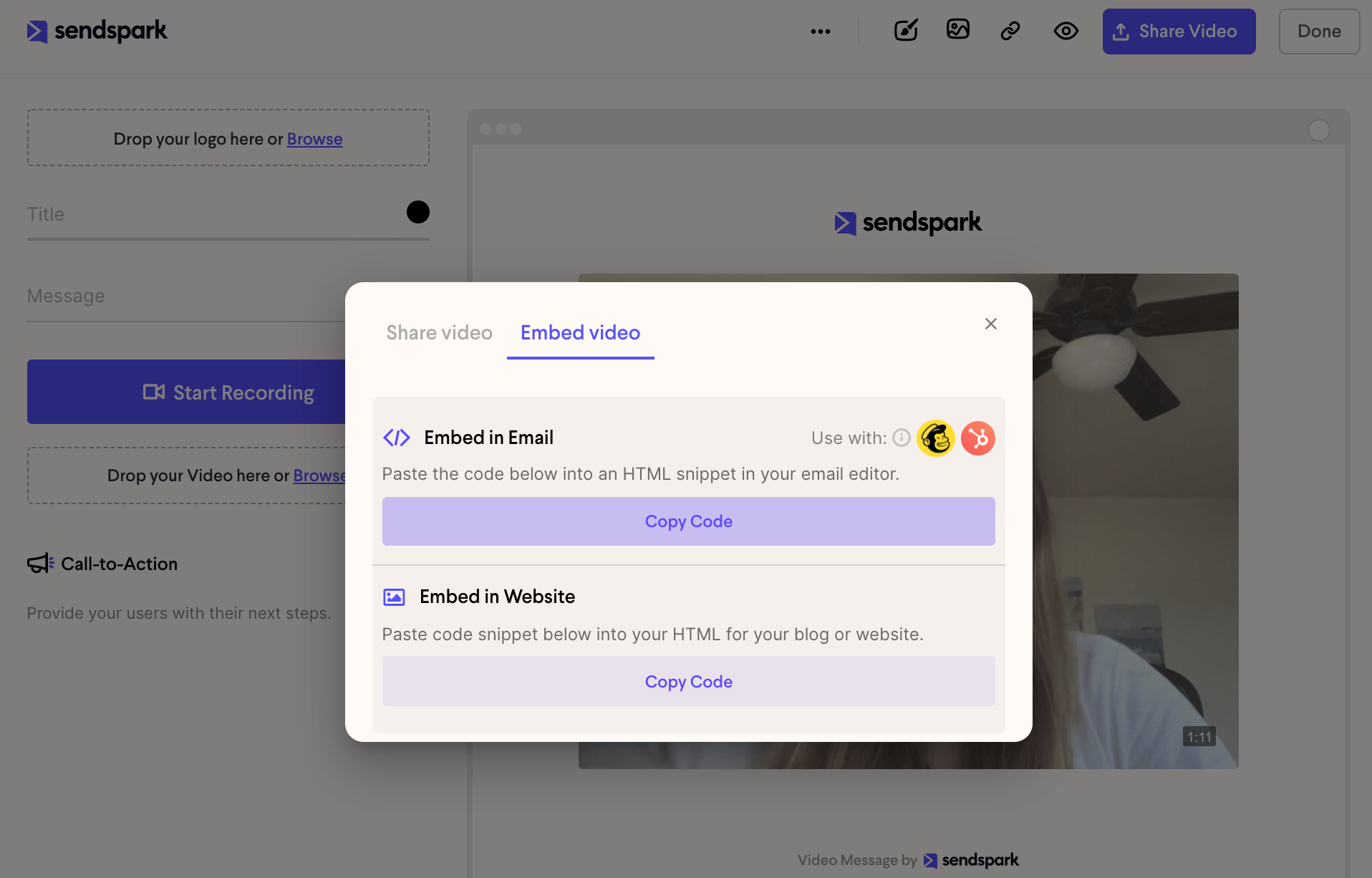
 5. Click **Share Video**, then under Embed Video, **Copy Code**
 6. **Paste** your code into the Source section in Klaviyo and click **save**
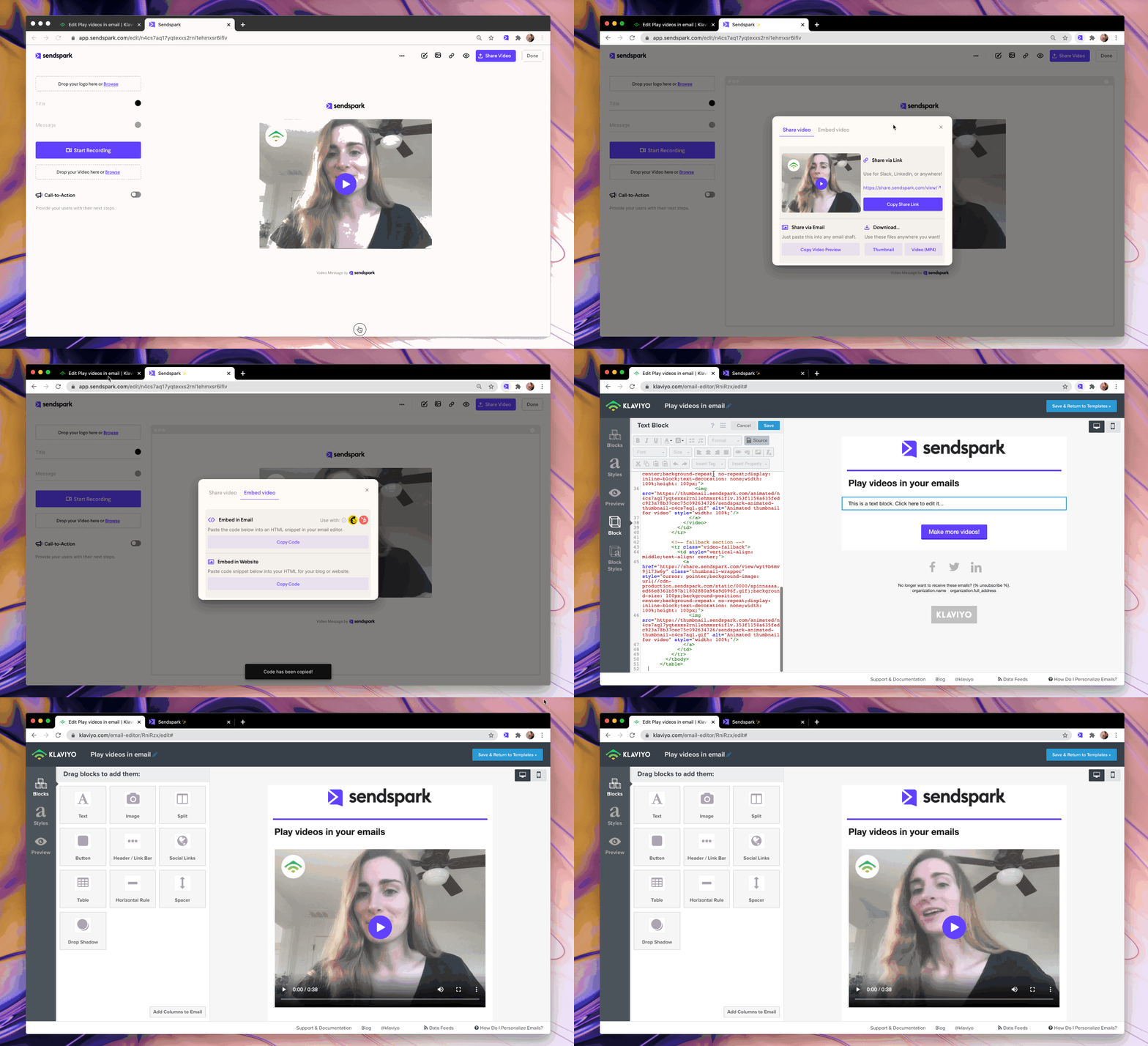 7. You're all ready to send your video email in Klaviyo!
## Have any questions about sending video emails in Klaviyo?
Please shoot us an email at [support@sendspark.com](mailto:support@sendspark.com) or message us through the chat in our application. We're happy to help!
## Frequently asked questions
Yes, Sendspark embeds the video so it plays in-email for recipients whose email client supports embedded video. Where the client doesn't support it, they see a preview image and can click to watch in their browser.
Sendspark provides a fallback. In clients such as Gmail and Outlook, where video tags aren't supported, viewers see a preview image of the video and can click to watch it in their browser, so everyone gets a good experience across clients and devices.
Make your video in Sendspark (record, upload, or request one), click **Share Video**, and under **Embed Video** click **Copy Code**. Then paste that code into the **Source** of a text block in your Klaviyo email template.
The embed code is HTML, and Klaviyo's text block Source view is where you insert HTML. Pasting there lets Klaviyo render the Sendspark video (or its fallback preview) correctly when the email sends.
*Updated July 2026.*
7. You're all ready to send your video email in Klaviyo!
## Have any questions about sending video emails in Klaviyo?
Please shoot us an email at [support@sendspark.com](mailto:support@sendspark.com) or message us through the chat in our application. We're happy to help!
## Frequently asked questions
Yes, Sendspark embeds the video so it plays in-email for recipients whose email client supports embedded video. Where the client doesn't support it, they see a preview image and can click to watch in their browser.
Sendspark provides a fallback. In clients such as Gmail and Outlook, where video tags aren't supported, viewers see a preview image of the video and can click to watch it in their browser, so everyone gets a good experience across clients and devices.
Make your video in Sendspark (record, upload, or request one), click **Share Video**, and under **Embed Video** click **Copy Code**. Then paste that code into the **Source** of a text block in your Klaviyo email template.
The embed code is HTML, and Klaviyo's text block Source view is where you insert HTML. Pasting there lets Klaviyo render the Sendspark video (or its fallback preview) correctly when the email sends.
*Updated July 2026.*