> ## Documentation Index
> Fetch the complete documentation index at: https://help.sendspark.com/llms.txt
> Use this file to discover all available pages before exploring further.
# Invite Team Members
> Learn how to invite team members to your Sendspark workspace and manage billing for new users. Add colleagues and control workspace access step-by-step.
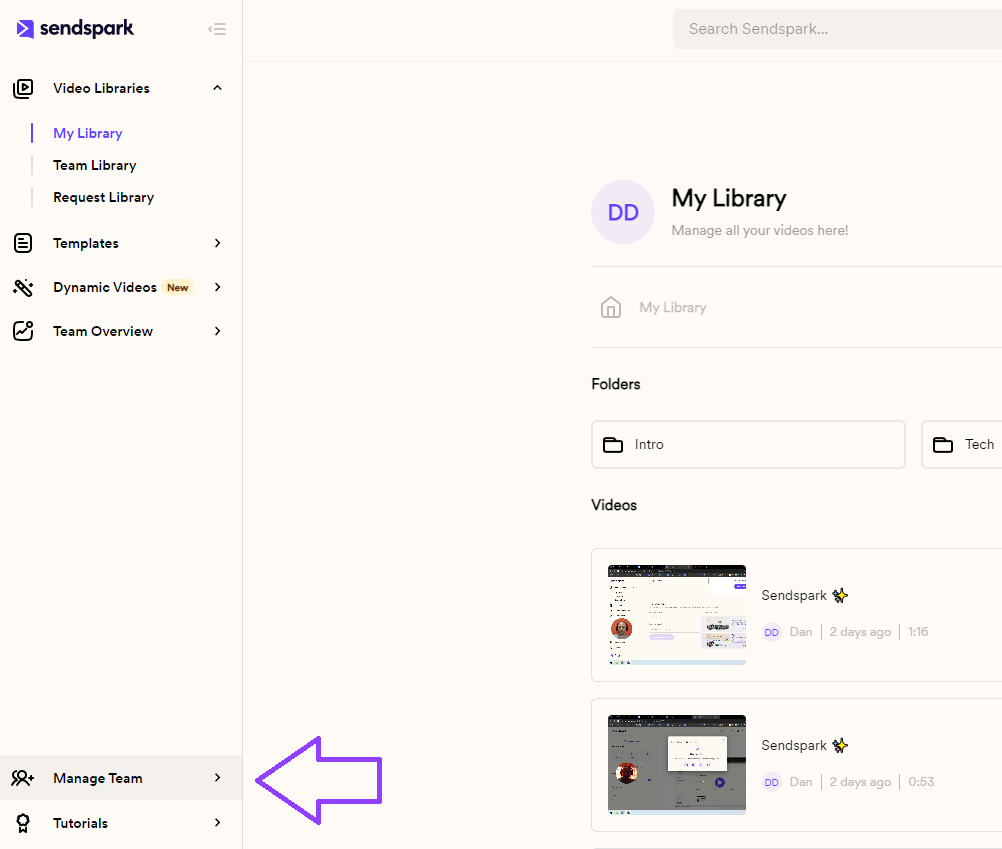
To invite teammates to your Sendspark workspace, click Manage Team in the bottom-left corner of your dashboard, type in each person's email (press Enter or add a comma to add more than one), then click Next. On paid per-user plans, you'll be asked to accept prorated charges for the new members before they're added.
## Key takeaways
* Open Manage Team from the bottom-left corner of your dashboard.
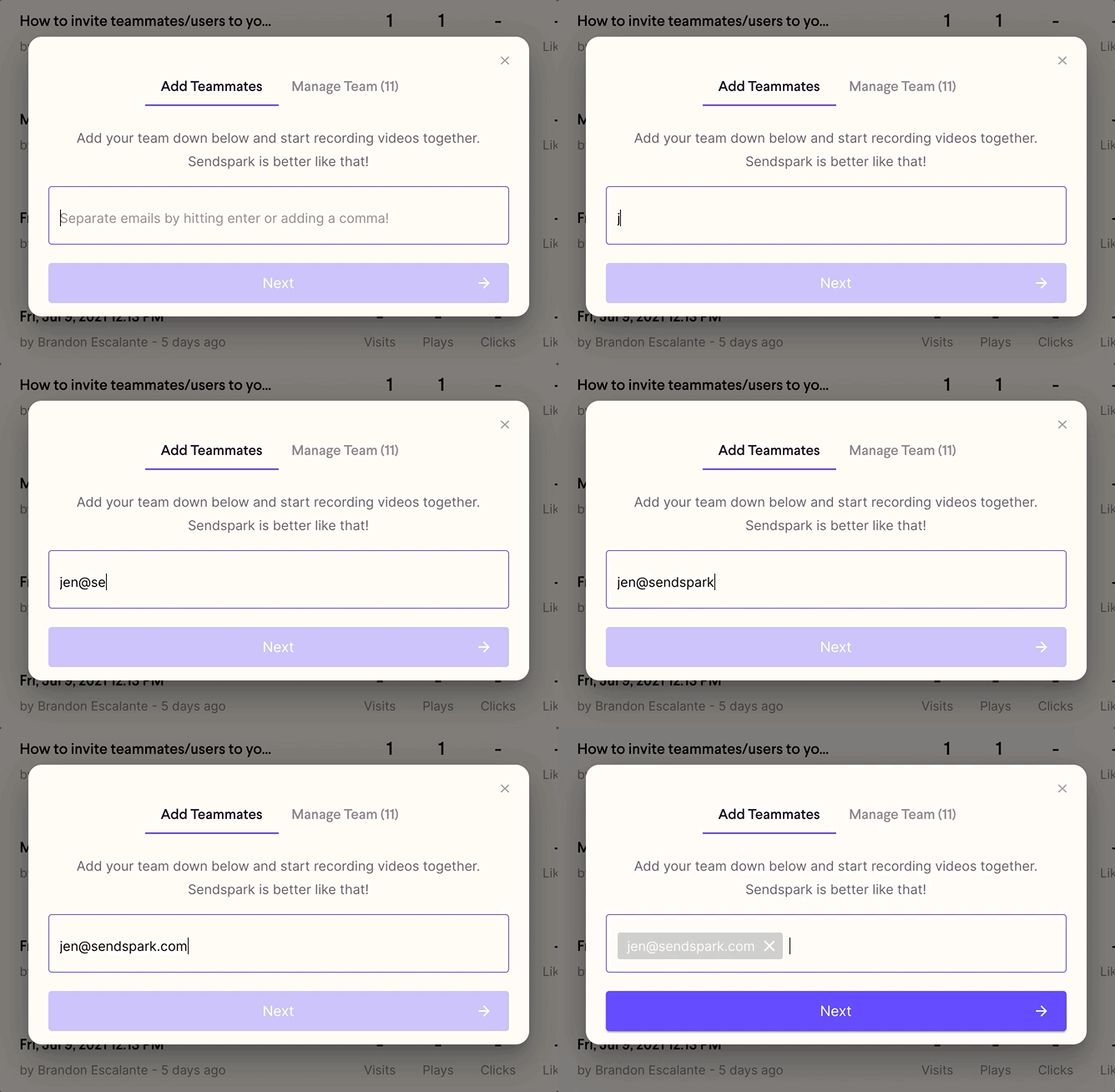
* Enter each email and press Enter, or use a comma, to add multiple people at once.
* Click Next to finish inviting everyone.
* On paid per-user plans, you'll accept prorated charges for new members, so there are no surprises on your bill.
In order to invite your teammates to your workspace, click on "Manage Team" in the bottom left corner of your dashboard.
Once you've typed in the email, you'll want to hit **enter** or add a **comma** to add more than one person.
Once you've added everyone, go ahead and click on **Next** to finish the process!
***
If you are on a paid plan where you're paying per user, you'll be asked to accept the charges for the new team members (at a prorated rate) on the next screen.
So no worries -- there'll be no surprises on your bill!
## Frequently asked questions
Click Manage Team in the bottom-left corner of your dashboard, then enter the emails of the people you want to invite.
After typing an email, press Enter or add a comma. This lets you queue up several teammates before finishing. Once everyone is added, click Next.
If you're on a paid plan that charges per user, you'll be asked to accept the prorated charges for the new members on the next screen, so there are no surprise charges.
Open Manage Team, go to the Manage Team tab, click the three dots next to the teammate, and select remove. See [how to remove team members](/how-to-remove-team-members) for details. If there are no three dots, that person is the original account owner and can't be removed without help from the Sendspark team.
*Updated July 2026.*
 Once you've typed in the email, you'll want to hit **enter** or add a **comma** to add more than one person.
 Once you've added everyone, go ahead and click on **Next** to finish the process!
***
If you are on a paid plan where you're paying per user, you'll be asked to accept the charges for the new team members (at a prorated rate) on the next screen.
So no worries -- there'll be no surprises on your bill!
## Frequently asked questions
Once you've added everyone, go ahead and click on **Next** to finish the process!
***
If you are on a paid plan where you're paying per user, you'll be asked to accept the charges for the new team members (at a prorated rate) on the next screen.
So no worries -- there'll be no surprises on your bill!
## Frequently asked questions