> ## Documentation Index
> Fetch the complete documentation index at: https://help.sendspark.com/llms.txt
> Use this file to discover all available pages before exploring further.
# Instantly — Send Dynamic Videos
> Learn how to send AI-personalized dynamic videos in Instantly emails using Sendspark's snippet feature for automated outreach.
To send dynamic videos in Instantly, generate your AI-personalized videos in Sendspark, click Share Campaign, and select Instantly to copy the snippet. In your Instantly email, switch to Code View and paste the snippet where you want the video, then switch back. Every lead on your list receives a video personalized for them.
## Key takeaways
* Copy the dynamic video snippet from Sendspark via **Share Campaign → Instantly**.
* Paste it inside Instantly's **Code View** where you want the video, then switch back to the regular view (resize the placeholder if needed).
* Use **Preview** and change the email address to see how the video renders for each lead.
* Videos are matched by email, so use the **same lead list** in Instantly that you used in Sendspark and generate videos in advance.
Sendspark makes it easy to send AI personalized videos in Instantly emails.
So you just paste one "dynamic video snippet" in Instantly, and all of the leads on your list will receive personalized videos make for them.
## How to send AI-personalized videos in Instantly
1. First, you'll want to generate the AI-personalized videos in Sendspark for each of your contacts. More on that here.
2. Then, click **"Share Campaign"**
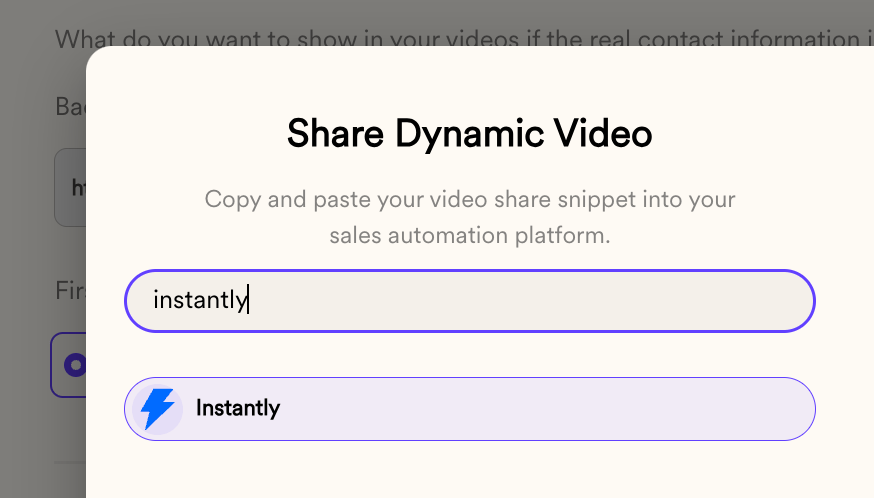
3. Search for "Instantly," and **click on the "Instantly" button**. This will copy a dynamic video snippet to your clipboard.
4. Go to to your Sequence in Instantly, and **click into the emai**l in which you'd like to send a video.
5. Switch to **"Code View"** and paste your Sendspark dynamic video snippet when you want the video to appear in your email.
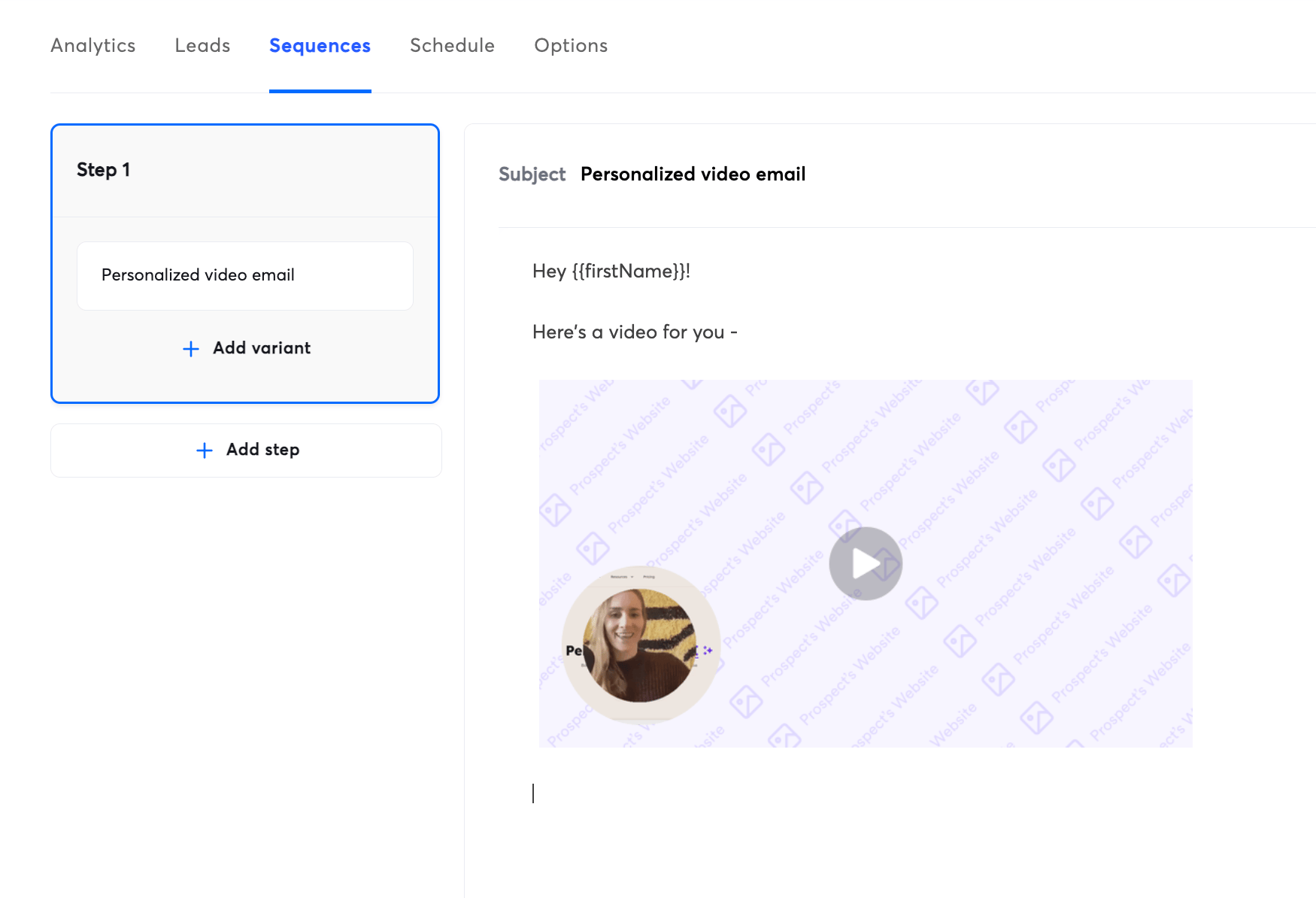
6. Switch back to the regular view, and you should **see your placeholder snippet**. It pastes a little large by default -- feel free to resize it as you'd like.
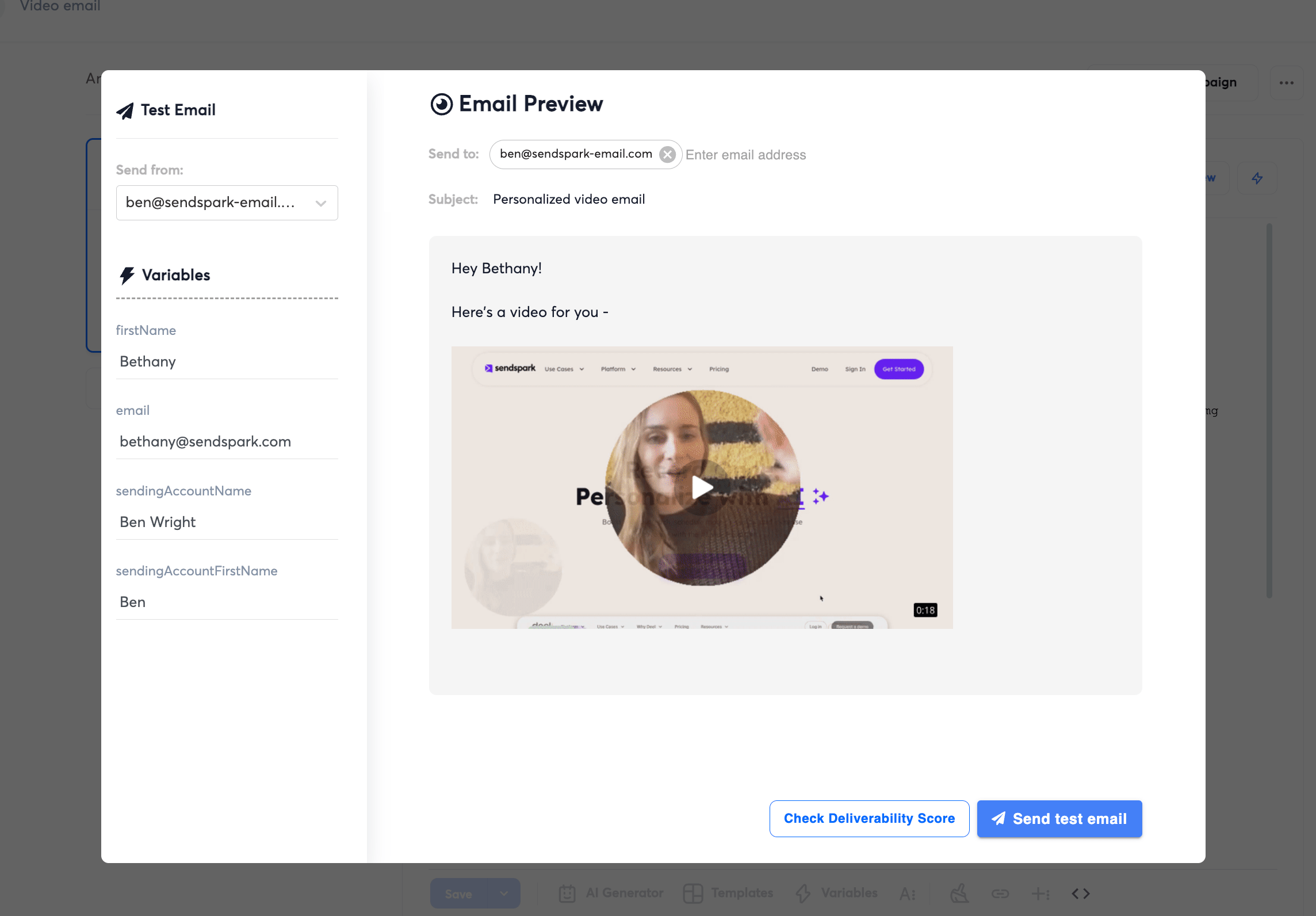
7. Click on "Preview" to see how this video will look for prospects. You can change the email address to see how this will render for each of the leads on your contact list.
If it doesn't look right, check...
1. Did you generate the video for the email address that you're previewing in Sendspark? (If you haven't made a video for them in advance, there won't be anything to see here!)
2. Are you using the same lead list in Instantly that you used in Sendspark?
## Frequently asked questions
Open the email step in your Instantly sequence, switch to **Code View**, and paste the dynamic video snippet where you want the video to appear. Then switch back to the regular view, where you'll see the placeholder — it pastes a little large by default, so resize it as you like.
Click **Preview** in Instantly and change the email address to see how the video renders for each lead on your contact list.
Two common causes: you haven't generated a video for that email address in Sendspark (there's nothing to show if the video wasn't made in advance), or you're using a different lead list in Instantly than the one you used in Sendspark.
Yes. Generate the AI-personalized videos in Sendspark for each contact first, then copy the Instantly snippet. Videos are matched to leads by email address, so they must exist before the email sends.
*Updated July 2026.*
 4. Go to to your Sequence in Instantly, and **click into the emai**l in which you'd like to send a video.
5. Switch to **"Code View"** and paste your Sendspark dynamic video snippet when you want the video to appear in your email.
4. Go to to your Sequence in Instantly, and **click into the emai**l in which you'd like to send a video.
5. Switch to **"Code View"** and paste your Sendspark dynamic video snippet when you want the video to appear in your email. 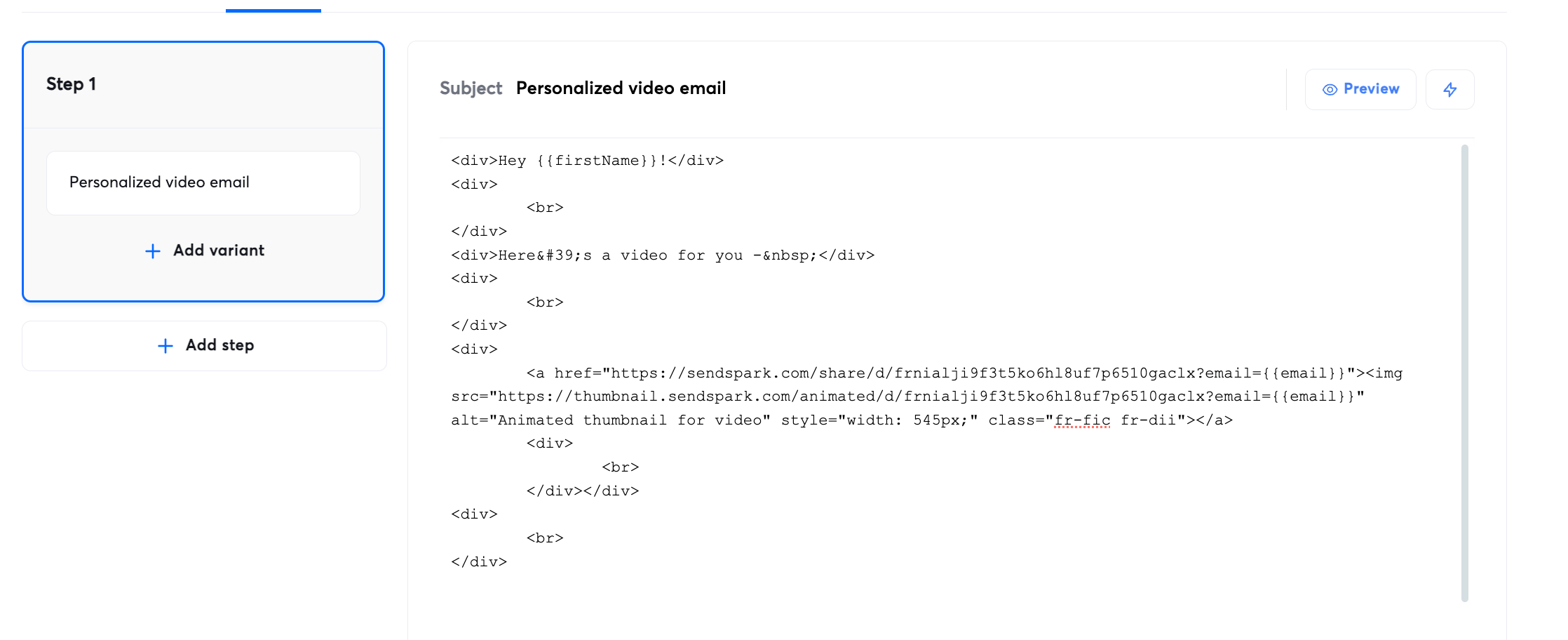 6. Switch back to the regular view, and you should **see your placeholder snippet**. It pastes a little large by default -- feel free to resize it as you'd like.
  7. Click on "Preview" to see how this video will look for prospects. You can change the email address to see how this will render for each of the leads on your contact list.
  If it doesn't look right, check...
1. Did you generate the video for the email address that you're previewing in Sendspark? (If you haven't made a video for them in advance, there won't be anything to see here!)
2. Are you using the same lead list in Instantly that you used in Sendspark?
## Frequently asked questions
If it doesn't look right, check...
1. Did you generate the video for the email address that you're previewing in Sendspark? (If you haven't made a video for them in advance, there won't be anything to see here!)
2. Are you using the same lead list in Instantly that you used in Sendspark?
## Frequently asked questions