> ## Documentation Index
> Fetch the complete documentation index at: https://help.sendspark.com/llms.txt
> Use this file to discover all available pages before exploring further.
# Instant Integration: Gmail
> Set up the Sendspark Gmail extension to record and share personalized video emails directly from Gmail. Quick, easy integration guide.
The Sendspark Gmail extension makes it easy to record and share videos right from Gmail. Install the Sendspark Chrome Extension and the Sendspark logo appears in your Gmail compose window. Click it to record a new video, finish by clicking the extension icon in your browser toolbar, then click Insert Video to add an animated GIF preview to your email.
## Key takeaways
* You must have the Sendspark Chrome Extension installed and be using a Chrome browser to see the Sendspark icon in Gmail.
* The Sendspark logo appears in the options at the bottom of your Gmail email draft.
* Recipients see an animated GIF preview of your video and click it to watch the full video in their browser, because Gmail does not support embedded video.
* If you edit the video page, you leave Gmail for Sendspark and then [copy and paste your video into Gmail](/gmail-send-video-emails) instead of using Insert Video.
The Sendspark Gmail extension makes it easy to record share videos right from Gmail emails. Watch the video, or read the article below!
***
## Before you get started:
Please install the [Sendspark Chrome Extension](https://chrome.google.com/webstore/detail/sendspark-video-and-scree/blimjkpadkhcpmkeboeknjcmiaogbkph) to use the Gmail integration.
As long as you have the Chrome Extension installed, you’ll automatically be able to access Sendspark from Gmail.
Install Chrome Extension
***
## 1. Click the Sendspark Icon in Gmail
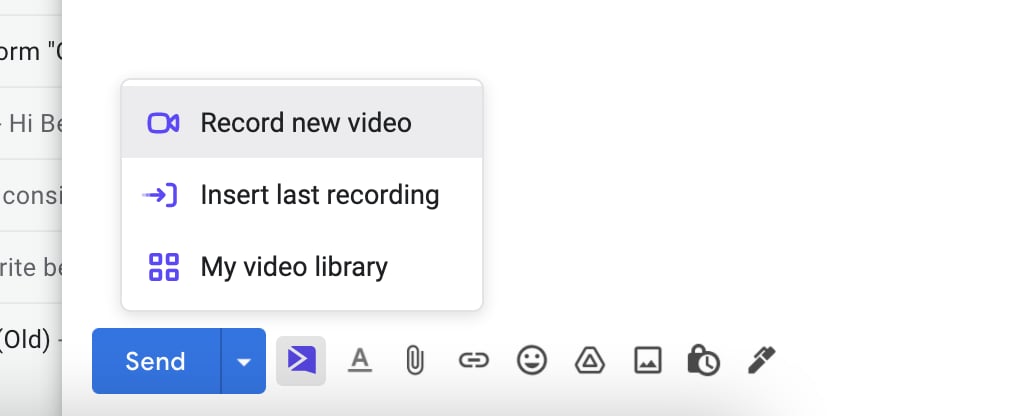
Create a **new email in Gmail**. You’ll see the Sendspark logo appear in the options at the bottom of your email draft.
**Note:** you must have the [Sendspark chrome extension](https://chrome.google.com/webstore/detail/sendspark-video-and-scree/blimjkpadkhcpmkeboeknjcmiaogbkph/related?hl=en-US) installed and be using a Chrome browser to see the Sendspark icon.
## 2. Record a New Video
Click **Record new video**.
This will launch the Sendspark Chrome Extension, so you can record a video of yourself or your screen.
Alternatively, you can choose to insert your last recording, or view your video library on [Sendspark](https://sendspark.com/my-videos).
## 3. Complete Recording
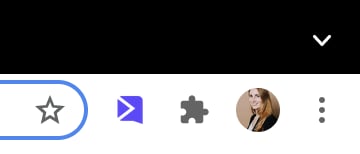
To end your video, **click the Sendspark Chrome Extension icon** on the top right of your browser.
This will complete your video recording, and launch a modal for you to preview your video before sharing.
## 4. (Optional) Edit Video Page in Sendspark
You can customize your video before sharing it by clicking **Edit Page**.
This will open your video in a new window, where you can edit the [video landing page](/customize-your-video-landing-page) or [video thumbnail.](/how-to-edit-video-thumbnails)
**Note**: When you edit the page, you’ll leave Gmail and go to Sendspark. Now, instead of inserting your video in Gmail, you'll need to [copy and paste your video into Gmail](/gmail-send-video-emails).
## 5. Insert Your Video in Gmail
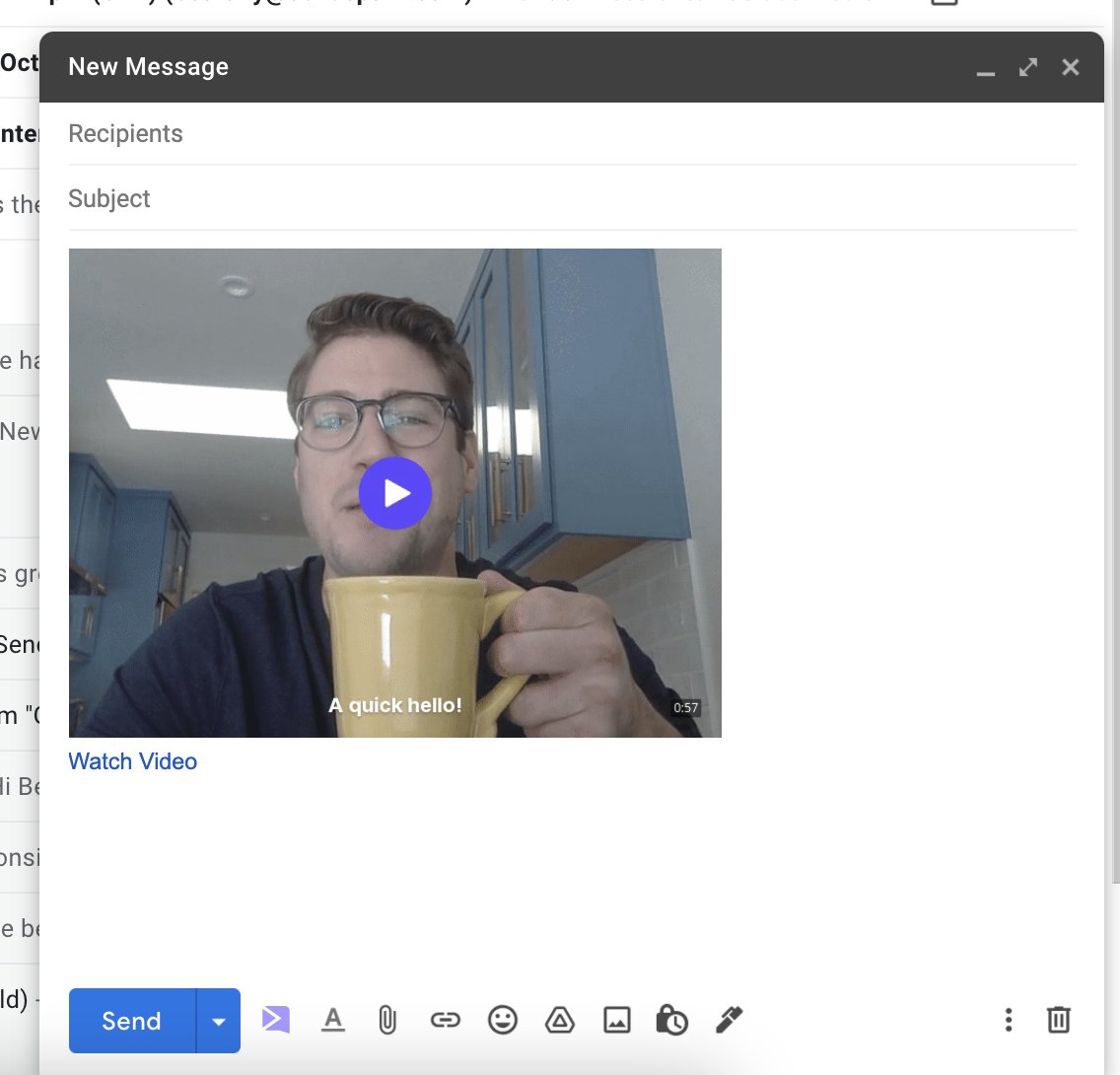
Click **Insert Video** to place your video in your email draft.
Your recipients will see an animated GIF preview of your video, and be able to click to watch the full video in their browser.
## Happy Recording!
That’s it! Shoot us a (video) message if you need help or have questions!
***
## Frequently asked questions
Yes. You must have the Sendspark Chrome Extension installed and be using a Chrome browser to see the Sendspark icon in your Gmail draft. Once it's installed, you can automatically access Sendspark from Gmail.
Click the Sendspark Chrome Extension icon in the top right of your browser toolbar. This completes the recording and launches a modal where you can preview your video before sharing.
When you click Insert Video, your recipients see an animated GIF preview of your video and can click it to watch the full video in their browser.
When you click Edit Page, you leave Gmail and go to Sendspark to customize the landing page or thumbnail. From there you insert the video by [copying and pasting it into Gmail](/gmail-send-video-emails) rather than using Insert Video.
*Updated July 2026.*
 **Note:** you must have the [Sendspark chrome extension](https://chrome.google.com/webstore/detail/sendspark-video-and-scree/blimjkpadkhcpmkeboeknjcmiaogbkph/related?hl=en-US) installed and be using a Chrome browser to see the Sendspark icon.
## 2. Record a New Video
Click **Record new video**.
This will launch the Sendspark Chrome Extension, so you can record a video of yourself or your screen.
Alternatively, you can choose to insert your last recording, or view your video library on [Sendspark](https://sendspark.com/my-videos).
**Note:** you must have the [Sendspark chrome extension](https://chrome.google.com/webstore/detail/sendspark-video-and-scree/blimjkpadkhcpmkeboeknjcmiaogbkph/related?hl=en-US) installed and be using a Chrome browser to see the Sendspark icon.
## 2. Record a New Video
Click **Record new video**.
This will launch the Sendspark Chrome Extension, so you can record a video of yourself or your screen.
Alternatively, you can choose to insert your last recording, or view your video library on [Sendspark](https://sendspark.com/my-videos).
 ## 3. Complete Recording
To end your video, **click the Sendspark Chrome Extension icon** on the top right of your browser.
## 3. Complete Recording
To end your video, **click the Sendspark Chrome Extension icon** on the top right of your browser.
 This will complete your video recording, and launch a modal for you to preview your video before sharing.
## 4. (Optional) Edit Video Page in Sendspark
You can customize your video before sharing it by clicking **Edit Page**.
This will complete your video recording, and launch a modal for you to preview your video before sharing.
## 4. (Optional) Edit Video Page in Sendspark
You can customize your video before sharing it by clicking **Edit Page**.
 This will open your video in a new window, where you can edit the [video landing page](/customize-your-video-landing-page) or [video thumbnail.](/how-to-edit-video-thumbnails)
**Note**: When you edit the page, you’ll leave Gmail and go to Sendspark. Now, instead of inserting your video in Gmail, you'll need to [copy and paste your video into Gmail](/gmail-send-video-emails).
## 5. Insert Your Video in Gmail
Click **Insert Video** to place your video in your email draft.
Your recipients will see an animated GIF preview of your video, and be able to click to watch the full video in their browser.
This will open your video in a new window, where you can edit the [video landing page](/customize-your-video-landing-page) or [video thumbnail.](/how-to-edit-video-thumbnails)
**Note**: When you edit the page, you’ll leave Gmail and go to Sendspark. Now, instead of inserting your video in Gmail, you'll need to [copy and paste your video into Gmail](/gmail-send-video-emails).
## 5. Insert Your Video in Gmail
Click **Insert Video** to place your video in your email draft.
Your recipients will see an animated GIF preview of your video, and be able to click to watch the full video in their browser.
 ## Happy Recording!
That’s it! Shoot us a (video) message if you need help or have questions!
***
## Frequently asked questions
## Happy Recording!
That’s it! Shoot us a (video) message if you need help or have questions!
***
## Frequently asked questions