> ## Documentation Index
> Fetch the complete documentation index at: https://help.sendspark.com/llms.txt
> Use this file to discover all available pages before exploring further.
# HubSpot: Workflows + Sendspark + Marketing Email
> Learn how to create AI-personalized videos automatically using Sendspark HubSpot integration workflows for leads, forms, and meetings.
This guide shows how to automatically generate Sendspark dynamic videos from **HubSpot workflow actions**, then optionally email them once each video is created. Use it to make AI-personalized videos when new contacts are added, leads submit forms, prospects book sales meetings, or any tracked HubSpot action fires.
## Key takeaways
* **Part 1:** add the "Create a Dynamic Video" workflow action (under Connected Apps → Sendspark) to generate AI-personalized videos on any HubSpot trigger.
* The action needs your Workspace ID, Dynamic Campaign ID, contact fields, website URL, API key, and API secret — all found on your Sendspark API credentials page.
* **Part 2:** build a second workflow triggered by the "Dynamic Video Generated for Contact" property to automatically email the video once it's ready.
* In that email, paste your HubSpot Marketing Hub share snippet (from Share Campaign at the bottom of the campaign builder) into an HTML block.
This article will show you how to automatically generate Sendspark dynamic videos through **HubSpot workflow actions**.
This will let you generate AI-personalized videos when...
* New contacts are added to HubSpot
* Leads fill out forms
* Prospects schedule Sales Meetings
* Contacts take **any action** tracked in HubSpot
The[Sendspark + HubSpot App](https://app.hubspot.com/ecosystem/6058669/marketplace/apps/marketing/video/sendspark) makes it easy to generate AI personalized videos from HubSpot automation.
Watch the video, or read the steps below to see how it works!
## Part 1: Make AI-Personalized Videos from HubSpot Workflows
Sendspark lets you easily generate AI-personalized videos using HubSpot Workflow Actions.
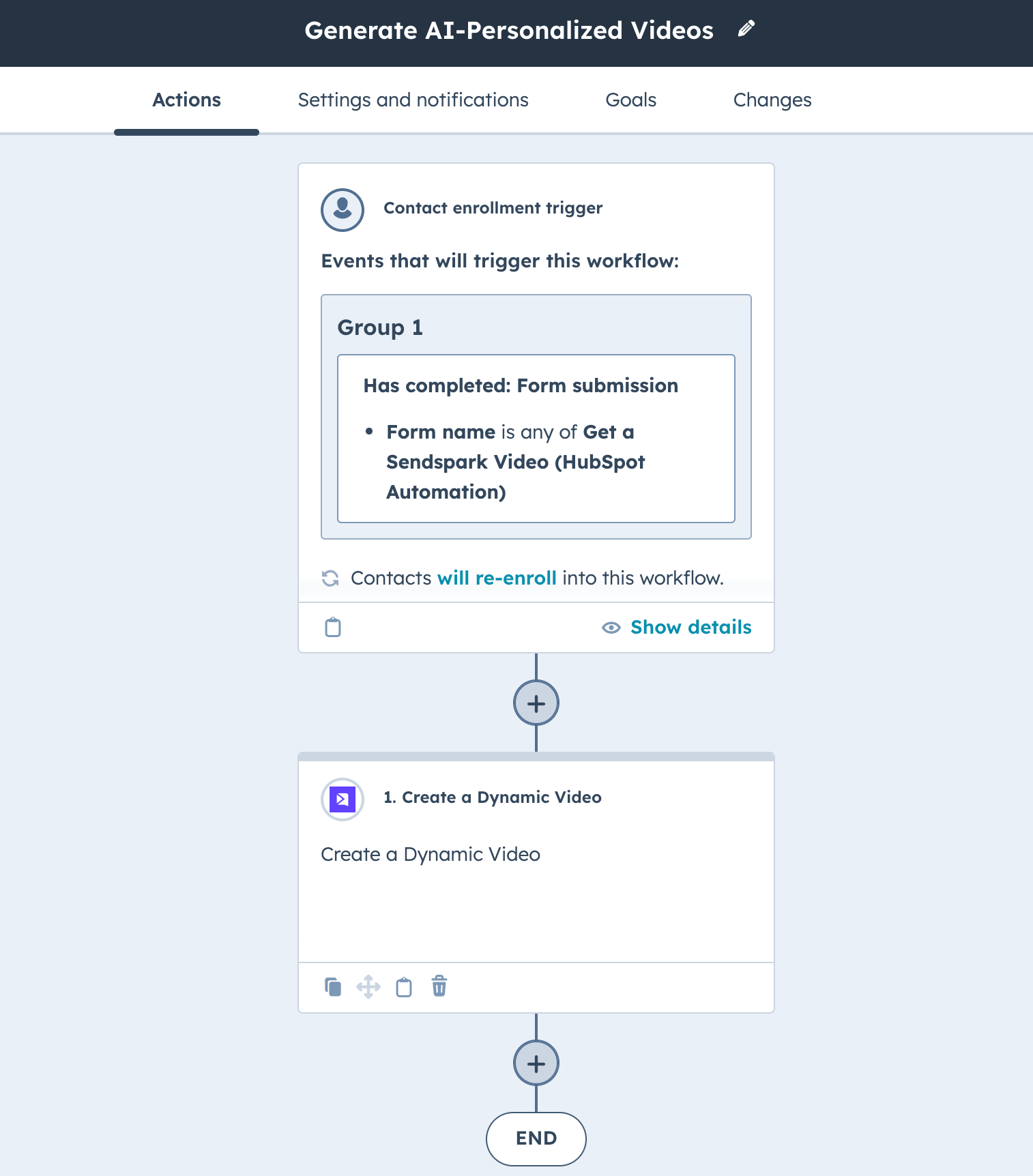
**1. First, create your workflow in HubSpot**
You can set any triggers to indicate that contacts should enter the workflow.
In this example, we're using a **"Form Submission"** as a trigger, because it's very easy to test.
This means that whenever someone fills out the HubSpot form we indicated, they will be enrolled in the workflow.
**2. Add Workflow Action: Create a Dynamic Video**
Then, we'll add an action, \*\*"Create Dynamic Video"\*\*to generate the video.
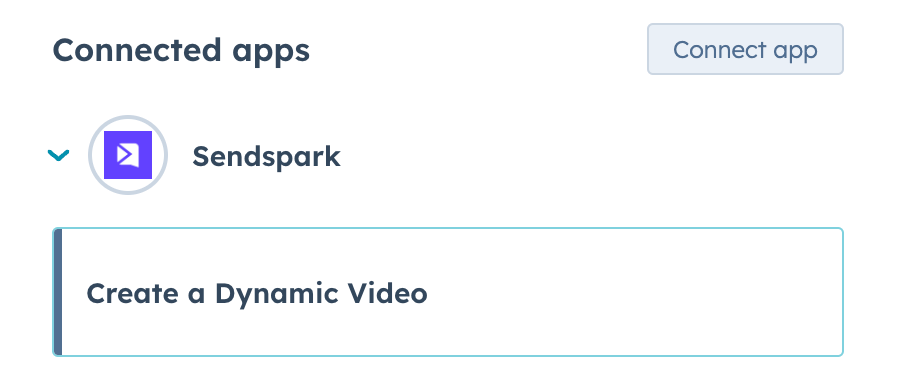
You should see this when you go to add a step at the very bottom left, under **"Connected Apps."**
Click on **"Sendspark"** and then **"Create a Dynamic Video."**
*(If you don't see this, it might be because you have not connected the HubSpot App yet. You can connect the HubSpot App in your [Sendspark Integration settings](https://sendspark.com/settings/integrations)).*
**Dynamic Video Fields**
Now, you'll be prompted to fill out some information. It looks like a lot, but we'll go through it here so you understand everything. 😊
* \*\*Your Sendspark Workspace ID:\*\*This is your workspace ID. You can easily copy it from your [Sendspark API credentials page](https://sendspark.com/settings/api-credentials).
* \*\*Dynamic Campaign ID:\*\*This is the campaign for the specific Dynamic Video Campaign you want to generate videos for. You can copy it from the URL of your dynamic video campaign builder, between the slashes.
* \*\*Contact Name:\*\*This is the contact first name that you want to send from HubSpot to Sendspark for the AI video cloning. It will almost always be "First Name"
* \*\*Contact Email:\*\*This is the email address for your contact that you will send to Sendspark. It will almost always be "Email"
* \*\*Contact Company Name:\*\*This is the contact company name that you will send to Sendspark. It will almost always be "Company Name"
* \*\*Contact Job Title:\*\*This is the contact job title that you want to send to Sendspark. It will almost always be "Job Title"
* \*\*Contact Website URL:\*\*This is the website URL that you want to use in your dynamic videos, to make it look like you are recording over this page. It will often be "Website URL," but you could use other public URLs if you'd like.
* \*\*Your Sendspark API Key:\*\*This is your workspace API key. You can copy it from you [Sendspark API credentials page](https://sendspark.com/settings/api-credentials). If you don't see it, you might have to click "Create New Key" to generate an API key.
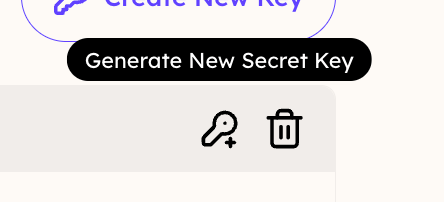
* \*\*Your Sendspark API Secret:\*\*This is your personal secret key. (All of your team members have different secret keys). You will have to generate a new secret key every time you create a new campaign, copy it to your clipboard immediately.
**Note:** at the top of this form, you'll also see a checkbox\*\*"I authorize to buy additional DVMs if required."\*\*
You can check this to enable pay-as-you-go pricing. Otherwise, your automations will stop working once you hit your dynamic video minutes, and start again the following month.
**3. Turn on Workflow**
Once you turn this on, you'll start generating dynamic videos once your Workflow enrollment trigger is met!
You can stop here, or continue with the next section to automatically send a HubSpot email once a dynamic video has been generated for a contact.
## Part 2: Automatically Send Video in HubSpot Emails
Here, we'll cover how to automatically send an email once a Dynamic Video has been generated for a contact in HubSpot.
**1. Create a New Workflow**
Go into HubSpot and select Automation → Workflow. Create a new Workflow (from scratch). Make sure you are using a Contact-based Blank Workflow.
**2. Set Enrollment Trigger**
Click \*\*"Set up triggers"\*\*and then the second option, **"When filter criteria is met."**
For your filter, use the **Sendspark app,** and select the property **"Dynamic Video Generated for Contact."**
Note, if you don't see Sendspark here, you might need to i[nstall the Sendspark HubSpot App](https://app.hubspot.com/ecosystem/6058669/marketplace/apps/marketing/video/sendspark).
**3. Add Your Dynamic Video Campaign ID**
This means that whenever a dynamic video has been generated for a contact from this specific campaign, they'll be enrolled in this workflow
You can find this dynamic video campaign ID by looking at the URL on your Dynamic Video Campaign builder. It is between the 2 slashes at the end of the URL:
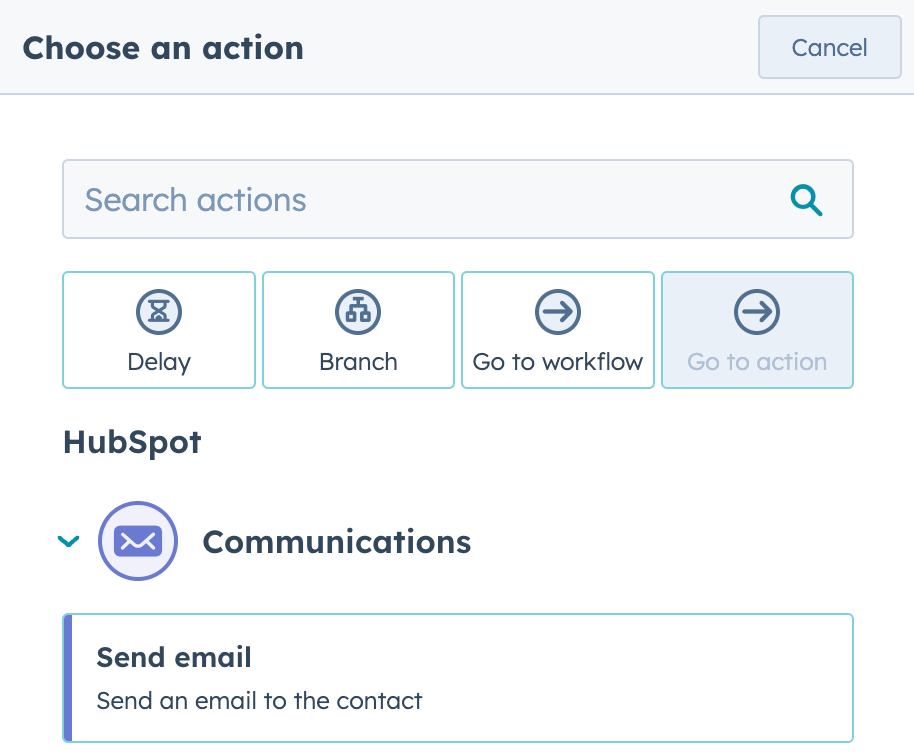
**4. Add an action, "Send Email"**
Now, you'll select the email you want to send after dynamic videos have been generated for specific contacts in your HubSpot Workflow\..
**5. In this email, use your HubSpot Marketing Hub video share snippet**
You can find this at the bottom of your dynamic video campaign builder:
* Scroll to the bottom
* Click **"Share Campaign"**
* Select "HubSpot Marketing Hub" to copy the share snippet to your clip board
* In your HubSpot email, add an HTML block where you want your video to go
* Paste in your snippet
Now, whenever contacts are sent this email, they will get the dynamic video that's been generated for them.
**6. Turn on the workflow!**
That's it! Now when your contacts dynamic videos have generated, they will automatically receive a personalized video email made just for them.
***
## Frequently asked questions
Any trigger you set on the workflow. Common examples are new contacts being added, leads filling out a form, prospects scheduling a sales meeting, or any other action tracked in HubSpot. In this guide a form submission is used because it's easy to test.
On your [Sendspark API credentials page](https://sendspark.com/settings/api-credentials). If you don't see an API key, click "Create New Key" to generate one. You'll generate a new secret key each time you create a new campaign, so copy it to your clipboard immediately.
Look at the URL of your Dynamic Video Campaign builder — the ID is the value between the two slashes at the end of the URL.
At the top of the action form there's a checkbox, "I authorize to buy additional DVMs if required," which enables pay-as-you-go pricing. If you leave it unchecked, your automations stop working once you hit your dynamic video minutes and start again the following month.
You likely haven't connected the HubSpot app yet. Connect it in your [Sendspark Integration settings](https://sendspark.com/settings/integrations) or install the [Sendspark + HubSpot App](https://app.hubspot.com/ecosystem/6058669/marketplace/apps/marketing/video/sendspark), then Sendspark will appear under Connected Apps and as a trigger property.
*Updated July 2026.*
 **1. First, create your workflow in HubSpot**
You can set any triggers to indicate that contacts should enter the workflow.
In this example, we're using a **"Form Submission"** as a trigger, because it's very easy to test.
This means that whenever someone fills out the HubSpot form we indicated, they will be enrolled in the workflow.
**2. Add Workflow Action: Create a Dynamic Video**
Then, we'll add an action, \*\*"Create Dynamic Video"\*\*to generate the video.
You should see this when you go to add a step at the very bottom left, under **"Connected Apps."**
**1. First, create your workflow in HubSpot**
You can set any triggers to indicate that contacts should enter the workflow.
In this example, we're using a **"Form Submission"** as a trigger, because it's very easy to test.
This means that whenever someone fills out the HubSpot form we indicated, they will be enrolled in the workflow.
**2. Add Workflow Action: Create a Dynamic Video**
Then, we'll add an action, \*\*"Create Dynamic Video"\*\*to generate the video.
You should see this when you go to add a step at the very bottom left, under **"Connected Apps."**
 Click on **"Sendspark"** and then **"Create a Dynamic Video."**
*(If you don't see this, it might be because you have not connected the HubSpot App yet. You can connect the HubSpot App in your [Sendspark Integration settings](https://sendspark.com/settings/integrations)).*
**Dynamic Video Fields**
Now, you'll be prompted to fill out some information. It looks like a lot, but we'll go through it here so you understand everything. 😊
* \*\*Your Sendspark Workspace ID:\*\*This is your workspace ID. You can easily copy it from your [Sendspark API credentials page](https://sendspark.com/settings/api-credentials).
Click on **"Sendspark"** and then **"Create a Dynamic Video."**
*(If you don't see this, it might be because you have not connected the HubSpot App yet. You can connect the HubSpot App in your [Sendspark Integration settings](https://sendspark.com/settings/integrations)).*
**Dynamic Video Fields**
Now, you'll be prompted to fill out some information. It looks like a lot, but we'll go through it here so you understand everything. 😊
* \*\*Your Sendspark Workspace ID:\*\*This is your workspace ID. You can easily copy it from your [Sendspark API credentials page](https://sendspark.com/settings/api-credentials). * \*\*Dynamic Campaign ID:\*\*This is the campaign for the specific Dynamic Video Campaign you want to generate videos for. You can copy it from the URL of your dynamic video campaign builder, between the slashes.
* \*\*Contact Name:\*\*This is the contact first name that you want to send from HubSpot to Sendspark for the AI video cloning. It will almost always be "First Name"
* \*\*Contact Email:\*\*This is the email address for your contact that you will send to Sendspark. It will almost always be "Email"
* \*\*Contact Company Name:\*\*This is the contact company name that you will send to Sendspark. It will almost always be "Company Name"
* \*\*Contact Job Title:\*\*This is the contact job title that you want to send to Sendspark. It will almost always be "Job Title"
* \*\*Contact Website URL:\*\*This is the website URL that you want to use in your dynamic videos, to make it look like you are recording over this page. It will often be "Website URL," but you could use other public URLs if you'd like.
* \*\*Your Sendspark API Key:\*\*This is your workspace API key. You can copy it from you [Sendspark API credentials page](https://sendspark.com/settings/api-credentials). If you don't see it, you might have to click "Create New Key" to generate an API key.
* \*\*Dynamic Campaign ID:\*\*This is the campaign for the specific Dynamic Video Campaign you want to generate videos for. You can copy it from the URL of your dynamic video campaign builder, between the slashes.
* \*\*Contact Name:\*\*This is the contact first name that you want to send from HubSpot to Sendspark for the AI video cloning. It will almost always be "First Name"
* \*\*Contact Email:\*\*This is the email address for your contact that you will send to Sendspark. It will almost always be "Email"
* \*\*Contact Company Name:\*\*This is the contact company name that you will send to Sendspark. It will almost always be "Company Name"
* \*\*Contact Job Title:\*\*This is the contact job title that you want to send to Sendspark. It will almost always be "Job Title"
* \*\*Contact Website URL:\*\*This is the website URL that you want to use in your dynamic videos, to make it look like you are recording over this page. It will often be "Website URL," but you could use other public URLs if you'd like.
* \*\*Your Sendspark API Key:\*\*This is your workspace API key. You can copy it from you [Sendspark API credentials page](https://sendspark.com/settings/api-credentials). If you don't see it, you might have to click "Create New Key" to generate an API key. 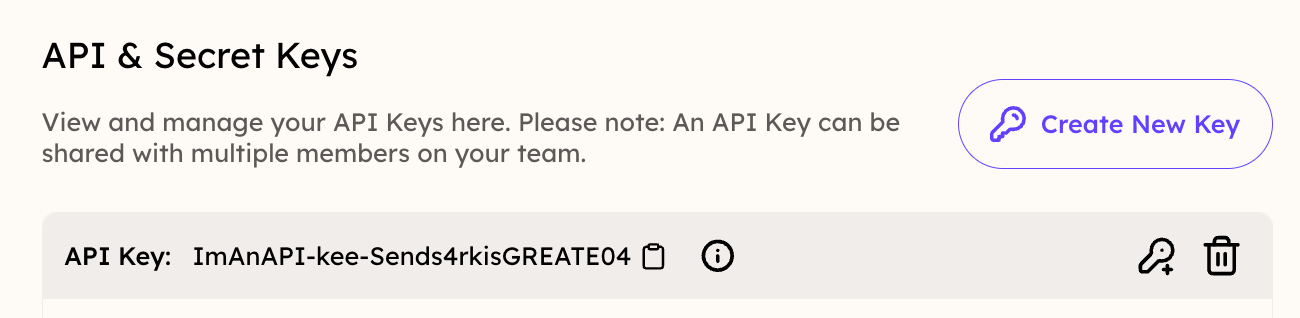 * \*\*Your Sendspark API Secret:\*\*This is your personal secret key. (All of your team members have different secret keys). You will have to generate a new secret key every time you create a new campaign, copy it to your clipboard immediately.
  **Note:** at the top of this form, you'll also see a checkbox\*\*"I authorize to buy additional DVMs if required."\*\*
You can check this to enable pay-as-you-go pricing. Otherwise, your automations will stop working once you hit your dynamic video minutes, and start again the following month.
**3. Turn on Workflow**
Once you turn this on, you'll start generating dynamic videos once your Workflow enrollment trigger is met!
You can stop here, or continue with the next section to automatically send a HubSpot email once a dynamic video has been generated for a contact.
## Part 2: Automatically Send Video in HubSpot Emails
Here, we'll cover how to automatically send an email once a Dynamic Video has been generated for a contact in HubSpot.
**Note:** at the top of this form, you'll also see a checkbox\*\*"I authorize to buy additional DVMs if required."\*\*
You can check this to enable pay-as-you-go pricing. Otherwise, your automations will stop working once you hit your dynamic video minutes, and start again the following month.
**3. Turn on Workflow**
Once you turn this on, you'll start generating dynamic videos once your Workflow enrollment trigger is met!
You can stop here, or continue with the next section to automatically send a HubSpot email once a dynamic video has been generated for a contact.
## Part 2: Automatically Send Video in HubSpot Emails
Here, we'll cover how to automatically send an email once a Dynamic Video has been generated for a contact in HubSpot.
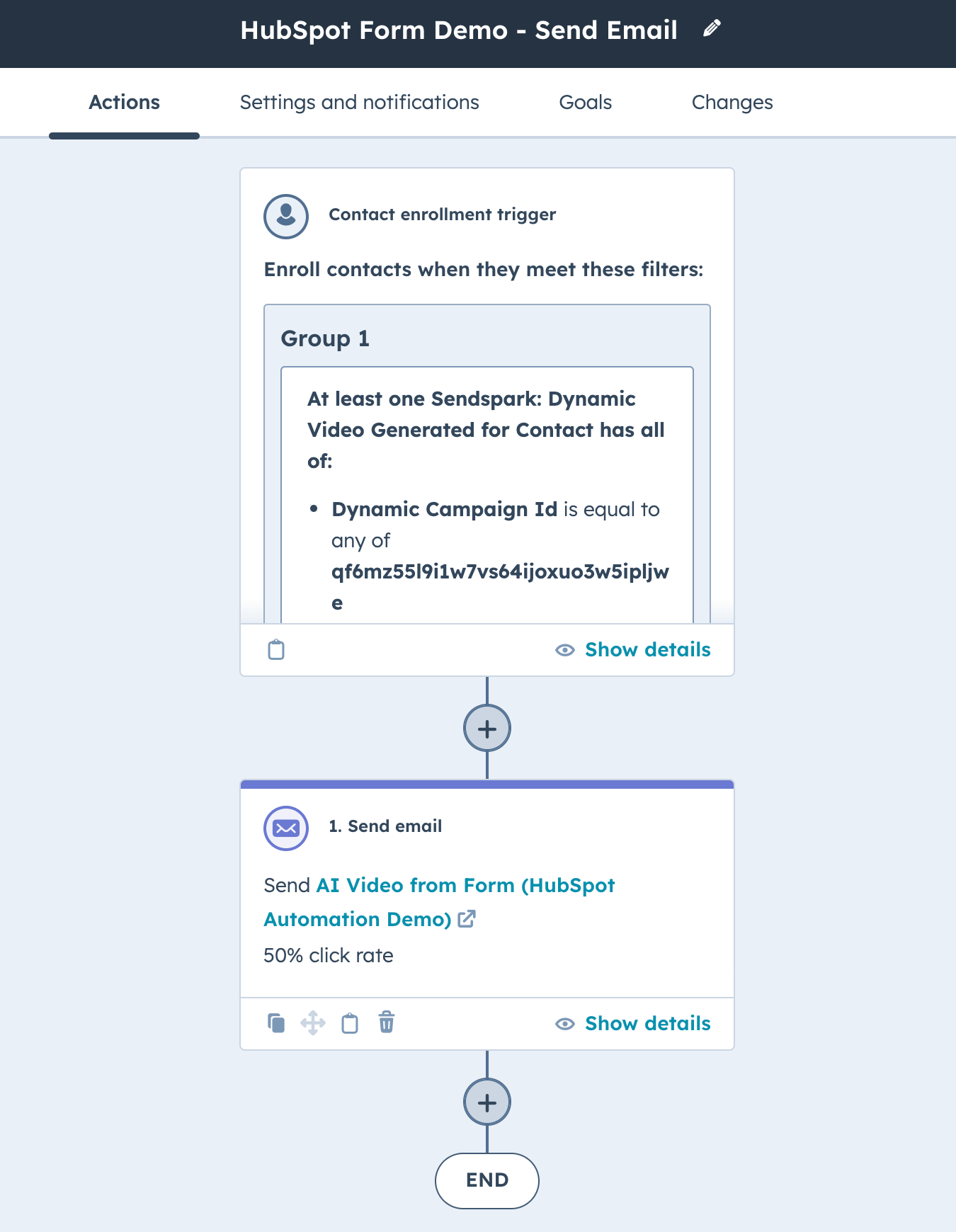 **1. Create a New Workflow**
Go into HubSpot and select Automation → Workflow. Create a new Workflow (from scratch). Make sure you are using a Contact-based Blank Workflow.
**1. Create a New Workflow**
Go into HubSpot and select Automation → Workflow. Create a new Workflow (from scratch). Make sure you are using a Contact-based Blank Workflow.
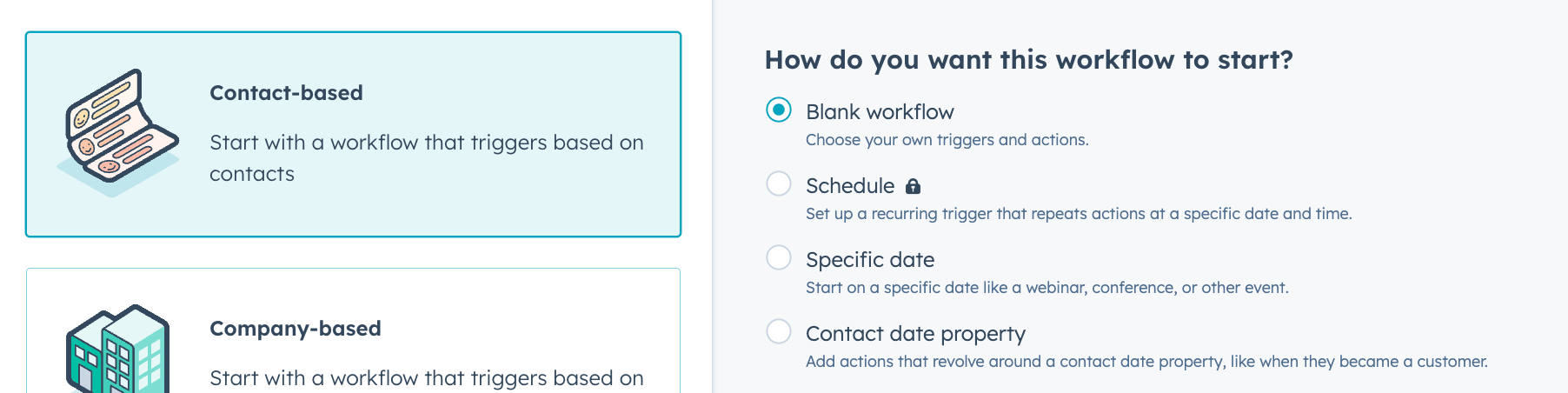 **2. Set Enrollment Trigger**
Click \*\*"Set up triggers"\*\*and then the second option, **"When filter criteria is met."**
**2. Set Enrollment Trigger**
Click \*\*"Set up triggers"\*\*and then the second option, **"When filter criteria is met."**
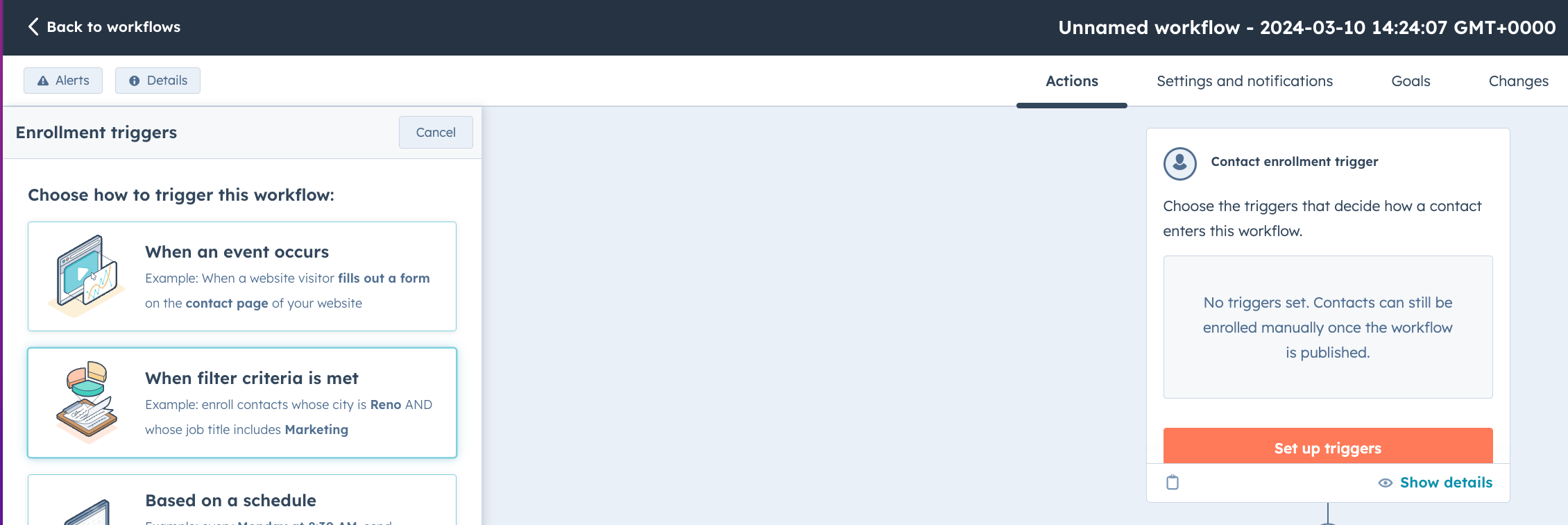 For your filter, use the **Sendspark app,** and select the property **"Dynamic Video Generated for Contact."**
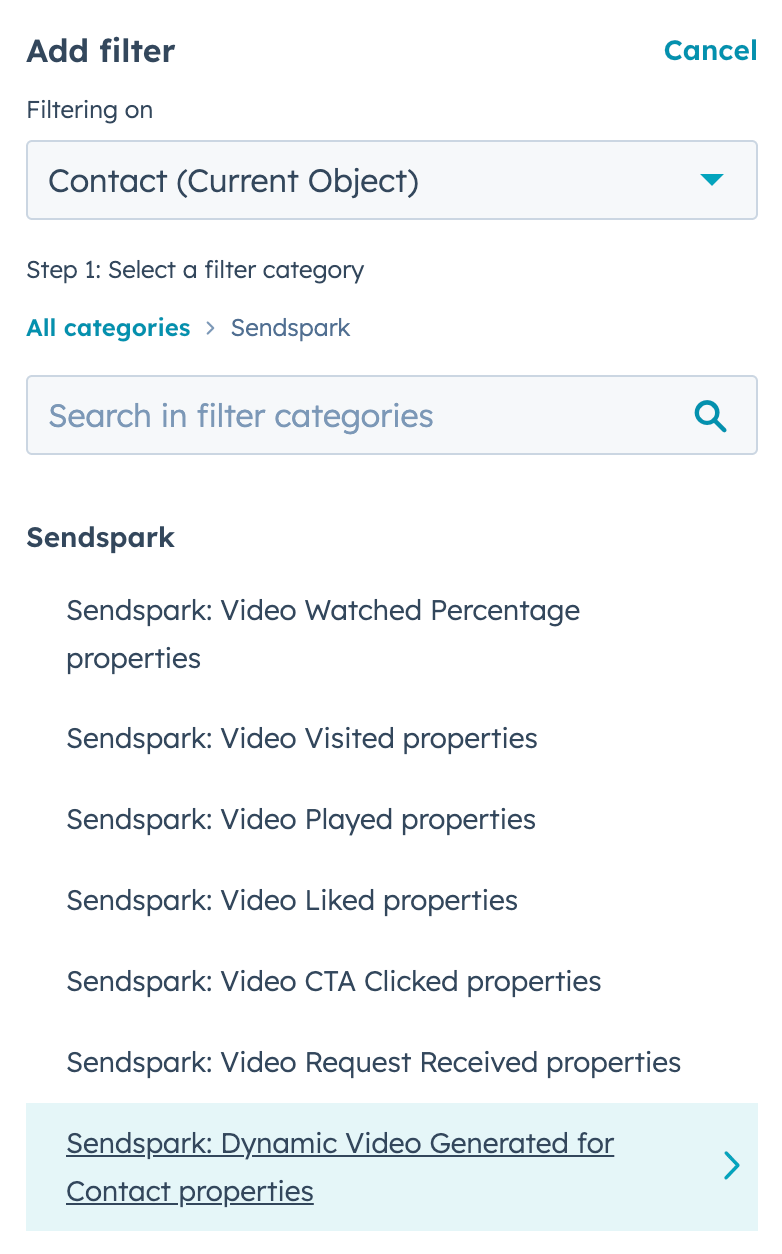 Note, if you don't see Sendspark here, you might need to i[nstall the Sendspark HubSpot App](https://app.hubspot.com/ecosystem/6058669/marketplace/apps/marketing/video/sendspark).
**3. Add Your Dynamic Video Campaign ID**
This means that whenever a dynamic video has been generated for a contact from this specific campaign, they'll be enrolled in this workflow
Note, if you don't see Sendspark here, you might need to i[nstall the Sendspark HubSpot App](https://app.hubspot.com/ecosystem/6058669/marketplace/apps/marketing/video/sendspark).
**3. Add Your Dynamic Video Campaign ID**
This means that whenever a dynamic video has been generated for a contact from this specific campaign, they'll be enrolled in this workflow
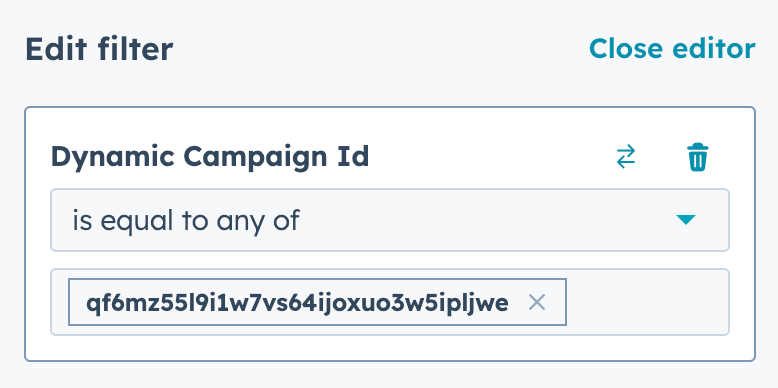 You can find this dynamic video campaign ID by looking at the URL on your Dynamic Video Campaign builder. It is between the 2 slashes at the end of the URL:
 **4. Add an action, "Send Email"**
Now, you'll select the email you want to send after dynamic videos have been generated for specific contacts in your HubSpot Workflow\..
**4. Add an action, "Send Email"**
Now, you'll select the email you want to send after dynamic videos have been generated for specific contacts in your HubSpot Workflow\..
 **5. In this email, use your HubSpot Marketing Hub video share snippet**
You can find this at the bottom of your dynamic video campaign builder:
* Scroll to the bottom
* Click **"Share Campaign"**
**5. In this email, use your HubSpot Marketing Hub video share snippet**
You can find this at the bottom of your dynamic video campaign builder:
* Scroll to the bottom
* Click **"Share Campaign"**  * Select "HubSpot Marketing Hub" to copy the share snippet to your clip board
 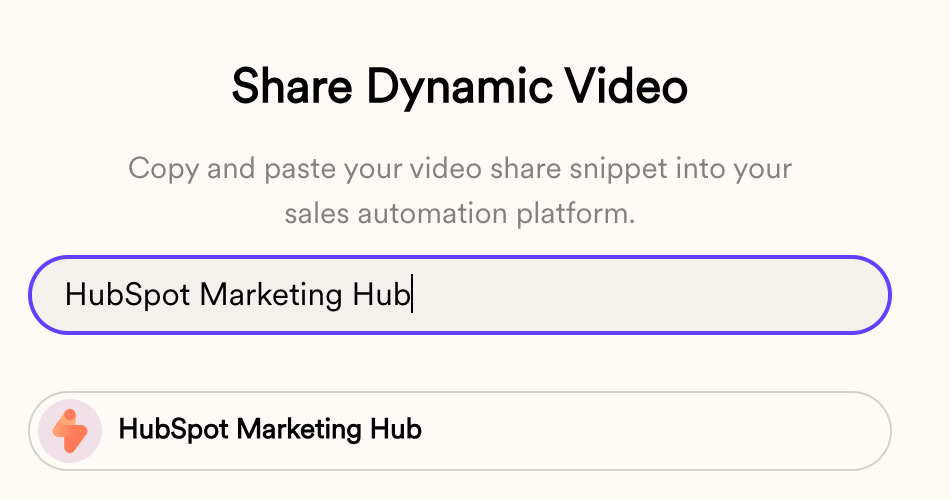 * In your HubSpot email, add an HTML block where you want your video to go
* Paste in your snippet
* In your HubSpot email, add an HTML block where you want your video to go
* Paste in your snippet
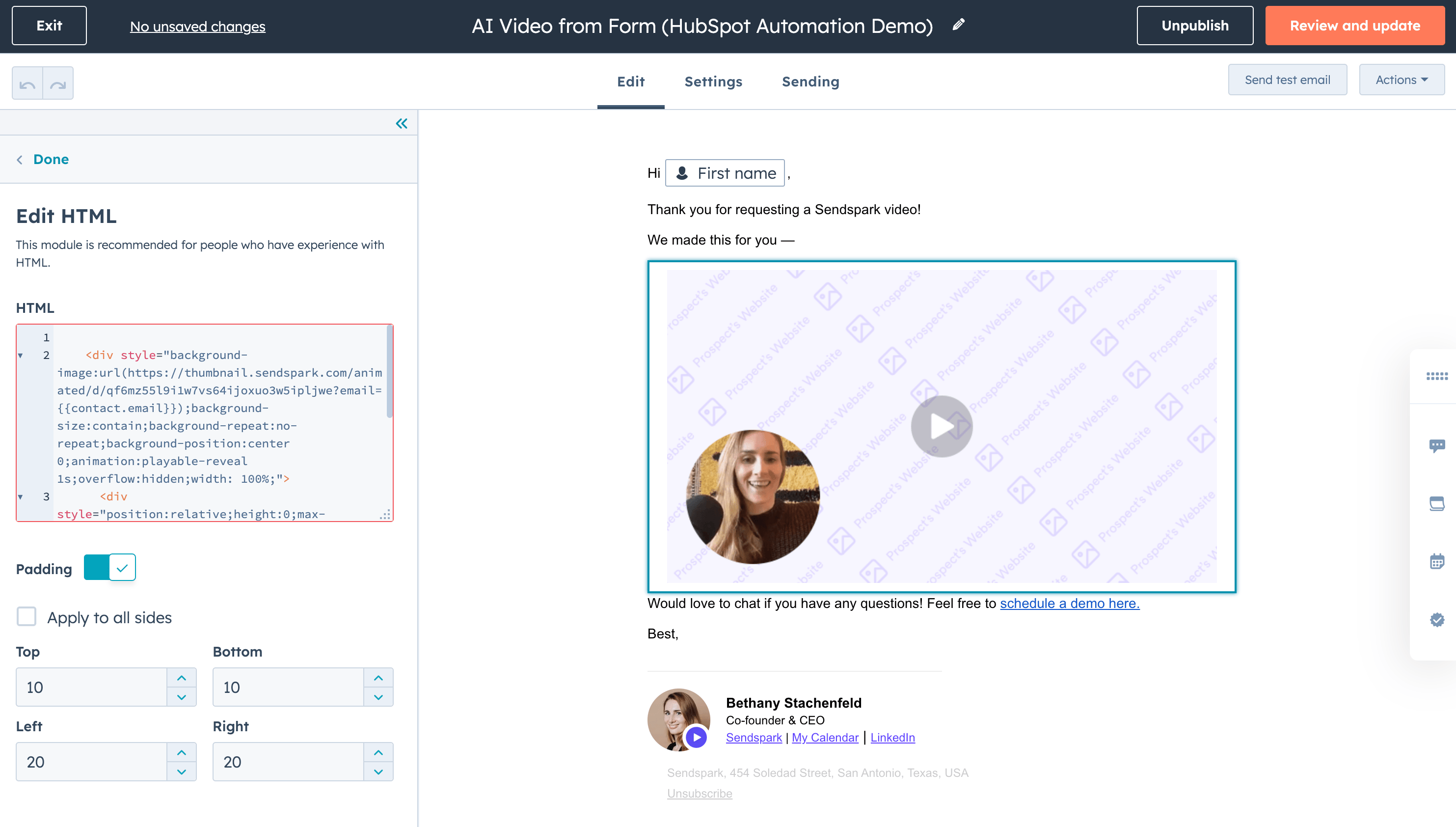 Now, whenever contacts are sent this email, they will get the dynamic video that's been generated for them.
**6. Turn on the workflow!**
That's it! Now when your contacts dynamic videos have generated, they will automatically receive a personalized video email made just for them.
***
## Frequently asked questions
Now, whenever contacts are sent this email, they will get the dynamic video that's been generated for them.
**6. Turn on the workflow!**
That's it! Now when your contacts dynamic videos have generated, they will automatically receive a personalized video email made just for them.
***
## Frequently asked questions